


Channel Sounding Demo#
The Channel Sounding demo showcases how to measure distances between a smartphone and a reflector using Bluetooth Channel Sounding. This feature enables precise distance and direction measurement between Bluetooth devices, improving accuracy compared to traditional RSSI-based methods.
The EFR32xG24 Development Kit functions as the Channel Sounding Reflector device, while the smartphone acts as the Channel Sounding Initiator. The initiator estimates the distance, and the estimated values are also available on the reflector side.
Users interact with the smartphone which functions as the CS Initiator, while the Channel Sounding Development Kit (BRD2606A board) operates as the CS Reflector (CS RFLCT). Once the setup is complete, the channel sounding operations can commence.
EFRxG24 Dev Kit Setup#
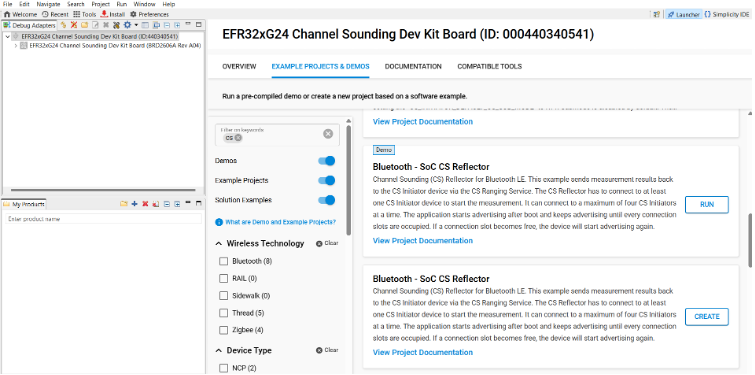
Connect a BRD2606A board to the PC/Laptop and open Simplicity Studio. Locate and create the Bluetooth – SoC CS Reflector example project. Before proceeding, follow the configuration steps in the README file included with the project. Once the configuration is complete, build the project.
Erase the board and flash the Bluetooth – SoC CS Reflector firmware from Simplicity Studio onto the Channel Sounding Development Kit (BRD2606A board).
Simplicity Connect Mobile App Setup#
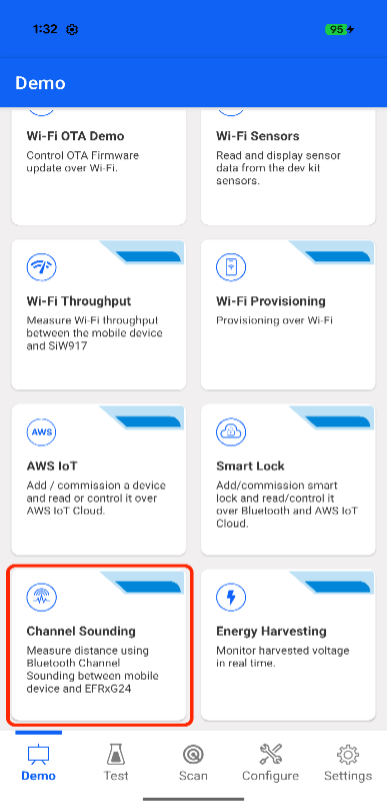
Open the Simplicity Connect mobile app on your smartphone, then tap the Demo icon in the navigation bar. Locate the “Channel Sounding” demo tile and tap it to start the demo.
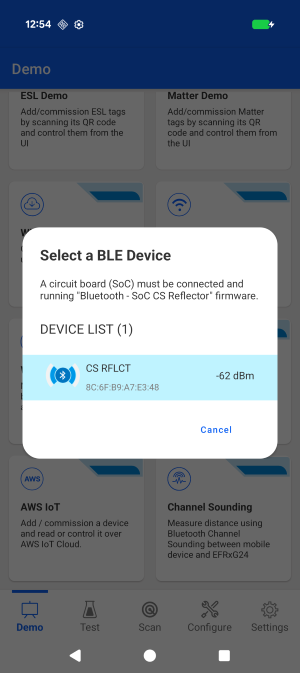
When the demo starts, a device selection window appears, allowing you to choose the device you want to connect to.
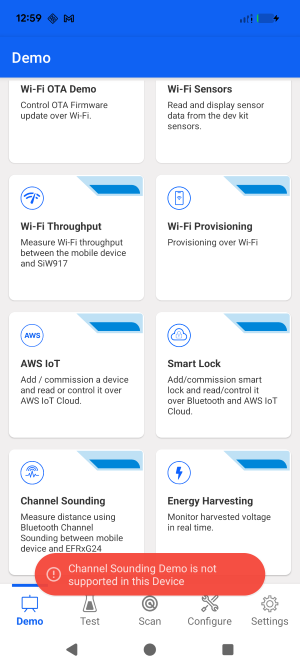
Note: If the smartphone (CS Initiator) does not support the Channel Sounding feature, an alert will be displayed when the you tap on the “Channel Sounding” demo.
Once the smartphone (CS Initiator) is connected to the Channel Sounding Reflector (CS RFLCT) device, you are redirected to the Channel Sounding home screen and the Bluetooth pairing sequence begins. When the you tap the Pair button in the pairing popup, the CS Reflector is successfully paired and bonded.
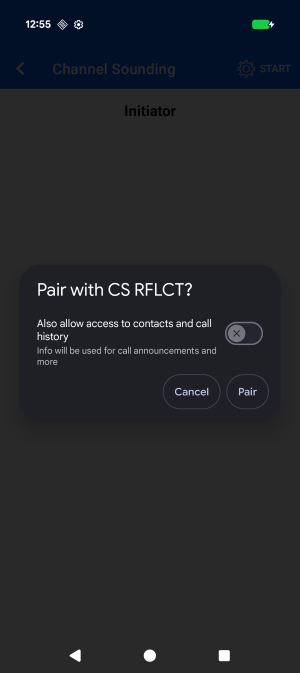
Once the CS Reflector starts sending distance information to the CS Initiator (smartphone), the phone will compute the distance and display on the screen.
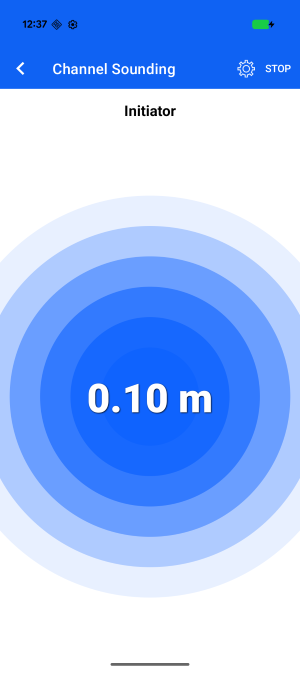
You can also Start/Stop the Channel Sounding operation on smartphones (CS Initiator) by pressing the Start/Stop button located on the top right corner of the app. You can change the configuration by pressing the setting icon present on the top right corner of the app. Below are the settings that can be changed.
Note: If the smartphone (CS Initiator) has already saved the Channel Sounding Reflector in the connected devices section, the app will prompt you with an alert message to remove it from the device settings.
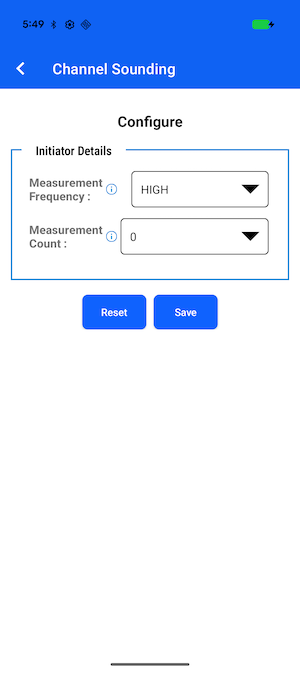
From the Configuration screen, you can change the following configurations:
Measure Frequency: Select the signal frequency range of BT Spectrum for channel sounding. The default option is "High".
Measurement Count: Specify the number of measurements to collect during sounding. The default option is “0”.
Clicking on the Reset button will restore the configuration to its default. After you select the required fields and click the Save button, the configuration is successfully saved. This configuration will continue to be used until you change it again.