


Simplicity Machine Learning#
Simplicity Machine Learning is a suite of tools to ease the deployment of machine learning models built with TensorFlow Lite for Microcontrollers on to Silicon Labs Devices. It is available as a GUI and a CLI. The GUI displays all the tools into one interface, whereas the CLI displays them as subcommands of the sml command.
Simplicity Machine Learning tool helps analyze and optimize TensorFlow Lite for Microcontrollers (.tflite) models on Silicon Labs devices. The tool provides layer-by-layer visibility into model execution. It helps to identify performance bottlenecks, evaluate memory and processing requirements, and understand execution trade-offs between the ARM Cortex-M CPU and the Matrix Vector Processor (MVP).
Additionally, the tool can also convert PyTorch (.pt, .pth) and ONNX (.onnx) models to TensorFlow Lite format.
.
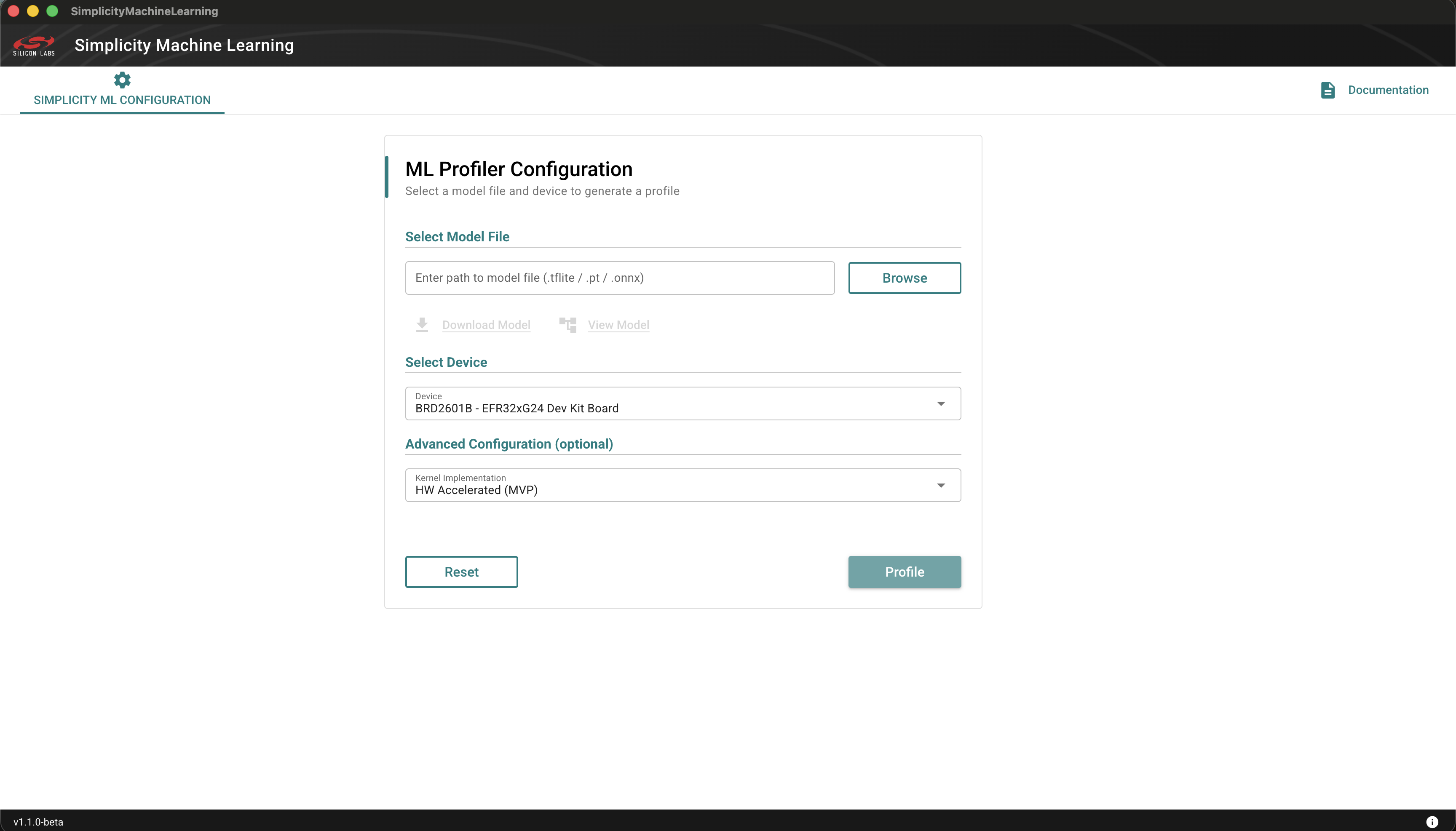
To get started, install the Simplicity Machine Learning tool by performing the following installation steps.
Installation#
Using Simplicity Installer#
Download Simplicity Installer using this link for your OS.
Install the Simplicity Installer.
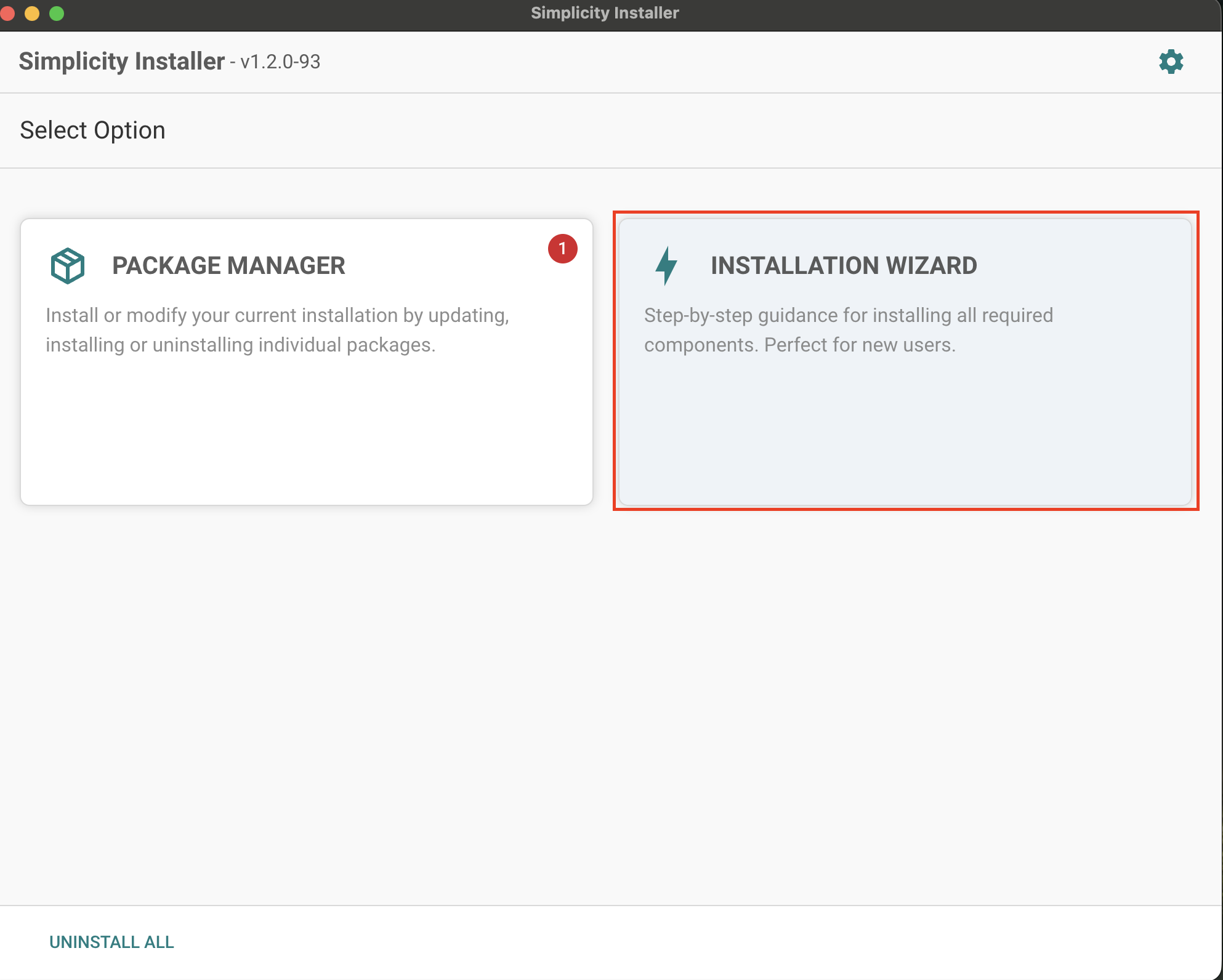
Open the Simplicity Installer and navigate to Installation Wizard.
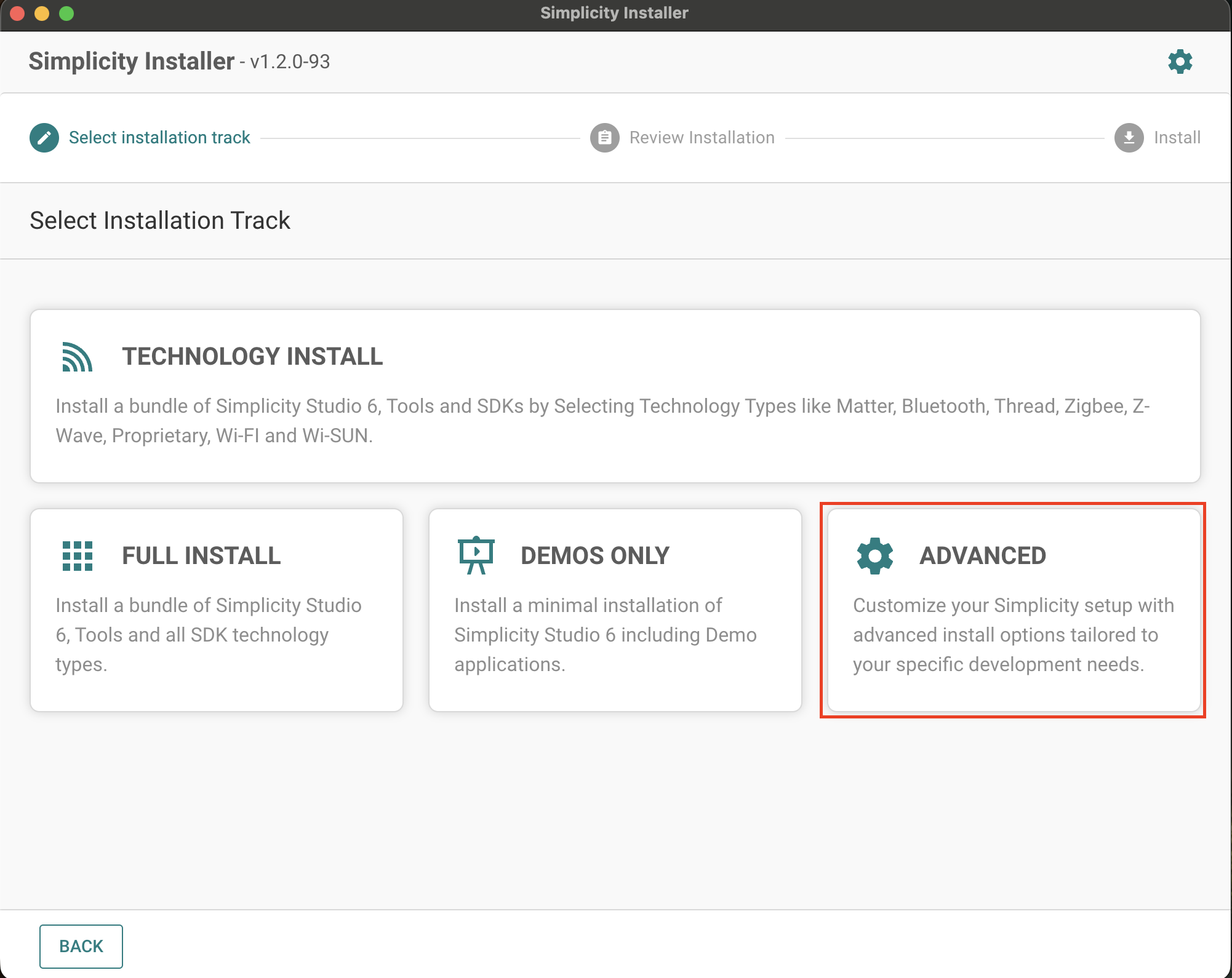
Click the Advanced tile.
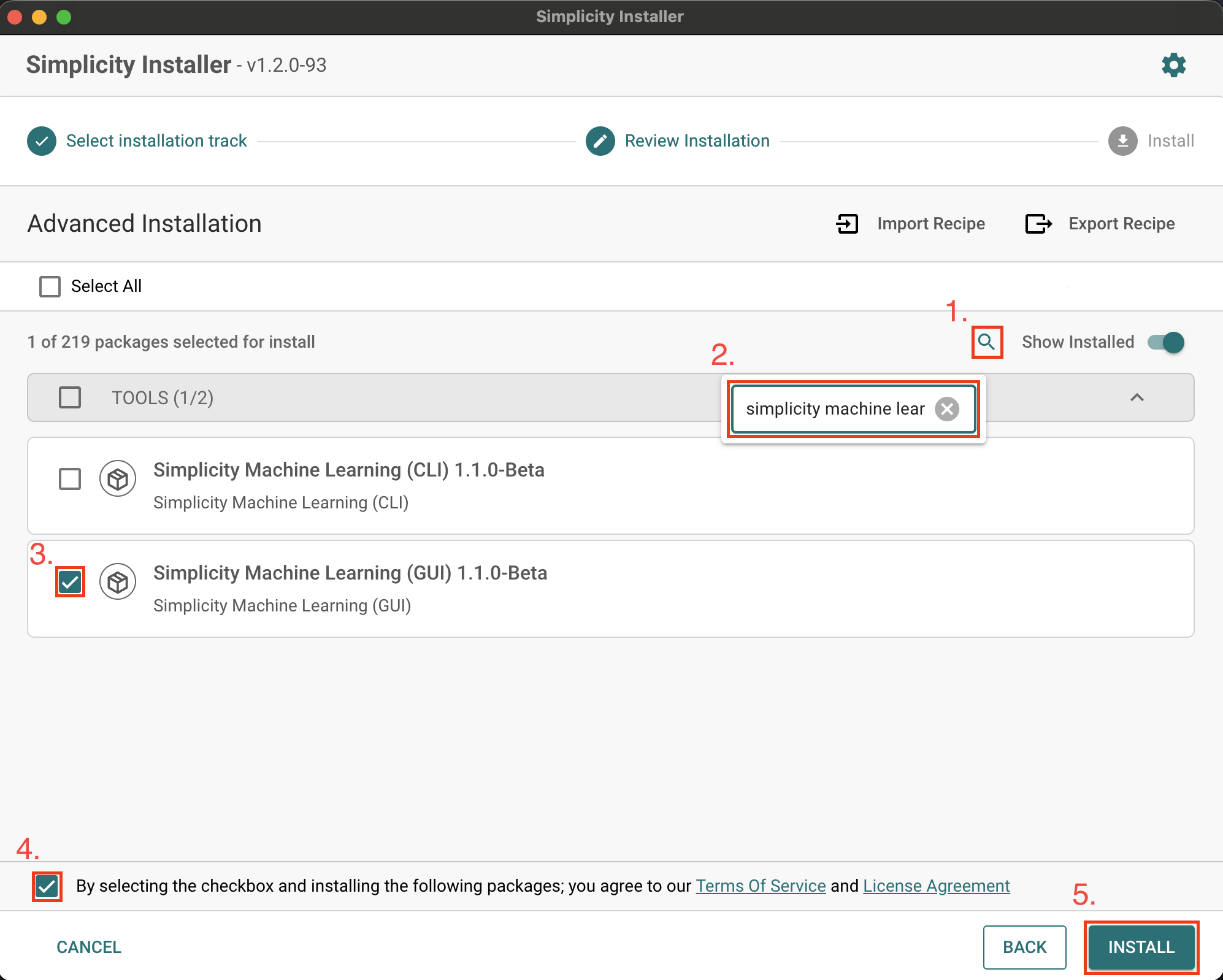
Search for Simplicity Machine Learning:
Click the search icon.
Type Simplicity Machine Learning in the search box.
Select the latest Simplicity Machine Learning GUI or CLI version by selecting the checkbox next to it. Versioning is based on semantic versioning.
Accept Terms of Service and License Agreement by selecting the checkbox at the bottom.
Click the Install button.
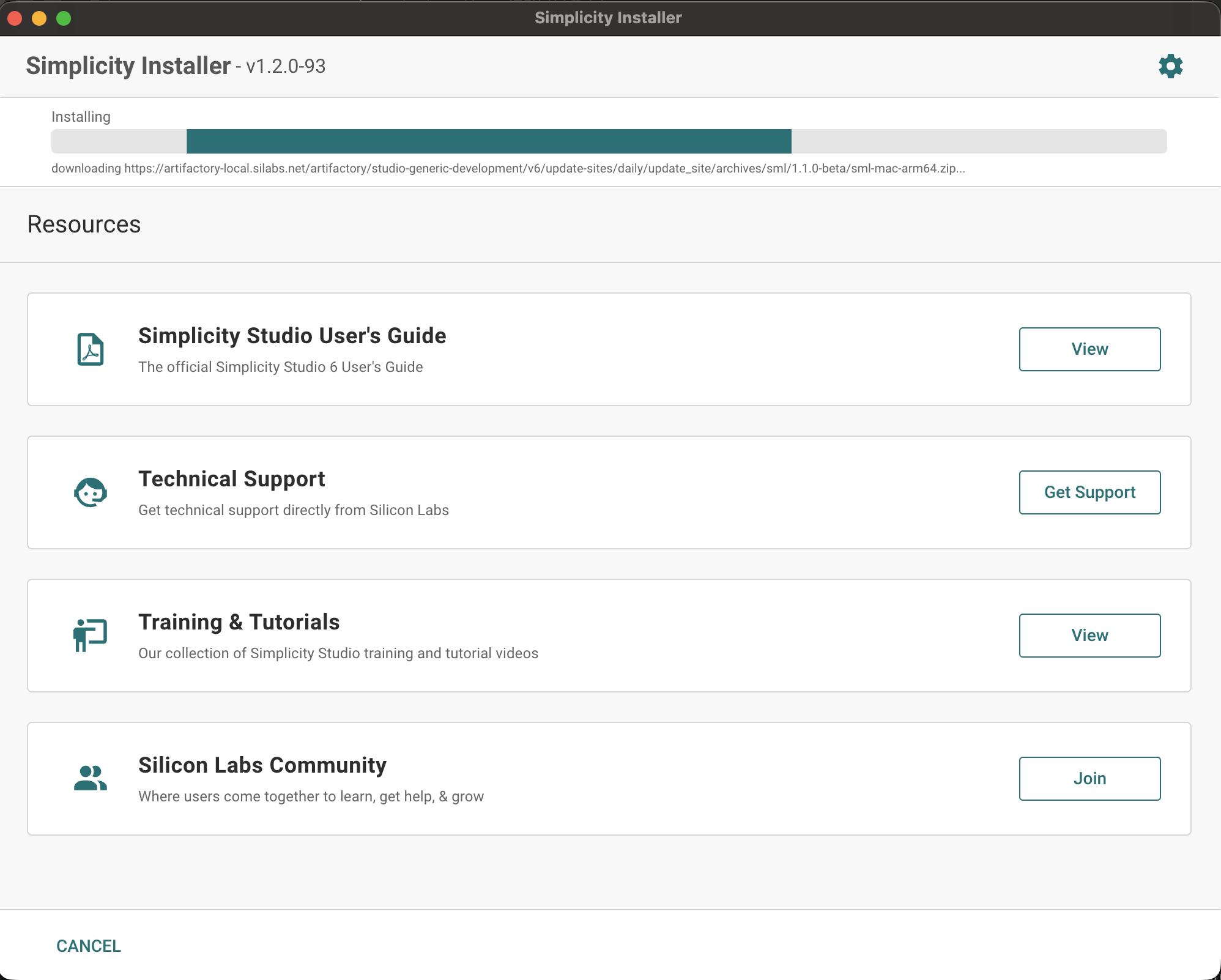
Installation should progress, as shown below.
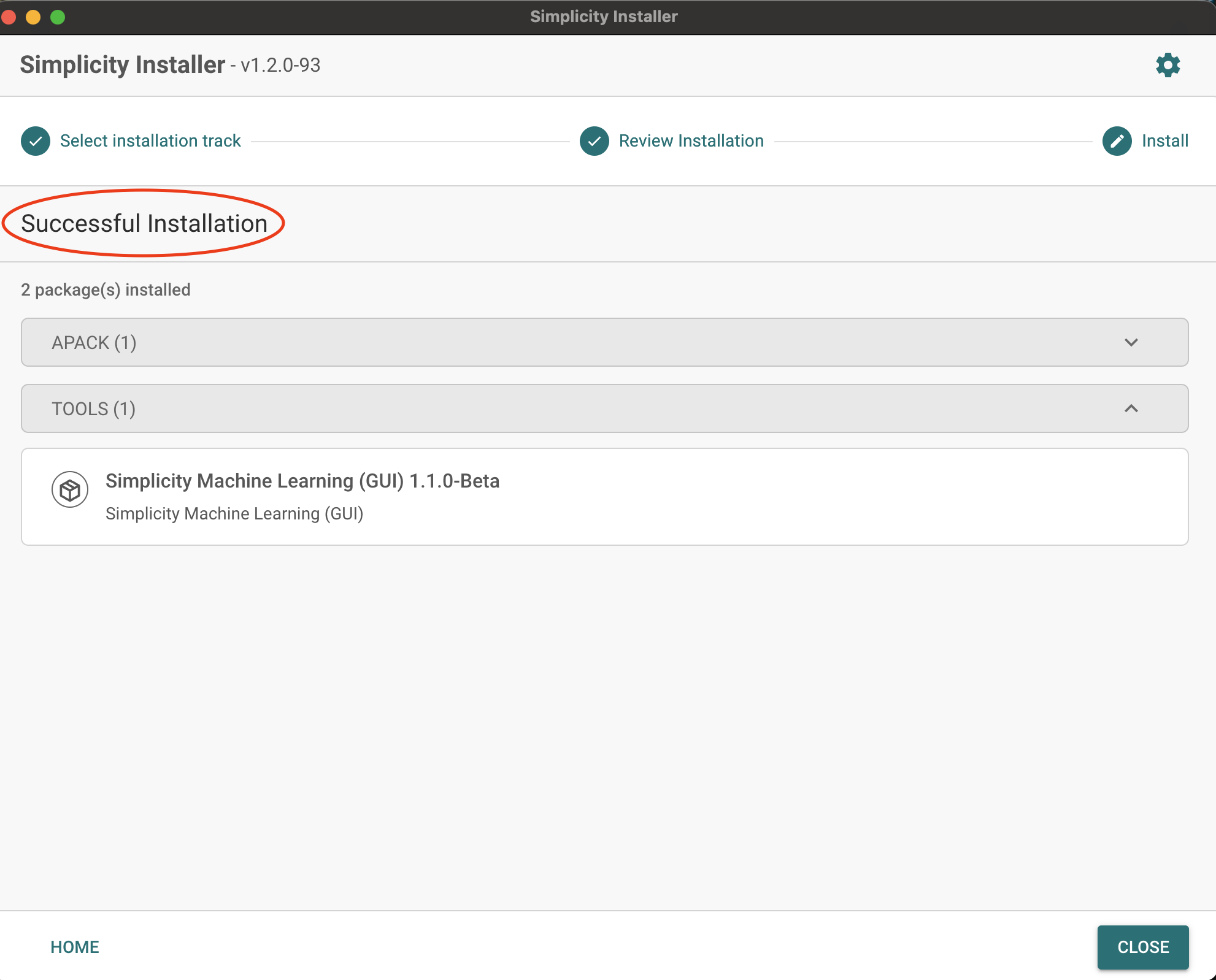
After a successful installation, the following screen is displayed.
If you installed the CLI version (
sml-cli), add its location to your "PATH" (or "Path" on Windows) environment variable. You can find the location usingslt where sml-cli.Verify the installed version:
sml --versionDisplayed version must be 1.1.0-beta or later.
Using SLT on the Command Line#
Download Silicon Labs Tool (SLT) using this link for your OS.
Unzip the downloaded zip file to your preferred location. Add this location to your PATH (or "Path" on Windows) environment variable so that
sltcommand is available globally.Install Simplicity Machine Learning using
slt install smlfor the GUI version orslt install sml-clifor the CLI version.If you installed the CLI, add its location to your
PATHif needed. You can find the location usingslt where sml-cli.Verify the installed version:
sml --versionThe reported version must be 1.1.0-beta or later.
Using the Tool#
For detailed instructions on how to use the tool, see Simplicity Machine Learning Guide