


Terminal Support#
The Simplicity Studio VS Code extension provides VCOM, SWO, and RTT terminals for a connected device. Each interface has different target-firmware and hardware requirements. Choose the interface that matches the communication method enabled by your application.
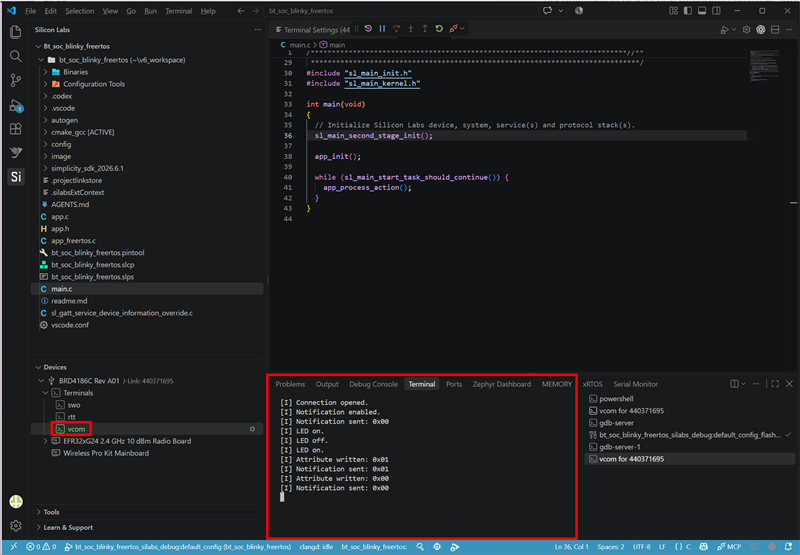
In the Simplicity Studio extension tab in VS Code, open the Devices view and expand the connected device. Then, expand Terminals and select VCOM, SWO, or RTT to open the corresponding terminal for the device. You do not need an active VS Code debug session to open a terminal.
To configure a terminal, right-click Terminals for that device and select Open terminal Settings. The Terminal Settings editor has separate VCOM Settings, SWO Settings, and RTT Settings pages. Settings apply to the selected device. When more than one adapter or serial connection is present, select the intended device in the Devices view before opening a terminal.
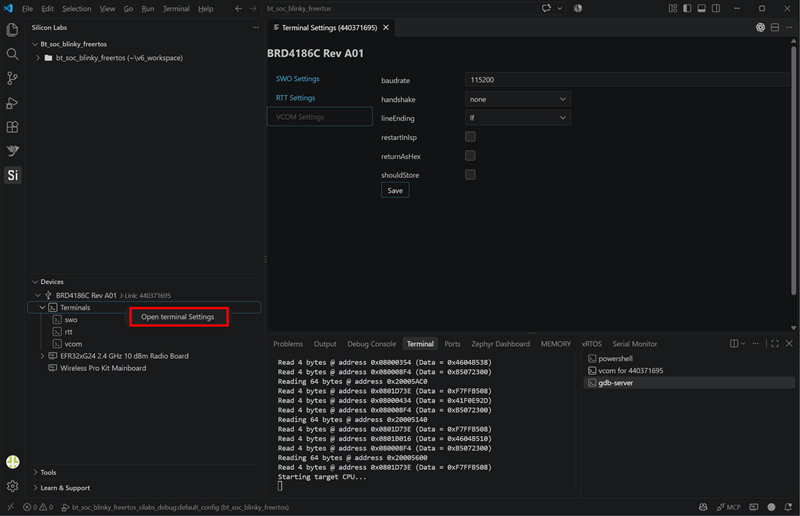
Before opening a terminal, make sure that the application is running and that it has initialized the selected interface. VCOM normally does not reset the target. SWO and RTT reset the target while initializing the connection by default. If resetting the application is not appropriate, select Do not reset in the corresponding terminal settings before opening SWO or RTT.
Interface | Direction | Use it when | Target requirements |
|---|---|---|---|
VCOM | Host to target and target to host | Your application has a UART console, command interface, or other serial protocol. | A UART peripheral, GPIO pin routing, and a supported development kit or debug adapter connection. |
SWO | Target to host | You need diagnostic messages or trace output from SWO/ITM. | An SWO/ITM-capable target and adapter, firmware initialization, and a routed SWO signal. |
RTT | Host to target and target to host | Firmware uses SEGGER RTT and a UART or separate communication pins are not available. | Initialized RTT buffers in target RAM and debug access to the target. |
VCOM#
VCOM provides serial communication between a target UART and the host through a supported development kit or debug adapter. It normally supports both received and transmitted data, making it suitable for application consoles, command interfaces, and general serial communication.
Make sure the adapter's baud rate and handshake settings match the target UART configuration. The available handshake options are none, rtscts, and aux. The default baud rate is 115200, and the default handshake is none. You can also configure line endings, hexadecimal display, persistent configuration, and restart-in-ISP options. For adapter-specific VCOM configuration details, see the Simplicity Commander VCOM reference.
Configure the application with matching UART settings, including the baud rate, flow control, and GPIO pin routing. VCOM uses a UART peripheral and its associated pins. After you establish the serial connection, the application does not normally require an active debugger.
Use VCOM when your application already provides a UART-based interface and you need bidirectional serial communication.
SWO#
SWO uses the Arm Cortex-M Serial Wire Output and ITM trace infrastructure to send diagnostic messages and trace data from the target to the host. Unlike a general serial interface, SWO does not provide a host-to-target communication channel.
Before using SWO, make sure the application initializes the required SWO/ITM output and that the target's SWO signal is routed to a compatible debug adapter. The configured SWO speed must also match the frequency used by the target application.
In SWO Settings, SWO speed defaults to 875000 Hz. You can also configure Do not reset, timeout, end-marker, and hexadecimal-display options. By default, opening an SWO terminal resets the target while initializing the connection. To prevent the reset, select Do not reset before opening the terminal.
SWO availability depends on the target, board routing, and debug adapter, and not every target supports it. For information about the underlying SWO connection options, see the Simplicity Commander SWO reference.
Choose SWO for one-way diagnostic or trace output when the hardware and firmware support SWO/ITM.
RTT#
RTT uses SEGGER Real Time Transfer buffers in target RAM and accesses them through the J-Link debug connection. It supports communication in both directions without using a UART peripheral or separate communication pins.
Before using RTT, make sure the firmware includes and initializes RTT support. In RTT Settings, you can select a virtual RTT terminal and the read and write buffer indices. You can also configure the RTT control-block address, timeout, and end marker. The default terminal and buffer indices are 0. By default, the control-block address is automatically discovered unless you specify it.
RTT requires debug access to the target memory. Low-energy modes or other conditions that prevent memory access can interrupt or prevent RTT communication. By default, opening an RTT terminal resets the target while initializing the connection. To prevent the reset, select Do not reset before opening the terminal.
If the firmware has not initialized RTT or the RTT control block cannot be found, verify the firmware configuration and make sure the target remains accessible through the debug connection. For information about the underlying RTT connection options, see the Simplicity Commander RTT reference.
Use RTT for bidirectional application communication when your firmware includes RTT support and you do not want to dedicate a UART and pins to the interface.
You can open only one terminal of each interface type for a selected device at a time. If you select an interface that is already open, VS Code reports Terminal already opened!.
Troubleshooting#
No device appears in the Devices view: Check the USB connection, and then select Refresh Device List. If multiple adapters are connected, expand the device with the intended adapter serial number or board.
VCOM opens but no output appears: Make sure the application is running and that the target UART and adapter use the same baud rate and flow-control settings. Verify that the UART pins are routed to the kit's VCOM connection. Close any other applications that might already have the serial port open.
SWO opens but no output appears: Make sure the target, board, and debug adapter support SWO and that the SWO signal is routed correctly. Verify that the application initializes ITM/SWO output and that SWO speed matches the application setting. If you configure a timeout, the terminal closes when the timeout expires without receiving SWO data.
RTT opens but no output appears: Make sure the firmware includes and initializes RTT and that the target remains accessible through the debug connection. If automatic discovery cannot find the RTT control block, the terminal reports that the control block could not be found. If you know the control-block address from the firmware build or debug information, configure it in the RTT settings.
The application restarts when opening RTT or SWO: This is the default connection behavior. If the target firmware supports connecting without a reset, select Do not reset before reopening the terminal.