


Tricks and Tips#
This section provides useful information when working with Simplicity Studio 6. This includes:
Gitignore example#
A .gitignore file might have this content:
autogen/
simplicity_sdk*/
.projectlinkstore
cmake_gcc/build/
*.cmake
CMakePresets.json
*.conf
.vscode/
artifacts/
trashed_modified_files/
*.md
*.pngUseful Paths#
Use the Simplicity Installer Package Manager to view installed packages and to update or uninstall them.
Packages are installed in the user's .silabs folder. They are categorized as either:
Archive packages – ZIP files used for Silicon Labs–produced tools.
Conan packages – Managed by the Conan package manager, typically used for third-party tools such as the GNU ARM toolchain, SDKs, and SDK extensions.
Archive packages are stored in the installs/archive folder, while Conan packages are stored in the installs/conan folder.
Use the following table to identify the default home directory on each platform.
In later sections of this document, replace the ~ character with the appropriate home directory path for your platform.
Platform | Default Home Directory |
|---|---|
Windows |
|
macOS |
|
Ubuntu |
|
Windows#
The following paths are useful when working in the Windows environment:
Root install path for Simplicity Studio 6 and standalone tools:
~\.silabsInstalled packages:
~\.silabs\slt\installs\archive~\.silabs\slt\installs\conanSimplicity Installer:
~\AppData\Local\Programs\SimplicityInstallerCommand line installer (slt.exe) installed with Simplicity Installer:
~\AppData\Local\Programs\SimplicityInstaller\resourcesSimplicity Commander
“~\.silabs\slt\installs\archive\Simplicity Commander\commander.exe”Default workspace:
~\SimplicityStudio\v6_workspaceVisual Studio Code “Simplicity Studio for VS Code”
The VS Code extension should be installed and uninstalled through the VS Code Marketplace, the path to it is provided as a convenience.
~\.vscode\extensions\silabs.siliconlabssupportextension-VERSION
MacOS#
The following paths are useful when working in the macOS environment:
Root install path for Simplicity Studio 6 and standalone tools
~/.silabsInstalled packages:
~/.silabs/slt/installs/archive~/.silabs/slt/installs/conanSimplicity Installer:
/Applications/SimplicityInstaller/appCommand line installer (slt.exe) installed with Simplicity Installer:
/Applications/SimplicityInstaller/app/Contents/Resources/sltSimplicity Commander
~/.silabs/slt/installs/archive/Commander.appCommand line version of Simplicity Commander:
~/.silabs/slt/installs/archive/Commander.app/Contents/MacOS/commanderDefault workspace:
~\SimplicityStudio\v6_workspaceVisual Studio Code “Simplicity Studio for VS Code”
The VS Code extension should be installed and uninstalled through the VS Code Marketplace, the path to it is provided as a convenience.
~/.vscode/extensions/silabs.siliconlabssupportextension-VERSION
Linux#
The following paths are useful when working in the Linux environment:
Root install path for Simplicity Studio 6 and standalone tools:
~/.silabsInstalled packages:
~/.silabs/slt/installs/archive~/.silabs/slt/installs/conanSimplicity Installer:
Located in the directory where the ZIP file was extracted.
Command-line installer (slt.exe) installed with Simplicity Installer:
SimplicityInstaller/Resources/sltSimplicity Commander
~/.silabs/slt/installs/archive/commander/commanderDefault workspace:
~\SimplicityStudio\v6_workspaceVisual Studio Code “Simplicity Studio for VS Code”
The VS Code extension should be installed and uninstalled through the VS Code Marketplace, the path to it is provided as a convenience.
~/.vscode/extensions/silabs.siliconlabssupportextension-VERSION
Conan Packages#
Conan packages are used for SDKs, SDK extensions, and third-party build tools such as gcc and cmake:
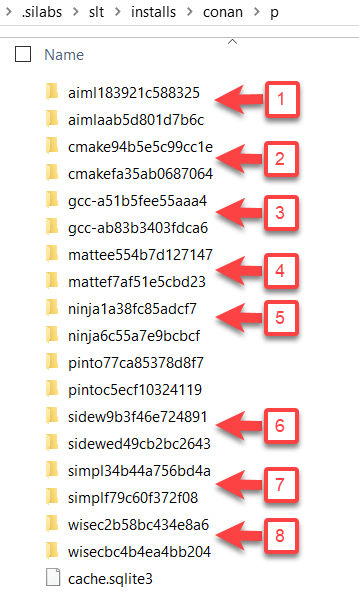
The previous figure shows the following packages:
AI/ML SDK extension
CMake
GCC toolchain
Matter SDK extension
Ninja
Amazon Sidewalk SDK extension
Simplicity SDK
WiSeConnect SDK extension