


Tricks and Tips#
This section provides useful information when working with Simplicity Studio 6. This includes:
Reporting an Issue#
Depending on your account type on silabs.com, you can either create a support case or post on the Community Forum to report an issue.
Before posting on the Community Forum, do the following:
Review recent threads.
Search to see if the issue has already been reported.
If the issue has been addressed, any available workarounds will be described in the thread—saving you time.
When creating a new Support Case or Forum Thread, do the following:
Describe the issue clearly.
Include the full text or screenshots of any error messages.
Depending on the type of error, attach relevant log files as described in following sections.
If you're unsure which files to include, include all of them.
Log Files#
This section describes how to find logs and the conditions under which each type is useful.
Use the following table to identify the default home directory on each platform.
Replace the ~ character in the log paths with the appropriate home directory path for your platform.
Platform | Default Home Directory |
|---|---|
Windows |
|
macOS |
|
Ubuntu |
|
Simplicity Installer (SLT) Logs#
Attach the following log files for install / uninstall related issues.
~\.silabs\slt\daemon\daemon.log~\.silabs\slt\slt.log~\.silabs\slt\installs\conan\sltconan.log~\.silabs\slt\logs\app_main.log
Simplicity Studio 6 Logs#
Attach the following log files for issues with Simplicity Studio or the configuration or analysis tools.
~\SimplicityStudio\v6_workspace\.metadata\*.txt~\.silabs\slt\installs\archive\v6-base-VERSION_NUMBER-BUILD_NUMBER\SimplicityStudio-6\configuration\log.txt
For example:
~\.silabs\slt\installs\archive\v6-base-v6.0.0-171\SimplicityStudio-6\configuration\log.txt
Project Configurator Logs#
~\.uc\uc.core.log
ZAP Logs#
~.\.zap\zap.log
Simplicity Device Manager (SDM) Logs#
Attach the following log files for issues detecting parts or otherwise working with debug adapters:
~\.silabs\sdm\sdm.log
~\.silabs\sdm\sdm-service.log*
Hardware Database Logs#
Attach the following log files for issues with parts not found or if the device filtering properties in Studio 6 are incorrect:
~\.silabs\hw-db-service\log.txt
~\.silabs\hw-db-service\sql.txt
VS Code Extension Logs#
Attach the following log file for any issues using the VS Code extension to edit, build, flash, or debug a project.
The VS Code extension log file location can be set with the Silabs: Logging Folder Path setting:
Windows:
~\AppData\Local\Temp\silabs_extension\vscode.logmacOS: Find the path to
vscode.logfrom the VS Code setting mentioned above.Linux:
/tmp/silabs_extension/vscode.log
Placing a Simplicity Studio 6 Project under Source Control#
The following table outlines the various files in a Studio 6 project and indicates whether each should be placed under source control.
File / Folder | Purpose | Place under source control? | Comments |
|---|---|---|---|
| Main project metadata configuration files. | Yes | |
| Contains shortcuts to highlighted source files or configuration tools. | No | The file will be recreated, and the available shortcuts are tailored to the individual user. |
| Contains configuration header files for the installed software components and subfolders for the Advanced Configurator (AC) files. For example, Bluetooth projects may include a | Yes | These files cannot be regenerated; their contents are not stored in the project configuration files (e.g., |
| Contains files generated by the Project Configurator based on the installed software components and the files in the | Depends on team workflow. If CI builds are performed without Simplicity Studio or slc, these files should be source controlled. | |
simplicity_sdk_x.y.z | Necessary SDK source files created by the Project Configurator based on the installed components. Recreated during project generation. | Same as | Files can either be links to actual files in the SDK or copies of the files from the SDK, depending on the import mode of the project. |
| VS Code extension integration files. Provide VS Code with tool version and basic project configuration information. Recreated during project generation. | Same as | |
| Files generated by the VS Code extension during a build. The | No | |
| Folder and files created during Project Configurator generation. | Most files are regenerated and should not be modified. | For information wabout which CMake files you can make changes to, see Additional Information about CMake Files. |
Build output folders under the | Created when the project is built. | No (unless binary files are required for production). | |
| Files created by the post-build generator | No (unless binary files are required for production). | |
| Project documentation files | No | These files can be updated to share project information. Updated versions should be source controlled. |
| Contains configuration files that were modified from default values before the component was removed by user action or an SDK upgrade. | No (unless the user wants to be able to roll back changes independently of source control). |
Gitignore example#
A .gitignore file might have this content:
autogen/
simplicity_sdk*/
.projectlinkstore
cmake_gcc/build/
*.cmake
CMakePresets.json
*.conf
.vscode/
artifact/
trashed_modified_files/
*.md
*.png
Useful Paths#
Use the Simplicity Installer Package Manager to view installed packages and to update or uninstall them.
Packages are installed in the user's .silabs folder. They are categorized as either:
Archive packages – ZIP files used for Silicon Labs–produced tools.
Conan packages – Managed by the Conan package manager, typically used for third-party tools such as the GNU ARM toolchain, SDKs, and SDK extensions.
Archive packages are stored in the installs/archive folder, while Conan packages are stored in the installs/conan folder.
Use the following table to identify the default home directory on each platform.
In later sections of this document, replace the ~ character with the appropriate home directory path for your platform.
Platform | Default Home Directory |
|---|---|
Windows |
|
macOS |
|
Ubuntu |
|
Windows#
The following paths are useful when working in the Windows environment:
Root install path for Simplicity Studio 6 and standalone tools:
~\.silabsInstalled packages:
~\.silabs\slt\installs\archive~\.silabs\slt\installs\conanSimplicity Installer:
~\AppData\Local\Programs\SimplicityInstallerCommand line installer (slt.exe) installed with Simplicity Installer:
~\AppData\Local\Programs\SimplicityInstaller\resourcesSimplicity Commander
“~\.silabs\slt\installs\archive\Simplicity Commander\commander.exe”Default workspace:
~\SimplicityStudio\v6_workspaceVisual Studio Code “Simplicity Studio for VS Code”
The VS Code extension should be installed and uninstalled through the VS Code Marketplace, the path to it is provided as a convenience.
~\.vscode\extensions\silabs.siliconlabssupportextension-VERSION
MacOS#
The following paths are useful when working in the macOS environment:
Root install path for Simplicity Studio 6 and standalone tools
~/.silabsInstalled packages:
~/.silabs/slt/installs/archive~/.silabs/slt/installs/conanSimplicity Installer:
/Applications/SimplicityInstaller/appCommand line installer (slt.exe) installed with Simplicity Installer:
/Applications/SimplicityInstaller/app/Contents/Resources/sltSimplicity Commander
~/.silabs/slt/installs/archive/Commander.appCommand line version of Simplicity Commander:
~/.silabs/slt/installs/archive/Commander.app/Contents/MacOS/commanderDefault workspace:
~\SimplicityStudio\v6_workspaceVisual Studio Code “Simplicity Studio for VS Code”
The VS Code extension should be installed and uninstalled through the VS Code Marketplace, the path to it is provided as a convenience.
~/.vscode/extensions/silabs.siliconlabssupportextension-VERSION
Linux#
The following paths are useful when working in the Linux environment:
Root install path for Simplicity Studio 6 and standalone tools:
~/.silabsInstalled packages:
~/.silabs/slt/installs/archive~/.silabs/slt/installs/conanSimplicity Installer:
Located in the directory where the ZIP file was extracted.
Command-line installer (slt.exe) installed with Simplicity Installer:
SimplicityInstaller/Resources/sltSimplicity Commander
~/.silabs/slt/installs/archive/commander/commanderDefault workspace:
~\SimplicityStudio\v6_workspaceVisual Studio Code “Simplicity Studio for VS Code”
The VS Code extension should be installed and uninstalled through the VS Code Marketplace, the path to it is provided as a convenience.
~/.vscode/extensions/silabs.siliconlabssupportextension-VERSION
Conan Packages#
Conan packages are used for SDKs, SDK extensions, and third-party build tools such as gcc and cmake:
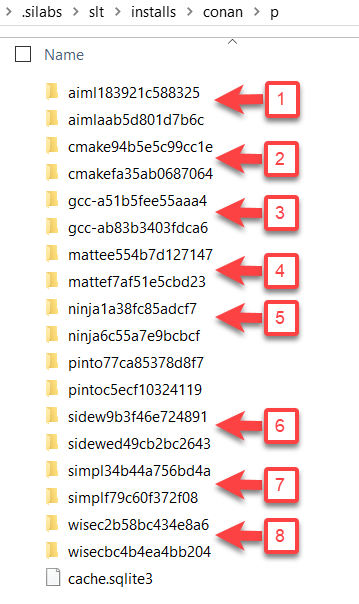
The previous figure shows the following packages:
AI/ML SDK extension
CMake
GCC toolchain
Matter SDK extension
Ninja
Amazon Sidewalk SDK extension
Simplicity SDK
WiSeConnect SDK extension
Managing toolchain.cmake#
This section provides additional details about using source control with CMake files.
PROJECTNAME.cmake and CMakePresets.json: These files should not be source-controlled because they are regenerated during project generation.
CMakeLists.txt: The
CMakeLists.txtfile is special in that users can—and should—make additions for source files, symbols, and settings they add to the project. If users make such changes, the file should be under source control. By default, include paths, symbols and compiler flags are applied only to added source files, not to the original project source files or software development kit (SDK) files. If these settings need to apply to the original project source files in the project root or to SDK files, use a text editor to add them to the project’s.slcpfile. They will then be included in thePROJECTNAME.cmakefile.toolchain.cmake: This file is also special in that it is not updated by the project generator, so it is safe to modify. This file is important for portability between developers using different computers and operating systems. For maximum portability, all users should place the path to the
sltcommand line tool on their system path. If this is done,sltis used to locate the tool paths referenced in this file. See Useful Paths for the location ofslt.
If the slt path is not added to the system path, each user can define the environment variables ARM_GCC_DIR, POST_BUILD_EXE, and NINJA_EXE_PATH to maintain portability. Starting with the Simplicity Studio 6.1 release, the generated toolchain.cmake file is portable between users on the same operating system because environment variables are used to locate tools. As an alternative, users on different operating systems can merge their toolchain.cmake files to achieve portability across all supported operating systems.
Configuring Simplicity Studio 6 for Corporate Network Certificate Inspection#
On Windows computers, if Simplicity Studio 6 hangs on the splash screen, it is often due to company network man-in-the-middle (MITM) security certificate inspection. In this case, Simplicity Studio 6 must be adjusted to work with this network configuration.
Exit Simplicity Studio and wait approximately 10 seconds to ensure that the sts_back_end.exe process has stopped. Then, open the sts_back_end.ini file in a text editor. This file is located in the Simplicity Studio installation directory:
C:\Users\USERNAME.silabs\slt\installs\archive\v6-base-v6.1.0-171\SimplicityStudio-6\sts_back_endAdd the following lines to the end of the file, then save it:
-Djavax.net.ssl.trustStore=NUL
-Djavax.net.ssl.trustStoreType=Windows-ROOT
After saving the file, restart Simplicity Studio 6 and verify that it starts correctly.