


Wi-SUN FAN 1.1 Node Certification#
Introduction#
This page provides a guide to help certify Silicon Labs devices for Wi-SUN FAN 1.1.
For details about the certification process itself, see the Wi-SUN Alliance Certification Process page.
Silicon Labs recommended versions for certification:
FAN 1.1 | FAN 1.0 | |
|---|---|---|
Stack Version | 2.8.0 or later | 2.10.0 or later |
Linux Border Router Tag | v2.7.1 or later | v2.7.1 or later |
Wi-SUN FAN 1.1 nodes must be certified as FAN 1.1 Core, with optional certification features for High Performance (HP) and Low Energy (LE) (LE certification not yet available).
FAN 1.1 Core (FAN 1.0+): Addition of the FFN-wide, PAN-wide Information Elements.
FAN 1.1 Core
BR
R
LFN
PAN-wide IE
M
M
-
MAC-Command Mode Switch
O
O
-
PHY Mode Switch
O
O
-
LFN Parenting
-
-
-
LFN features
-
-
-
FSK
M*
M*
-
OFDM
-
-
-
FAN 1.1 Core + HP: Adds SUN-OFDM PHYs and PHY Mode Switch.
FAN 1.1 Core + HP
BR
R
LFN
PAN-wide IE
M
M
-
MAC-Command Mode Switch
O
O
-
PHY Mode Switch
M
M
-
LFN Parenting
-
-
-
LFN features
-
-
-
FSK
M*
M*
-
OFDM
M*
M*
-
FAN 1.1 Core + LE: Introduces Limited Function Nodes (LFNs). Border Routers and Routers must support LFN parenting. LFNs act as leaf nodes only and cannot serve as routers.
FAN 1.1 Core + HP
BR
R
LFN
PAN-wide IE
M
M
O
MAC-Command Mode Switch
O
O
O
PHY Mode Switch
O
O
O
LFN Parenting
M
M
-
LFN features
-
-
M
FSK
M*
M*
M*
OFDM
O
O
O
* At least the mandatory data rate modes
Certification Test Configuration#
Wi-SUN Alliance define several settings for certification test DUT (Device under test):
Keys and certificates
Network Name
Network Size
PHY settings: Depending on the test, the DUT must adapt its configuration to match one of the channel plans according to the tested region.
Channel Plan 0 Fixed Channel
Region | Operating Class | FSK Operating Mode | Channel |
|---|---|---|---|
NA | 1 | 1b | 10 |
BZ | 1 | 1b | 10 |
JP | 2 | 2b | 10 |
Channel Plan 0 DH1CF
Region | Operating Class | FSK Operating Mode |
|---|---|---|
NA | 2 | 3 |
BZ | 2 | 3 |
JP | 2 | 2b |
Channel Plan 2 Fixed Channel
Region | Channel Plan ID | PHYModeID | Channel |
|---|---|---|---|
NA | 1 | 2 (FSK 1b) | 10 |
BZ | 1 | 2 (FSK 1b) | 10 |
JP | 22 | 4 (FSK 2b) | 10 |
Channel Plan 2 DH1CF
Region | Channel Plan ID | PHYModeID |
|---|---|---|
NA | 2 | 5 (FSK 3) |
BZ | 2 | 5 (FSK 3) |
JP | 22 | 4 (FSK 2b) |
Channel Plan HP Mode Switch: (optional only for High Performance (HP))
Region | Mode | Base PhyModeID | Base ChanPlanID | Base Channel | Switched PhyModeID | Switched ChanPlanID | Switched Channel |
|---|---|---|---|---|---|---|---|
NA | FSK-FSK | 2 (FSK 1b) | 1 | 24 | 5 (FSK 3) | 2 | 12 |
BZ | FSK-FSK | 2 (FSK 1b) | 1 | 12 | 5 (FSK 3) | 2 | 5 |
NA | FSK-OFDM | 2 (FSK 1b) | 1 | 24 | 38 (OFDM Option 1 MCS 6) | 5 | 3 |
JP | FSK-OFDM | 4 (FSK 2b) | 22 | 4 | 86 (OFDM Option 4 MCS 6) | 21 | 10 |
BZ | FSK-OFDM | 2 (FSK 1b) | 1 | 12 | 38 (OFDM Option 1 MCS 6) | 5 | 0 |
NA | OFDM-OFDM | 86 (OFDM Option 4 MCS 6) | 1 | 7 | 84 (OFDM Option 4 MCS 4) | 1 | 7 |
JP | OFDM-OFDM | 86 (OFDM Option 4 MCS 6) | 21 | 9 | 84 (OFDM Option 4 MCS 4) | 21 | 9 |
BZ | OFDM-OFDM | 86 (OFDM Option 4 MCS 6) | 1 | 7 | 84 (OFDM Option 4 MCS 4) | 1 | 7 |
Router Certification#
Installing Wi-SUN FAN Certification Component#
To help certify your product, the Wi-SUN FAN Certification component can only be used with the Wi-SUN - CLI example, which sets up the Wi-SUN Alliance certification configuration.
Follow these steps to add the Wi-SUN FAN Certification component to your application:
Open Simplicity Studio 5 and choose your board in Debug Adapter.
In the Launcher perspective, click EXAMPLE AND PROJECT.
Filter by Wi-SUN under Wireless Technology and create the Wi-SUN - CLI example app.
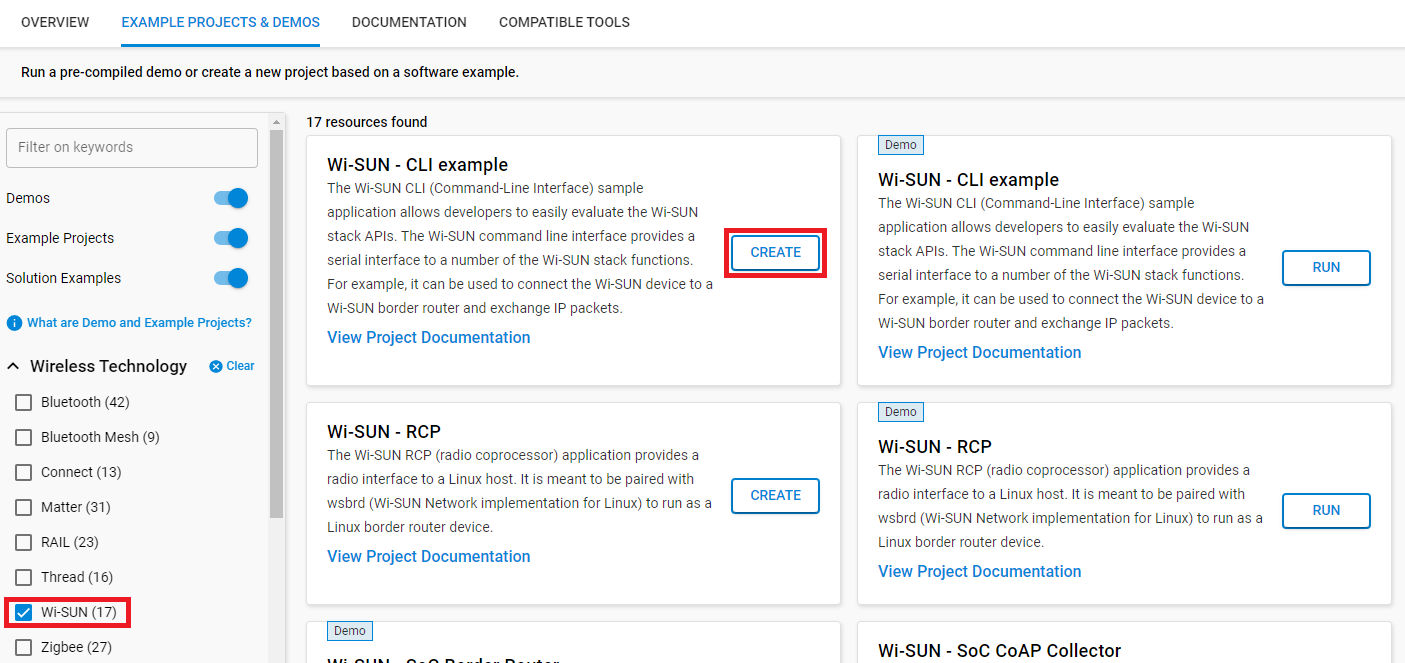
After creating the project, open wisun_soc_cli.slcp and click Software Component.
Enter wisun in the search bar to filter the components and install the Wi-SUN FAN Certification component.
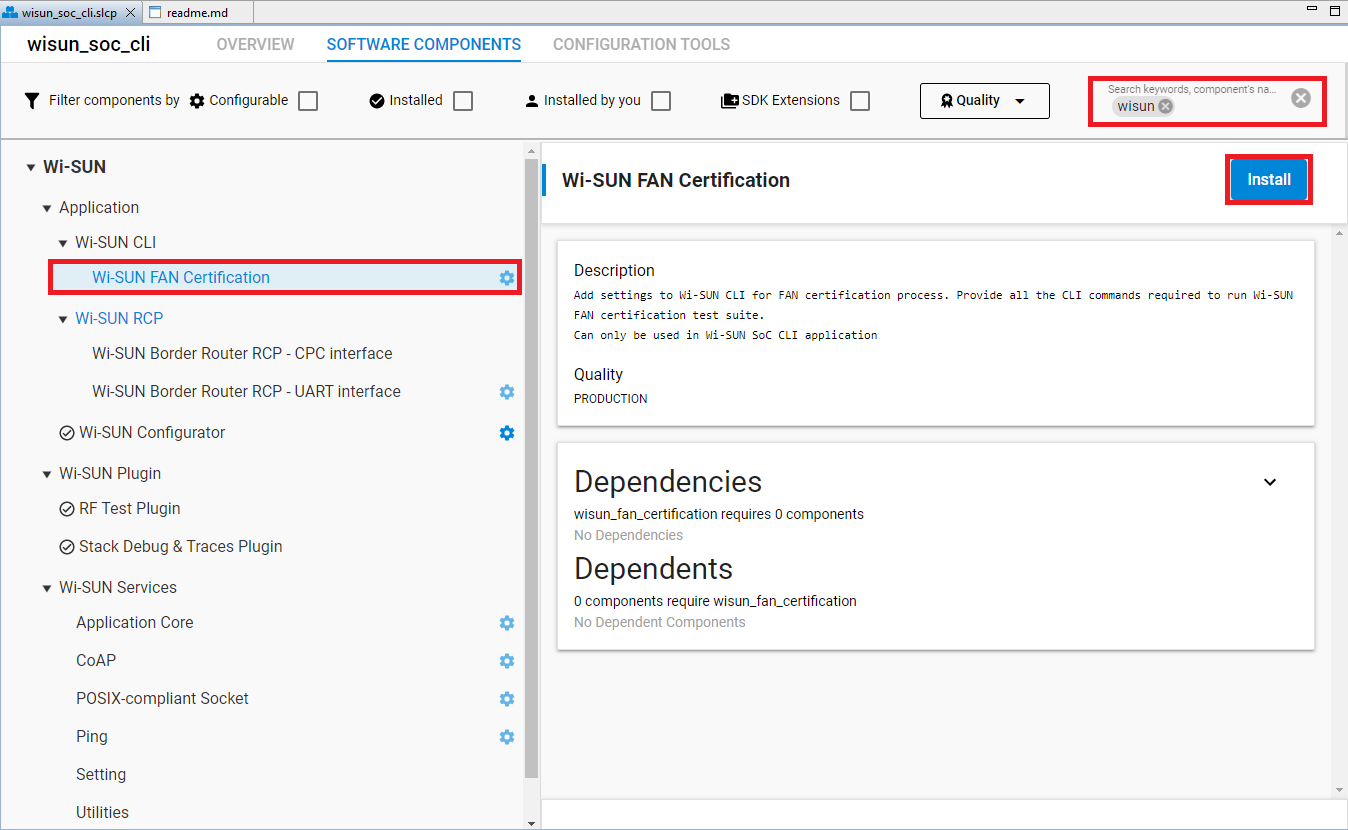
Build the project and flash it to the board.
Add PHY with Wi-SUN Configurator#
Depending on the tested region and the optional certification features, the DUT must support different PHY settings as described in the channel plans in Certification Test Configuration.
To switch between PHY settings, they must first be added in the Wi-SUN Configurator.
Changing the Connection Settings and Run Tests#
The Wi-SUN Conformance Tests specification defines tests to pass the Wi-SUN FAN 1.1 Certification, and describes the required settings for each test.
The Wi-SUN FAN Certification component sets by default the network name, network size, keys and certificates compatible with test bed. Some settings change between tests like PHY settings. Review the advice below to modify settings and join network as router.
Before each test:
Ensure DUT is disconnected:
> wisun disconnectReset previous configuration:
> wisun resetClear DUT’s cache memory:
> wisun cccSet the DUT’s settings as described in the test, for example:
> wisun set wisun.network_name "WiSUN PAN"
> wisun set wisun.keychain_index 0
By default, the component installs Wi-SUN Alliance Test certificates but for test case 6.4.2 SEC-TLS-TERMINATE-2, select the Silabs Certificate Chain with:
> wisun set wisun.keychain_index 1
Set DUT’s PHY settings as described in the test and join:
For a test requiring Channel Plan 0 Fixed Channel and DUT testing NA regulatory:
> wisun set wisun.regulatory_domain NA
> wisun set wisun.operating_class 1
> wisun set wisun.operating_mode 0x1b
> wisun set wisun.allowed_channels "10"
> wisun join_fan10
For a test requiring Channel Plan 0 DH1CF and DUT testing BZ regulatory:
> wisun set wisun.regulatory_domain BZ
> wisun set wisun.operating_class 2
> wisun set wisun.operating_mode 0x3
> wisun set wisun.allowed_channels "0-255"
> wisun join_fan10
For a test requiring Channel Plan 2 Fixed Channel and DUT testing NA regulatory:
> wisun set wisun.regulatory_domain NA
> wisun set wisun.chan_plan_id 0x1
> wisun set wisun.phy_mode_id 2
> wisun set wisun.allowed_channels "10"
> wisun join_fan11
For a test requiring Channel Plan 2 DH1CF and DUT testing NA regulatory:
> wisun set wisun.regulatory_domain NA
> wisun set wisun.chan_plan_id 0x2
> wisun set wisun.phy_mode_id 5
> wisun set wisun.allowed_channels "0-255"
> wisun join_fan11
(Optional HP) For a test requiring Channel Plan HP Mode Switch:
The DUT’s settings must be configured with the
wisun set $Parameter$command, according to the appropriate tables for the tested region:Region NA
Parameter
Channel Plan 2 Fixed Channel
Channel Plan 2 DH1CF
FSK-FSK Mode Switch
FSK-OFDM Mode Switch
OFDM-OFDM Mode Switch
wisun.regulatory_domain
NA
NA
NA
NA
NA
wisun.chan_plan_id
1
2
1
1
1
wisun.phy_mode_id
2
5
2
2
86
wisun.allowed_channels
10
0-255
24
24
7
wisun.rx_mdr_capable
0
0
1
1
1
wisun.rx_phy_mode_ids
5
38
84
Region BZ
Parameter
Channel Plan 2 Fixed Channel
Channel Plan 2 DH1CF
FSK-FSK Mode Switch
FSK-OFDM Mode Switch
OFDM-OFDM Mode Switch
wisun.regulatory_domain
BZ
BZ
BZ
BZ
BZ
wisun.chan_plan_id
1
2
1
1
1
wisun.phy_mode_id
2
5
2
2
86
wisun.allowed_channels
10
0-255
12
12
7
wisun.rx_mdr_capable
0
0
1
1
1
wisun.rx_phy_mode_ids
5
38
84
Region JP
Parameter
Channel Plan 2 Fixed Channel
Channel Plan 2 DH1CF
FSK-FSK Mode Switch
FSK-OFDM Mode Switch
OFDM-OFDM Mode Switch
wisun.regulatory_domain
JP
JP
N/A
JP
JP
wisun.chan_plan_id
22
22
N/A
22
21
wisun.phy_mode_id
4
4
N/A
4
86
wisun.allowed_channels
10
0-255
4
9
wisun.rx_mdr_capable
0
0
1
1
wisun.rx_phy_mode_ids
86
84
Then join network with
wisun join_fan11command.
Note: If an error is returned after the join command, ensure that your PHY setting configuration is added. Check Add PHY with Wi-SUN Configurator.
After this step device should join the certification network.
Test case 6.3.1.4.1 MULTICAST-ORIGINATOR-1 asks the DUT to send a multicast frame
> wisun ping ff03::1Stop the DUT:
> wisun disconnectBorder Router Certification#
Linux Border Router Certification#
Follow this Linux BR DUT guide.