


Apple Home Demo#
This page walks through running the AliroMatterLock example with Apple Home after you have built and flashed the firmware. See Build and Flash Example for project creation and programming steps.
Prerequisites#
AliroMatterLock firmware flashed to a supported EFR32MG24 or EFR32MG26 board (Aliro Matter - Thread SoC Door Lock NFC with internal Bootloader FreeRTOS solution)
Near Field Communication (NFC) expansion board connected per Hardware and Setup
Apple Home hub (HomePod or Apple TV) and iPhone on the same Wi-Fi network
Silicon Labs Matter extension installed (required for AliroMatterLock)
Overview#
The AliroMatterLock example integrates Aliro NFC access with a simulated Matter door lock (button, light-emitting diode (LED), and liquid crystal display (LCD) on the Wireless Starter Kit (WSTK) — no physical motor or actuator). The following walkthrough uses Apple Home as the Matter ecosystem.
Step 1 — Set Up a Matter Hub#
Commissioning requires a Matter hub on the same network as your iPhone. For Apple Home, use a HomePod or Apple TV as the hub.
Follow Apple's instructions to add a HomePod to your home. Example setup screens:
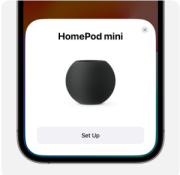
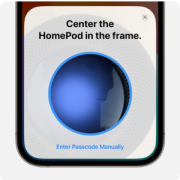
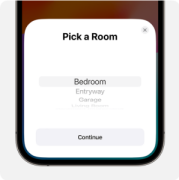
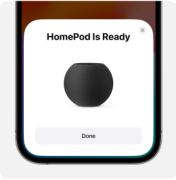
Ensure your iPhone is on the same Wi-Fi network as the hub.
Step 2 — Commission the Lock into Apple Home#
Open the Home app on your iPhone.
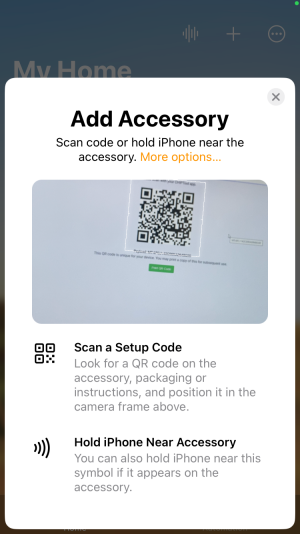
Tap + and select Add Accessory or Add Device.
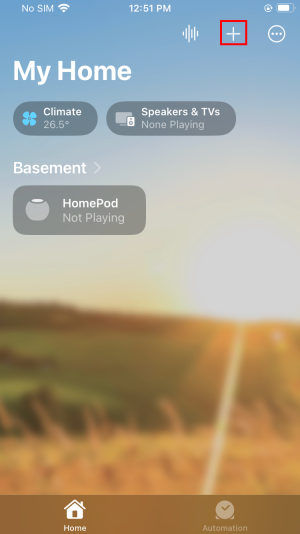
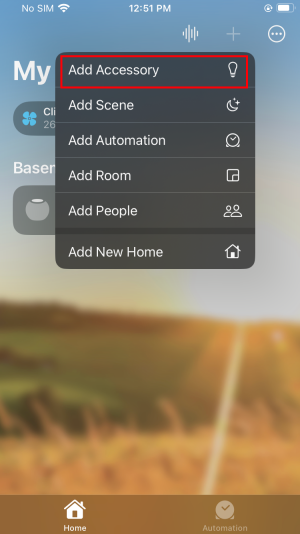
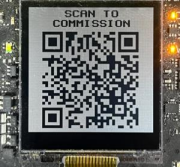
Scan the Matter QR code from one of these sources:
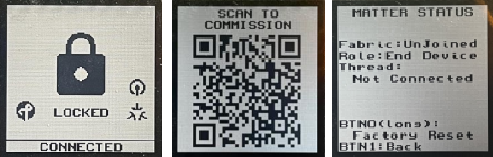
The QR code on the WSTK LCD after the device boots
The QR link printed on the serial console after boot
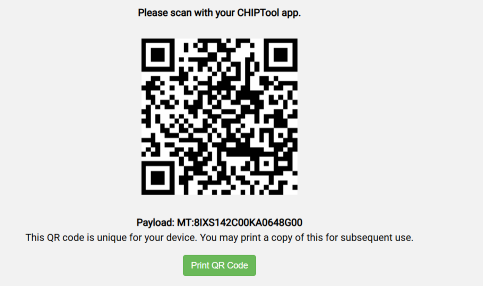
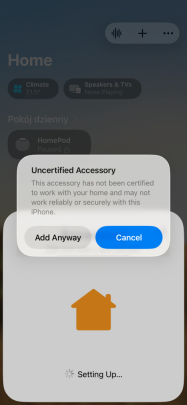
Note: Development devices may show an Uncertified Accessory warning. Tap Add Anyway to proceed.
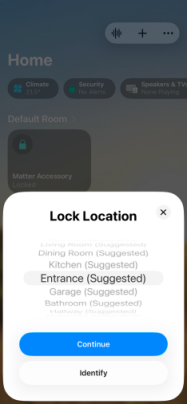
Assign a room and name for the lock.
Confirm the lock appears in Home.
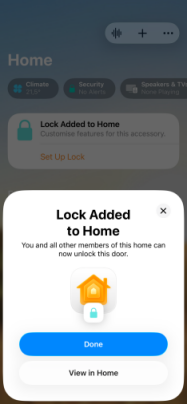
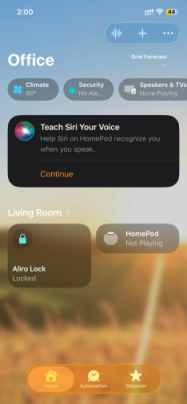
The lock state (locked/unlocked) is simulated on the WSTK — use the board button or Matter commands to change state.
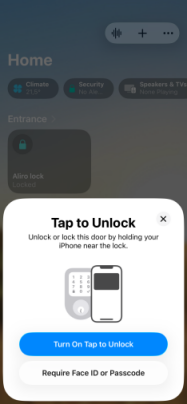
Step 3 — Add an Apple Wallet Home Key#
On your iPhone, open Wallet and add a home key for the commissioned lock (follow Apple's Tap to Unlock setup for your device). This step might be triggered automatically by the Apple Home app when the lock is commissioned.
Open Wallet and select the home key that you added in step 1. If prompted, authenticate using your personal identification number (PIN) or fingerprint. Then hold your phone against the NFC reader on the WSTK.
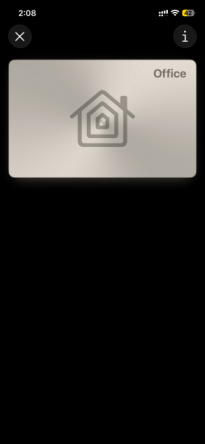
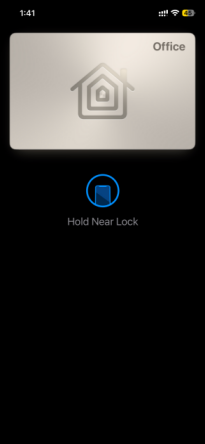
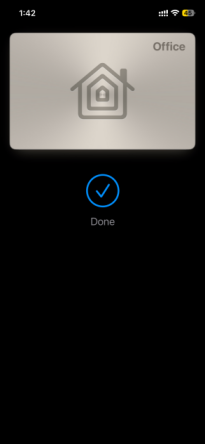
After successful Aliro access, the example calls
OnAliroValidAccess()— implement your product logic inAliroLockBridge.cppto act on the grant.
Troubleshooting#
Issue | Suggestion |
|---|---|
Matter commissioning fails | Confirm hub is online and iPhone is on the same network |
QR code not visible | Check serial console for the Matter QR link; confirm the WSTK LCD is enabled in the build |
Wallet tap does not unlock | Verify NFC wiring; confirm the lock is commissioned and the home key is provisioned in Wallet |
Related Topics
Build and Flash Example — Create, build, and flash example projects
Test Tool Demo — Validate reader flows with the CSA Aliro Test Tool
Hardware and Setup — Supported boards and wiring
Developer's Guide — Customization, project configuration, and CLI
Aliro Fundamentals — Protocol concepts