


Firmware Update Examples and Models#
To perform firmware updates, you need an Initiator, a Distributor, and at least one Target node. This section describes the setup to run the Distributor and Target nodes examples provided in the Bluetooth mesh SDK, and the procedures to create an update image archive. See Getting Started with Silicon Labs Bluetooth Mesh Development for an introduction to configuring and building your own projects, and for a guide to additional resources.
The Initiator and Stand-alone Updater are not discussed in this document. However, these functionalities are demonstrated using the Silicon Labs Bluetooth Mesh mobile app, described in Firmware Update Demonstration and Firmware Update with Stand-alone Updater, respectively.
Firmware storage is an important part of the device firmware update process. The flash memory is managed by and accessed via the bootloader. See Bootloader Configurations for Firmware Updates for the flash configurations. The table in Appendix – Silicon Labs Product Positioning for Bluetooth Mesh DFU is a recommendation of the Silicon Labs parts for running the DFU roles.
The Bluetooth Mesh Distributor and Target node examples are available as SLC workspaces which means both the example app and matching bootloader are created during workspace generation. Both application and bootloader projects can be built as a single step and the workspace postbuild step merges the two binaries into a single one.
Note: The SLC workspace is often called solution in Simplicity Studio.
Distributor Solution#
The Distributor solution is provided as a pre-built demo binary image, ready to download and use, and a corresponding example project that you can modify and then build for the target part. The precompiled demo is only available for selected EFR32xG21 and EFR32xG24 parts.
This section describes how to build the solution and run the example application on a Silicon Labs device. The example is only available for a limited set of parts, including selected xG21 and xG24 parts.
Open Simplicity Studio 6 with a compatible SoC wireless kit connected to the computer. Open the Devices page in the vertical navigation bar on the left and select your part.
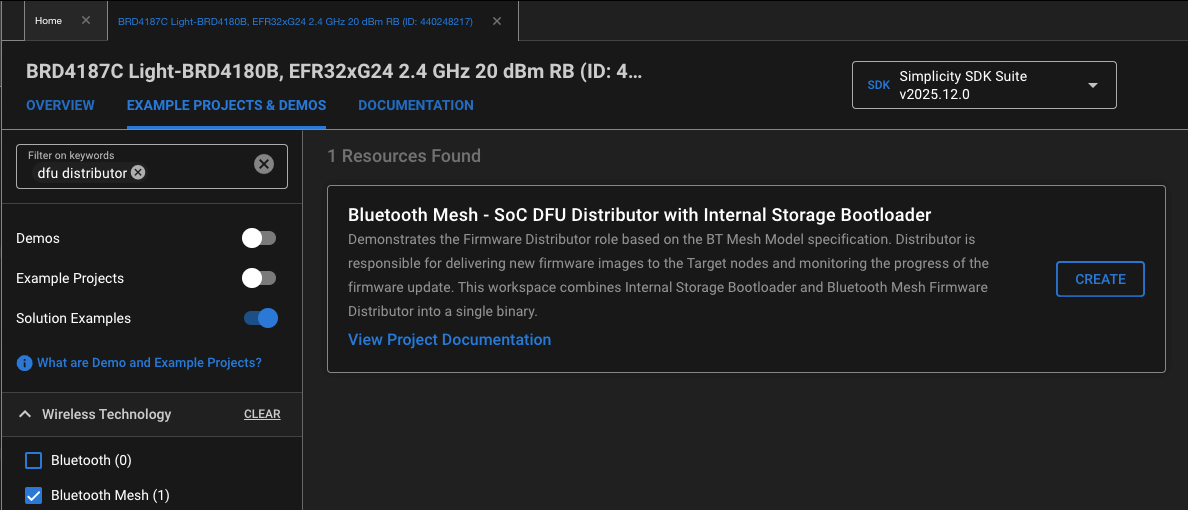
Click the Example Projects & Demos tab.
To see only the solution projects, turn off Demos and Examples.
Under Technology Type, filter on Bluetooth Mesh.
Add dfu distributor keyword to the filter text box
Next to the Bluetooth Mesh – SoC DFU Distributor with Internal Storage Bootloader or Bluetooth Mesh – SoC DFU Distributor with External Storage Bootloader, click CREATE, modify project settings, click FINISH.
Build and flash the solution to the device.
The example has the components that are required for the Distributor functionality installed by default. To enable the Distributor functionality in other Bluetooth mesh projects, install the DFU distributor component that automatically brings the necessary model components:
Open the project .slcp file from Project page located in the vertical navigation bar of Simplicity Studio 6.
Click the Software Components tab.
Select the DFU distributor component under Bluetooth Mesh > DFU Roles and click Install.
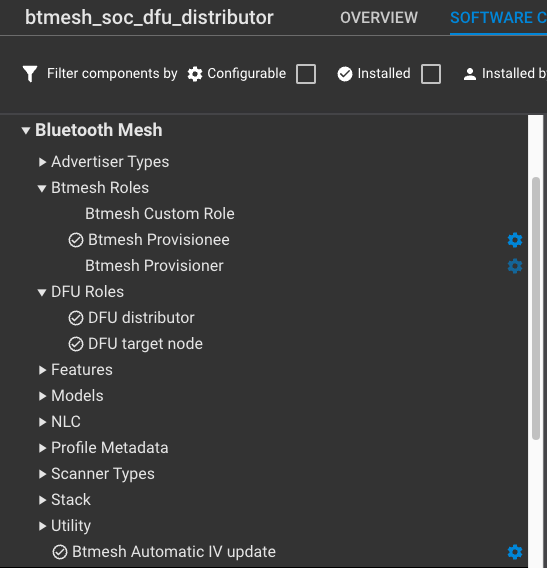
This component automatically installs the following model components:
Bluetooth Mesh > Models > Firmware Update > Firmware Distribution Server
Bluetooth Mesh > Models > Firmware Update > Firmware Update Client
Bluetooth Mesh > Models > Transport > BLOB Transfer Client
Bluetooth Mesh > Models > Transport > BLOB Transfer Server
See DFU Model Configurations for the configurations of these Firmware Update and BLOB Transfer models.
Target Node Solution#
A Target node is a node whose firmware is to be updated.
The Target solution is provided as a pre-built demo binary image, ready to download and use, and a corresponding example project that you can modify and then build for the target part. The precompiled demos are only available for a limited set of parts, including selected EFR32xG21, xG22 and xG24 parts and MGM21, BGM22 modules. The examples can be built for any part supported by the Bluetooth Mesh SDK.
This section describes how to build the solution and run the example application on a Silicon Labs device. The example is only available for a limited set of parts, including selected xG21, xG22, xG24, xG27 SoC (and modules).
Open Simplicity Studio 6 with a compatible SoC wireless kit connected to the computer. Open the Devices page in the vertical navigation bar on the left and select your part.
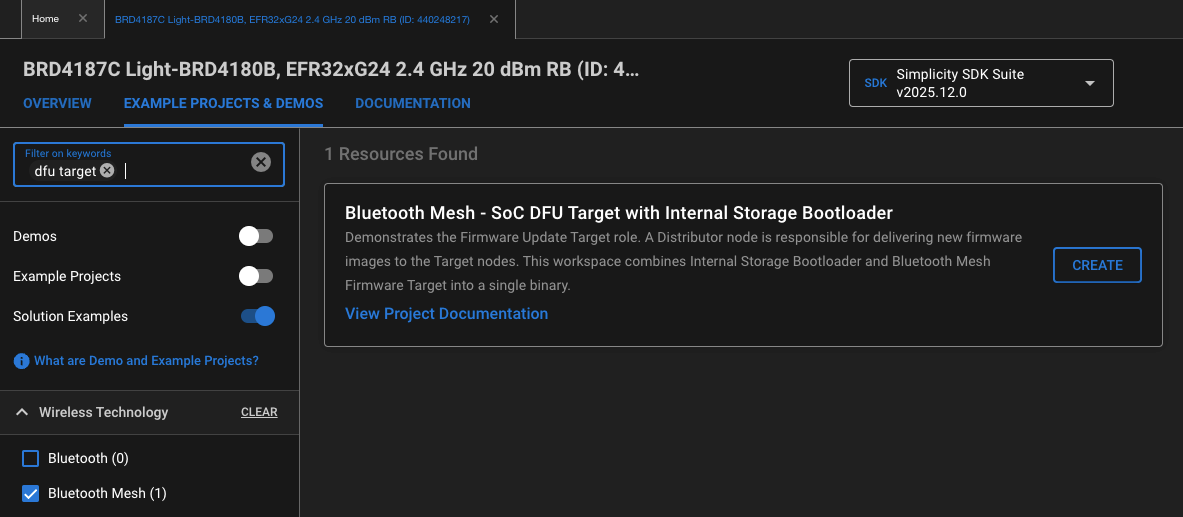
Click the Example Projects & Demos tab.
To see only the solution projects, turn off Demos and Examples.
Under Technology Type, filter on Bluetooth Mesh.
Add dfu target keyword to the filter text box
Next to the Bluetooth Mesh - SoC DFU Target with Internal Storage Bootloader or Bluetooth Mesh - SoC DFU Target with External Storage Bootloader, click CREATE, modify project settings, click FINISH.
Build and flash the solution to the device.
Note: EFR32xG22 parts have limited support for Bluetooth Mesh.
The examples have the components that are required for the Target node functionality installed by default. To enable the Target node functionality in other Bluetooth mesh projects, install the DFU target node component that automatically brings the necessary model components:
Open the project .slcp file from Project page located in the vertical navigation bar of Simplicity Studio 6.
Click the Software Components tab.
Select the DFU target node component under Bluetooth Mesh > DFU Roles in the left panel and click Install.
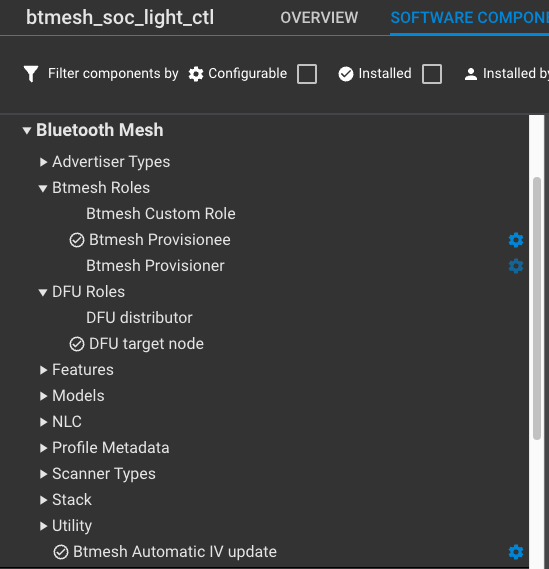
This component automatically installs the following model components:
Bluetooth Mesh > Models > Firmware Update > Firmware Update Server
Bluetooth Mesh > Models > Transport > BLOB Transfer Server
See the section below for the configurations of these Firmware Update and BLOB Transfer models.
DFU Model Configurations#
This section describes the main settings of the Firmware Update and BLOB Transfer models. Open the project .slcp file from Project page located in the vertical navigation bar of Simplicity Studio 6.
Click the Software Components tab.
Select Bluetooth Mesh > Models > Firmware Update or Bluetooth Mesh > Models > Transport in the left panel.
Click the gear icon next to the model to be configured.
Firmware Distribution Server#
Configuration of Bluetooth Mesh > Models > Firmware Update > Firmware Distribution Server (sl_btmesh_fw_distribution_server_config.h):
| Configuration Option | Description | Default Value |
|---|---|---|
| BT Mesh Firmware Distribution Server Configuration | ||
| Default Multicast Threshold | If the number of servers for any step exceeds or is equal to this number then the group address will be used, otherwise servers will be looped through one by one. Value of 0 disables the feature. | 1 |
| Retry time of message transmissions | Retry time of firmware update message transmissions | 3000 |
| Amount of concurrent messages sent by the Firmware Distribution server | Defines how many messages are being sent concurrently by the Firmware Distribution Server. If set to 0, the maximum supported value is used. | 4 |
| Delay between batches of messages | Controls the delay in milliseconds between batches of messages. Works in conjunction with "Amount of concurrent messages sent by the Firmware Distribution server" to control message sending rate. When the first transmission in the current batch completes, the sender will wait for this delay before refilling the batch up to the "Amount of concurrent messages sent by the Firmware Distribution server" limit with new transmissions. | 0 |
| NVM key of the firmware list | NVM key of the firmware list | 0x400A |
| Purge FW list on corruption | If integrity or consistency issues are found when building the firmware list from persistent data at initialization, then the FW list is purged when this configuration option is enabled, otherwise the corrupted FW list elements are dropped only. The FW list persistent data might be corrupted due to power loss or during FW installation when FW reconstruction from delta patch image requires the whole bootloader storage slot space. If the FW list is modified without the knowledge of the initiator then it could lead to wrong FW distribution when the initiator doesn't query the FW list (cached) before each distribution. (only when FW list length is min 2) | 1 |
| Enable Logging | Enable / disable logging of Firmware Distribution Server model specific messages | 1 |
| Enable BT Mesh Stack Platform Callback Logging | The FW Distribution Server model in BT Mesh stack calls platform callback functions to query the remaining space, firmware count and firmware information. | 0 |
| Fwid and metadata log format | Fwid and metada logging format, hex or text format is available | false |
| Text prepended to every log message | Every log message in the component is started with this text. | FwDistributor |
Firmware Update Server#
Configuration of Bluetooth Mesh > Models > Firmware Update > Firmware Update Server (sl_btmesh_firmware_update_server_config.h):
| Configuration Option | Description | Default Value |
|---|---|---|
| General | ||
| Number of firmware on device | Number of firmware on device <1-255> | 1 |
| Maximum length of metadata | Maximum length of metadata <0-255> | 255 |
| Firmware Information | ||
| Firmware identifier | Firmware identifier | fwid or <specific_node_id> |
| Update URI | Update URI | https://example.com/upd_uri |
| Company Identifier | ||
| CID MSB | Most Significant Byte of the Company ID. Hexadecimal string literal. | \x02 |
| CID LSB | Least Significant Byte of the Company ID. Hexadecimal string literal. | \xFF |
| Logging | Logging | 1 |
| Period of verification progress logs [ms] | Setting it to 0 the user interface (log & display) is updated every time when progress is made. | 200 |
The weak functions for the Firmware Update Server model are mostly implementation-dependent and can be overwritten in the application:
Function | Description |
|---|---|
sl_btmesh_fw_update_server_verify_start() | User callback for determining the maximum chunk size of verification |
sl_btmesh_fw_update_server_verify_step() | User callback to execute one step of the verification |
sl_btmesh_fw_update_server_verify_progress_ui_update() | User callback to update the user interface with verification progress |
sl_btmesh_fw_update_server_metadata_check_start() | User callback indicating start of metadata check |
sl_btmesh_firmware_update_server_metadata_check_step() | User callback executing one step of metadata check |
sl_btmesh_fw_update_server_update_start() | User callback indicating update start |
sl_btmesh_fw_update_server_update_canceled() | User callback indicating update cancellation |
sl_btmesh_fw_update_server_update_aborted() | User callback indicating update abort |
sl_btmesh_fw_update_server_apply() | User callback indicating firmware apply request |
See <sdk>/bluetooth_mesh_middleware/common/btmesh_firmware_update_server/sl_btmesh_firmware_update_server_api.h for further information.
A Target node will become unprovisioned by default after a firmware update. You can overwrite this behavior in the following functions:
sl_btmesh_fw_update_server_metadata_check_start()orsl_btmesh_firmware_update_server_metadata_check_step()– set another value to*additional_information. The additional information is provided to the Bluetooth mesh stack and will appear in the Firmware Update Status and Firmware Update Firmware Metadata Status messages.*additional_information = BTMESH_FW_UPDATE_SERVER_ADDITIONAL_INFORMATION_UNPROVISION;if (BOOTLOADER_OK == bootloader_setImageToBootload(idx)) { // Erase persistent mesh data stored in NVM and make the node unprovisioned // only based on the result of metadata check if (fw_additional_information == BTMESH_FW_UPDATE_SERVER_ADDITIONAL_INFORMATION_UNPROVISION) { // Reset node sl_btmesh_node_reset(); // Erase NVM data app_btmesh_nvm_erase_all(); } // Delay install app_timer_start(&timer, 1000, apply_step, NULL, true); apply_cntdwn = APPLY_DELAY; }
BLOB Transfer Client#
Configuration of Bluetooth Mesh > Models > Transport > BLOB Transfer Client (sl_btmesh_blob_transfer_client_config.h):
| Configuration Option | Description | Default Value |
|---|---|---|
| BT Mesh BLOB Transfer Client Configuration | ||
| Enable Logging | Enable / disable logging of BLOB Transfer Client model specific messages | 1 |
| Text prepended to every log message | Every log message in the component is started with this text. | BlobTfClient |
| Log BLOB Status messages | Log the content of BT Mesh BLOB status messages. | 1 |
| BLOB Transfer Limits | ||
| Max number of servers | Maximum number of BLOB transfer servers which can be serviced in a transfer (affects BT Mesh stack memory usage) | 4 |
| Max number of blocks | Maximum number of blocks supported in a BLOB Transfer (affects BT Mesh stack memory usage) | 1024 |
| Max number of chunks per block | Maximum number of chunks per block supported in a BLOB Transfer (affects BT Mesh stack memory usage). WARNING! If the number of chunks per block exceeds 40 in case of Push BLOB Transfer Mode then high number of BLOB Block Status messages become segmented which could make the BLOB Transfer slower and less robust. Note: Format field of BLOB Block Status message affects the size of the message as well so the segmentation occurs over 40 chunks per block when the format is Some Chunks Missing (0x2). | 40 |
| Max chunk size | Maximum chunk size which can be selected during BLOB Transfer | 241 |
| Preferred chunk size | If the preferred chunk size is supported by all BLOB Transfer Servers then the default chunk size calculation algorithm tries to select it as chunk size of the block otherwise the chunk size is set to the closest value which fills all segments of the chunk. There is a tradeoff between small and large chunks. The normal (non-AE) segmented chunks are able to transfer 12 bytes per advertisement minus the 1 byte opcode and 2 byte chunk number and 4 bytes of MIC. This means N regular advertisements are able to transfer 12 x N - 7 bytes of chunk data. If N is a big number then the payload per message converges to 12 but if N is low then the fixed 7 byte protocol overhead penalty becomes significant. If there is noise and at least one segment is lost then the whole chunk needs to be retransmitted. Probability of transfer failure is higher for long segmented chunks and it takes more time to retransmit a long chunk. The chunk size can't be arbitrarily low because the max number of chunks per block multiplied by the chunk size shall be greater than or equal to block size. A low chunk size leads to more chunks per block which has negative effects when the number of chunks per block exceeds 40, because the BLOB Block Status message becomes segmented, which means all servers starts to respond with segmented messages. This might have significant impact on the transfer speed. Chunk size with 5 full segments is used as default preferred chunk size because in this case the (12 x N - 7) / (12 x N) = 88% of the ideal (non-noisy) transfer speed is preserved and 40 x (12 x N - 7) = 2120 -> 2048 (2^N) byte blocks can be used without BLOB Block Status message segmentation. If BT Mesh over Advertisement Extension Silabs proprietary feature is turned on then the default chunk calculation algorithm selects the chunk size to fill the AE packet completely with chunk data based on the network PDU size if the chunk size is supported by the BLOB Transfer Servers, otherwise it falls back to the preferred chunk size calculation. (see Advertisement Extension Server component for details) | 53 |
| Chunk size should be a multiple of this value | The chunk size selected during BLOB Transfer should be a multiple of this value. This is useful when the BLOB Transfer Server has a specific requirement for the chunk size that cannot be negotiated with the standard Bluetooth Mesh BLOB Transfer model. If other transfer parameters would prohibit the selection of a chunk size that would satisfy this requirement, those take precedence. | 1 |
| Retry and Separation parameters | ||
| Default separation time between chunks | Default minimum separation time between two chunks in the same block | 0 |
| Default max local retry of message transmission requests | Default local max retries of message transmission requests during query info, transfer start, block start, block query chunk transfer and transfer cancel procedures. Default max local retry is used when the BT Mesh stack rejects sending BLOB Transfer messages due to a recoverable error, so BT Mesh stack API returns with recoverable error code, for example due to lack of memory. | 1000 |
| Default retry threshold of frequent message transmissions | Default retry threshold of frequent message transmissions during query info, transfer start, block start, block query and transfer cancel procedures before infrequent message transmission is activated with doubled retry time. | 200 |
| Default local retry time [ms] | Default local retry time of message transmission requests during query info, transfer start, block start, block query, chunk transfer and transfer cancel procedures. Default local retry time is used when the BT Mesh stack rejects sending BLOB Transfer messages due to a recoverable error, so BT Mesh stack API returns with recoverable error code, for example due to lack of memory. | 500 |
| Default retry time for push transfer [ms] | Default retry time of message transmissions during push transfer. The transfer start, block start, block query and transfer cancel procedures use this retry time during push transfer to send the proper procedure specific message again if at least one receiver haven't responded when retry timeout is reached. The query info procedure use this retry time value when the push transfer mode is selected explicitly by upper layer or both transfer modes (push & pull) are allowed by the upper layer. Rationale: transfer mode is chosen after query info procedure in this case. Note: if the expected procedure specific status message is received from a receiver then the retry time measurement is started again to avoid too early message retransmission while the receivers are still responding otherwise the interference between receiver nodes would be even higher. | 2000 |
| Default retry time for pull transfer [ms] | Default retry time of message transmissions during pull transfer. The transfer start, block start, block query and transfer cancel procedures use this retry time during pull transfer to send the proper procedure specific message again if at least one receiver haven't responded when retry timeout is reached. The query info procedure use this retry time when the pull transfer mode is selected explicitly by upper layer. Note: if the expected procedure specific status message is received from a receiver then the retry time measurement is started again to avoid too early message retransmission while the receivers are still responding otherwise the interference between receiver nodes would be even higher. | 4000 |
| Amount of concurrent messages sent by the BLOB Transfer client | Defines how many messages are being sent concurrently by the BLOB Transfer Client. If set to 0, the maximum supported value is used. | 4 |
| Delay between batches of messages | Controls the delay in milliseconds between batches of messages. Works in conjunction with "Amount of concurrent messages sent by the BLOB Transfer client" to control message sending rate. When the first transmission in the current batch completes, the sender will wait for this delay before refilling the batch up to the "Amount of concurrent messages sent by the BLOB Transfer client" limit with new transmissions. | 0 |
The weak functions for the BLOB Transfer Client model are mostly implementation-dependent and can be overwritten in the application:
Function | Description |
|---|---|
sl_btmesh_blob_transfer_client_calculate_block_size_log() | Calculates the binary logarithm of the block size for the current BLOB transfer from the provided parameters which are the result of the Retrieve Capabilities procedure of the BLOB Transfer. The parameters passed represent the aggregated capabilities of the BLOB transfer client and every BLOB transfer server which participates in the current transfer. The default implementation calculates the greatest possible block size from the parameters. If another implementation is required then the strong symbol definition shall be provided for this function with the implementation in the application code. |
sl_btmesh_blob_transfer_client_calculate_chunk_size() | Calculates the chunk size for the next block in the current BLOB transfer from the previously selected binary logarithm of the block size and from the result of the Retrieve Capabilities procedure of the BLOB Transfer. If the configurable preferred chunk size is supported by all BLOB Transfer Servers then the default chunk size calculation algorithm selects it as chunk size of the block otherwise the chunk size is set to the closest value which fills all segments of the chunk. If another implementation is required then the strong symbol definition shall be provided for this function with the implementation in the application code. |
See <sdk>/bluetooth_mesh_middleware/common/btmesh_blob_transfer_client/sl_btmesh_blob_transfer_client.h for further information.
BLOB Transfer Server#
Configuration of Bluetooth Mesh > Models > Transport > BLOB Transfer Server Core (sl_btmesh_blob_transfer_server_config.h):
| Configuration Option | Description | Default Value |
|---|---|---|
| General | ||
| Logging | Logging | 1 |
| LPN poll logging | LPN poll logging | 0 |
| Transfer Start user callback | Enable/disable callback function when BLOB transfer starts. | 1 |
| Transfer Progress user callback | Enable/disable callback function when block transfer is finished. | 1 |
| Transfer Done user callback | Enable/disable callback function when BLOB transfer is finished. | 1 |
Configuration of Bluetooth Mesh > Models > Transport > BLOB Transfer Server (dfu_dist/dfu_target - sl_btmesh_blob_transfer_server_dfu_<dist/target>_config.h):
| Configuration Option | Description | Default Value |
|---|---|---|
| General | ||
| Min Block Size Log | Please note, that decreasing the minimum block size will result in increased heap usage. Block states need to be monitored. The smaller the blocks, the bigger the state storage. Change this value with care. | 0x9 |
| Max Block Size Log | Please note, that increasing the maximum block size will result in increased heap usage. Blocks are cached on heap before being written into NVM. Change this value with care. | 0x9 |
| Block Buffer Memory Type | If Static is selected then RAM buffer is allocated statically at link time for the worst case Max BLOB Block Size. If Heap is selected then RAM buffer is allocated from the heap at runtime when the BLOB transfer is started and the buffer is deallocated when the BLOB transfer is completed or cancelled. If None is selected then no RAM buffer is allocated. The Heap provides the following advantages over Static block buffer memory type:
|
Heap |
| Maximum of number of chunks per block | Maximum of number of chunks per block | 40 |
| Maximum chunk size | If the max chunk size is 8 then the chunk data fits into a single BT Mesh advertisement message. If the chunk data is segmented then N segments is able to transfer (N*12)-7 byte data. The advantage of higher chunk size is the higher throughput in low noise environment. The advantage of lower chunk size is that fewer messages are retransmitted in high noise environment due to lost chunk messages. LPN only: the number of chunk messages (segments) multiplied by requested chunk count in partial block report shall fit into the friend queue. | 241 |
| Override Element Index | Default element index is provided by project or components. If the default element index is not sufficient then it can be overridden by activating this option. | 0 |
| Element Index | Element index of BLOB Transfer Server model instance. It has an effect only when "Override Element Index" configuration option is activated. Range: 0-255, Default: 0 | 0 |
| Supported Transfer Modes | ||
| Push Mode | Push BLOB Transfer Mode. | 1 / LPN: 0 |
| Pull Mode | Pull BLOB Transfer Mode. | 1 |
| Number of chunks requested in Block Status or Partial Block Report | Number of chunks requested in Block Status or Partial Block Report | 3 |
| Interval, in milliseconds, between Partial Block Reports, if nothing is received | Interval, in milliseconds, between Partial Block Reports, if nothing is received | 1000 |
| Number of retries sending the same Partial Block Report, before giving up | Number of retries sending the same Partial Block Report, before giving up | 8 |
| LPN Mode | Only pull transfer mode can be used on LPN nodes. | 0 / LPN: 1 |
| LPN high throughput mode | In high throughput mode the LPN node polls the friend node more frequently to increase the throughput at the expense of power consumption. | 1 |
| LPN poll delay in milliseconds | The delay of first LPN poll when the BLOB Transfer Server expects messages from the client after an event. The major part of BLOB transfer to LPN is the waiting for the poll timeout to elapse in order to poll the friend node for BLOB Transfer messages. The maximum number of messages can be transferred per polling equals to friend queue size during BLOB transfer to LPN. This poll delay configuration parameter value makes the polling more frequent when BLOB Transfer messages are expected to increase the throughput. The LPN poll delay shall be less than SL_BTMESH_LPN_POLL_TIMEOUT_CFG_VAL in sl_btmesh_lpn_config.h file. | 500 |
Creating the Update Image Archive#
An update image archive is a gzip archive file that consists of:
Manifest: a file named manifest.json, which is in the format of JavaScript Object Notation (JSON). It contains a description of the firmware package, including the name of the firmware image file and an optional metadata file for the update.
Firmware Image: the firmware image file in GBL format, as identified in the manifest file.
Metadata: an optional file provided by the vendor and identified in the manifest file, that may provide metadata for the firmware image.
This section describes the procedure to generate a firmware image, manifest file, and update image archive.
Step 1: Generating a firmware image#
Building a C-based Bluetooth mesh solution in Simplicity Studio automatically generates the OTA DFU update images (GBL files). The solution and each project in the solution have their own post build file (slpb) which specifies which post build actions shall be executed and their parameters. The GBL files are generated as post build steps.
If the GBL creation needs to be customized (e.g. compression, encryption) then open the .slpb file from Project page located in the vertical navigation bar to launch Post Build Editor in Simplicity Studio 6. The Post Build Editor can be used to modify the post build steps in Simplicity Studio 6. The post build steps execute Simplicity Commander commands in the background. You can find more details on the following pages:
Two GBL files are generated into the <workspace-path>/artifact and <workspace-path>/<app-name>/artifact directories by post build steps:
<app-name>.gbl: use when application shall be updated<workspace-name>.gbl: use when both bootloader and application shall be updated
If you use a bootloader that supports LZMA compression of the firmware update image, as described in Compressed Update Image, you should compress the GBL file by selecting lzma option from Compression drop-down menu in Post Build Editor for each GBL generation step.
For more information about the GBL file format, see Silicon Labs Gecko Bootloader User’s Guide for GSDK 4.0 and Higher (series 1 and 2 devices).
Step 2: creating a manifest file and firmware archive#
Run FirmwareArchiveGenerator.py from <sdk>/bluetooth_mesh_middleware/script/generator to generate the firmware archive.
python FirmwareArchiveGenerator.py -i <workspace-path>/<app-name> -o <workspace-path>/<app-name>/artifact/archive
ℹ️ Note: The
pyelftoolspackage is required to runFirmwareArchiveGenerator.py. Install it usingpip install pyelftoolsbefore executing the command.
The script creates a file named manifest.json that is a text file in JSON format containing the name of the firmware update image, the firmware ID and optionally the name of the metadata file. The format of the manifest/firmware/firmware_id member is Base16. The manifest/firmware/metadata_file member contains the metadata file name if present. The following is an example of the content of the manifest.json file.
{
"manifest": {
"firmware": {
"firmware_image_file": "btmesh_soc_dfu_target.gbl",
"metadata_file": "btmesh_soc_dfu_target_metadata.bin",
"firmware_id": "ff02736f6362746d747267745f7631"
}
}
}The script extracts the firmware ID and metadata from the out (elf) file by default.
The firmware ID is extracted from a constant variable, which stores the SL_BTMESH_FW_UPDATE_SERVER_FWID_CFG_VAL configuration parameter of Firmware Update Server model in the application. The metadata is extracted from a constant variable, which stores the Device Composition Data (DCD) Page 0 configured by Bluetooth Mesh Configurator in the application.
If you want to provide the firmware ID and metadata file manually, you can use the following command line options:
--fwid <firmware_id>: specify the firmware ID as hexadecimal string--metadata <metadata>: specify the metadata as hexadecimal string The script creates the standard gzip archive<app-name>.gzin the specified output directory.
The script runs the equivalent of the following command to create the gzip archive:
tar czf btmesh_soc_dfu_target_firmware.gz btmesh_soc_dfu_target.gbl btmesh_soc_dfu_target_metadata.bin manifest.json