


Machine Learning on Silicon Labs Devices from Scratch#
This guide assumes familiarity with the Getting Started Guide. The following sections show how to add a ML Model (ml_model) component to a project and run inference on a .tflite model. To create an empty C++ project and open the SOFTWARE COMPONENTS tab, see Add Machine Learning to a New or Existing Project.
TensorFlow Lite models execute through operations, the computations performed by each layer in the network. A firmware image may register every supported operation, but this increases binary size (more than 100 kB). For production use, register only the operations required by the target model.
If you are new to .tflite inference on microcontrollers, or who need background on model format, input and output tensors, and the inference execution flow, refer to TensorFlow Lite Micro getting started guide. This guide describes both operation and registration approaches.
Procedure#
Step 1: Enable the AI/ML SDK Extension#
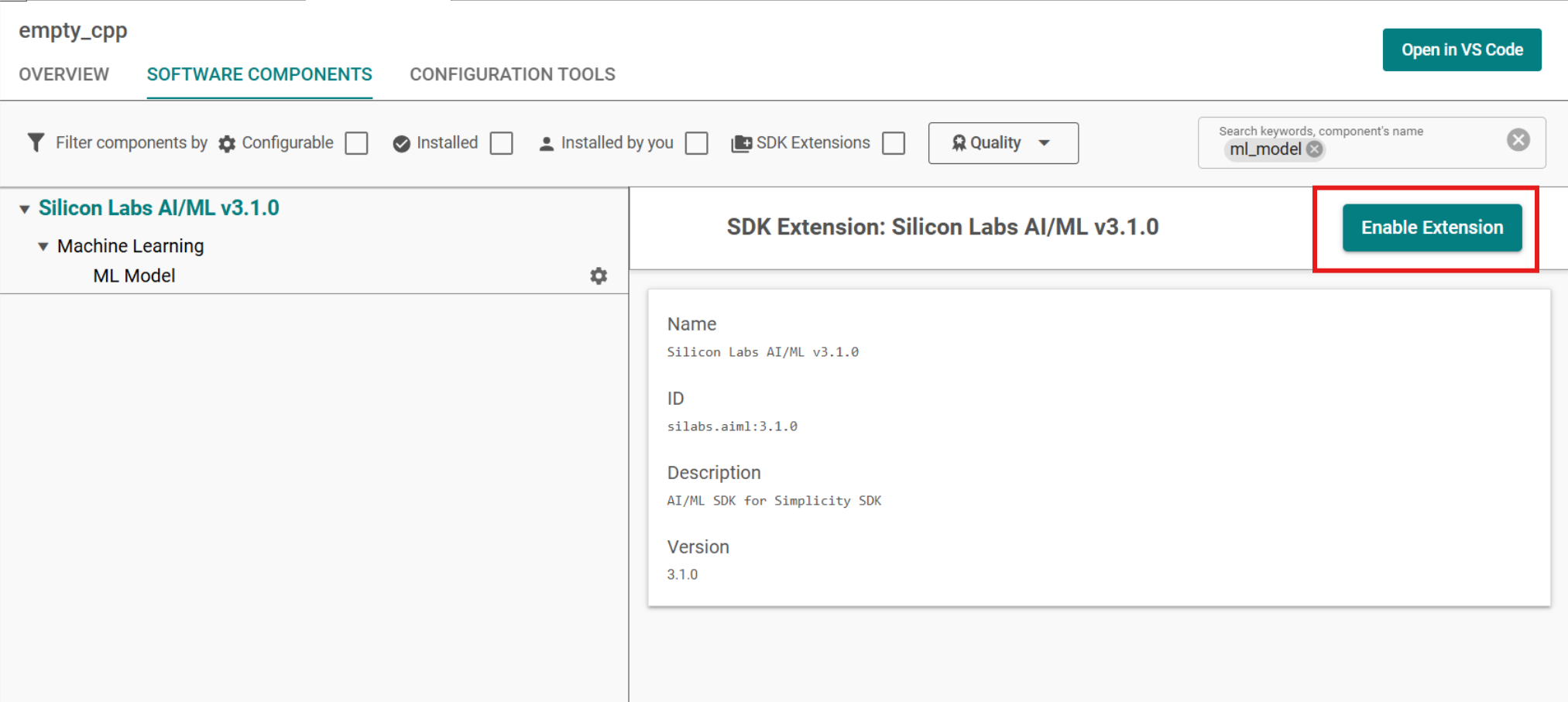
Search for
ml_model.Click on Silicon Labs AI/ML v3.x.x and then click on Enable Extension to enable Silicon Labs AI/ML extension.
Step 2: Install the ML Model Component#
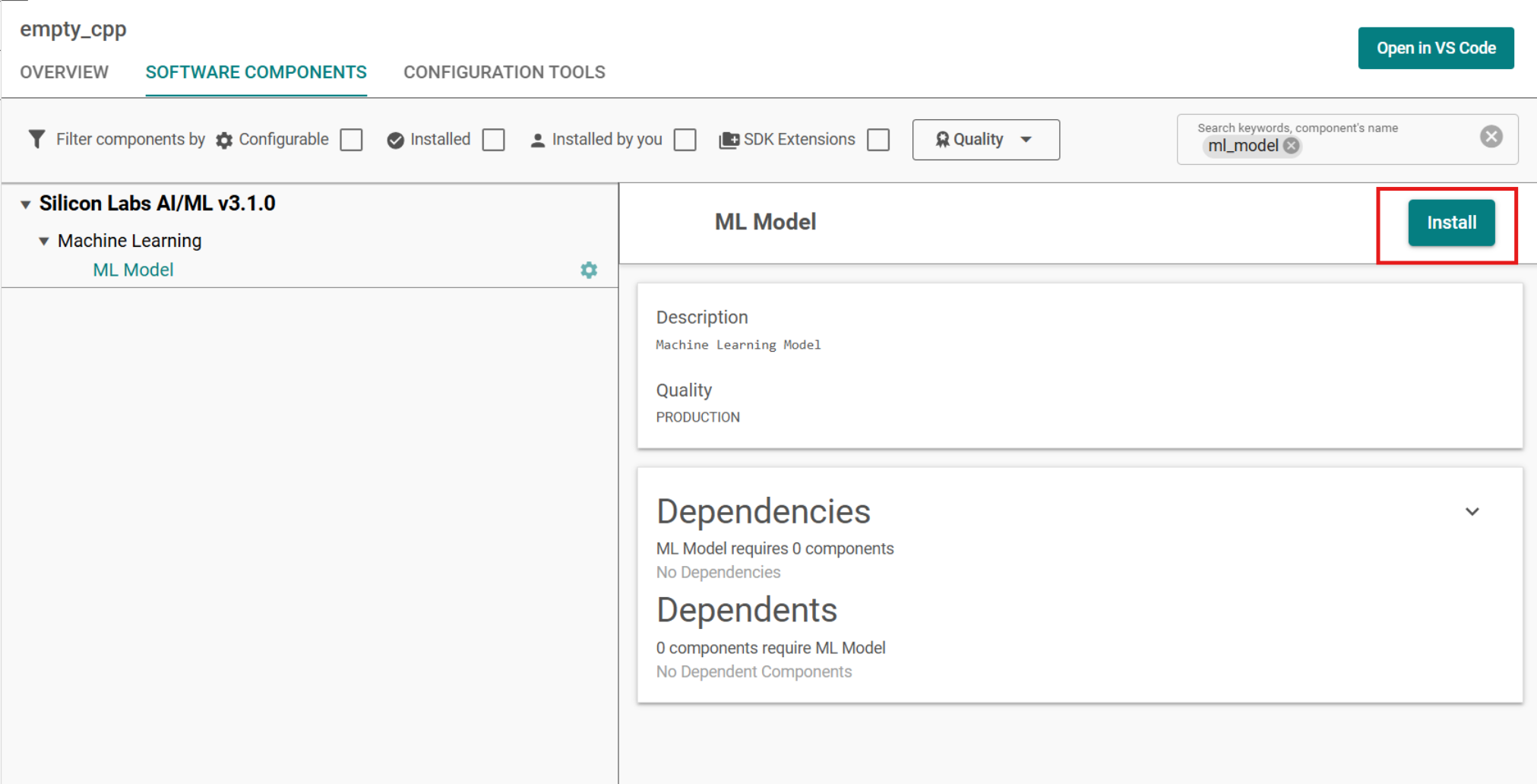
With
ml_modelstill in the search bar, Expand Silicon Labs AI/ML → Machine Learning and select ML ModelClick on Install to install the ML Model component and a Create A Component Instance dialog pops up.
Step 3: Name the Component Instance#
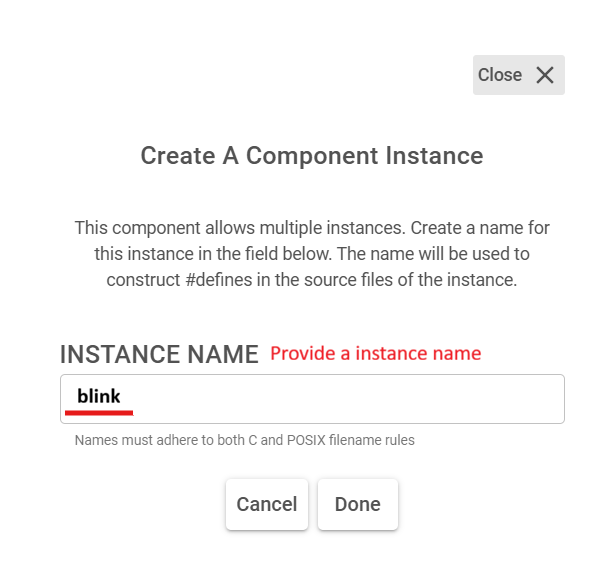
Enter a name in INSTANCE NAME (for example
keyword_spottingorblink). Use only valid C/POSIX filename characters — this name ends up in generated#definemacros and handle names such assl_ml_keyword_spotting_model_handle.Click Done. ML Model component is now installed and and a new instance is created.
NOTE: Each
.tflitemodel requires its own ML Model component instance. After the ML Model component is installed, add another instance with a different name (for examplekwsandblink) and configure each model separately. For initialization and runtime behavior with multiple models, see Multi-Model Support.
Step 4: Dismiss the Initial Generation Error#
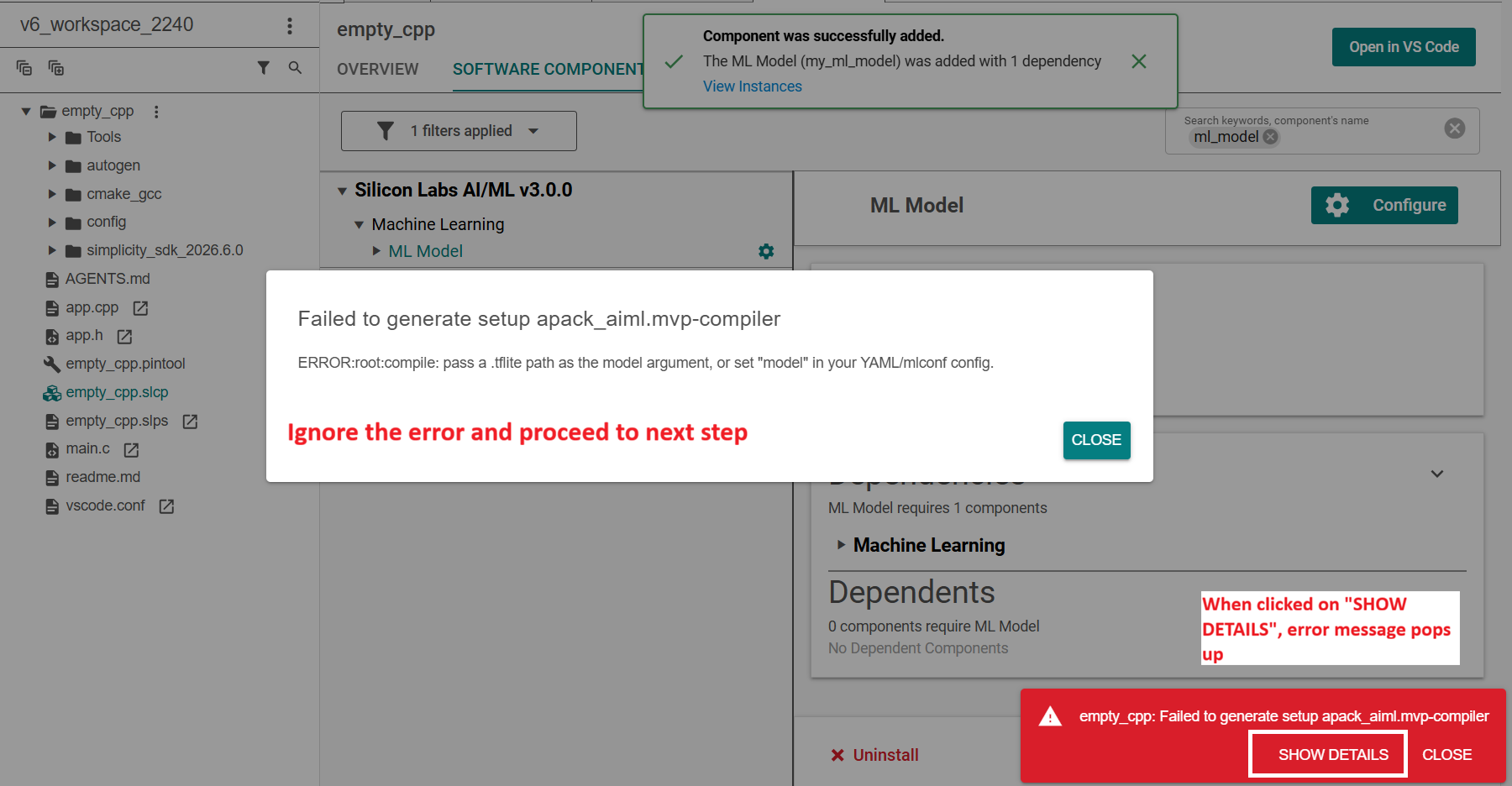
Studio should confirm the component was added. You may also see a generation error like this:
Failed to generate setup apack_aiml.mvp-compiler
ERROR:root:compile: pass a .tflite path as the model argument, or set "model" in your YAML/mlconf config.
This error is expected because the project has not yet been configured with a .tflite file path. Dismiss the dialog and proceed to the next step.
Step 5: Include the Model Headers#
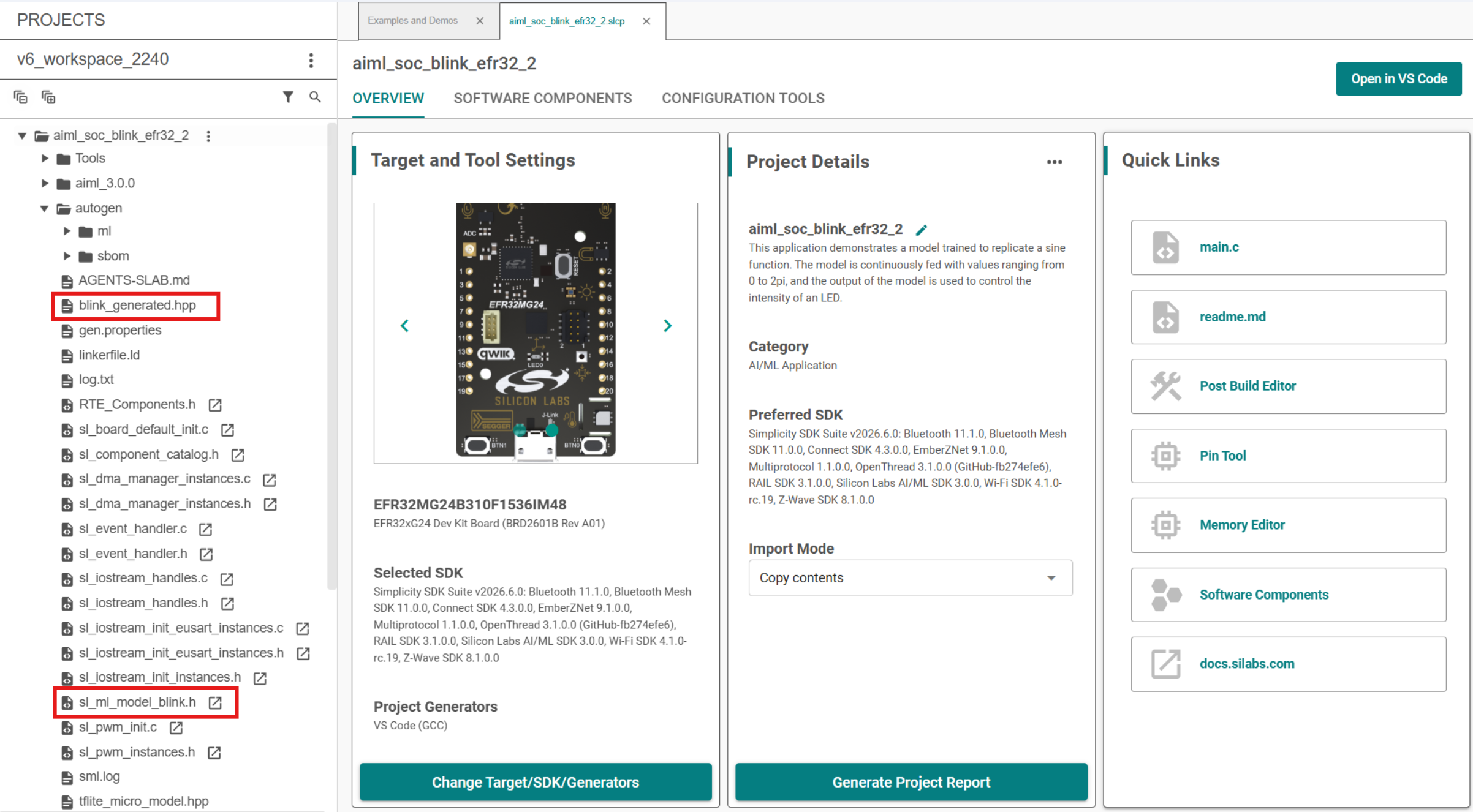
Configure the .mlconf file and verify generated project files as described in Add Machine Learning to a New or Existing Project (Steps 7 to 8). Project generation produces embedded model artifacts in autogen/. Include the generated model header and the shared model API header in your application source file:
#include "sl_ml_model_blink.h"
#include "sl_ml_tflite_micro_model.h"Replace blink with your model instance name (for example, keyword_spotting). The generated header declares the model handle (for example sl_ml_blink_model_handle).
After configuring the .mlconf file, confirm the new headers appear under autogen/:
Step 6: Initialize the Model#
Call sl_ml_model_init() during application startup in app_init():
sl_status_t status = sl_ml_model_init(&sl_ml_blink_model_handle);
if (status != SL_STATUS_OK) {
return;
}Step 7: Provide Input#
In app_process_action(), copy or compute sensor data into the input tensor:
TfLiteTensor* input = sl_ml_blink_model_handle.input_tensor(0);
/* ... fill input->data ... */Match the shape and data type expected by the model.
Step 8: Run Inference#
Call sl_ml_model_run():
status = sl_ml_model_run(&sl_ml_blink_model_handle);
if (status != SL_STATUS_OK) {
sl_ml_model_deinit(&sl_ml_blink_model_handle);
return;
}Step 9: Read Output#
Read results from the output tensor:
TfLiteTensor* output = sl_ml_blink_model_handle.output_tensor(0);
/* ... process output->data ... */Repeat Steps 7–9 on each iteration of app_process_action(). Call sl_ml_model_deinit() when the model should be unloaded.
Full Code Snippet#
After you complete these steps, the app.cpp file appears as follows:
#include "sl_ml_model_blink.h"
#include "sl_ml_tflite_micro_model.h"
/***************************************************************************//**
* Initialize application.
******************************************************************************/
void app_init(void)
{
sl_status_t status = sl_ml_model_init(&sl_ml_blink_model_handle);
if (status != SL_STATUS_OK) {
return;
}
}
/***************************************************************************//**
* App ticking function.
******************************************************************************/
void app_process_action(void)
{
sl_status_t status;
TfLiteTensor* input = sl_ml_blink_model_handle.input_tensor(0);
/* ... fill input->data ... */
status = sl_ml_model_run(&sl_ml_blink_model_handle);
if (status != SL_STATUS_OK) {
sl_ml_model_deinit(&sl_ml_blink_model_handle);
return;
}
TfLiteTensor* output = sl_ml_blink_model_handle.output_tensor(0);
/* ... process output->data ... */
}The pattern above applies to a single-model application: Call sl_ml_model_init() during startup in app_init(), and then call sl_ml_model_run() from app_process_action() while the model remains loaded.
Applications with more than one model should follow Multiple-Model Support for concurrent or sequential initialization.
For API details, see the ML TFLite Micro Model API reference.
Examples#
For example projects you can create in Simplicity Studio, please refer AI/ML Sample Applications.