Wi-Fi Voice Control Light (SiWG917, FreeRTOS)#
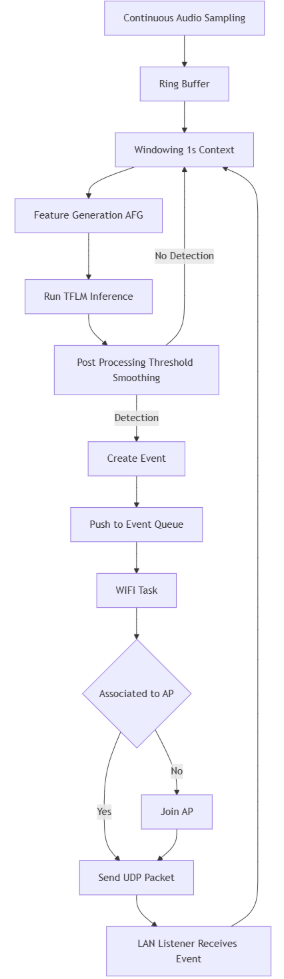
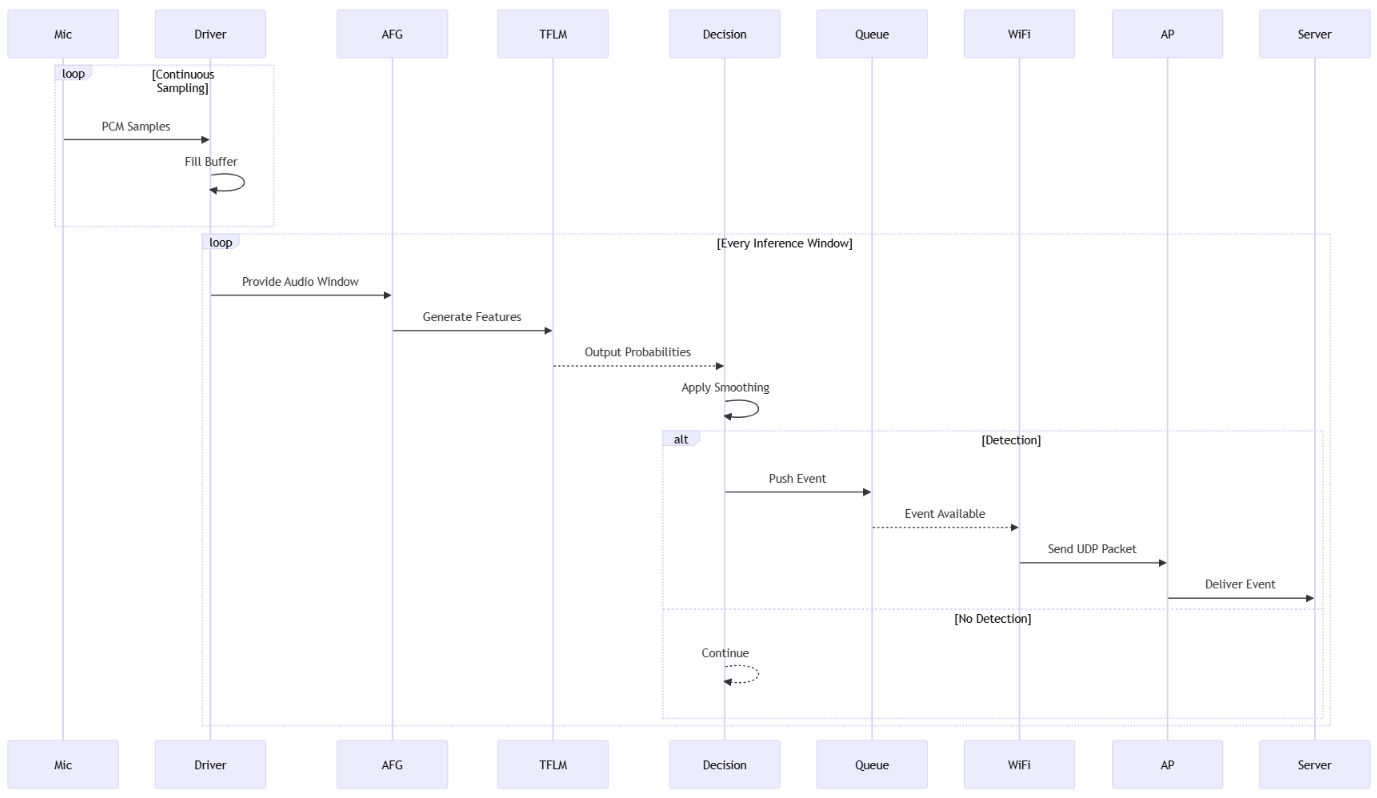
This application uses TensorFlow Lite for Microcontrollers on SiWG917 under FreeRTOS with the WiseConnect Wi-Fi stack. It detects the spoken words on and off from microphone audio—the same Voice Control Light style pipeline as the bare-metal SiWG917 example—and uses detections to drive LED0, print on VCOM, and send UDP notifications to a host on the WLAN. The SoC boots as a Wi-Fi access point on 2.4 GHz with an on-device DHCPv4 server. Clients join using the AP SSID and passphrase defined in the project .slcp file. At least one client must associate before the ML loop starts.
This sample application uses the Flatbuffer Converter Tool
to add the .tflite file to the application binary.
Command labels#
on: Spoken command to turn the indication LED on (and notify over UDP).
off: Spoken command to turn the indication LED off (and notify over UDP).
Other labels (background / non-command) are handled in firmware so spurious speech does not constantly toggle the LED; see the example
readme.mdfor behavior aligned with the Voice Control Light family.
References#
The AI/ML Sample Apps package readme summarizes all examples and where to read more. In short:
Per-application behavior, model file location, and Wi-Fi vs bare-metal differences: see
readme.mdinside the example folderaiml_wifi_soc_voice_control_light_siwg917_rtos/.Sample applications list on the web: Silicon Labs Sample Applications.
Developing ML applications: see
aiml/README.mdin the AI/ML extension tree (sibling of theaiml_appsources in the packaged extension) and Machine Learning developer documentation.
This Wi-Fi example is grouped under Wireless Integration in that readme: FreeRTOS application with WiseConnect Wi-Fi plus TFL-M voice control for an LED; platform SiWG917 (FreeRTOS), for example BRD2605A.
Install Simplicity Studio 6 with Simplicity SDK, the Silicon Labs Machine Learning (aiml) extension, and WiseConnect. Use versions compatible with the AI/ML extension release you are using.
Important steps#
In Simplicity Studio, create a project from the example AI/ML - SoC Wi-Fi Voice Control Light for SiWG917 (FreeRTOS) (
aiml_wifi_soc_voice_control_light_siwg917_rtos) and select a supported board (for example BRD2605A).Configure the Wi-Fi access point using the AP SSID, passphrase, channel, and region in the project
.slcpfile and related project settings. Adjust values as needed, per WiseConnect documentation.Set
SERVER_IPandSERVER_PORTinapp.cto match whichever associated device will runudp_listener.pyon the AP subnet (defaults are in the examplereadme.mdand in the Network defaults table below), then flash the firmware.Connect VCOM with a serial terminal to watch AP bring-up, waiting for client, association, and detections.
Join the SoC access point from a Wi-Fi client; after association and DHCP, the keyword loop runs—speak on and off toward the microphone and confirm LED0, VCOM, and UDP output.
For memory configuration (
si91x_mem_config_3), NWP firmware load, and differences from the bare-metal Voice Control Light example, follow the Differences from the Baremetal Voice Control Light Example section in the examplereadme.md.
Required Hardware and Setup#
Silicon Labs SiWG917 development kit, for example BRD2605A (see the AI/ML extension template board list for other supported boards).
USB cable for flash / debug and VCOM serial log output.
At least one Wi-Fi capable device to join the SoC access point (required: inference starts only after a client connects). Use the AP SSID and passphrase from the project
.slcpfile when associating.Any associated device on the AP that can run
udp_listener.py(for example a laptop, single-board computer, or another host with Python 3), if you want to see UDP payloads. It does not have to be a PC, and it can be the same device that joined the AP or a different one on the same subnet.
Network defaults (firmware)#
Setting | Default (in | Notes |
|---|---|---|
|
| Use this (or your chosen value) on the machine running |
|
| Must match |
AP SSID / passphrase | From the project | Use these values when associating your Wi-Fi client unless you change them and reflash the firmware. |
Required Software#
Python 3 (standard library only) for
udp_listener.py
Receiving keyword events over UDP#
After flashing, open a serial terminal on the board VCOM port to see AP bring-up, the printed AP IPv4 address, waiting for client, association events, and detections.
Join the SoC access point from a Wi-Fi client using the SSID and passphrase from the project .slcp file. On whichever device on the AP should receive UDP messages (not necessarily a PC), set a static IPv4 address consistent with your AP subnet and matching SERVER_IP (or change SERVER_IP and reflash). From a copy of the example sources on that device, run:
python3 udp_listener.pyThe script listens on UDP port 5000 and prints each payload.
Application Notes#
Wi-Fi gating: The application waits for a Wi-Fi client connected event, then a short delay for DHCP, before
ml_initand thevoice_taskkeyword loop. If no client joins, VCOM repeats waiting for client and ML does not start.Acoustic environment: Voice commands work best in a quiet room with an unobstructed microphone path.
Firmware details: NWP load, memory split, and model file handling are described in the example
readme.md; defer to that file rather than duplicating model internals here.