


Amazon Ecosystem Setup and Demo Execution#
Hardware Requirements#
For the hardware required for an Amazon EcoSystem, refer to the Ecosystem Prerequisites section.
Software Requirements#
Amazon account
Amazon Alexa App on a smartphone
Amazon Alexa and Android Smartphone Setup#
Amazon Alexa MSS (Matter Simple Setup) - Wi-Fi#
As part of partnership with Amazon, the following link contains information required for Matter device certification with Amazon.
https://developer.amazon.com/docs/frustration-free-setup/matter-simple-setup-for-wifi-overview.html
In the context of MSS for Wi-Fi, the provisionee, or commissionee, is the device that is to be automatically set up. If you want to make your device eligible to be an MSS commissionee, you must satisfy the following:
Create an Amazon Developer Account
Sign up for an Amazon Developer account at https://developer.amazon.com/ if you don't already have one.
Create a Test Product in the Developer Console
In the Amazon Developer Console, create a new test product for Matter Simple Setup (MSS).
Generate and Upload Control Logs
This step involves three parts: generating control logs, uploading them to Amazon and downloading the feedback form.
a. Generate Control Logs
Follow Option 1 in the Amazon documentation: https://developer.amazon.com/docs/frustration-free-setup/matter-simple-setup-getting-started.html#generating-control-logs
Install Gradle.
Run the following command (replace placeholder values with your actual values):
gradle run --args="-apid APID -dsn DeviceSerialNumber -vid MatterVendorID -pid MatterProductID -p MatterDevicePasscode -a MATTER_V0 -d MatterDeviceDiscriminator -udid Base64EncodedUniqueDeviceId -pk "PublicKeyOfProduct"Command Inputs:
-apid: Amazon-provided Advertised Product ID (Go to FFS Console → Products -> <your_product> -> Advertised Product ID)-dsn: Serial Number of the Amazon Echo Device-vid: Vendor ID-pid: Product ID-p: Matter device passcode-a: Matter encryption algorithm-d: Device discriminator-udid: Base64-encoded Unique Device ID-pk: Public key of your Amazon product (FFS Console → Products → <your_product> → Device Cryptographic Material)
b. Upload Control Logs to Amazon
Follow the documentation steps to upload the generated control logs : https://developer.amazon.com/docs/frustration-free-setup/matter-simple-setup-getting-started.html#uploading-control-logs
c. Download Feedback logs from Amazon
Pre-Register Test Devices
Pre-register your test devices by following the instructions here:
Verify Amazon Account Settings
Open your account settings: https://www.amazon.com/hz/mycd/preferences/myx#/home/settings/payment
Ensure Country/Region is set to United States (US).
Confirm that Simple Sign-In and Frustration-Free Setup automations are enabled.
Barcode Specification
Integrate a unique barcode on your device packaging. You can also use an existing unique barcode on your packaging, such as a serial number, or MAC address. Refer to this link for more details:
Complete Frustration-Free Setup Certification
The certification process given by Amazon can be found here:
https://developer.amazon.com/docs/frustration-free-setup/provisionee-certification.html
Amazon ASIN Onboarding
For configuring the Amazon Standard Identification Number (ASIN), refer to the documentation given by Amazon here:
https://developer.amazon.com/docs/frustration-free-setup/asin-configuration.html
Changes that should be made in the application:
Amazon FFS requires use of an optional feature in Matter called additional advertising. This can be enabled in a Matter Studio project by adding the GATT Additional Advertising component to the project. In a GN based build, it can be included by adding the two optional build arguments to the GN build:
chip_enable_additional_data_advertising=true
chip_enable_rotating_device_id=trueEnsure that the device advertises the fields mentioned in this link over BLE:
Amazon Alexa MSS (Matter Simple Setup) - Thread#
As part of partnership with Amazon, the following link contains information required for Matter device certification with Amazon.
In the context of MSS for Thread, the provisionee, or commissionee, is the device that is to be automatically set up. If you want to make your device eligible to be an MSS commissionee, you must satisfy the following:
Configure your device to beacon over BLE with specific fields needed for MSS for Thread (detailed below)
Onboard your device via the FFS developer portal by creating a Matter new device type. On the developer portal, you will manage your FFS onboarding lifecycle tasks, like managing your test devices and manufacturing data and submitting for certification.
Integrate a unique barcode on your device packaging. You can also use an existing unique barcode on your packaging, such as a serial number, or MAC address.
Share your device control log data with Amazon services. Control Logs are a mechanism that allows manufacturers to provide Amazon with unique device identifiers and authentication material, such as the Matter passcode, that are critical to ensure a frictionless customer setup. The unique package barcode is associated with your device identifier through the control logs. See the Matter Control Logs section for more details.
Complete Frustration-Free Setup certification and Amazon ASIN onboarding. Review the certification section below for more information.
Amazon Alexa Setup#
Refer to Set up Alexa in a Few Easy Steps.
Matter Demo Execution using Amazon Alexa#
Refer to the Getting Started Overview Guide for setting up a Silicon Labs Matter Accessory Device.
Connect a board to a computer.
For Wi-Fi NCP Mode Boards, see Connect EFR32 Board to Computer.
For Wi-Fi SoC Mode Boards, see Connect SiWx917 SoC to Computer.
Flash the bootloader binary for your device along with the application (for example, lighting, lock, thermostat, window covering, light-switch) using Simplicity Commander.
Once the Amazon Alexa setup is done, make sure echo dot is ready.
Make sure the Matter Application is flashed into the Matter Device (for example, EFR32MG24, SiWx917 SoC, SiWx917 NCP).
In the Alexa app, tap Devices.
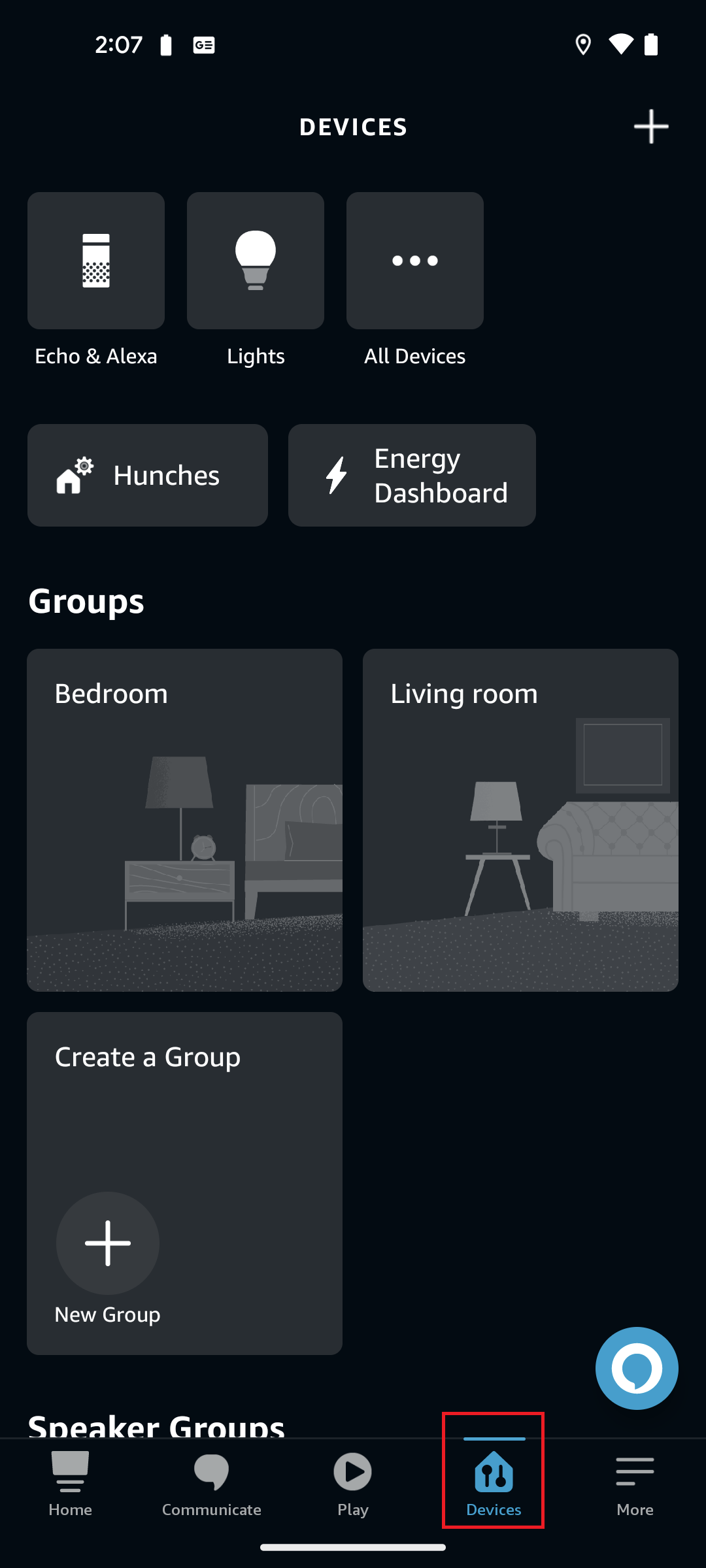
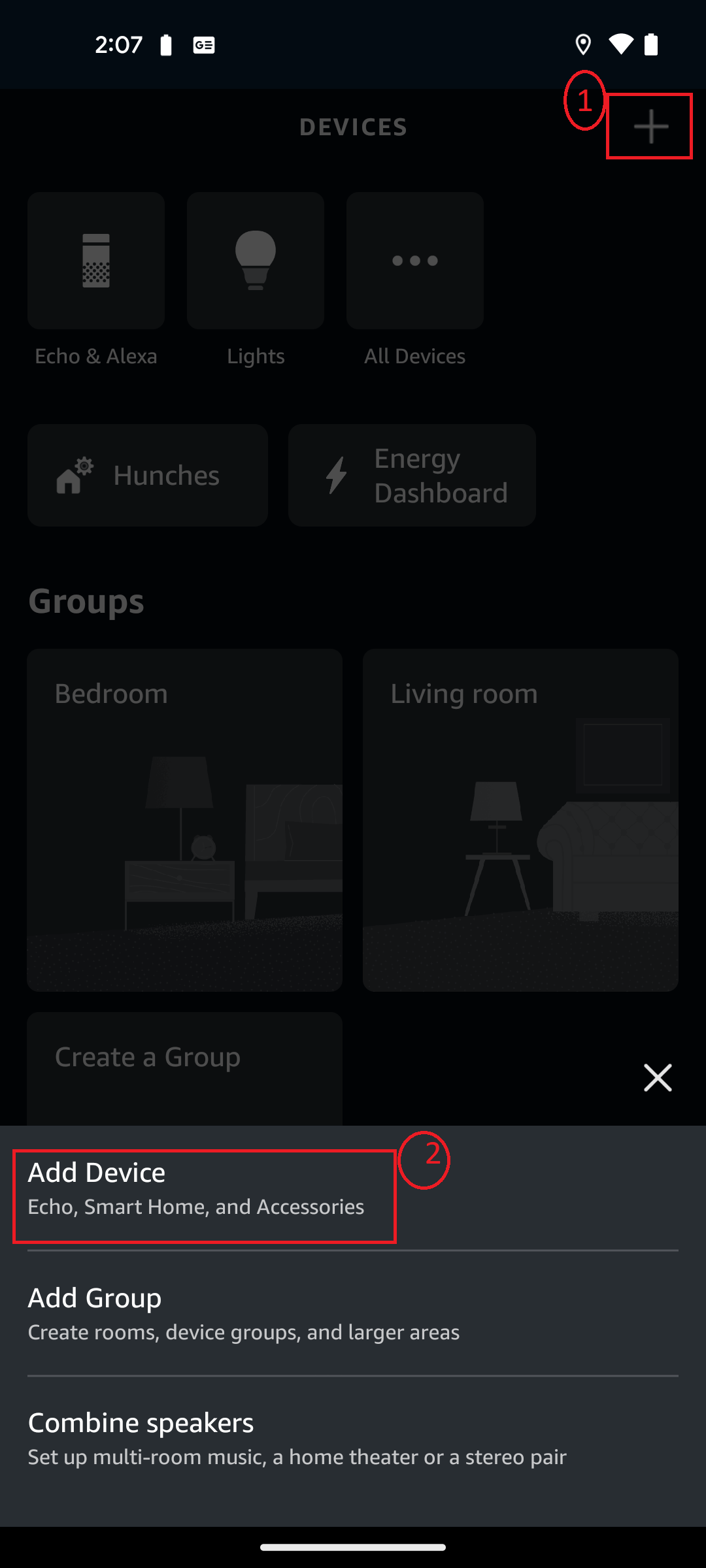
Tap "+" at the top right corner. Three options are displayed:
Add device
Add group
Combine speakers
Tap Add Device. Several options are displayed.
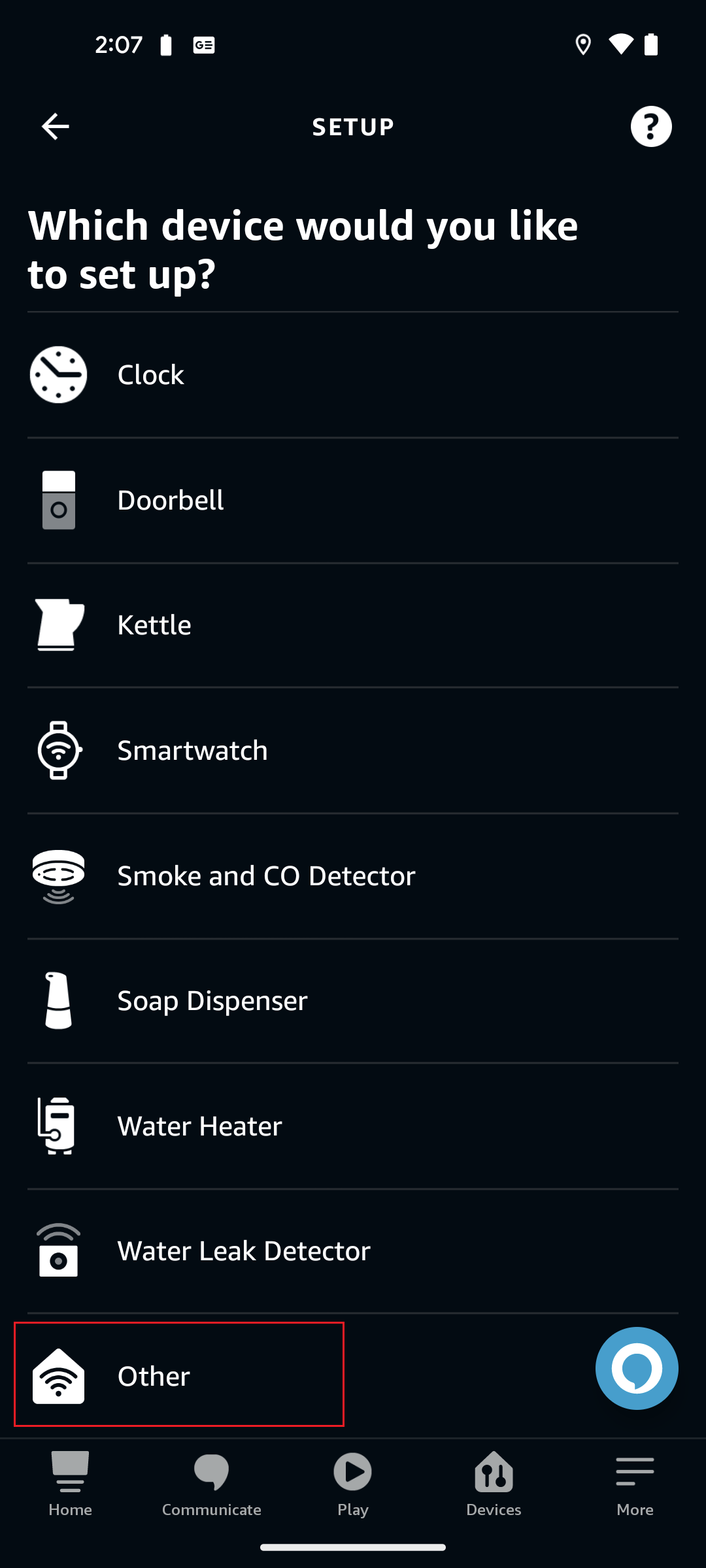
Scroll down and select Other option.
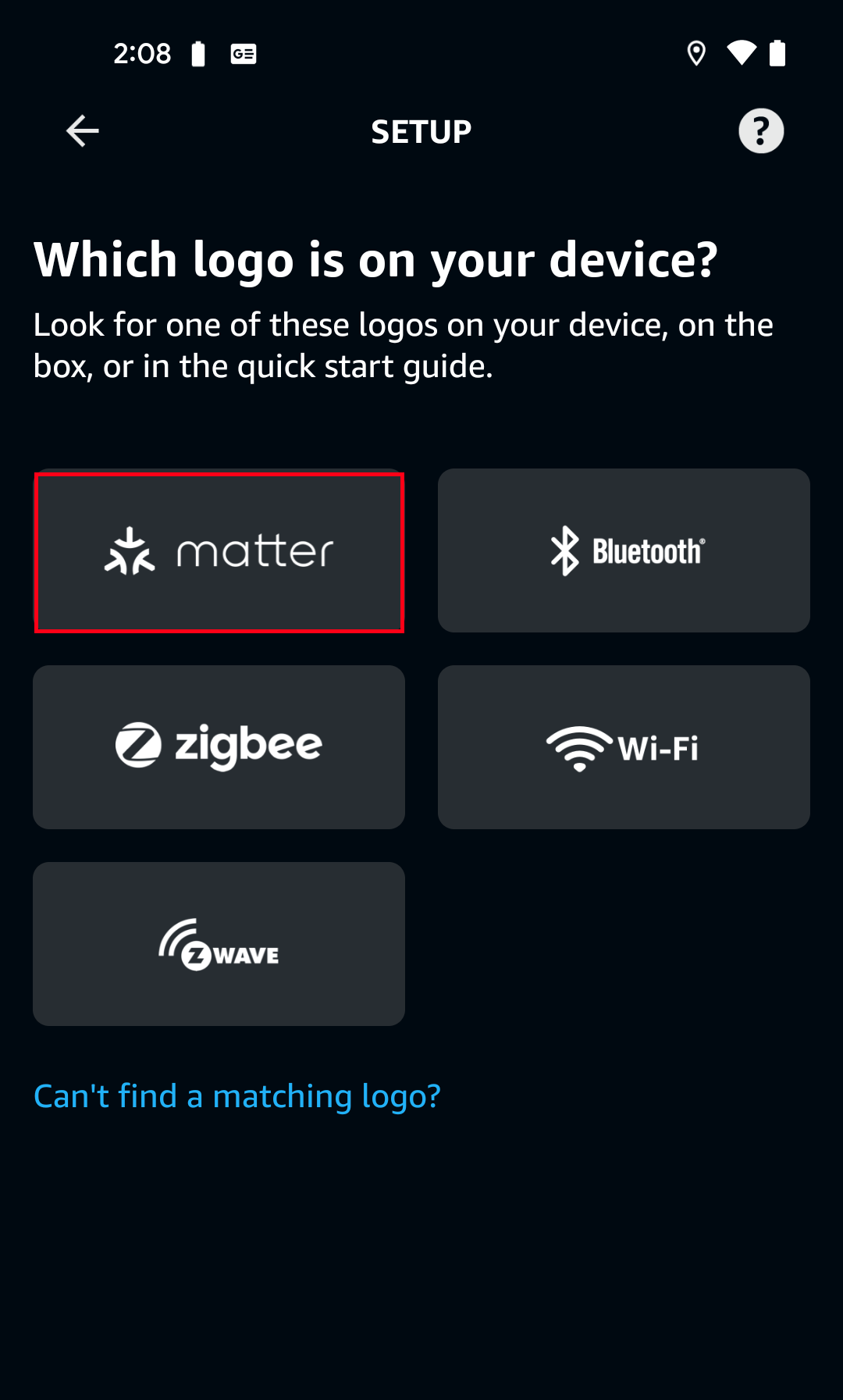
Logos such as “Matter”, “Bluetooth”, “Zigbee”, “Wi-fi”, and “Z-wave" are displayed. Tap the “Matter” logo.
Alexa will ask Does your device have a matter logo? Select Yes.
Alexa will prompt Locate a QR code shown for your device. Select Scan QR Code.
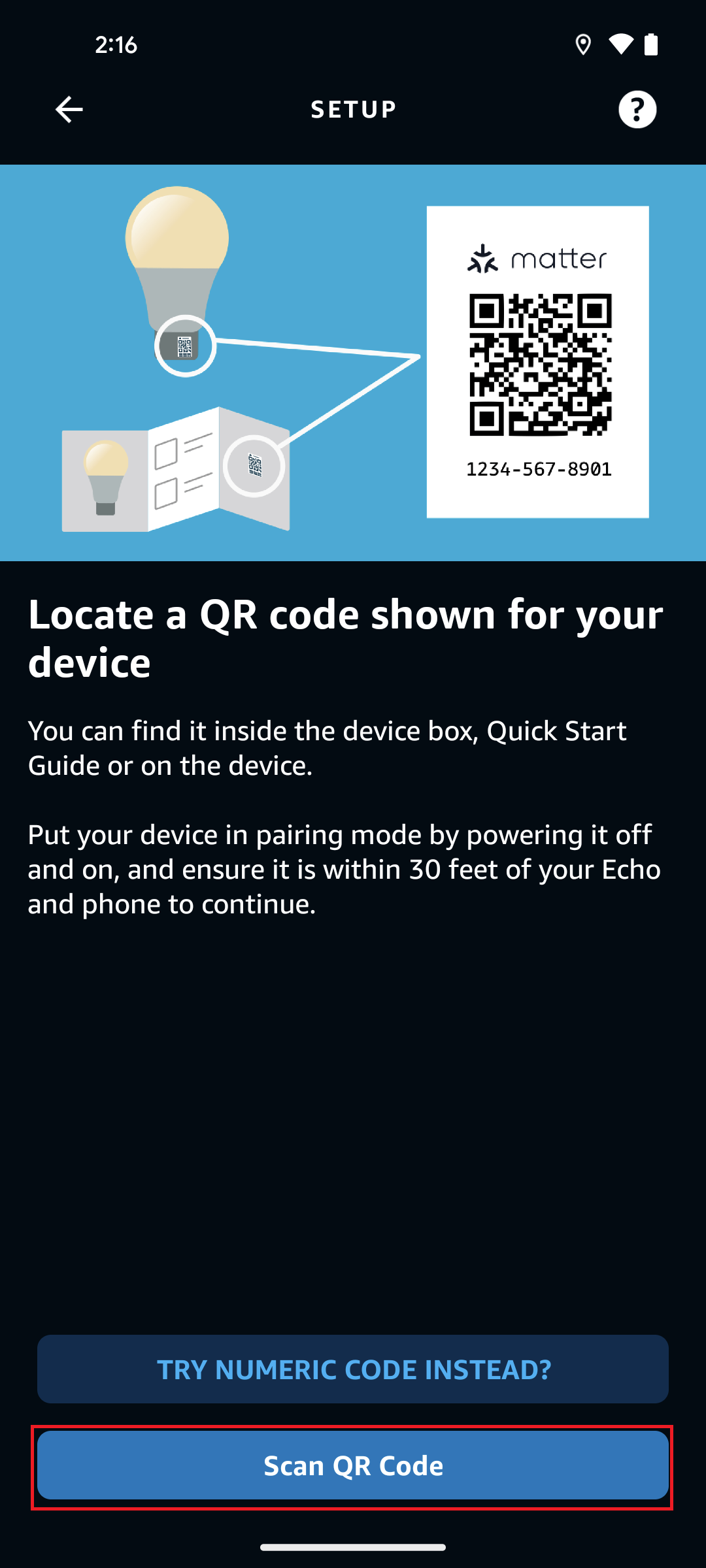
After scanning the QR code through a smartphone camera, verify that commissioning is started by checking the Device logs.
NOTE: If the device is running a development version of the application, a prompt will appear stating that "This device isn't Matter compatible". Proceed to set up the device anyway.
Once commissioning is triggered, the Alexa app will prompt for Access Point Credentials. Add them. The results on this page vary based on the device used. Sometimes a device does not show the particular Access Point so add it manually.
After Access Point Credentials are provided, the device will join to the network and commissioning is completed.
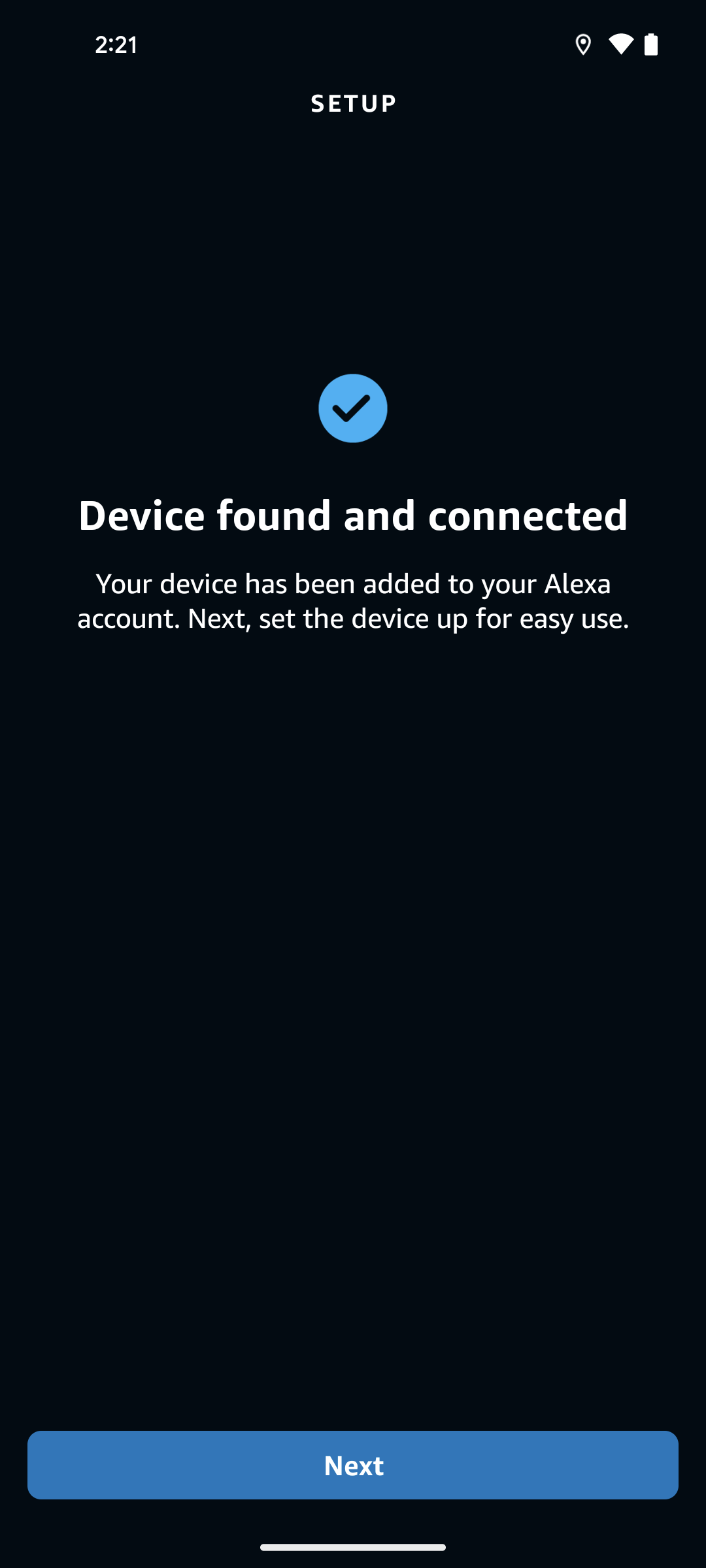
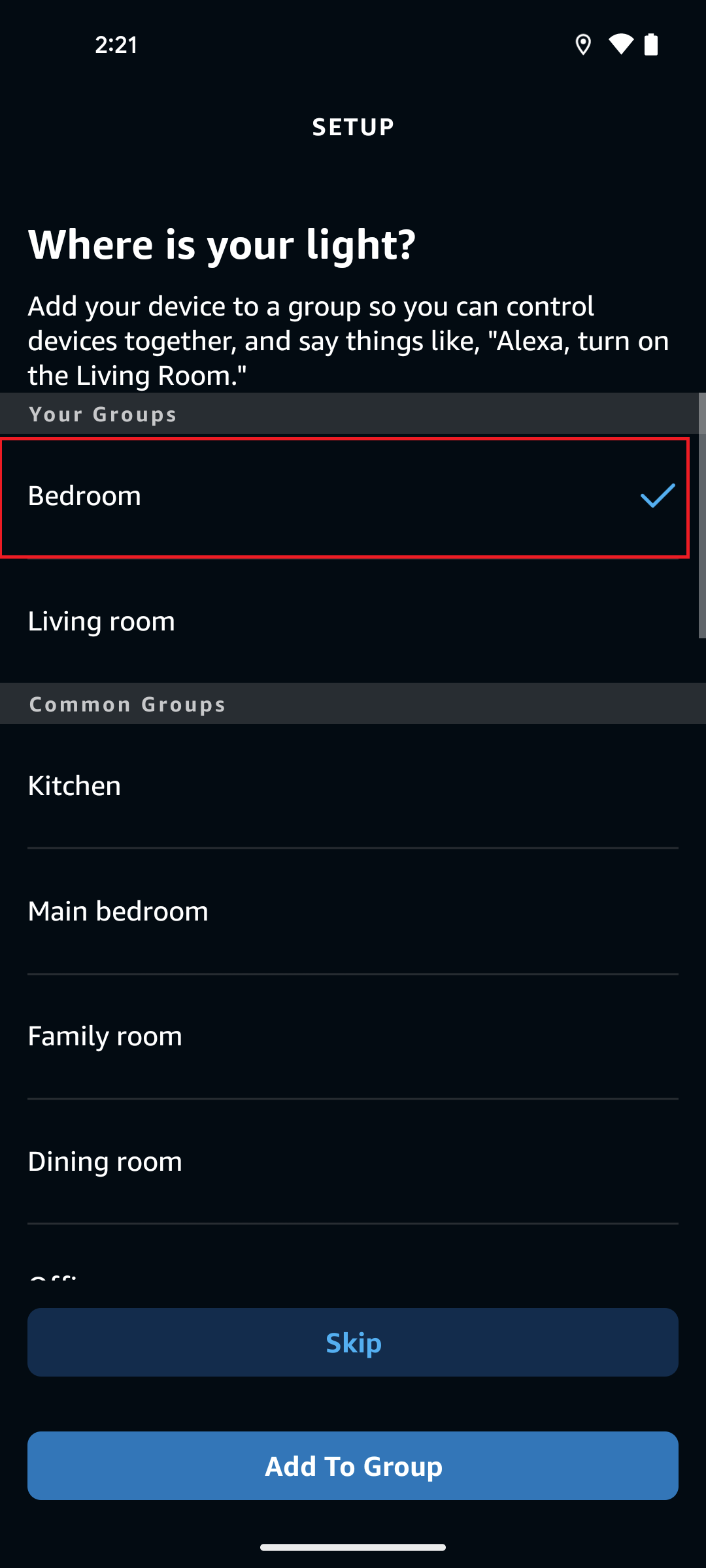
Next, select a group for your device (for example, Bedroom), and tap Add To Group.
Now the application is ready to use. You can see the Matter application in the Amazon Alexa app inside the Groups Panel at the Bedroom tab.
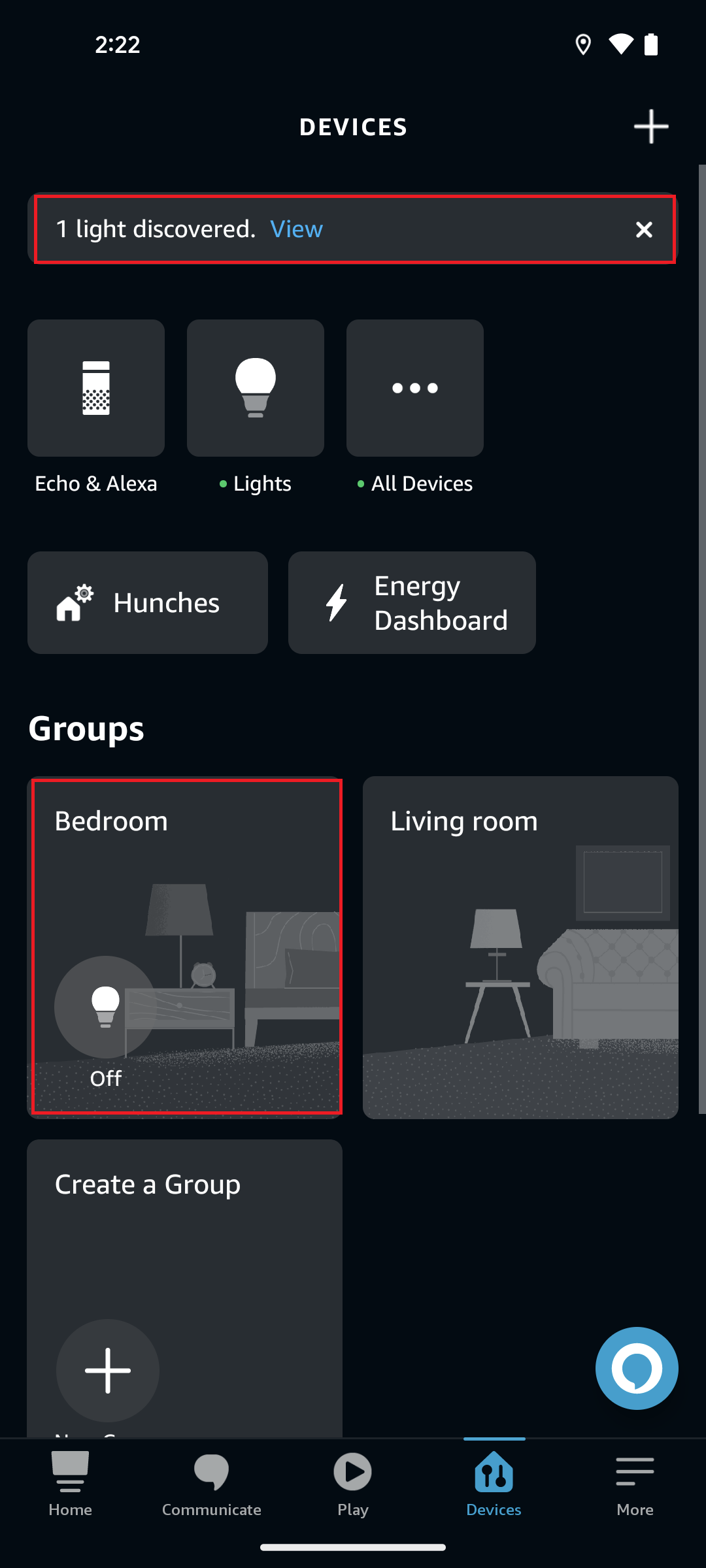
In the Amazon Alexa app, you will now be able to tap your light to turn it ON and OFF. You can also control the light by giving a voice command (for example, 'Hey Alexa! Turn ON Light') and through the app user interface.
The LED1 on your WSTK board will turn on or off depending on the command you enter.
Deleting Matter Application from Amazon Alexa#
Tap the Matter Application for a detailed view.
Tap the Setting button on top right corner.
Select Dustbin Button on top right corner. It will prompt Remove "First light". Tap DELETE.