


Getting Started with OTA Updates in Matter Applications Using Simplicity Studio#
In the Matter OTA Software Update scenario, the running image (OTA-A) and the update image (OTA-B) are regular Matter application images and are built using the standard procedure. The only additional configuration required is the use of a higher software version in the update image. This page provides information about creation of OTA-A and OTA-B application for EFR32 and SiWx917 SOC Boards.
Note: Examples used are for EFR32. Select BRD4338A Board to create OTA-A and OTA-B application for SiWx917 SOC.
Create and Build Project for Matter OTA-A Application#
Download and Install Simplicity Studio.
To install the software packages for Simplicity Studio, refer Software Package Installation
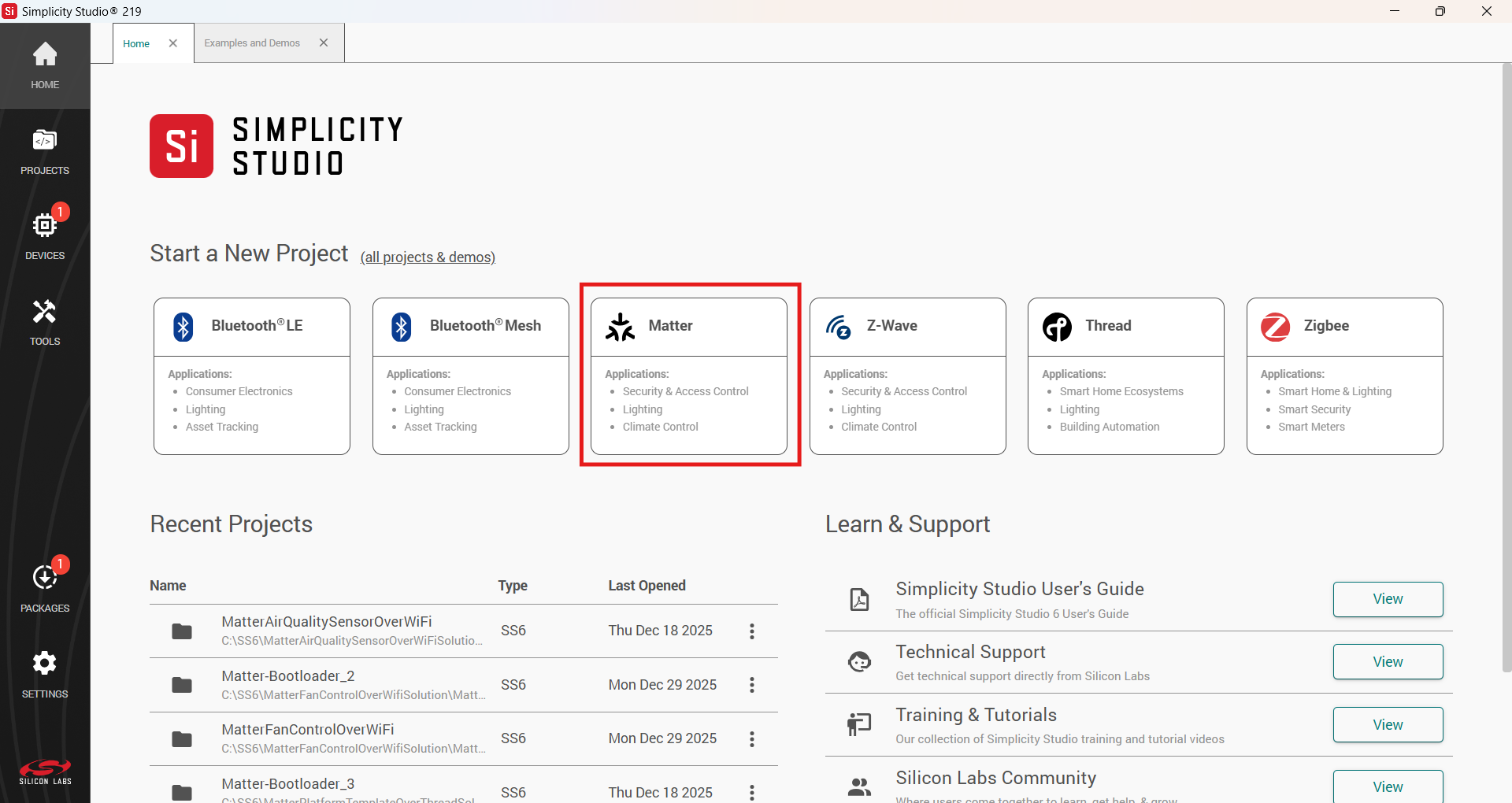
In Simplicity Studio, click on Matter, under Example Projects and Demos, select a project, and click Create.
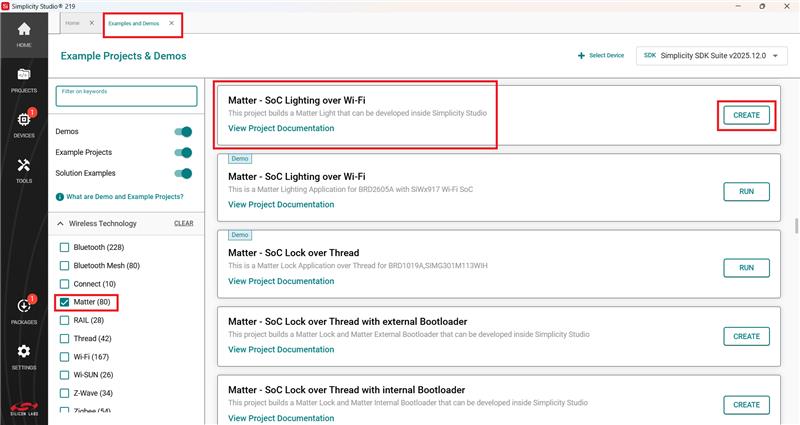
In the Project Configuration window, Select the board and click Next.
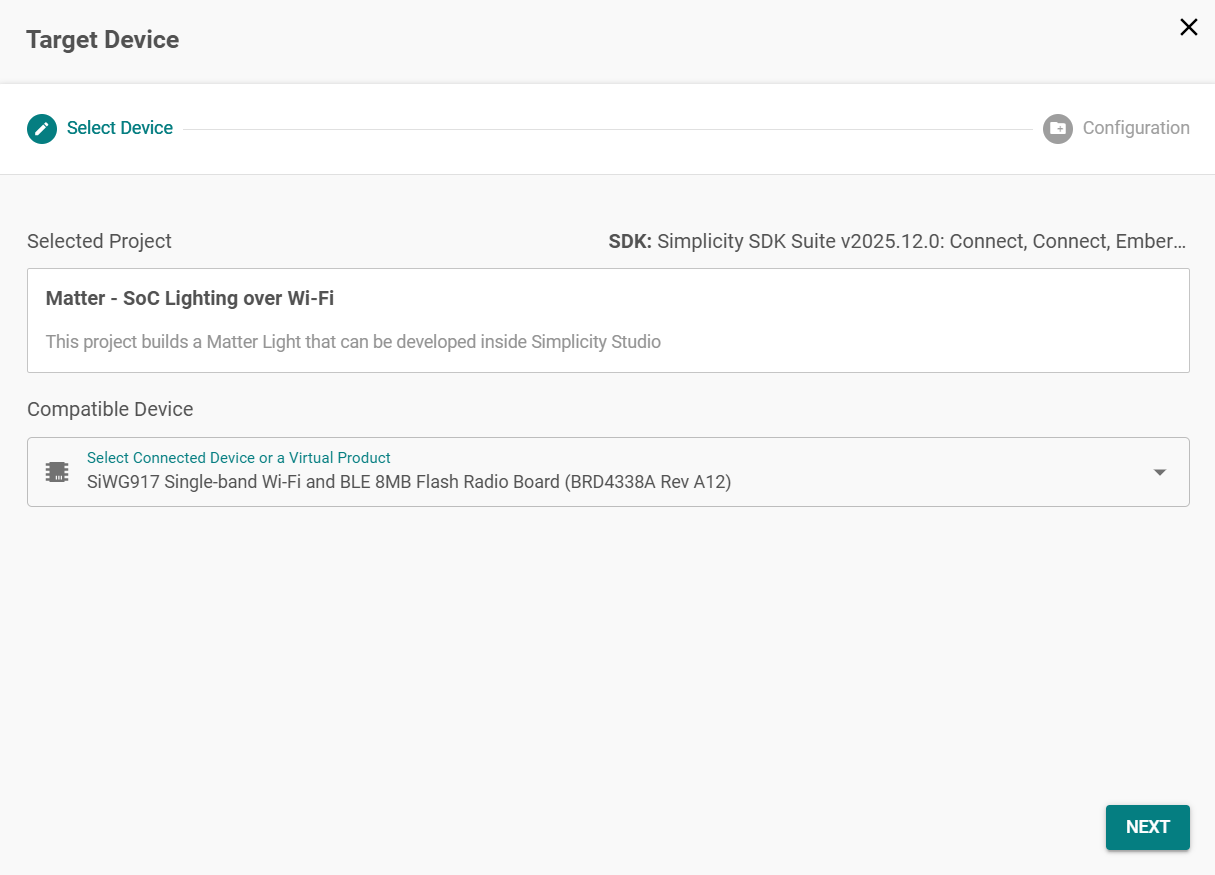
Set -
Solution and Project Name.
Select Target IDE.
Click Finish.
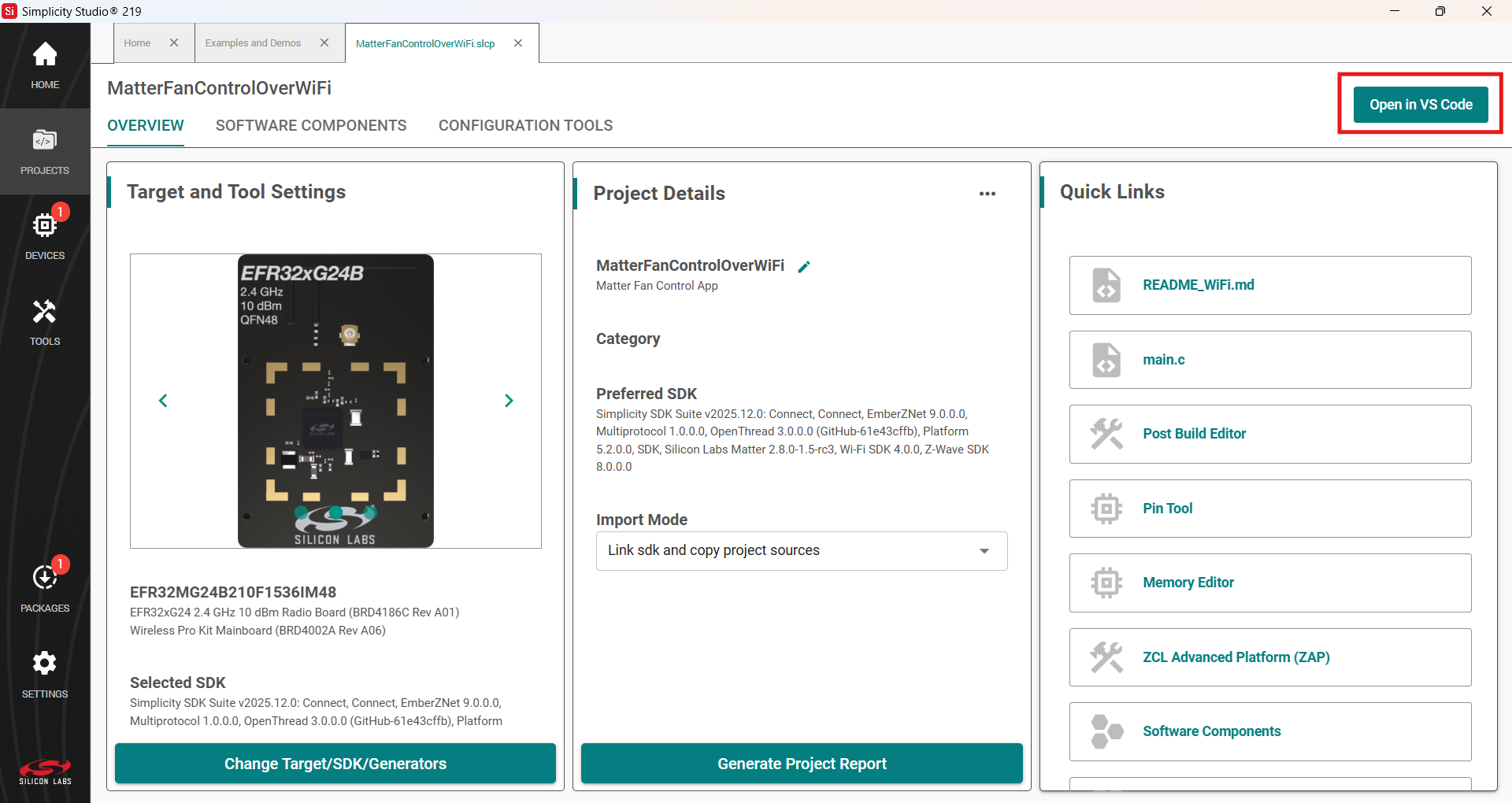
Once the project is created, click the Open in VS Code option on the top right corner.
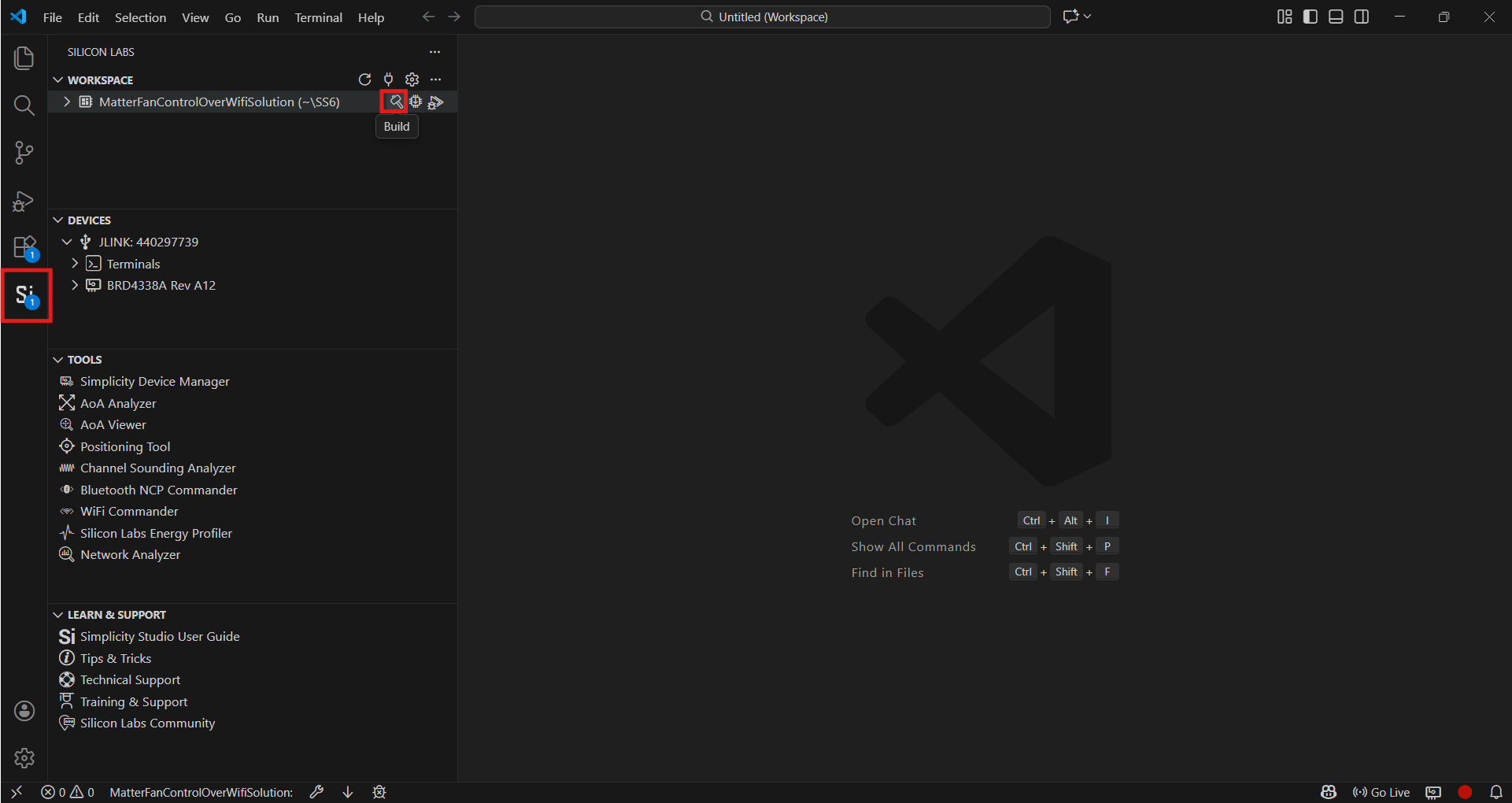
In VS Code, click the Studio Extension on the left panel and select Build option (Hammer Icon) in the Workspace tab.
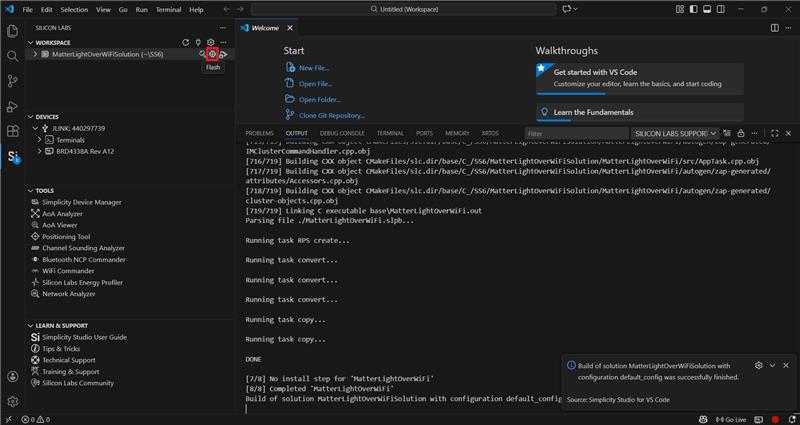
Once the project is compiled successfully, the binaries can be flashed either using the Simplicity Commander from the tools or using the Flash option beside the Build.
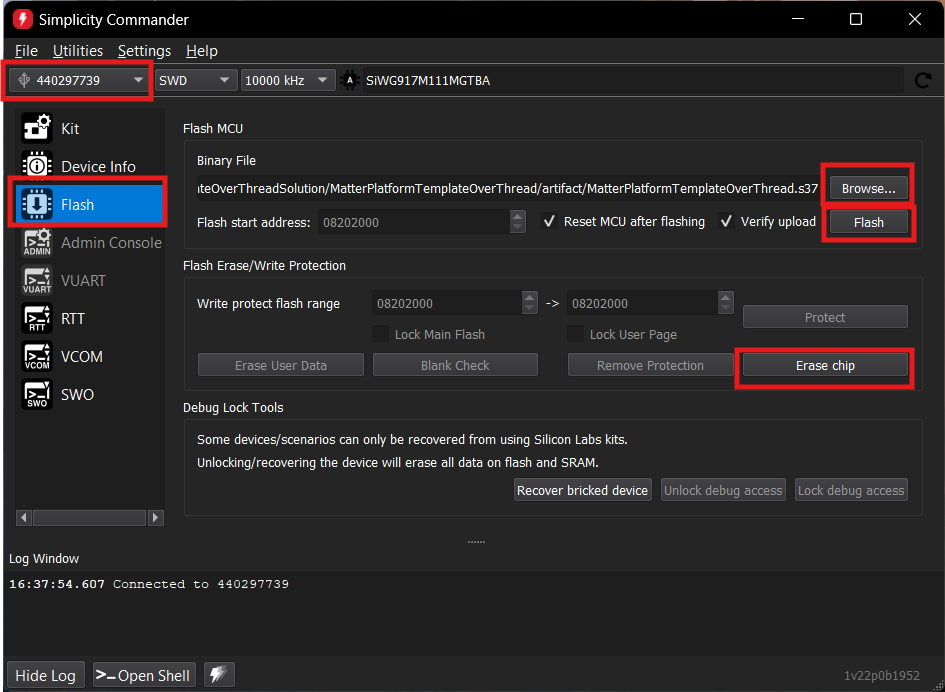
When using Commander, select the kit and click the Flash option in the left panel. Click Erase chip.
Select the path for the project's .s37 or .rps binary and click Flash.
Note: By default, device logs are enabled on UART (serial terminal).
Create and build Project for matter OTA-B application#
Matter OTA-B application will be used to create gbl for EFR32MG2x & .rps for SiWx917 SOC OTA file and OTA-A will be used to flash to the matter device.
For Matter OTA-B application need to change Version in sl_matter_config.h file before building.
. In Simplicity Studio, click on Matter, under Example Projects and Demos, select a project, and click Create.
In the Project Configuration window, Select the board and click Next.
Set -
Solution and Project Name.
Select Target IDE.
Click Finish.
In the newly created project, navigate to Software Components > Silicon Labs Matter > Stack > Matter Core Components, click Configure, and set the Device software version and Device software version string parameters to 2.
Once the modification is done for Software version, click the Open in VS Code option on the top right corner.
In VS Code, click the Studio Extension on the left panel and select Build option (Hammer Icon) in the Workspace tab.
Once the project is compiled successfully, go to the Project Explorer view and expand the OTA-B project binaries folder. Using the application .s37 file, create a .gbl file using Simplicity commander.
After Creation of OTA-B application, run the OTA Scenario.