


Introduction#
Matter EVSE is a relatively new device type, and ecosystem support for it is still limited. Support for commissioning and controlling an EVSE may therefore vary across Matter controllers and smart home platforms. Therefore, in this guide the chip-tool/mattertool is used in order to commission and control this device.
Extend the Matter over Thread EVSE Sample with a Simulated EV#
The Matter over Thread EVSE sample demonstrates an Electric Vehicle Supply Equipment (EVSE) device running on a Silicon Labs EFR32 SoC.
The base sample includes Matter EVSE functionality, but it does not simulate a connected electric vehicle (EV). In this guide, you extend the application with a simple simulated EV so you can exercise the EVSE states without external EV hardware.
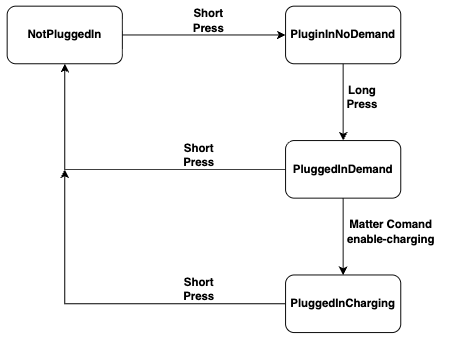
Use BTN1 to interact with the simulated EV:
BTN1 Action | Result |
|---|---|
Short press | Connect or disconnect the EV |
Long press | Toggle EV charge demand |
LED1 indicates whether the simulated EV is connected.
Using the simulated EV together with Matter commands such as EnableCharging and Disable, you can demonstrate the following EVSE states:
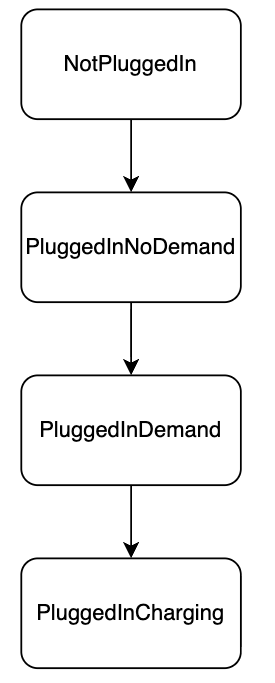
The existing EVSE state machine handles the transition to PluggedInCharging when the EV requests energy and charging is enabled.
Create the Matter Over Thread EVSE Example#
In Simplicity Studio, create the EVSE example:
Connect a compatible development board to your development computer. This example uses a BRD4187C.
When the board appears in the Devices panel, select it.
In the Example Projects and Demos tab, select the Matter filter under Wireless Technology, and enter
evsein the Filter on keywords box. Select the Matter Thread - SoC EVSE with external Bootloader FreeRTOS solution, and then click Create.
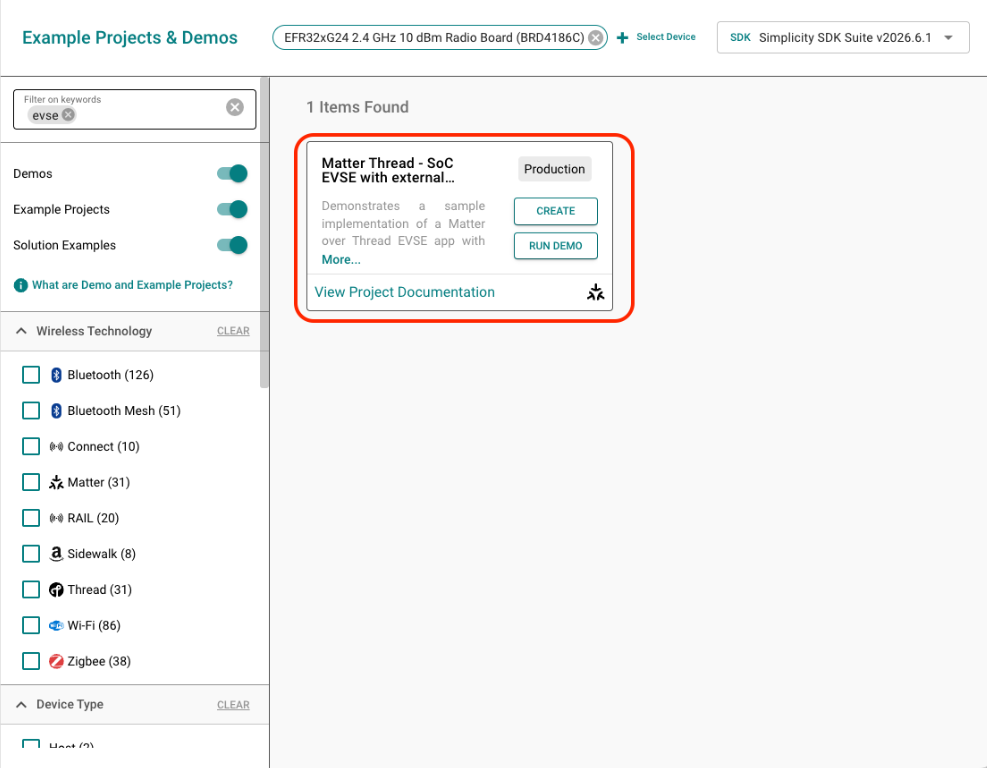
Name your project, and then click Finish. No other changes are required at this time.
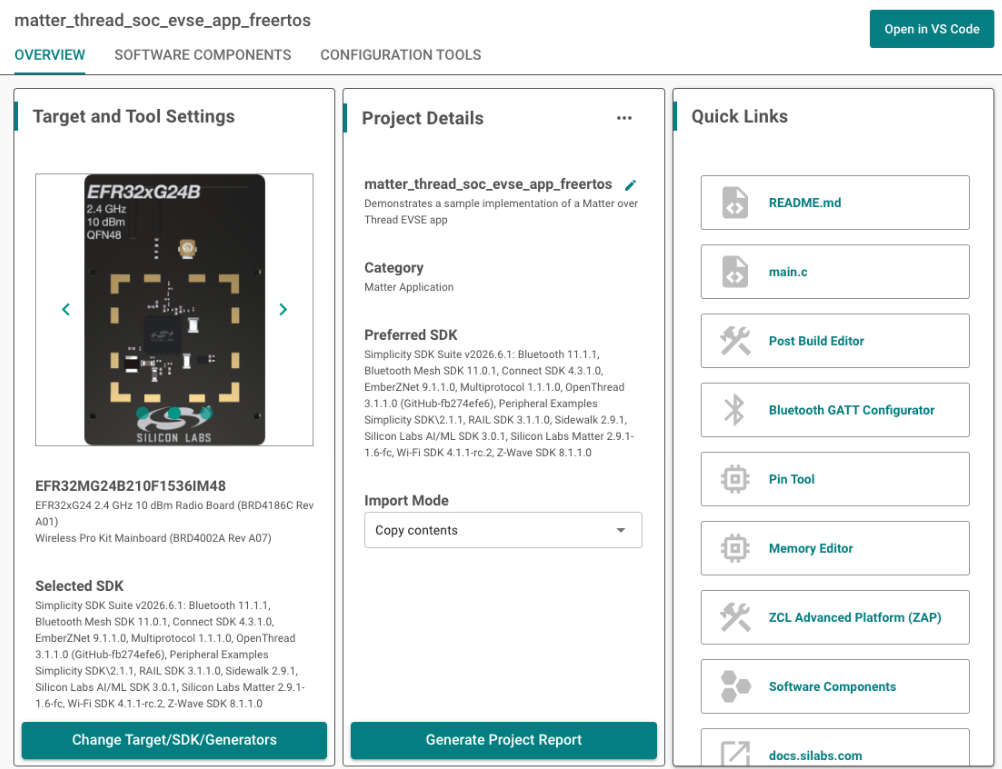
After the solution is created, Simplicity Studio opens the Projects view with the
matter_thread_soc_lighting_app_freertos.slcpfile open. If the file doesn't open automatically, open it manually.
Extend the Application with CustomerAppTask#
The EVSE example provides CustomerAppTask.h and CustomerAppTask.cpp for adding application-specific behavior. Use these files instead of modifying the generated AppTask.cpp.
Silicon Labs uses an *Impl() override pattern. To customize an existing application function:
Find the corresponding
*Impl()method inautogen/AppTaskImpl.h.Copy the exact method signature into the
private:section ofCustomerAppTask.h.Implement the method in
CustomerAppTask.cpp.
If you don't override a method, the default Silicon Labs implementation continues to be used.
For example:
class CustomerAppTask : public AppTaskImpl<CustomerAppTask>
{
public:
static CustomerAppTask & GetAppTask() { return sAppTask; }
private:
friend class AppTaskImpl<CustomerAppTask>;
CHIP_ERROR AppInitImpl();
static CustomerAppTask sAppTask;
};This approach keeps the EV simulation changes isolated from the base EVSE application and prevents application-specific changes from being lost when generated files are regenerated or the project is upgraded. For more information about app customization, see Extending Base App Implementation.
Add the Simulated EV#
The EVSE sample provides Matter EVSE functionality, but it does not include a physical or simulated electric vehicle. BTN1 is reserved for an Energy Management action, but the base application does not use it to simulate EV connection or demand. To exercise the EVSE state machine without external EV hardware, add a minimal simulated EV. The simulator tracks only the two EV-side conditions required for this demonstration:
Whether an EV is connected
Whether the EV has charge demand
The Matter EVSE implementation remains responsible for determining whether charging is allowed and for transitioning to the charging state.
Update SimulatedEv.h#
#pragma once
class SimulatedEv
{
public:
struct Snapshot
{
bool connected = false;
bool demand = false;
};
void ToggleConnected();
void ToggleDemand();
Snapshot GetSnapshot() const { return mState; }
private:
Snapshot mState;
};Update SimulatedEv.cpp#
#include "SimulatedEv.h"
void SimulatedEv::ToggleConnected()
{
mState.connected = !mState.connected;
// An unplugged EV cannot request energy.
if (!mState.connected)
{
mState.demand = false;
}
}
void SimulatedEv::ToggleDemand()
{
// Demand is only meaningful while an EV is connected.
if (mState.connected)
{
mState.demand = !mState.demand;
}
}The simulator starts disconnected with no charge demand. No explicit initialization function is required because the snapshot members default to false
Add the Source File to the Build#
Make sure SimulatedEv.cpp is included in the application build. Adding the file to the project directory isn't sufficient if the file isn't included in the source list.
Update CustomerAppTask.h#
Use the following methods to integrate the simulated EV:
AppInitImpl()registers the customCustomerAppTaskbutton handler after the base application is initialized.ButtonEventHandlerImpl()forwards both BTN1 press and release events to the Energy Management action event handler.EnergyManagementActionEventHandlerImpl()determines whether BTN1 was short-pressed or long-pressed and updates the simulated EV accordingly.UpdateSimulatedEv()maps the simulated EV connection and demand state to the corresponding EVSE state.
class CustomerAppTask : public AppTaskImpl<CustomerAppTask>
{
public:
static CustomerAppTask & GetAppTask() { return sAppTask; }
private:
friend class AppTaskImpl<CustomerAppTask>;
CHIP_ERROR AppInitImpl();
void ButtonEventHandlerImpl(uint8_t button, uint8_t btnAction);
void EnergyManagementActionEventHandlerImpl(AppEvent * aEvent);
void UpdateSimulatedEv();
static CustomerAppTask sAppTask;
};Update Customer.cpp#
Required headers:
#include "CustomerAppTask.h"
#include "SimulatedEv.h"
#include <EnergyEvseMain.h>
#include <EVSEManufacturerImpl.h>
#include <platform/silabs/platformAbstraction/SilabsPlatform.h>
#include "FreeRTOS.h"
#include "task.h"Define the BTN1 identifier, long-press duration, LEDWidget instance, and simulated EV instance:
#define APP_CONTROL_BUTTON 0
#define APP_CONTROL_BUTTON 1
#define SIM_EV_LED 1
using namespace ::chip::DeviceLayer::Silabs;
namespace {
SimulatedEv sSimEv;
LEDWidget sSimEvLed;
TickType_t sButtonPressTick = 0;
constexpr uint32_t kLongPressMs = 1000;
} // namespaceInitialize the LEDWidget Instance#
Override AppInitImpl() to initialize the LED instance and turn off the LED:
CHIP_ERROR CustomerAppTask::AppInitImpl()
{
CHIP_ERROR err = AppTask::AppInit();
if (err == CHIP_NO_ERROR)
{
sSimEvLed.Init(SIM_EV_LED);
sSimEvLed.Set(false);
}
return err;
}Forward BTN1 Press and Release Events#
Override the button handler so that both BTN1 actions reach the Energy Management action event handler while preserving the default BTN0 behavior: Override the button handler so that both BTN1 actions reach the Energy Management action event handler while preserving the default BTN0 behavior:
void CustomerAppTask::ButtonEventHandlerImpl(uint8_t button, uint8_t btnAction)
{
AppEvent event = {};
event.Type = AppEvent::kEventType_Button;
event.ButtonEvent.Action = btnAction;
if (button == APP_CONTROL_BUTTON)
{
// Forward both press and release events for BTN1.
event.Handler = &CustomerAppTask::EnergyManagementActionEventHandler;
AppTask::GetAppTask().PostEvent(&event);
}
else if (button == APP_FUNCTION_BUTTON)
{
// Preserve the default BTN0 behavior.
event.Handler = BaseApplication::ButtonHandler;
AppTask::GetAppTask().PostEvent(&event);
}
}Detect Short and Long Presses#
Use the press and release timestamps to determine which simulated EV action to perform. A short press toggles the EV connection state. A long press toggles the EV charge-demand state:
void CustomerAppTask::EnergyManagementActionEventHandlerImpl(AppEvent * aEvent)
{
auto action = static_cast<SilabsPlatform::ButtonAction>(
aEvent->ButtonEvent.Action);
if (action == SilabsPlatform::ButtonAction::ButtonPressed)
{
sButtonPressTick = xTaskGetTickCount();
return;
}
if (action != SilabsPlatform::ButtonAction::ButtonReleased)
{
return;
}
TickType_t elapsedTicks = xTaskGetTickCount() - sButtonPressTick;
if (elapsedTicks >= pdMS_TO_TICKS(kLongPressMs))
{
// Long press: toggle EV charge demand.
SILABS_LOG("SimEV: LONG PRESS");
sSimEv.ToggleDemand();
auto state = sSimEv.GetSnapshot();
SILABS_LOG("SimEV: connected=%u demand=%u",state.connected,state.demand);
}
else
{
// Short press: connect or disconnect the EV.
SILABS_LOG("SimEV: SHORT PRESS");
sSimEv.ToggleConnected();
auto state = sSimEv.GetSnapshot();
sSimEvLed.Set(state.connected);
SILABS_LOG("SimEV: connected=%u demand=%u",state.connected,state.demand);
}
UpdateSimulatedEv();
}A long press is recognized when you release BTN1 after holding it for at least one second.
Report the Simulated EV State#
UpdateSimulatedEv() translates the two simulated EV conditions into the hardware-facing EVSE states:
void CustomerAppTask::UpdateSimulatedEv()
{
auto state = sSimEv.GetSnapshot();
chip::DeviceLayer::PlatformMgr().LockChipStack();
auto * manufacturer =
chip::app::Clusters::EnergyEvse::GetEvseManufacturer();
if (manufacturer != nullptr)
{
auto * delegate = manufacturer->GetEvseDelegate();
if (delegate != nullptr)
{
if (!state.connected)
{
delegate->HwSetState(
chip::app::Clusters::EnergyEvse::StateEnum::kNotPluggedIn);
}
else if (state.demand)
{
delegate->HwSetState(
chip::app::Clusters::EnergyEvse::StateEnum::kPluggedInDemand);
}
else
{
delegate->HwSetState(
chip::app::Clusters::EnergyEvse::StateEnum::kPluggedInNoDemand);
}
}
}
chip::DeviceLayer::PlatformMgr().UnlockChipStack();
}The simulated EV reports only the physical EV conditions. The EVSE delegate handles higher-level transitions such as PluggedInCharging.
Expected Behavior#
The application can now exercise the first three EVSE states directly:
Commission and Test EVSE Charging with the Matter Controller#
Before testing the simulated EV states, commission the device onto the Thread network using mattertool.
Start the Thread Network#
On the Matter Hub, run:
mattertool startThreadThis command creates the Thread network and stores the operational dataset used for commissioning.
Commission the Device#
Commission the EVSE device with:
mattertool bleThread -n <node-id>For example:
mattertool bleThread -n 1The mattertool bleThread command performs BLE commissioning and provisions the device onto the Thread network.
Verify the Initial EVSE State#
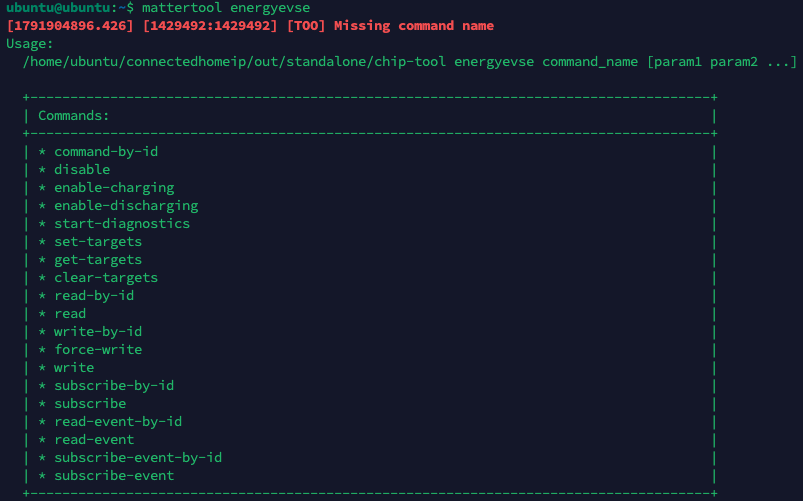
You can find the different mattertool commands available for EVSE by typing mattertool energyevse , this should show you the available commands:
Read the EVSE state:
mattertool energy-evse read state <node-id> <endpoint-id>Expected:
State = 0 -> NotPluggedIn
Verify EV Connection#
Short press BTN1, then read the state again:
mattertool energy-evse read state <node-id> <endpoint-id>Expected:
State = 1 -> PluggedInNoDemand
Verify EV Demand#
Long press BTN1, then read the state:
mattertool energy-evse read state <node-id> <endpoint-id>Expected:
State = 2 -> PluggedInDemand
Matter defines this state as the EV being plugged in and requesting current while the EVSE is not currently allowing current to flow.
Enable Charging#
Enable charging through the Matter Energy EVSE cluster:
mattertool energy-evse enable-charging null <minimum-current-mA> <maximum-current-mA> <node-id> <endpoint-id>For example:
mattertool energy-evse enable-charging null 6000 32000 1 1A null ChargingEnabledUntil value enables charging without an expiration time.
Verify the state:
mattertool energy-evse read state 1 1Expected:
State = 3 -> PluggedInCharging
Disable Charging#
Disable charging with:
mattertool energy-evse disable <node-id> <endpoint-id>For example:
mattertool energy-evse disable 1 1Because the EV remains connected and still has demand, the EVSE should return to:
State = 2 -> PluggedInDemand
The Disable command stops power flow and changes the EVSE supply state to disabled.