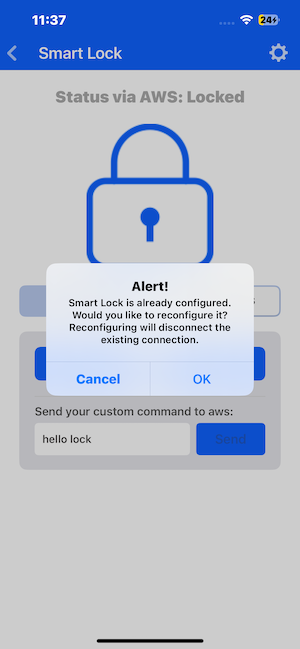
Smart Lock Demo#
The Smart Lock demo showcases how to control a smart lock using Bluetooth Low Energy (BLE) and Amazon Web Services (AWS). The SiWx91x Development Kit (Dev Kit) functions as the smart lock device. You can control the smart lock device locally via BLE, or remotely via AWS.
Additionally, you can also lock/unlock the Smart Lock directly on the Dev Kit board by pressing the BTN0 button. This action can be observed on the mobile application.
SiWx91x Dev kit Setup#
Connect the SiWx917 Dev Kit board (BRD2605A) to a PC/Laptop and follow README to configure iot-pa-coex-smart_lock example project.
Configure the following parameters:
SUBSCRIBE_TO_TOPIC
PUBLISH_ON_TOPIC
AWS_IOT_MQTT_HOST
You will receive default topic values which you can keep or modify at your convenience.
app.c

aws_iot_config.h

Before proceeding, carefully read the README file of the project to understand how to configure it with AWS IoT. Once the configuration is complete, build the project.
Please make sure to use the same endpoint, certificates, and topics to configure the mobile app as given below in the section Control Over AWS.
Simplicity Connect Mobile App Setup#
Connect your mobile to an access point with internet connectivity.
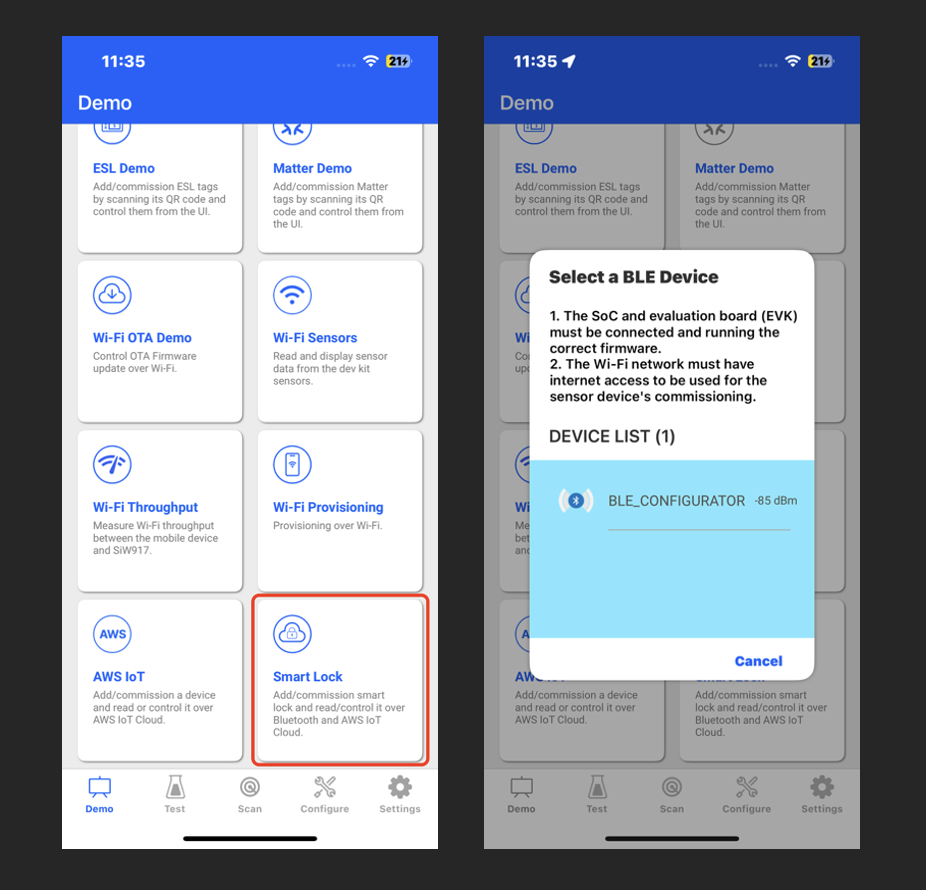
Select the Smart Lock section from the demo tiles screen and choose the SiWx917 Dev Kit you want to connect from the popup.
Provisioning Dev kit#
Provision the SiWx917 Dev Kit (BRD2605A). Make sure an Access Point (AP) has an active internet connection.
Ensure Bluetooth is enabled on mobile device. The Dev Kit requires BLE (Bluetooth Low Energy) to establish a connection.
On successful selection of the 917 Dev Kit device, you will be redirected to the Wi-Fi Commissioning screen to commission the device. Select the access point you want to connect and enter the password.
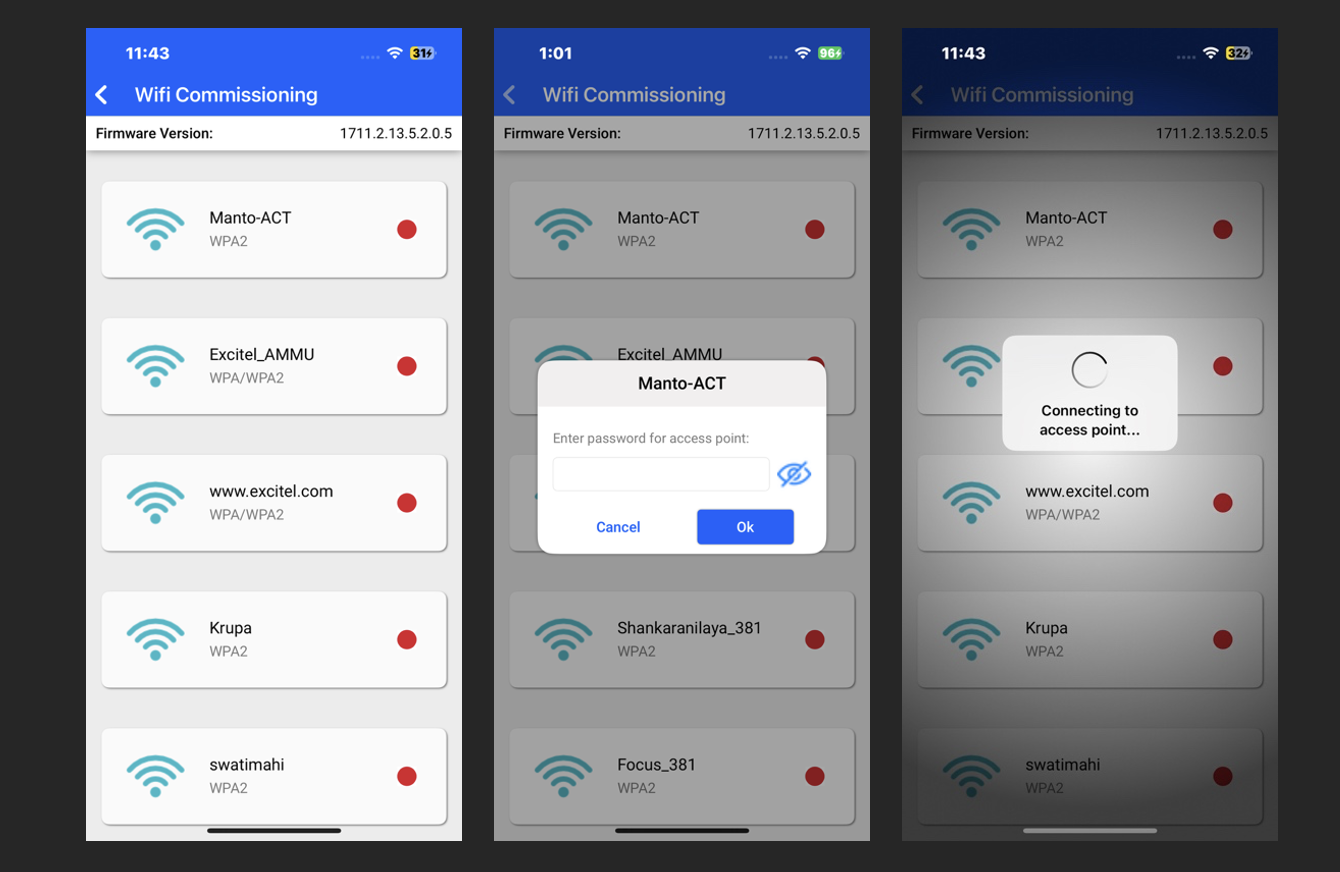
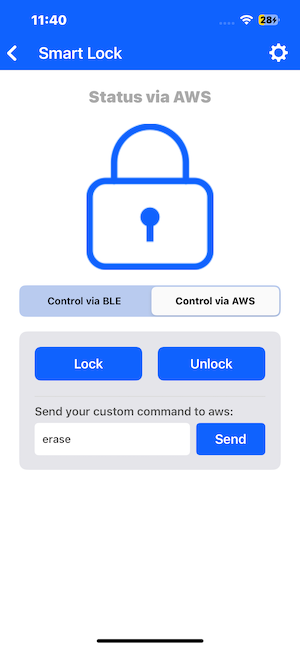
Once the device is connected to the access point, you will be redirected to a Smart Lock screen, where you can control the smart lock via BLE or AWS.
Control Over BLE#
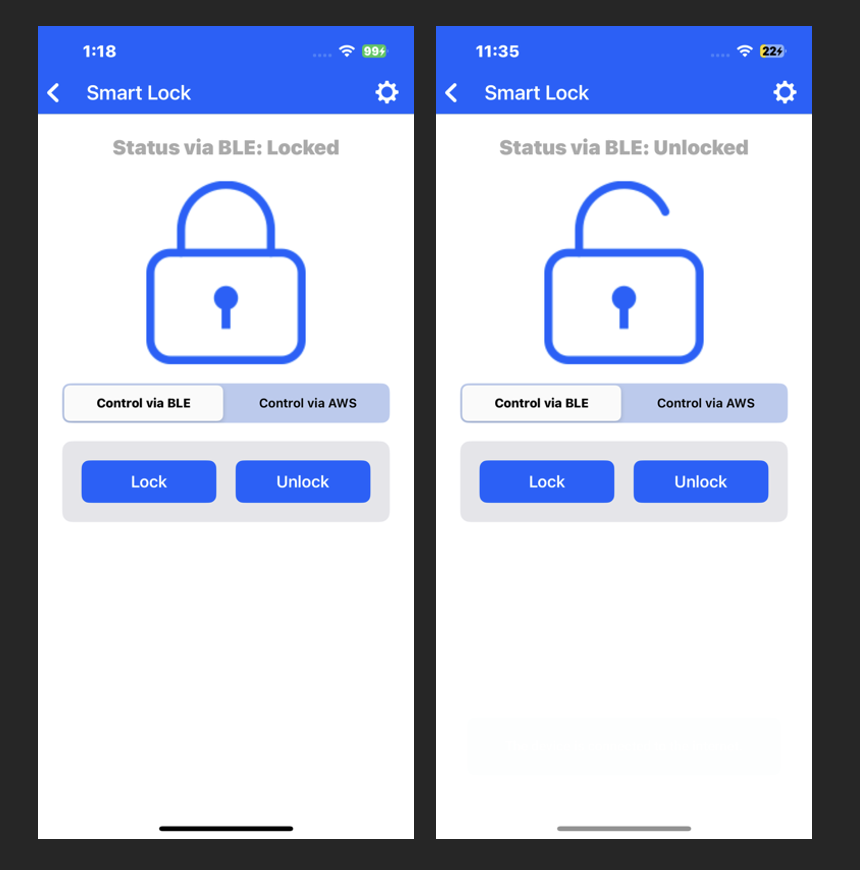
Once you press the lock/unlock button, the mobile app will send the command to dev kit over BLE.
Based on the command dev kit will toggle the LED on the board.
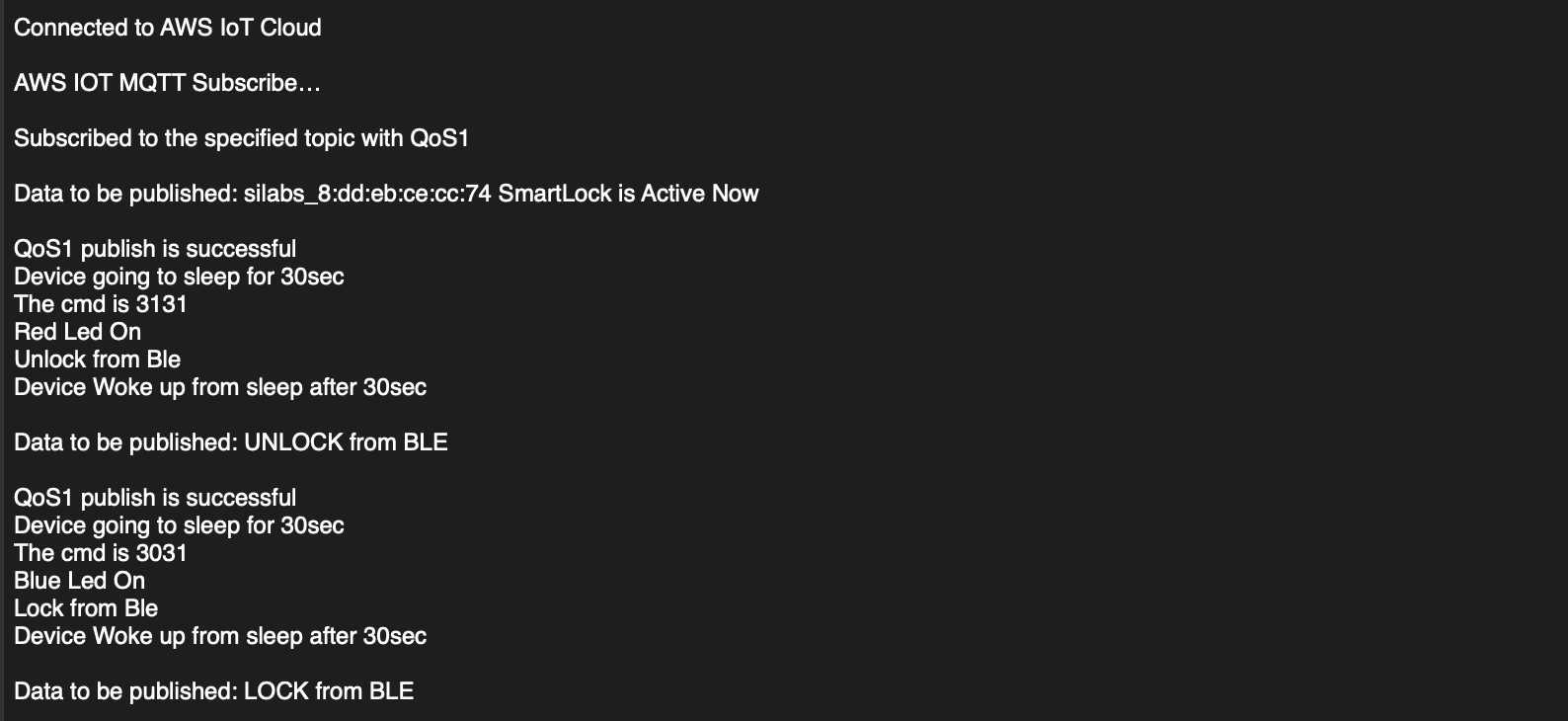
Dev kit (BRD2605A) will also update the lock status to the AWS, which can be visible in the UART log.
UART Log:
Control Over AWS#
Before pressing the lock/unlock button make sure the following parameters are configured. You can get the configuration screen by tapping the settings button located in the top-right corner of the screen.
i. The AWS certificates can be generated from here.
ii. Provide the publish and subscribe topics as described here.
iii. Provide the end point details as described here.
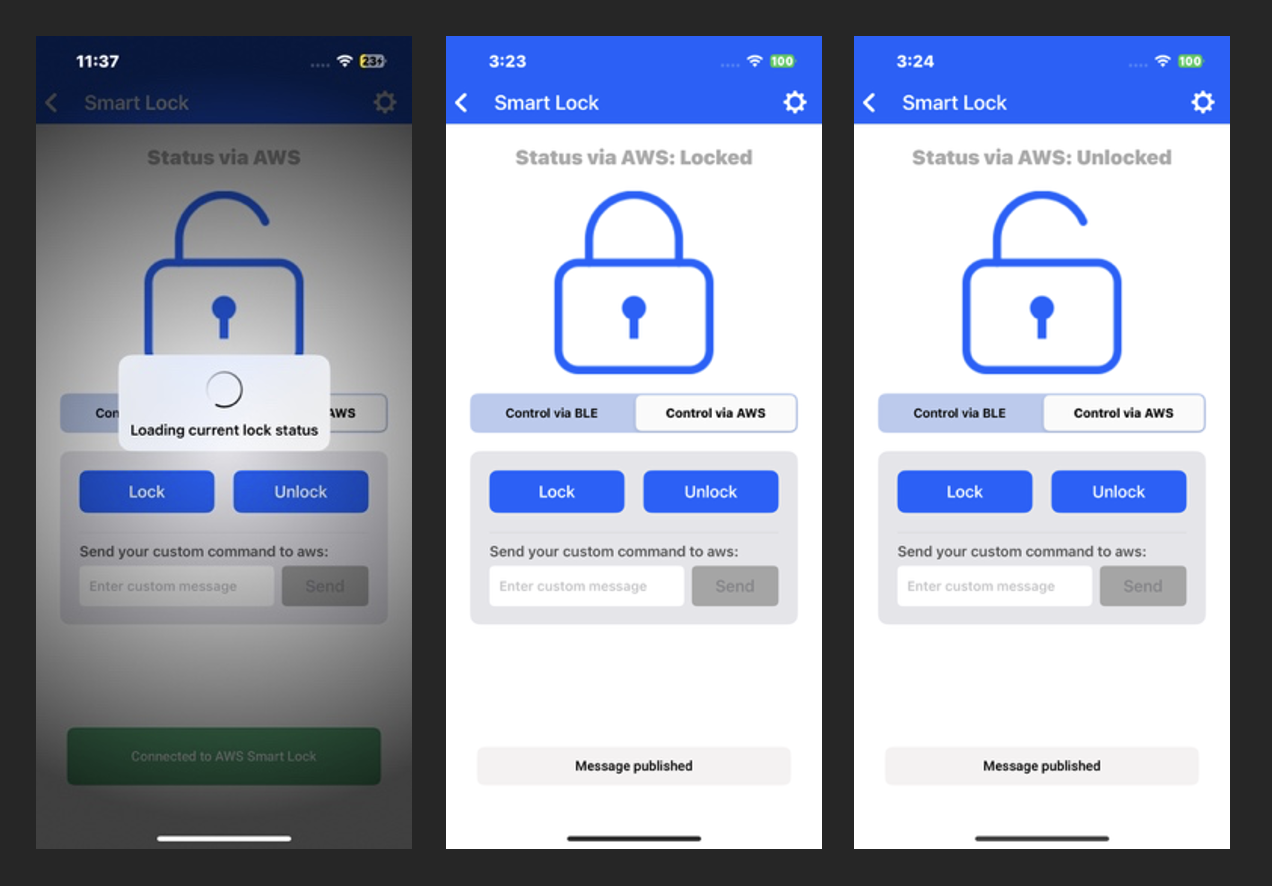
The mobile app will publish the lock or unlock command to the configured topic.
Script to Create a .p12 Certificate File#
Run the following command to generate the certificate file:
OpenSSL pkcs12 -export -legacy -out <Certificate_File_Name.p12> -in aws-certificate.pem.crt -inkey aws-private.pem.key


When you run the script, it will prompt you to enter the export password. At that point, you should provide the password for the .p12 file.
Note: Certificate files should be sent to the mobile phone in a ZIP file and then unzipped on the phone.
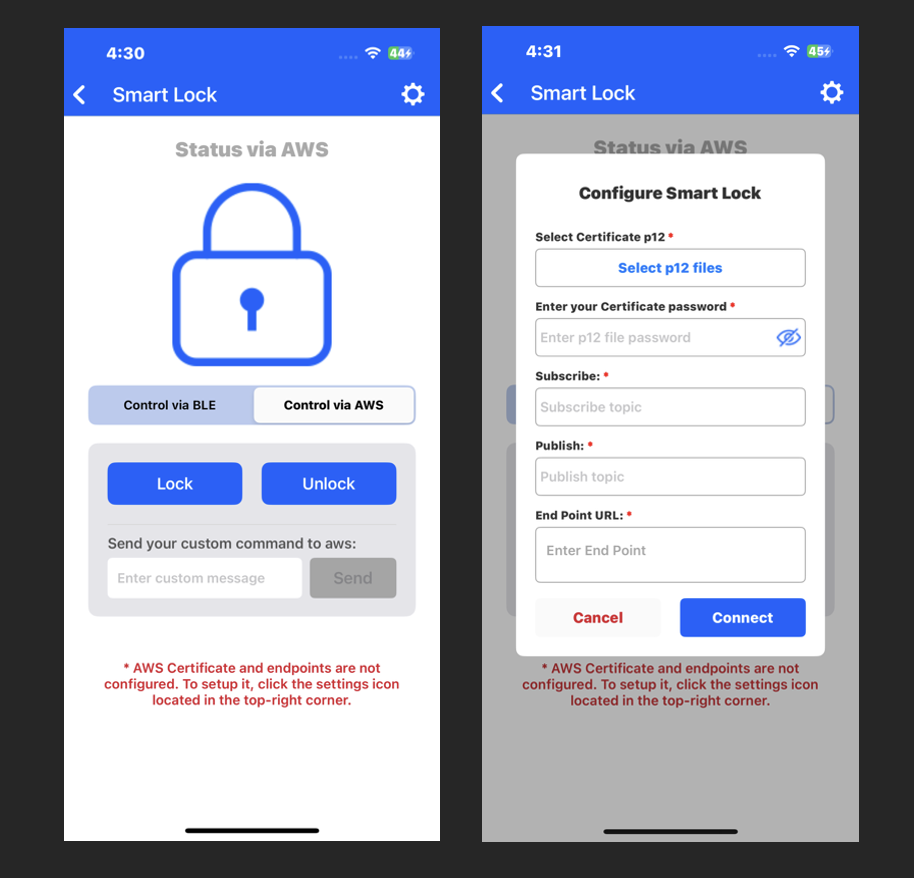
Note: Ensure that all information entered into the phone is the same as entered in SiWx91x Dev Kit Setup
You can send a custom command like “lock”, “unlock”, “erase”, reset to AWS IoT by entering it in the Custom Command text field.
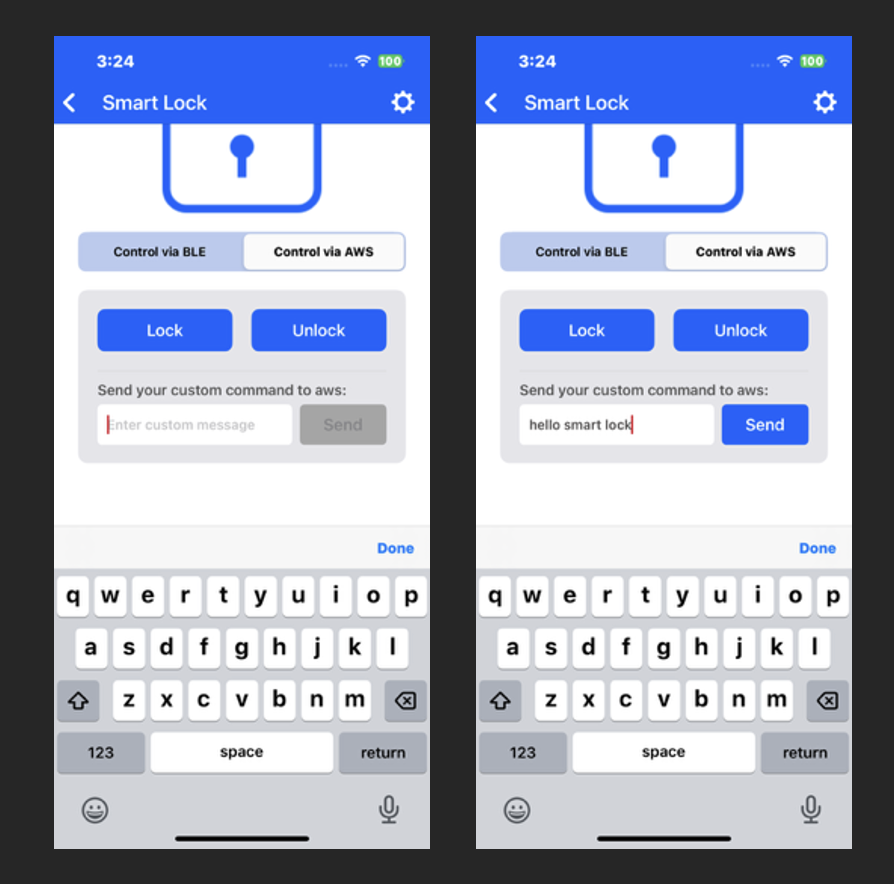
You can erase the smart lock dev kit board by sending the “erase” command through AWS IoT.
If you click the Configure button in the top-right corner while already connected to AWS IoT, a popup will appear. By clicking OK, you can reconfigure AWS IoT using the same or different information.