


Introduction#
The Channel Sounding Demo showcases Bluetooth Channel Sounding functionality using the Simplicity Connect mobile app and Silicon Labs wireless devices. The demo supports the following operating modes:
Channel Sounding Demo (Phone as Initiator): The mobile app acts as the Channel Sounding (CS) Initiator and measures the distance to a CS Reflector device.
Channel Sounding Demo (Phone as Reflector): The mobile app acts as the Channel Sounding (CS) Reflector and serves as a Digital Key in a proximity-based lock and unlock application.
Channel Sounding Demo (Phone as Initiator)#
The Channel Sounding demo (Phone as Initiator) showcases how to measure the distance between a smartphone and a reflector device using Bluetooth Channel Sounding. This feature enables more accurate distance and direction measurements between Bluetooth devices compared to traditional RSSI-based methods.
The smartphone acts as the Channel Sounding (CS) Initiator, and the EFR32xG24 Development Kit (BRD2606A) acts as the Channel Sounding Reflector (CS Reflector). The initiator estimates the distance to the reflector, and the estimated values are also available on the reflector side.
Users interact with the Simplicity Connect mobile app on the smartphone to discover, connect to, and range with the reflector device. Once the devices are connected and the Channel Sounding session is established, distance measurements are displayed in real time.
Set Up the EFR32xG24 Development Kit as a Channel Sounding Reflector#
To use the EFR32xG24 Development Kit (BRD2606A) as a Channel Sounding Reflector:
Connect the EFR32xG24 Development Kit (BRD2606A) to the PC.
Open Simplicity Studio.
Create the Bluetooth - SoC CS Reflector example project.
Follow the configuration steps described in the project README file.
Build and flash the project to the development kit.
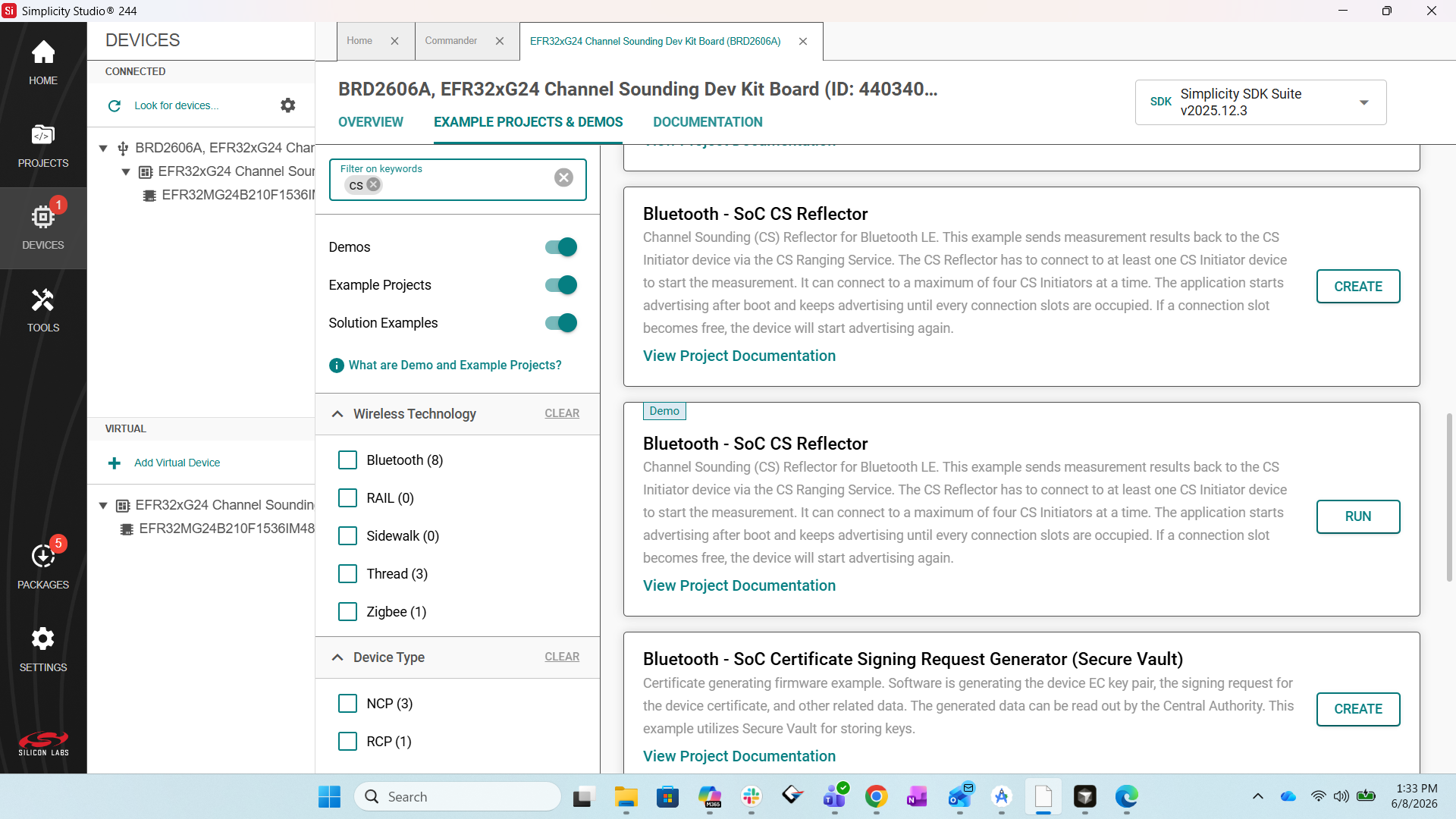
After programming is complete, the board starts advertising as a Channel Sounding Reflector and is ready to connect to the Simplicity Connect mobile app.
Set Up the Simplicity Connect Mobile App as a CS Initiator#
Open the Simplicity Connect mobile app on your smartphone.
Tap the Demo icon in the navigation bar.
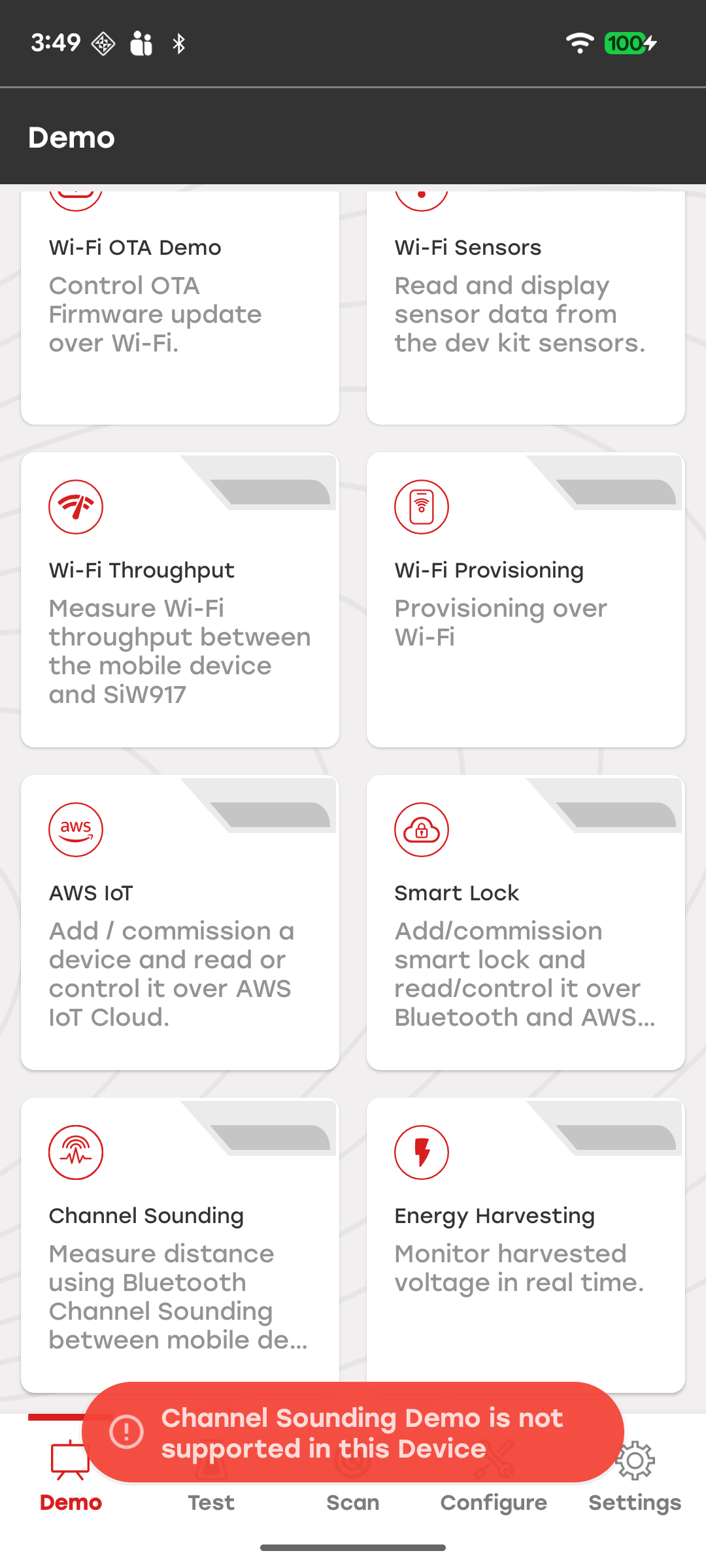
Locate the Channel Sounding demo tile and tap it.
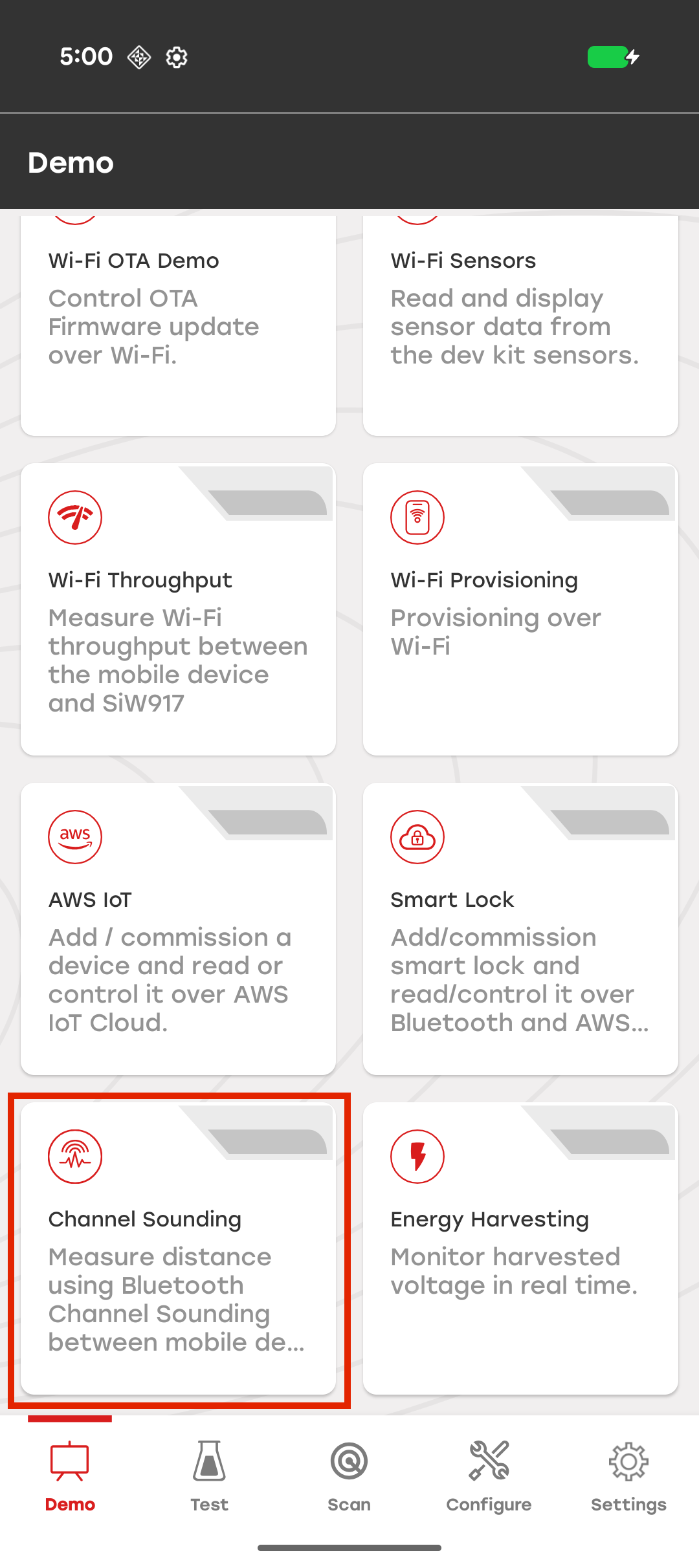
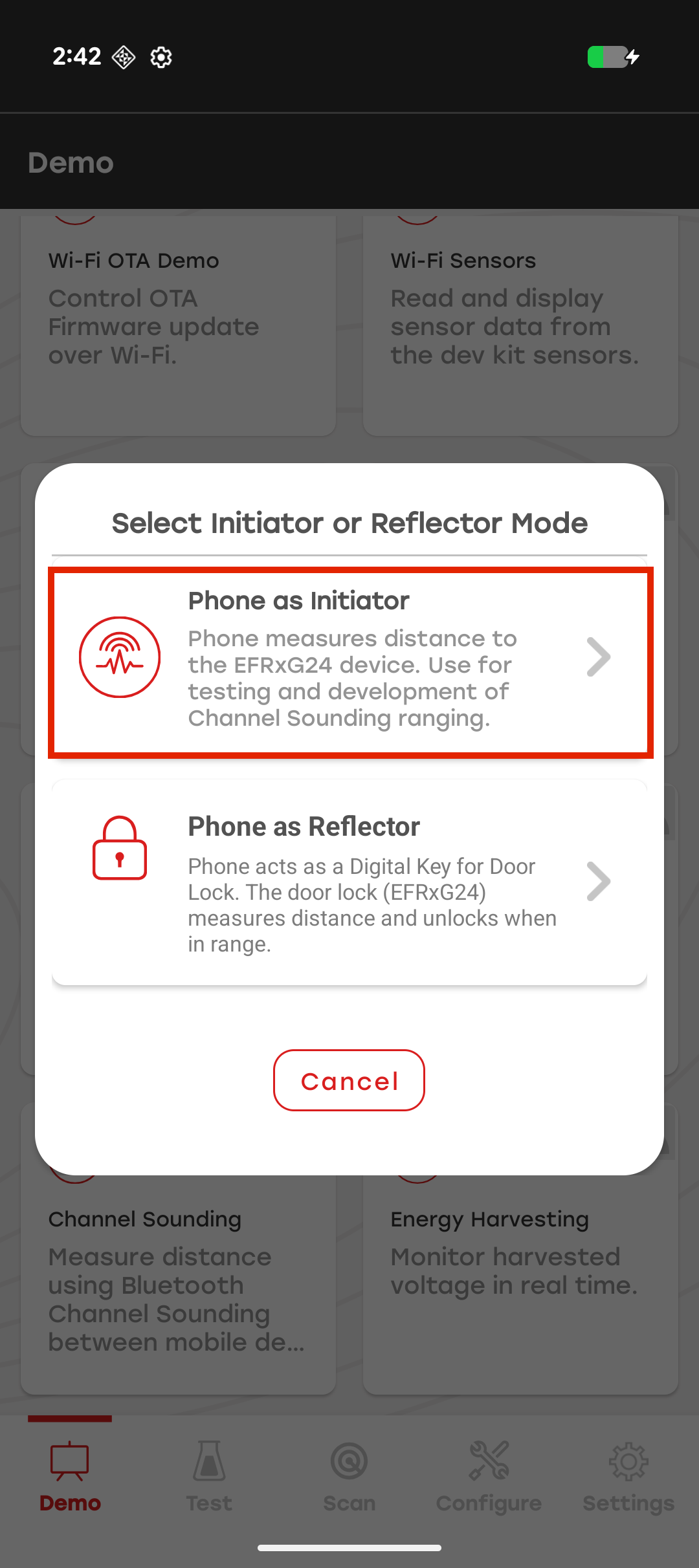
In the mode selection dialog, select Phone as Initiator.
In this mode, the mobile app acts as the Channel Sounding (CS) Initiator and measures the distance to a paired EFR32xG24 Development Kit acting as the CS Reflector.
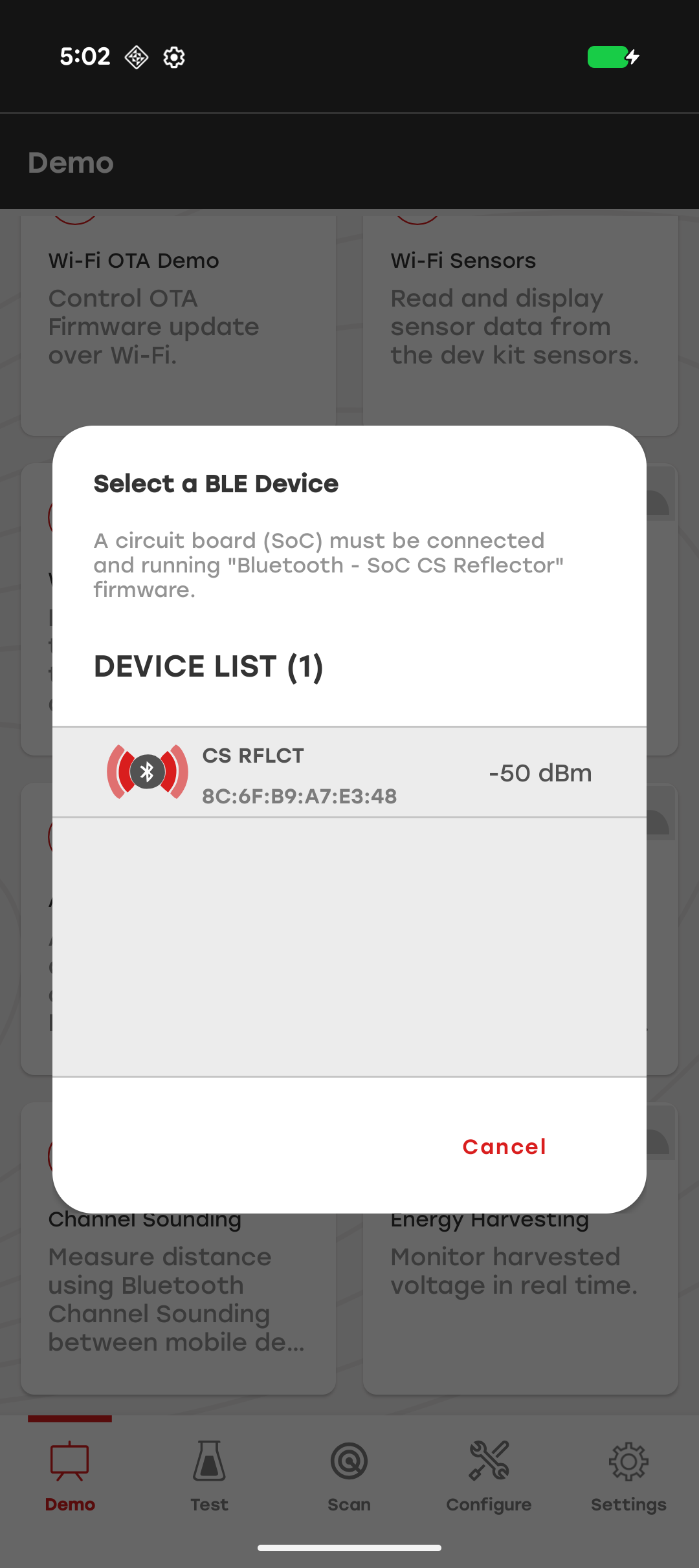
In the device selection window, select the Channel Sounding Reflector device to connect to.
Note: If the smartphone does not support Bluetooth Channel Sounding, an alert appears when you tap the Channel Sounding demo.
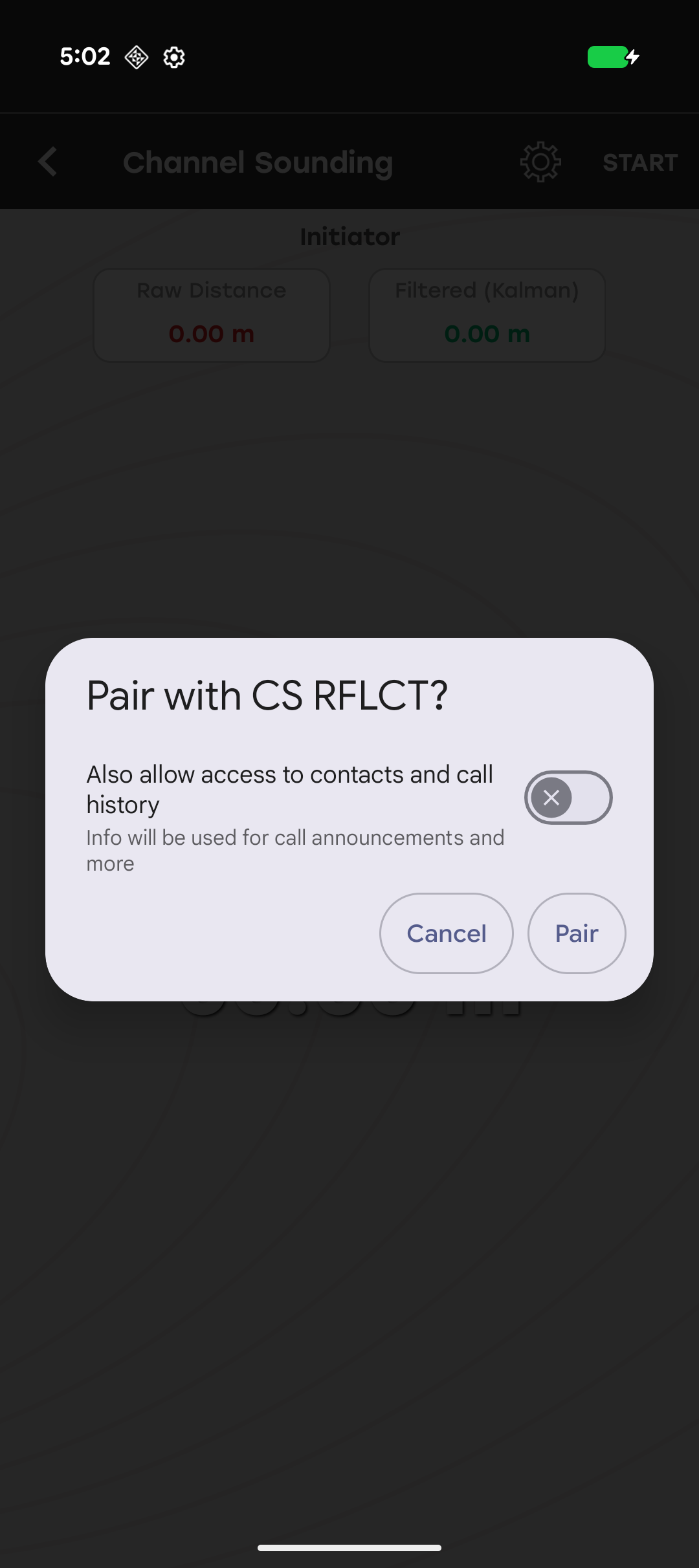
After the smartphone connects to the Channel Sounding Reflector (CS Reflector), the app redirects you to the Channel Sounding home screen and starts the Bluetooth pairing process. Tap Pair in the pairing dialog to complete pairing and bonding with the reflector device.
After pairing and bonding are complete, the CS Reflector starts sending Channel Sounding measurement data to the smartphone. The mobile app calculates and displays the measured distance.
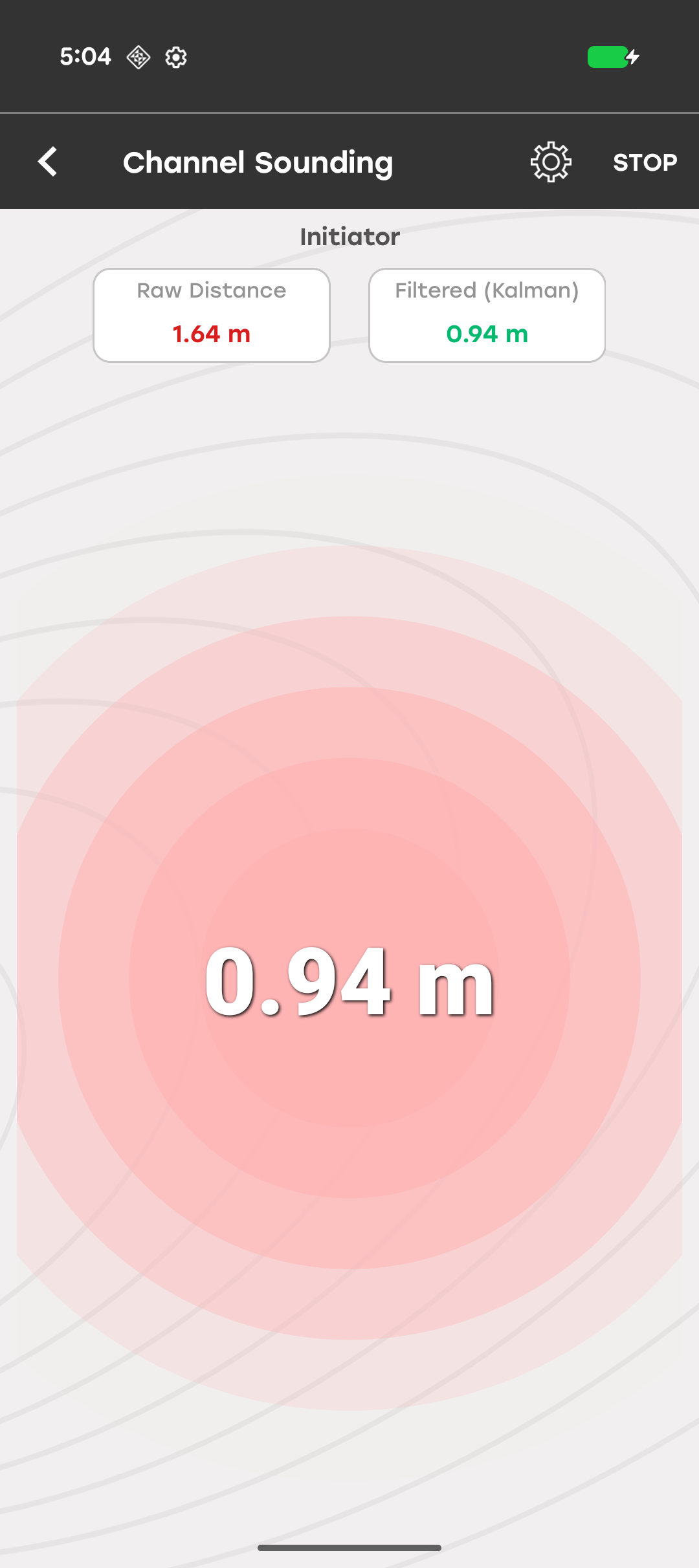
Tap Start/Stop in the top-right corner of the screen to start or stop Channel Sounding operations.
To modify the Channel Sounding configuration, tap the Settings icon in the top-right corner of the screen.
Note: If the smartphone has already saved the Channel Sounding Reflector in the connected devices list, the app prompts you to remove the device from the phone settings before continuing.
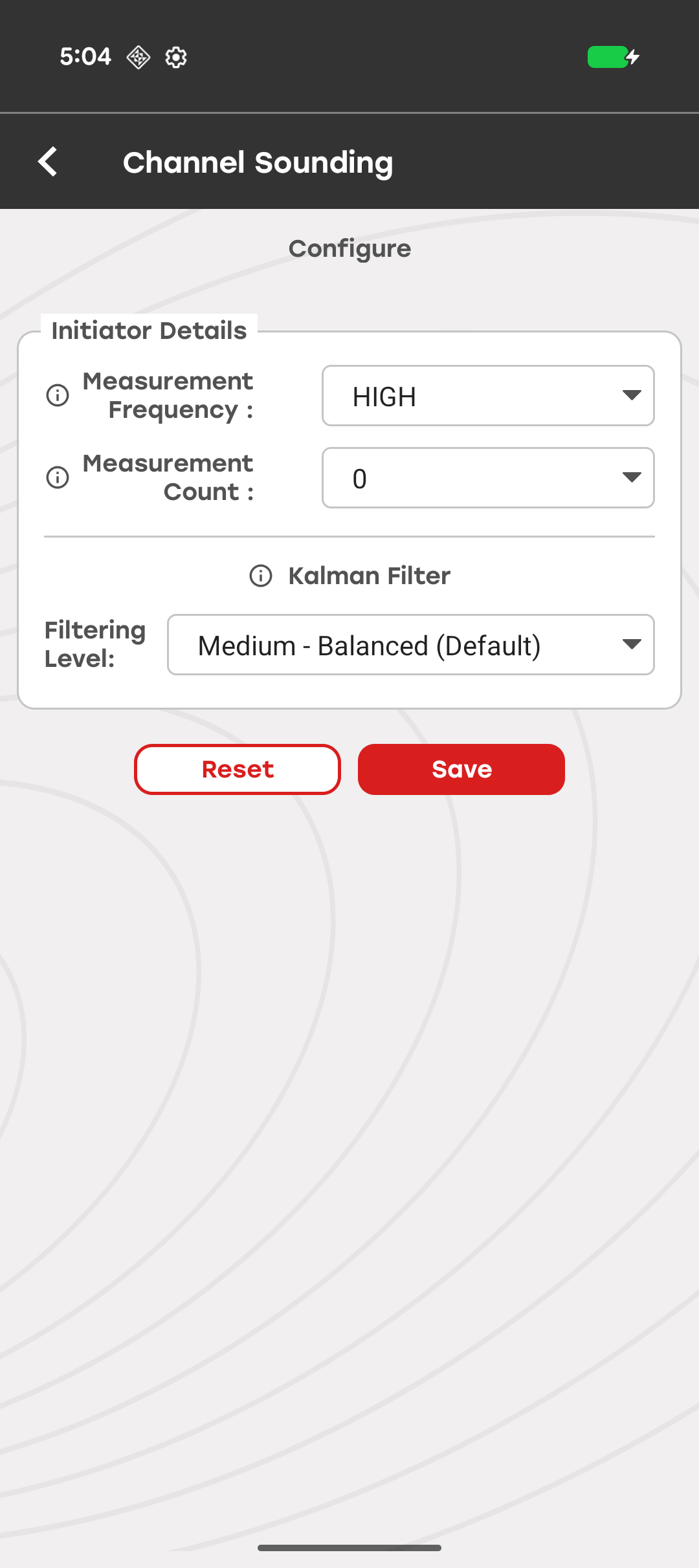
From the Configuration screen, modify the following settings:
Measure Frequency – Selects the Bluetooth signal frequency range used for Channel Sounding measurements. The default value is High.
Measurement Count – Specifies the number of measurements collected during Channel Sounding operations. The default value is 0.
Tap Save to apply the selected settings. The configuration remains in effect until you change it.
Tap Reset to restore the default configuration values.
Kalman Filter#
The Channel Sounding demo (Phone as Initiator) includes a Kalman Filter that smooths raw BLE distance measurements to improve measurement stability and reduce the effect of noise. The filter is enabled by default and continuously processes Channel Sounding measurement data.
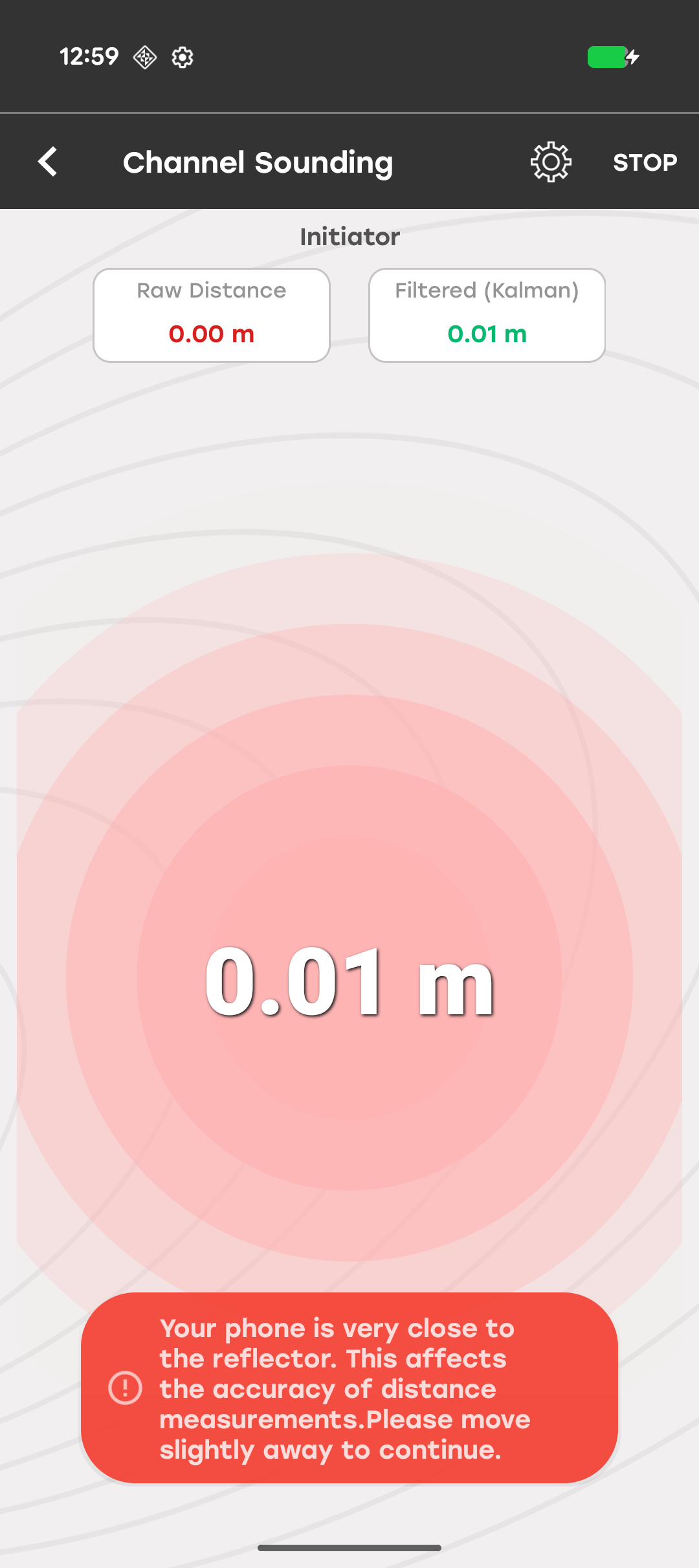
The measurement screen displays both the raw and filtered distance values:
Raw Distance (red): The unprocessed distance reported by the Bluetooth Channel Sounding API.
Filtered (green): The distance estimate after Kalman filtering.
Configure the Kalman Filter#
To configure the Kalman filter:
Tap the Settings icon in the top-right corner of the measurement screen.
In the Configuration screen, locate the Kalman Filter section.
Select the desired Filtering Level from the drop-down list.
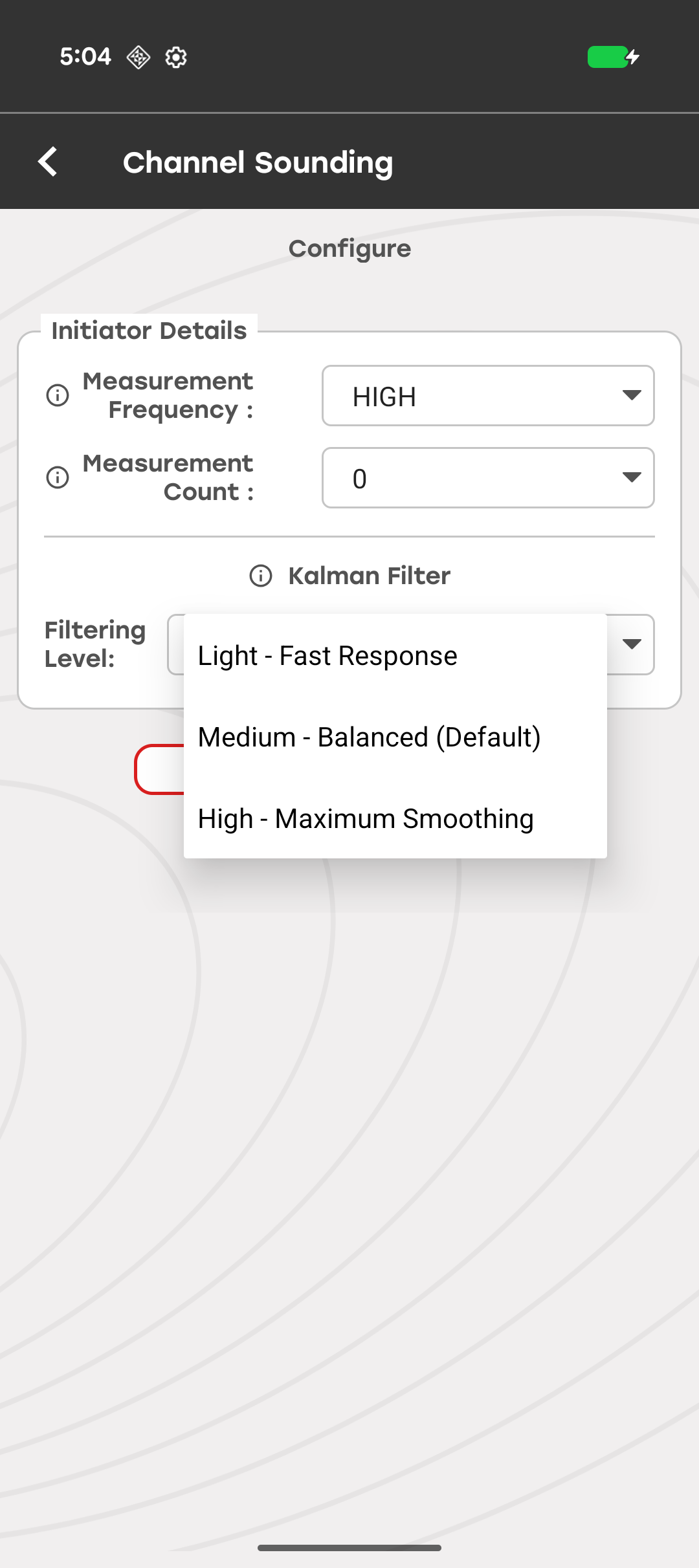
The Filtering Level setting controls how aggressively the Kalman filter smooths distance measurements. Lower filtering levels provide faster response to distance changes, while higher filtering levels provide greater measurement stability by reducing noise and fluctuations.
The following table describes the available filtering levels.
| Level | Description | Behavior | When to Use |
|---|---|---|---|
| Light (fast response) | Minimal smoothing, fastest reaction to distance changes. Best for dynamic scenarios where quick tracking is needed. | Lower latency, more noise visible. | When you need the filtered distance to track rapid movements closely. |
| Medium (balanced, default) | Balanced trade-off between smoothing and responsiveness. Recommended for most use cases. | Moderate latency, good stability. | Provides a good balance between measurement stability and response time. |
| High (maximum smoothing) | Maximum noise reduction with aggressive outlier rejection. Best for stationary or slow-moving scenarios where stability is critical. | Higher latency, smoothest output. | To get the most stable distance readings. |
Save or Reset Configuration#
After selecting a filtering level:
Tap Save to apply and retain the selected filtering level. The configuration persists across app sessions.
Tap Reset to restore all settings, including the filtering level, to their default values.
The Kalman filter includes adaptive outlier rejection to reduce the impact of noisy or unexpected measurements. When a raw measurement deviates significantly from the current distance estimate, the filter automatically reduces the influence of that measurement instead of discarding it completely. This helps prevent sudden spikes from affecting the filtered distance while still allowing gradual distance changes to be tracked.
Note: Distance measurements may become less accurate when the smartphone is very close to the Channel Sounding Reflector. In this situation, a warning banner appears at the bottom of the screen:
"Your phone is very close to the reflector. This affects the accuracy of distance measurements. Please move slightly away to continue."
Troubleshoot Distance Measurement Issues#
| Issue | Resolution |
|---|---|
| Filtered distance seems slow to react | Switch to Light - Fast Response filtering level in the Configuration screen. |
| Distance readings are noisy | Switch to High - Maximum Smoothing filtering level for more aggressive smoothing. |
| Proximity warning appears | Move the smartphone farther from the reflector. Measurements below ~0.2 m may be unreliable. |
| Raw and filtered values differ significantly | This is expected, the filter is smoothing out noise and rejecting outlier measurements. The Filtered (Kalman) value is the recommended reading. |
Channel Sounding Demo (Phone as Reflector)#
The Channel Sounding demo demonstrates a proximity-based digital lock and unlock use case in which a Google Pixel smartphone functions as the Channel Sounding (CS) Reflector and serves as a Digital Key. In this mode, the EFR32xG24 Development Kit (BRD2606A) functions as the CS Initiator and acts as the door lock.
To implement this demonstration, modify the CS Initiator project (bt_cs_soc_initiator_peripheral) as follows:
Follow all five steps in the Setup of CS Initiator as a Peripheral Device section.
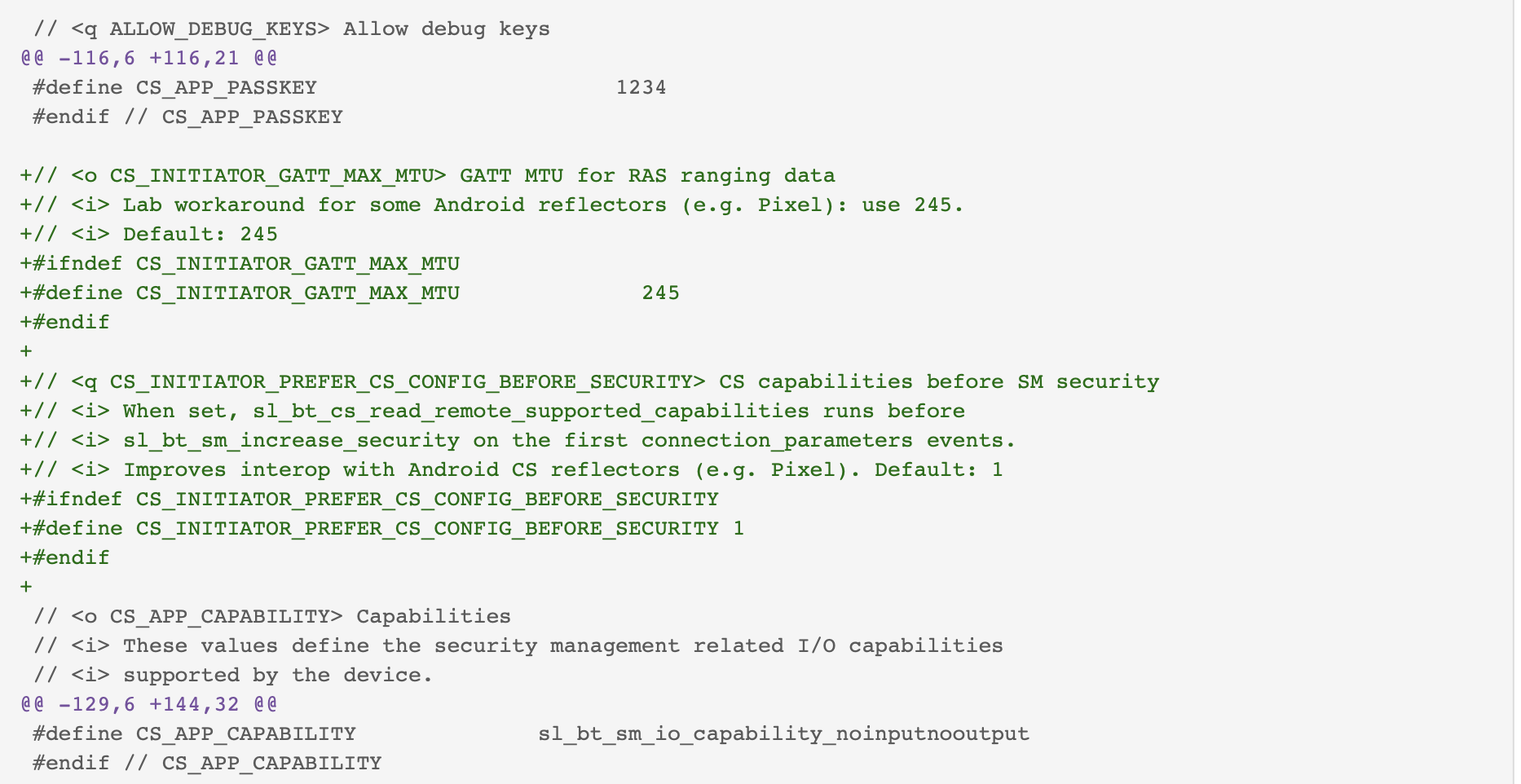
To ensure compatibility with Google Pixel devices, follow the two steps in the Pixel Device Compatibility section.
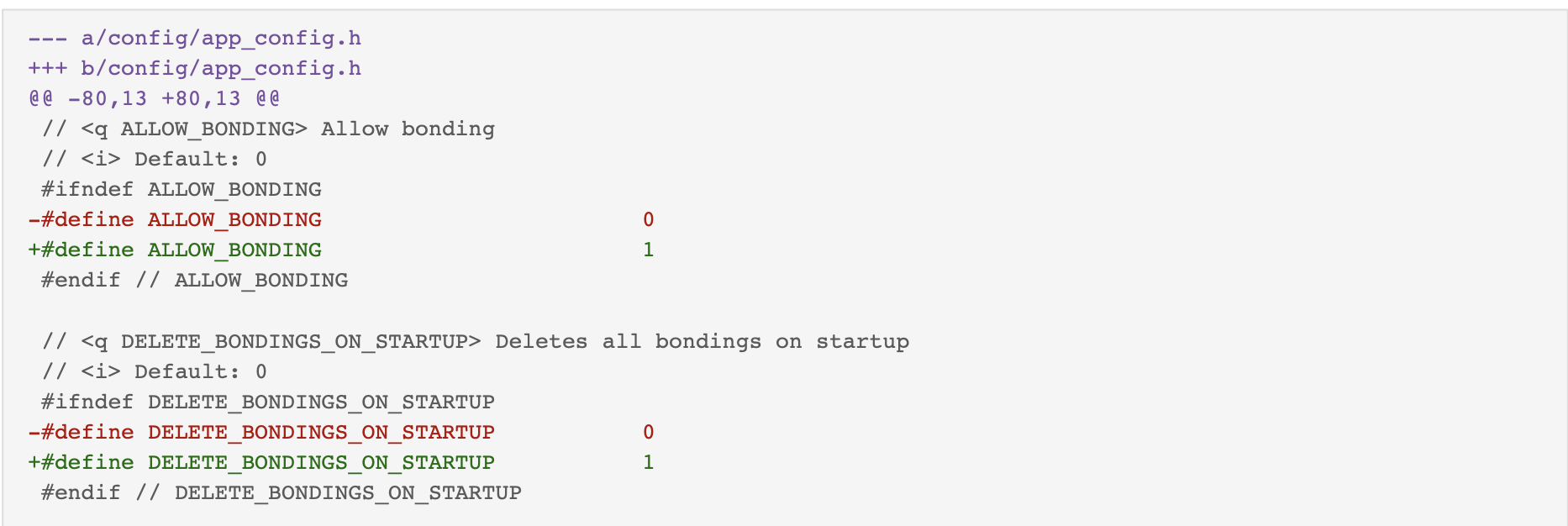
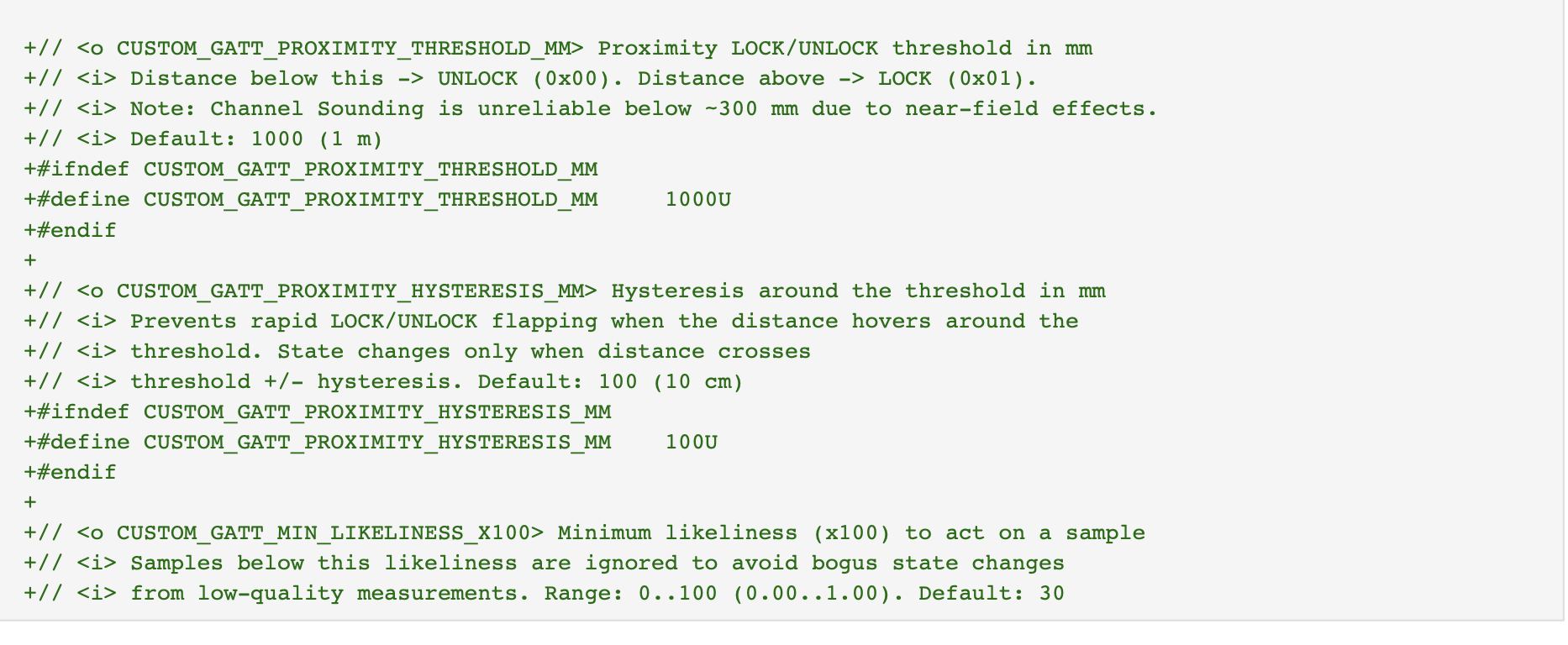
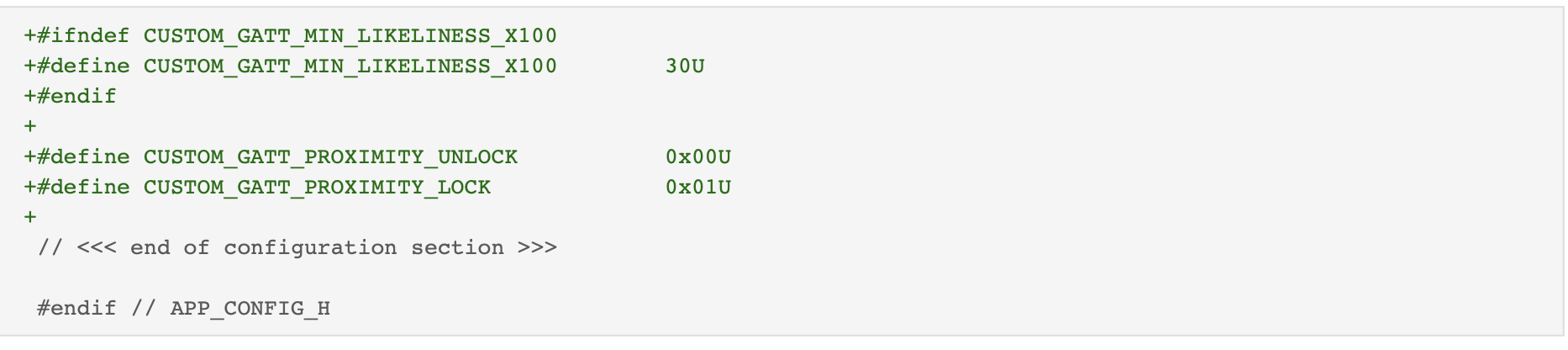
Open config/app_config.h and apply the changes shown below to enable bonding and define the proximity lock configuration macros.
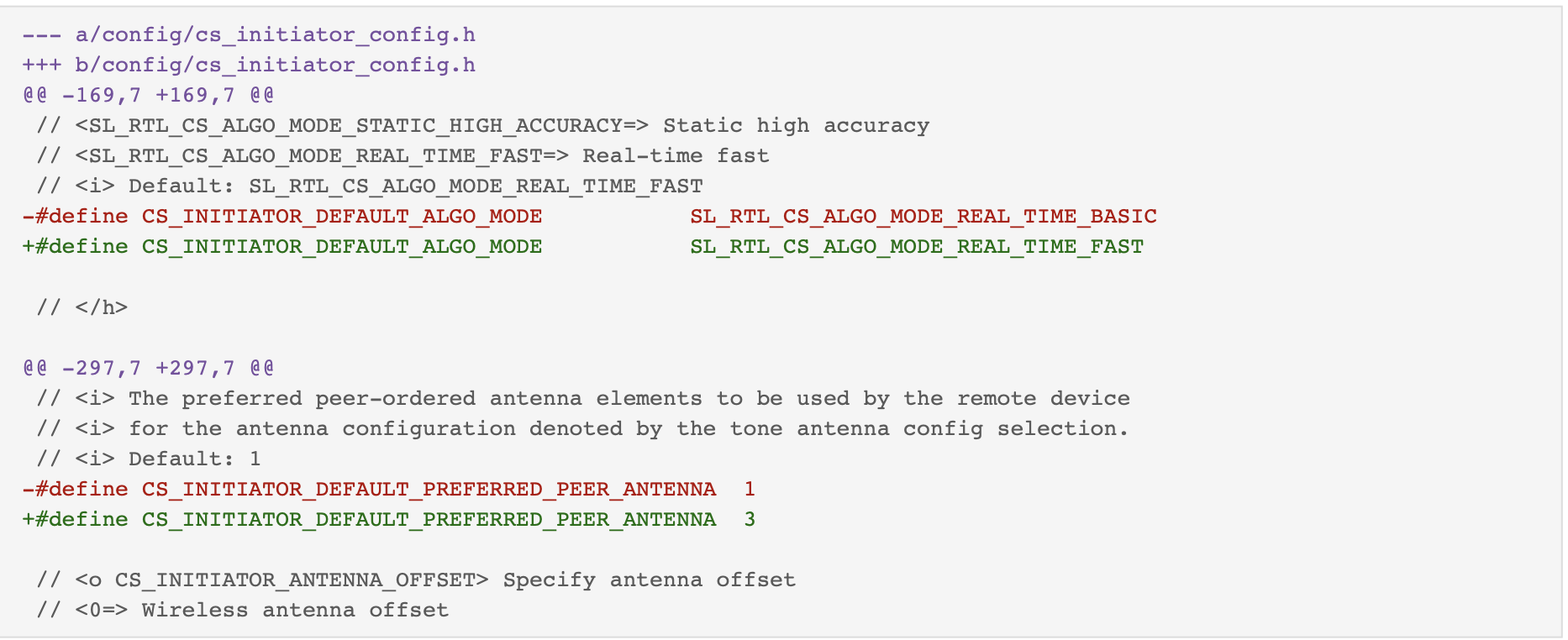
Open config/cs_initiator_config.h and update the CS algorithm and antenna settings to ensure stable measurements when used with Pixel phones.
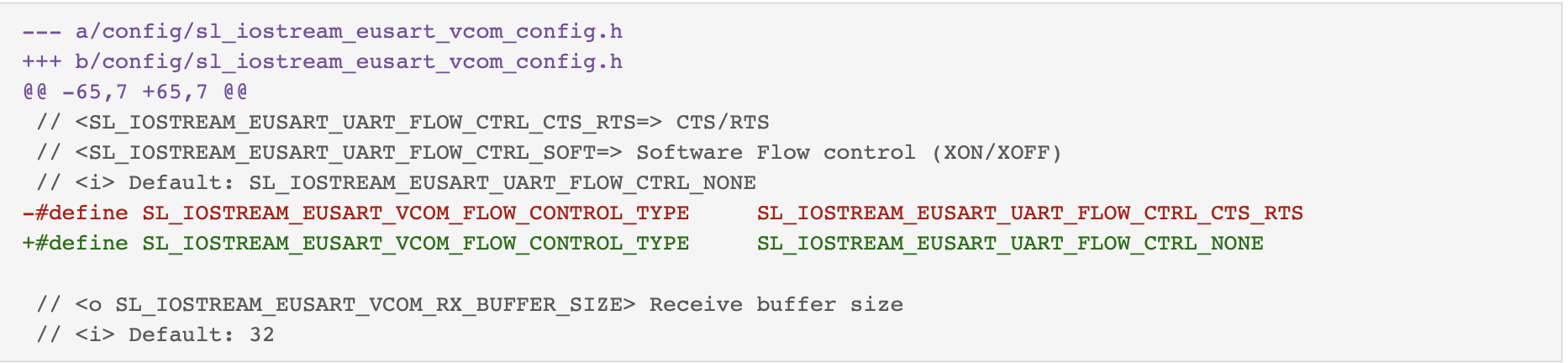
Open config/sl_iostream_eusart_vcom_config.h and disable UART hardware flow control on VCOM to ensure that log output is displayed correctly on the board terminal.
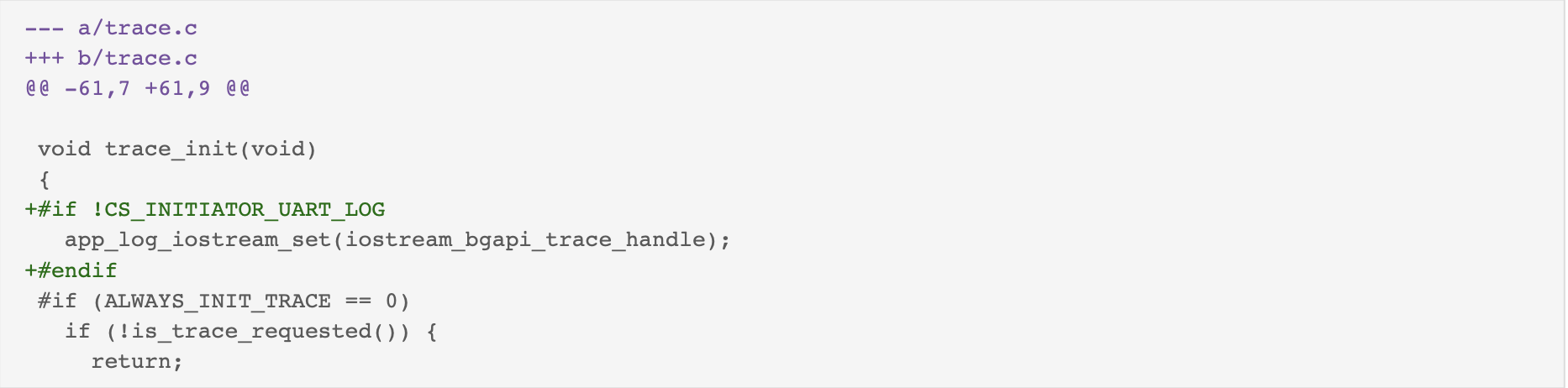
Open trace.c and modify it to redirect application logs to the BGAPI trace I/O stream when UART logging is disabled.
Open config/btconf/gatt_configuration.btconf and add a custom GATT Lock service (UUID:
0xAABB) with a CS Lock characteristic (UUID:0xBBCC) and a CCCD descriptor (UUID:0x2902) for transmitting LOCK and UNLOCK notifications.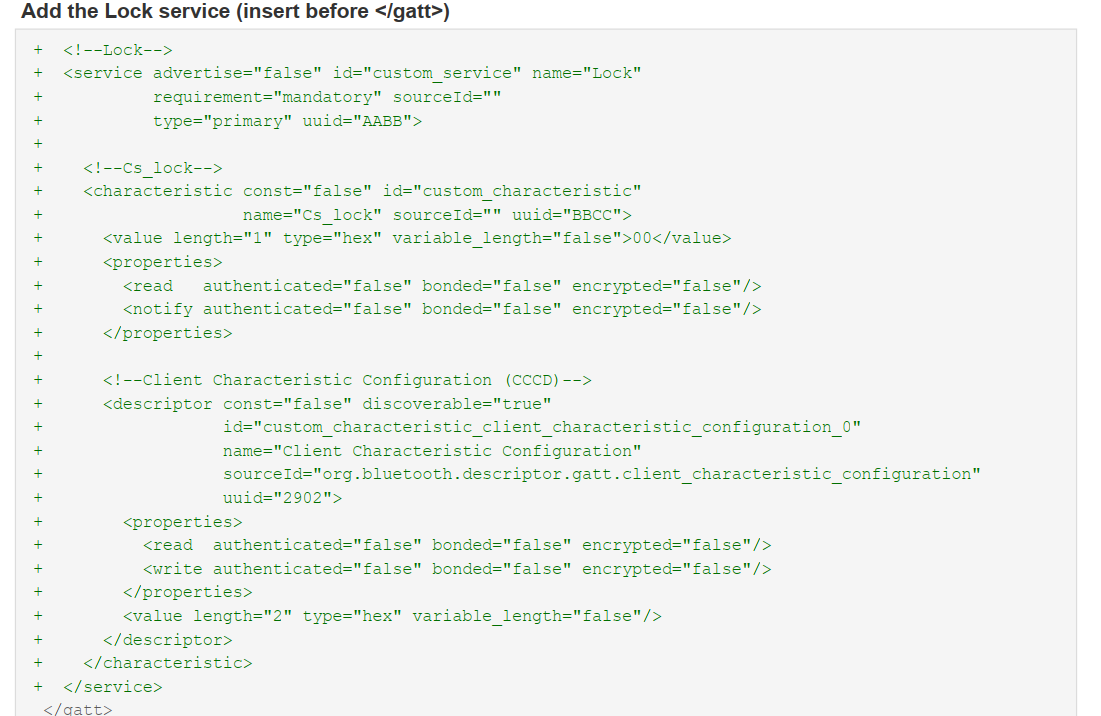
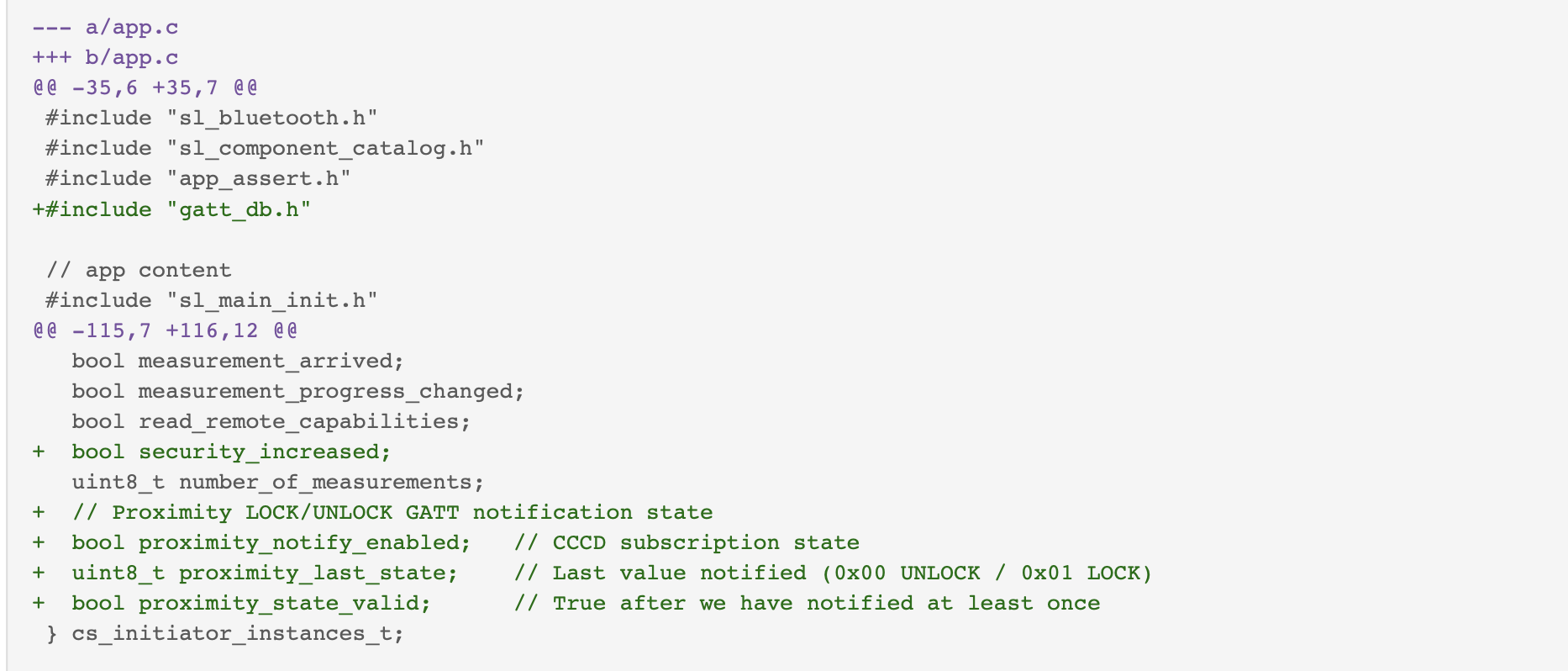
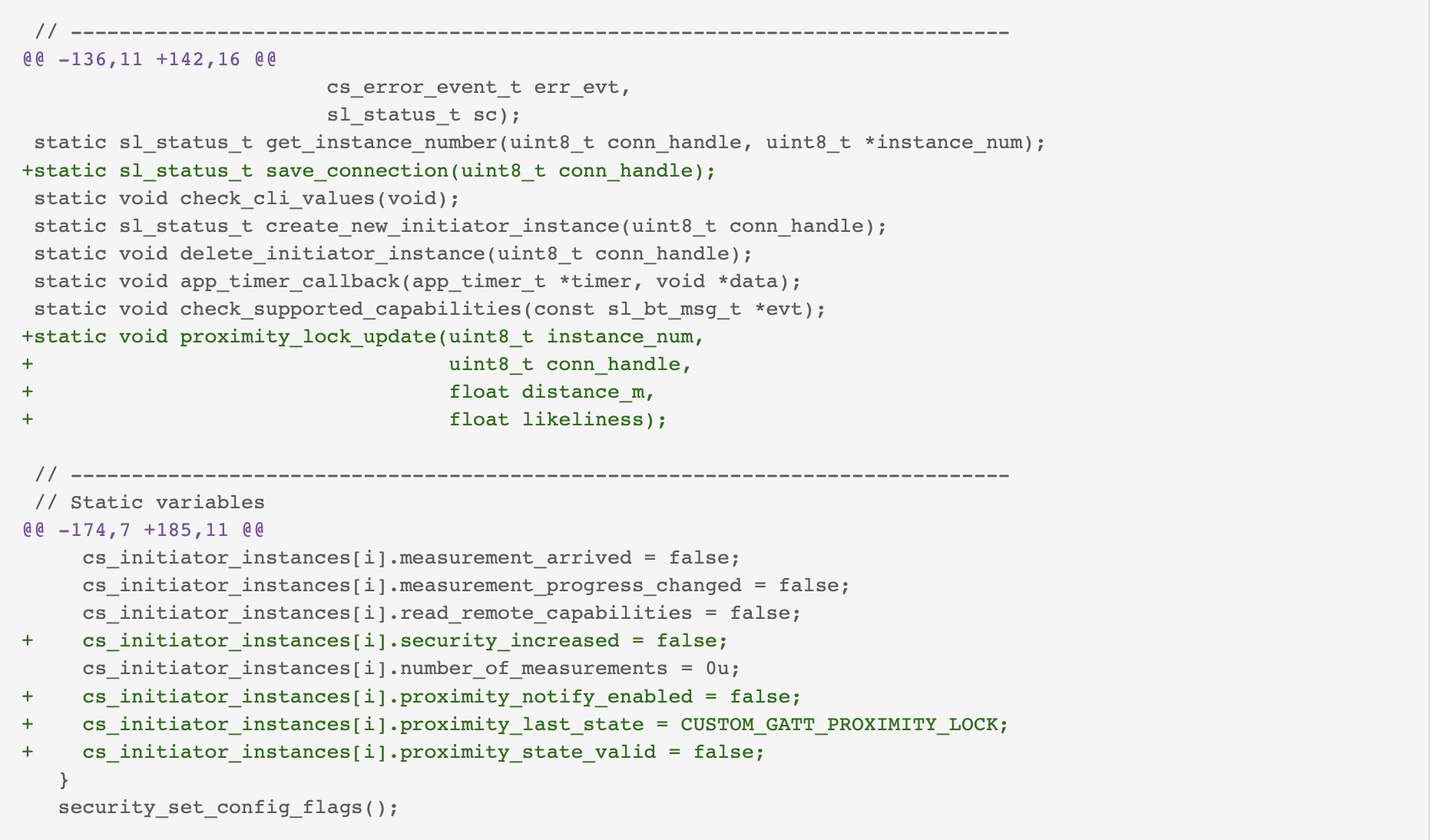
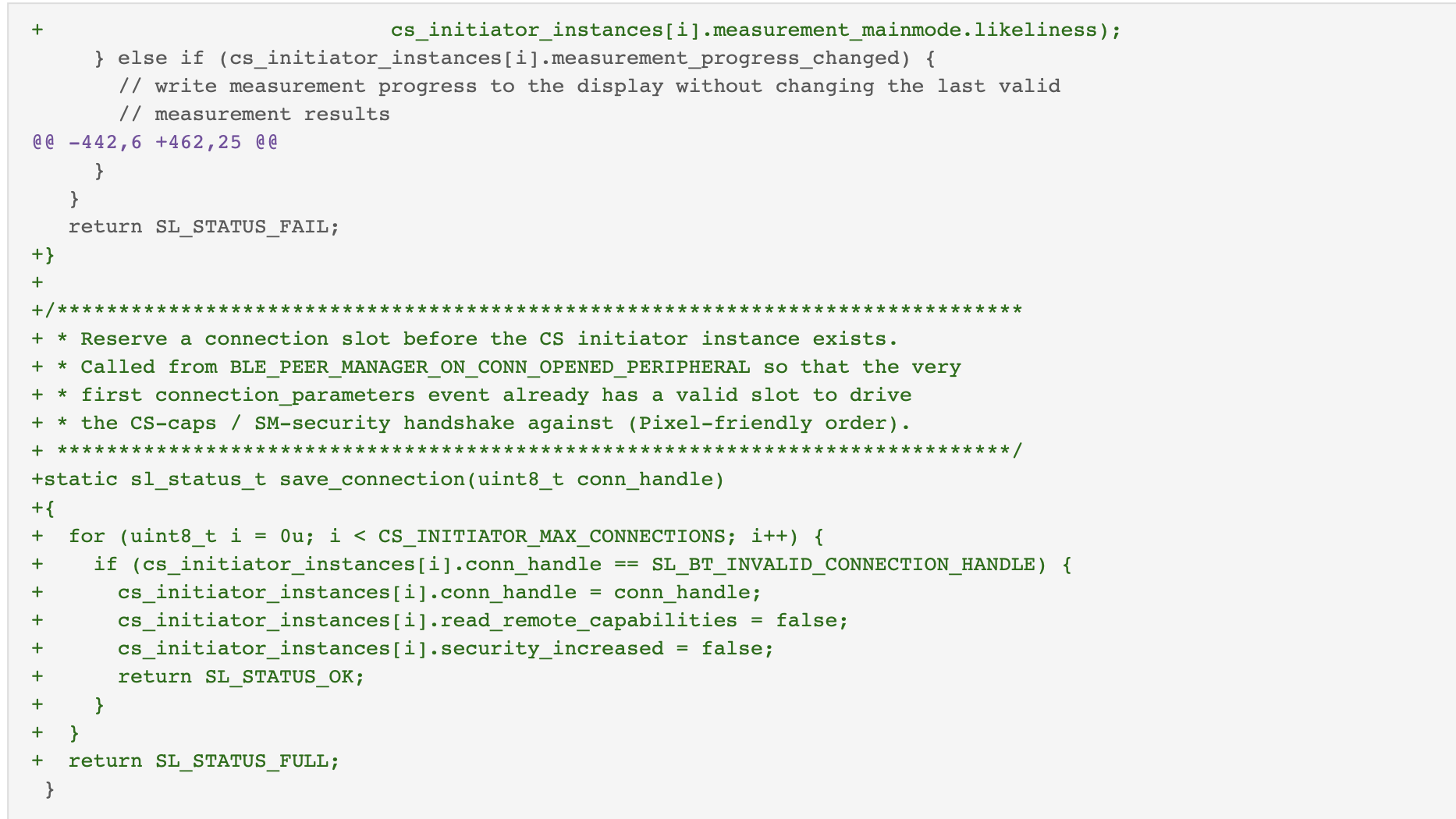
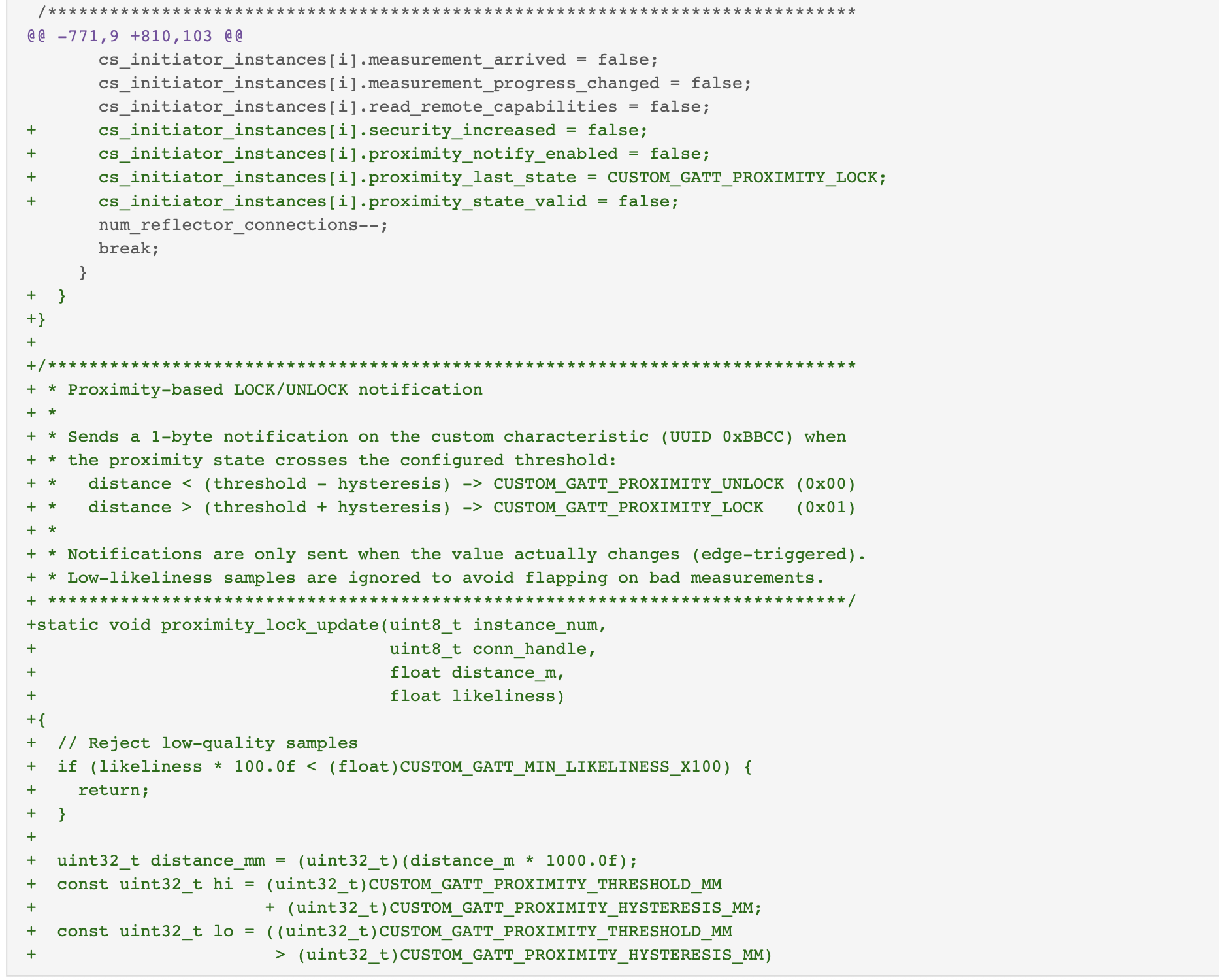
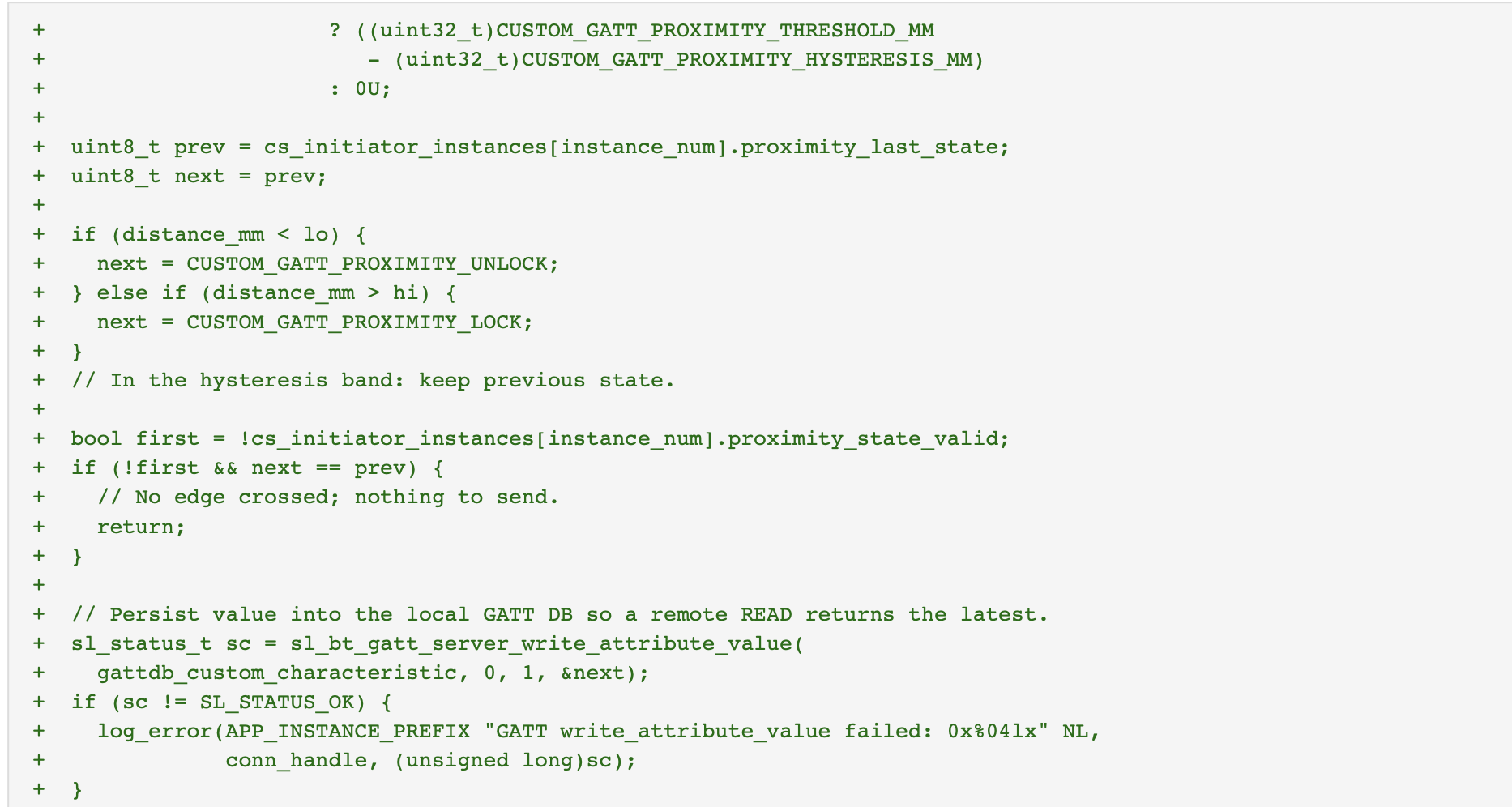
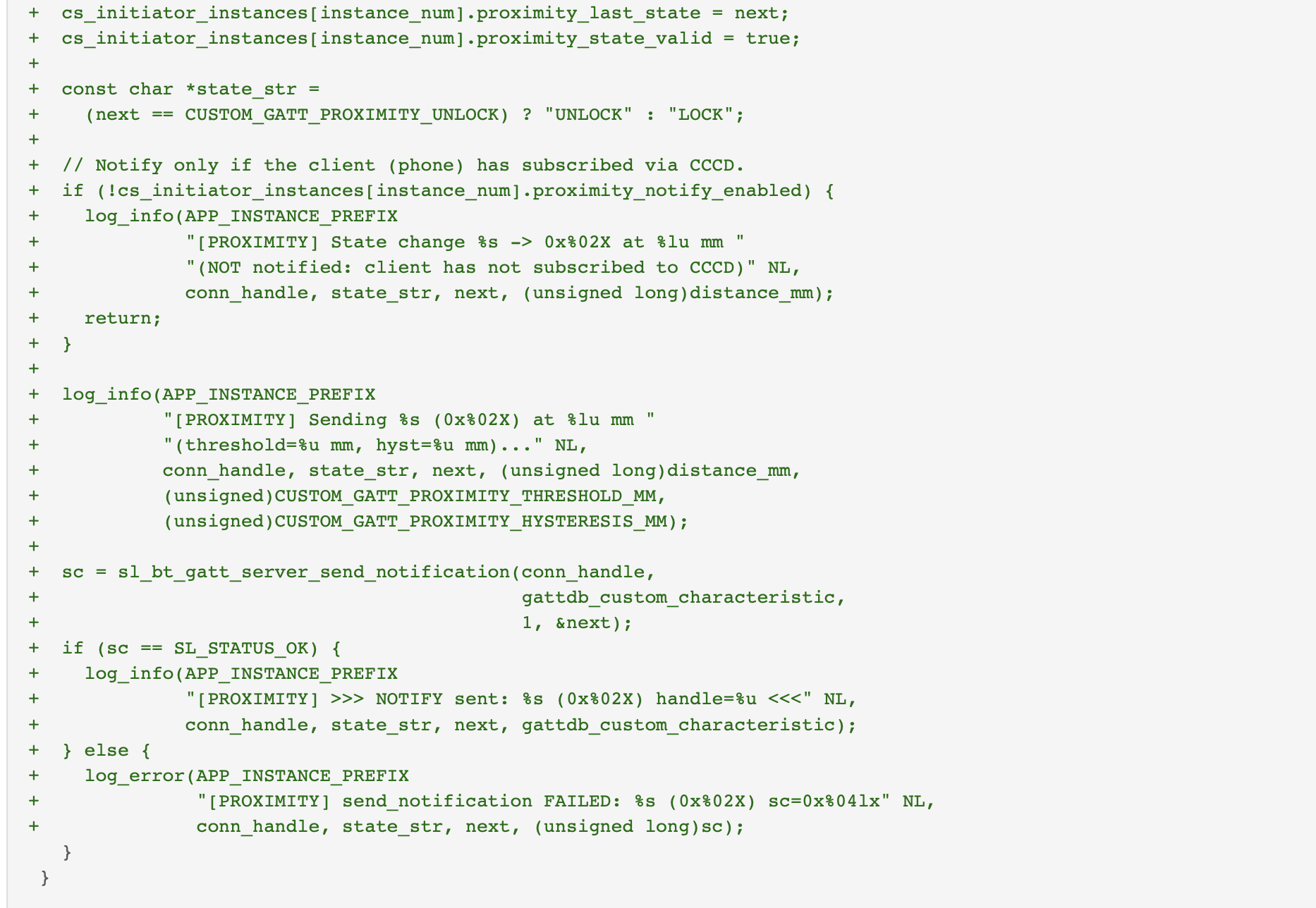
Open app.c and implement the following changes:
Per-connection state management
Proximity LOCK/UNLOCK logic
CCCD subscription tracking
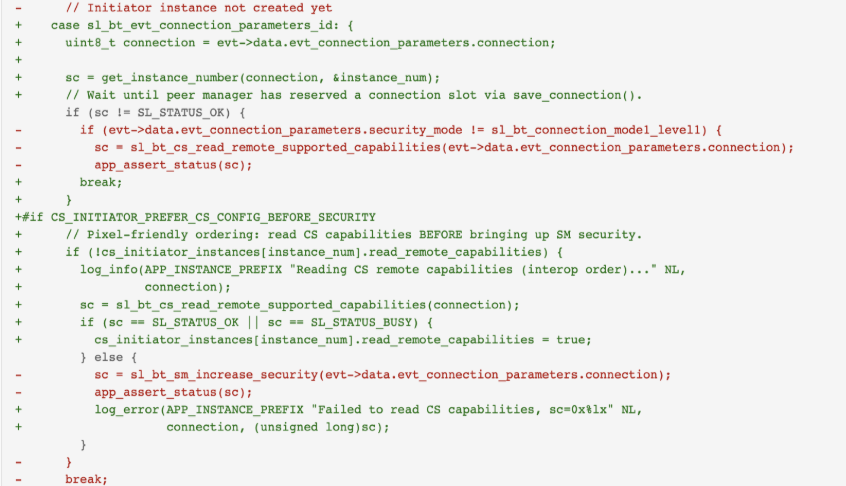
Pixel-friendly handshake (CS capabilities before SM security)
MTU configuration through
CS_INITIATOR_GATT_MAX_MTU


Set Up the EFR32xG24 Development Kit as a Door Lock#
After applying all required modifications to the CS Initiator project, build and flash the firmware to the EFR32xG24 Development Kit (BRD2606A).
Power on the board.
Verify that the device advertises with the name Silabs Example.
Verify that the firmware exposes the following GATT attributes:
Digital Key Service (UUID:
0xAABB)Lock State Characteristic (UUID:
0xBBCC)
The Digital Key service enables the mobile app to subscribe to lock-state notifications and display the current lock status.
Set Up the Simplicity Connect Mobile App as a Digital Key#
Open the Simplicity Connect mobile app on your Pixel smartphone.
Tap the Demo icon in the navigation bar.
Locate the Channel Sounding demo tile and tap it.
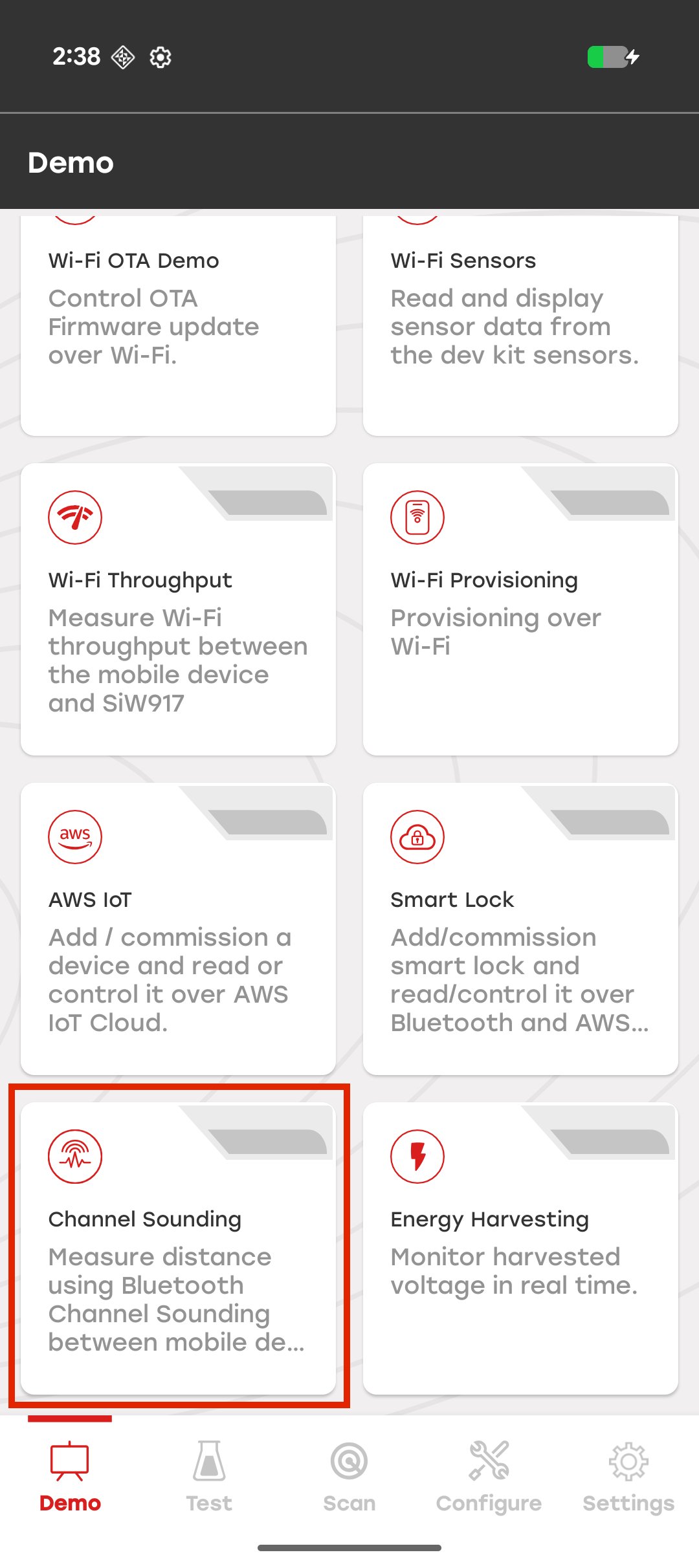
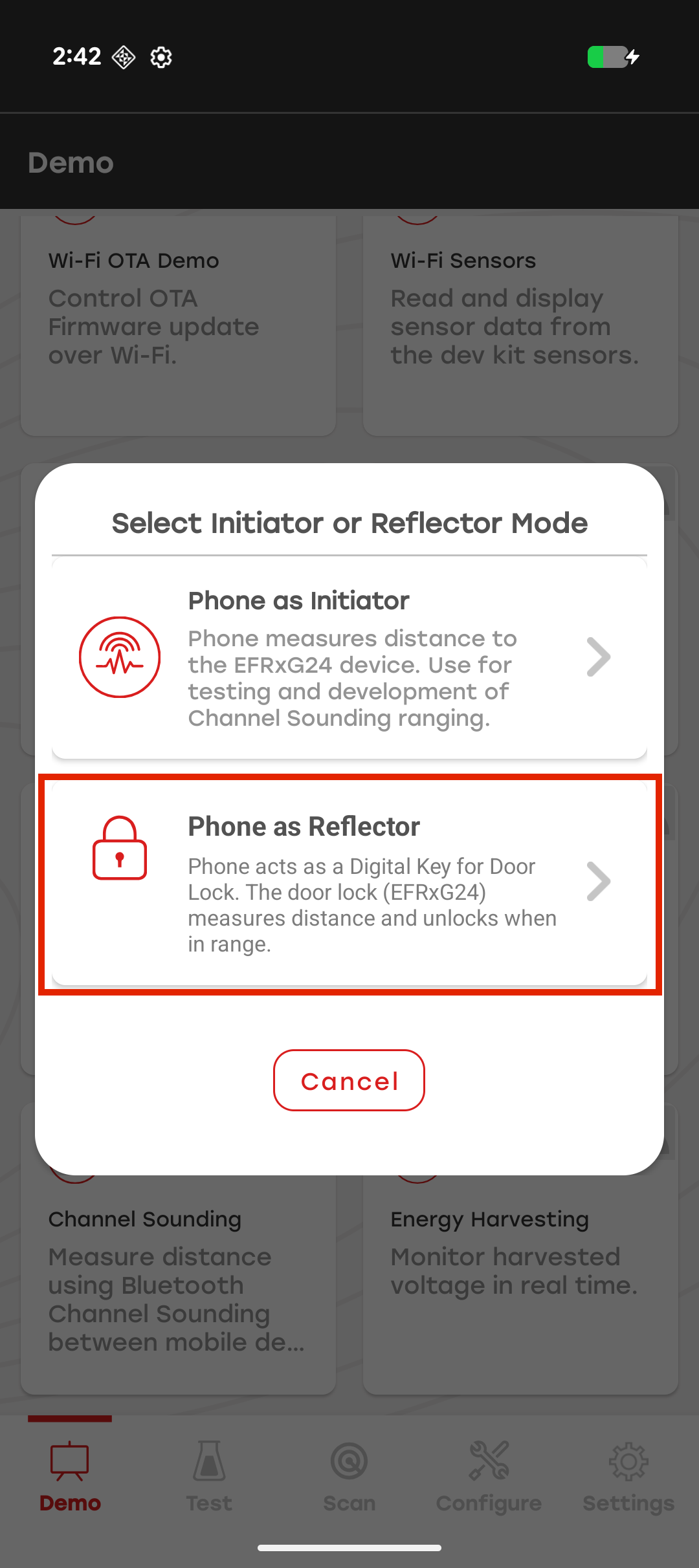
In the mode selection dialog, select Phone as Reflector.
Phone as Initiator – The mobile app measures the distance to a paired CS Reflector.
Phone as Reflector – The EFR32xG24 Development Kit functions as a door lock, measures the distance to the smartphone, and unlocks when the smartphone is within range.
In the device selection window, select the door lock device advertising as Silabs Example.
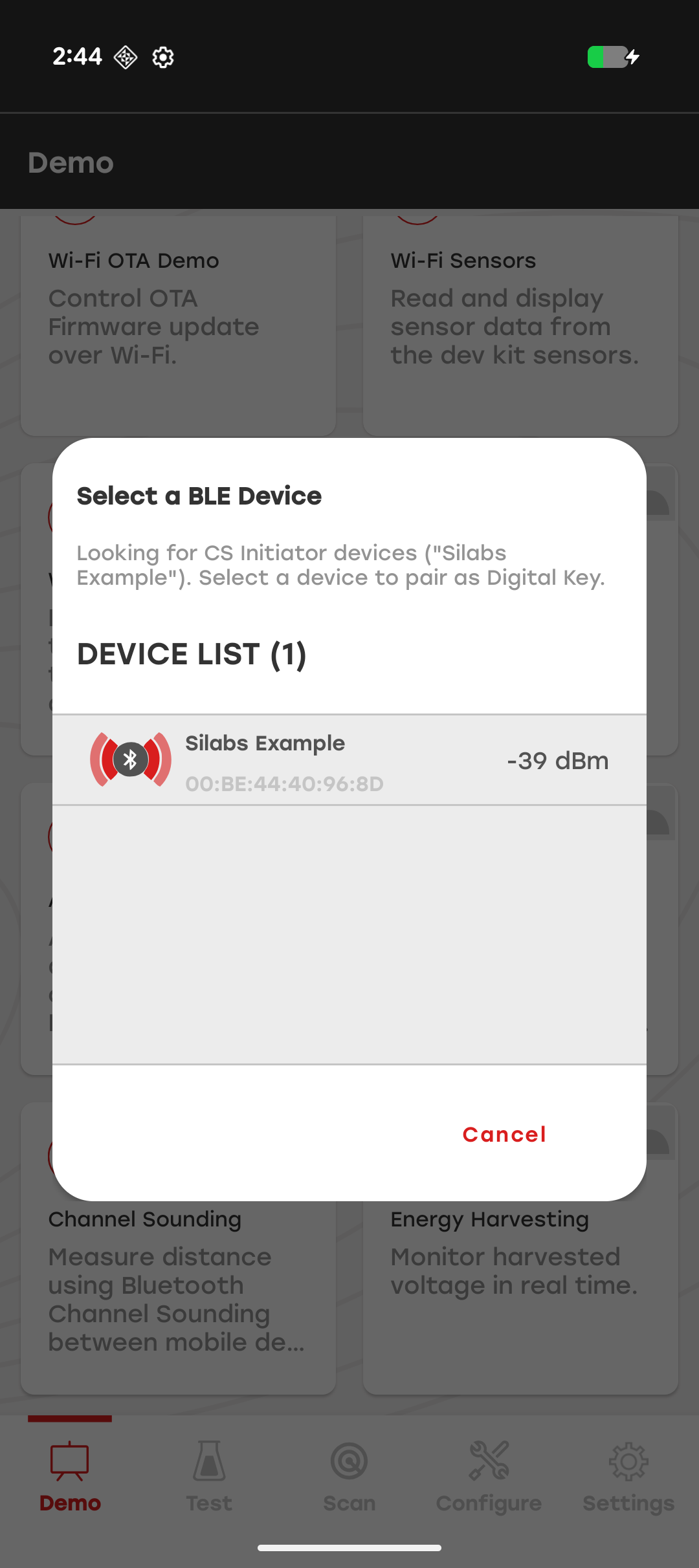
Note: If no devices appear, ensure that the development kit is powered on, running the CS Initiator firmware, and within Bluetooth range. Tap Refresh Scan to search again.
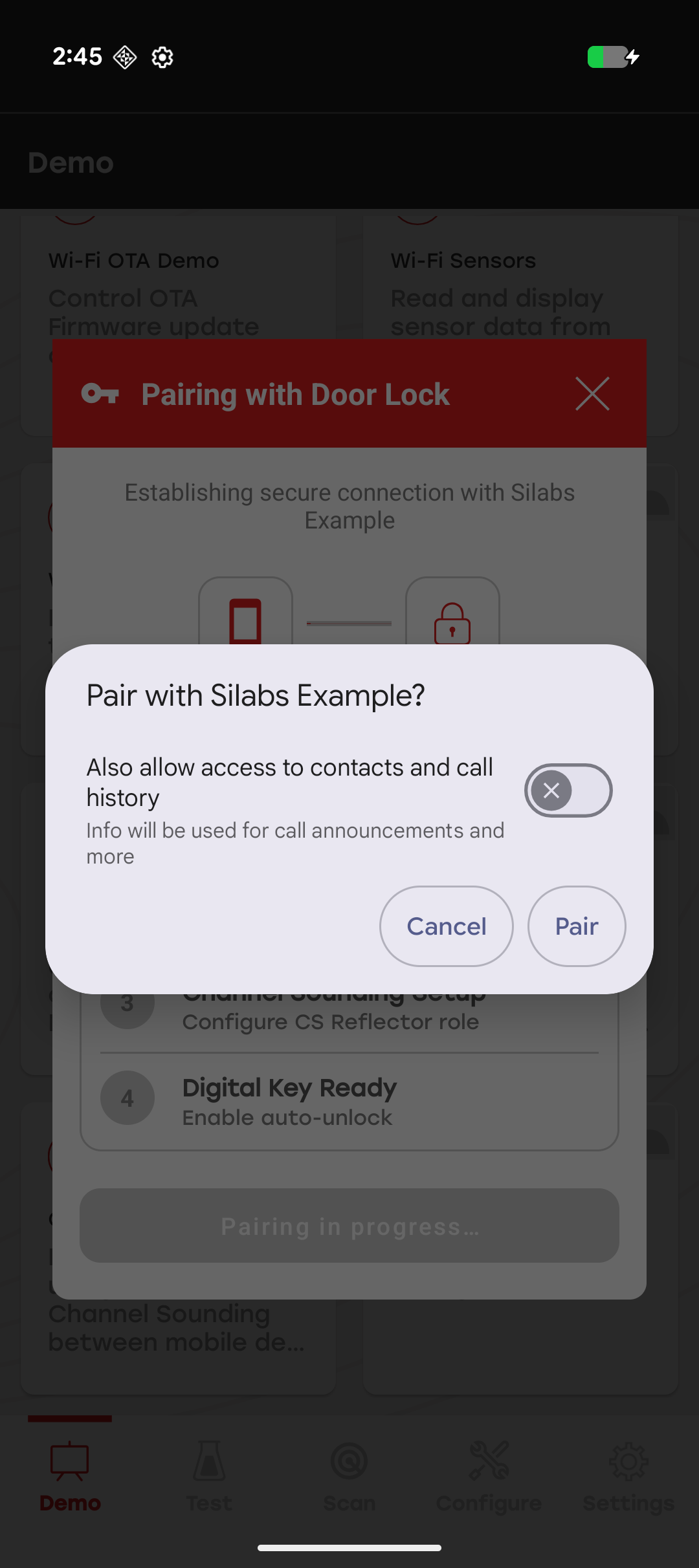
In the Pairing with Door Lock dialog, complete the pairing process.
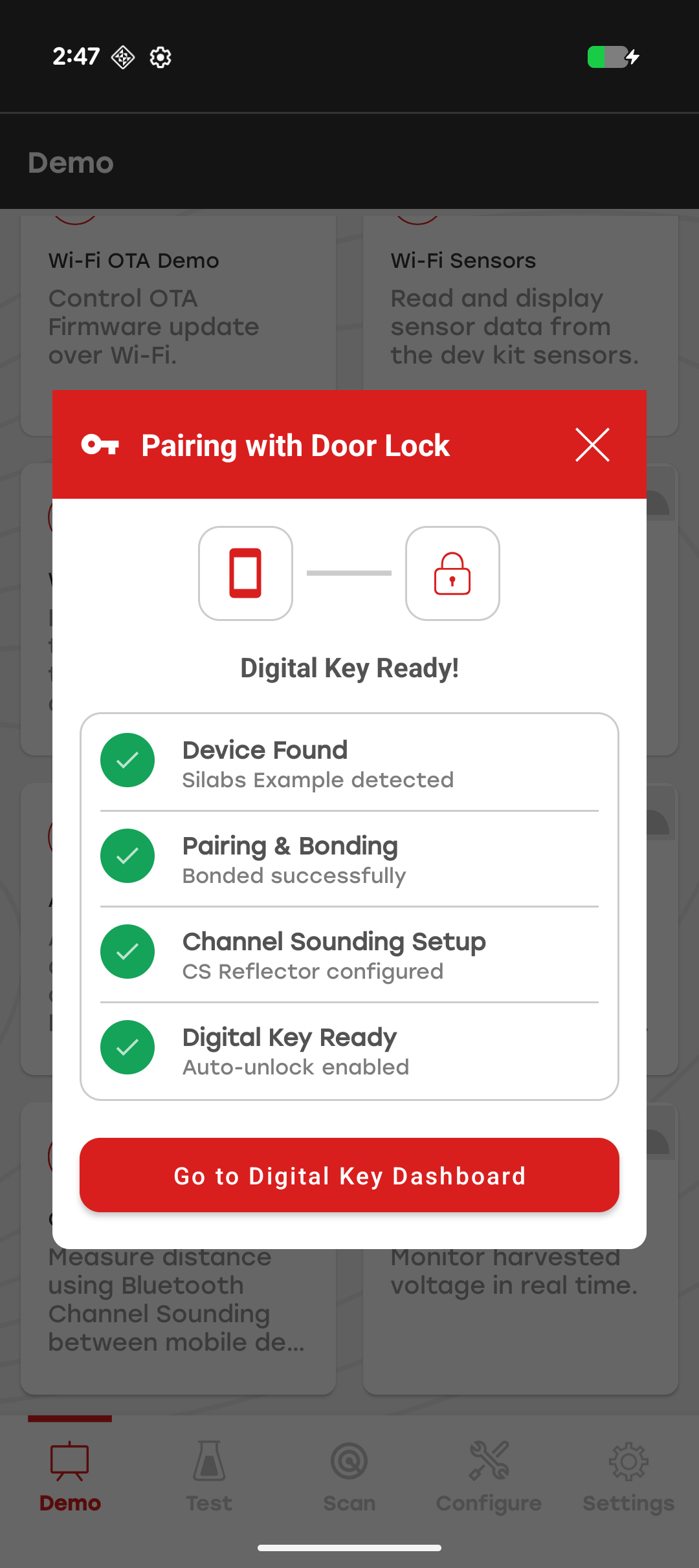
Device Found – The app connects to the selected door lock.
Pairing & Bonding – Security keys are exchanged and the devices are bonded.
Channel Sounding Setup – The smartphone is configured as the CS Reflector.
Digital Key Ready – GATT notifications are enabled for lock-state updates.
When the system Bluetooth pairing dialog appears, tap Pair to complete bonding.
When all setup steps complete successfully and the status displays Digital Key Ready!, tap Go to Digital Key Dashboard.
The app starts a foreground service so that the Digital Key session remains active while you use other screens or lock the phone.
Use the Digital Key Dashboard#
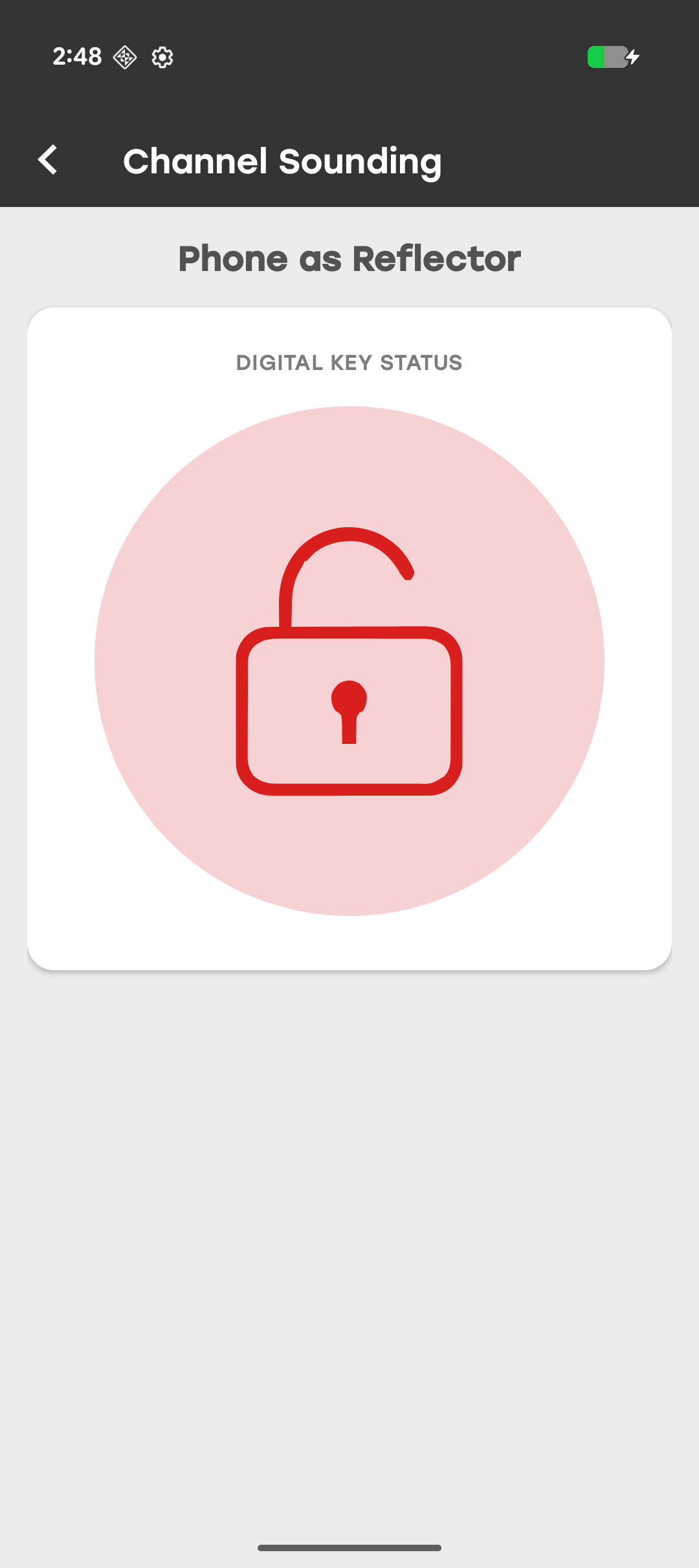
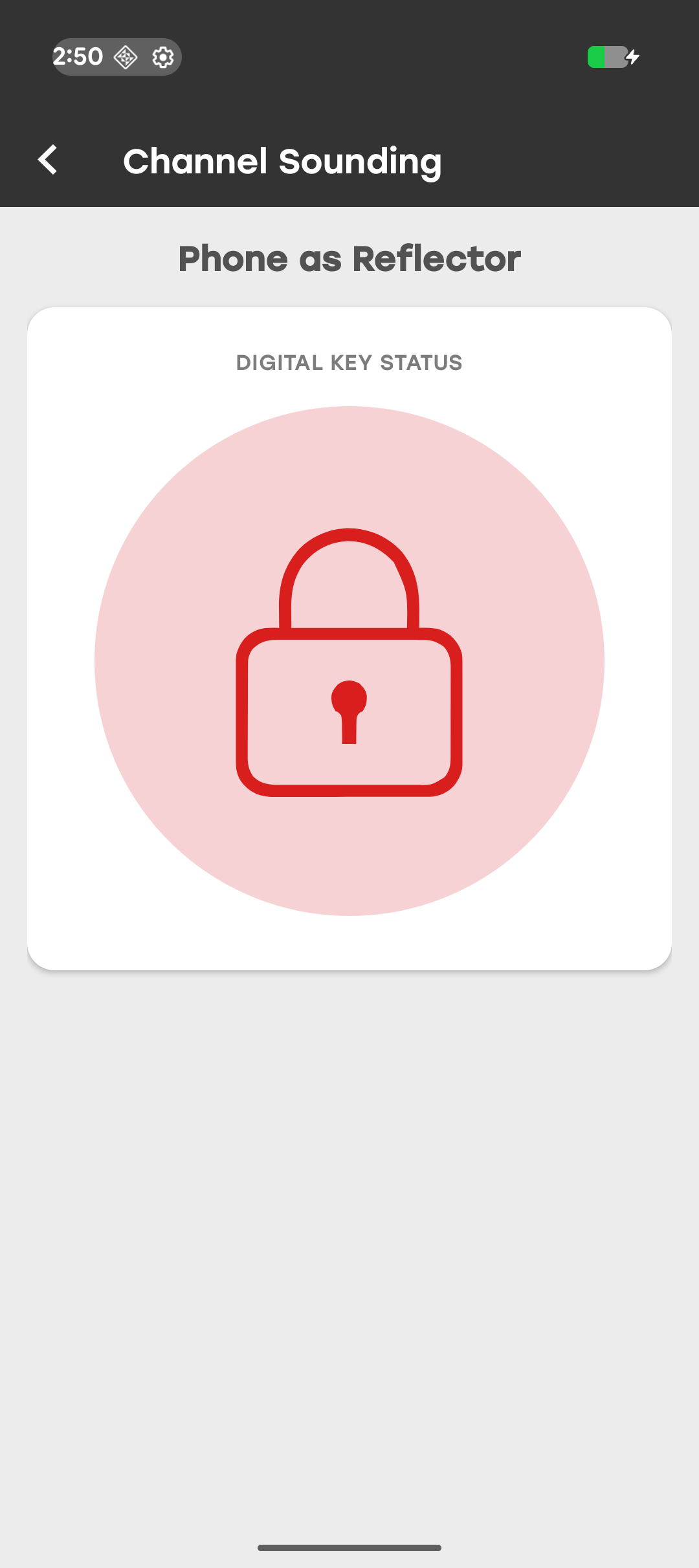
The Digital Key Dashboard displays the connection status of the paired door lock and the current lock state reported by the firmware through GATT notifications. The padlock icon indicates whether the door lock considers the Digital Key to be within range.
View the Lock Status#
Move toward the door lock to enter the unlock zone. When Channel Sounding determines that the smartphone is within the configured range, the door lock reports an unlocked state (0x00) and the dashboard displays an unlocked padlock.
Move away from the door lock to leave the unlock zone. When the smartphone moves outside the configured range, the door lock reports a locked state (0x01) and the dashboard displays a locked padlock.
Run the Digital Key in the Background#
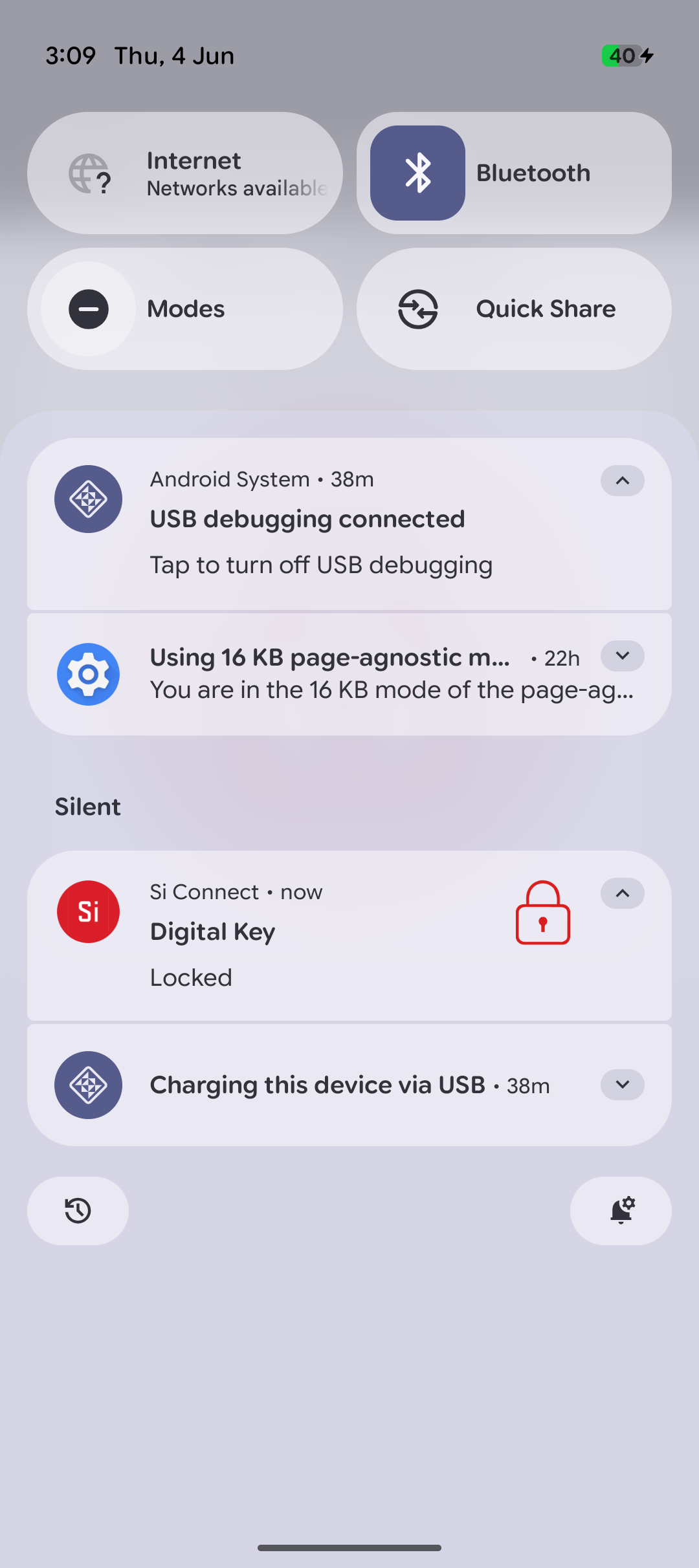
After pairing completes, a foreground service maintains the GATT connection and Digital Key notifications in the background. A persistent notification displays the current lock state.
Leaving the dashboard does not end the Digital Key session. You can return to the Channel Sounding demo and reopen the dashboard while the bond remains valid.
Handle Connection Loss#
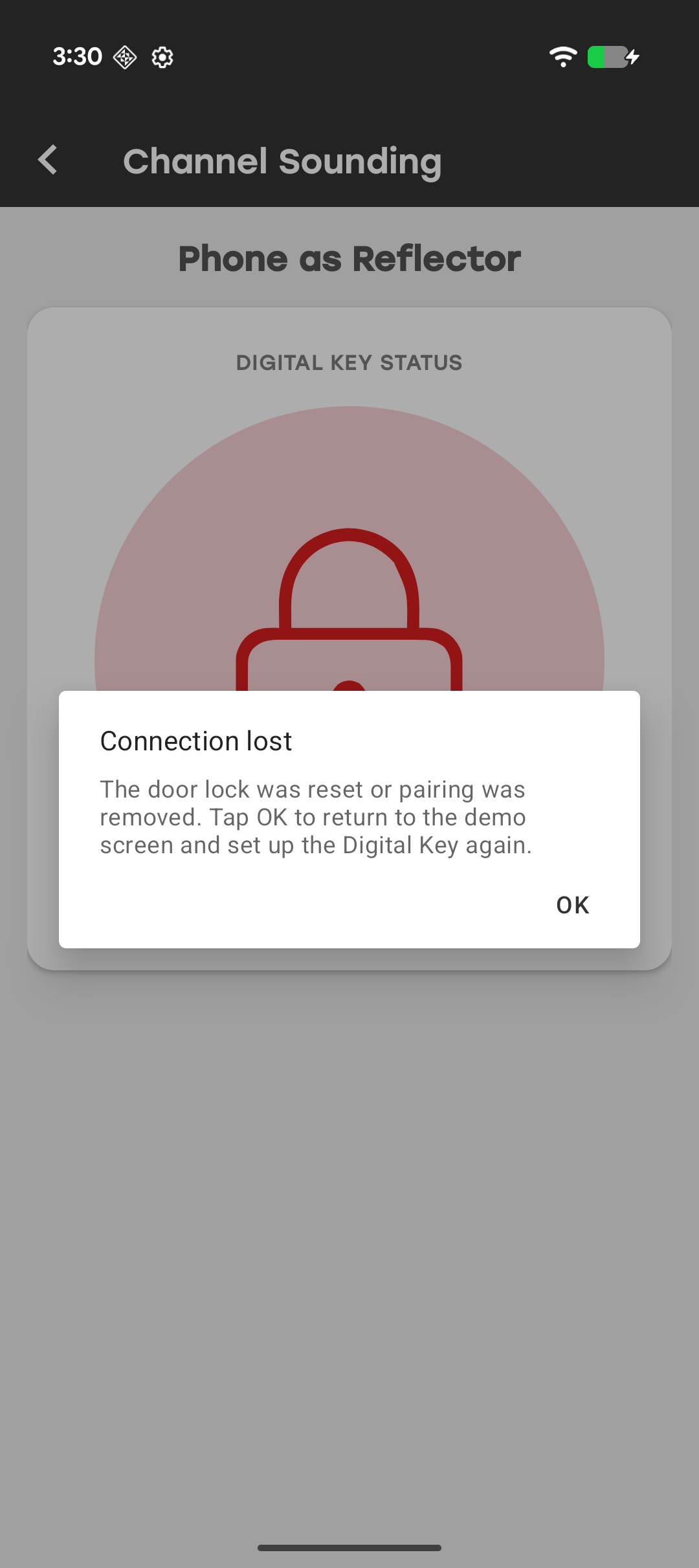
If the door lock is reset, the pairing is removed from the phone's Bluetooth settings, or the session is otherwise permanently lost, the app displays a Connection Lost dialog and returns you to the demo screen. Repeat the pairing procedure to re-establish the Digital Key session.
Troubleshoot Digital Key Issues#
| Issue | Resolution |
|---|---|
| No door locks found during scan | Verify that the development kit is flashed with the CS Initiator firmware, powered on, and advertising as Silabs Example. Move closer and tap Refresh Scan. |
| Bonding or pairing fails | Remove the device from the phone's Bluetooth settings, power-cycle the development kit, and repeat the pairing process. |
| Digital Key GATT not found (0xAABB / 0xBBCC) | Verify that the firmware exposes the Digital Key service and Lock State characteristic. Stay near the door lock and retry from the dashboard. |
| Dashboard shows disconnected | Move back within range. The app automatically reconnects when the device becomes available. |
| Lock state remains unknown | Wait for service discovery, notification configuration, and Channel Sounding setup to complete. Retry if setup fails. |
| Session lost dialog appears | Re-pair the smartphone and door lock after resetting the board or removing the bond. |