


Getting Started with RS9116W and USB Host Interface on Linux Platform#
This guide describes how to get started developing an RS9116W application on a Linux host using the WiSeConnect™ Simple Application Programming Interface (SAPI).
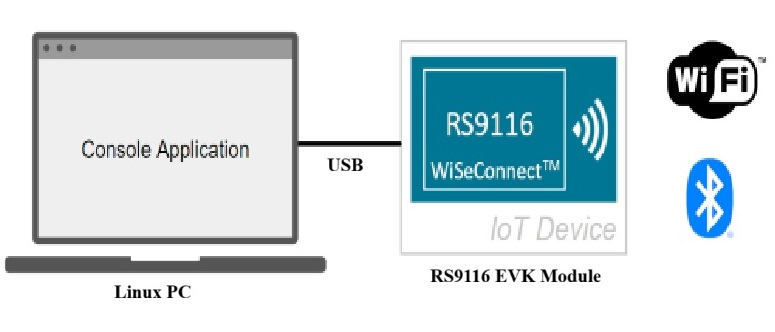
Getting started with application development on Linux with USB host interface involves the following steps:
32 bit i386 Build Guide for Debian or Ubuntu 64 bit Systems#
The following steps describe how to build and verify a 32‑bit binary on a 64‑bit Debian/Ubuntu system.
Enable Multiarch and Install Toolchain (once per machine)#
Run the following commands.
sudo dpkg --add-architecture i386
sudo apt update
sudo apt install -y build-essential gcc-multilib g++-multilib libc6-dev-i386 libc6:i386 libstdc++6:i386
Add 32‑bit Flags to your Build System#
Open the linux.mk file present in the linux platform path (for example, <wiseconnected_sdk>/platform/linux/linux.mk) and make the following changes.
CFLAGS += -m32
LINKER_FLAGS += -m32 (If your build uses LDFLAGS, use LDFLAGS += -m32)
Then build using the following command.
make linux
Verify the Binary#
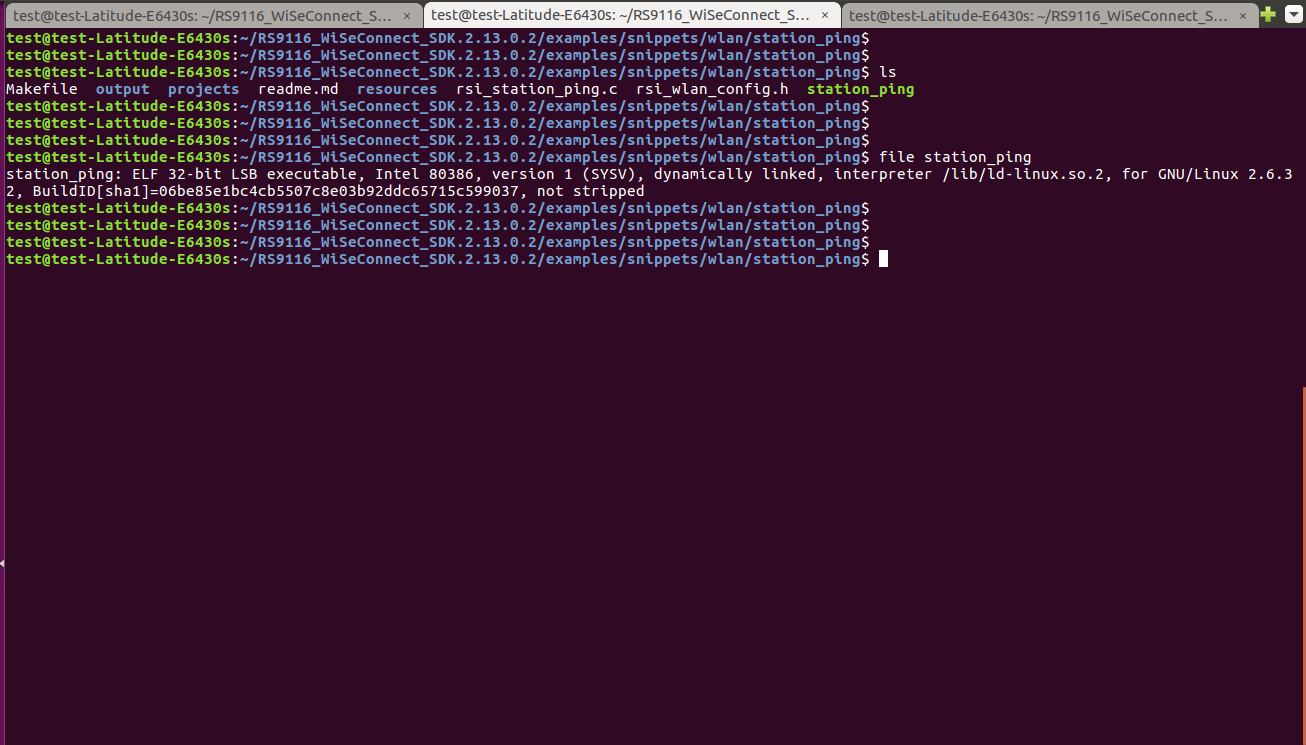
Verify if the binary is 32-bit by using following command:
file path/to/your/binary (for example, file <wiseconnected_sdk>/examples/snippets/wlan/station_ping)
Note!
Expect: ELF 32-bit LSB executable, Intel 80386, ...file
Download the WiSeConnect™ Software Driver Package#
Download or clone the WiSeConnect Software Driver Package from the Silicon Labs GitHub space.
Update the RS9116W Firmware#
When you first receive a RS9116 EVK, or when updating to a new version of the WiSeConnect Software Driver Package, we recommend updating the RS9116W firmware to the latest available version. There are several ways to update firmware, but the recommended method to get started is outlined in the section, Updating RS9116W Firmware.
Note!
Disconnect the RS9116W EVK from the host MCU board before updating the firmware. The host MCU connections might interfere with the update process.
Connect the RS9116W EVK to the Linux PC#
Connect the RS9116 EVK module and Host Linux PC as illustrated in the following picture:
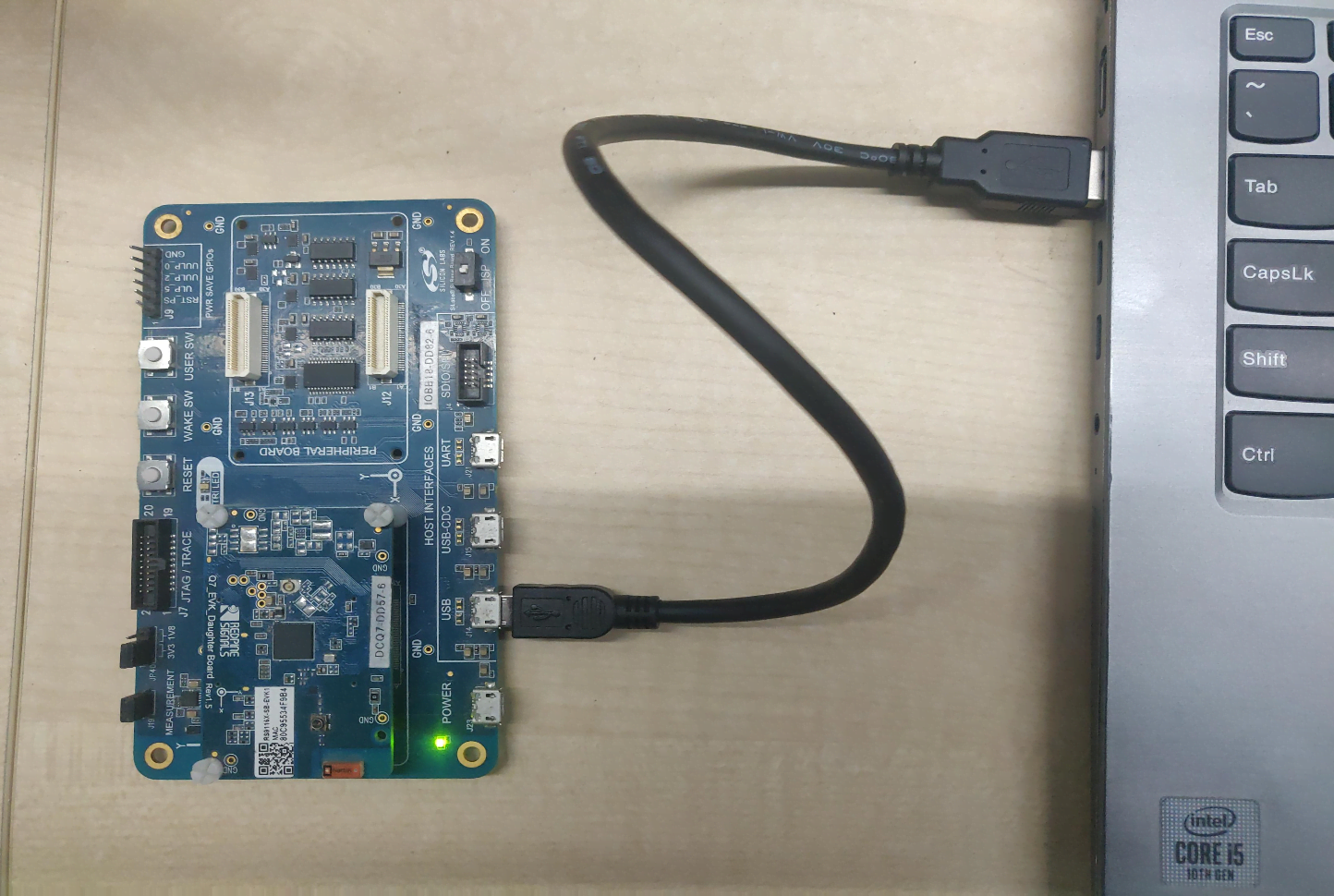
STEP 1. Set the ISP switch on the RS9116W EVK to the OFF position.
STEP 2. Connect the Linux PC using a USB to Mini USB connector on the RS9116W EVK as shown above.
Complete hardware details of the RS9116 EVK can be found in the RS9116 EVK User's Guide.
Enable the USB interface for SAPI Execution#
Open linux.mk file present in the linux platform path (for example, <wiseconnected_sdk>/platform/linux/linux.mk).
Enable
RSI_USB_INTERFACEmacro.Disable
RSI_UART_INTERFACEmacro.
Compile and Insert the USB Driver Module#
For TCP-IP Stack Driver#
STEP 1. Open the file rsi_config.h present in the path, <wiseconnect_sdk>/platforms/linux/driver/common/include.
STEP 2. Change RSI_INTERFACE define to RSI_USB.
STEP 3. Disable the RSI_TCP_IP_BYPASS macro in rsi_config.h.
STEP 4. Navigate to USB driver path (for example, <wiseconnect_sdk>/platforms/linux/driver/usb/src) and compile the USB driver.
STEP 5. Compile the USB driver using make clean; make command.
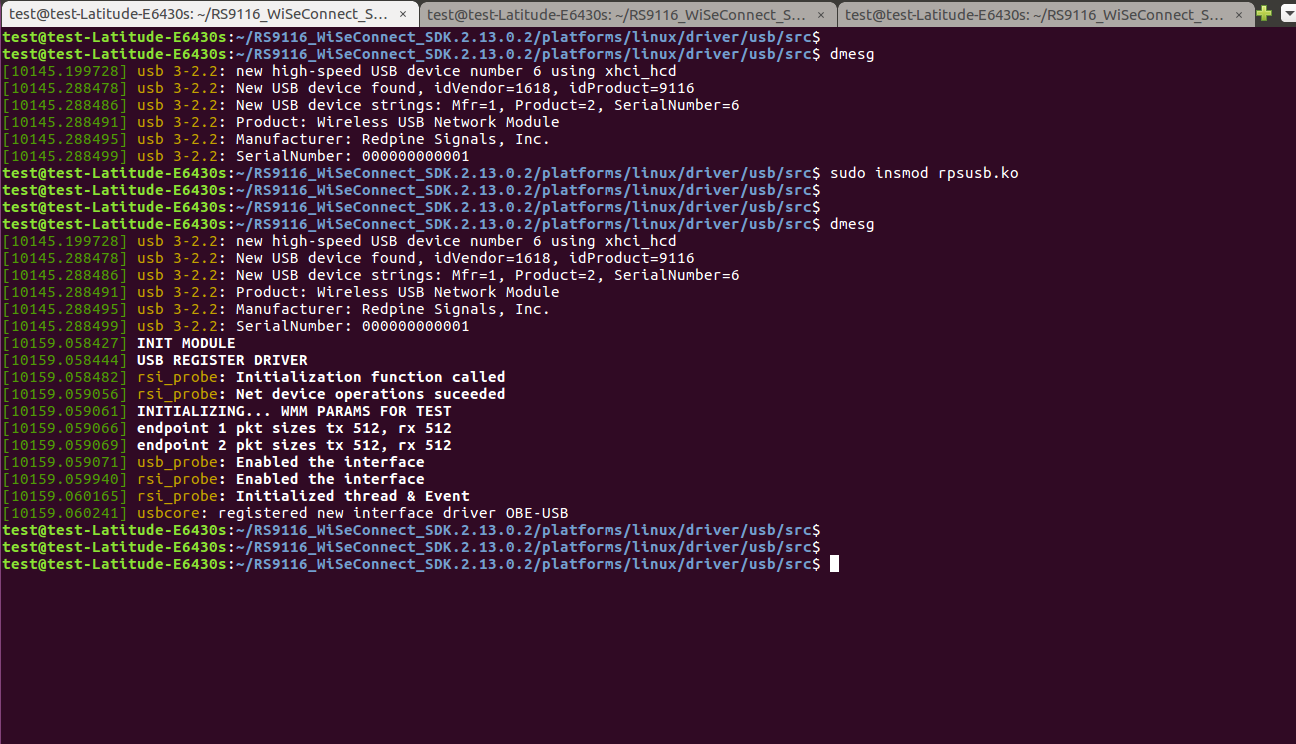
STEP 6. Insert the USB driver module using sudo insmod rpsusb.ko command.
For TCP-IP Bypass Driver#
STEP 1. Open the file rsi_config.h present in the path, <wiseconnect_sdk>/platforms/linux/driver/common/include.
STEP 2. Change RSI_INTERFACE define to RSI_USB.
STEP 3. Enable RSI_TCP_IP_BYPASS macro in rsi_config.h.
STEP 4. Navigate to USB driver path (for example, <wiseconnect_sdk>/platforms/linux/driver/usb/src) and compile the USB driver.
STEP 5. Compile the USB driver using make clean; make command.
STEP 6. Insert the USB driver module using sudo insmod rpsusb.ko command.
Open an Example Project on Linux Terminal#
The WiSeConnect SDK includes a number of ready-made example projects for the Linux development environment. A list of examples and documentation detailing the operation of each example can be found in: WiSeConnect Example Applications.
Navigate to any of the example path (for example,
<wiseconnect_sdk>/examples/snippets/wlan/station_ping).Make the necessary changes like
SSIDandPASSWORD.
Compiling an Example Project#
Compile the application using command make linux. The binary will be generated in the same path.
Run an Example Project#
Run the application using ./application_name (for example, In the above case ./station_ping).
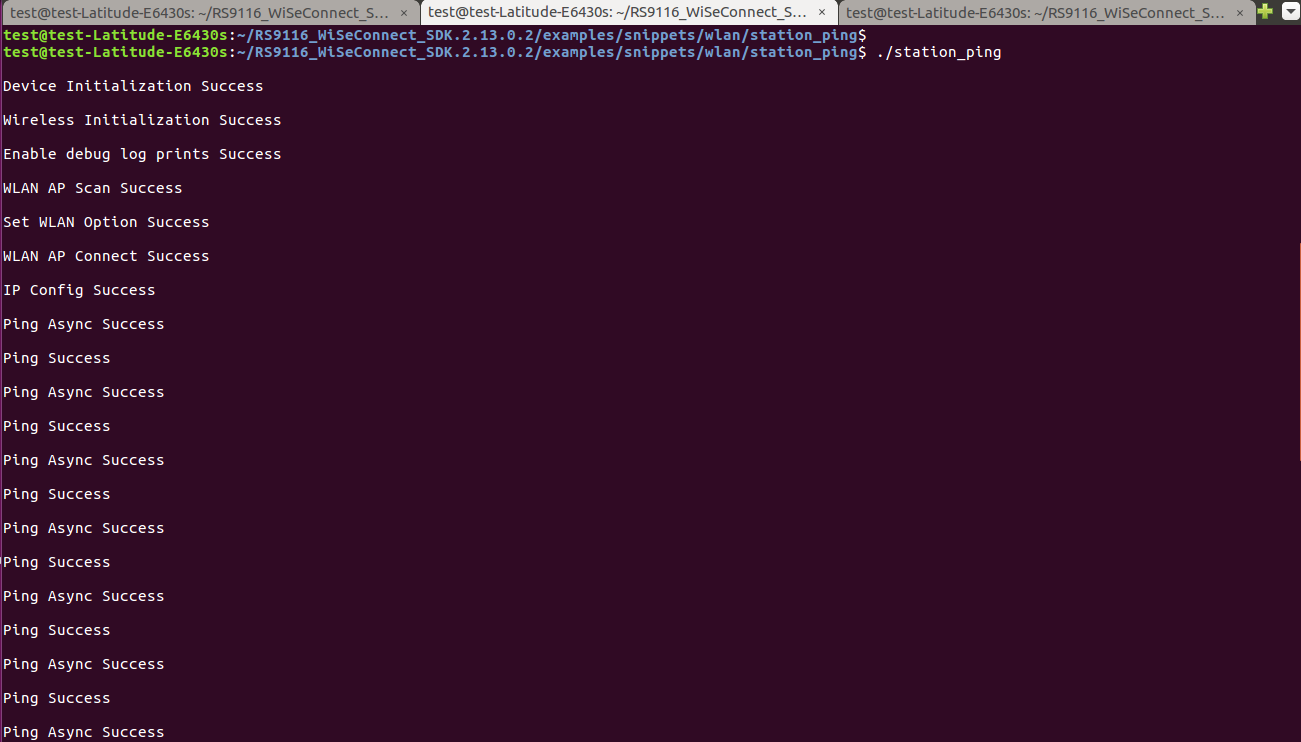
Enabling or Disabling the TX and RX Prints#
Navigate to SAPI path and Open sapi.mk file. (for example, <wiseconnect_sdk>/sapi/sapi.mk).
Enable the macro
RSI_ENABLE_DEBUG_PRINTto enable the TX and RX prints.Disable the macro
RSI_ENABLE_DEBUG_PRINTto disable the TX and RX prints.