


Getting Started with Silicon Labs Bluetooth Channel Sounding#
Overview#
Bluetooth version 6.0 introduces support for Channel Sounding (CS), a feature that enables precise distance estimation between two Bluetooth Low Energy (BLE) devices through time and phase-based measurements. Silicon Labs not only integrates this functionality into its Bluetooth stack but also offers a reference implementation of a Real-Time Locationing (RTL) library, which facilitates distance estimation and additional capabilities.
In CS, two Bluetooth devices, known as Initiator and Reflector, exchange information that is measured to produce a distance estimate between them. Silicon Labs offers comprehensive hardware and software solutions designed to streamline and simplify the evaluation of Bluetooth CS Initiator and Reflector roles.
Supported Boards#
To run the demos, you need two setups: one for the Initiator and one for the Reflector. Each setup requires an EFR32xG24 SoC equipped with a 40 MHz crystal.
Currently, Silicon Labs offers the following EFR32MG24-based radio boards for CS:
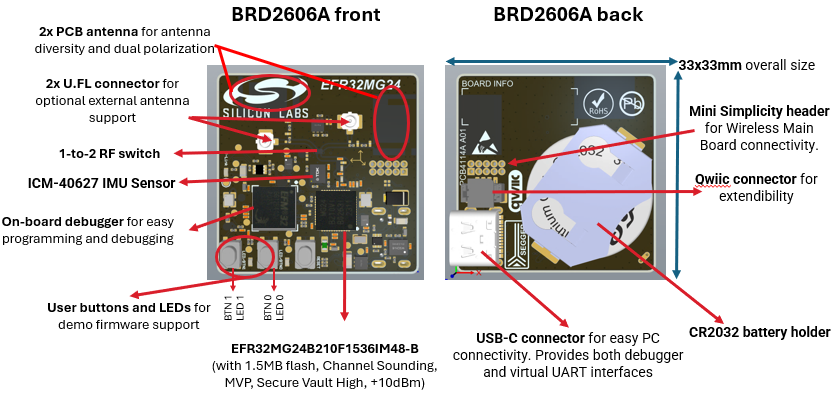
BRD2606A—Dual antenna radio board.
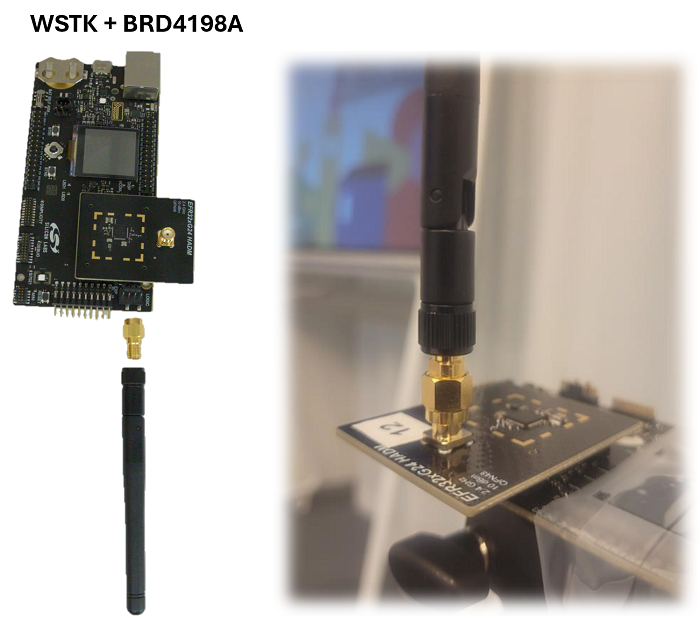
BRD4198A—Single dipole antenna radio board
Note: Bluetooth Channel Sounding is not supported on EFR32xG24 devices in WLCSP packages or on BGM240 modules.
When using BRD2606A#
Both initiator and reflector must be BRD2606A.
BRD2606A is a standalone board which has everything you need for running the demos, including a 6-axis IMU and a built-in SEGGER J-Link debugger for debugging the EFR32MG24 chip through a USB-C connector.
When using BRD4198A#
Each device should have:
1xBRD4001 or BRD4002 WSTK
1xBRD4198A with 1x Sleeve dipole antenna and 1x antenna adapter plug.
Software Requirements#
To begin exploring Silicon Labs CS demos, install the latest version of Simplicity Studio along with the latest version of Simplicity SDK (SiSDK).
Bluetooth Channel Sounding Demos#
The following sample applications are available as reference applications that can be modified as required. Demos are also available as pre-built binaries that can be run directly on the target device.
Bluetooth – SoC CS Reflector
Bluetooth – SoC CS Initiator
Bluetooth - NCP CS
The Bluetooth - SoC CS Reflector and Initiator demos are standalone. The demo binaries run on the device and display the results directly on the devices' screen (only BRD4198A SoC Initiator) and via serial console.
The NCP demo can be used together with the Channel Sounding Analyzer (CS Analyzer) tool in Simplicity Studio.
Setting up the Boards#
To setup the demos:
Ensure that the development kits are connected to a computer that has both Simplicity Studio and SiSDK installed.
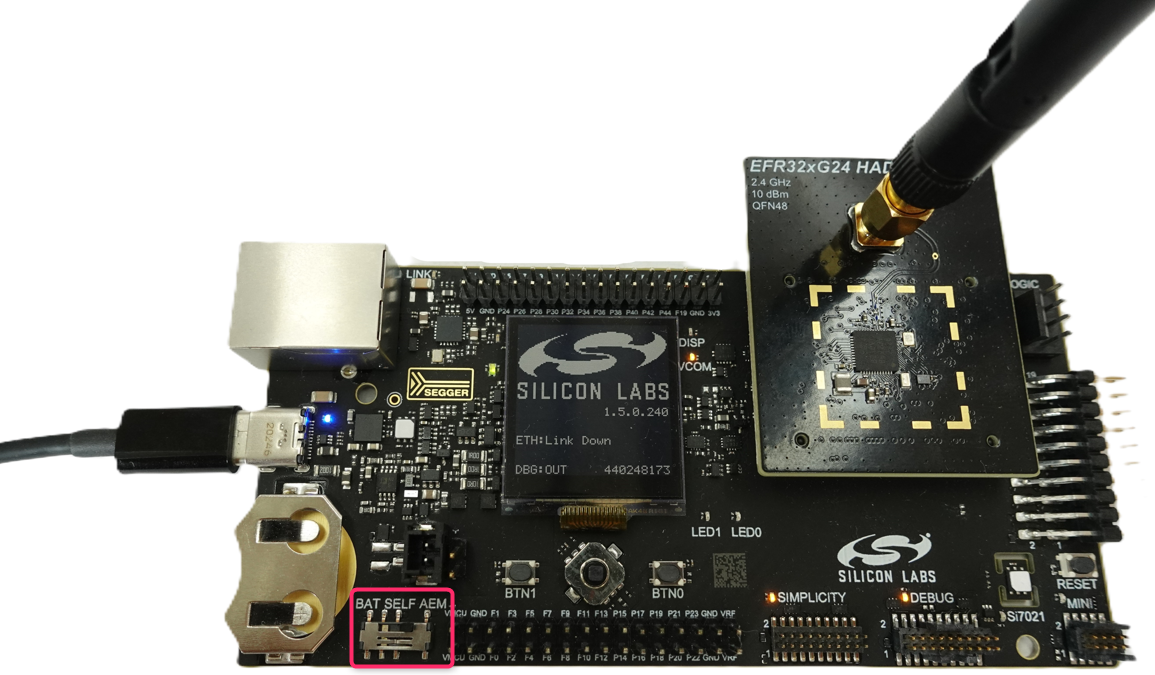
For WSTK+BRD4198A, ensure that the switch on the main board is set to AEM.
Start Simplicity Studio.
Running the Bluetooth – SoC CS Reflector Demo#
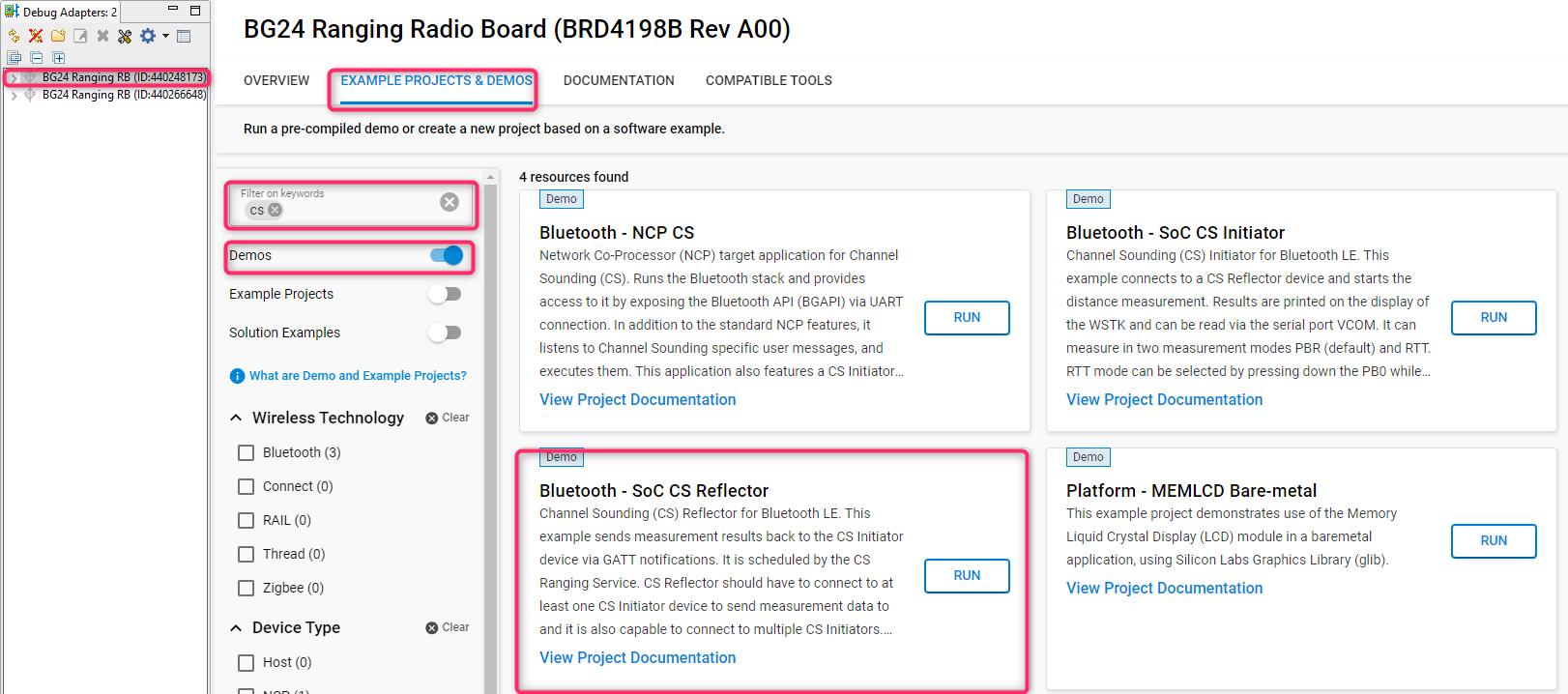
In the Devices perspective of Simplicity Studio, select your device from the list. Select the Simplicity SDK version of your choice and then on the EXAMPLE PROJECTS & DEMOS tab, select the Bluetooth - SoC CS Reflector demo.
Click RUN DEMO to download and run the demo on your board.
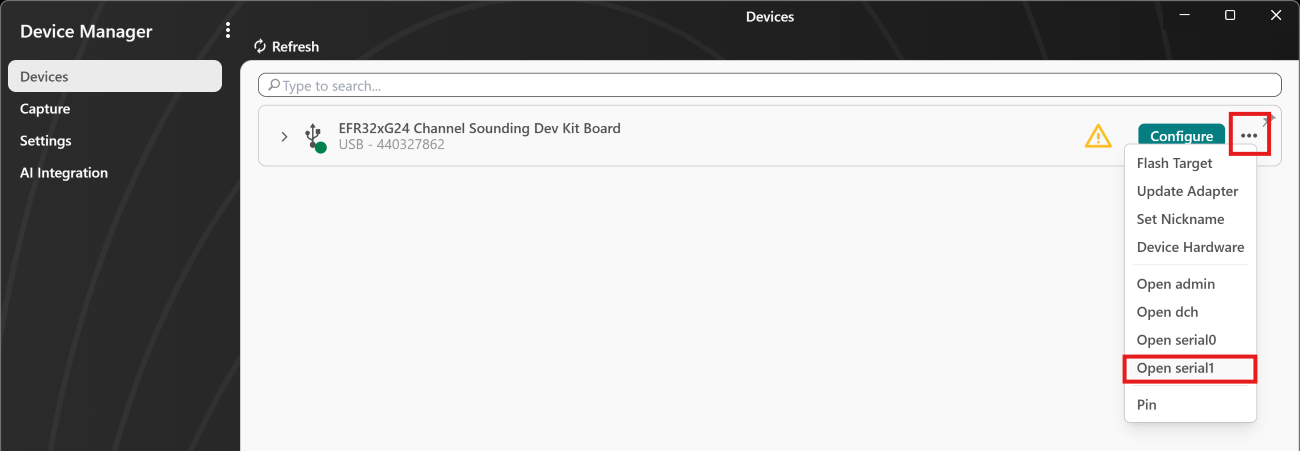
From the Tools tab of Simplicity Studio, open Simplicity Device Manager, and open Serial 1 for your board.
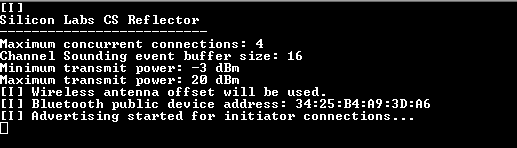
When the board is reset, a message indicating that your device has started advertising appears as follows. The Reflector advertises with a device name CS RFLCT which will be used by the initiator to identify it and initiate a connection.
Running the Bluetooth – SoC CS Initiator Demo#
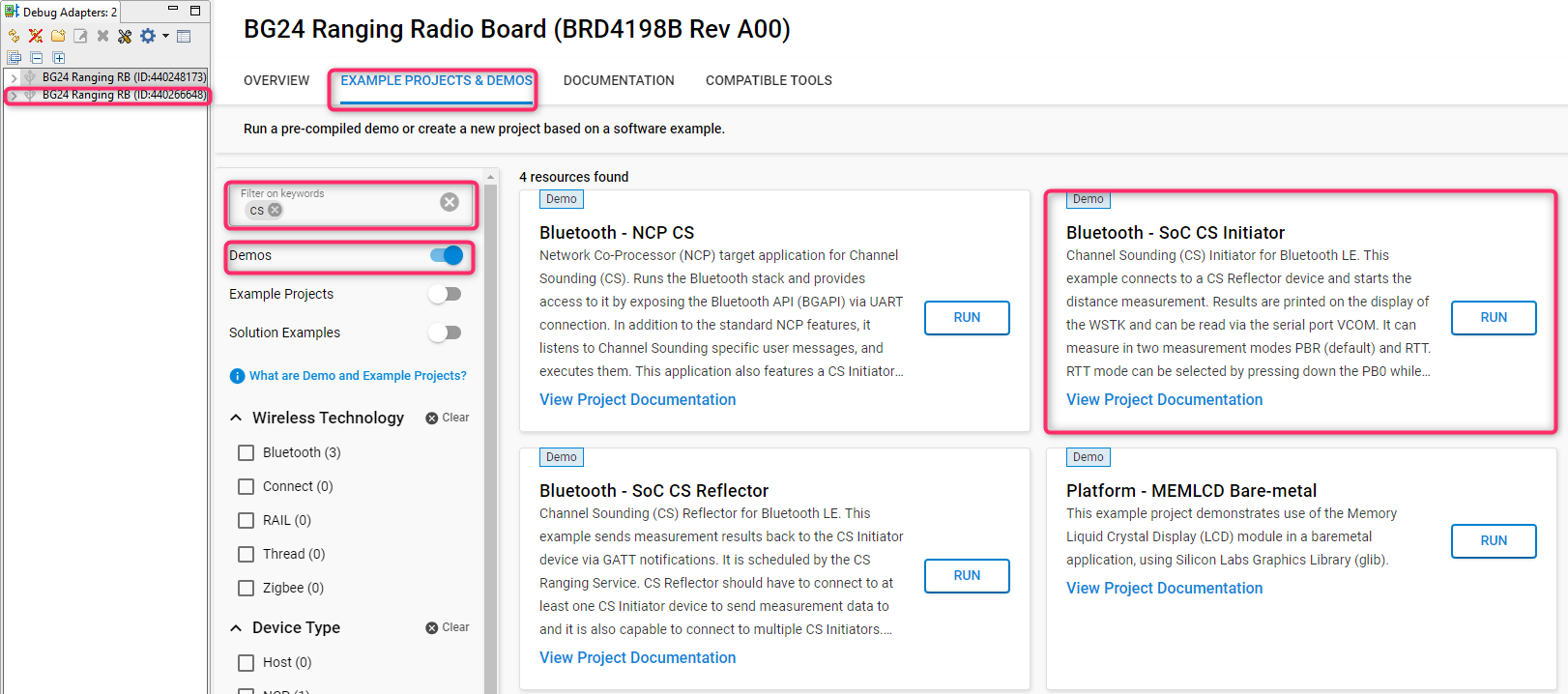
In the Devices perspective of Simplicity Studio, select your device from the list. Select the Simplicity SDK version of your choice and then on the EXAMPLE PROJECTS & DEMOS tab, select the Bluetooth - SoC CS Initiator demo.
Click RUN DEMO to download and run the demo on your board.
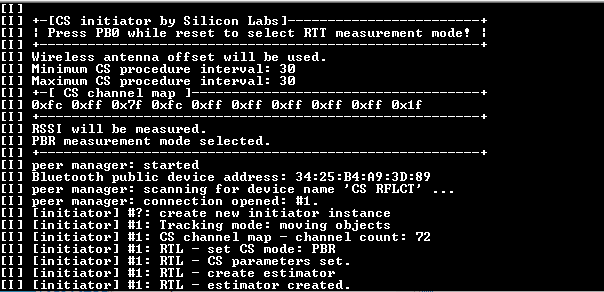
After flashing the firmware, the device starts scanning for a Reflector device, connects to it, and starts the CS measurements instantly.
By default, the Initiator uses the Phase-based Ranging (PBR) mode. Refer to Channel Sounding Fundamentals to learn more about PBR and RTT based measurement methods.
From the Tools tab of Simplicity Studio, open Simplicity Device Manager, and open Serial 1 for your board. The serial logs can be observed as shown below:
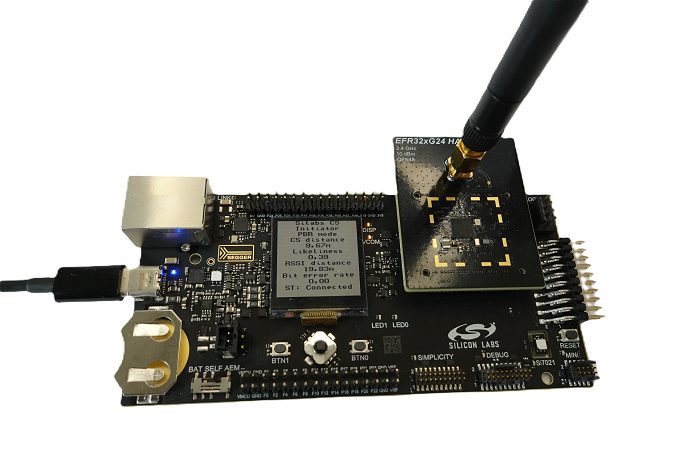
If using BRD4198A, the CS measurement results will also be visible on the display of BRD400X:
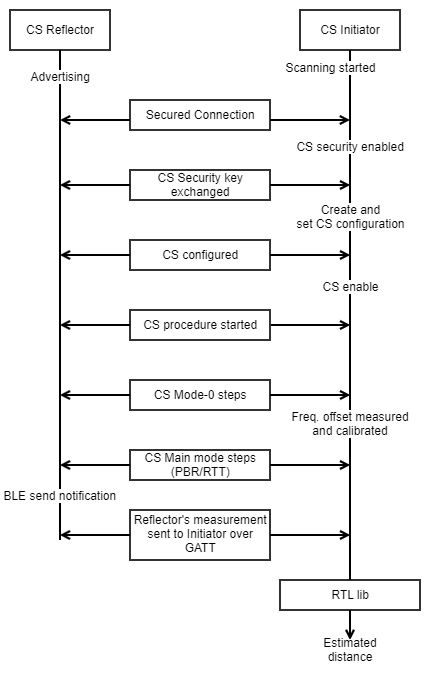
In general, the BLE central and peripheral roles are loosely tied with the CS Reflector and Initiator roles. The CS procedure can also be started by either the Reflector or Initiator device. The transaction for the actual measurement information is always started by the Initiator device.
In this demo implementation, however, the Initiator plays the BLE central role, and is also responsible for starting the CS procedure. The figure below depicts a simple flow diagram for the communication between the Reflector and Initiator devices.
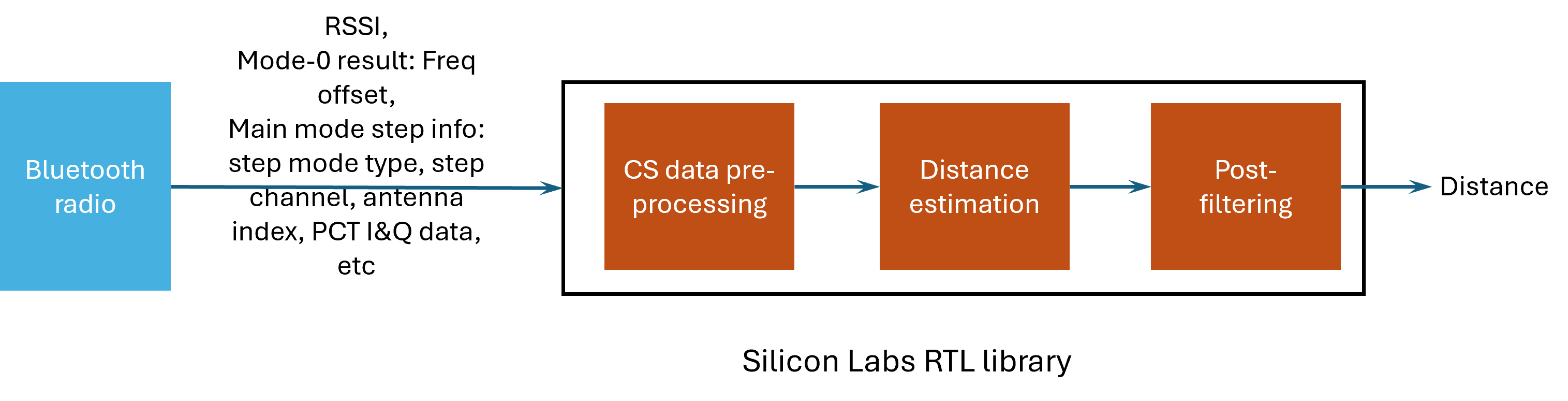
The phase and/or time measurements conducted by the Reflector and Initiator are fed to the RTL lib, which then calculates the actual distance estimation. The RTL lib takes the raw data from the results of the CS procedure, performs preprocessing, calculates an estimated distance, and then applies post-processing to yield a refined result.
Running the Bluetooth NCP Channel Sounding Demo#
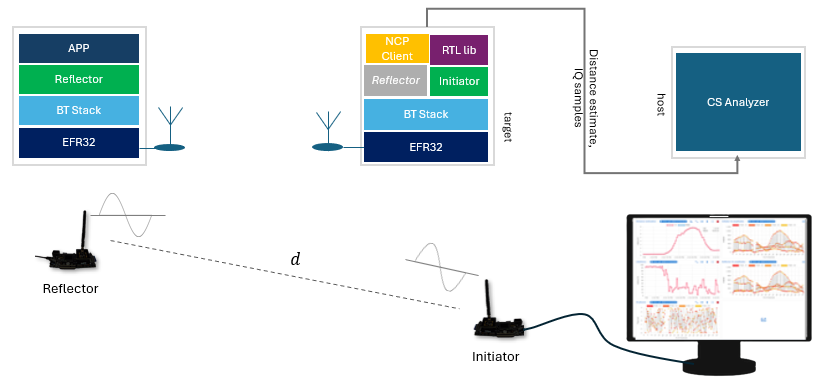
The NCP demo requires running the Bluetooth - NCP CS firmware on the Initiator device and the Bluetooth - SoC CS Reflector firmware on the Reflector device. In addition, the CS Analyzer is used for visualizing the measurements received by the Initiator.
The CS Analyzer tool is a Java-based application integrated into Simplicity Studio, used to visualize and debug the Silicon Labs CS solution. It is intended for demo and evaluation purposes and follows the following simple architecture.
To run the demo:
In the Devices perspective of Simplicity Studio, select your device from the list. Select the Simplicity SDK version of your choice and then on the EXAMPLE PROJECTS & DEMOS tab, select the Bluetooth - NCP CS demo.
Click RUN DEMO to download and run the demo on your board.
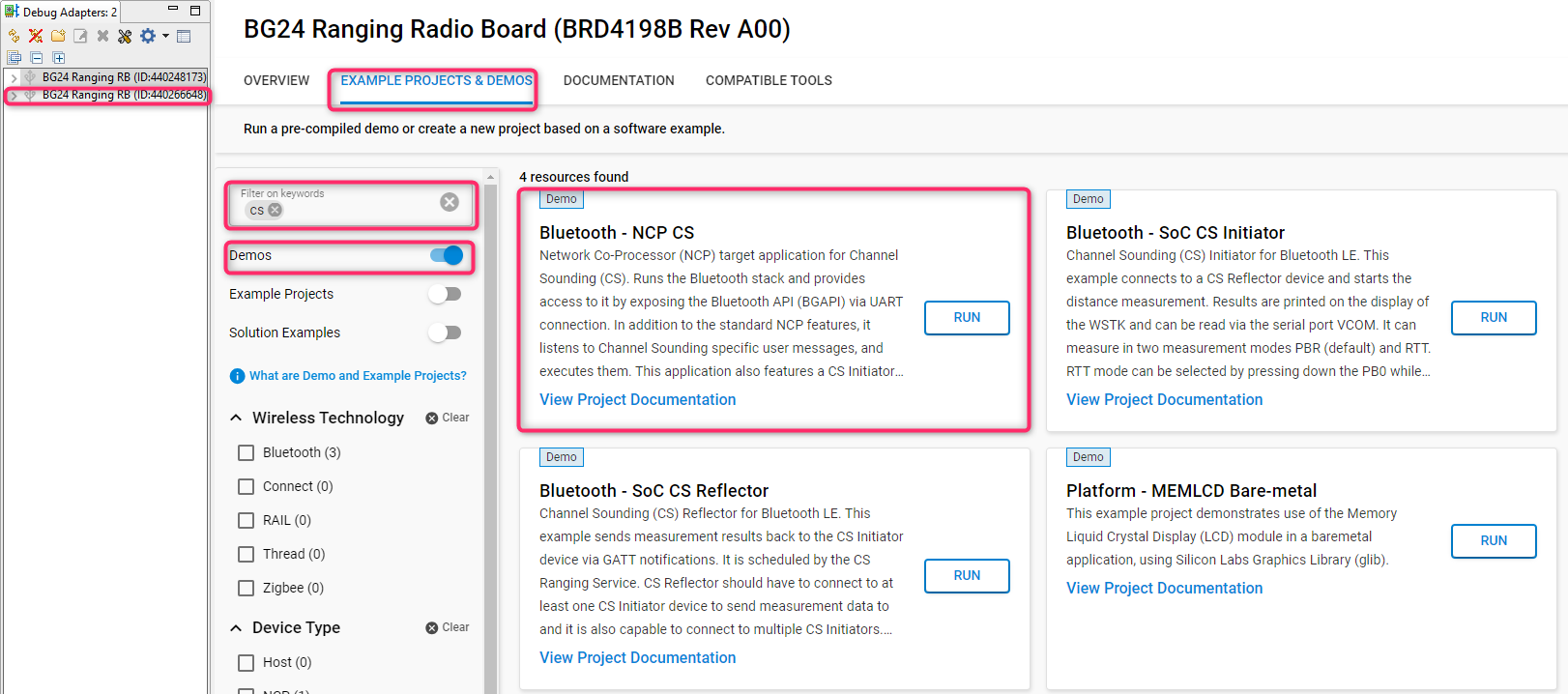
Now, you can start the CS Analyzer.
From the Tools tab of Simplicity Studio select Channel Sounding Analyzer,
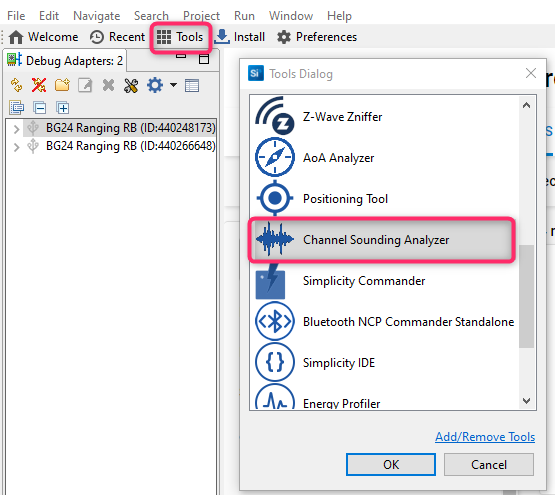
The CS Analyzer opens in a new window.
Next:
For information on how to use the CS analyzer, refer to the CS analyzer page in the CS developer's guide.
Once you have set up development with your platform of choice and experimented with the precompiled demos, you can begin customizing example applications to suit your specific needs. Refer to the Developer's Guide to learn more about the demo projects' software architecture and the features of the CS Analyzer.