


OAuth Authentication Process#
Configure Open Authorization (OAuth) authentication for Simplicity AI SDK so your AI agent and Model Context Protocol (MCP) tools can securely access required Silicon Labs services.
Prerequisites#
Complete Installation Overview for your operating system and IDE, or complete the equivalent setup for your agent.
A Silicon Labs Community account, or readiness to create one.
Visual Studio Code with an AI agent enabled.
Authenticate with Simplicity AI SDK in Copilot#
You can trigger the authentication flow in Copilot in several ways. The most straightforward method is to start the silabs-knowledge-base MCP server, which starts the Console authentication workflow.
Start the
silabs-knowledge-baseMCP server (or run a tool that calls it while you are unauthenticated) to open the OAuth connect flow.Sign in with your Silicon Labs Community account.
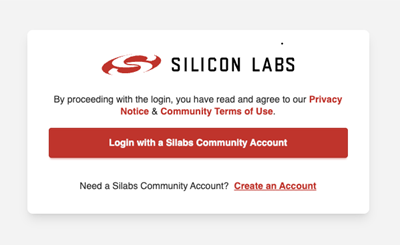
Silicon Labs OAuth uses your free Silicon Labs Community account. If you do not have an account, create one on the Silicon Labs registration page. Registration also provides access to the Community portal and additional Console features.
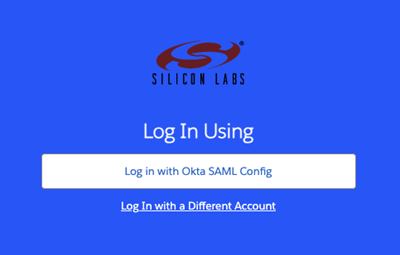
Select Log in with Okta SAML Config.
Sign in with your Community account.
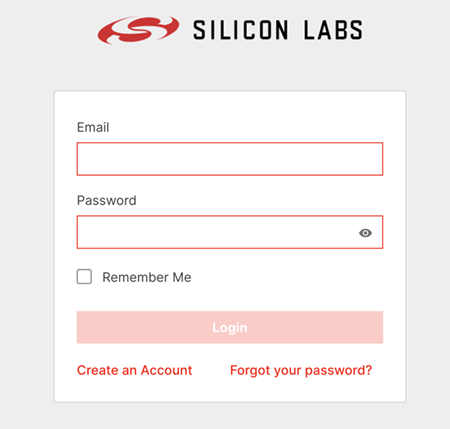
Note: On first use, you are prompted for your Community account credentials. On later authentications, this step is usually skipped and Visual Studio Code continues with the redirect.
Complete the redirect back to Visual Studio Code.
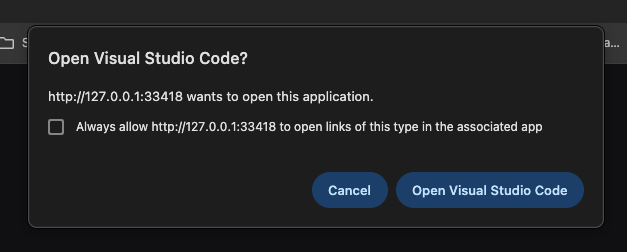
After successful authentication, you are redirected to Visual Studio Code. If you have multiple Console accounts, choose an account. The account you choose does not affect MCP output. Most users have only one account.
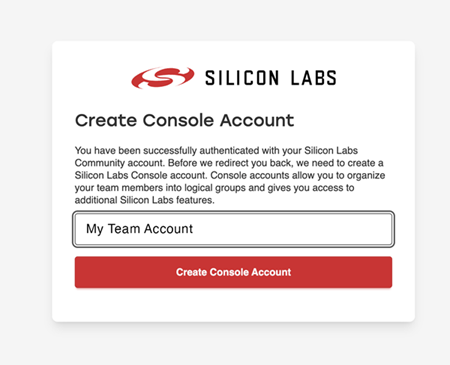
Note: On first use, you might be prompted to create a Silicon Labs Console account. You are prompted only once. Later re-authentications use that account automatically.
Confirm that you are back in Visual Studio Code and that the tools are loaded and running.