


Build, Flash, or Debug a Project#
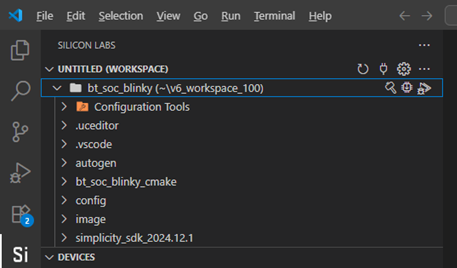
In the Si extension view, hover over your project to reveal the following action buttons:
Build: Compiles your project
Flash: Programs your target device
Debug: Launches the debugger
Monitor Live Expressions During Debug#
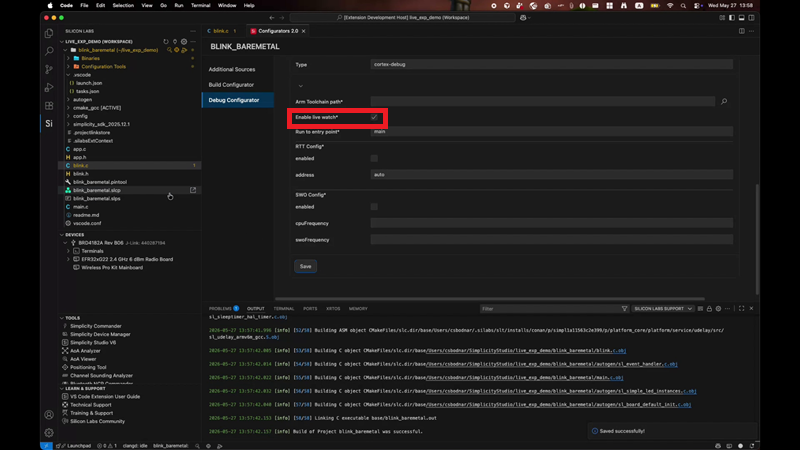
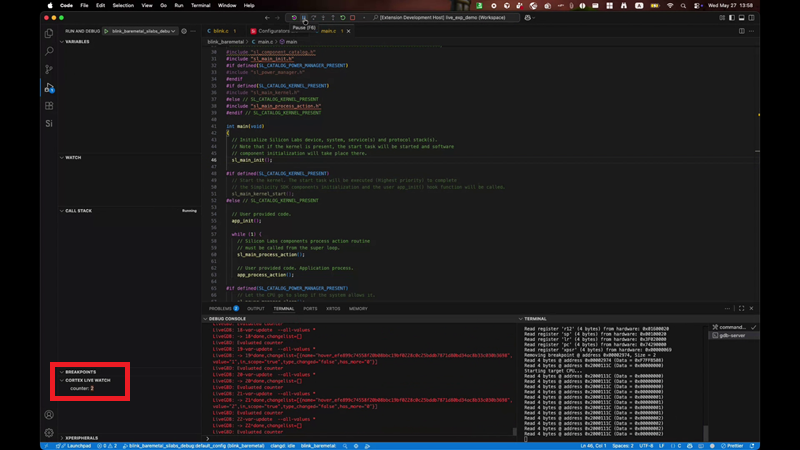
Live Expressions let you monitor variables and expressions while the target application continues to run. In the Debug Configurator, this feature is labeled Enable live watch. During a debug session, live expressions are shown in the CORTEX LIVE WATCH section of the Run and Debug view.
This procedure assumes that your project builds successfully and that you have a configured debug connection to a Silicon Labs target device.
Enable Live Watch#
Right-click the project folder and select Open Configurators 2.0.
Select Debug Configurator.
Select the debug configuration you want to edit.
In the optional fields, select Enable live watch.
Save the debug configuration.
Add a Live Expression#
Build the project.
Start a debug session.
In the Run and Debug view, expand CORTEX LIVE WATCH.
Select Add Expression, enter the variable or expression that you want to monitor, and press Enter.
Let the application continue running and observe the value in CORTEX LIVE WATCH.
Use live expressions to monitor runtime values such as timer values, event flags, counters, state-machine variables, and application status values.
Attach to a Running Target#
The Simplicity Studio VS Code extension does not currently provide a built-in option to attach to a running target. However, this is supported through the Cortex-Debug extension by adding an attach configuration to the project’s launch.json file.
This procedure assumes you have debugged the project at least once so that .vscode/launch.json exists.
Attach the Configuration#
In the Si Activity bar, open your project's
.vscode/launch.jsonfile.In the
configuration[]array, select and copy the existing launch configuration (typically from the opening bracket ({) on line 3 through the closing bracket (}) for that block).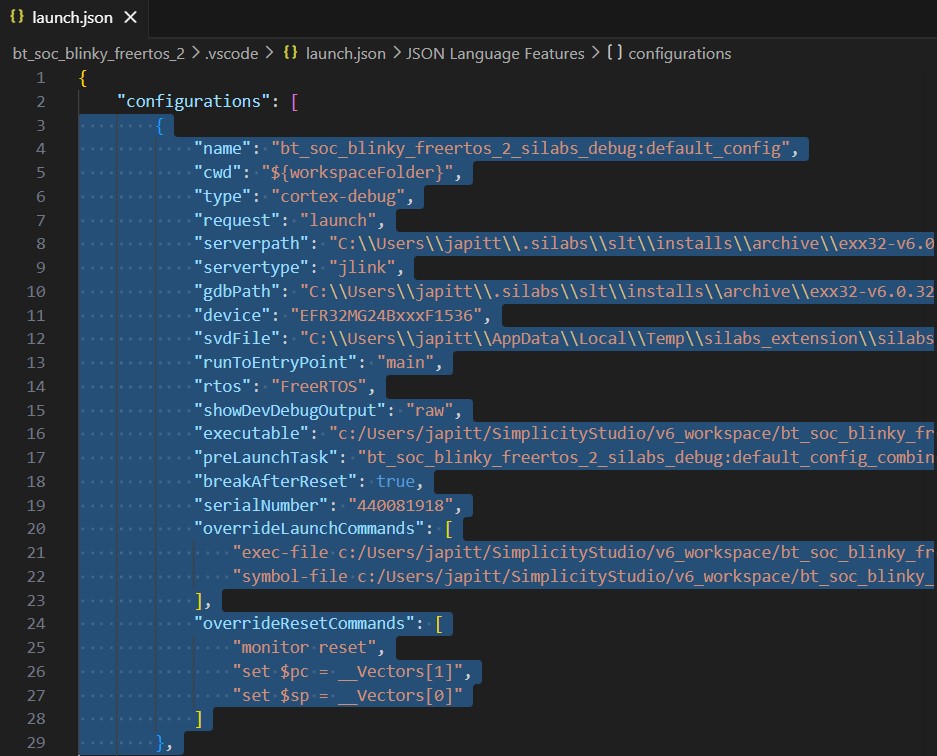
Paste the copy after the existing configuration. Use it as the starting point for your attach configuration.
In the copied configuration block, change
debugin the name toattach. You can use any name, but it should show that this entry is for an attach configuration.Change
requestfromlaunchtoattach.Delete the
runtoEntryPointline.Delete the
preLaunchTaskline.Change
breakAfterResetfromtruetofalse.If they are present, delete the
overrideLaunchCommandsandoverrideResetCommandssections.By default, attach halts the processor so you can inspect the target state and set breakpoints. To attach without halting, add a
postAttachCommandsentry:"postAttachCommands": ["continue"]Note: If you use
continue, the processor does not stop at attach. The Pause button does not work until you set a breakpoint and hit it. After that, Pause works when you resume.Save the file.
Use an Attach Configuration#
From the Silicon Labs Activity Bar (Si), select the debug icon. A drop-down lists every configuration in launch.json, including your attach configuration.
Do not use the Si extension toolbar debug icon to start an attach session. Instead, open the Run and Debug view from the activity bar and select your attach configuration from the dropdown.
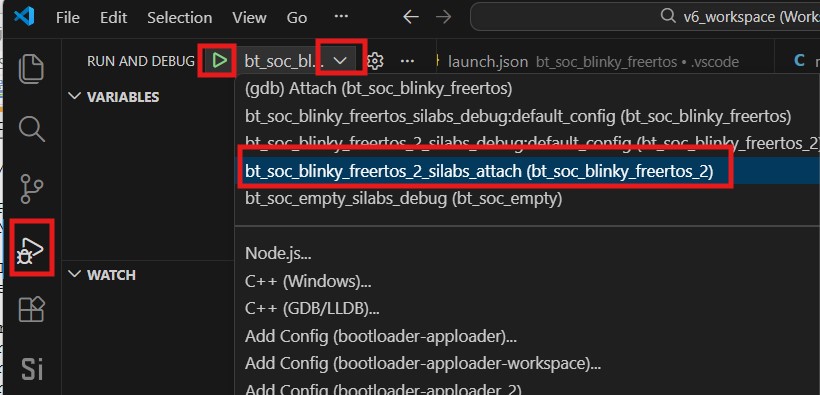
Select Start Debugging (F5) (green arrow) to attach to the running target.