


Zigbee Certification#
This document provides guidelines for certifying 3.0 and 4.0 devices.
Why Certify Zigbee Devices#
Zigbee Certification declares that your device is compliant with the Zigbee Specification and is interoperable with all other Zigbee Certified devices on the market. This ensures that certified products are backwards and forwards compatible with all other certified Zigbee products. The governing body for Zigbee Certification is the Connectivity Standards Alliance (CSA), formerly known as the Zigbee Alliance. More details on the process of Certification and why getting Zigbee certified is important can be found on the CSA website: https://csa-iot.org/certification/why-certify/. Upon certification, you can display the Zigbee Certified Product logo on your product and in marketing campaigns.
How Does Zigbee Certification Work#
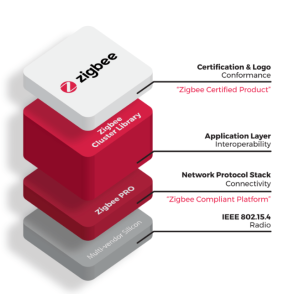
Zigbee Certification comprises three separate certifications#
802.15.4 MAC/PHY Compliance: Testing with the 802.15.4 specification and this is handled by Silicon Labs. Every chip die family undergoes this testing
Zigbee Compliant Platform (ZCP): This is the compliance of vendor stacks (Like EmberZNet) meeting Zigbee networking compliance. We send our software stacks for ZCP certification so the Zigbee ZCP can be inherited for certain platforms. Please reach out to our support team regarding how you can receive ZCP through inheritance for your platform.
Zigbee 3.0 / Zigbee 4.0 / Zigbee Certified Product: This testing ensures Application Layer Compliance and Zigbee Cluster Library Compliance. Silicon Labs does not perform this testing. End-product manufacturers must perform it.
System Architecture Considerations#
Silicon Labs supports Zigbee certification through System-on-Chip (SoC), Network Co-processor (NCP), and Radio Co-processor (RCP) configurations.
For SoC and NCP, Silicon Labs provides the 802.15.4 PHY and MAC layer certification along with a Zigbee Compliant Platform (ZCP) Certification ID, covering necessary lab testing.
For NCP, host processor changes do not affect ZCP certification status.
For RCP, Silicon Labs may offer certification by similarity for ZCP. Alternatively, customers have the option to perform the ZCP certification on their preferred platforms, in which case the customer owns their certification ID.
Silicon Labs provides the 802.15.4 PHY and MAC layer certification.
In all scenarios, customers need to perform the Zigbee Product certification.
For more information, please contact Silicon Labs Support.
How to Certify#
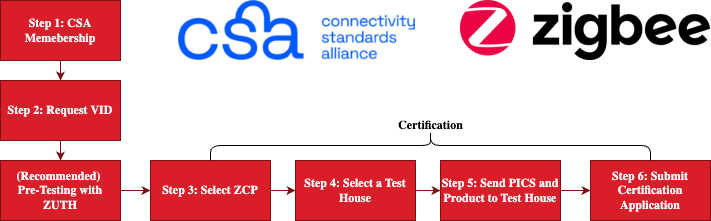
The Process to receive Zigbee Certification is as follows:#
Become a Member.
There are different tiers of Connectivity Standards Alliance memberships that offer your company varying levels of access and benefits. The minimum membership tier required to get certified is Adopter level. More information on various membership levels can be found on the Connectivity Standards Alliance website: Become a Member | The Future of IOT - CSA-IOT.
Request a Vendor ID From the Alliance Certification Team.
Once you are a member, you will need to contact the CSA to request your Manufacturer ID/ Vendor ID.
Select a Zigbee Compliant Platform.
For Silicon Labs Zigbee products, the ZCP documents are found on the CSA website here: Certified Products Search | IOT - CSA-IOT.
Select an Authorized Test House.
A full list of CSA authorized Test Providers can be found here: Testing Providers | Authorized Test Houses - CSA-IOT.
Send relevant documentation and product to the Test House.
The test provider will require the product for testing as well as the Protocol Implementation Conformance Statement (PICS) documents. These documents can be read and written using the PICS tool available from the CSA here: PICS Tool | Connectivity Standards Alliance - CSA-IOT. Templates for these documents can be found in the CSA Members Area.
Submit Certification Application to the CSA.
Once testing is complete you will need to submit an application for certification in the Connectivity Standards Alliance Certification Tool. Instructions for requesting a Certification Tool account and creating/submitting applications can be found in the Connectivity Standards Alliance Members Area.
Note: If you have trouble locating the ZCP certification, please reach out to our support team regarding which platforms can receive ZCP certification.
Note: Before seeking certification, it is strongly advised to pre-test your product using the Zigbee Unified Test Harness (ZUTH), to ensure a smooth certification process.
Zigbee Unified Test Harness (ZUTH)#
As of 2021, the Zigbee Unified Test Harness (https://csa-iot.org/certification/tools/zuth/) is available as the official test tool for Zigbee Product Certification. ZUTH is owned and supported by the CSA, not by Silicon Labs, and any questions about it should be directed to the CSA. The CSA website contains information regarding the test tool, which is used to run Zigbee Product Certification tests. It is highly recommended to run your product through ZUTH prior to sending your device to an authorized test provider.
ZUTH installers are provided by the CSA: https://zigbeecertifiedproducts.knackhq.com/zigbee-certified#zuth-installers/.
Requirements#
To set up the Zigbee Unified Test Harness, you will need the following:
Hardware (ZUTH dongles)
The ZUTH software requires several hardware devices, commonly referred to as dongles, to conduct certification testing. The number of dongles you need depends on the test cases you plan to run. Prepare three dongles for full test coverage.
For a new in-house testing setup, you may use BRD2703A, as it supports all test cases currently available.
The following table lists the Silicon Labs boards that are supported as ZUTH dongles.
The ZCP column indicates whether the board supports compliant platform conformance testing.
The Z3.0 and Z4.0 columns indicate whether ZUTH can use the board to test an application DUT against the corresponding generation of Zigbee requirements.
| Board | ZCP | Z3.0 | Z4.0 |
|---|---|---|---|
| BRD2608A | ✓ | ||
| BRD2703A | ✓ | ✓ | ✓ |
| BRD4186C | ✓ | ||
| BRD4187C | ✓ | ||
| BRD4413A | ✓ | ||
| BRD4161A | ✓ | ||
| BRD4162A | ✓ | ||
| BRD4166A (discontinued) | ✓ |
Note: The boards named BRD4xxxx are radio boards, not standalone kits. You'll need a main board to connect them via USB. See BRD4002A for more details.
Software
You can download the Zuth software, access installation guides for different platforms, and find a comprehensive user guide in the ZUTH Installers repository.
Firmware
You'll need a bootloader and a dongle firmware application to load the dongles. You can find firmware images of the dongle application in the ZUTH Installers repository, and get the bootloader project for the corresponding board from Simplicity Studio.
Programming and Configuration Tools
Use Simplicity Commander to load the firmware images onto the dongles. Use Silicon Labs Device Manager to configure the serial connection to the dongles. Both tools are installed as part of Simplicity Studio.
Preparing the dongles#
To use your dongle hardware as part of the test harness, you need to program the firmware images and configure the flow control of the serial connection to your boards. Before proceeding, ensure that you have the correct bootloader and ZUTH application image for your dongle boards.
Program the Dongles
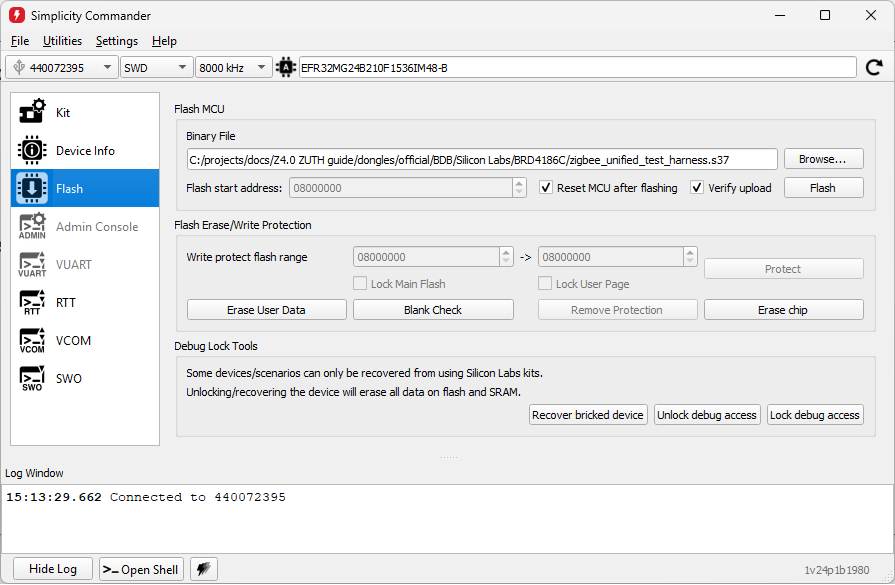
Open Simplicity Commander under the Tools menu in Simplicity Studio v6.
Connect the dongles to the computer.
In Simplicity Commander, select one of the connected device and open the Flash page.
Erase the flash memory (Erase Chip).
Program the bootloader by loading the binary file and running Flash. Wait for Commander to confirm that the operation completed successfully.
Program the dongle application image by loading the corresponding file and running Flash.
Repeat this procedure for every dongle that will be used by the test harness.
Configure Flow Control
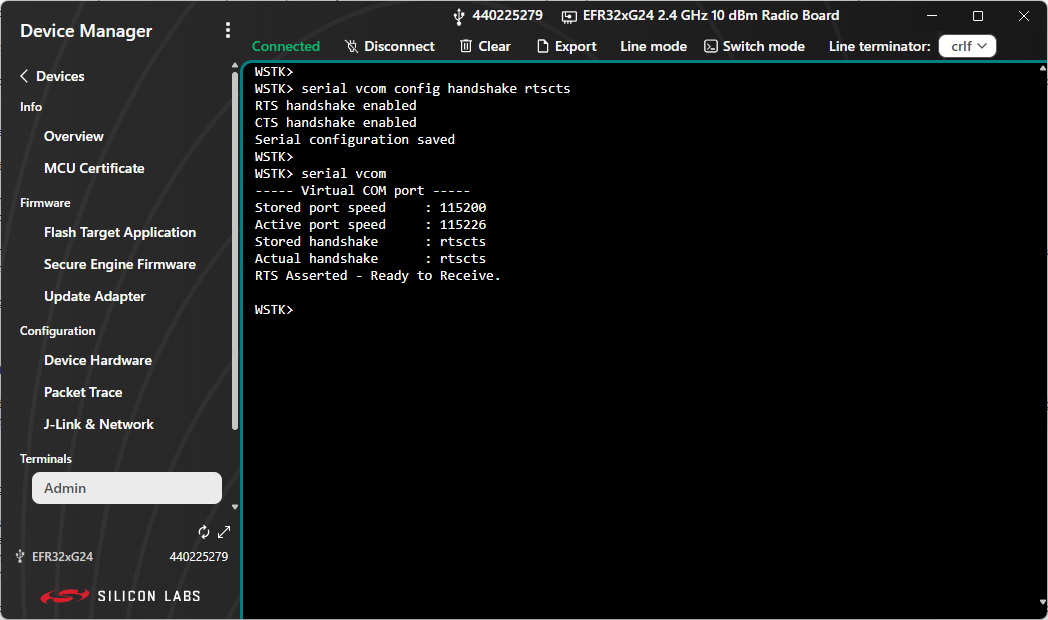
Open the dongle’s Admin Terminal: in Simplicity Studio, go to the Devices view, right-click the connected device, and select Launch Terminal.
Enable RTS/CTS flow control by entering:
serial vcom config handshake rtsctsTo verify the current configuration, enter:
serial vcomRepeat this procedure for every dongle that will be used by the test harness.
Setting up the Test Harness#
The following procedure provides a high-level checklist for setting up a Zigbee test harness for in-house precertification testing:
Obtain a valid license for the ZUTH tool. Reach out to the Connectivity Standards Alliance for a license if you don't already have one.
Obtain the ZUTH installer package and the accompanying installation documentation.
Install the ZUTH tool by following the instructions in the installation guide. Complete the installation by entering a valid license.
Connect the programmed dongles to the computer.
Start the ZUTH server and client by following the instructions in the ZUTH user guide.
Create and load a project within the ZUTH tool. After the project loads successfully, navigate to the Harnesses tab in the ZUTH client. The tab will display a list of connected dongles and a reference image below.
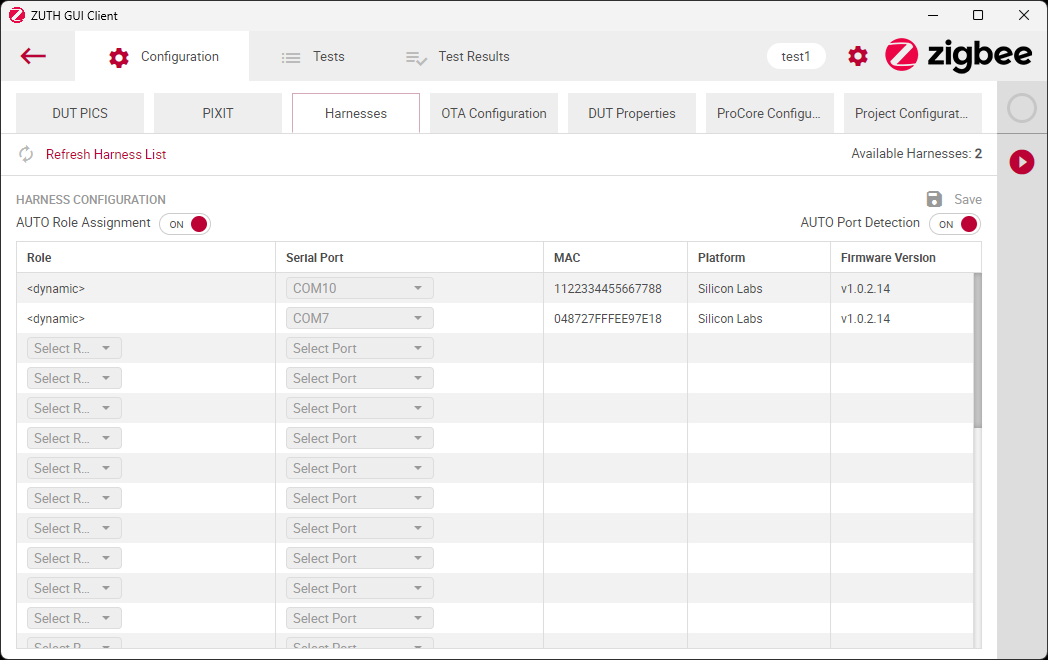
For instructions on configuring the test environment and running tests, refer to the user guide available in the ZUTH Installers repository. For help with Silicon Labs products, reach out to Silicon Labs Technical Support.