Enabling HCI Functionality#
Using an Example Application#
The Gecko SDK suite includes the Bluetooth – RCP and Bluetooth – RCP CPC example applications, which can be used to create an HCI-capable Bluetooth Controller application that can be run in RCP mode. An external Bluetooth Host protocol stack, such as Linux BlueZ, can use the Bluetooth Controller via HCI. BlueZ provides interactive control tools such as bluetoothctl to send HCI commands to the controller. The basic usage of bluetoothctl is documented in the readme of the Bluetooth – RCP example project.
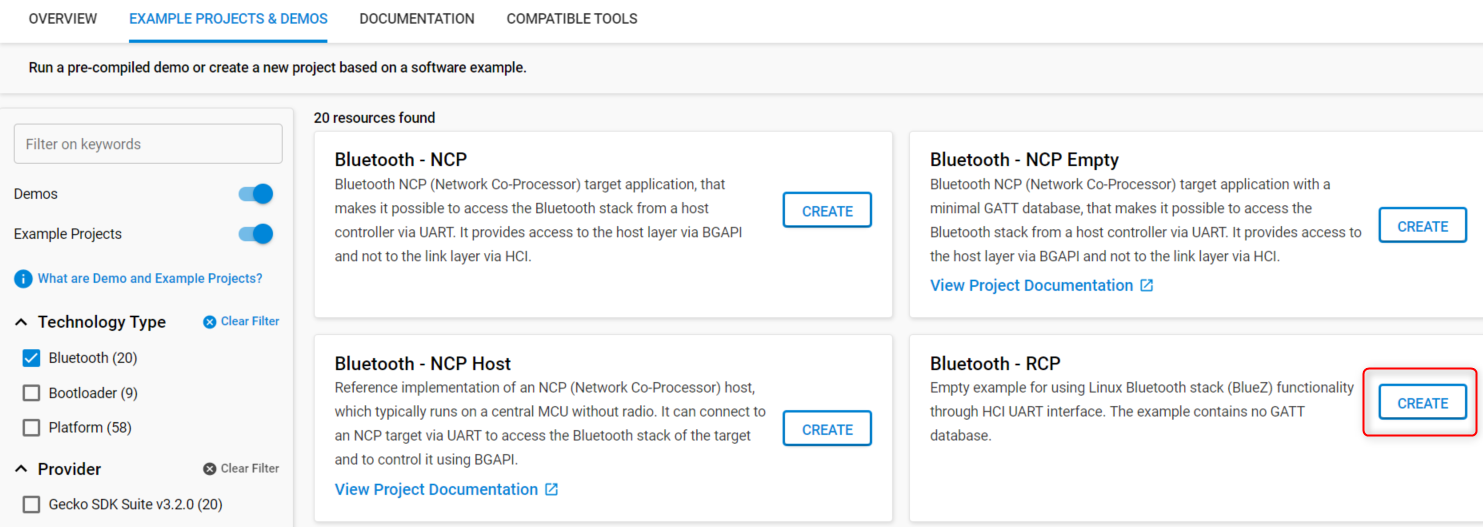
To use the example applications, select the target device in the Debug Adapters view, find the Bluetooth – RCP or Bluetooth – RCP CPC example on the EXAMPLE PROJECTS & DEMOS tab, and create the project.
Bluetooth – RCP creates an RCP project that uses Bluetooth SIG’s UART (H4) transport protocol as the transport protocol.
Bluetooth – RCP CPC creates a project that uses Silicon Labs’ proprietary CPC (Co-Processor Communication) protocol as the transport protocol. The latter one is useful in DMP (Dynamic Multi-protocol) use cases, when the host device communicates with multiple protocol stacks running on the Radio Co-Processor, but it may also be useful if you need a robust and secure transport protocol. For more information on CPC, refer to https://github.com/SiliconLabs/cpc-daemon/blob/main/readme.md. To learn more about the DMP use case, see Running Zigbee, OpenThread, and Bluetooth Concurrently on a Linux Host with a Multiprotocol RCP.
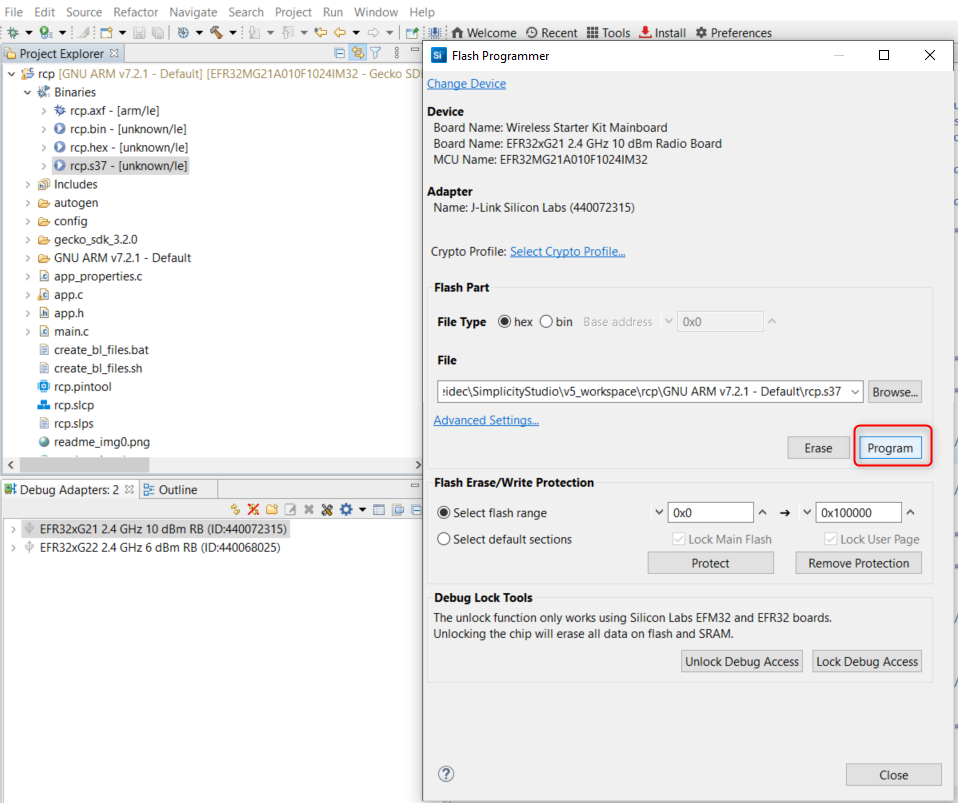
After building the project, flash it to the target device as with any other project:
Finally, attach the Bluetooth controller to your Bluetooth host stack using hciattach, and reset the device before issuing commands.
The application configuration can be reviewed and changed in the Project Configurator under the SOFTWARE COMPONENTS tab. To find a specific component, begin typing its name in the Search field.
Transport layer configuration#
UART#
By default, the application uses UART as the HCI Transport layer. The UART has been configured as follows.
Hardware flow control: enabled
Speed: 115200 kbps
Data bits: 8
Parity bit: N
Stop bits: 1
The default configuration can be changed with the vcom component.
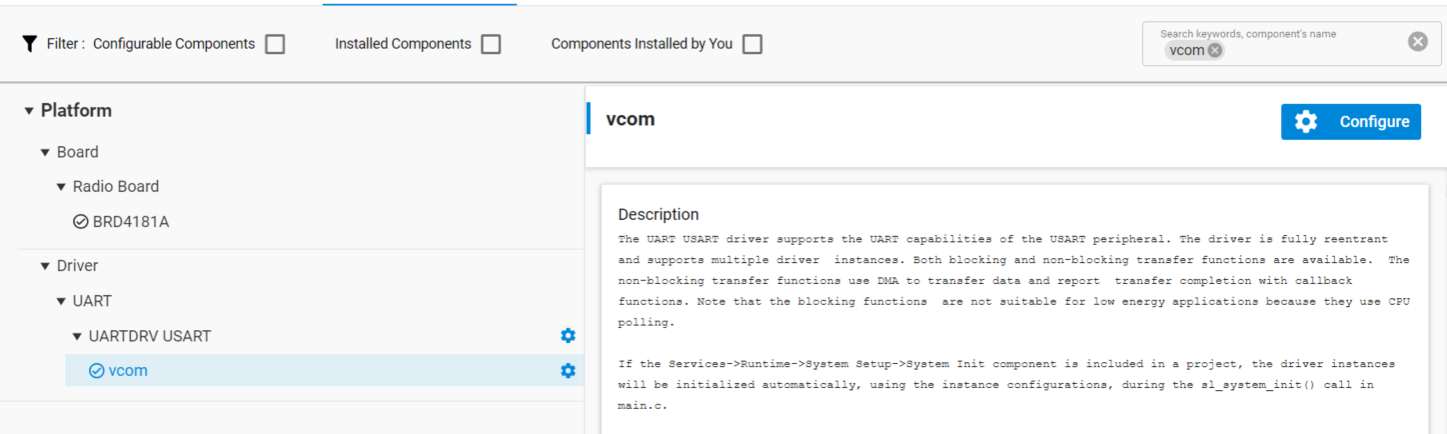
This will generate the values to the header file sl_uartdrv_usart_vcom_config.h. Especially for high-speed communication over UART, enabling hardware flow control and increasing the baud rate to 921600 is strongly recommended. Instructions for setting the hardware flow control in the WSTKs (Wireless Starter Kits) are given in Section Configuring Hardware Flow Control In the WSTK. Similarly. the baud rate can be changed.
Note that by default nearly all HCI events sent from the controller have been filtered out. The events to be filtered or passed from the controller to host can be configured using the HCI commands HCI_LE_Set_Event_Mask and HCI_Set_Event_Mask.
Three-Wire UART#
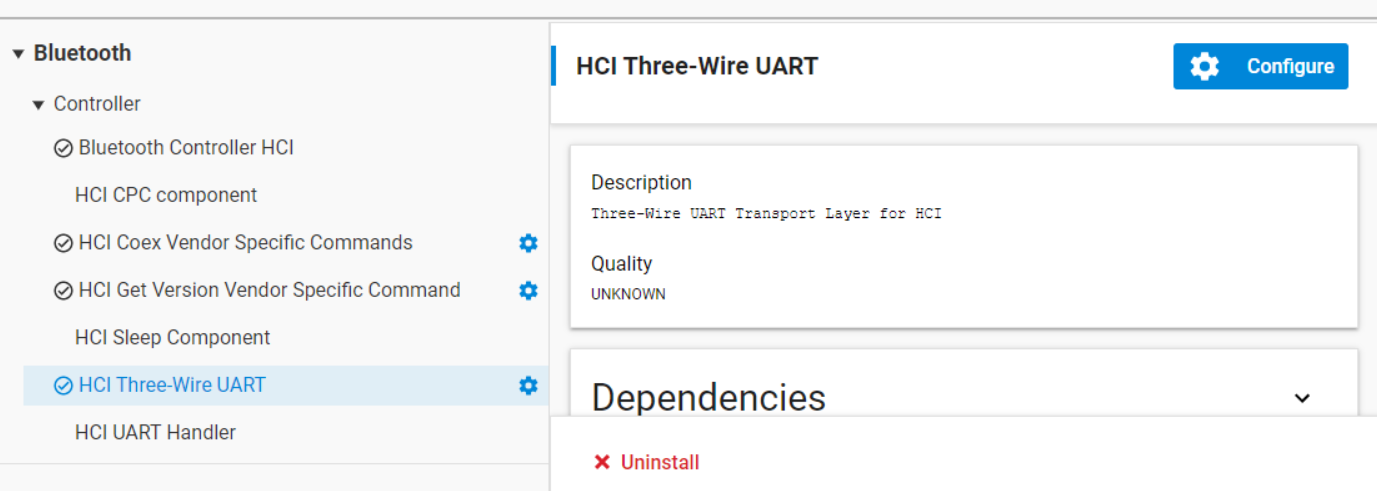
Note: To use the Three-Wire UART transport layer (H5) for transmitting HCI messages instead of the default UART transport layer (H4), add the HCI Three-Wire UART software component to the project. This will add framing, software flow control, and data integrity check to the transport layer, making the communication via UART much more reliable.
To enable the Three-Wire UART transport layer instead of the UART, add the HCI Three-Wire UART software component to the project:
Required Components for HCI Capable RCP Mode Application#
For the basic HCI-enabled application in the RCP mode the following components are required, and are installed in the example applications by default.
Bluetooth Low Energy Controller Only
Bluetooth Controller HCI
HCI UART Handler (if H4 UART transport protocol is used)
HCI CPC component (if CPC transport protocol is used)
Other components are required to make a reasonably functional application. For example, the Connection and Advertiser components are required (and installed by default) to make an application that can advertise and accept connections. If the application should be able to accept a large number of simultaneous connections, also including the Even Connection Scheduling Algorithm component is useful.
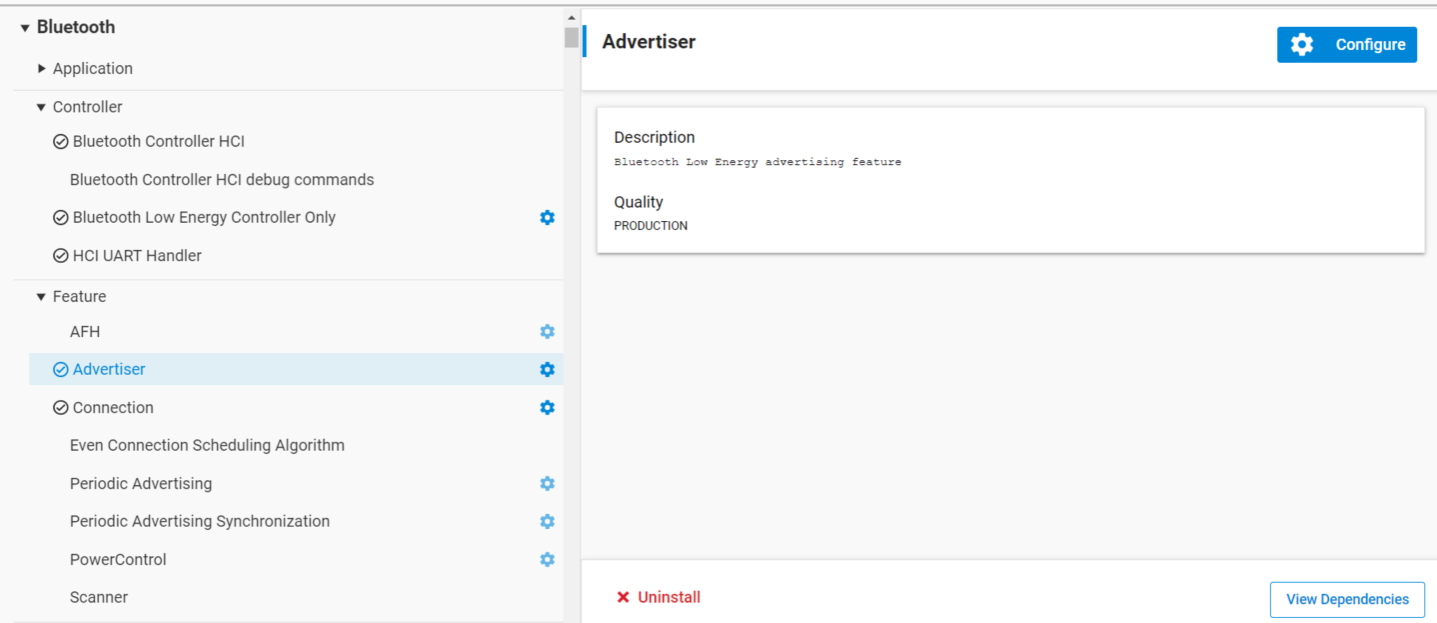
Another example is to add the ability to scan near-by devices and establish connections to them. This requires the Connection and Scanning components. For the application to use the power control functionality for connections, include the Power Control component.
Optional Components#
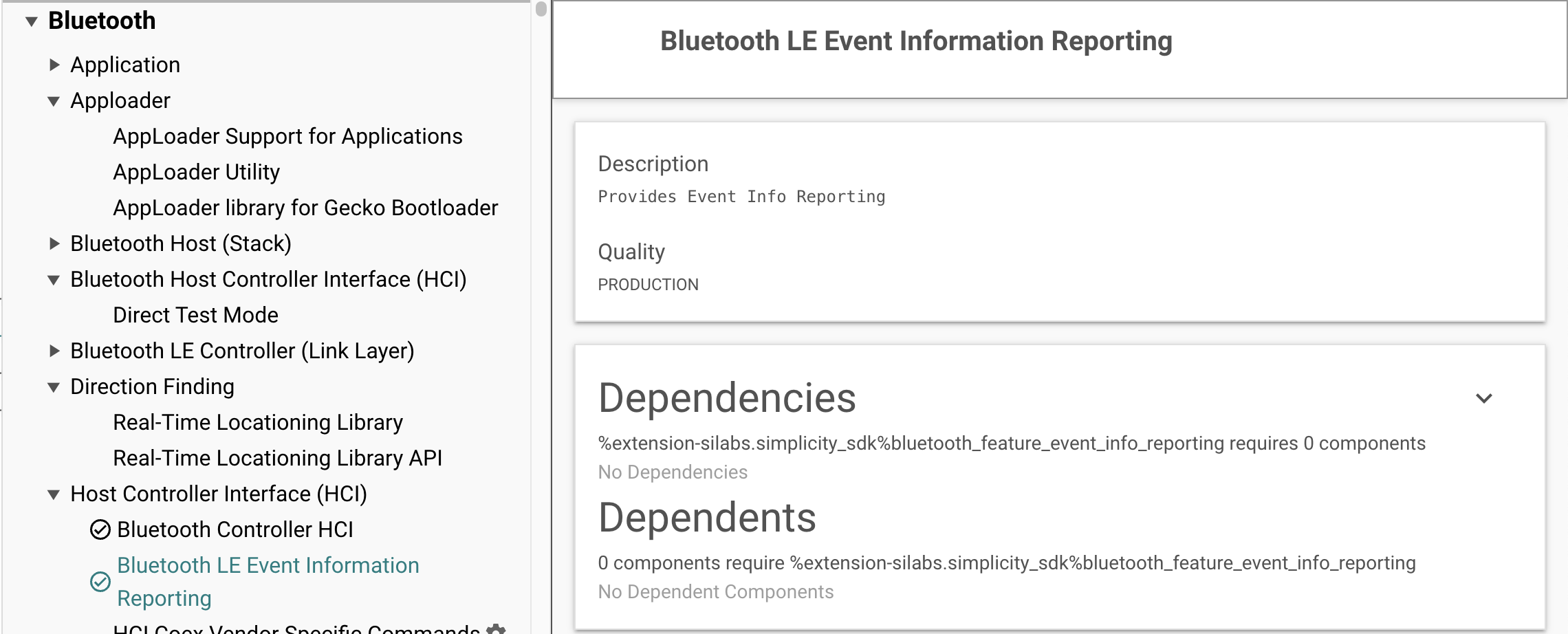
Bluetooth LE event information can be reported to the host by installing the Bluetooth LE Event Information Reporting component. To enable event reporting, see the vendor specific HCI commands.