


How to Build and Flash the Matter Accessory Device (MAD)#
The Matter Accessory Device, such as the lighting-app, is the actual Matter device that you will commission onto the Matter network and control using the chip-tool.
Step 1: Get the Image File to Flash the MAD#
Use one of the following options to get the required image to flash the MAD:
Use the pre-built image file from either Simplicity Studio (Demos) or Matter Artifacts page.
Build the image file from Simplicity Studio or out of the CSA Matter GitHub repository.
Using the Pre-Built Image File#
Prebuilt image files are available both on GitHub and inside Simplicity Studio.
Simplicity Studio#
To find the demos within Simplicity Studio, even if you do not have a device connected:
In Simplicity Studio, click the Home tab in the upper left corner.
Next to Start a New Project, click all projects & demos.
In the upper right, click Select Device to choose a connected board or search for a virtual board such as BRD4187C. This filters the window for that part.
In the left navigation, check Matter to show all Matter demos. The demos are marked as Demo and allow you to Run them. Projects can be created.
Choose a demo, and click Run to flash it onto your board.
Choose a board to by clicking on Select Device, you can choose from a connected board or search for one such as BRD4187C and on the board. This will filter the window for that part.
In the left hand navigation, choose Matter to show all the Matter demos.
The demos are marked as "demo" and allow you to "run" them. Projects can be "created".
Choose the demo you wish to use, and click Run to flash it onto your board.
Silicon Labs GitHub#
If you are interested in using prebuilt image files from GitHub, all of the Matter Accessory Device image files are accessible through the Matter Artifacts page. If you are using a pre-built image file, you can skip forward to Step 2 below.
If you are coming from Simplicity Studio, you may have already installed the demo image in Simplicity Studio, in which case you can skip forward to the next step.
Building the Matter Image File#
The entire build process for Simplicity Studio is covered in the Matter over Thread QuickStart Demo.
Step 2: Flash the Matter Accessory Device#
There are a few ways to flash a device using Simplicity Studio.
Flash from Commander GUI:
In Simplicity Studio, click Tools, click Commander, and then click Open Tool. The stand-alone Commander GUI opens.
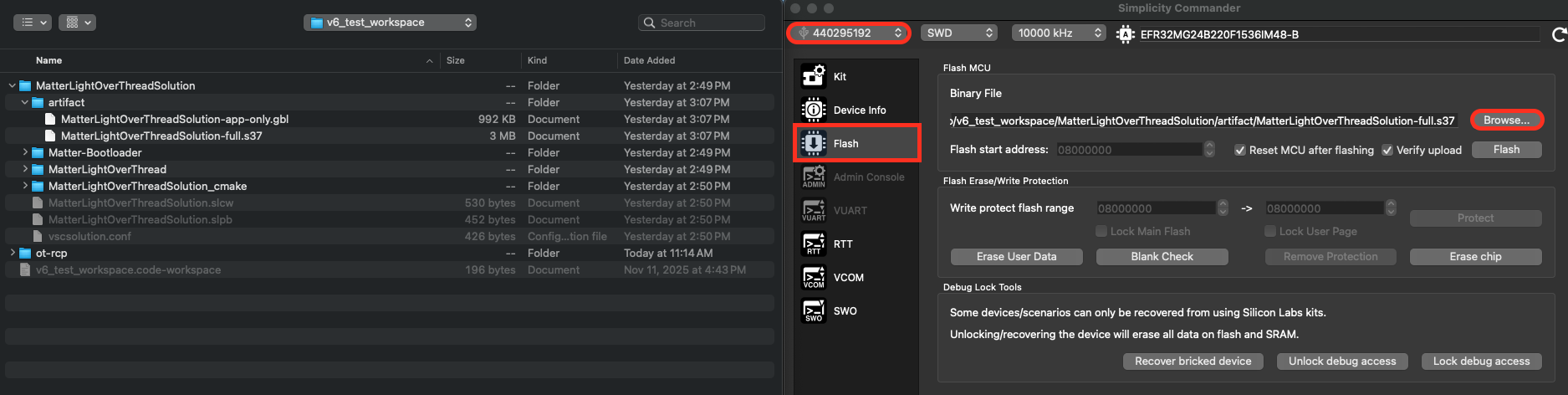
Select the board, click Flash, and then click Browse to find the image file and flash it.
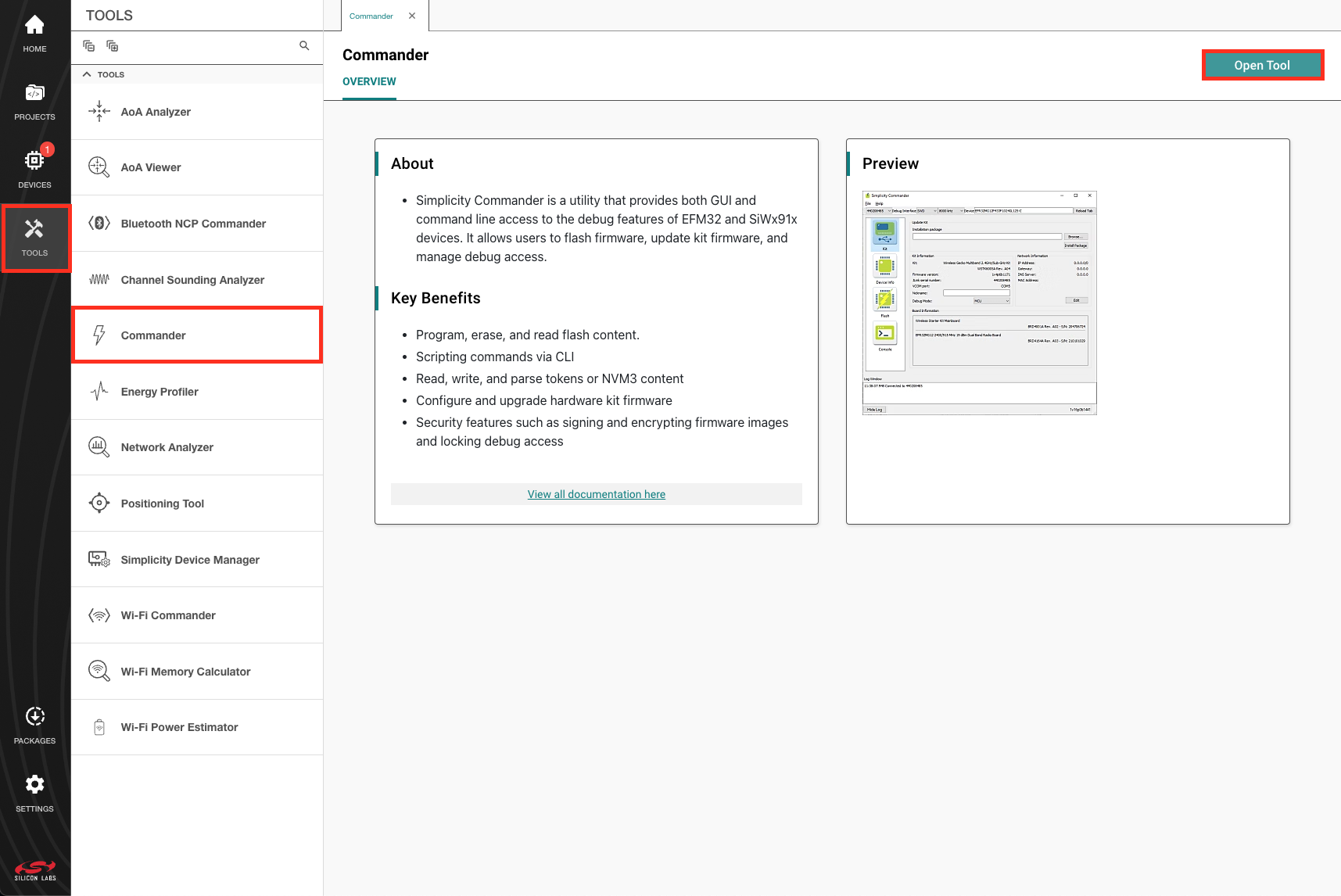
This will open the stand alone Commander GUI. From here select the board and then click on the flash tab. Browse to the image file and flash it.
Once your Matter Accessory Device has been flashed, it should show a QR code on the LCD. If no QR Code is present, it may be that you need to add a bootloader to your device. Bootloader images are provided on the Matter Artifacts page.