


Radio Priority Configurator#
The Radio Priority Configurator provides a unified, intuitive interface for configuring radio traffic priorities across multiple wireless protocols (for example, Bluetooth Low Energery (BLE), 802.15.4/Zigbee, and Wi-Fi) on Dynamic Multiprotocol (DMP)-capable platforms.
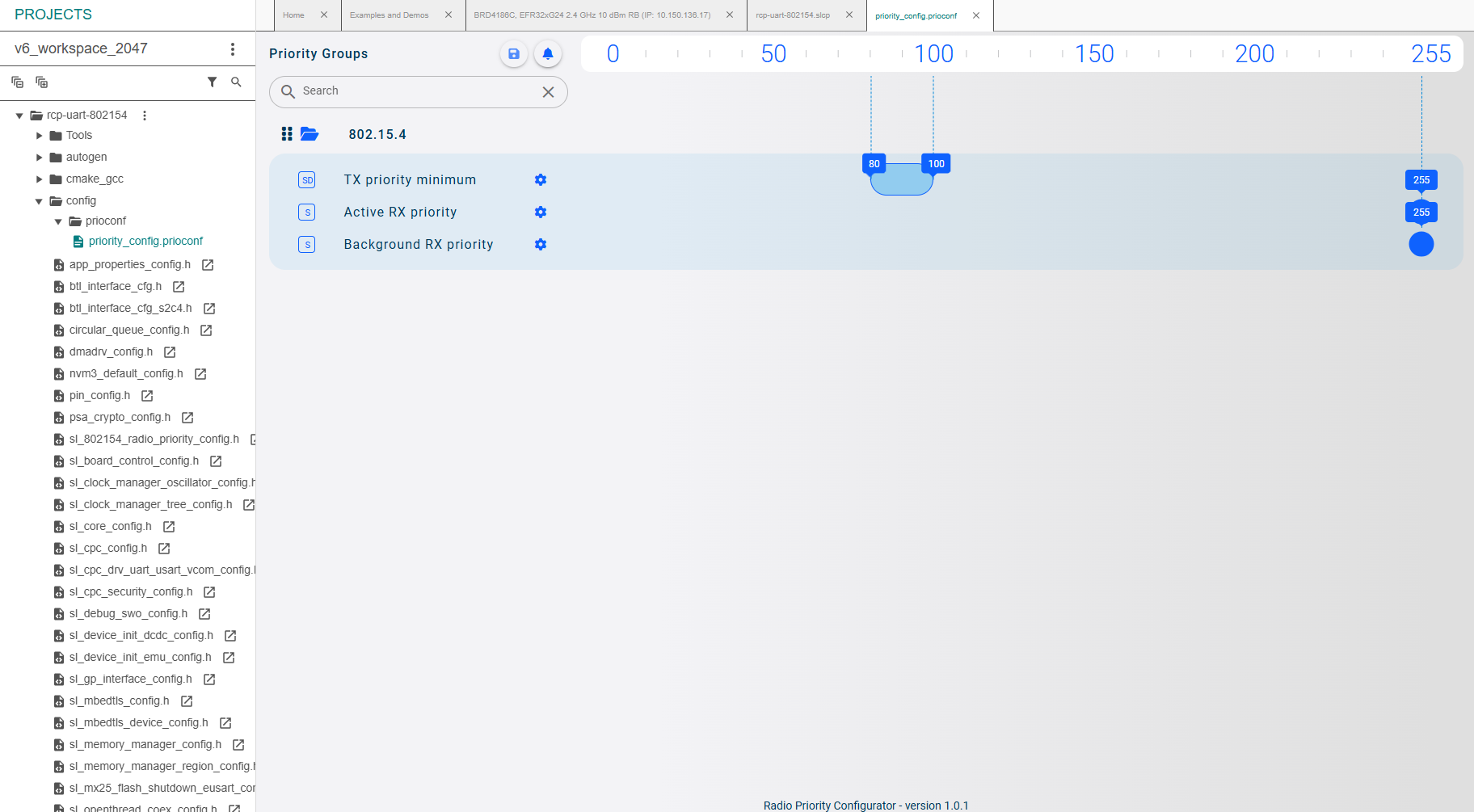
The GUI consolidates all radio priority settings for supported protocols into a single configuration interface. This approach eliminates the need to manually locate, edit, and interpret multiple configuration headers. Instead, users adjust priorities through the GUI, and the resulting changes are written into Cortex Microcontroller Software Interface Standard (CMSIS)-style configuration headers ([TECHNOLOGY]_radio_priority_config.h).
Getting Started / Installation#
Software Requirements#
Go to the Silicons Labs official website.
Download the Simplicity Installer
Run the Simplicity Studio v6 installer with Full Installation and the latest SDK.
Hardware Requirements#
Connect a Zigbee-compatible hardware platform, such as:
WSTK/WPK mainboard with
BRD4186C radio board (or a similar Zigbee-compatible board)
Firmware Project Setup#
In Simplicity Studio v6, navigate to Demos and Examples.
Create a multiprotocol project that includes Zigbee, such as:
Multiprotocol (OpenThread + Zigbee) – RCP (UART) project type
Another appropriate multiprotocol example including Zigbee
Note: The Radio Priority Configurator works only with Zigbee applications.
Generate the project and verfy it builds successfully.
The project contains the priority configuration files used by the Radio Priority Configurator.
Radio Priority Configurator User Guide#
Window Layout#
The main window is divided into two functional areas:
Left Menu
Work Area
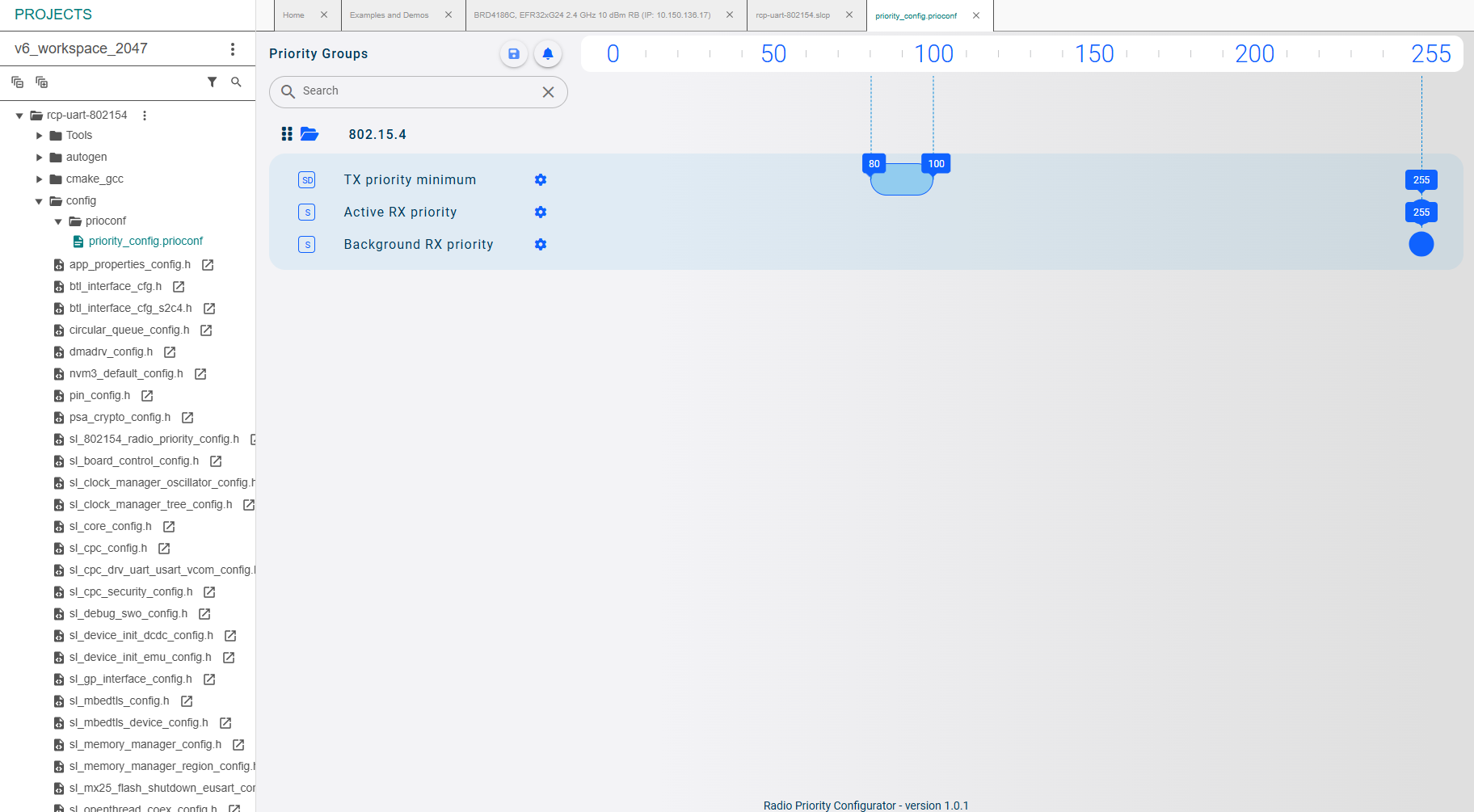
Left Menu
Project tree
Displays the active project and its relevant configuration elements.Priority configuration file path
Shows the path to the priority configuration file used by the tool:/[YOUR PROJECT NAME]/config/prioconf/priority_config.prioconfThis path indicates which configuration file is currently being edited in the GUI.
Work Area – General Elements#
The work area contains all interactive controls used to adjust and manage radio priorities:
Save button (project / configuration)
Saves the current project configuration and updates the corresponding header (.h) file.Visual value line (0–255)
Displays the numerical priority scale from 0 to 255 used to represent radio priority values.Search bar
Allows you to locate a specific protocol within the configuration by name.Open/close section control
Allows you to expand or collapse protocol-specific or group-specific sections to simplify navigation.Protocol name
Each editable block in the work area corresponds to a specific protocol whose radio priority is being configured.Panel behavior
The tool monitors the project’s configuration folder and automatically refreshes the GUI whenever a radio priority configuration file is added or updated.Save button (panel level)
Writes the latest changes within the work area back to the configuration file and related header file.
Priority Configuration Controls#
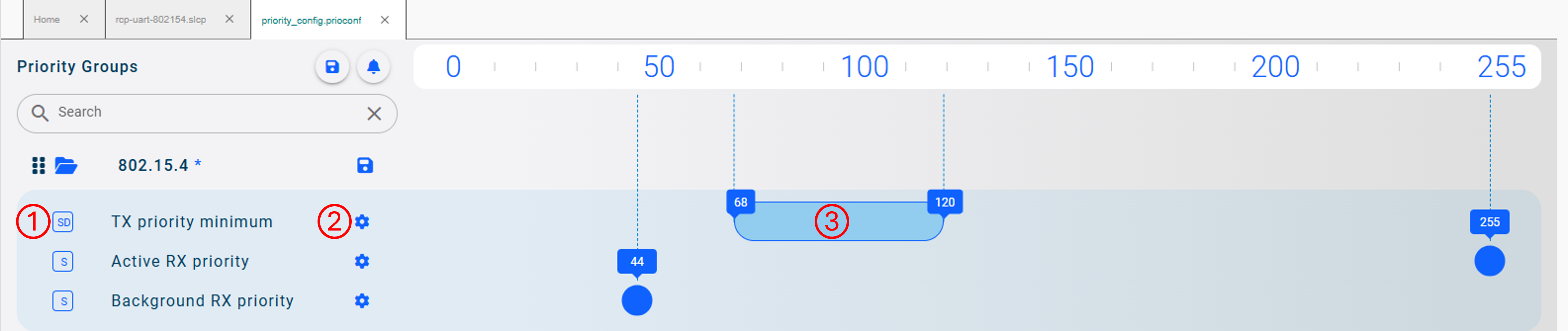
Each protocol entry in the work area exposes the following controls:
Priority type indicator (1)
Displays the type of priority applied to the protocol. Possible indicators include:Static (S)
Dynamic (D)
Step-dynamic (SD)
Edit button (2)
Opens a dialog where the user can configure values associated with the selected priority type.Intuitive slider (3)
Provides a visual and interactive method to adjust priority values:You can drag priorities left or right to set values along the 0–255 scale.
Dynamic priorities are displayed as adjustable ranges (minimum to maximum) and, when applicable, include a **step” control to define the step control that defines the granularity of value changes within the range.
Notification Workflows#
The tool implements two notification mechanisms to inform the user about configuration-related events:
Notification button (non-real-time)
Popup window (real-time)
Notification Button
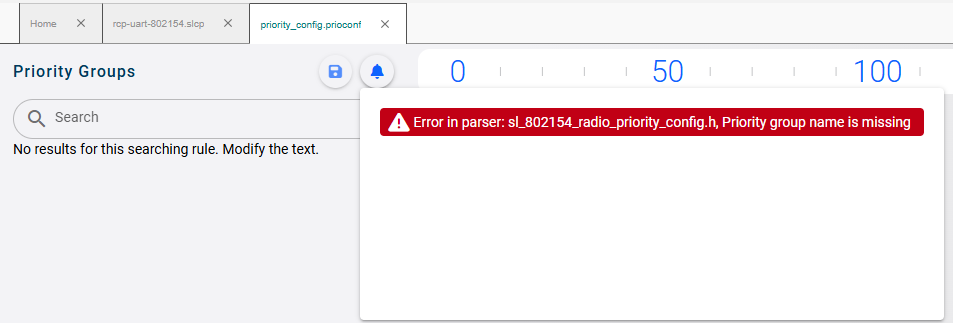
The notification button can display initial errors detected during tool startup.
Typical messages include:
"Configuration loading failed""Parser error:"".h file does not exist"
These notifications are not real-time and summarize issues detected at startup.
Popup Window#
The popup window provides real-time notifications related to external modifications of the configuration header file:
If the priority configuration
.hfile is modified by another application, while the main (current) user has unsaved changes to the same.hfile, Radio Prority Configurator displays a notification popup.In this popup, the main user can:
Update their view to incorporate the external modifications, or
Discard the external modifications and perserves the unsaved in-tool edits.
The popup window operates independently of the notification icon in the menu bar and serves as a real-time conflict resolution mechanism.
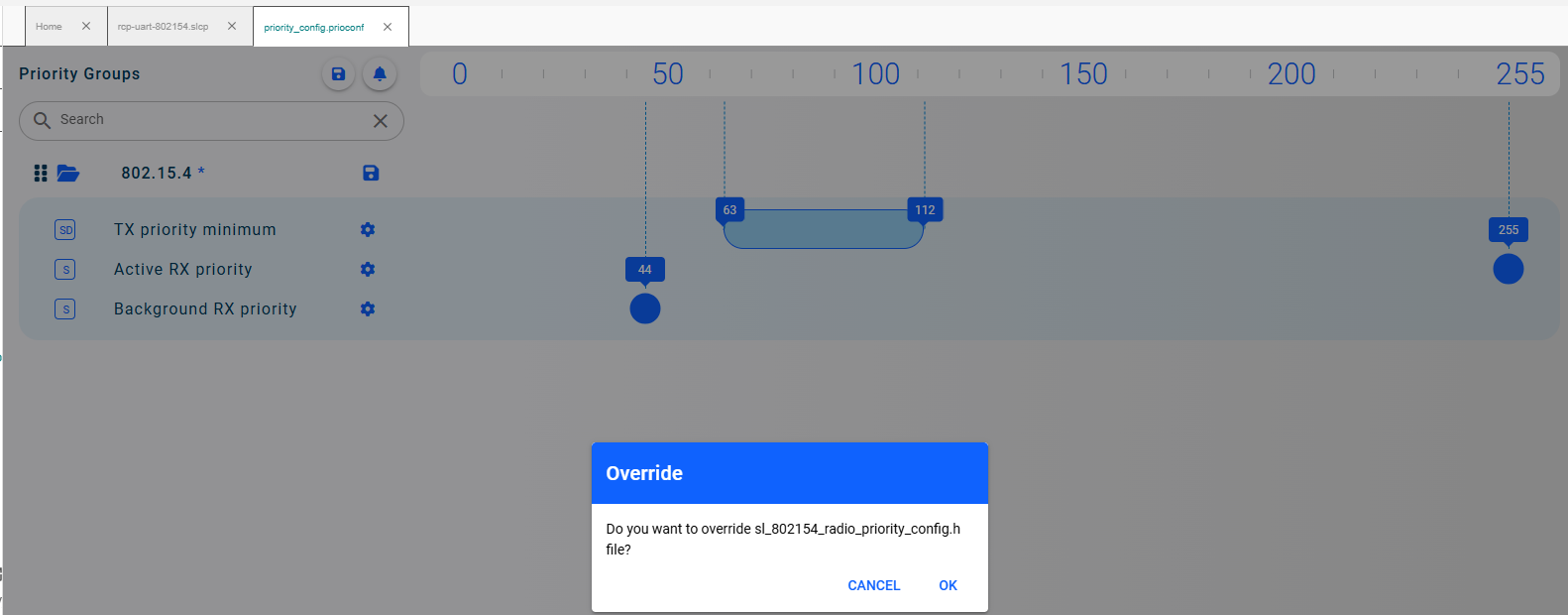
Output and Integration#
All modifications made using the Radio Priority Configurator GUI are written to the CMSIS-style configuration headers, specifically files matching the pattern:
*_radio_priority_config.hThese headers are then used by stack-level code at runtime, ensuring that the priority settings established in the GUI are enforced across all configured wireless protocols during operation.