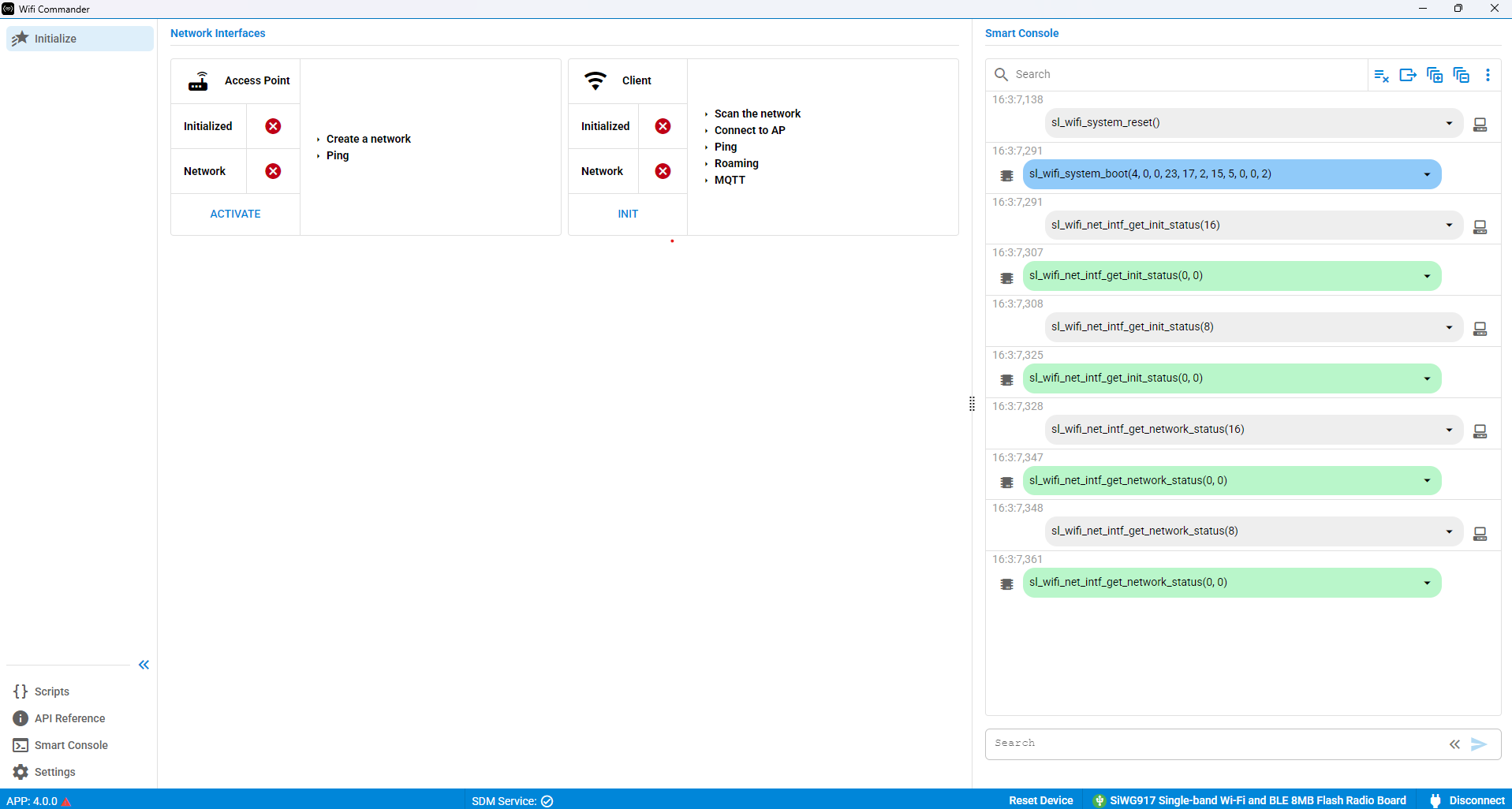
Connecting to the Device#
Use this section to learn how to connect your SiWx917 device to the Wi-Fi Commander tool. Multiple connection methods are available depending on your development environment.
Prerequisites#
Silicon Labs provides firmware that enables SiWx917 boards to interact with the Wi-Fi Commander tool.
To program the required firmware:
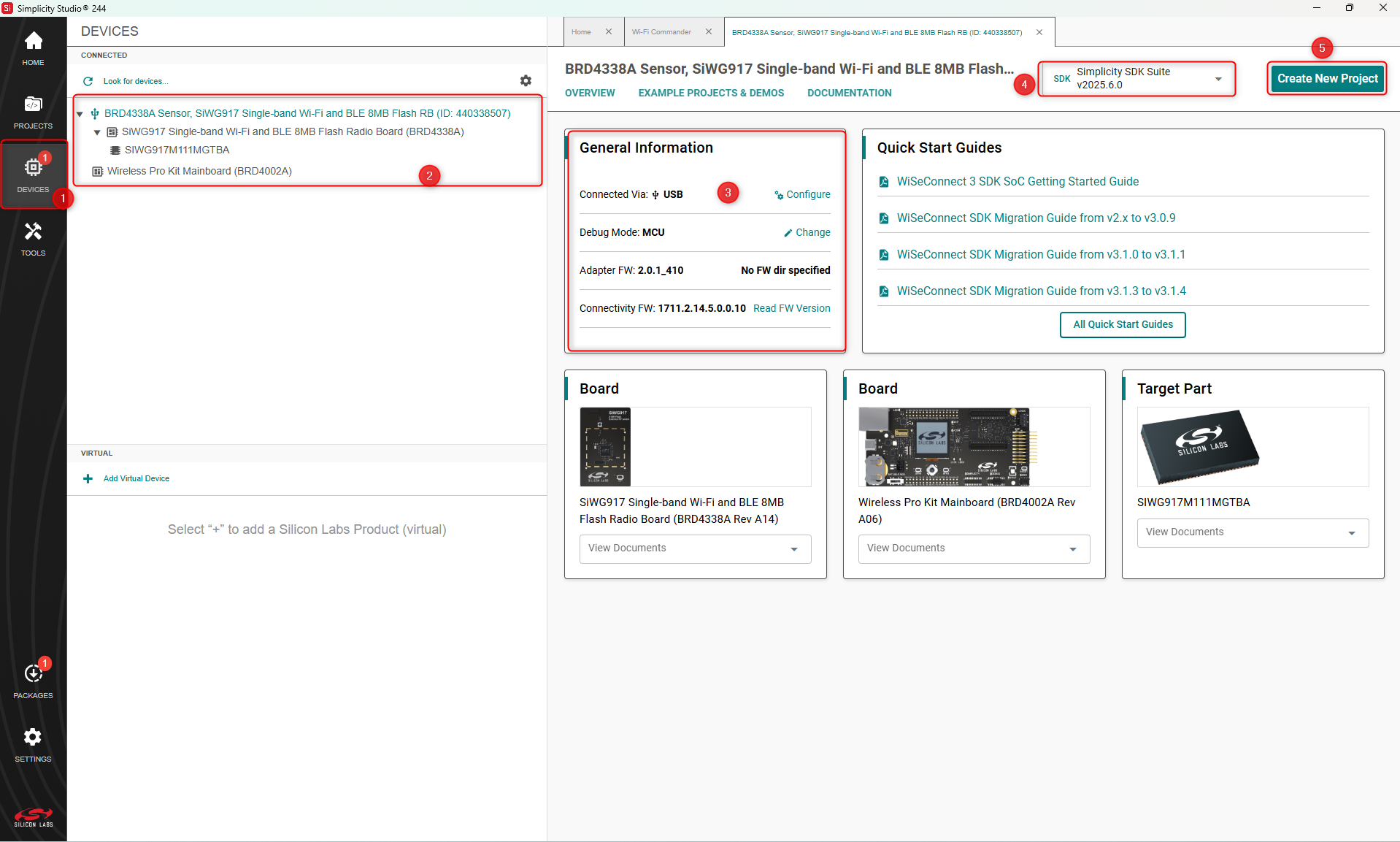
Open the Devices tab in Simplicity Studio 6.
In the General Information pane, verify that the Trusted Application (TA) version is 2.14.5.
Select SiSDK 25.6.0, which includes WiseConnect 3.5.0.
Click Create New Project.
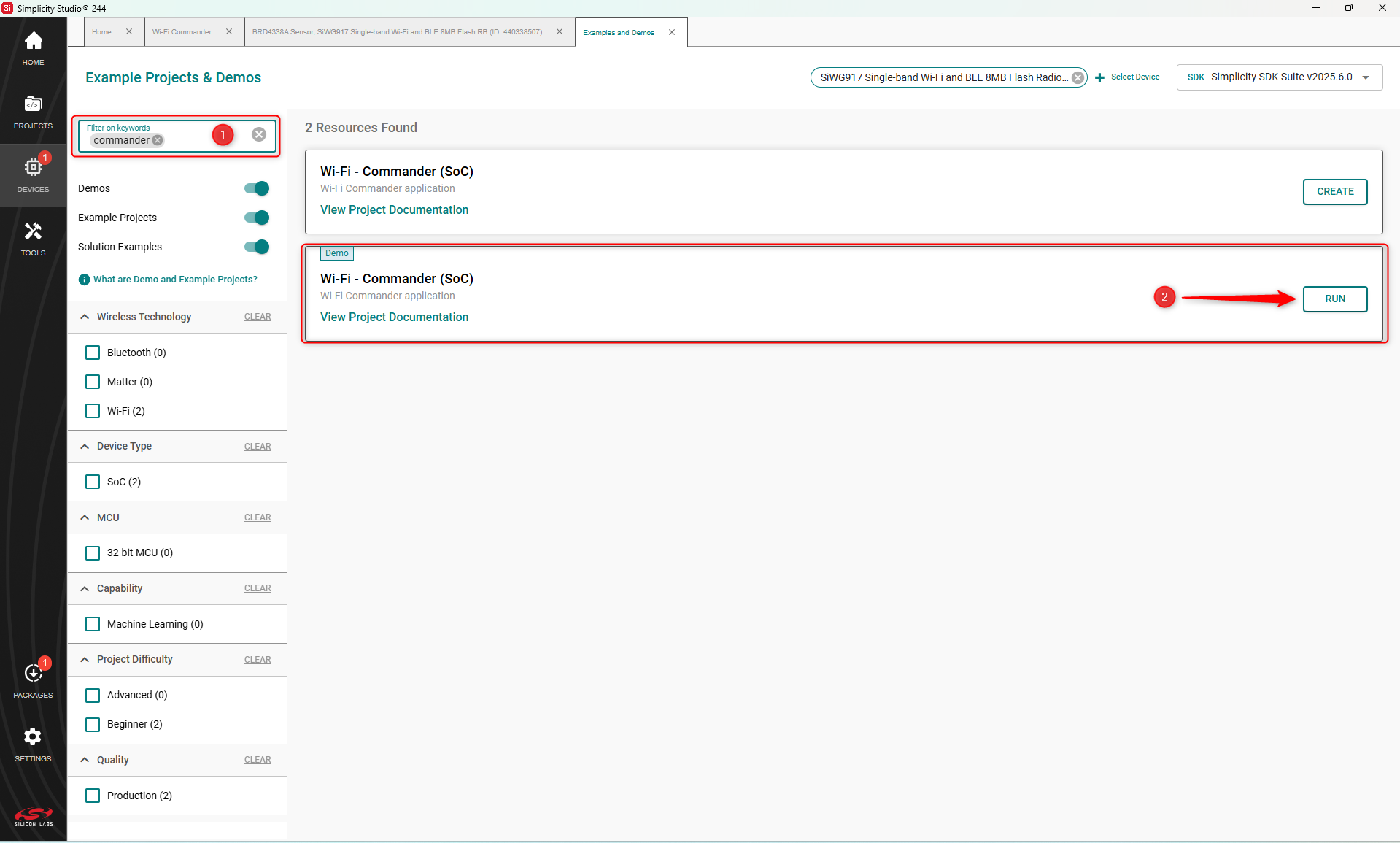
In the Filter box (#1 in the image below), enter Commander.
Click Run (#2 in the image below) to flash the firmware.
Connect to the Device#
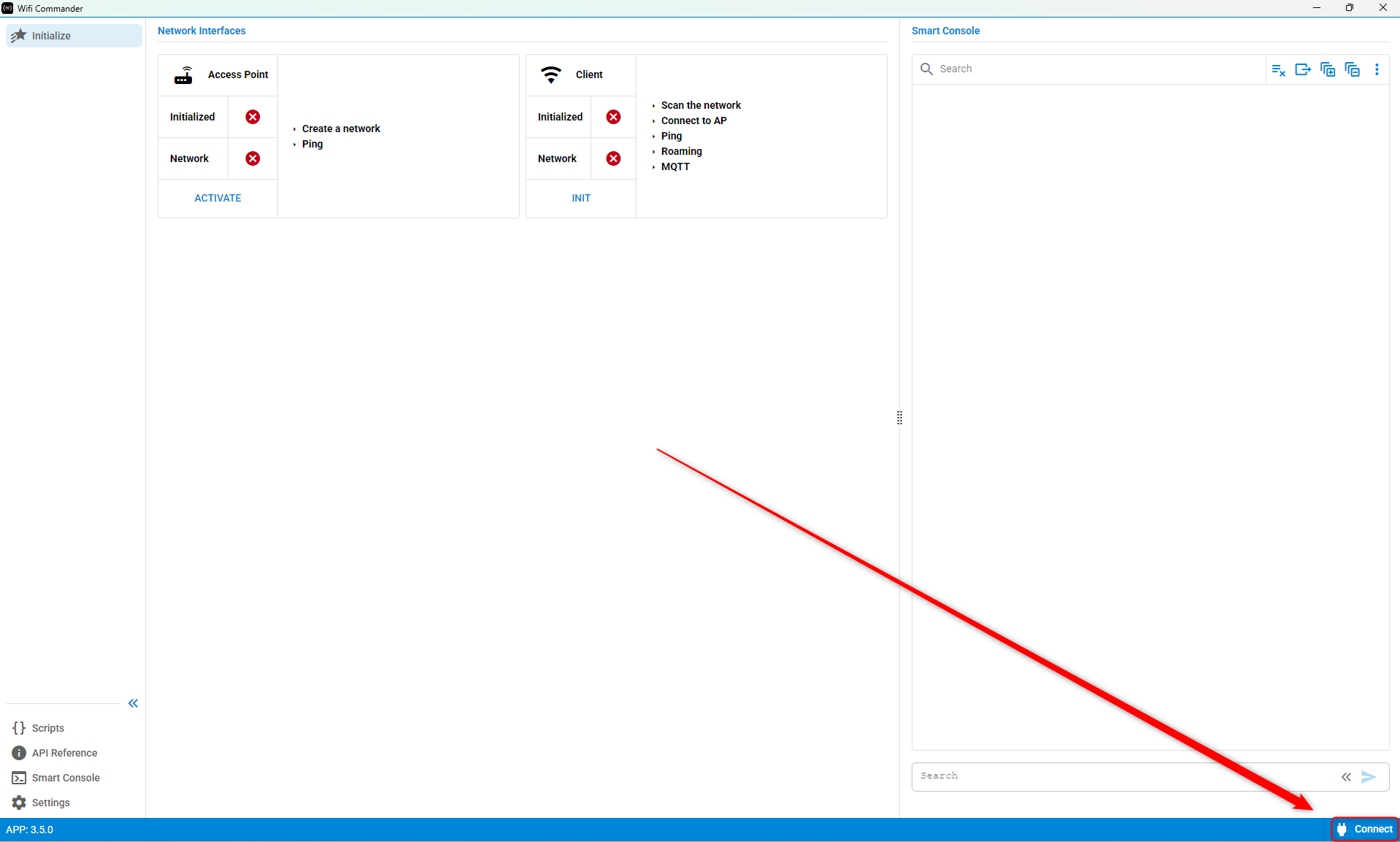
Open Wi-Fi Commander.
To connect to a device, select Connect in the lower-right corner of the application.
Connection Methods#
You can connect using one of the following methods:
Method | Description |
|---|---|
Connection Manager - Simplicity Device Manager | Available when using Simplicity Studio 5 or Simplicity Studio 6 |
Connection Manager - Direct USB | Connects directly to the device through a USB serial connection |
Connection Manager - Simplicity Device Manager#
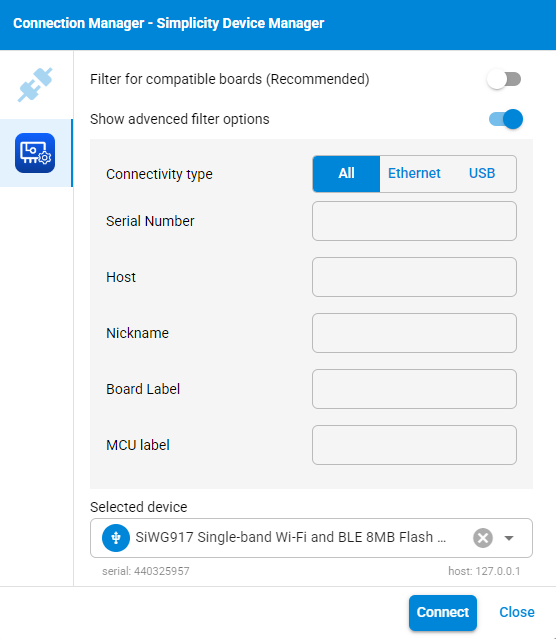
The Simplicity Device Manager Connection Manager lists compatible Silicon Labs boards detected by Simplicity Studio.
Use Filter for Compatible Boards to narrow the device list. Select Show Advanced Filter Options to display additional filtering criteria.
After selecting a target device, the dialog displays device-specific information such as the serial number and host address.
Select Connect to establish a connection to the selected board, or select Close to exit the dialog without connecting.
Connection Manager - Direct USB#
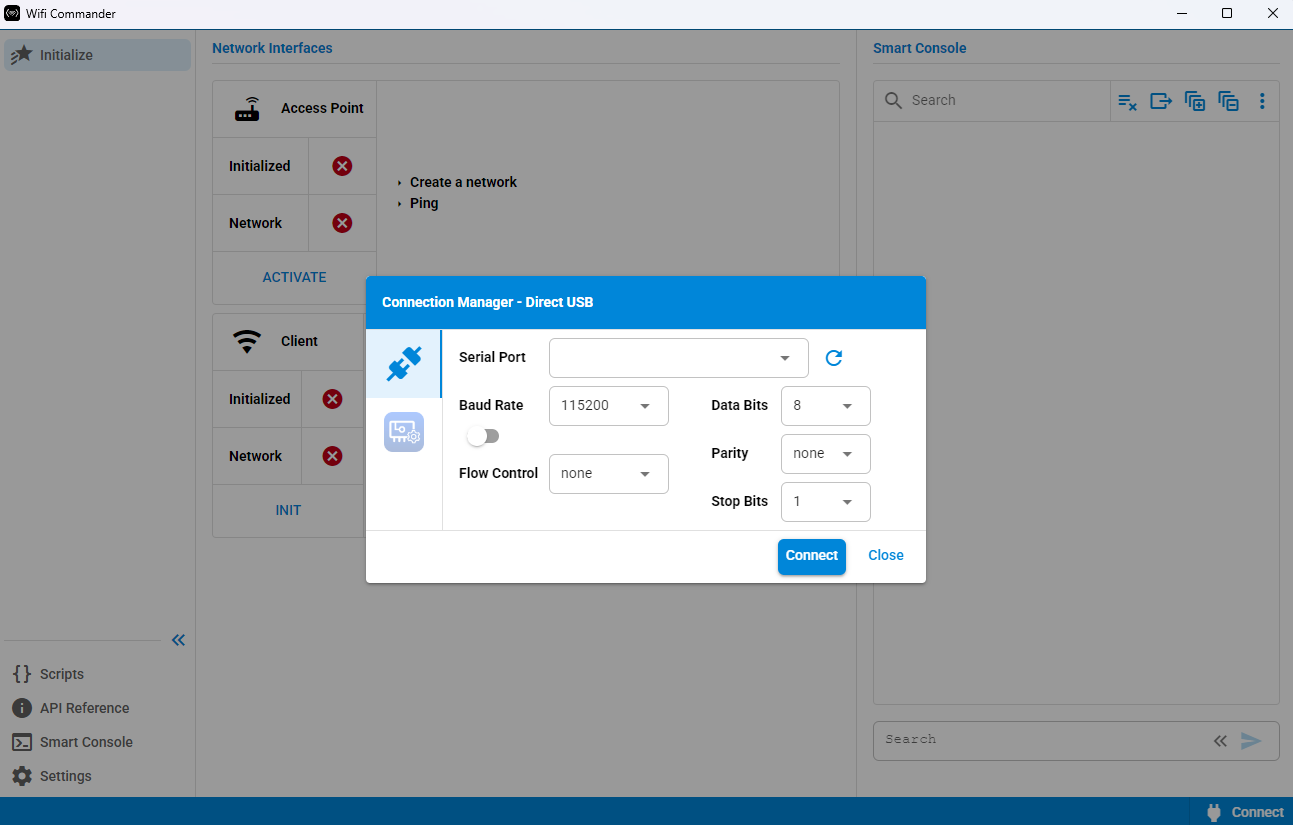
The Direct USB connection option allows you to connect to a device through a serial port.
The dialog provides configurable serial communication settings, including:
Serial Port
Baud Rate
Data Bits
Flow Control
Parity
Stop Bits
Use Refresh to update the list of available serial ports.
After selecting the appropriate port and communication parameters, select Connect to establish the connection, or select Close to cancel the operation.
After Connecting#
After a successful connection, the tool automatically:
Issues initialization commands
Displays version information from the device
Validates compatibility between the tool, application firmware, and TA firmware
The main Wi-Fi Commander page is displayed.