


Wi-Fi Memory Calculator – How to Use the Tool#
Interface Layout#
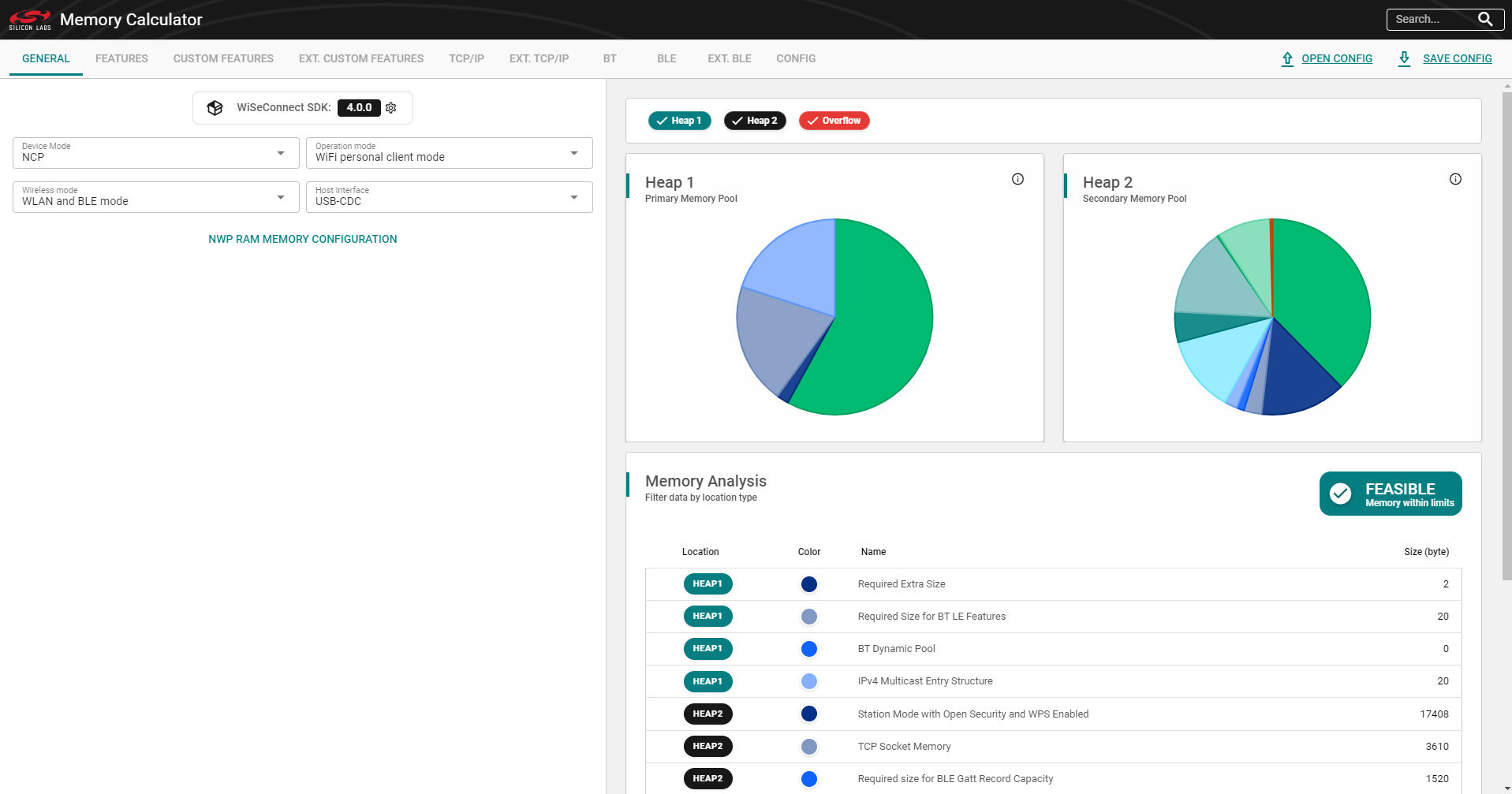
When the Wi-Fi Memory Calculator is opened, the main window is organized into two primary areas:
Header – A horizontal bar at the top of the window.
Center area – The main working area, divided into a left pane and a right pane.
The following sections describe each area in detail.
Header#
The header provides global controls for managing configurations and navigating feature sets.
General tab
Provides access to general commands that affect the entire configuration or application state.Feature bitmap tabs
A row of tabs that represent the available feature bitmaps.
Each tab corresponds to a functional group of features. Selecting a tab updates the left pane to display the associated feature bits.Search bar
Allows you to quickly locate specific features within the currently selected feature bitmap tab.Documentation
Opens the official documentation page.Import/Export configuration controls
Commands used to import an existing configuration or export the current configuration for reuse, documentation, or sharing.
Center Area#
The center area is divided into two panes:
Left pane – Feature configuration and general device-level parameters
Right pane – Memory analysis and calculation results
Left Pane – Feature Configuration#
The left pane provides a dynamic view of the feature configuration.
Dynamic feature view
The contents of the left pane change based on the currently selected feature bitmap tab in the header. It always reflects the active feature set.General tab
A dedicated tab for generic, device-level settings.Use the General tab to configure generic device parameters.
Any change in the General tab resets individual feature-bit settings. Use this tab carefully, as it can override previously adjusted feature selections.
This section allows you to select between different versions of the WiseConnect software development kits (SDKs).
Adjustable feature bits
For each bitmap tab, the left pane lists the adjustable feature bits. You can enable or disable each bit to match the desired configuration.Bitmap value update
Whenever a feature bit is changed, the overall bitmap value is recalculated and updated immediately.Feature information icons
Each feature entry includes an information icon. Select the icon to view additional details about the feature, such as its purpose and impact.Configuration errors
If the configuration contains unresolved errors, they appear at the top of the left pane. When errors are present, the memory diagram and table are not displayed.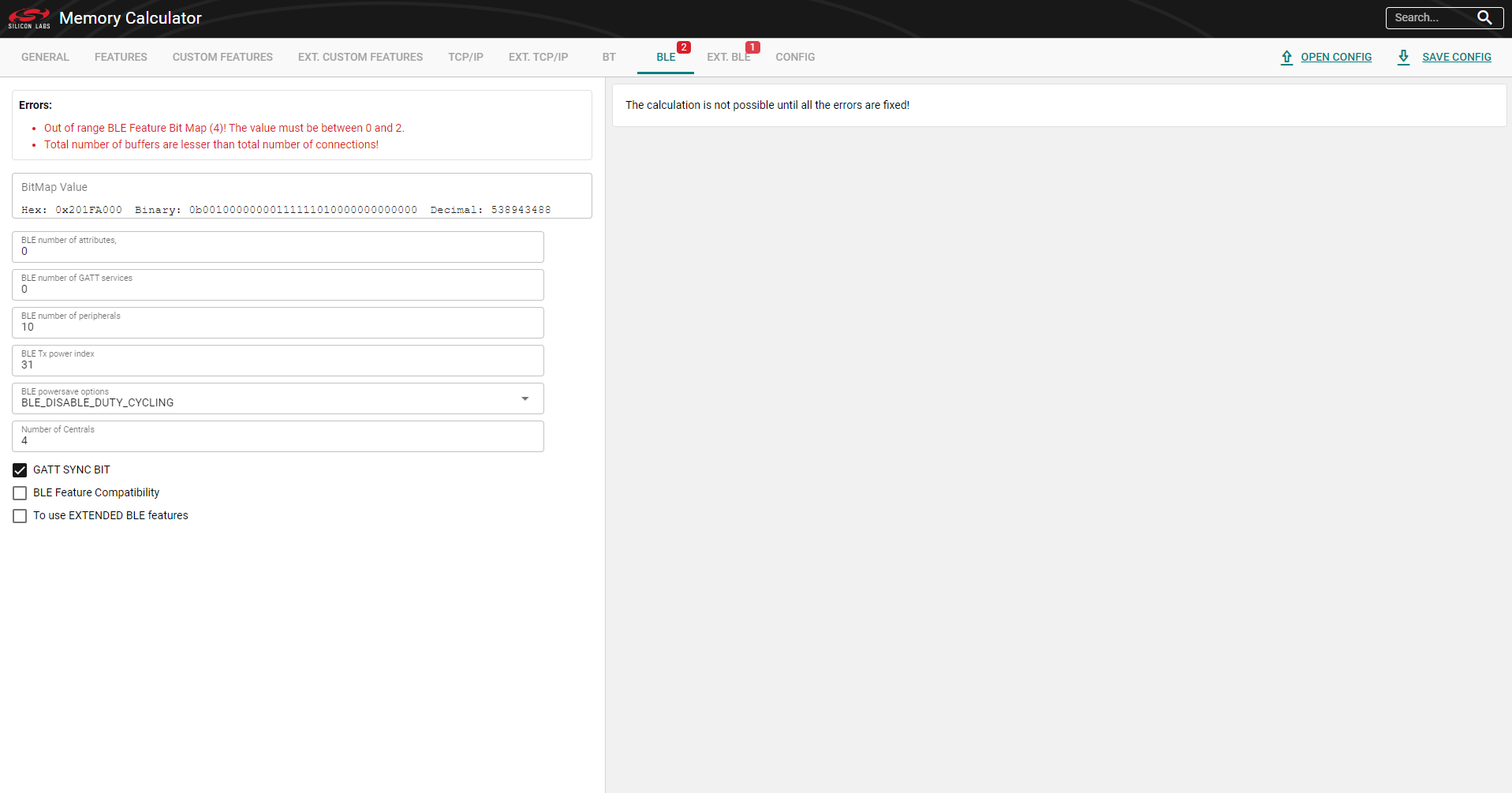
Right Pane – Memory Analysis#
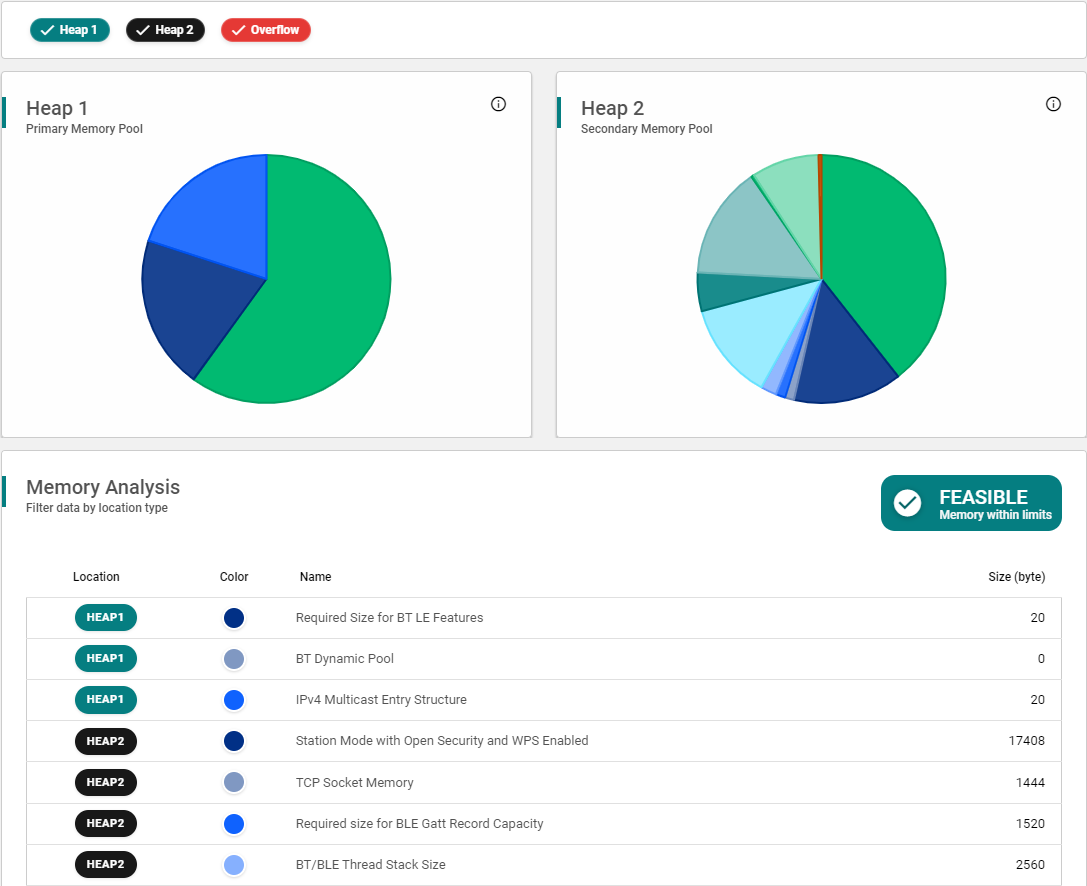
The right pane displays how the current configuration impacts memory usage and summarizes the feasibility of the configuration instantly.
Memory diagrams and tables
The upper part of the pane shows memory analysis as diagrams.
The lower part displays the same information in tabular form.
Dynamic updates
All information in the right pane updates dynamically after each feature change in the left pane.Information icon for heaps
An information icon provides additional details about the memory heaps used by the configuration.Diagram interaction
Moving the cursor over a slice of the diagram displays detailed information about the selected part of the memory.Table filtering
You can filter table entries by memory pools or overflow entries.Column sorting
Select a column name to sort the table by that column, making analysis and comparison easier.Feasibility result
On the right side, the tool shows the output of the memory calculation:Feasible – The configuration fits within the available memory
Overflow – The configuration exceeds the memory limits
This result provides immediate feedback on whether the selected feature set is acceptable from a memory usage perspective.