


Getting Started with Wireshark for Silicon Labs Hardware#
This guide explains how to install and configure Wireshark for use with Silicon Labs hardware using Simplicity Device Manager (SDM).
Prerequisites#
Before you begin, ensure you have the following components installed or available.
Component | Requirement |
|---|---|
Hardware | Silicon Labs WSTKs (Series 1 and above) |
Wireshark | Version 4.6.0 or later |
SDM | Simplicity Device Manager 0.100.18 or later |
Installation Guide#
Step 1: Install Wireshark 4.6.0 or later#
Important: Only Wireshark version 4.6.0 and later include the Silicon Labs dissector.
Download Wireshark 4.6.0 or later Go to https://www.wireshark.org/download.html and download the development release for your operating system.
Step 2: Install Simplicity Device Manager (SDM)#
Option A: Simplicity Installer UI
Find and install Simplicity Device Manager using the Simplicity Installer. See Install a Tool in the Simplicity Studio 6 Users Guide.
Option B: SLT-CLI
Install SLT, then:
slt install sdmAdd sdm to your PATH
To use sdm from any terminal (for example in Step 3), add the SDM install folder to your PATH. After installation it is under your user home at:
~/.silabs/installs/archive/sdm-<os>-<arch>
Use <os> = darwin (macOS), linux, or windows, and <arch> = x64 or arm64 for your CPU. Examples: sdm-darwin-arm64, sdm-linux-x64, sdm-windows-x64.
On Windows, ~ is your user profile (for example %USERPROFILE%\.silabs\installs\archive\sdm-windows-x64).
Step 3: Configure SDM Extcap for Wireshark#
Once SDM is installed, you need to set up the external capture integration with Wireshark.
Method A: Setup Through SDM UI#
Start the SDM Server If the SDM server is not running, the UI prompts you to start it when needed.
Navigate to Capture View From the navigation bar on the left, go to "Capture" view.
Configure Wireshark Integration Click Set up Wireshark at the top of the interface.
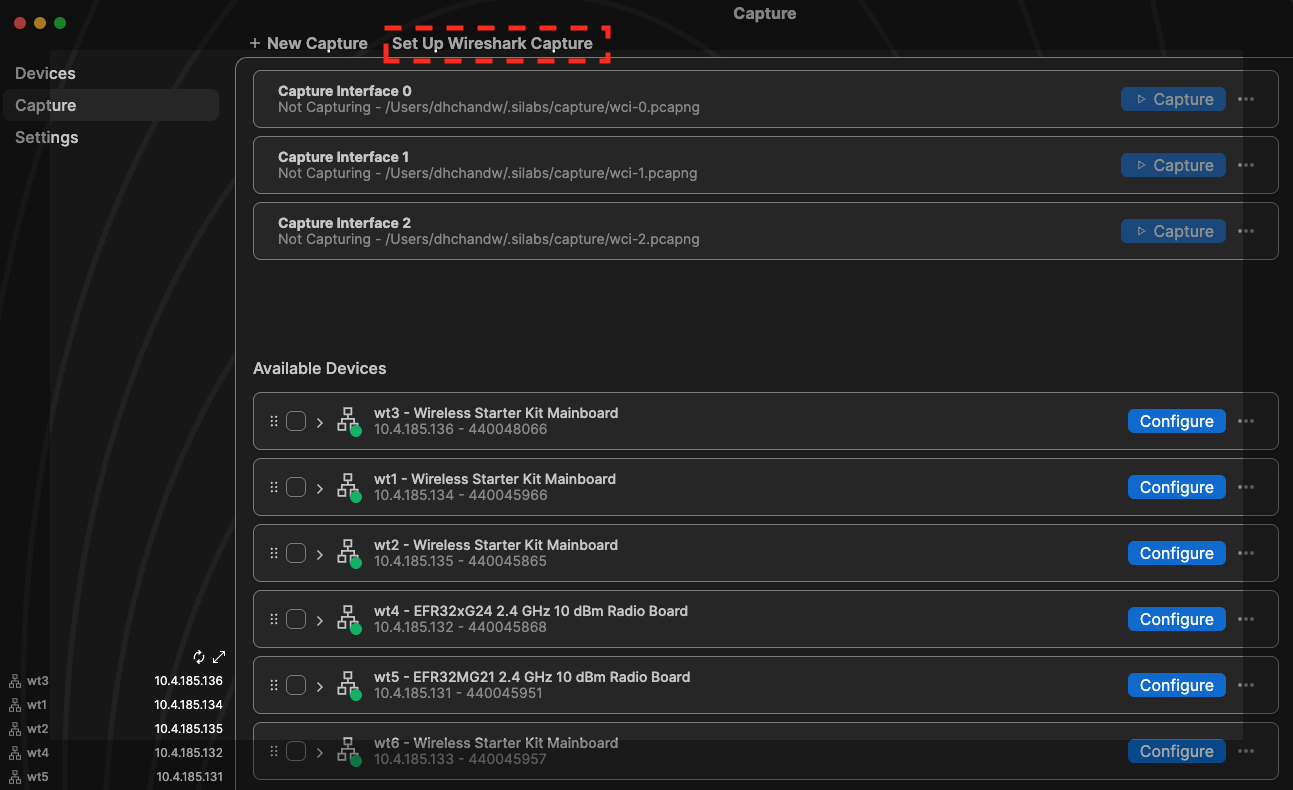
Launch Wireshark After setup successfully completes, the button label will change to "Run Wireshark". Click this button to launch Wireshark through the SDM UI.
Method B: Setup Through SDM CLI#
Start the SDM server.
sdm server startRegister SDM extcap.
sdm extcap setupVerify the configuration.
sdm wireshark locateLaunch Wireshark
sdm wireshark start
Verification#
After completing the setup, verify that:
Wireshark launches successfully.
Silicon Labs adapters appear as available capture interfaces.
The Silicon Labs dissector is available for protocol analysis.
Next Steps#
After configuring Wireshark with SDM, you can:
Start Capturing - Learn how to capture traffic using UI or CLI methods
Check the FAQ - Find solutions to common issues and advanced configuration tips
Troubleshooting#
If you encounter issues during setup, see the FAQ section for troubleshooting guidance and subnet configuration instructions.