


Going Further#
After creating a Wi-SUN Network, this section is a guide toward the next steps in exploring the Silicon Labs Wi-SUN solution.
Wi-SUN Border Router GUI: Under Wi-SUN Border Router, this section presents the Wi-SUN Border Router Dashboard that can be used to configure the Wi-SUN Linux Border router and visualize the Wi-SUN Network.
Development Tools: The development tools below are provided within Simplicity Studio as well as third party.
Simplicity Platform#
The Simplicity Platform is a set of drivers and other lower layer features that interact directly with Silicon Labs chips and modules. Simplicity Platform components include EMLIB, EMDRV, RAIL Library, NVM3, and MbedTLS. For more information about Simplicity Platform, see release notes that can be found in SSv5’s Documentation tab, as well as online API documentation at https://docs.silabs.com/.
Simplicity Commander#
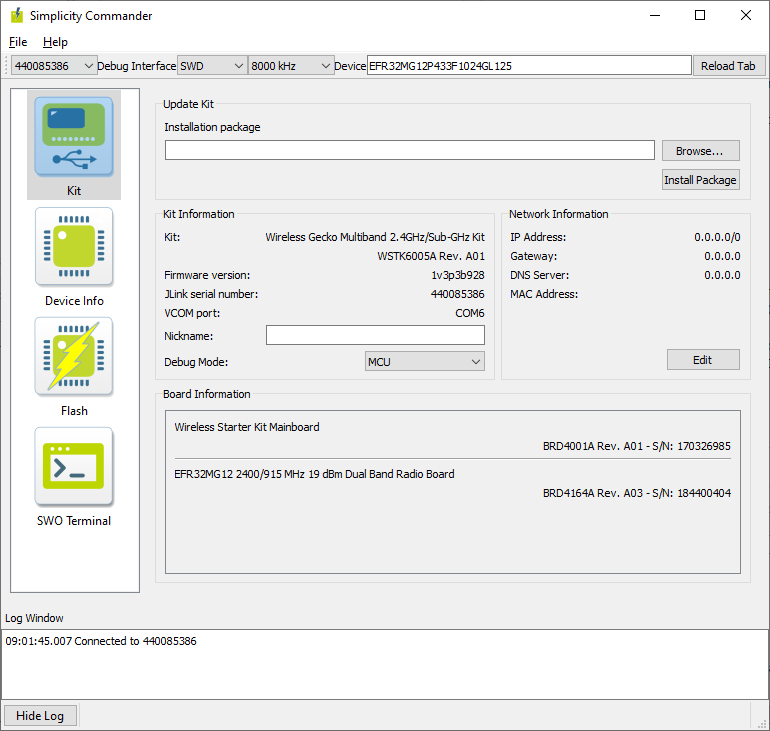
Simplicity Commander is a single, all-purpose tool to be used in a production environment. It is invoked using a simple Command Line Interface (CLI) that is also scriptable. Simplicity Commander enables customers to complete essential tasks such as configuring and building applications and bootloaders and flashing images to their devices. Simplicity Commander is available through Simplicity Studio or can be downloaded through system-specific installers. The Simplicity Commander Reference Guide provides more information.
Pin Tool#
Simplicity Studio 5 offers a Pin Tool that allows you to easily configure new peripherals or change the properties of existing ones. In the Project Configurator SOFTWARE COMPONENTS tab, expand the Advanced Configurators group and open the Pin Tool. The graphical view differs based on the chip.
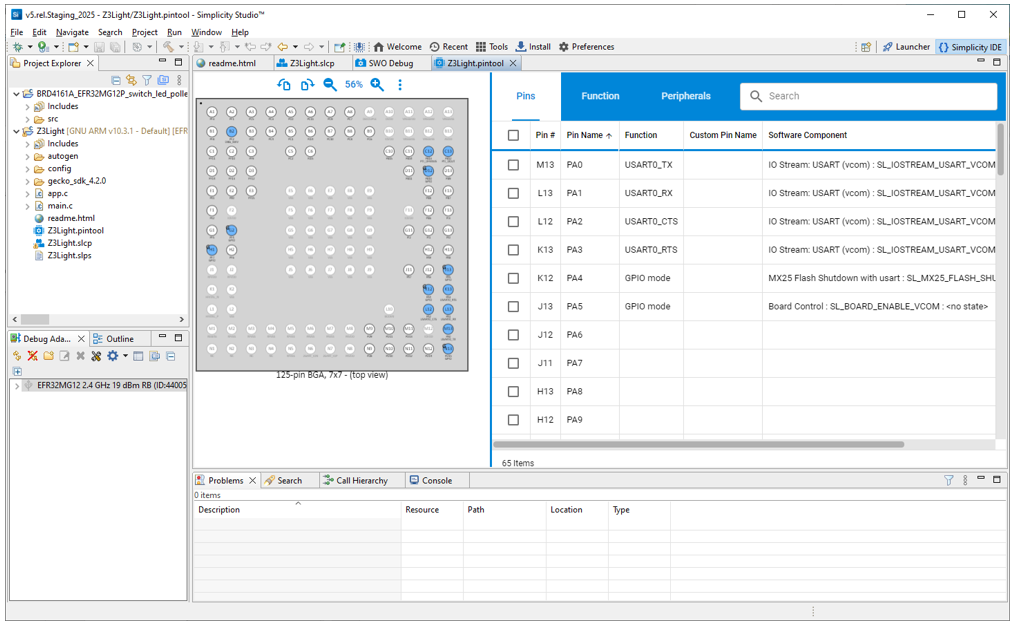
The pin, function, and peripheral tabs in the configuration pane provide different modes of access. A search function is also provided.
Use the Pin Tool to modify the pin configuration of the device. Software components control behavior in the project but must be associated with a peripheral, and generally need pin or function assignments. These pin or function assignments are most easily edited in the Component Editor for that component. The Pin Tool allows you to assign functions to pins. On all three dialogs, click EDIT next to a software component to go directly to the Component Editor for that component. Click NEW to go to the Project Configurator's SOFTWARE COMPONENTS tab, where you can install a component in the project so that it can be selected in the dialog.
For more information, see the Simplicity Studio 5 User's Guide Pin Tool section.
Developer's Guide#
The Wi-SUN Developer's Guide explores the different Wi-SUN roles and IP communication concepts, combining theory and practice through various examples. It also demonstrates several tools used to visualize and debug Wi-SUN networks.
Silicon Labs Configurator (SLC)#
SLC offers command-line access to application configuration and generation functions. Software Project Generation and Configuration with SLC-CLI provides instructions on downloading and using the SLC-CLI tool.
IAR IDE#
To get a 30-day evaluation license for IAR-EWARM:
Go to the Silicon Labs support portal at https://www.silabs.com/support.
Scroll down to the bottom of the page, and click Contact Support.
If you are not already signed in, sign in.
Click the Software Releases tab. In the View list, select Development Tools. Click Go. In the results is a link to the IAR-EWARM version named in the release notes.
Download the IAR package (takes approximately 1 hour).
Install IAR.
In the IAR License Wizard, click Register with IAR Systems to get an evaluation license.
Complete the registration and IAR will provide a 30-day evaluation license.
Once IAR-EWARM is installed, the next time Simplicity Studio starts, it will automatically detect and configure the IDE to use IAR-EWARM.