


Z-Wave Plus v2 Applications#
Because starting application development from scratch is difficult, the Z-Wave and Z-Wave Long Range SDK comes with several Z-Wave certified applications covering the most frequent use cases.
The Switch On/Off application is a good starting point for new Z-Wave developers who wish to familiarize themselves with the protocol.
The Z-Wave and Z-Wave Long Range SDK 7 includes Z-Wave Plus v2 end device applications which are implemented according to the Z-Wave Plus v2 specifications [1], [2], [3], [4], [5], [6], [7] and [8]. All the Z-Wave specifications can be found on the Z-Wave Alliance website (Member login - Select Specifications under the Home tab).
Overview of Z-Wave Certified Applications#
The SDK comes with the following Z-Wave certified applications:
Door Lock (Can be found under the name of zwave_soc_door_lock_key_pad). Shows an implementation of a door lock. It supports user codes and, thereby, eliminates the need for traditional keys. It is possible to both lock and unlock the door remotely through Z-Wave.
Power Strip (Can be found under the name of zwave_soc_power_strip). Shows an extension block implementation to turn on a number of devices that are connected to power. Examples include lights, appliances, etc.
Sensor PIR (Can be found under the name of zwave_soc_sensor_pir). Shows a presence/movement detector implementation for controlling other devices and for sending notifications.
Switch On/Off (Can be found under the name of zwave_soc_switch_on_off). Shows a switch implementation to turn on any device that is connected to power. Examples include lights, appliances, etc.
Wall Controller (Can be found under the name of zwave_soc_wal_controller). Shows a push-button switch panel implementation to control devices in the Z-Wave network from push buttons (physical or virtual) on a device that is meant to be mounted on a wall. Examples include scene and zone controller and wall-mounted AV controllers.
The detailed description of the application can be found in their own README files. The README file can be found under the created Simplicity Studio project, or in the Silicon Labs GSDK github repository, in the related application folder under protocol/z-wave/Apps.
All applications are built on the Z-Wave Plus v2 Framework [9].
All Z-Wave certified applications can be operated in any Z-Wave network with other Z-Wave certified devices from other manufacturers. All main operated nodes within the network will act as repeaters, regardless of vendor, to increase the reliability of the network.
Notice that SoC on radio boards must be completely erase before downloading a new app. Data from a previous app may jeopardize operation of a new app.
Refer to the table below for an overview of the functionality covered by the Z-Wave Plus v2 applications.
Functionality | Door Lock | Power Strip | Sensor PIR | Switch On/Off | Wall Controller |
|---|---|---|---|---|---|
Role Type | |||||
Always On End device | ✓ | ✓ | ✓ | ||
Reporting Sleeping End device | ✓ | ||||
Listening Sleeping End device | ✓ | ||||
Multi-channel | |||||
Endpoints | ✓ | ||||
Security (see Note 1) | |||||
S2 Access | ✓ | ||||
S2 Authenticated | ✓ | ✓ | ✓ | ✓ | |
S2 Unauthenticated | ✓ | ✓ | ✓ | ✓ | |
S0 | ✓ | ✓ | ✓ | ✓ | |
Main functionality | |||||
Binary Switch | ✓ | ✓ | |||
Central Scene | ✓ | ||||
Door Lock | ✓ | ||||
Firmware Update | ✓ | ✓ | ✓ | ✓ | ✓ |
Multilevel Switch | ✓ | ||||
Notification | ✓ | ✓ | |||
User Code | ✓ | ||||
Color Switch |
Note 1: S2 Authenticated is the lowest key class allowed for Z-Wave Long Range based devices. A node requesting the S0 key during Z-Wave inclusion will not request that key during Z-Wave Long Range inclusion. In addition, if the node is included as a Z-Wave Long Range node, Command Class Security S0 will not be listed in the NIF.
General User Interface#
The following user interface applies to all the Z-Wave Plus v2 certified applications.
Button/LED | Action | Description |
|---|---|---|
RST | Press | Resets the firmware of an application (like losing power). All volatile memory will be cleared. |
BTN1 | Press | Enter “learn mode” (sending node info frame) to add/remove the device. Removing the device from a network will reset it. |
Hold for at least 5 seconds and release | Perform a reset to factory default operation of the device, and a Device Reset Locally Notification Command is sent via Lifeline. | |
LED1 | n/a | Blinks with 1 Hz when learn mode is active. Used for Indicator Command Class. |
How to trigger indicator LED#
The indicator LED will flash when using indicator ID 0x50 (Identify).
SmartStart#
SmartStart-enabled products can be added into a Z-Wave network by scanning the Z-Wave QR Code present on the product with a controller providing SmartStart inclusion. No further action is required, and the SmartStart product will be added automatically within 10 minutes of being switched on in the network vicinity. The Z-Wave certified applications are not labeled with a QR Code. However, QR Codes are generated internally in the SoC and can be retrieved via Simplicity Studio. Right-click on your connected hardware in the Debug Adapters section in Simplicity Studio, then right-click and select Device Configuration from this menu, and select Z-Wave Device Settings.
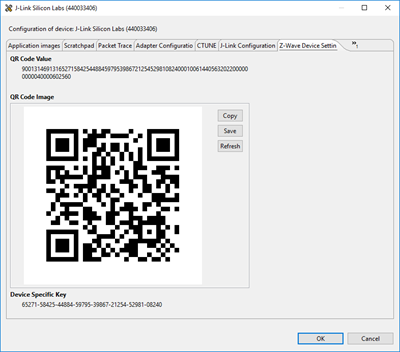
In this view, the entire QR Code Value and the corresponding QR Code Image is shown. In addition, the Device Specific Key (DSK) is shown.
This DSK can be compared against the Z-Ware UI, PC Controller dialog box, or other Controller UI. If needed, the first decimal group of the DSK can be typed in for S2 secure inclusion.