


Step by Step Guide to Qualify a Product on the Bluetooth SIG Website#
With the introduction of Bluetooth QPRD v3.0 (released on 1 July 2024) and QPRD v4.0 (effective 21 July 2025), there are several updates to the Bluetooth qualification process.
The major changes include:
Updated terminology used throughout the qualification process.
Removed dependency on product types. For example, components no longer require renewal and remain valid as long as they are supported by the manufacturer.
An Inter-Layer Dependency (ILD) check is now performed to ensure that all supported features are valid and consistent across protocol layers, from the lowest level (RF-PHY/RF in Core) up to the X2Core/Application layer (e.g., HID, A2DP, etc.).
No additional fees are incurred for renewals such as updating to the latest TCRL or creating subsets.
The Qualification Workspace tool automatically verifies whether any new or modified test cases have been introduced in the latest TCRL when inheriting designs compliant with earlier TCRL versions.
Increased flexibility: Companies can now set their product’s Publication Date up to 180 days after completing the Bluetooth Qualification Process [3].
Expanded correction support: Design corrections are now available for both Design Numbers (DNs) and Qualified Design IDs (QDIDs) in the Qualification Workspace [3].
Improved consistency checking: The tool now automatically ignores invalid Implementation Conformance Statement (ICS) inconsistencies when the corresponding ICS does not exist, eliminating the need for a Test Coverage Waiver (TCW) [3].
Note: This is not an exhaustive list. For more information, refer to the official Bluetooth SIG links and Knowledge Base articles below.
Reference Link:
https://www.bluetooth.com/develop-with-bluetooth/qualification-updates/
https://support.bluetooth.com/hc/en-us/articles/19866866810125-What-do-I-need-to-know-about-the-new-Qualification-Program-Reference-Document-QPRD-v3
https://qualification.support.bluetooth.com/hc/en-us/articles/36644517440525-Qualification-Program-Reference-Document-QPRD-v4-effective-July-21-2025
https://www.bluetooth.com/specifications/specs/html/?src=QPRD/out/en/index-en.html [Latest QPRD v4.0]
Below is the step-by-step guide to qualify a product design using the Bluetooth Qualification Workspace tool, developed by the Bluetooth SIG and available on the Bluetooth website. A product design (or multiple product designs) represents a complete Bluetooth solution, typically consisting of Core-Controller and Core-Host layers that together form a Core-Complete Configuration. This overall process is known as the Bluetooth Qualification Process.
To demonstrate the qualification process, we have created an example that combines Silicon Laboratories’ qualified designs to form a Core-Complete Configuration. The terminology used in this document is based on the latest QPRD v4.0, and we recommend reviewing that document if any part of this article is unclear.
In this example, the qualified designs used are:
QDID/DN Q306497 for the RF-PHY layer, Bluetooth 5.4.
QDID/DN 216508 or DN Q301597 for other controller layers (HCI, LL) and host layers (ATT, GAP, GATT, L2CAP, SM), Bluetooth 5.4.
It covers the scenario of combining pre-qualified core layer designs with same Bluetooth specification versions.
Note: QDID/DN 216508 and DN Q301597 refer to the same design; you may reference either one, but not both. In other words, all the required Controller and Host layer designs are combined to form an End Product, a term defined in earlier QPRD versions (e.g., QPRD v2.3).
Table of Contents#
Step 1: Getting Started#
The new Bluetooth Qualification Workspace from the Bluetooth SIG appears as follows:
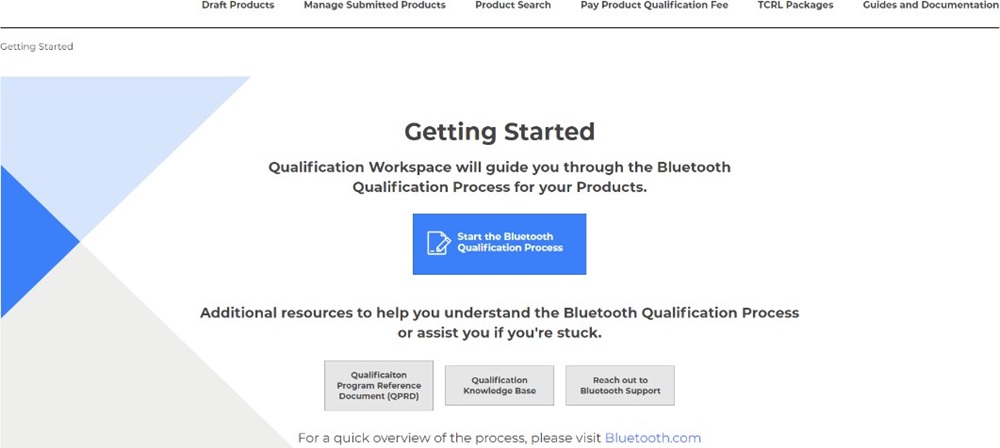
Log in to the Bluetooth Qualification Workspace on the Bluetooth SIG website: https://qualification.bluetooth.com/.
Click Start the Bluetooth Qualification Process. The Qualification Workspace tool will display the Product Details section.
In this section, enter your product information in the corresponding fields.
Members can import multiple products at once using the Import multiple Products option, which accepts entries in an Excel file format.
Alternatively, you can add a single product by selecting Add an Individual Product.
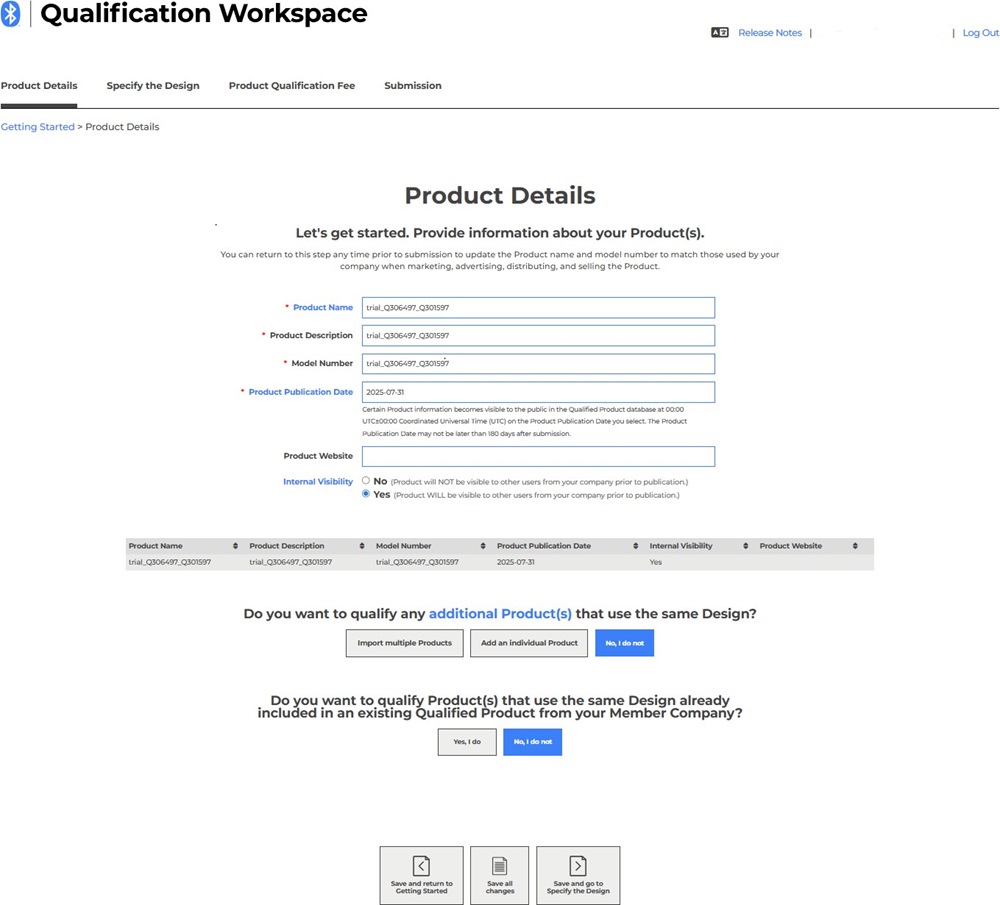
It is assumed that all listed products share the same Bluetooth design, including both hardware and software elements related to Bluetooth technology.
After you enter all product details, click Save and Go to Specify the Design.
Step 2: Specify the Design#
Note: This example pertains to Scenario A.1: Combining pre-qualified core layer designs with same Bluetooth specification versions.
In this example, you add Design Numbers (DNs) Q306497 and Q301597, which cover the following layers: RF-PHY, LL, HCI, and Host layers (ATT, GAP, GATT, L2CAP, and SM).
Select Yes, I do to include the existing Silicon Laboratories qualified designs.
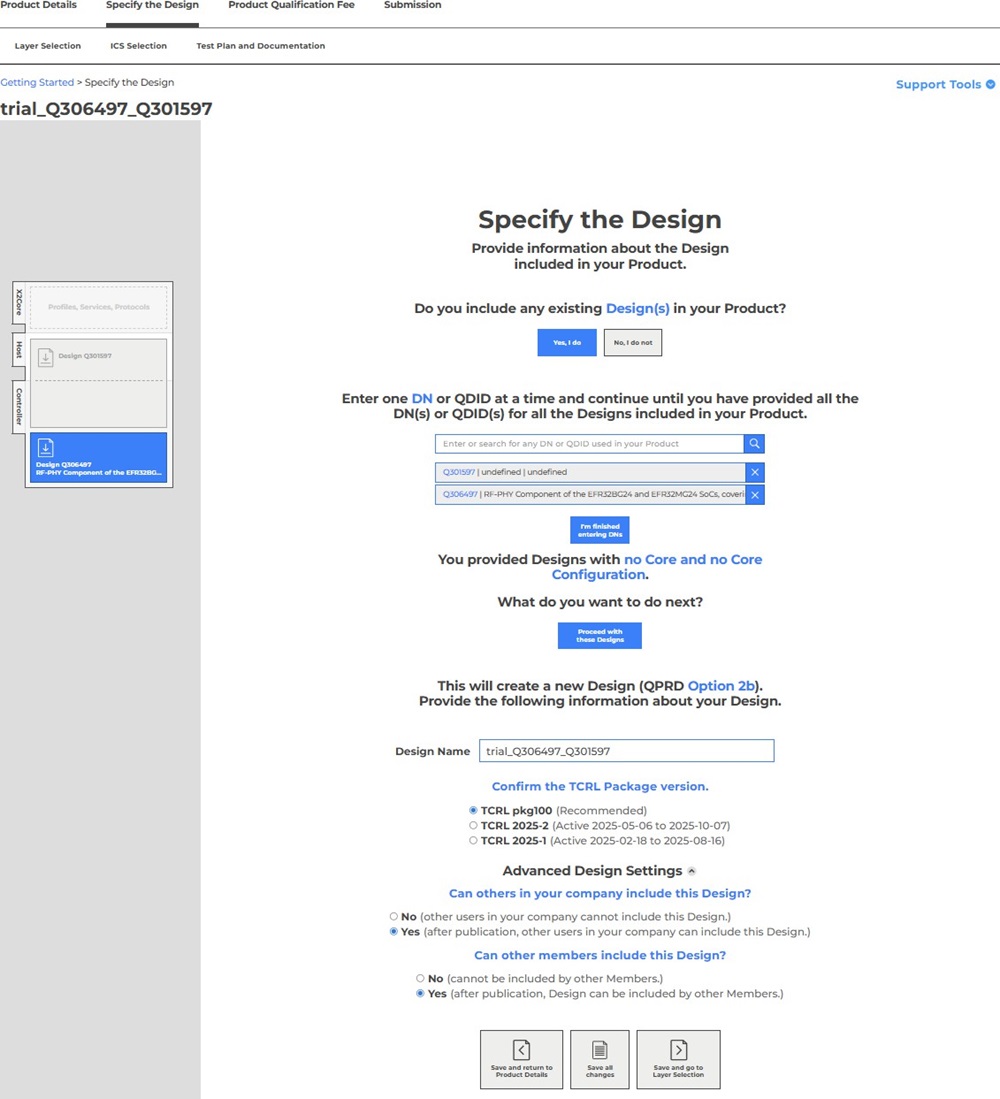
As this product represents an End Product design (Core-Complete Configuration), ensure that the inherited designs include all essential Core layers, namely RF-PHY, LL, HCI, UHCI, and Host layers (ATT, GAP, GATT, L2CAP, and SM).
After you add the appropriate designs, click I’m finished entering DNs.
The tool will display a summary of inherited design configurations, showing No Core for DN Q306497 and No Core for DN Q301597.
Click Proceed with these Designs.
The Advanced Design Settings options depend on your company’s preferences; for example, whether to allow other users within your organization or external member companies to inherit your product design.
When ready, click Save and go to Layer Selection.
Exception for: Product Listing using an existing Core-Controller Configuration design and Core-Host Configuration design#
Note: The following steps are applicable only for Scenario B: Product Listing using an existing Core-Controller Configuration design and Core-Host Configuration design.
This scenario covers the case where pre-qualified core-layer designs conform to Core-Controller Configuration design and Core-Host Configuration design. The tool will automatically select the Bluetooth specification version from the two designs by choosing the lower version (if applicable).
In this example, the qualified designs used are:
DN Q375771 for the Core-Controller Configuration design covering RF-PHY layer, LL,HCI, Bluetooth 6.0
DN Q333162 for the Core-Host Configuration design covering host layers (ATT, GAP, GATT, L2CAP, SM), Bluetooth 6.0
No changes have been made in hardware by following the Silicon Labs reference design as shown in datasheets, example modules, and unmodified software (SDK).
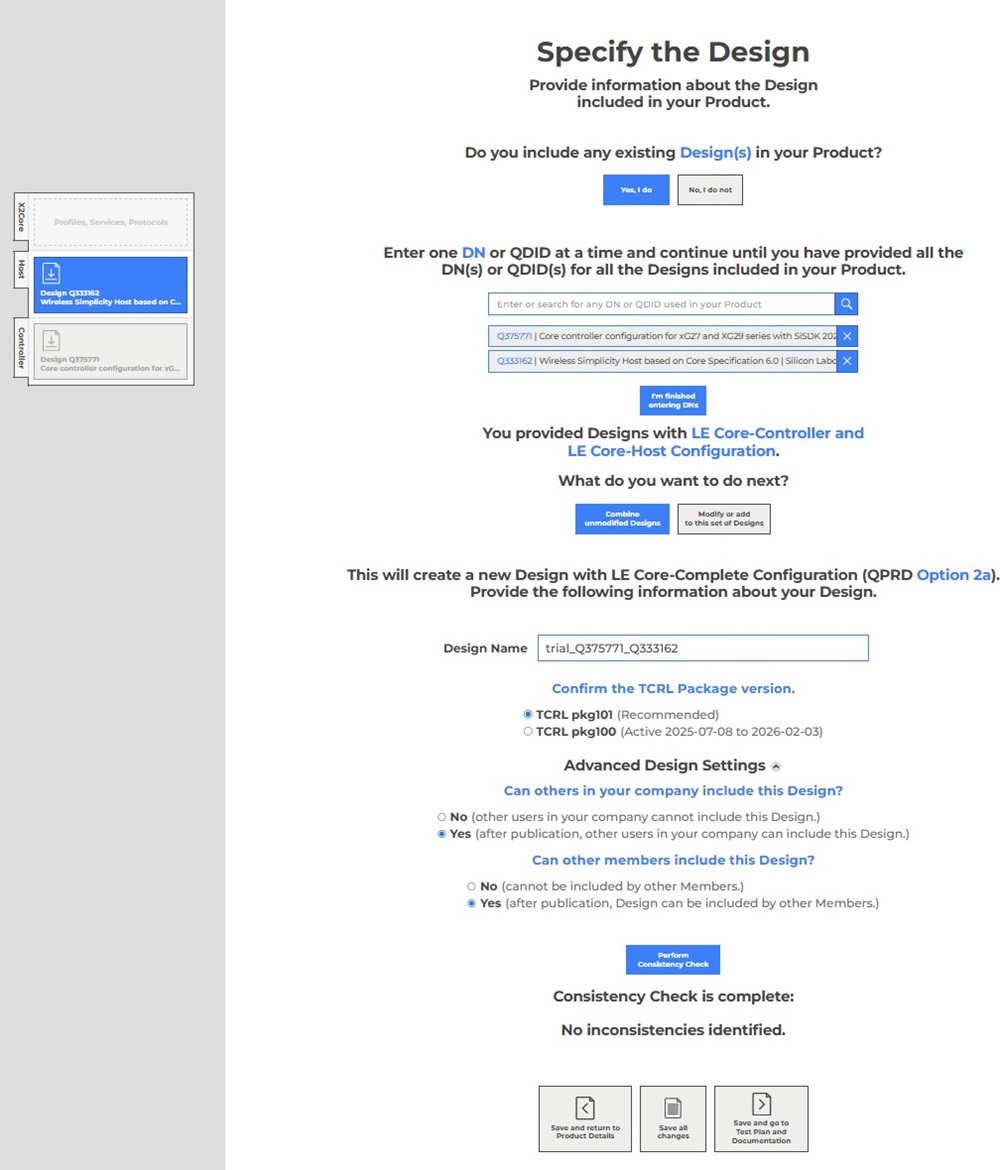
Follow the same process described in Step 2: Specify the Design above, with one difference:
After entering the design numbers, click I’m finished entering DNs.
The tool will then display the summary of inherited designs, showing:
LE Core-Controller for DN Q375771
LE Core-Host Configuration for DN Q333162
Click Combine unmodified Designs.
The Advanced Design Settings options depend on your company’s policies; for example, whether to allow other users within your organization or other member companies to inherit your product design.
When ready, click Perform Consistency Check.
Click Save and go to Test Plan and Documentation.
Finally, proceed with the steps shown in Step 5: Test Plan and Documentation to complete the process.
Step 3: Layer Selection#
The next step is Layer Selection.
Select Yes for Core Configuration, as this is an End Product design.
Select Core-Complete Configuration so that the Qualification Workspace tool recognizes it as a complete Bluetooth Low Energy (LE) solution with all essential layers included.
Choose LE Core-Complete as the desired Core configuration.
For dual-mode products, select BR/EDR/LE Core-Complete.
Exception: DN Q301597 was listed before the UHCI layer was introduced. Therefore, in this example, ensure that the UHCI layer is selected.
As shown in the screenshot below, each layer is assigned its respective inherited Design Number.
After you select the layers, click Save and go to ICS Selection.
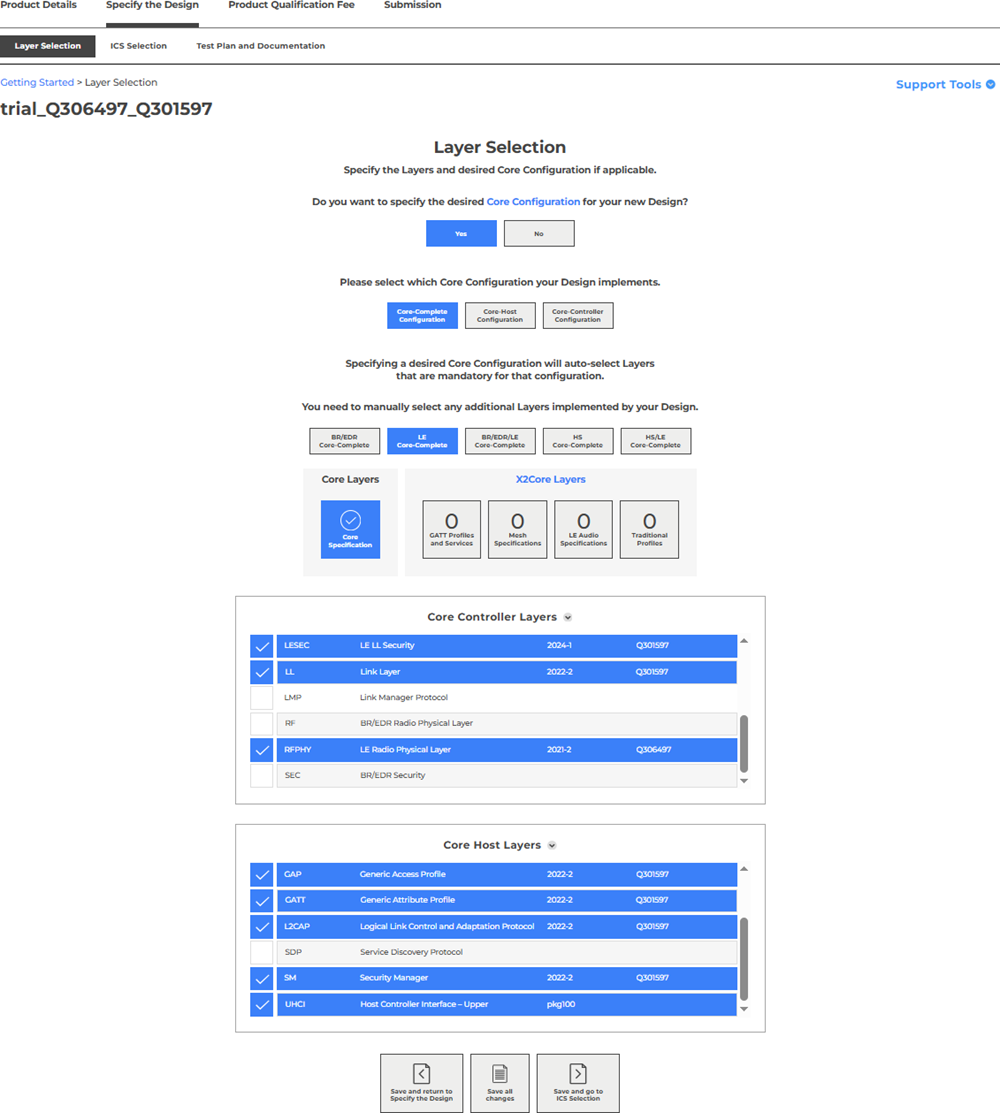
Note: If the End Product design does not expose the HCI and UHCI layers to end users, remove the HCI layer from the Core Controller Layers section, and remove the UHCI layer from the Core Host Layers section.
Step 4a: ICS Selection – Resolve Consistency Issues#
The purpose of this step is to identify and resolve inconsistencies in feature selection, whether they arise from inherited designs or newly added features.
In the ICS Selection section, click Consistency Check on the right-hand side of the page.
After you successfully clear all inconsistencies, a message will appear stating All inconsistencies are resolved.
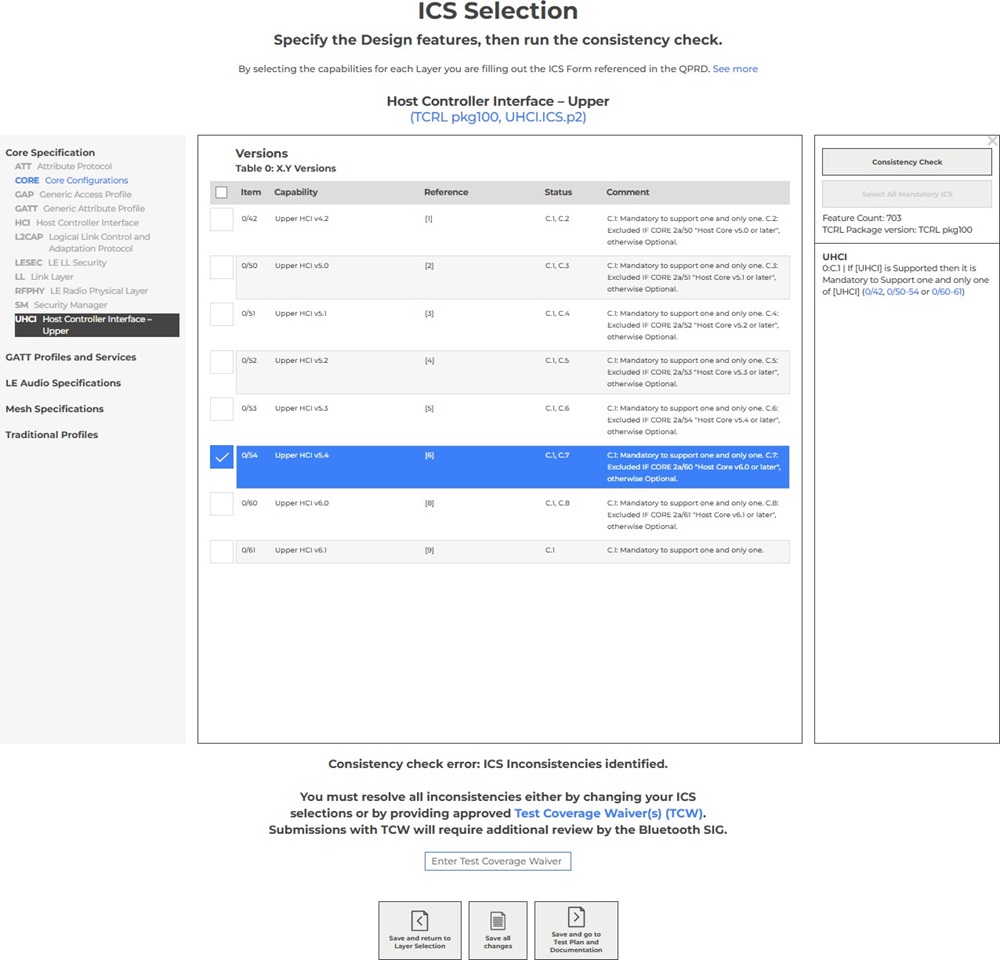
If an inconsistency appears related to the UHCI layer, select the appropriate Bluetooth Core version based on the inherited host layer design. Then, click Consistency Check again to verify that no inconsistencies remain.
Example: DN Q301597 was qualified before the UHCI layer was introduced. In this case, select 0/54 Upper HCI v5.4 under the UHCI layer to resolve the issue.
Another common issue occurs when some ICS feature links shown in the Consistency Check window do not exist or are not displayed in the respective layer. In such cases, in the Enter Test Coverage Waiver field, enter the Test Coverage Waiver (TCW) number ES-25636.
Important: The TCW ES-25636 waiver is not a universal fix for all inconsistency issues. Using this number incorrectly or as a blanket solution may result in product qualification rejection.
For other unresolved or unknown inconsistencies related to inherited designs, contact Silicon Labs Technical Support.
Alternatively, if you require additional guidance during qualification, consider reaching out to a Bluetooth Qualification Consultant (BQC).
Exception for: Combining pre-qualified core layer designs with different Bluetooth specification versions#
Note: This scenario is applicable only for Scenario A.2: Combining pre-qualified core layer designs with different Bluetooth specification versions.
In this example, the qualified designs used are:
DN 231189 for the RF-PHY layer, Bluetooth 5.4
DN Q361244 for the controller layers (HCI, LL) and host layers (ATT, GAP, GATT, L2CAP, SM), Bluetooth 6.0
This scenario covers the case where pre-qualified core-layer designs conform to different Bluetooth specification versions.
Resolving Core Version Conflicts#
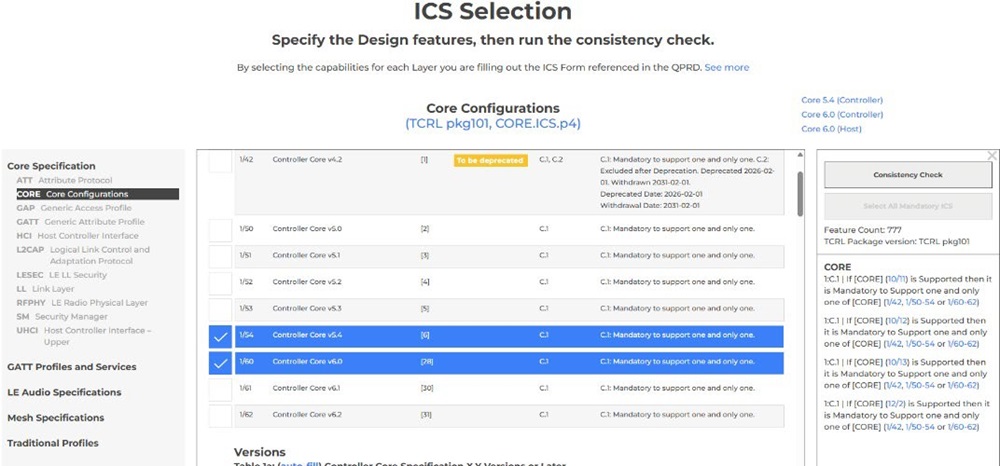
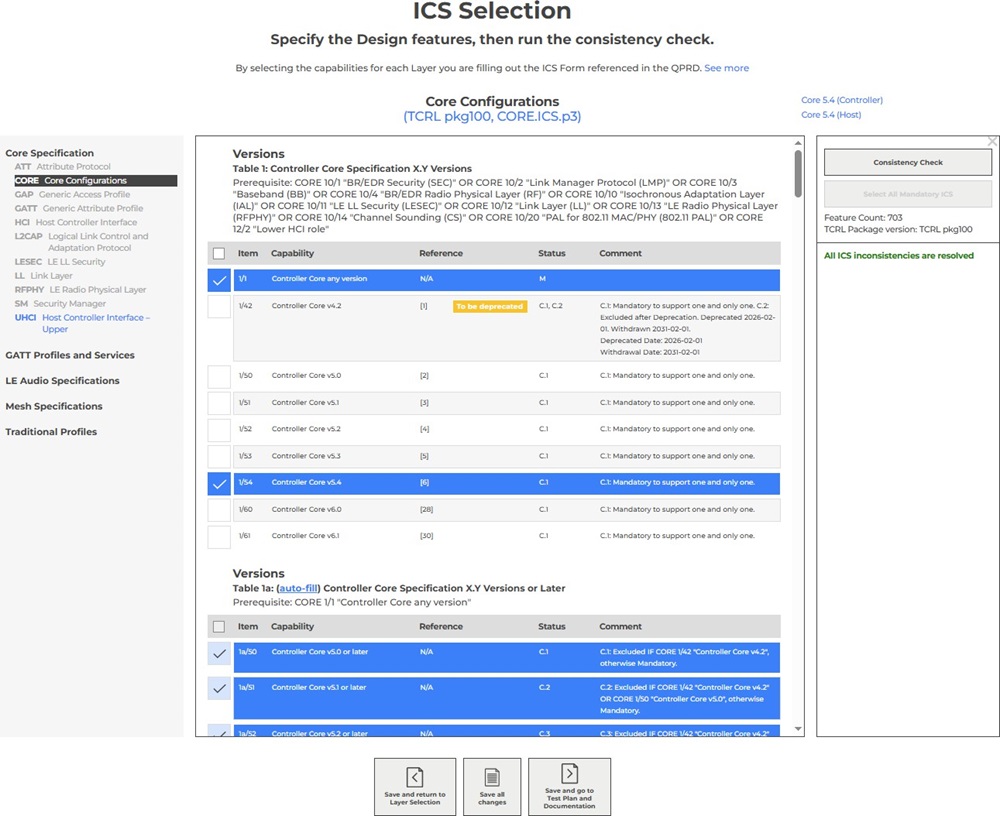
In the Core Configurations section, the Workspace tool automatically selects:
Core 5.4 from DN 231189
Core 6.0 from DN Q361244
Because a Core-Complete configuration must use one consistent Bluetooth Core version, this results in a conflict.
To resolve this:
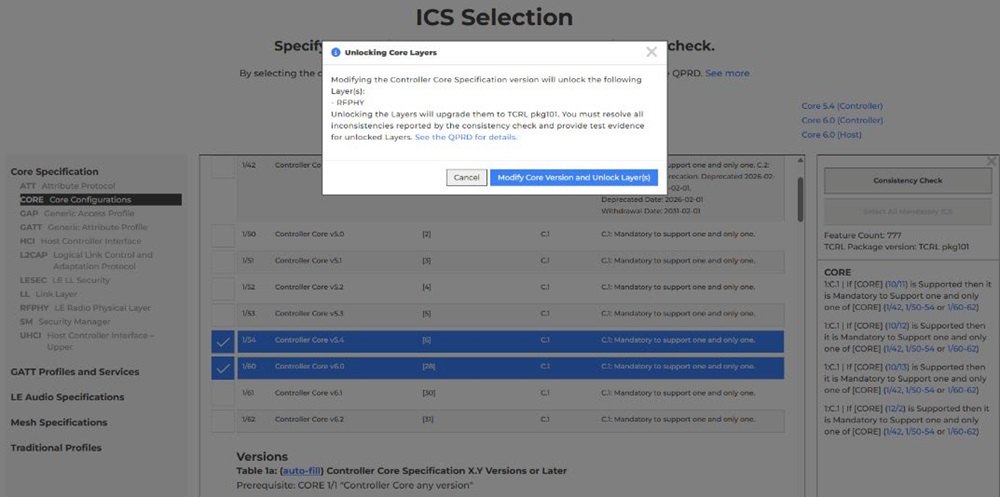
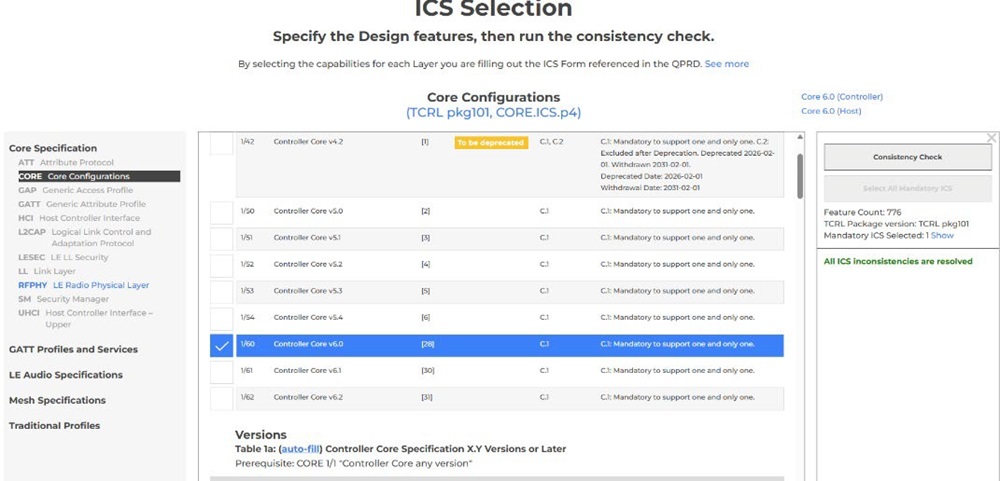
De-select 1/54 Controller Core v5.4.
The tool will display a disclaimer indicating that the RF-PHY layer will be unlocked.
Click Modify Core Version and Unlock Layer(s).
Run Consistency Check.
If no further inconsistencies are found, the Workspace will show the same status as illustrated in Step 4: ICS Selection – Consistency Check, with the RF-PHY layer unlocked (indicated in blue).
Click Save and go to Test Plan and Documentation.
Important Note on Inheriting the RF-PHY Design#
If the hardware RF-PHY layer has not been modified and continues to follow the Silicon Labs reference design (as documented in the datasheets), then the existing RF-PHY Design Number may still be eligible for inheritance/included. However, final approval is determined by the Bluetooth SIG.
Silicon Labs strongly recommends contacting a Bluetooth Qualification Consultant (BQC) or submitting a Support Request (requires Bluetooth.com account) to confirm whether the RF-PHY design can be inherited/included in this mixed-version scenario.
Inheritance is more likely to be acceptable if all of the following conditions are true:
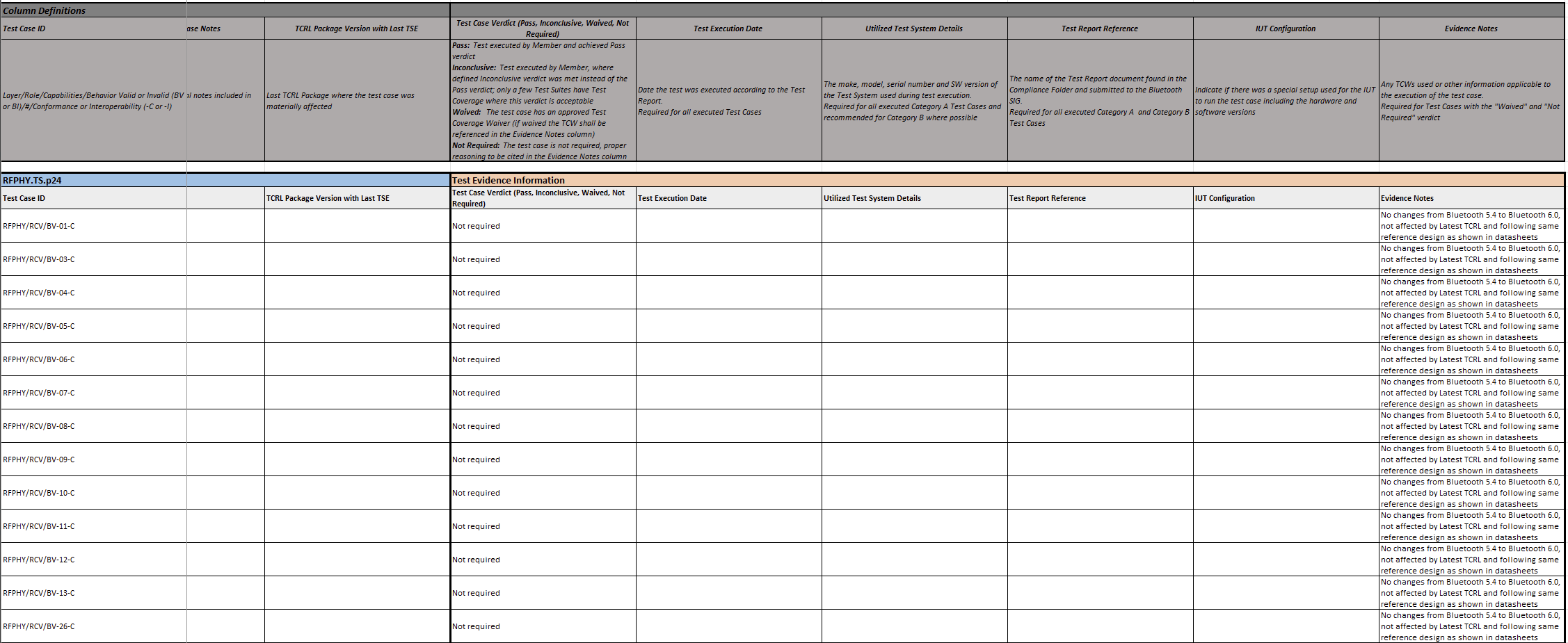
No RF-PHY test case changes occurred between Bluetooth 5.4 and Bluetooth 6.0
The design is not affected by the latest TCRL
The hardware continues to follow the same reference design shown in the Silicon Labs datasheets
Proceeding With the Process#
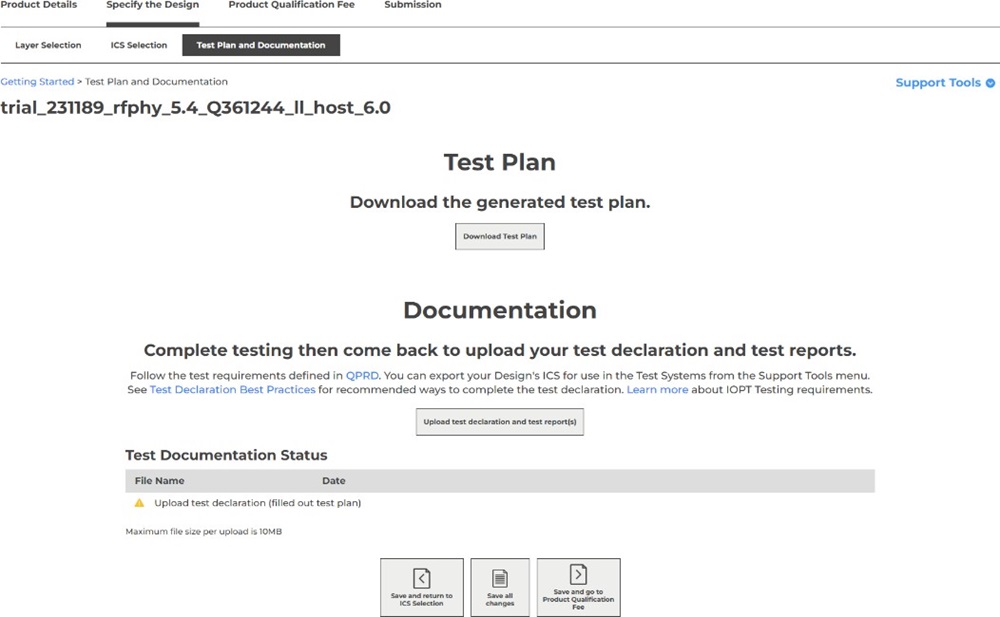
Proceed to Step 5: Test Plan and Documentation as shown below.
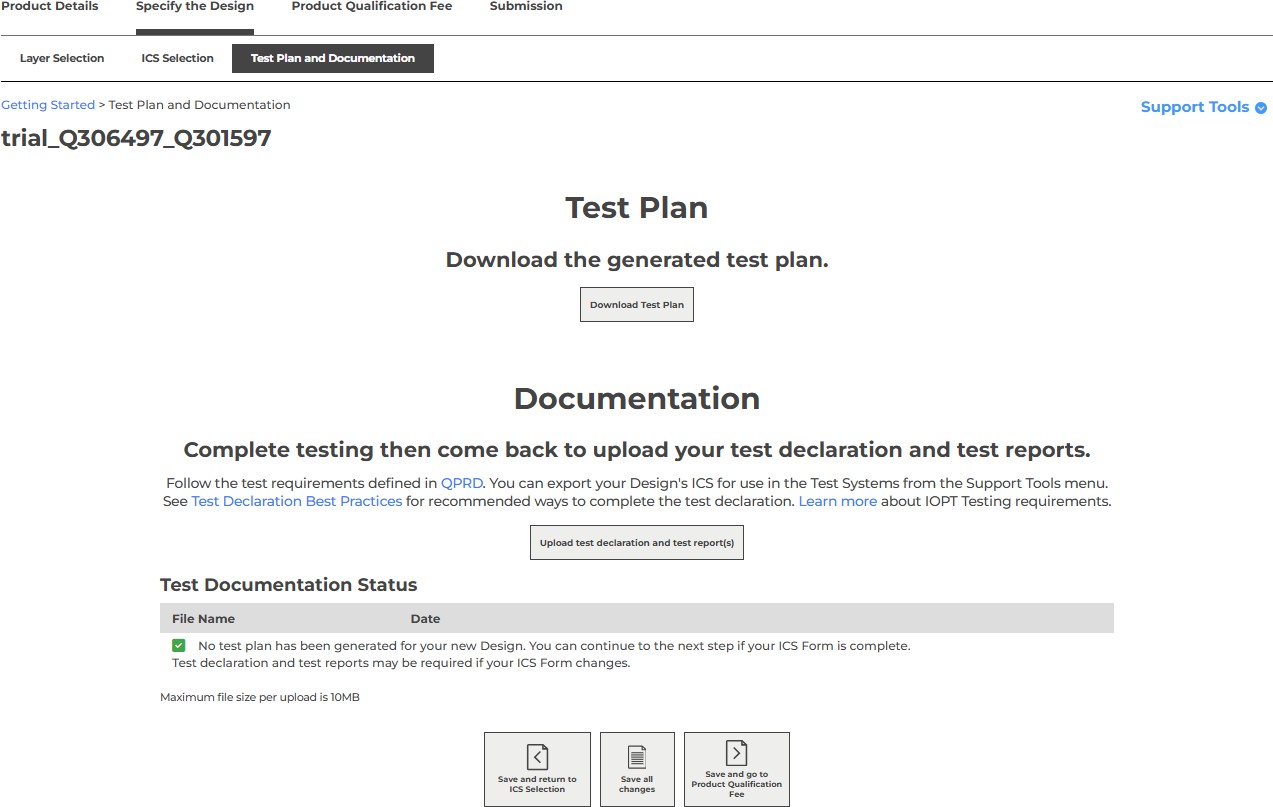
The only difference in this scenario is that you must download the generated test plan, complete it with the required information (as shown in the screenshot above), and then upload it in the Documentation section.
Note: Some steps in this scenario may already have been completed in earlier sections. Skip any steps that are repeated or not applicable.
Step 4b: ICS Selection – Resolve Consistency Issues (Continued)#
After you resolve all consistency issues, the message All inconsistencies are resolved will be displayed.
Click Save and go to Test Plan and Documentation.
Step 5: Test Plan and Documentation#
In the Test Plan and Documentation section, no test plan will be generated in this example because, in this example, inherited designs DN Q306497 and DN Q301597 cover the RF-PHY, LL, HCI, and Host layers (ATT, GAP, GATT, L2CAP, and SM).
Since no modifications have been made to the inherited designs, a new test plan is not required.
As this product represents an End Product (Core-Complete Configuration), it ensures that all essential Core layers — RF-PHY, LL, HCI, UHCI, and Host layers (ATT, GAP, GATT, L2CAP, and SM) — are covered.
Silicon Labs offers multiple qualified designs on the Bluetooth Qualification page, which you may include as part of your product qualification.
Inheriting designs implies that the hardware (RF/RF-PHY) follows Silicon Laboratories’ reference design as documented in the datasheets, and that Silicon Laboratories’ software/firmware is used without modification.
Click Save and go to Product Qualification Fee.
Exception: Modified Designs#
Note: This section is applicable only for Modified Designs.
If you modify inherited designs (for example, by unlocking a layer to add new features) or introduce additional layers, a Test Plan will be automatically generated.
Test cases in the plan must be executed at a Bluetooth Qualification Test Facility BQTF, particularly for Category A test cases in the lower layers (below HCI).
The BQTF representative or a Bluetooth Qualification Consultant (BQC) can assist with testing and completing the Test Declaration.
You can find details about which test cases are covered by approved test systems in the applicable TCRL release at https://www.bluetooth.com/specifications/tcrl/.
Tip: Test cases in X2Core layers (profiles) and Host layers can be tested in-house using the Profile Tuning Suite (PTS) by the End Product Manufacturer listing the product on the Bluetooth SIG website.
Guidance on completing the Test Plan and uploading it with supporting reports is beyond the scope of this article, but you can refer to the Bluetooth SIG’s Test declaration best practices documentation for further assistance, especially when using PTS for X2Core and Host layers.
Step 6: Product Qualification Fee#
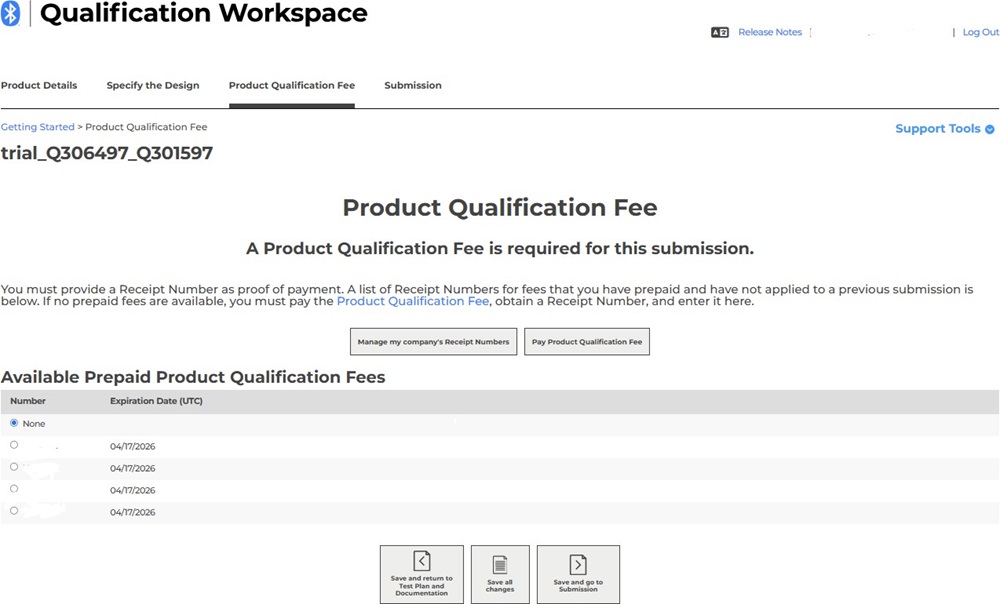
This step is self-explanatory. You can pay the Bluetooth SIG qualification fee either by invoice or credit card to obtain a Receipt Number.
The applicable fee depends on your Bluetooth SIG membership type. After payment is successfully processed, a Receipt Number will be generated, which can then be selected to associate with your product listing.
A single Receipt Number can cover one or multiple products, provided that the Bluetooth design (hardware and software) remains the same.
After you select the receipt, click Save and go to Submission.
Step 7: Submission Page#
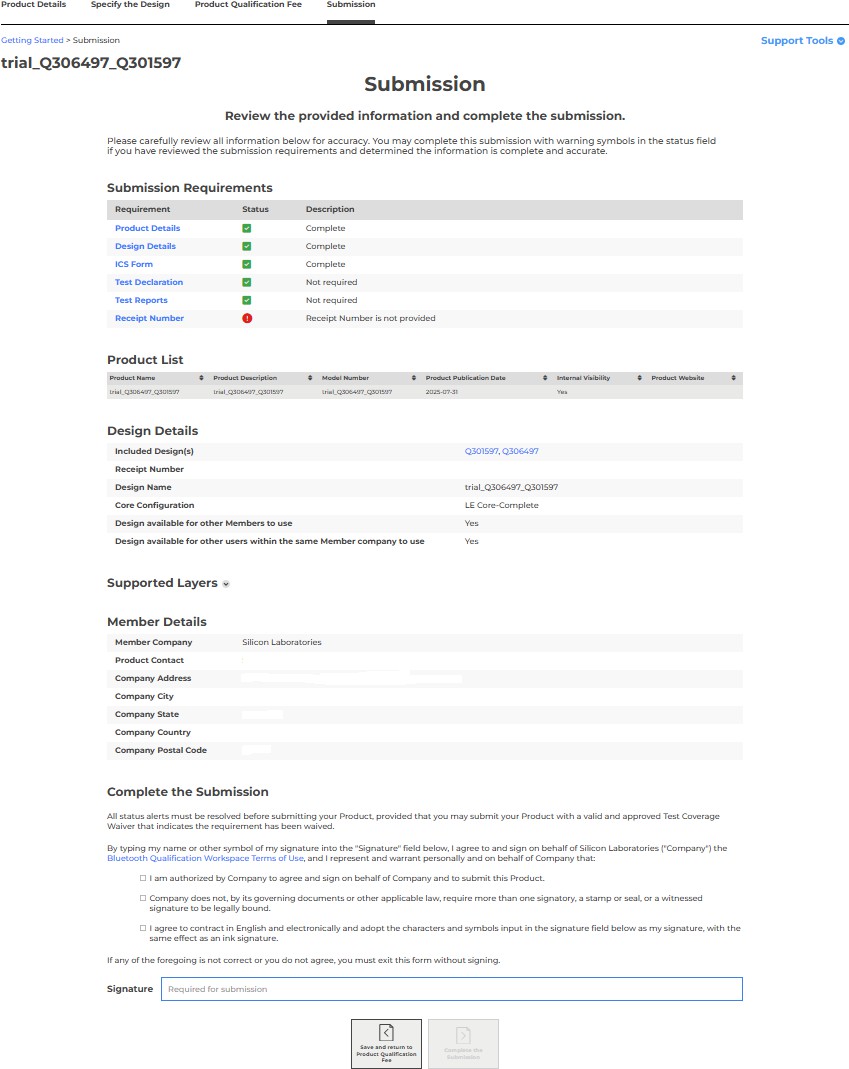
The Submission page is the final step of the Bluetooth Qualification Process. It provides an overview of all the information entered for your product(s).
Submission requirements are shown as green checkmarks for the six key sections:
Product Details
Design Details
ICS Form
Test Declaration
Test Reports
Receipt Number
When all six sections display a green status, it indicates that all requirements are met and the submission can be sent to the Bluetooth SIG for approval.
At the end of this page, check the three confirmation boxes to indicate that you have read, understood, and accepted the terms.
It is essential that the End Product Manufacturer reviews and agrees to the Bluetooth Qualification Workspace Terms of Use, and then signs the acknowledgement in the signature field.
Important Note: Ensure that your Compliance Folder contains all product-related documentation. This is described in Section 3.4.1 (“Compliance Folder”) of the Qualification Program reference document (QPRD), which outlines the required contents to be stored for each qualified product.
You can access the latest QPRD document at https://www.bluetooth.com/documents-resources/.
Click Complete the Submission. This is the final step. Once submitted, no further changes can be made.
Upon submission, a Design Number (DN) will be automatically assigned to your product.
Save this confirmation page in your Compliance Folder for future reference.
If the Qualification Workspace tool immediately approves the product, it means your product has successfully completed the Bluetooth Qualification Process and will be listed on the Bluetooth SIG website.
Step 8: Check Product Status in Manage Submitted Products#
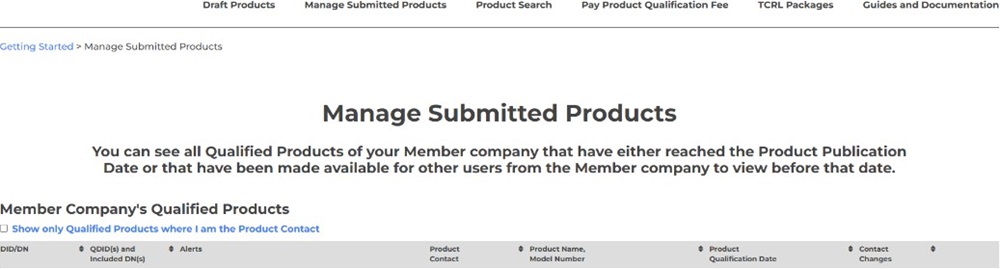
If your submission requires Bluetooth SIG review before approval, you will receive an email notification once the review is complete. In either case, you can monitor your submission status in the Bluetooth Qualification Workspace under the Manage Submitted Products section.
This page provides real-time updates on your product’s approval progress, publication date, and listing visibility on the Bluetooth SIG website.
For record-keeping, save a copy of the status page in your Compliance Folder.
Congratulations! Your product has successfully completed the Bluetooth Qualification Process and is now officially listed on the Bluetooth SIG website.