


Radio Configuration Flow#
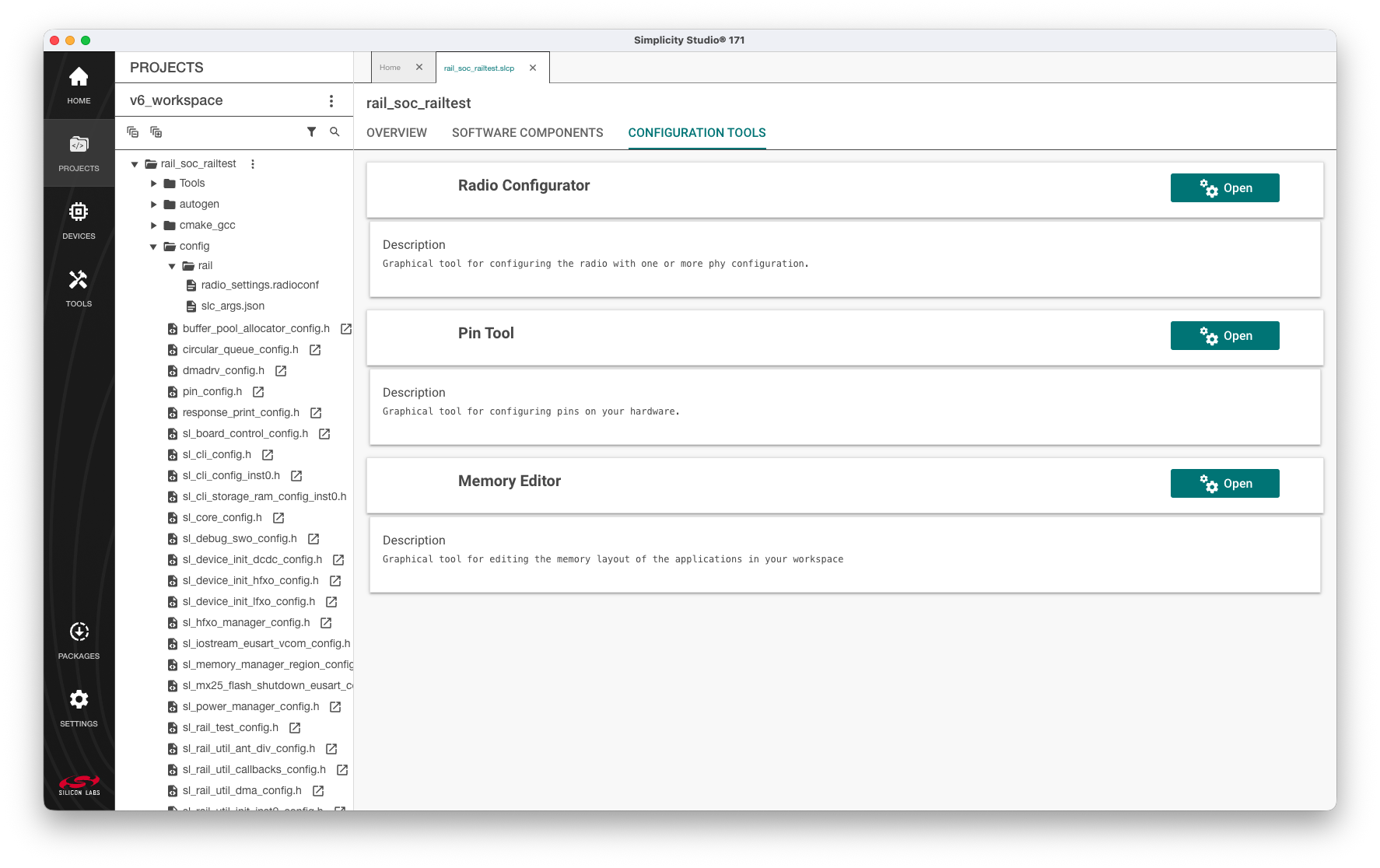
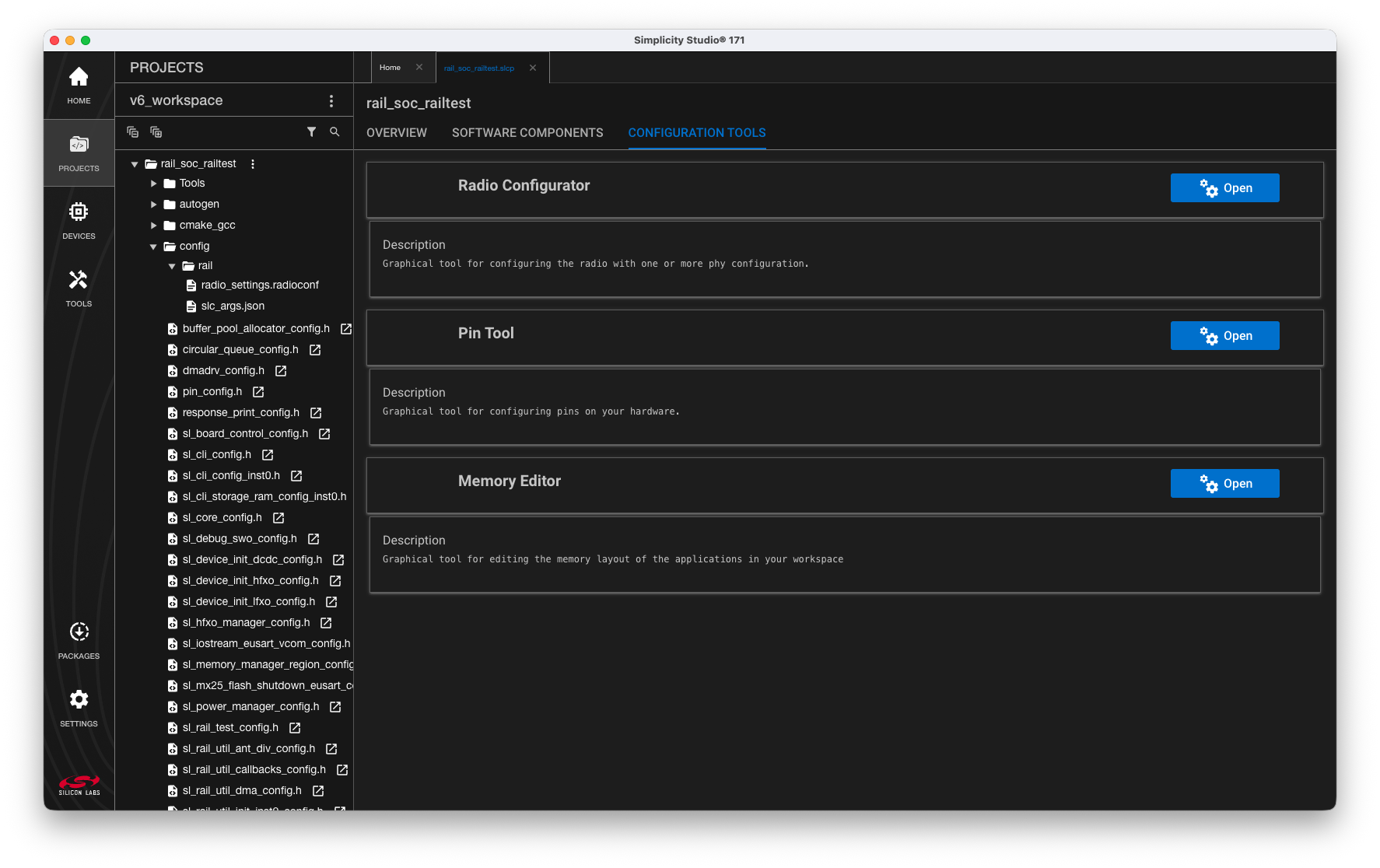
Once an EFR32-based project that uses Proprietary protocol (either a project in a proprietary SDK, or a DMP project) has been created in Simplicity Studio (as described in Silicon Labs Flex SDK v3.x Getting Started Guide) an .slcp project file is created and an Overview tab is opened. The Radio Configurator can be opened from the Configuration Tools tab, (For some examples, the Radio Configurator might open on project creation). All the radio configurator settings are stored at config/rail/ in the radio_settings.radioconf file.
All the parameters in the Radio Configurator are arranged in cards, some of which are grouped together. Each card contains entries that logically go together. Different radio profiles (see Protocols) offer different views and parameter sets as a profile is a high-level view of the parameter set valid for and describing a given radio link.
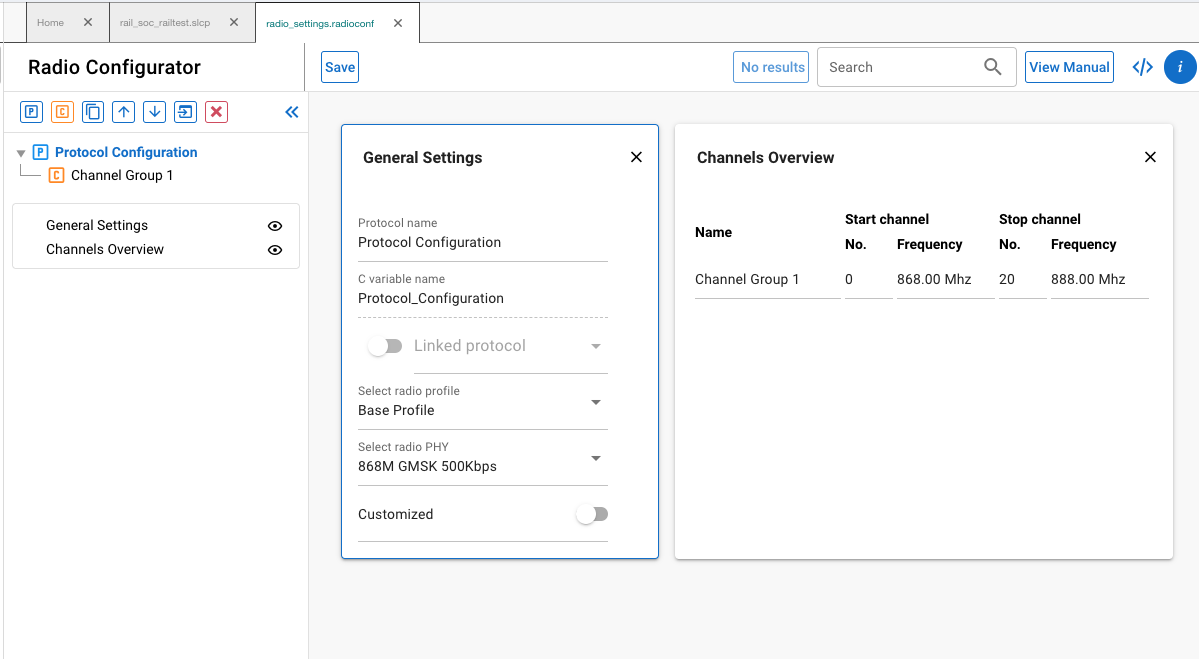
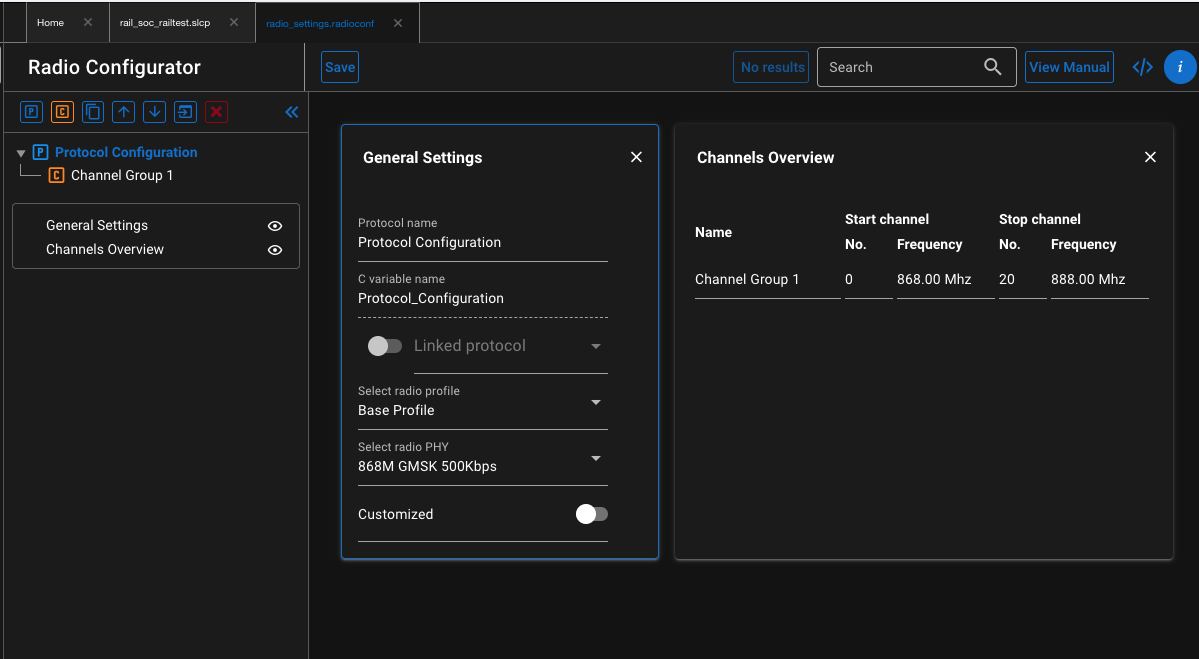
A radio configuration has two hierarchical levels: Protocol level and Channel Group level. A radio configuration can contain multiple protocols and a protocol can have multiple channel groups defined.
Protocols#
Protocols are complete radio configurations that can be switched using the sl_rail_config_channels() API, or can be used in Dynamic Multiprotocol applications. For Channel Group definitions see Channel Groups.
To configure a protocol, first select a predefined PHY configuration, then customize it to meet your needs.
First, look at the General Settings card. Select a radio profile in the Select radio profile drop-down menu. A radio profile may be any supported radio link technology. These technologies can be bound by standards (for example the Sigfox or WMBus protocols) or can be fully customized. The fully customizable profile is called the "Base Profile".
Once the radio profile has been selected, the next step is to select a radio PHY (radio configuration) in the Select a radio PHY drop-down list. Each profile has "built-in" configurations ready to use.
Once the radio profile and radio PHY have been selected, users can review the profile options. By default, no changes are allowed, fields are hidden. To enable customize, use the Customized switch on the General Settings card. This allows access to all the parameters defined by the profile.
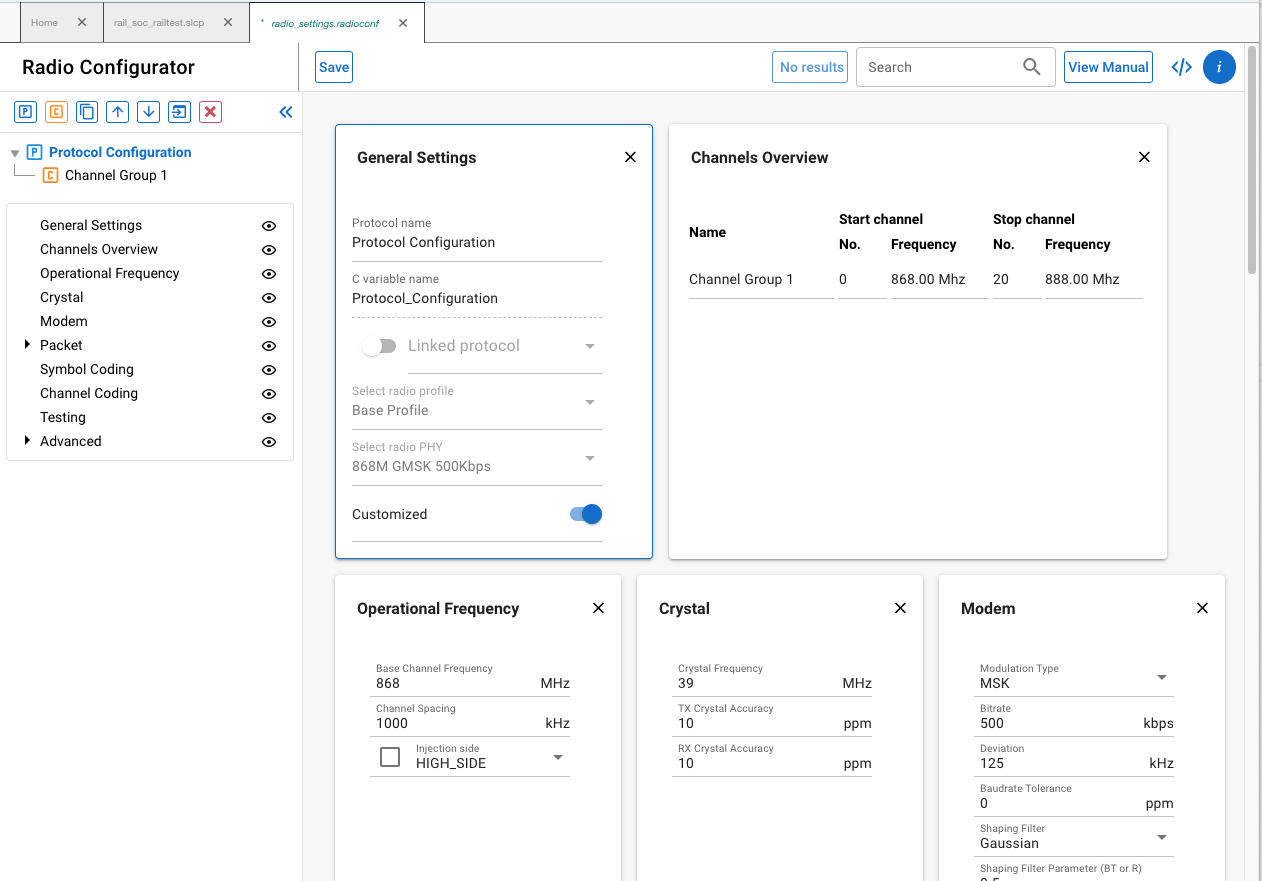
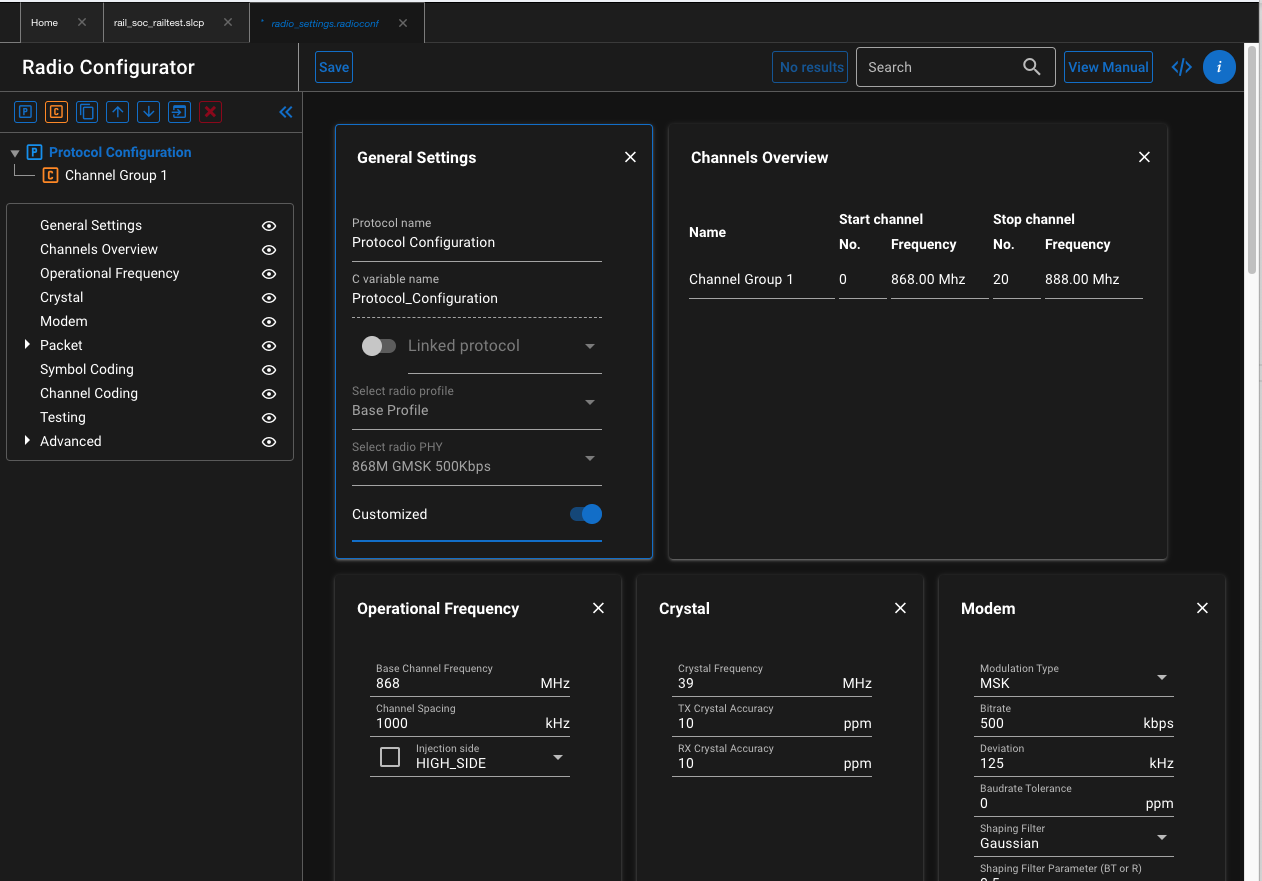
Important notes:
If you select a "built-in" PHY, and then switch to "Customized ", the Radio Configurator retains the property values of the "built-in" PHY. You can edit the values, but can also revert to the defaults.
If you switch to “Customized” mode, we **recommend unchecking all “Advanced” ** properties, as those are fine-tuned for the “built-in” PHY, and may not be the optimal choice for the modified PHY. This way those parameters get auto-calculated, and users can experiment with the fine tuning starting up from the calculated values. To keep the improved performance achieved by the original optimization, only minor changes should be made. For example, <100 MHz change in carrier frequency, or a different frame length configuration.
If you switch customization off, your modifications will be reverted to the property values of the “built-in” PHY.
Each menu item in the Navigation pane (on the left) is represented by a card in the main editor panel (on the right). Cards can be hidden by clicking the corresponding “eye” icon on the Navigation panel.
Based on the selected radio profile, customizable options may be restricted. For example, if a radio profile is selected that is bound by a standard, the profile options only allow users to set the base frequency. All other options are preset according to the standard.
Channel Groups#
Each protocol configuration includes one or more channel group configurations. Channel groups define one or more (sequential) channels, with a constant channel spacing between them. Channel groups can differ in the radio configuration both from each other and from the parent protocol. By default, a channel group configuration includes only the General Settings and Channel Configuration cards. Additional parameters defined by the Protocol can be accessed for customization on a channel group basis by sliding the Customized switch on the corresponding card. Channel groups can also be completely overridden to a predefined PHY by checking the Select radio PHY box.
RAIL automatically detects when hopping to a new channel requires hopping between channel groups. The configured property values defined by the channel group will be applied automatically for the new channel. This enables users to define virtual channels to the same physical frequency, but with different configuration settings.
The order of the channel groups does not matter, but could be reordered to help visually. A channel number should only occure once for each protocol.
For more on Multi-PHY configuration, see the example in Multi-PHY Configuration Example.
Finalizing a Configuration#
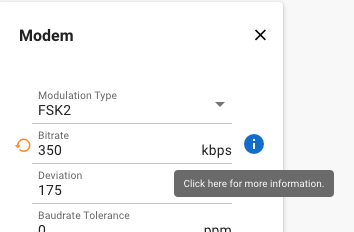
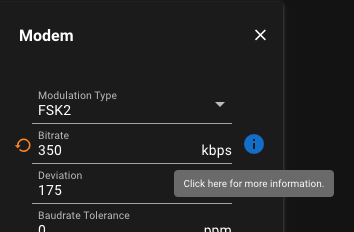
When a parameter is modified from its pre-loaded value (inherited from a protocol or a predefined config), a revert icon will show up next to it:
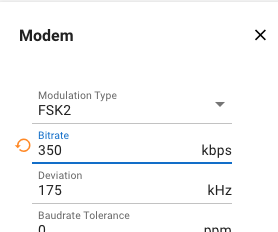
Each input field has an Information icon next to it, which opens the embedded version of this user guide at the relevant section. You can also reach the documentation using the [View Manual] control at the top right corner of the perspective.
Finally, the Radio Configurator generates an output upon saving the file. The generated files are called rail_config.c, and rail_config.h and radioconf_generation_log.json and are located in the autogen/ folder of your project. These files get also generated upon the creation of a project.
Other Radio Configurator Controls#
The Radio Configurator hosts several features, to simplify the work with multiple protocols and PHY configurations. This chapter discusses the tools highlighted by red rectangles on the following figure.
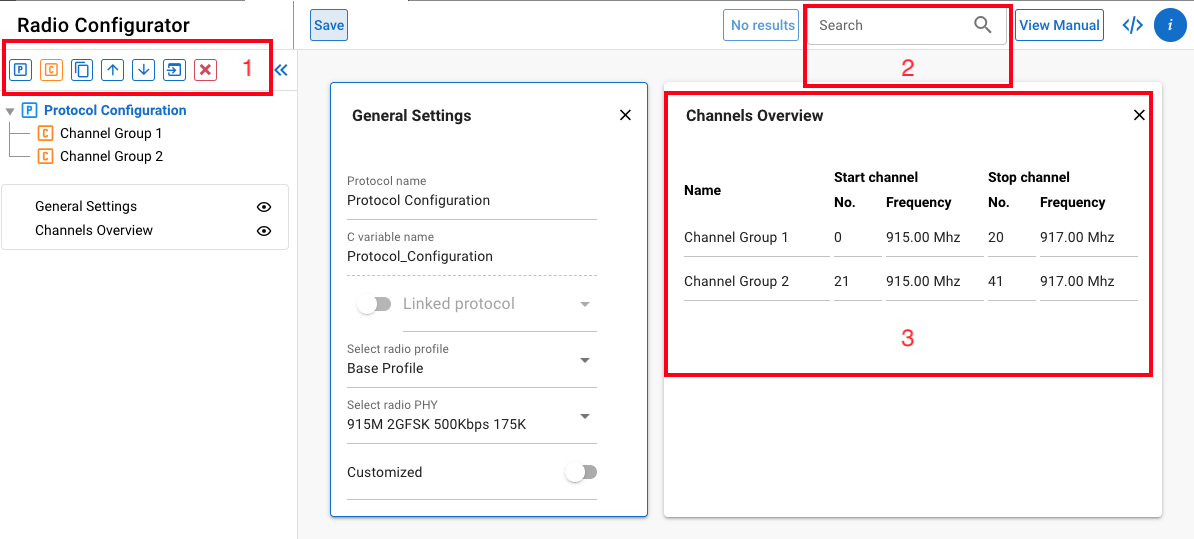
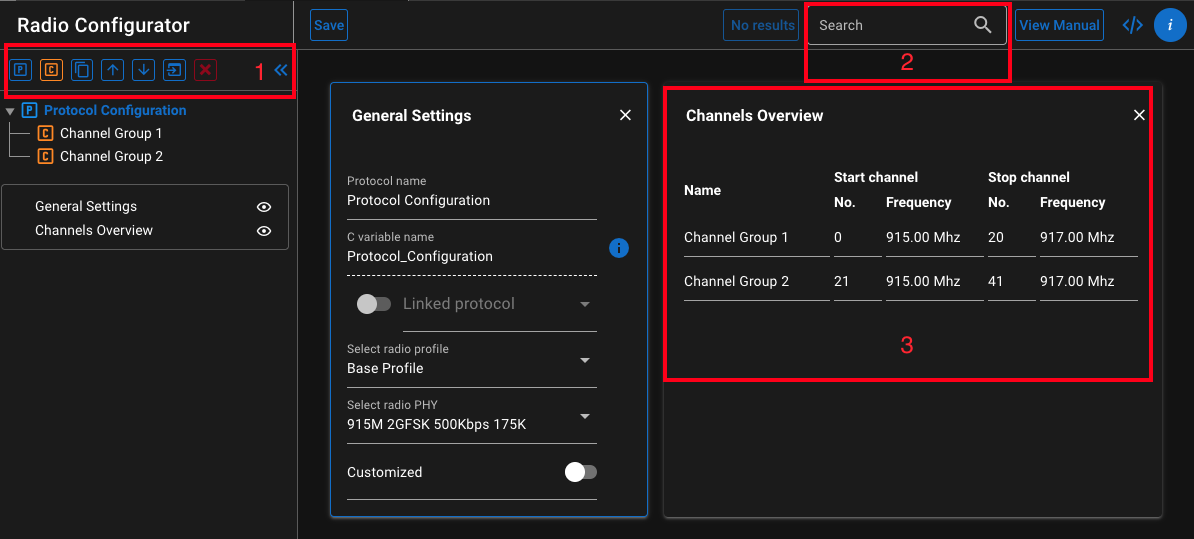
The tool bar in the top left corner enables the following self-explanatory functions:
Add another Protocol Configuration
Add another Channel Group
Duplicate a selected entry (Protocol Configuration or Channel Group)
Move selected item up or down
Load a legacy .isc or .radioconf file
Delete a selected entry (Protocol Configuration or Channel Group)
The Search window enables real-time filtering of input parameters. Example: typing AGC will hide all the input fields, except those having AGC in the name.
The Channels Overview card summarizes the physical frequency assignments for the Channel Groups added under the selected Protocol Configuration.