


The Context Menu
An icon with three vertical dots is on the right of each project name on the left panel of the PROJECTS page (Project Explorer).
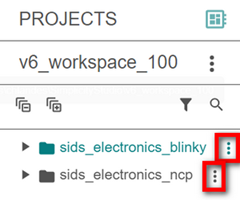
Select this icon to display the Context menu.
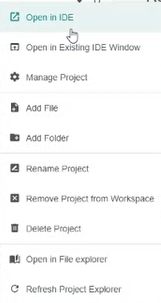
Use the Context menu to open, manage, modify, or remove the selected project.
Open a Project#
Open in IDE#
Select Open in IDE to open the selected project in a new window of your IDE.
Note: You can set the default IDE you want to use in Settings > IDE Preferences.
While the project opens, the Open in IDE message appears in the lower-right corner of the window.

The following image shows a project open in Visual Studio Code.
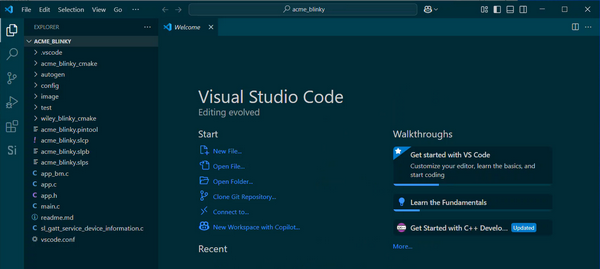
Note: By default, Open in IDE opens the project in a new window.
Open in Existing IDE Window#
This option is available for Visual Studio Code.
Select Open in Existing IDE Window to open the selected project in your current Visual Studio Code window.
While the project opens, the Open in IDE message appears in the lower-right corner of the window.
Manage Project#
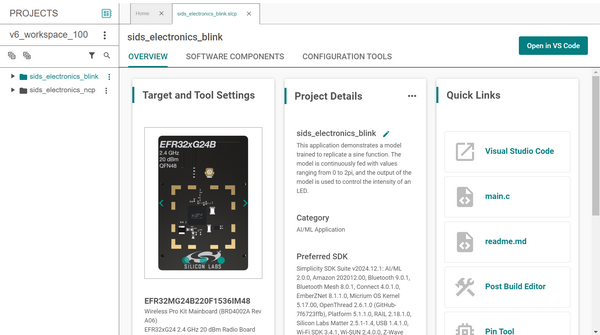
Select Manage Project to open the selected project in Project Configurator. The project appears on the right side of the window.
Open in File Explorer#
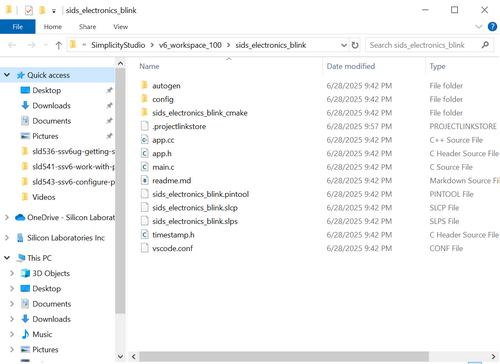
Select Open in File Explorer to open the selected project in File Explorer.
Add Project Content#
Add File#
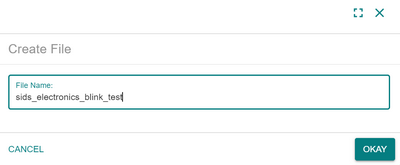
Select Add File to add a file to the selected project.
Add Folder#
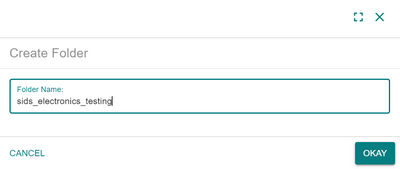
Select Add Folder to add a folder to the selected project.
Rename or Remove a Project#
Rename Project#
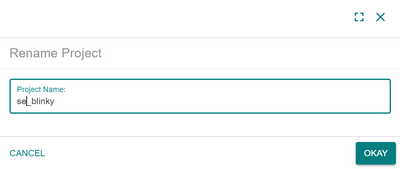
Select Rename Project to rename the selected project.
Remove Project from Workspace#
Select Remove Project from Workspace to remove the selected project from your workspace. Removing the project does not permanently delete it.
Note: The project is removed from the workspace immediately without a confirmation message.
Delete Project#
Select Delete Project to permanently delete the selected project.
Note: The project is permanently deleted immediately without a confirmation message.
Refresh the Project Explorer#
Select Refresh Project Explorer to refresh the PROJECTS page.