Open a Project#
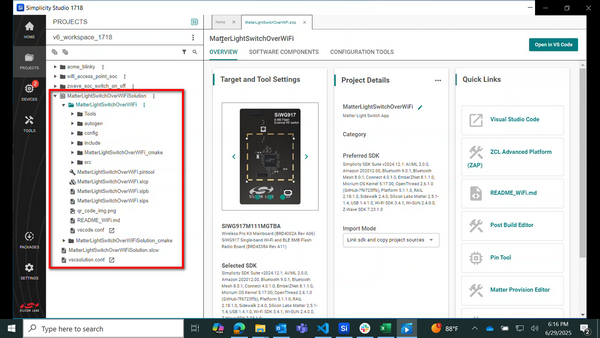
In Simplicity Studio 6, you can open existing projects including those created in Simplicity Studio 5, as well as projects shared by colleagues or sourced externally.
Open an Existing Project#
There are three ways to open an existing project in Simplicity Studio:
From a workspace
In the selected IDE
In File Explorer
Each of these methods is described below.
Open a Project from a Workspace#
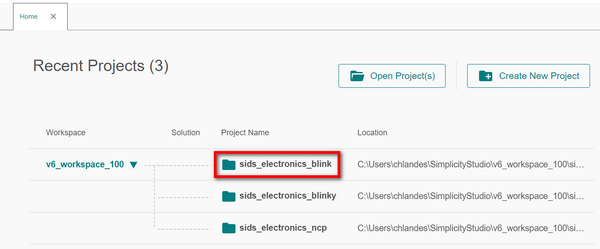
In the Recent Projects area, click the name of the project in the workspace. In the example below, the sids_electronics_blink project is selected in the v6_workspace workspace.
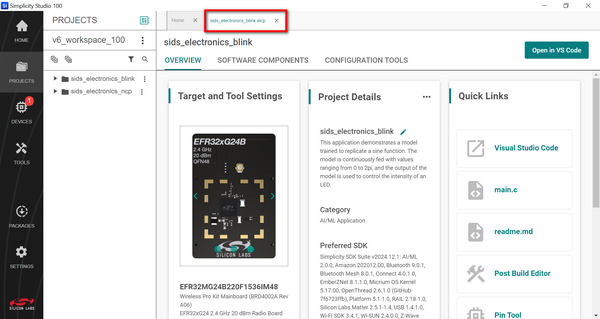
The Project Configurator opens in a separate tab with file name of the project. In the example below, the file name on the tab is sids_electronics_blink.sicp.
Open a Project in an IDE#
You can open a project in an active IDE from either the Project Configurator or the context menu for your project.
Open a Project in an IDE from the Project Configurator#
To open a project from the Project Configurator, select the green open button in the upper-right corner of the screen. The button label depends on the IDE or project generator selected for the project.
If multiple IDEs or project generators are selected, select the arrow on the green open button, and then select the IDE or project generator you want to use.

The selected IDE launches and opens your project. While the project opens, the Open in IDE message appears in the lower-right corner of the window.

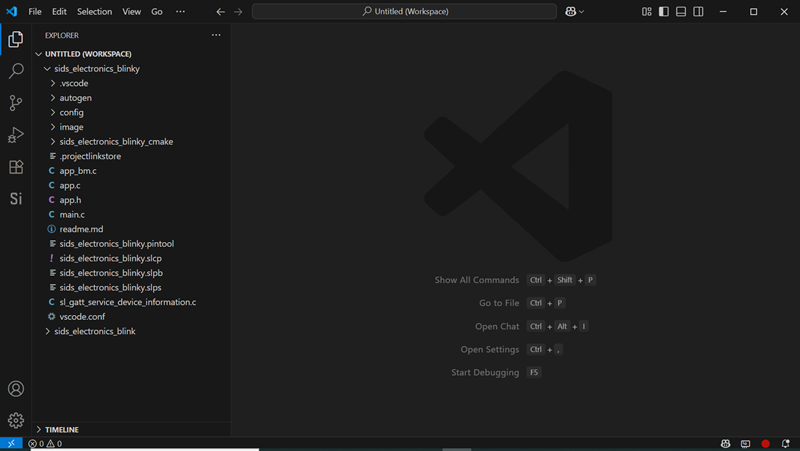
A view of the opened project in Visual Studio Code is shown below.
Open a Project in an IDE from the Context Menu
To open a project from the context menu, select the three-dot icon to the right of the project name in the left panel. Select Open in IDE from the menu.
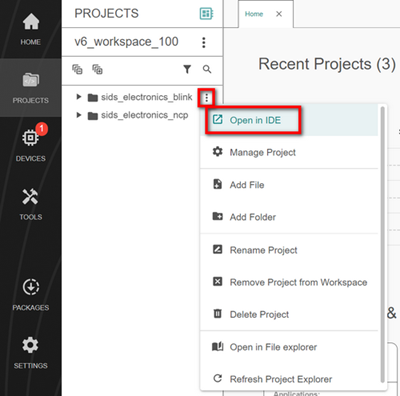
The selected IDE launches and opens your project. While the project opens, the Open in IDE message appears in the lower-right corner of the window.
A view of the opened project in Visual Studio Code is shown below.
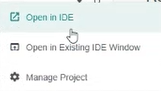
To open the project in your current Visual Studio Code window, select Open in Existing IDE Window from the context menu. This option is available for Visual Studio Code.
Open a Project in File Explorer#
To open a project in File Explorer, use the context menu. Select the three-dot icon to the right of the project name in the left panel. Select Open in File Explorer from the menu.
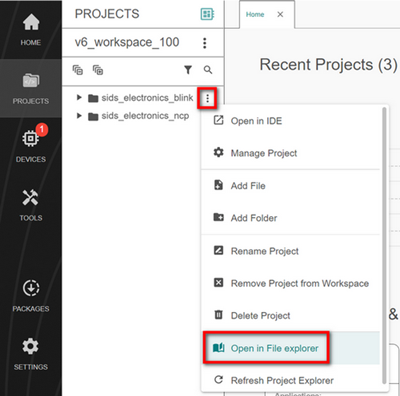
File Explorer launches and displays the root folder for your project. In the example below, the root project folder name is sids_electronics_blink.
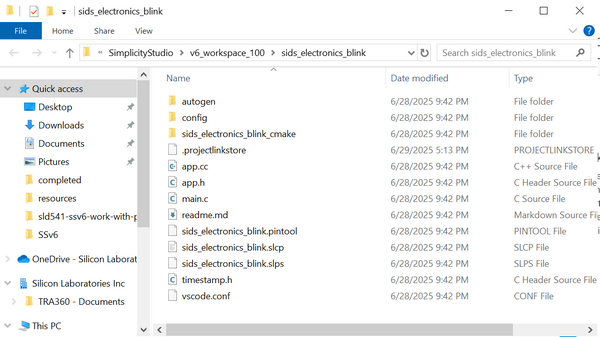
Navigate to the file you want to open and double-click it. In the example below, the sids_electronics_blink.cmake file is selected.
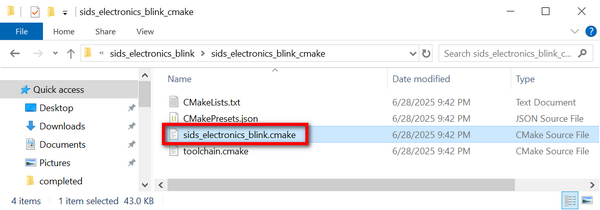
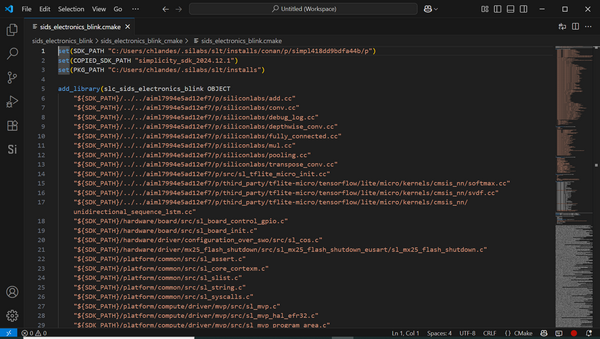
A view of the opened file in Visual Studio Code is shown below.
Open an Existing Project#
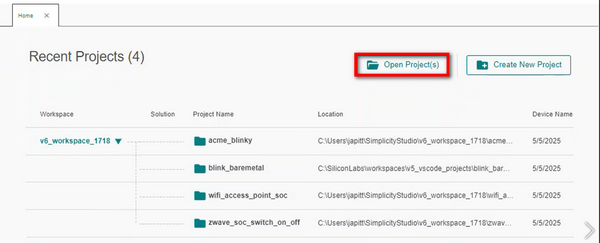
To open and migrate a project from Simplicity Studio 5, or to open one received from a teammate or another source, click the Open Project(s) button in the upper-right corner of the Projects page.
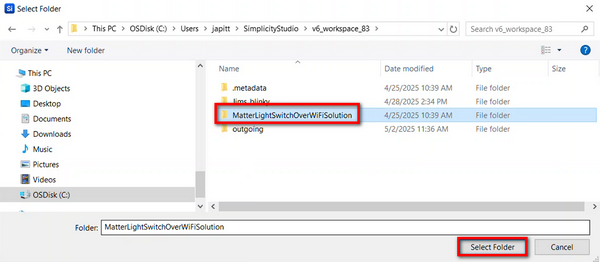
File Explorer displays.
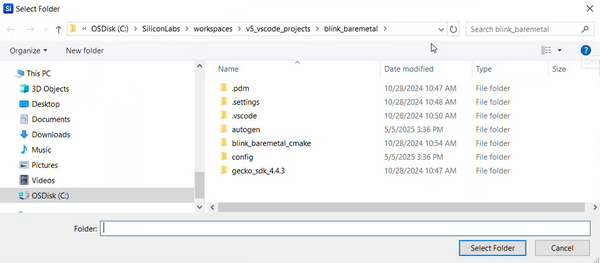
Navigate to the project, select it, and click Select Folder. In the example below, the MatterLightSwitchOverWiFiSolution folder is selected.
The project is added to your active workspace. Project Configurator launches and displays the project on the right side of your screen.