


Workspaces#
A workspace is a folder that contains one or more projects or solutions. Use workspaces to organize projects by product, application, SDK version, or other development activity. For example, you can create a separate workspace for each product or application.
Simplicity Studio creates a default workspace during installation. The workspace name appears at the top of the left pane on the PROJECTS page.
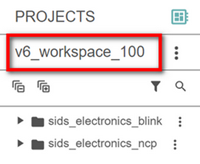
A three-dot icon appears to the right of the workspace name. Select the icon to open the workspace menu.
The menu includes these options:
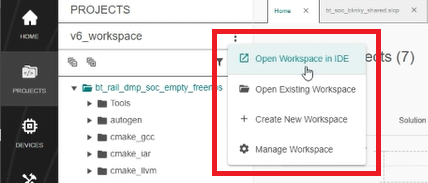
Open Workspace in IDE#
Select Open Workspace in IDE from the workspace menu.
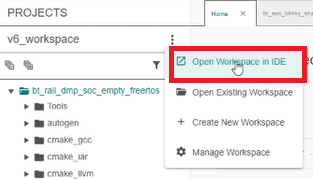
Work with the projects in the workspace within your IDE.
Note: Open Workspace in IDE is not supported for IAR Embedded Workbench. If IAR Embedded Workbench is your selected IDE, Simplicity Studio displays an error message when you try to open the workspace.

Open Existing Workspace#
Select Open Existing Workspace from the workspace menu.
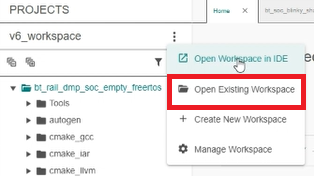
Select the workspace that you want to open.
Create New Workspace#
Select Create New Workspace from the workspace menu.
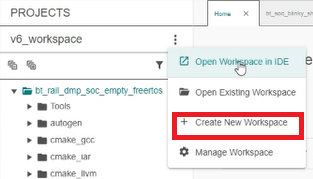
The Create New Workspace window appears.
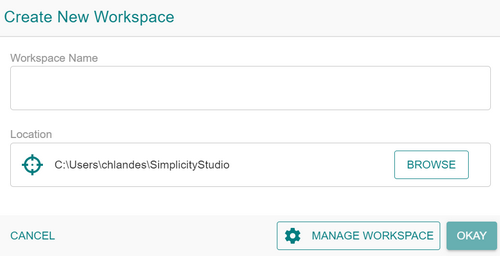
In Workspace Name, enter the name you want to use for the workspace.
The workspace name is appended to the path in Location.
In Location, enter or verify the location for the new workspace.
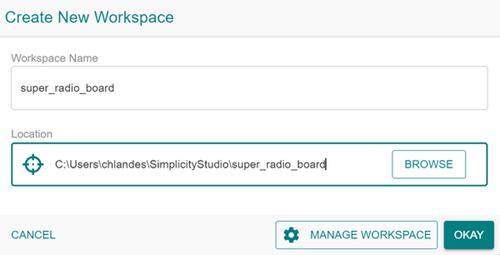
To select a different location, select BROWSE to open File Explorer and select the location that you want.
Select OKAY.
The new workspace appears at the top of the left pane on the PROJECTS page.
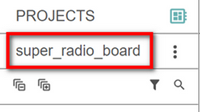
Note: You can display only one workspace at a time in the left pane of the PROJECTS page. To use another workspace, open an existing workspace or switch workspaces.
Manage Workspaces#
Use Manage Workspace to switch to another workspace, create a workspace, or remove a workspace from Simplicity Studio.
Switch Workspaces#
Select Manage Workspace from the workspace menu.
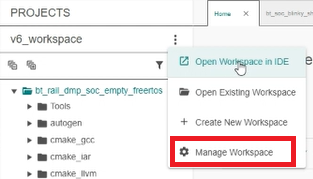
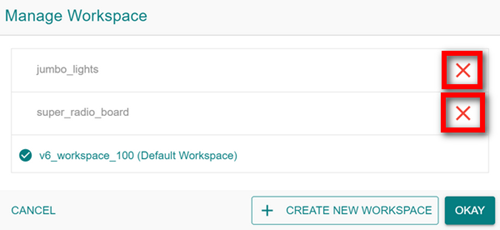
The Manage Workspace window appears.
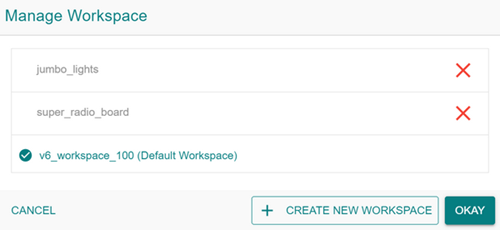
Select the workspace that you want to use.
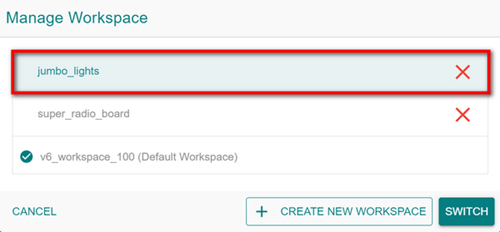
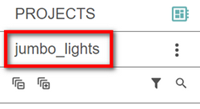
Select SWITCH. The new workspace appears at the top of the left pane on the PROJECTS page.
Tip: To create a workspace from the Manage Workspace window, select CREATE NEW WORKSPACE. Then follow steps 2 and 3 in Create New Workspace.
Remove a Workspace#
Removing a workspace removes it from Simplicity Studio. It does not delete the workspace folder or its contents from your computer.
You can remove workspaces that you created. You cannot remove the default workspace.
Select Manage Workspace from the workspace menu.
The Manage Workspace window appears.
Select the red X to the right of each workspace that you want to remove.
The red X does not appear for the default workspace.
Select OKAY to return to the PROJECTS page.