


Developing with WiSeConnect™ SDK with the SiWx91x™ system-on-chip on a Custom Board#
This guide describes how to develop applications on a custom board built on top of an SiWx91x™ system-on-chip using the WiSeConnect™ SDK in System-on-chip (SoC) mode, where both the application and the connectivity stack run on the SiWx91x™ chipset.
Note: The output images in this guide are for illustration purposes only. Details such as board names and version numbers may not exactly match the product.
Check Prerequisites#
Note: The hardware and software requirements mentioned in this section are specific to the example(s) recommended with this guide in the Create Project section. If you are working with a different example, refer to its README page for the hardware and software requirements. To see the README page of a specific example, click on the Go to README link next to it in the Examples page.
Software#
Simplicity Studio 6
Simplicity software development kit (SiSDK (formerly GSDK))
VS Code with Simplicity Studio for VS Code extension (Version 1.6.1 or higher)
Note:
We recommend using the latest SiSDK (formerly GSDK) version.
Refer to the Release Notes for the SiSDK (formerly GSDK) version tested with this release.
Hardware#
SiWx91x - Wi-Fi 6 and Bluetooth Low Energy system-on-chip for SoC mode.
Windows/Linux/MacOS computer with a USB port.
A USB cable that is compatible with the computer's USB port and the board. (For example, type C to type A if the computer has a type A USB port and the board has a type C port).
Setup Software#
Setup the following software in this section while waiting to receive the hardware:
Install Simplicity Studio#
This section describes the following installation methods for Simplicity Studio 6:
Install from Scratch when you are installing Simplicity Studio for the first time.
Upgrade from the Demo-only Studio Edition when you have previously run a Studio demo as described in Run the Demo with Simplicity Studio.
Install from Scratch#
Download the latest version of Simplicity Installer and follow the installation instructions.
During the installation, make the following selections:
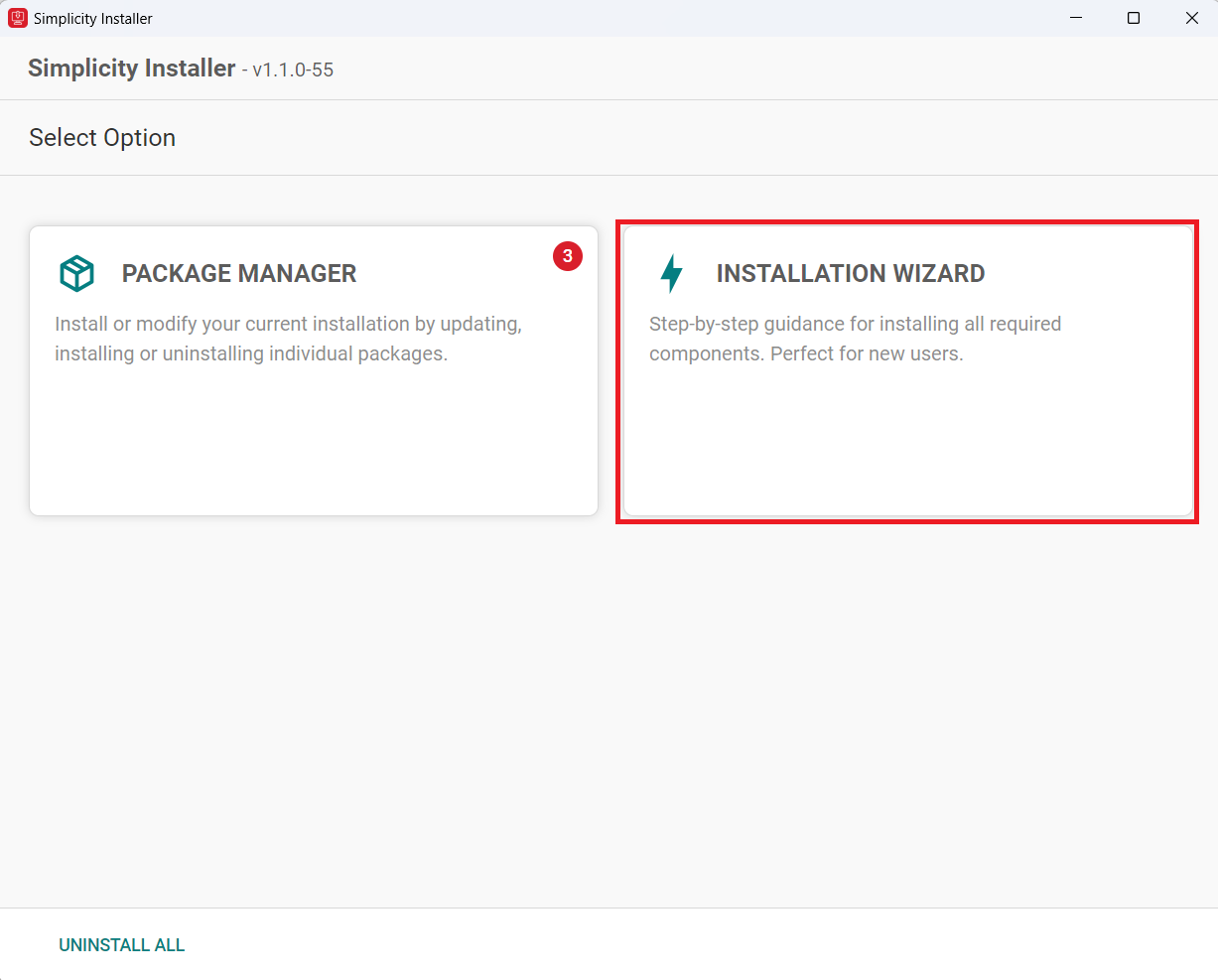
Select the INSTALLATION WIZARD option.
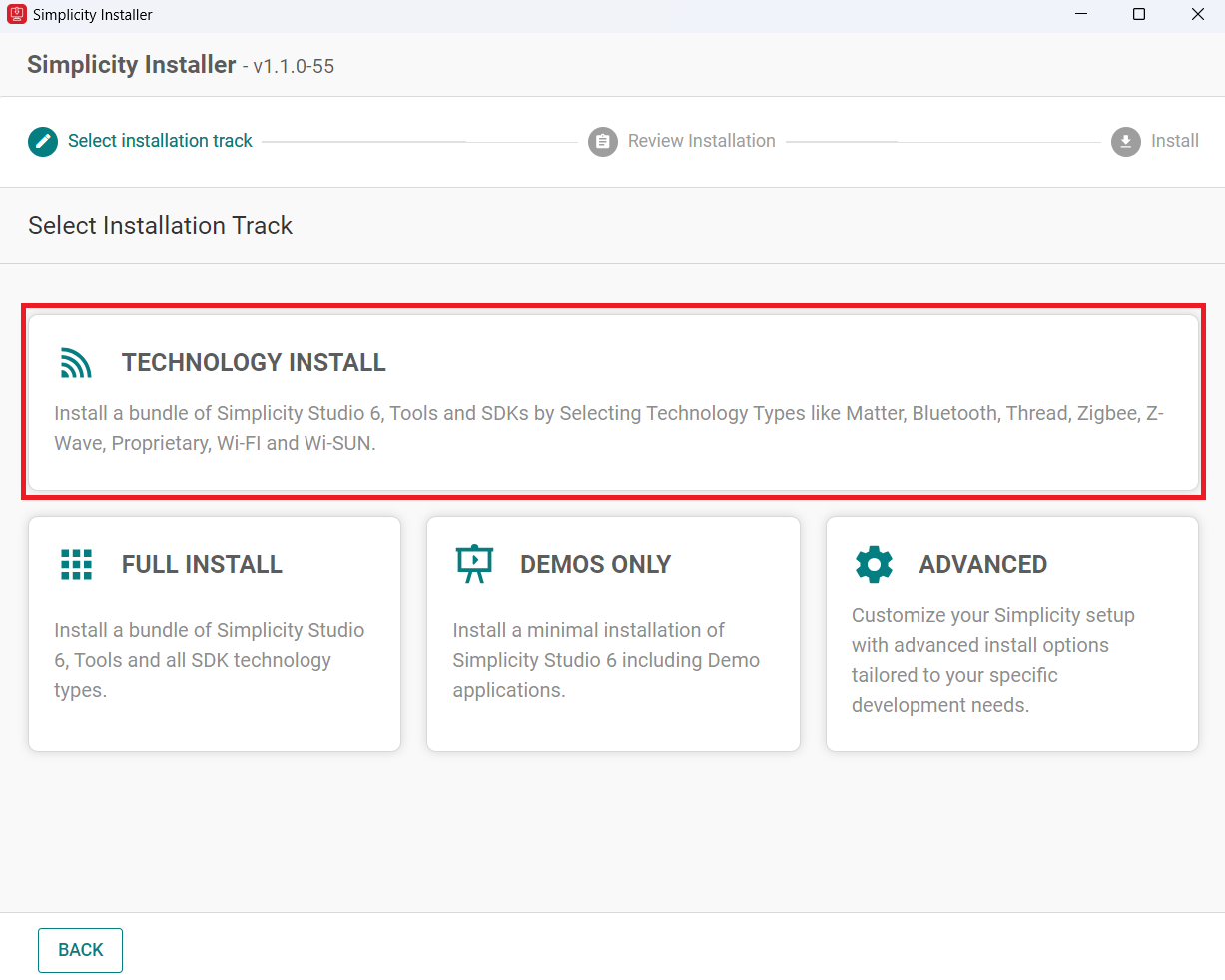
Select TECHNOLOGY INSTALL.
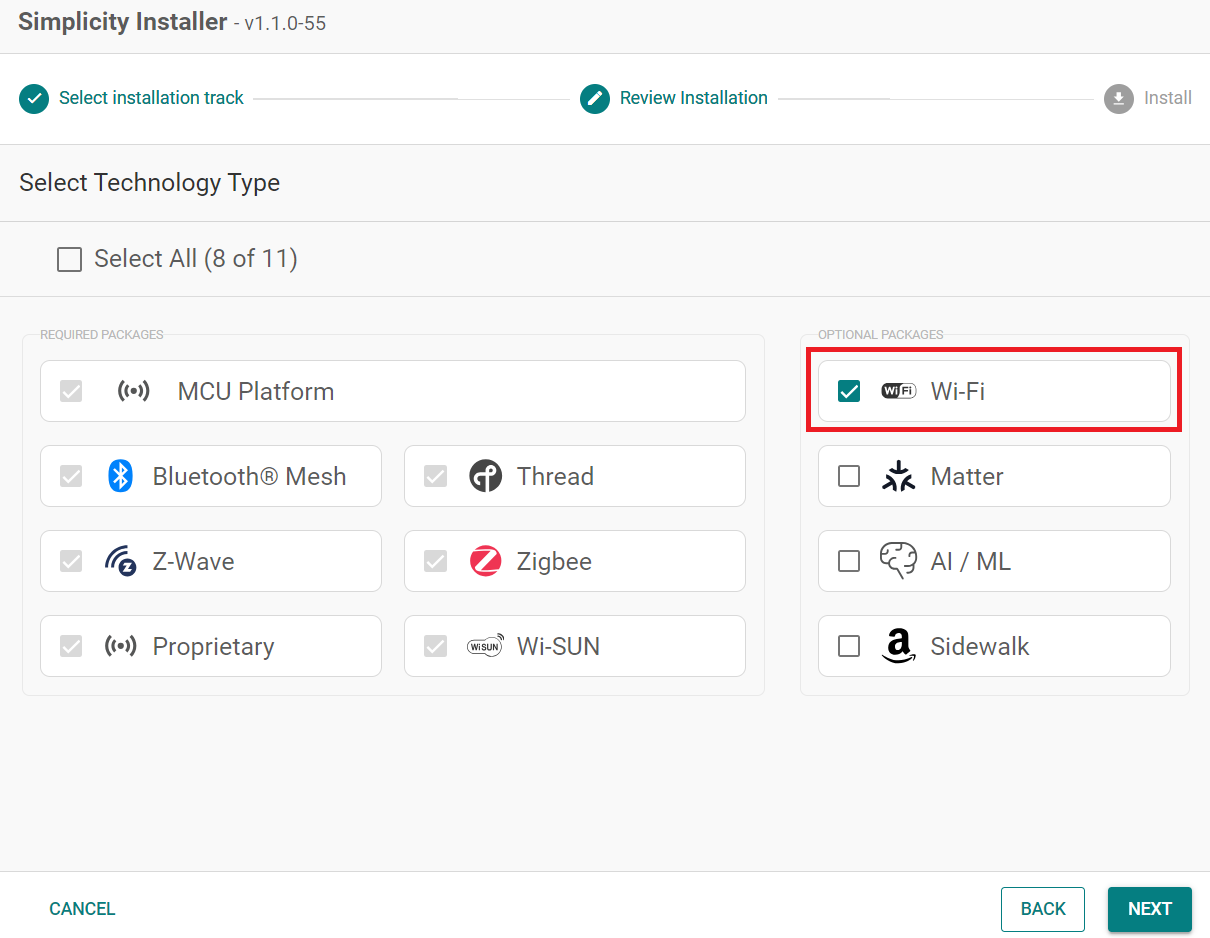
Select the Wi-Fi option.
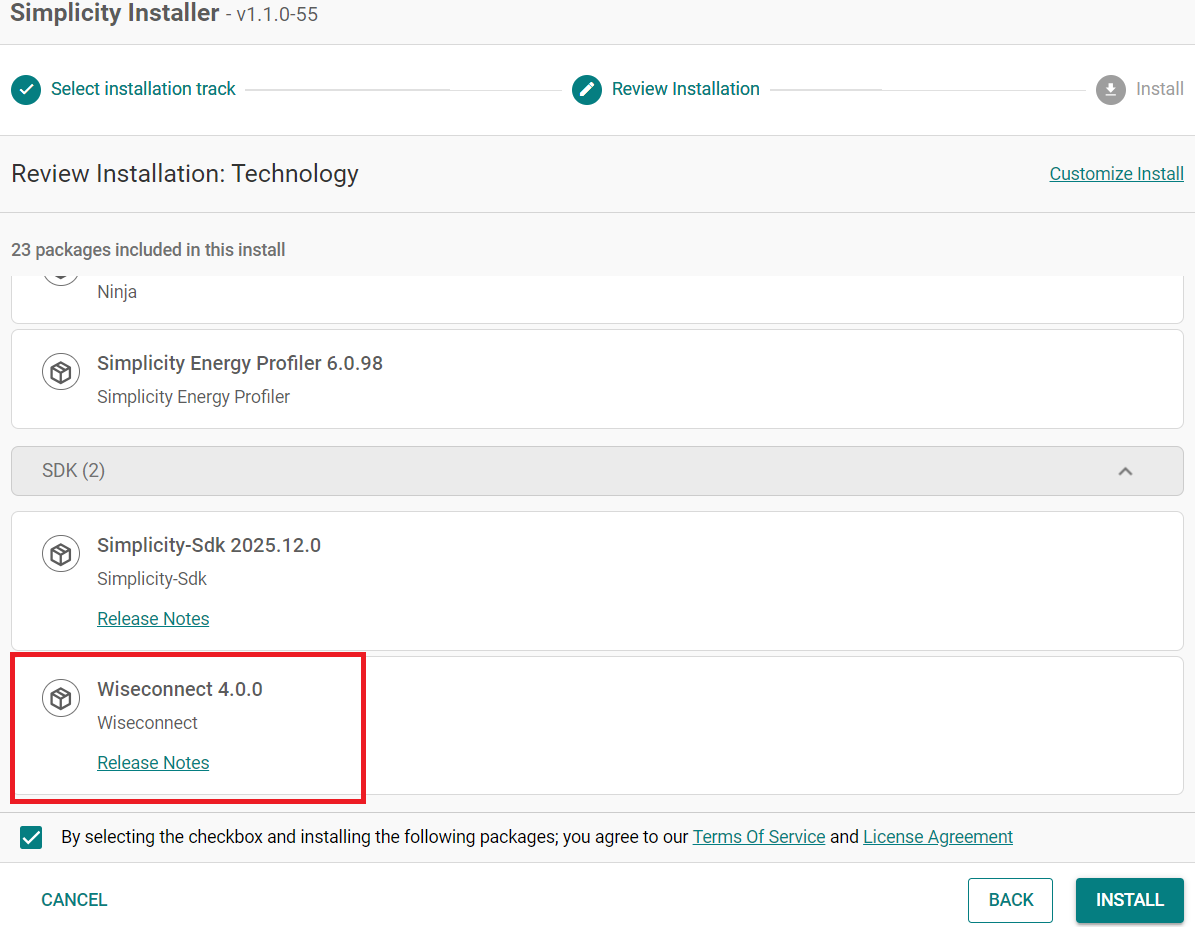
Click Next, and verify that Wiseconnect is selected under the SDK to be installed.
Upgrade from the Demo-only Studio Edition#
If you have installed the demo version using the option shown below:
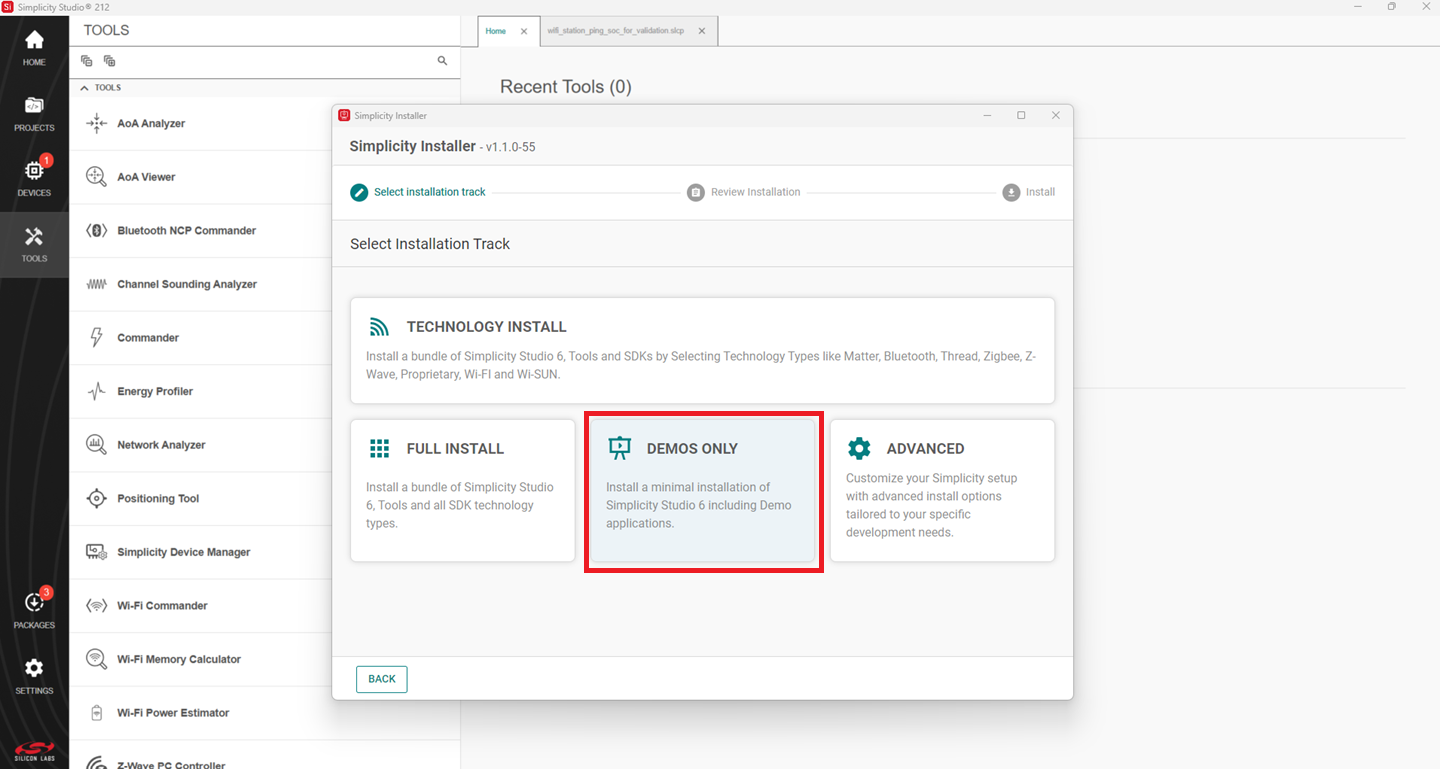
Continue from step 2 in the Install from Scratch section.
Install the GNU ARM v12.2.1 Toolchain#
Note: From v4.4.0 on, Simplicity SDK (SiSDK, formerly Gecko SDK/GSDK) requires v12.2.1 of the GNU ARM toolchain to compile a project successfully.
Launch the Simplicity Installer.
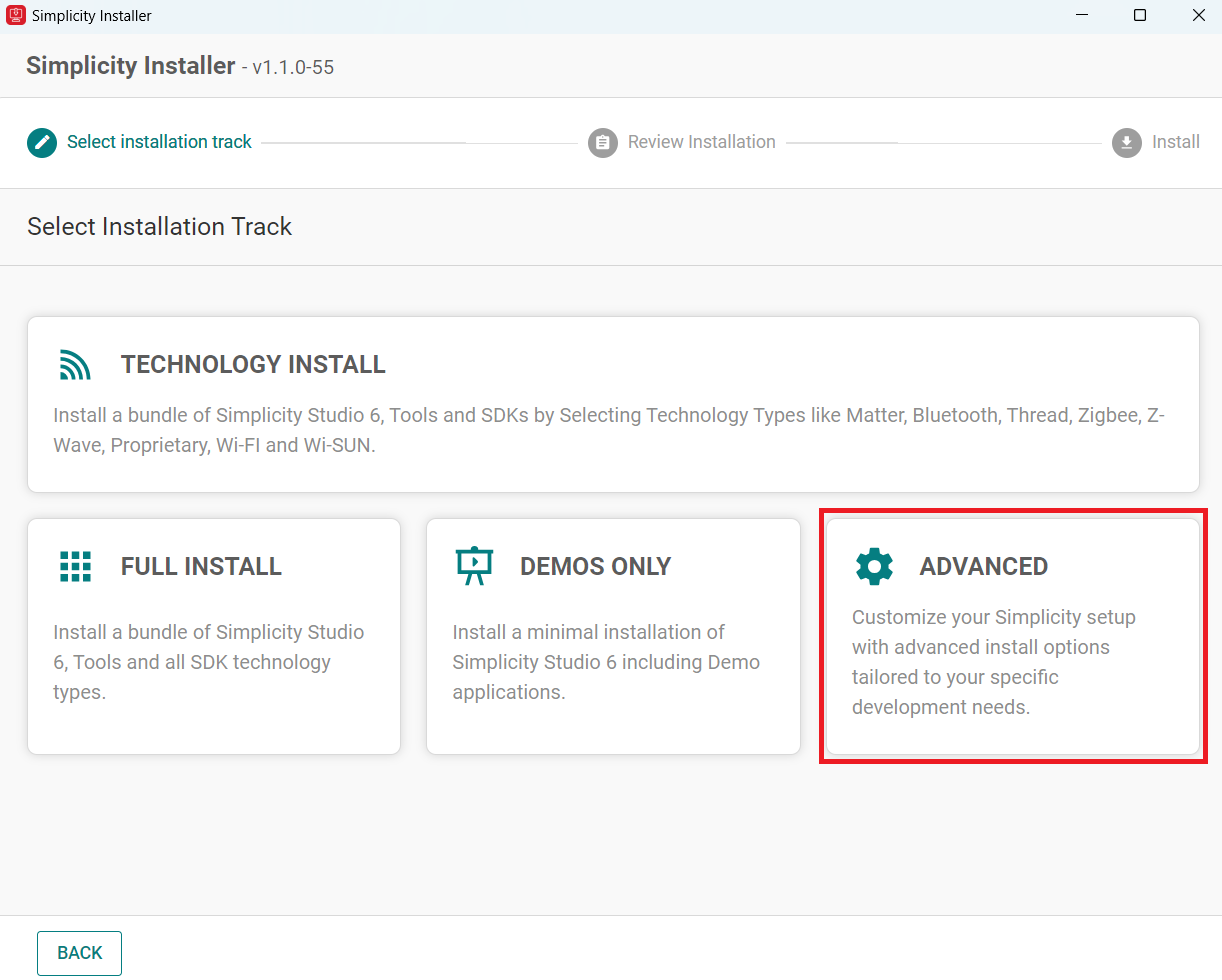
Click on the Advanced option.
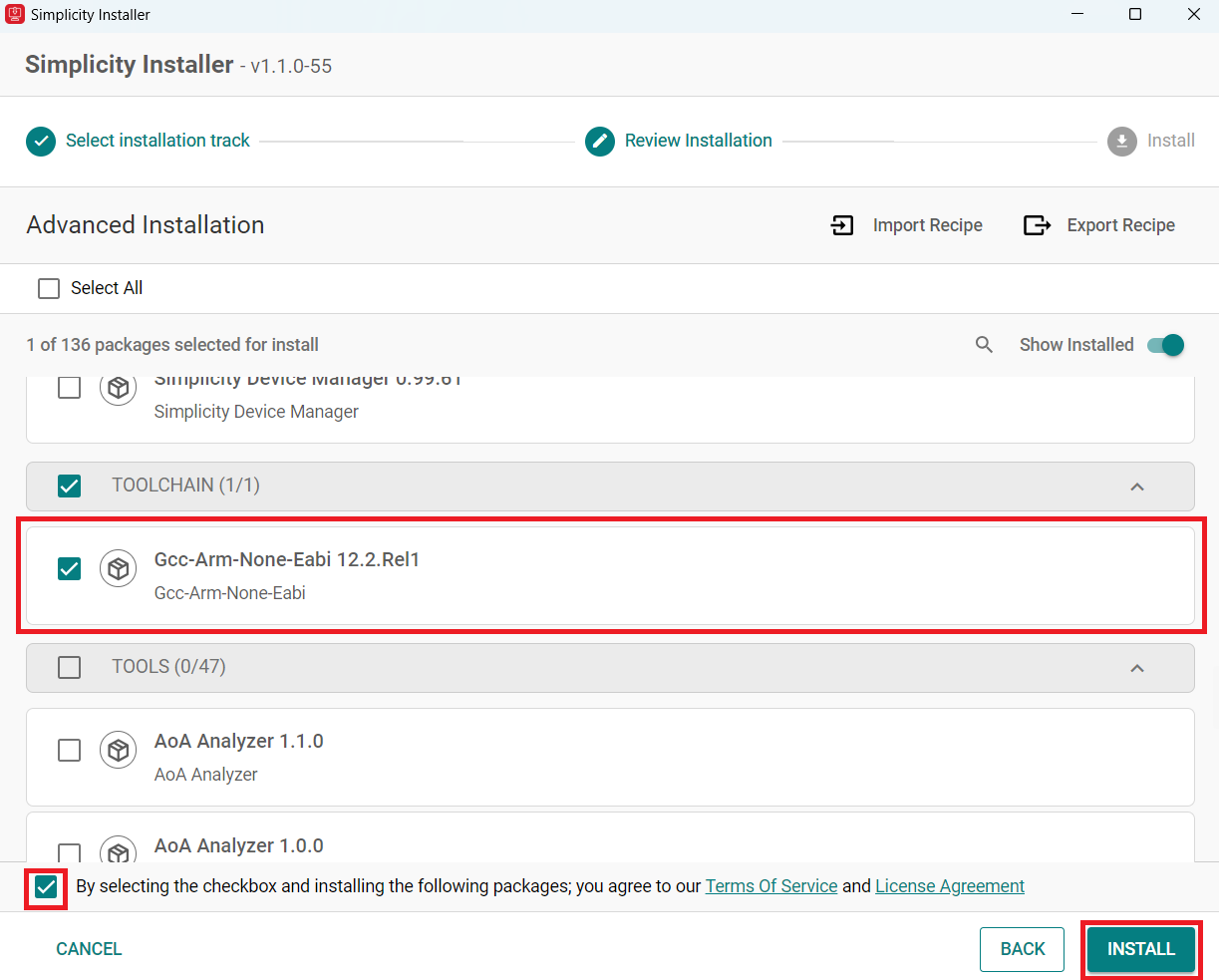
Select Gcc-Arm-None-Eabi 12.2.Rel1.
Check the box and click install.
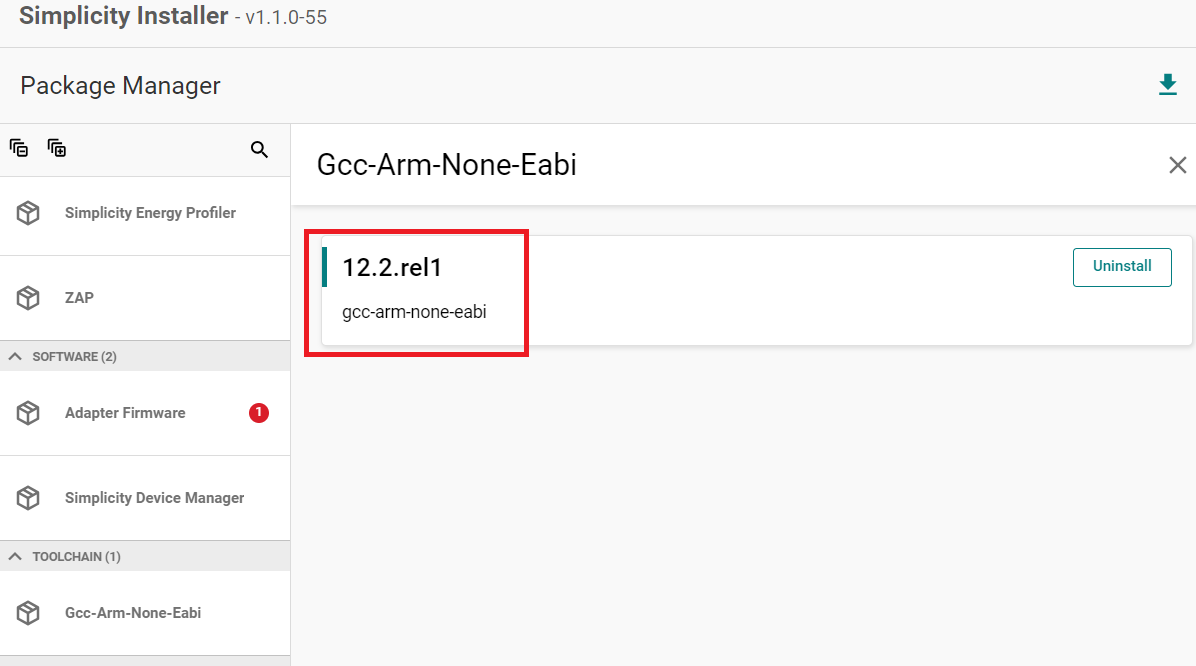
Note: The studio installs this component by default during a FULL INSTALL.
Note: If you have an existing project, see Silicon Labs community page for instructions to configure the toolchain version in your project.
Install the WiSeConnect Extension#
If you already selected the WiSeConnect extension in the Install Simplicity Studio section, you may skip this section.
Before installing the WiSeConnect extension, upgrade to a compatible SiSDK (formerly GSDK) version if you have not already done so. See the Prerequisites section for the supported SiSDK (formerly GSDK) versions.
You can install WiSeConnect using one of the following methods:
Install from Scratch (recommended)
Install WiSeConnect from Settings#
Note: Make sure that you use SiSDK and WiSeConnect SDK versions from the same release. To determine which SiSDK and WiSeConnect SDK versions are in a particular release, see the Compatible Software section of Release Notes.
Download the WiSeConnect source code from the following URL after substituting x.x.x with the desired release version:
https://github.com/SiliconLabs/wiseconnect/archive/refs/tags/vx.x.x.zipIf you don't know your release version, go to the GitHub Releases Page and select the version to download.
Unzip the downloaded
wiseconnect-x.x.x.zipfile. It will be extracted into a folder structure similar to the following:wiseconnect-x.x.x |--- wiseconnect-x.x.x |------ <source code>Launch Simplicity Studio.
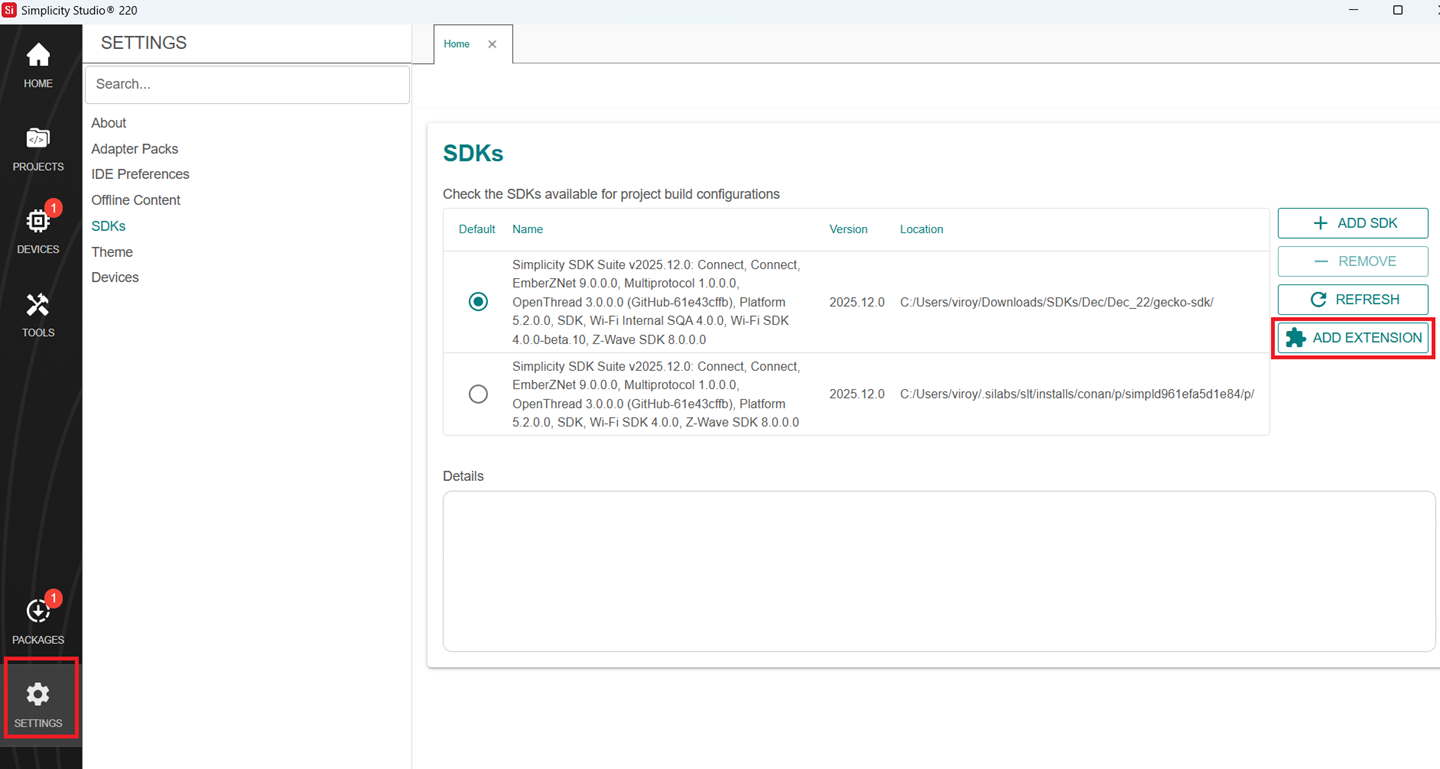
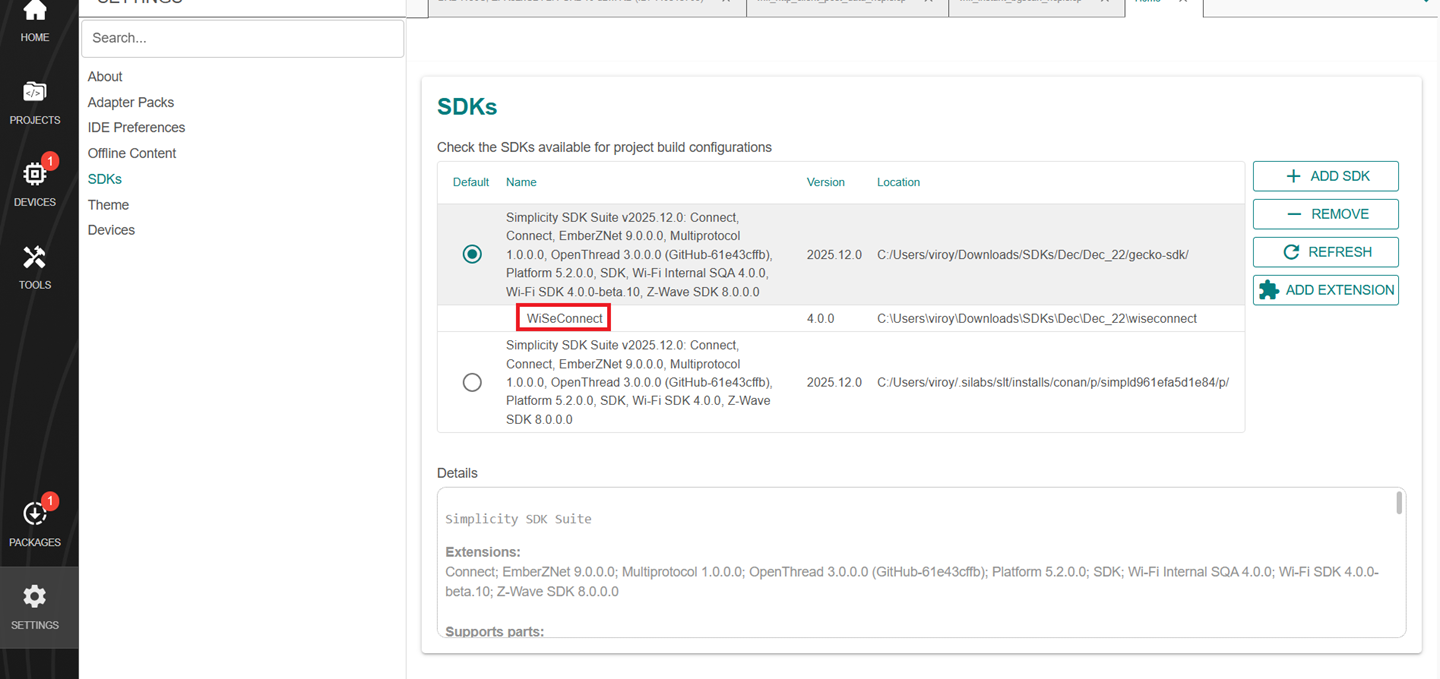
In the Simplicity Studio home page, go to SETTINGS and select the SDKs tab.
Select Simplicity SDK (formerly Gecko SDK) Suite vx.x.x and click ADD EXTENSION.
In the Add SDK Extensions window, click Browse.
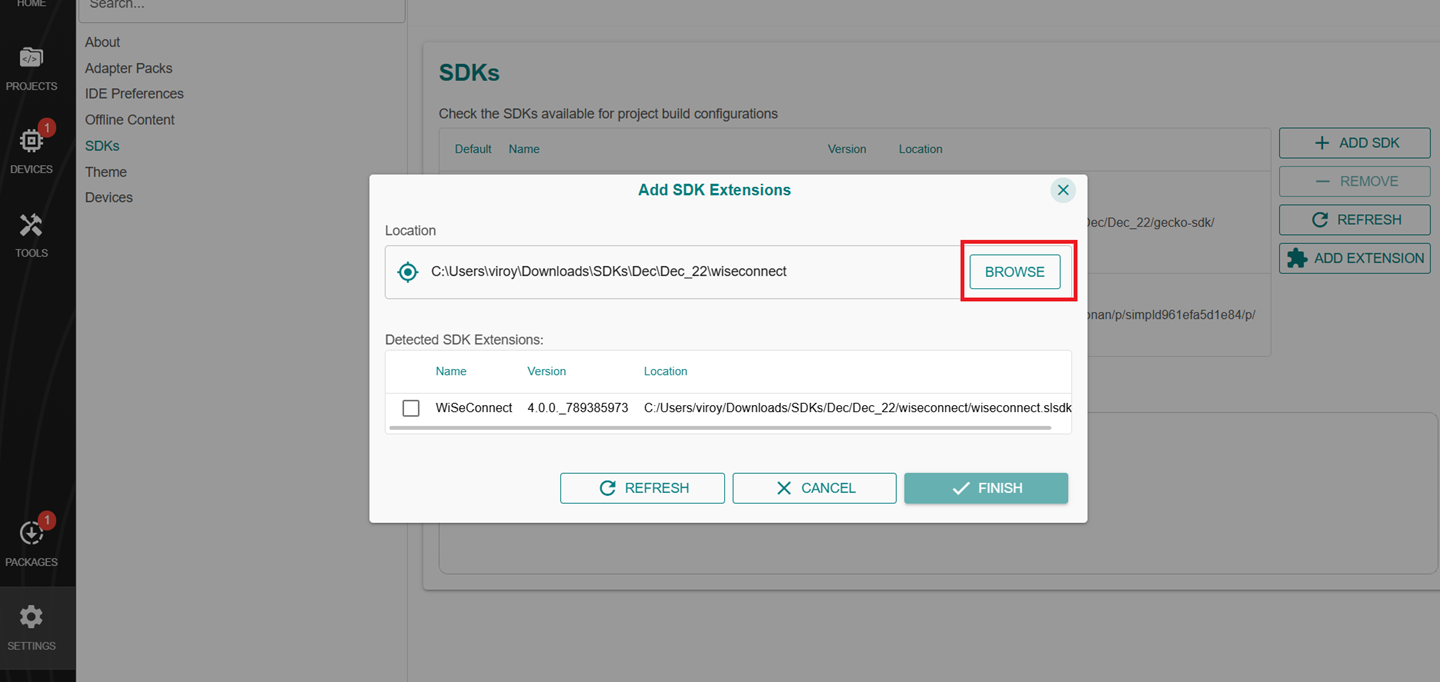
Locate and select the
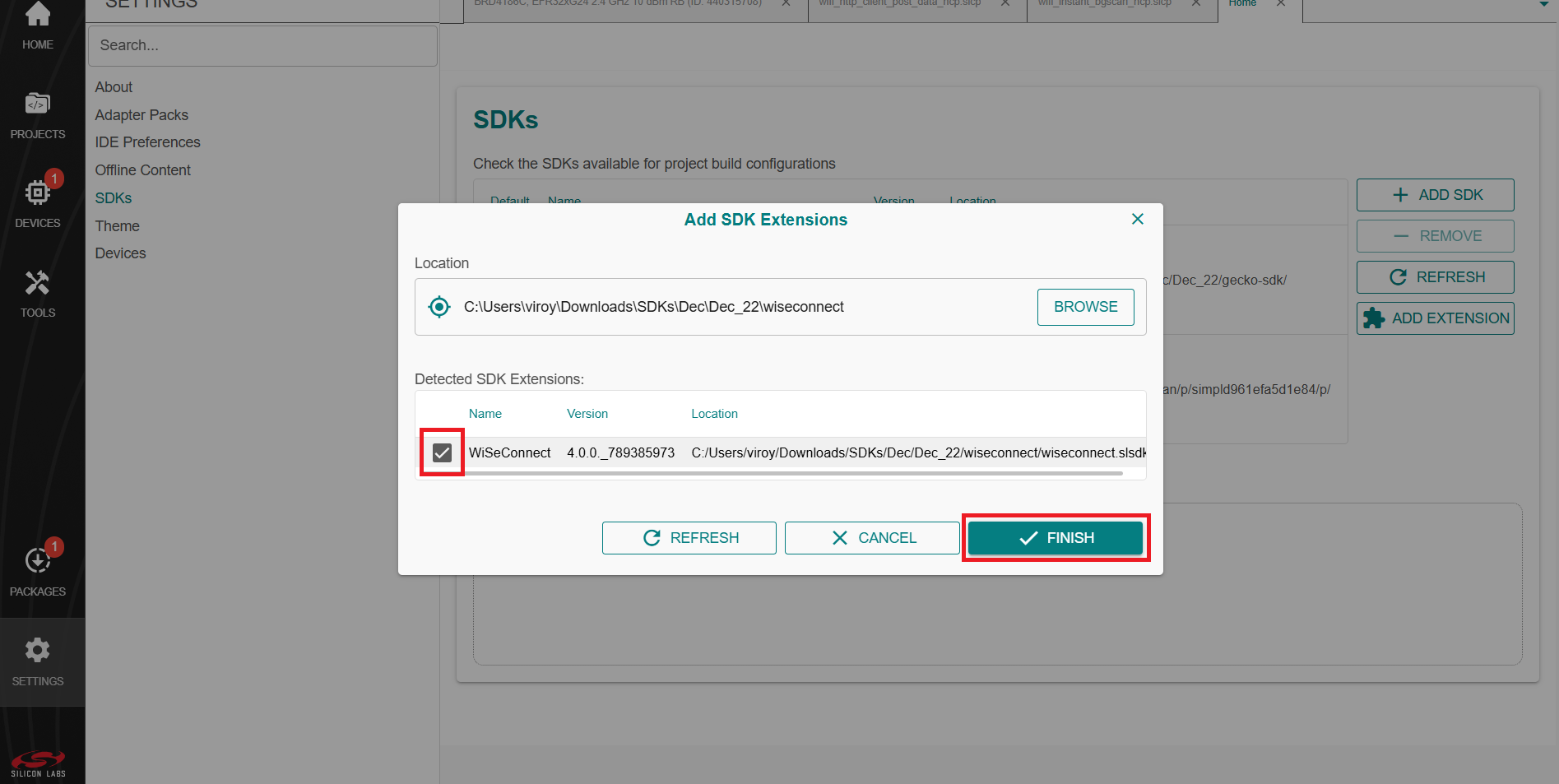
wiseconnect-x.x.xsub-folder extracted in step 2 above which contains the source code.Studio will detect the WiSeConnect SDK extension.
Select the detected extension and click FINISH.
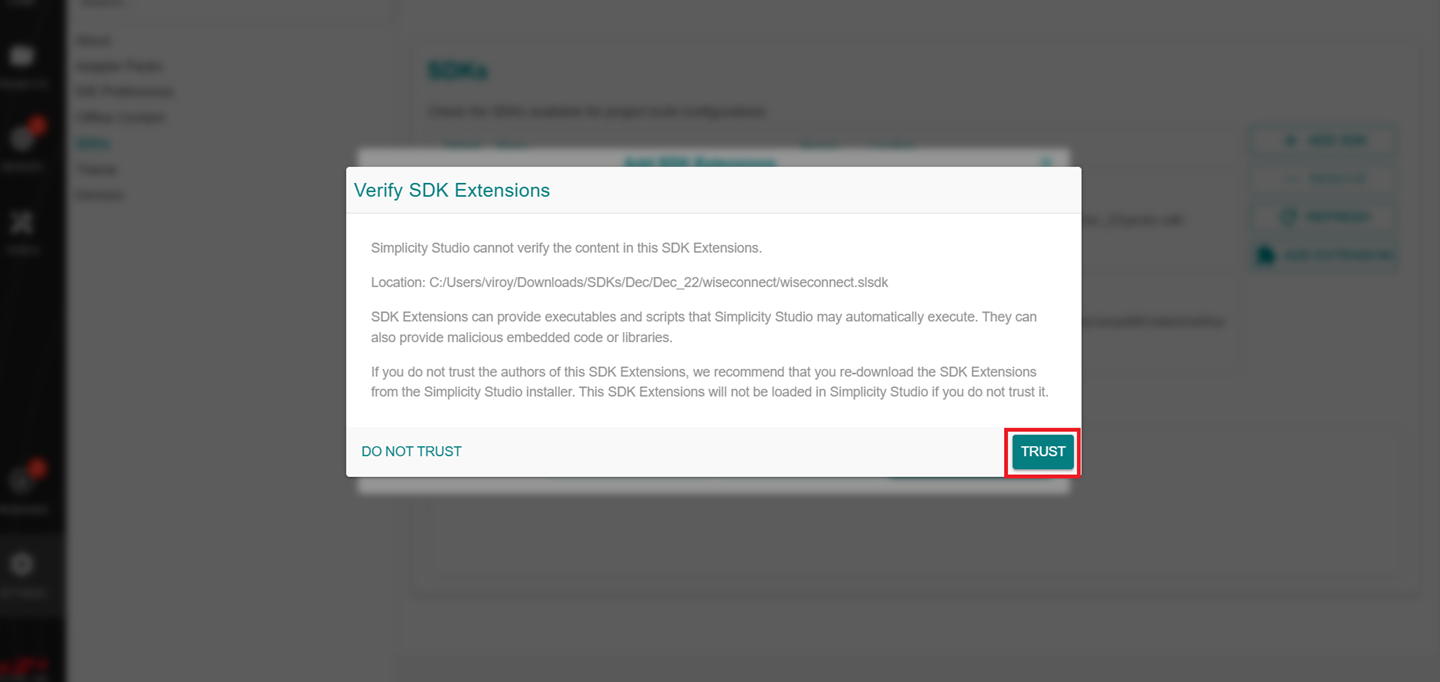
If a Verify SDK Extension pop-up is displayed, click Trust.
The selected WiSeConnect extension will be displayed.
Click REFRESH and navigate to HOME or PROJECTS.
Install the VS Code Extension#
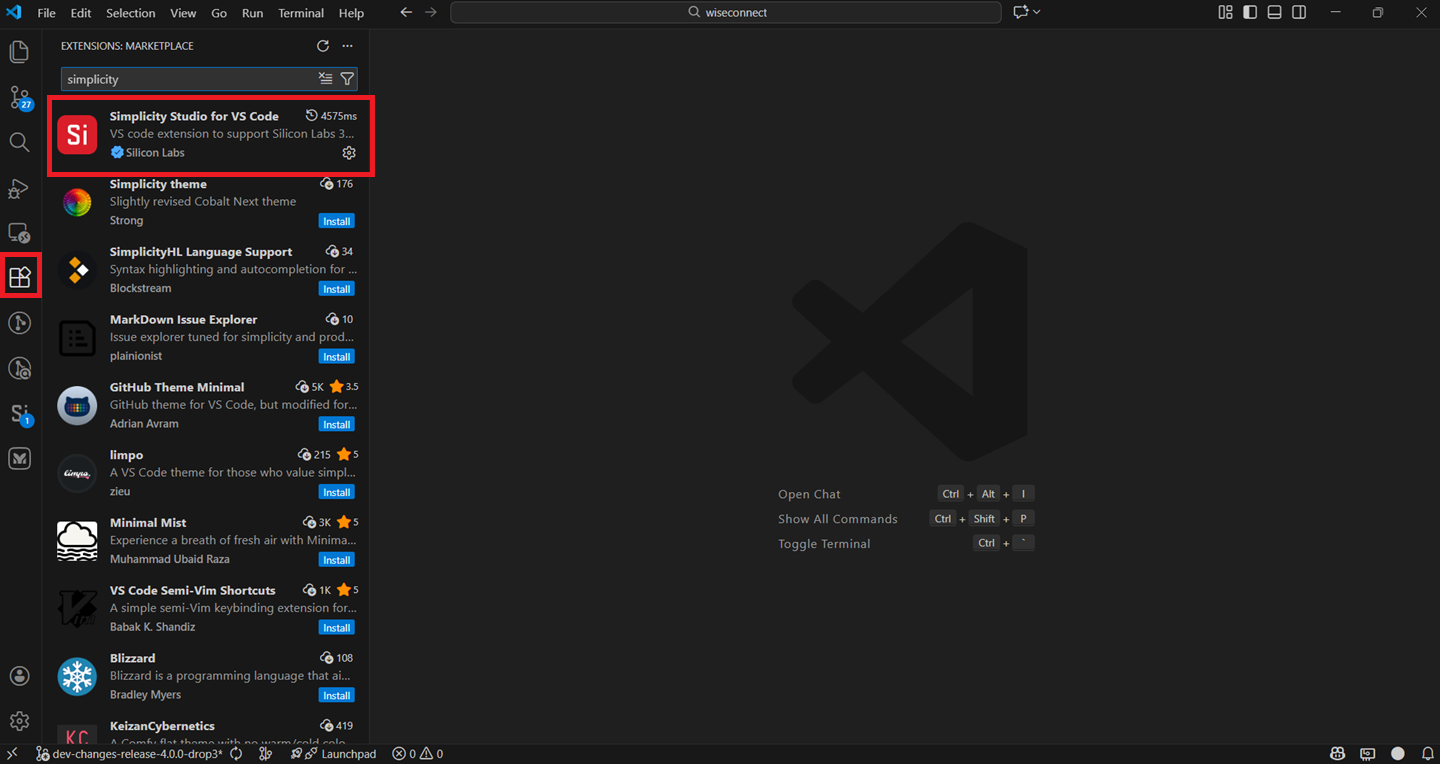
Navigate to the Extensions tab in VS Code and search for Simplicity Studio for VS Code extension.
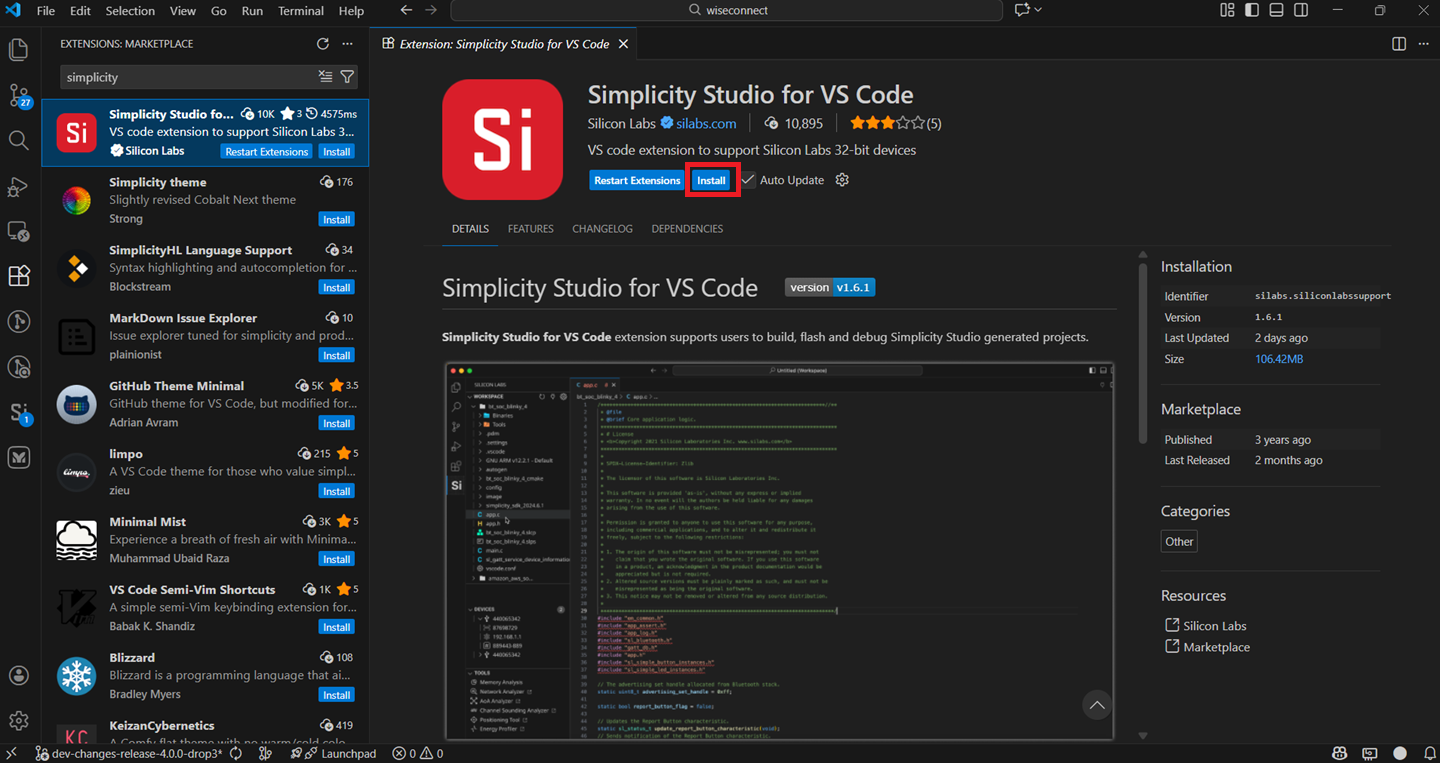
Install the extension.
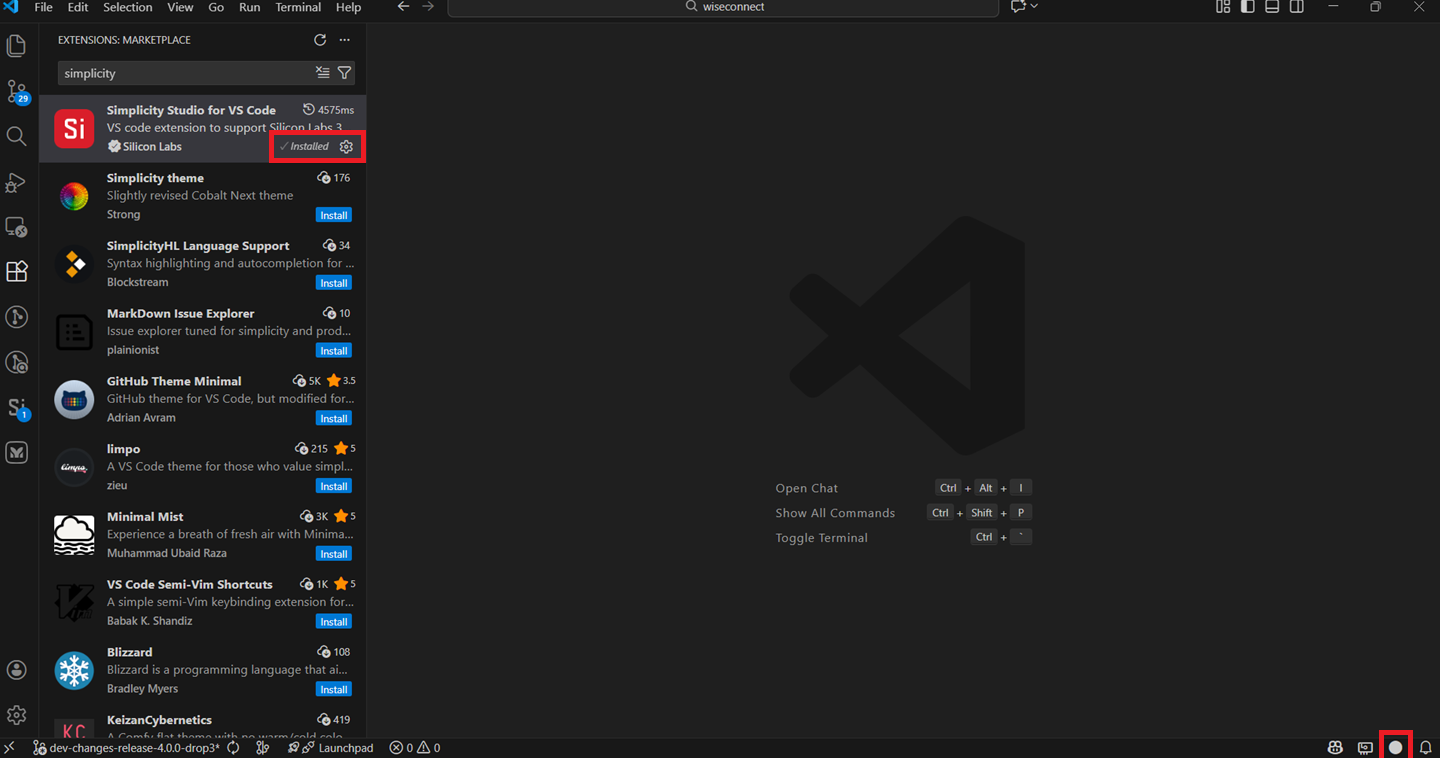
Once the extension is installed and restarted, it will automatically detect the studio.
Note: You can confirm this when the circle in the lower-right corner turns white.
Connect Custom Board to Computer#
To establish a connection, first link your custom board to a debugger using SWD/JTAG. Then connect the debugger to your computer using a compatible USB cable.
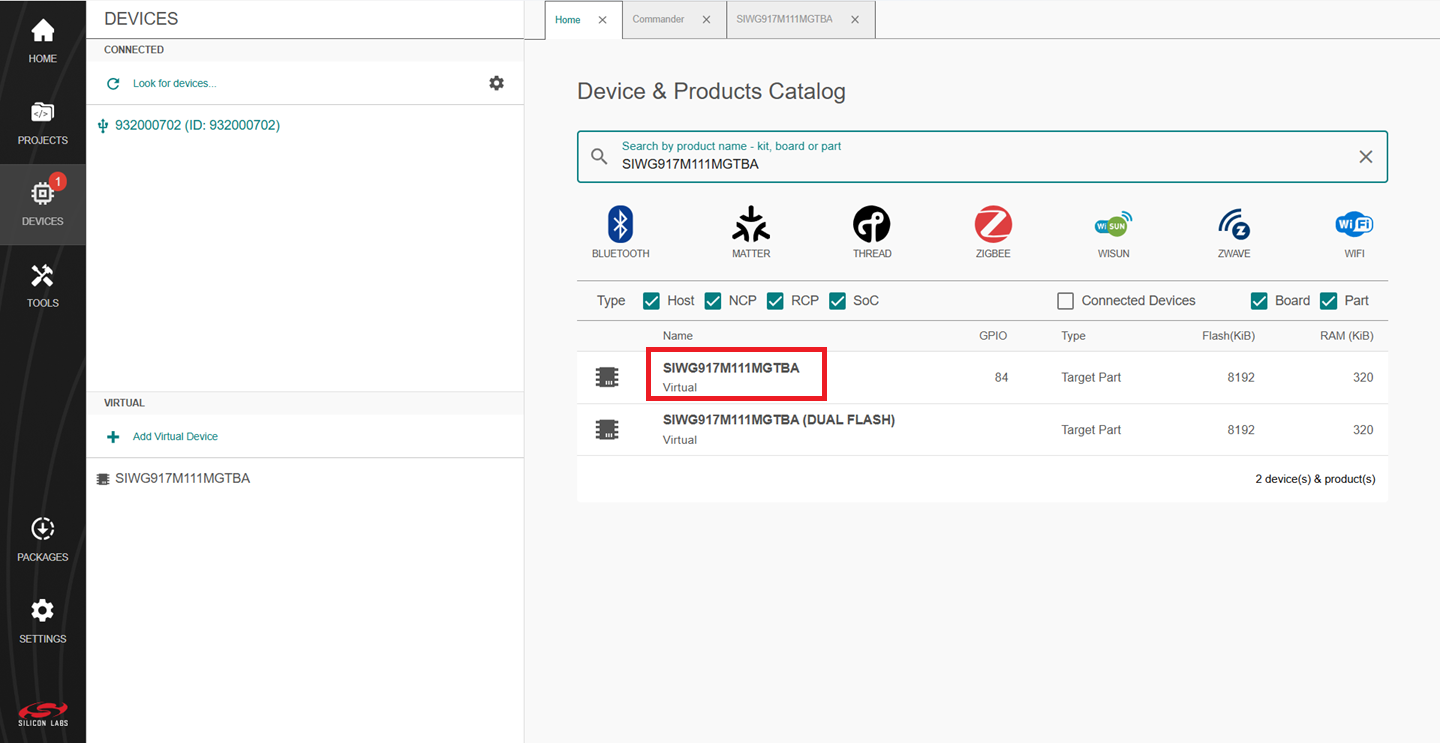
Simplicity Studio will detect and display the custom board in the DEVICES section. You must provide the SiWx917 OPN as shown in the following image.
Update SiWx91x Connectivity Firmware#
Note: The SiWx917 connectivity firmware version is tightly coupled with the WiSeConnect extension version. You must update the SiWx917 connectivity firmware when:
You first integrate an SiWx917 system-on-chip into your own custom board, or
You upgrade or downgrade your WiSeConnect extension
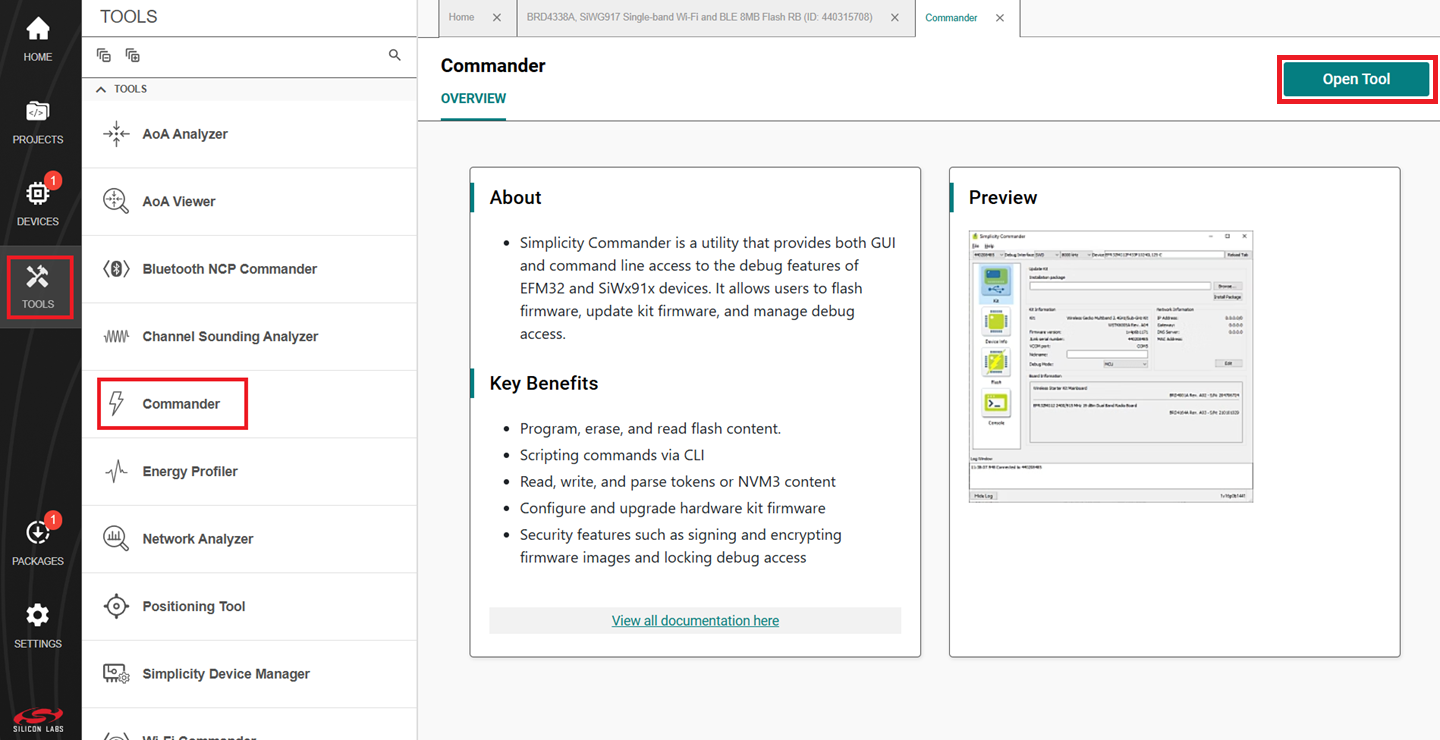
In the Simplicity Studio home page, click TOOLS.
Select Commander and click Open Tool.
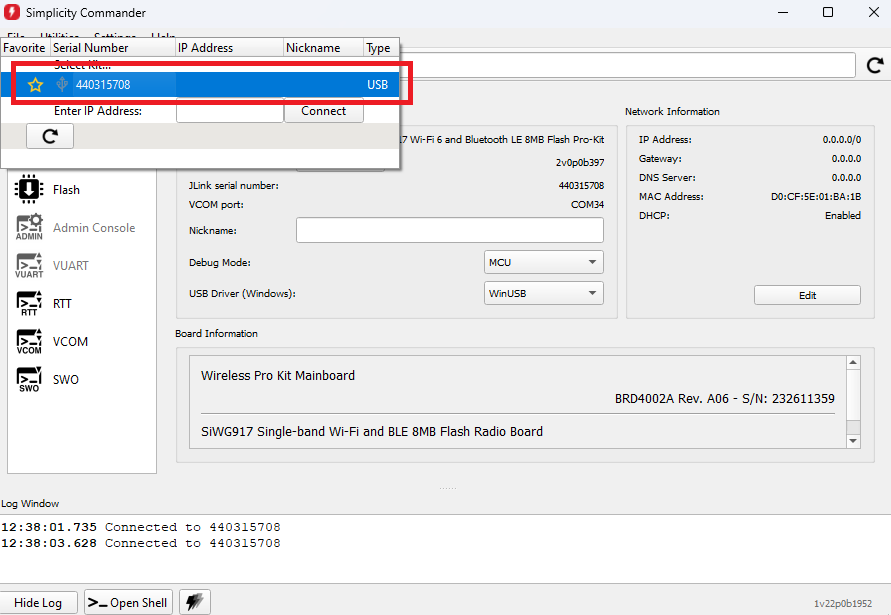
In the Simplicity Commander window, click Select Kit and choose your custom board.
In the Simplicity Commander window, go to the Device tab and select Cortex-M4 as shown in the reference below.
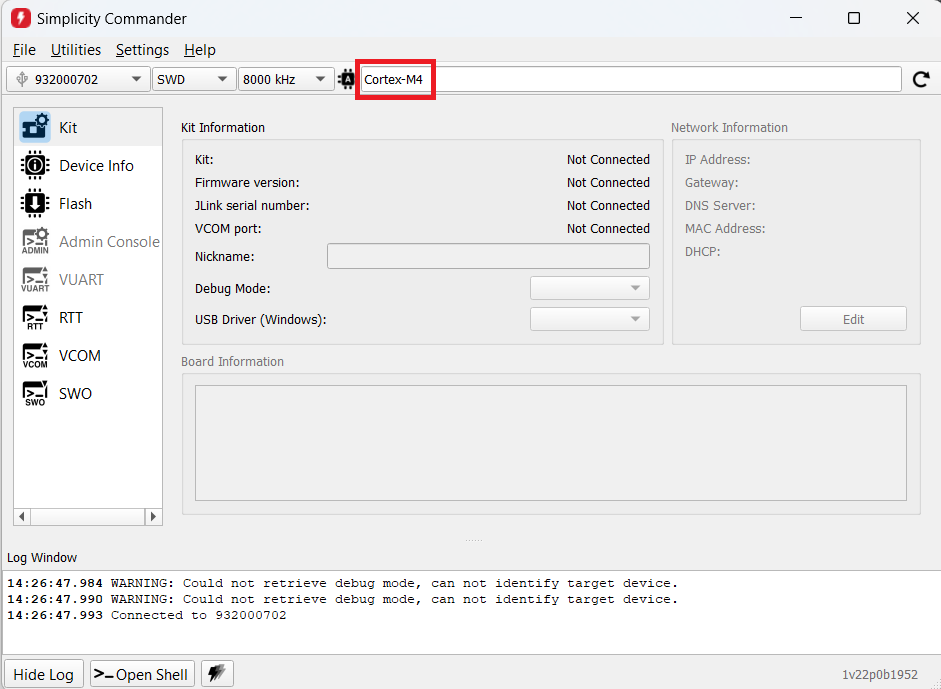
In the Simplicity Commander window, go to the Device tab and enter Si917, then click on Reload Tab.
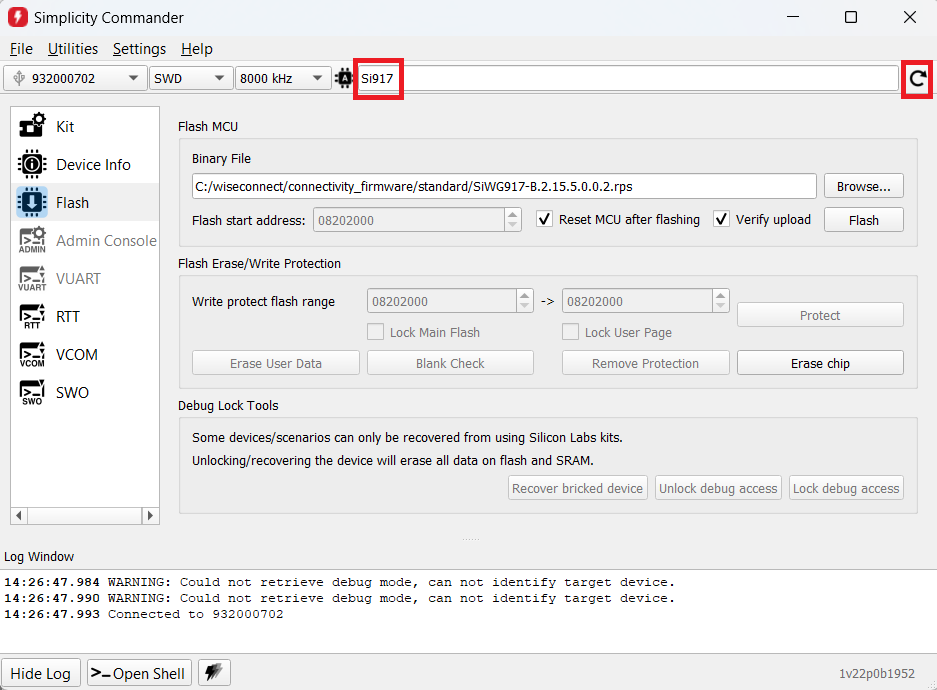
In the navigation pane, go to the Flash section.
Click Browse next to the Binary File field.
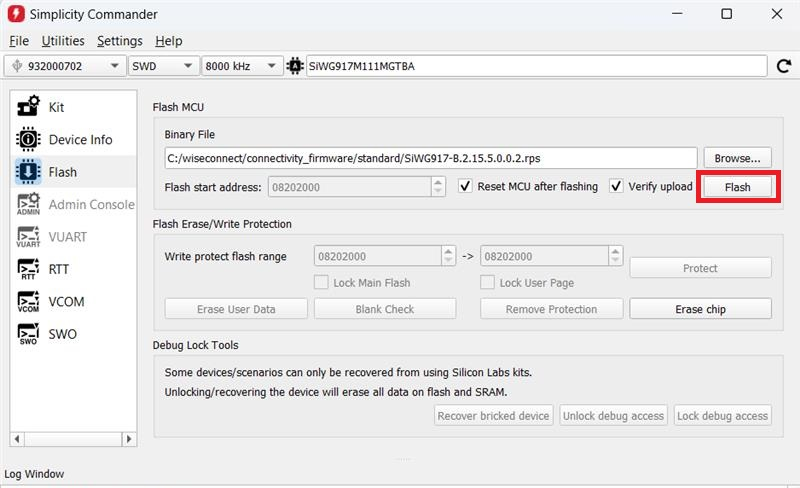
Locate and select the firmware file to flash from within the appropriate sub-folder of the WiSeConnect extension path:
For OPN SiWG917M110LGTBA, SIWG917Y110LGABA and SIWG917Y110LGNBA select the firmware file from the
connectivity_firmware/litesub-folder.For all other OPNs, select the firmware file from the
connectivity_firmware/standardsub-folder.
Note:
If you do not see any files in the sub-folder, select All files in the file filter field in the Browse dialog.
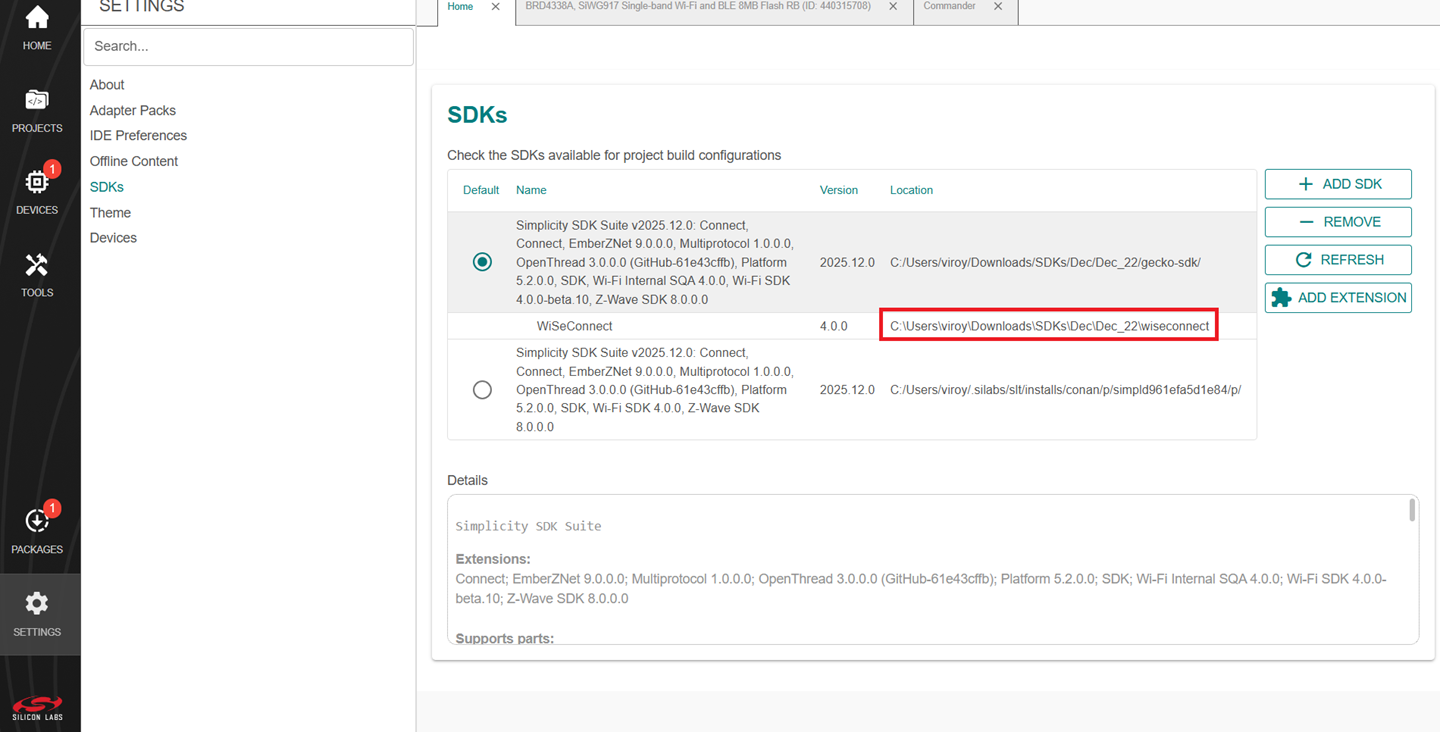
The WiSeConnect extension path is the location where the extension was installed during set up. For more information, refer to the installation instructions. If you're not sure what the path is, refer to the location in the Settings > SDKs page by clicking the Simplicity SDK suite.
Click Flash.
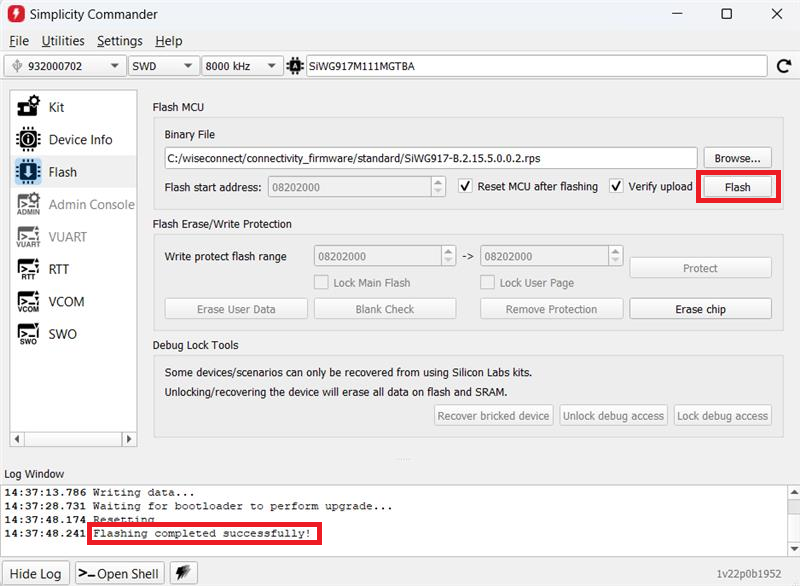
The firmware flashes and the Log Window displays the message: "Flashing completed successfully!"
Note: See the troubleshoot a firmware update failure section in case failure occurs while updating the firmware.
Create a Project#
Note: We recommend using the SI91x - Blinky example with this guide.
Log in to Simplicity Studio and connect the SiWx91x™ to your computer.
Check for all the options. Click the search tab and enter the SiWx917 part number in the Search by product name text box.
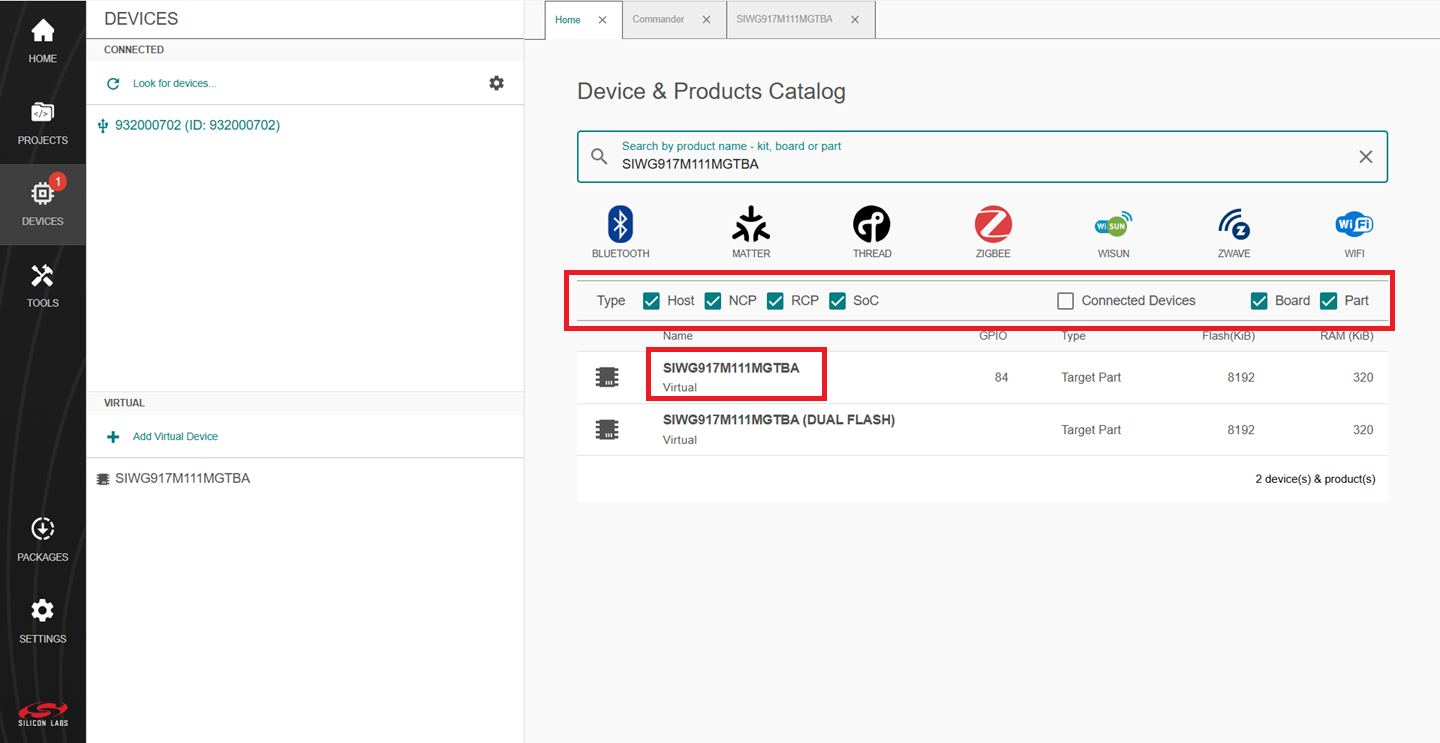
The Launcher page will display the selected SoC details.
Select the OVERVIEW tab.
Verify the following in the General Information section:
The Target Part is the SiWx917 part number.
The SDK is the version you selected earlier. (Refer to the Setup Software section to note the SDK versions).
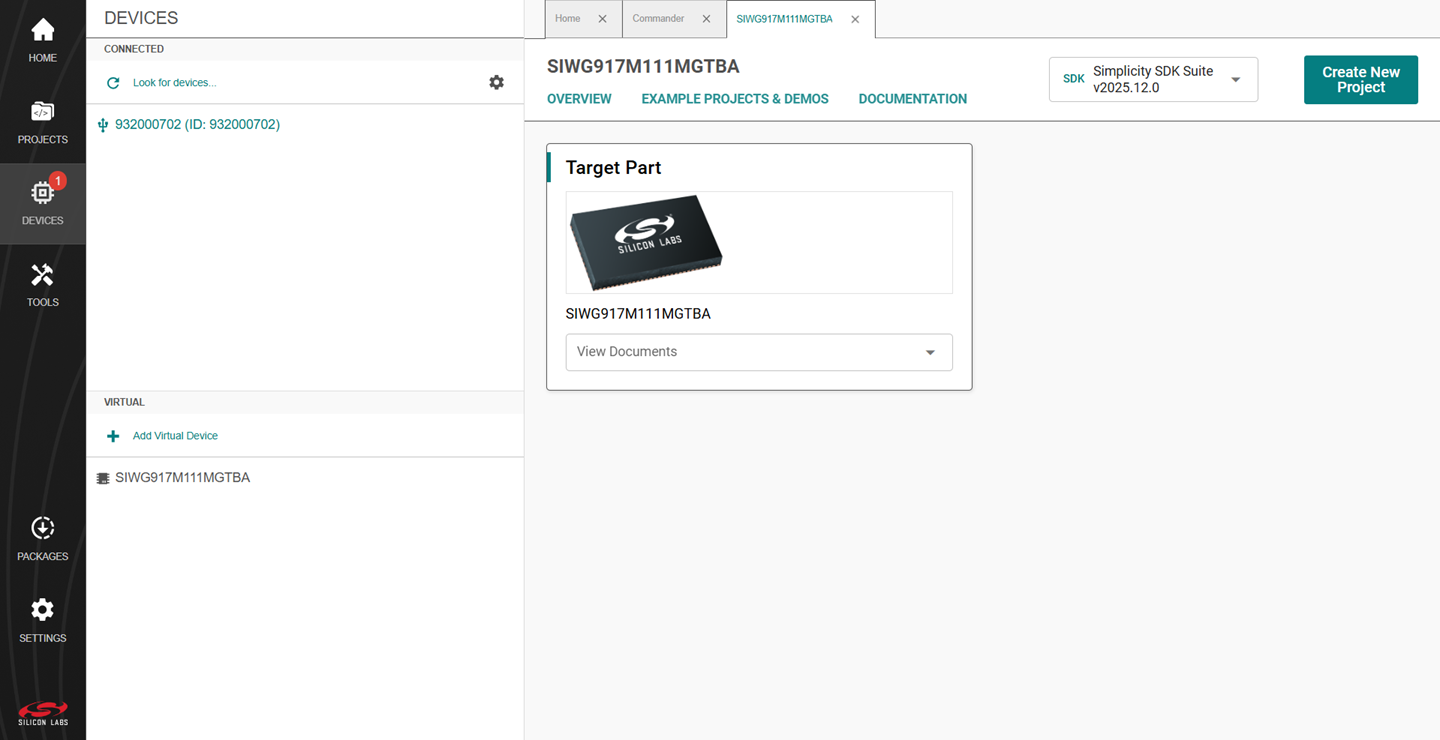
Select the EXAMPLE PROJECTS & DEMOS tab.
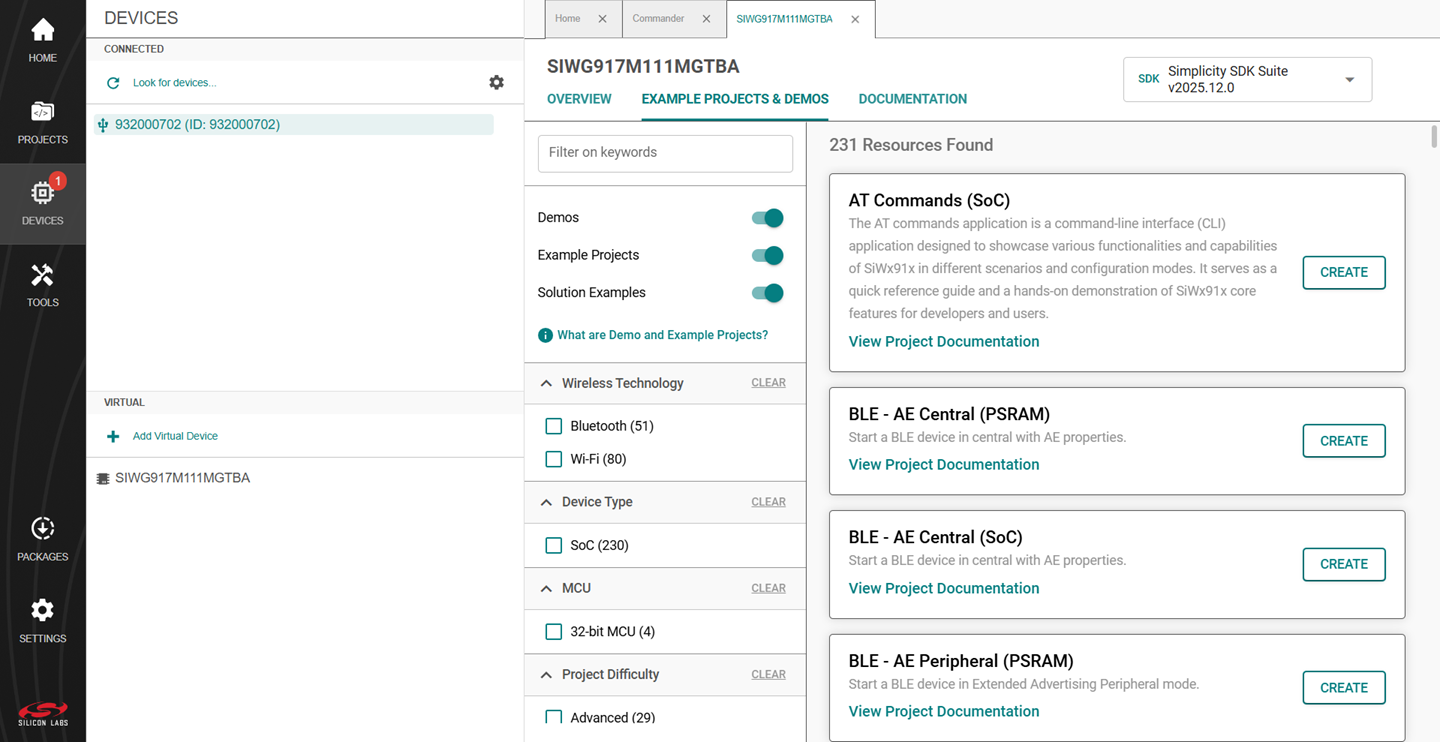
Locate the example you want and click CREATE.
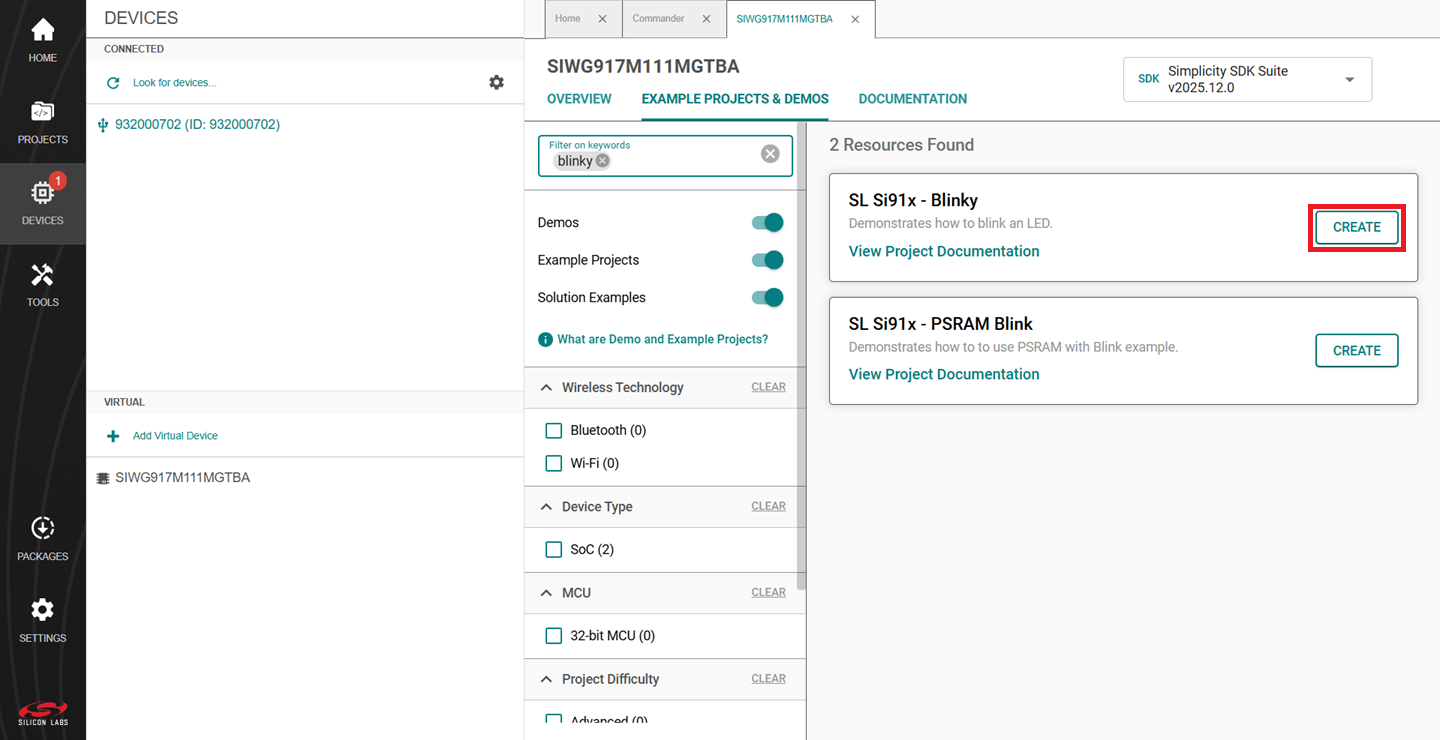
In the New Project Wizard window, click FINISH.
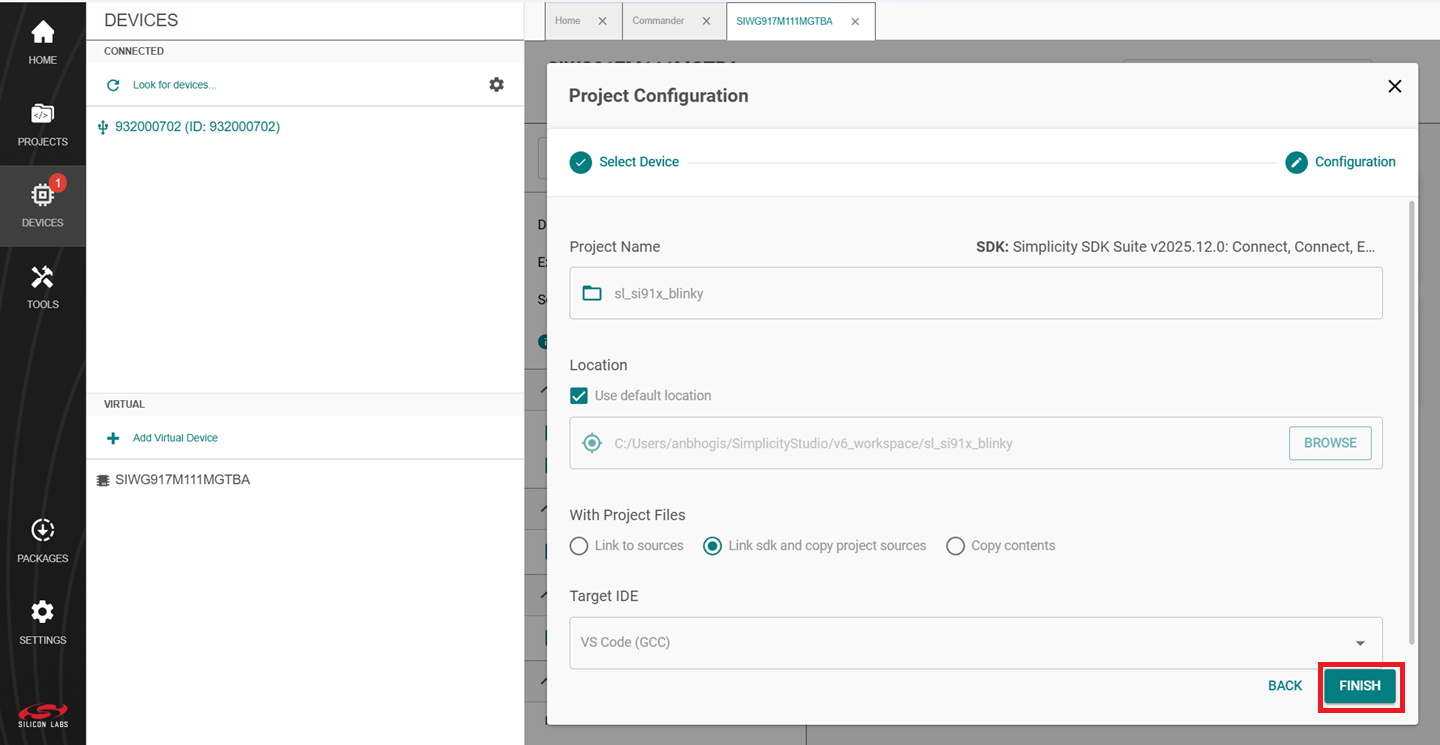
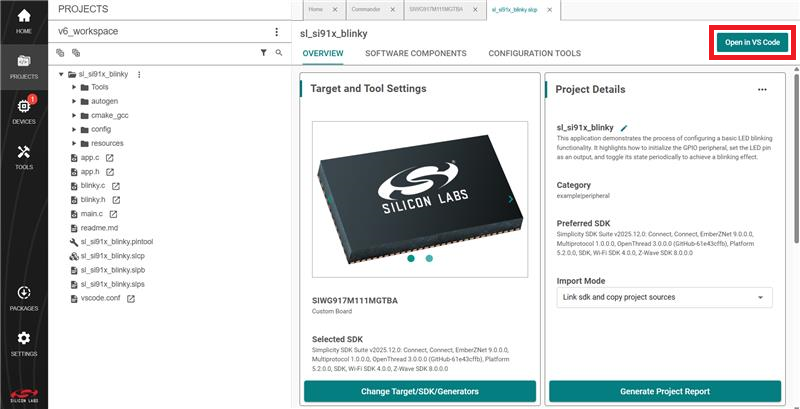
Open the project in the editor with the Open in VS Code option.
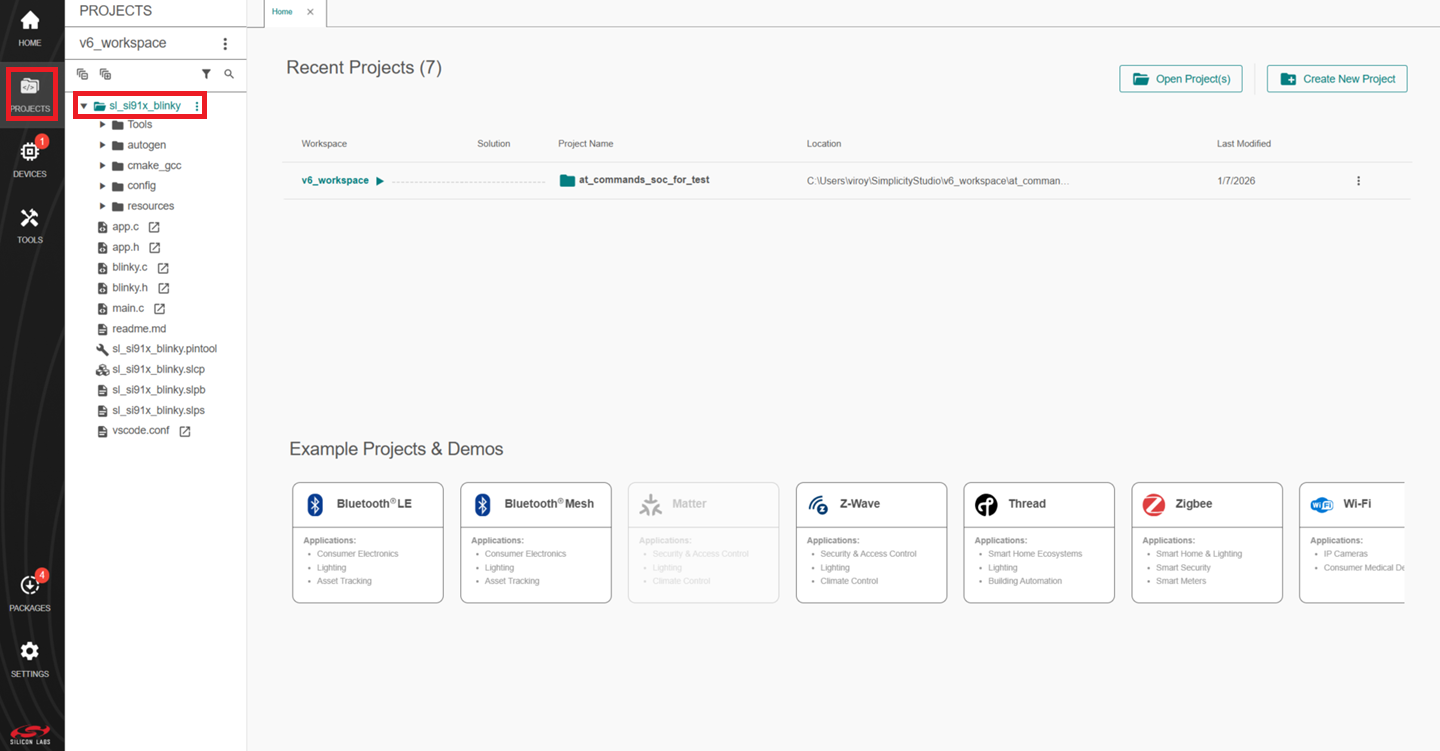
Configure an Application#
Navigate to the PROJECTS tab in Simplicity Studio and double-click on the project.
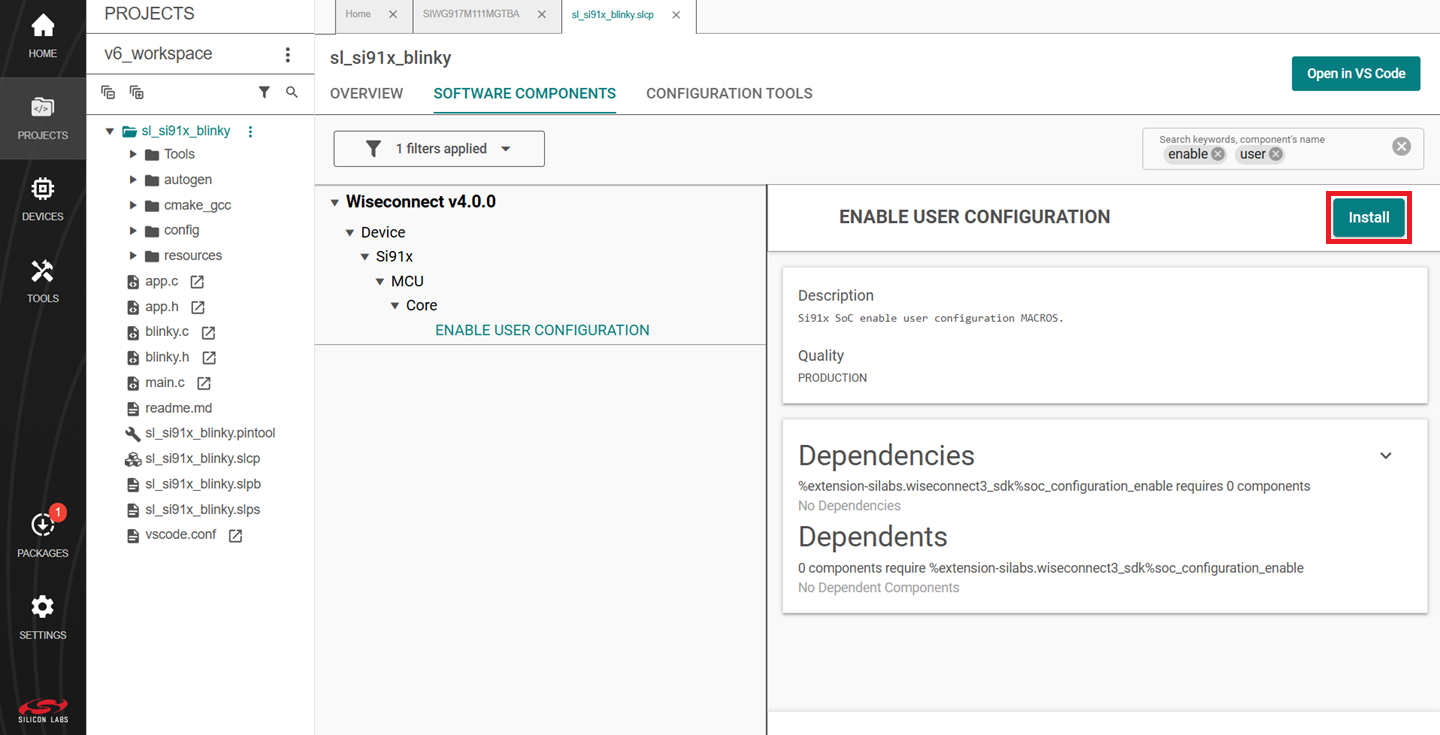
To enable the user-configurable macros (e.g., GPIO macros):
Install the ENABLE USER CONFIGURATION component from the WiSeConnect extension in the SOFTWARE COMPONENTS tab. See here for the instructions for adding a component.
In the Simplicity VS Code IDE, navigate to the
configfolder and open theRTE_Device_917.hfile. Edit the peripheral GPIO macros in this file as per your board connections.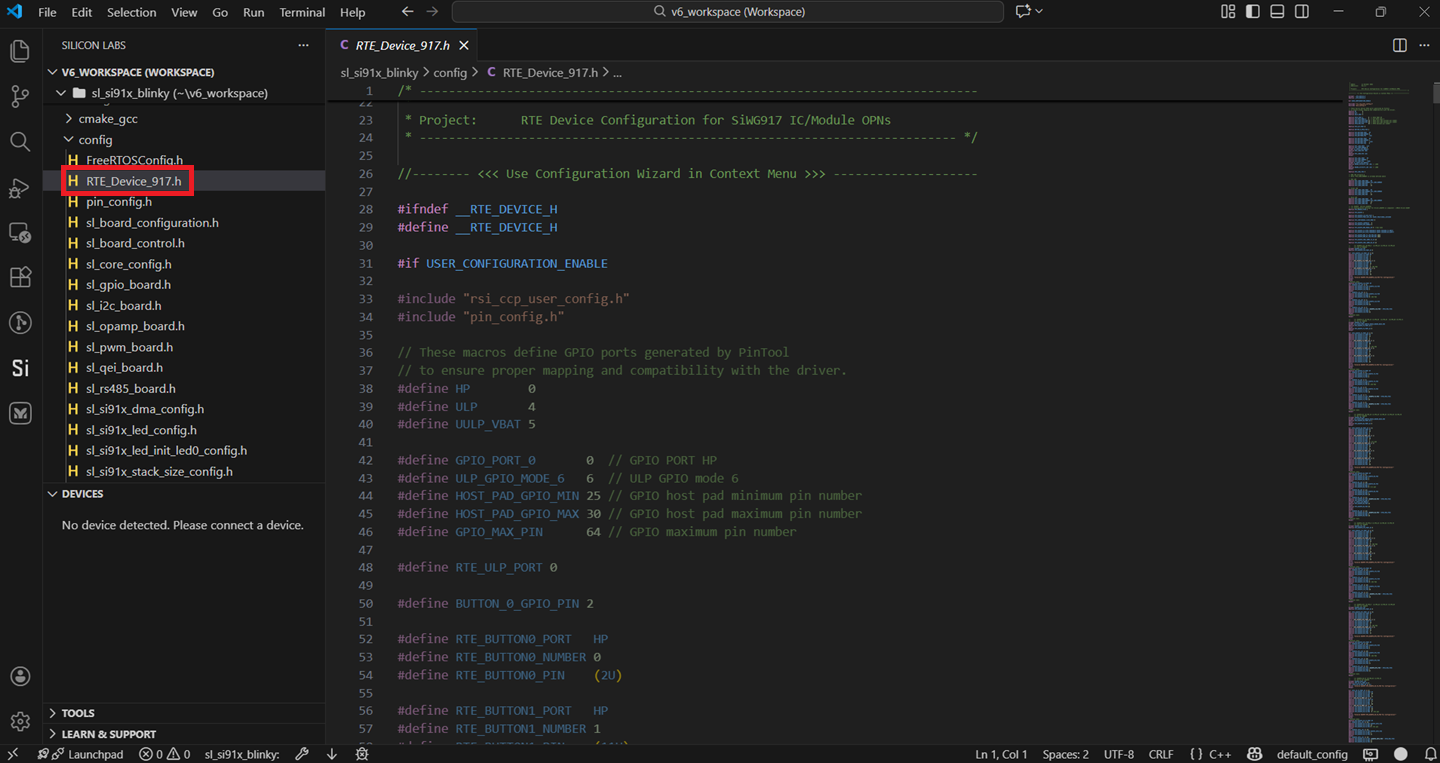
Install the Common Flash Component from the WiSeConnect extension. Refer to here for instructions on adding a component.
In addition to the mandatory ENABLE USER CONFIGURATION and Common Flash Component, a few IC/Module OPNs require additional external components to be installed.
To configure stacked PSRAM SoCs like SiWG917M121XGTBA and SiWG917M141XGTBA that lack internal flash memory, additional configurations are necessary.
Three external flash size options are available: 2MB, 4MB, and 8MB. Install the required External Flash Component component from the WiSeConnect extension.
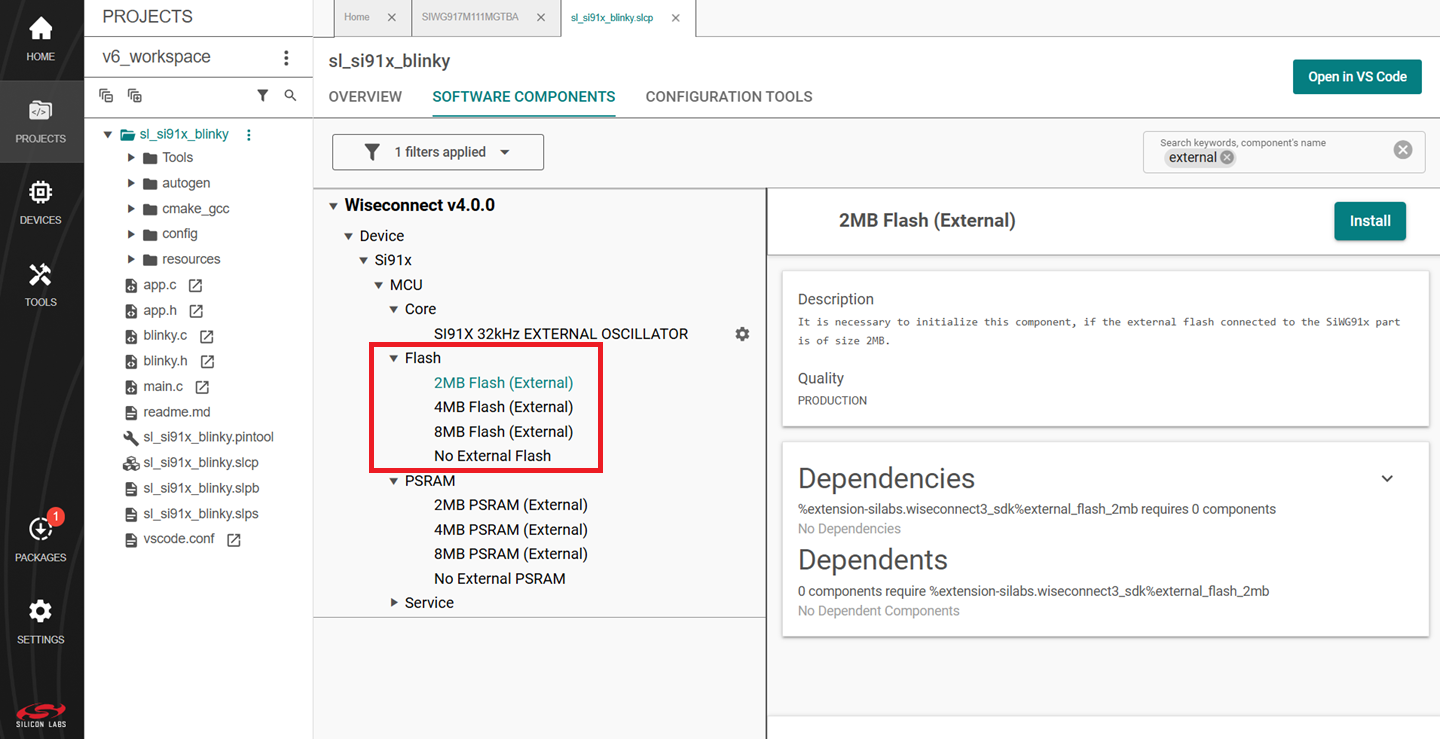
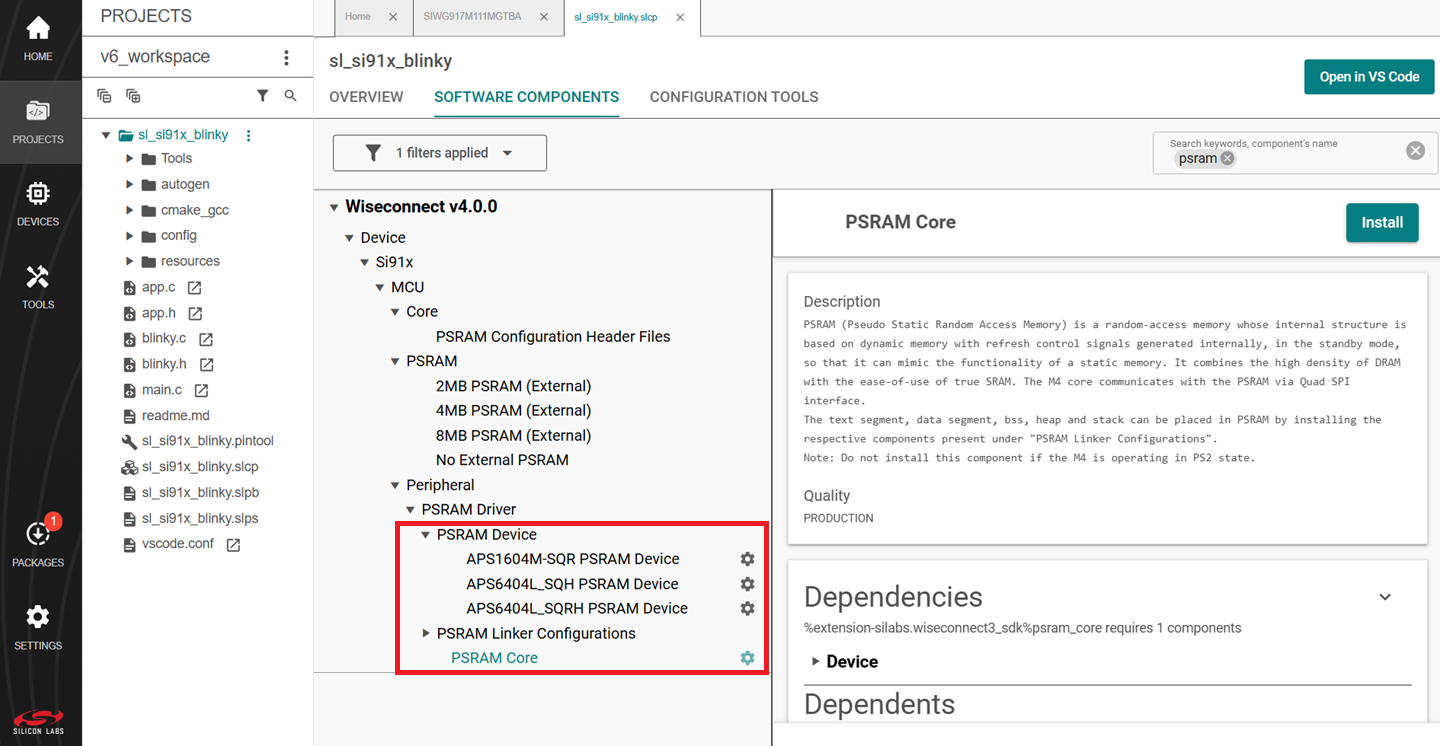
Uninstall the already installed PSRAM Core and PSRAM Device components. Then proceed to re-install the PSRAM Core component. You will be prompted to specify the PSRAM device. In case of the SiWG917M121XGTBA SoC, select the APS1604M-SQR variant and for the SiWG917M141XGTBA SoC, select the APS6404L_SQRH variant.
Install the No External PSRAM component.
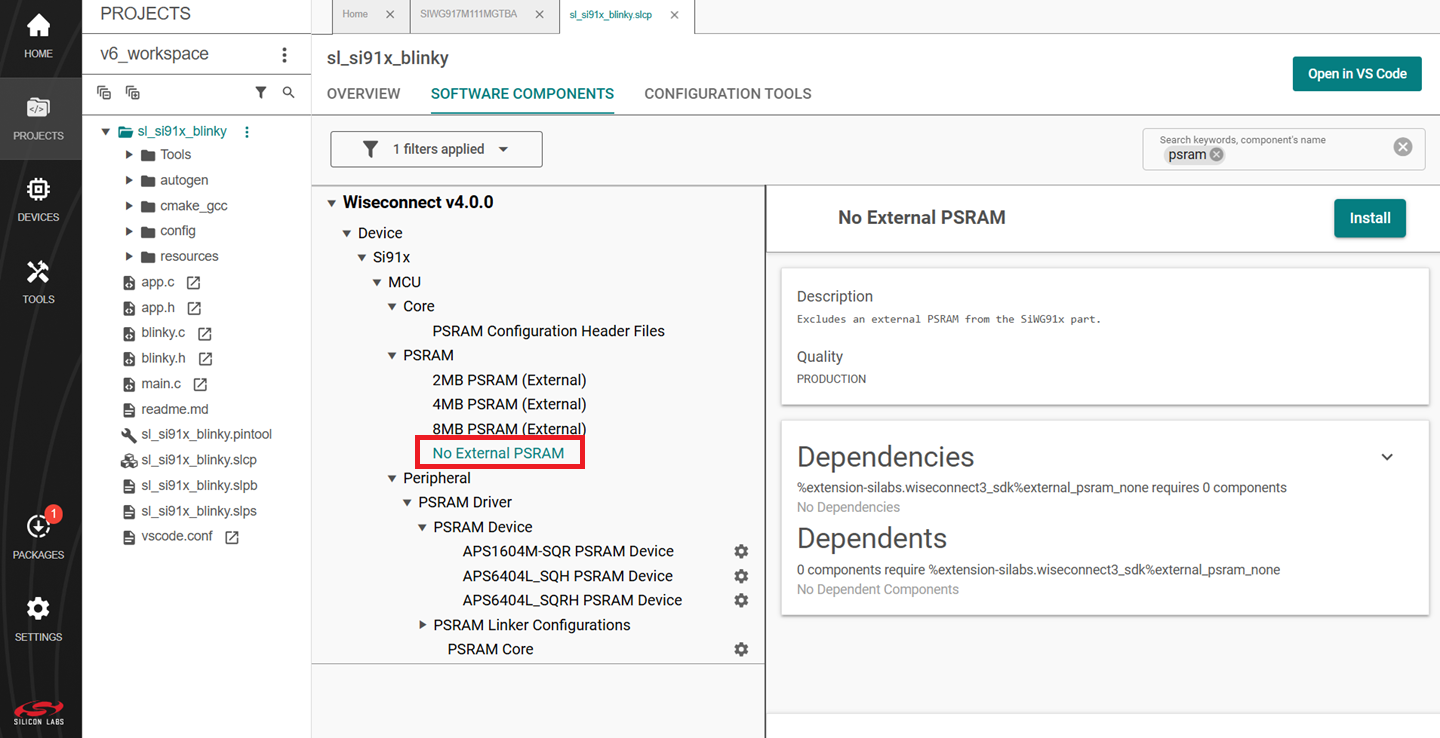
See here for the instructions for adding a component.
To configure the SiWG917M111XGTBA SoC that lacks internal memory, additional confiigurations are necessary.
Three external flash size options are available: 2MB, 4MB, and 8MB. Install the required External Flash Component component from the WiSeConnect extension.
The SoC supports the use of external PSRAM. When using an external PSRAM, install the necessary External PSRAM component. The available size options are 2, 4, and 8 MB.
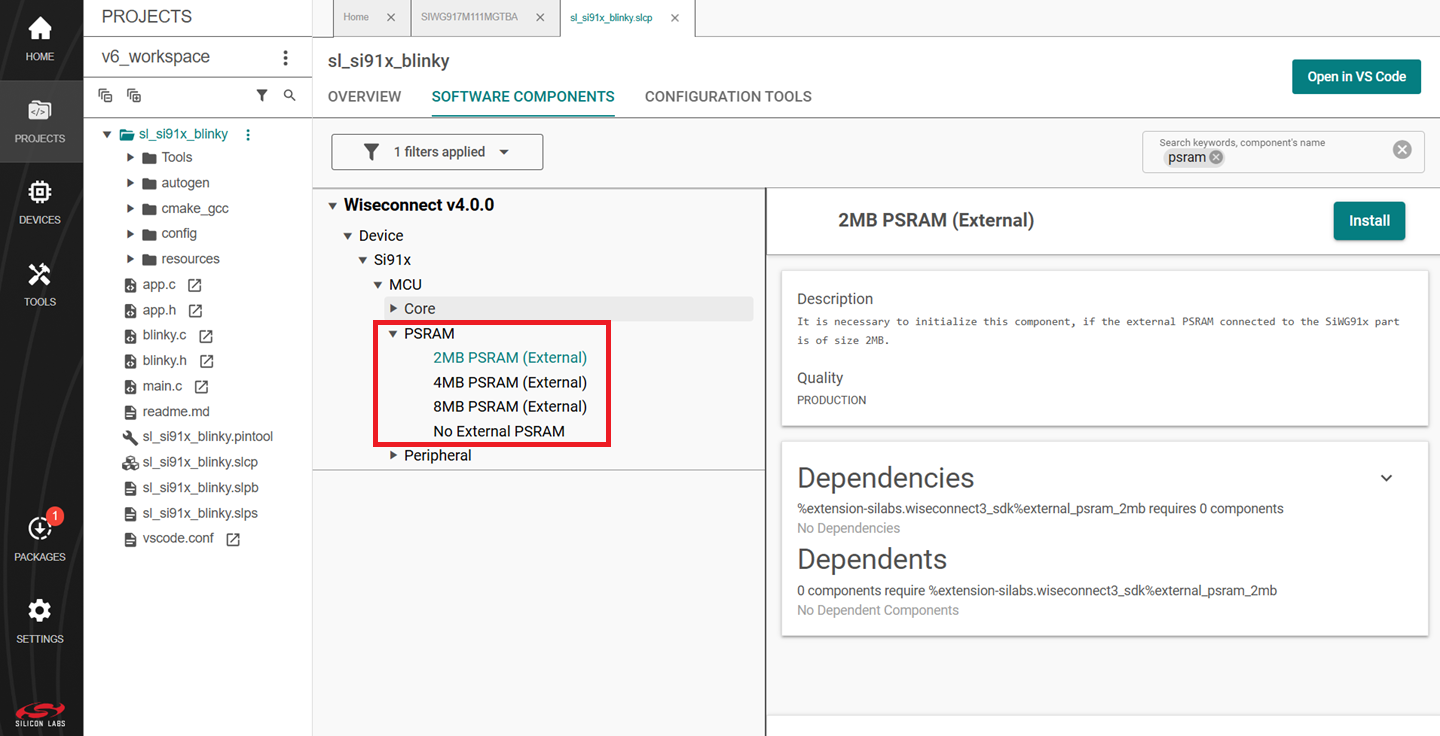
Configure the settings for your example. For SI91x - Blinky (the recommended example for this guide) or for other examples, see the Application Build Environment section in the README page for configuration instructions.
Note:
You may use the Component Editor to configure the components in your example.
You may use the Pintool to configure the pin mappings in your project for your SiWx917 system-on-chip.
Use the port macros from
sl_gpio_board.hrather than those auto-generated inpin_config.h.Edit the configuration in
RTE_Device_917.hin order to switch the GPIOs 64 to 75 between High Power (HP) and Ultra-Low Power (ULP).Install the 'RAM Execution' component for OPN based firmware update and powersave examples.
Build an Application#
Note: If you upgraded from a SiSDK (formerly GSDK) version earlier than v4.4.0, please upgrade your GNU ARM Toolchain. See the GNU ARM v12.2.1 Toolchain section.
Refer to here for the instructions to build the application.
Note: In some cases, you might require a few more configuration changes related to the specific peripheral in use. So, if additional warnings or errors occurs, follow the details mentioned in the warning detail box, it redirects to the specific files. Modify the configurations to resolve the remaining errors.
Refer to the troubleshoot an application build section in case of failure occurs while building the application.
Flash an Application#
Note: The SiWx91x SoC comes pre-flashed with a bootloader. A bootloader image does not need to be flashed separately.
Refer to here for the instructions to flash the application.
Once you flash the SI91x - Blinky example (the recommended example for this guide), you may refer to the Test the Application section of its README page to explore its output. The other sections of the README like the Purpose/Scope section and Overview section (not present in some README's) provide more information about the example.
Debug an Application#
Refer to here for the instructions for debugging an application.
Add a Component#
In the PROJECTS pane, double-click the project_name.slcp file.
Select the SOFTWARE COMPONENTS tab.
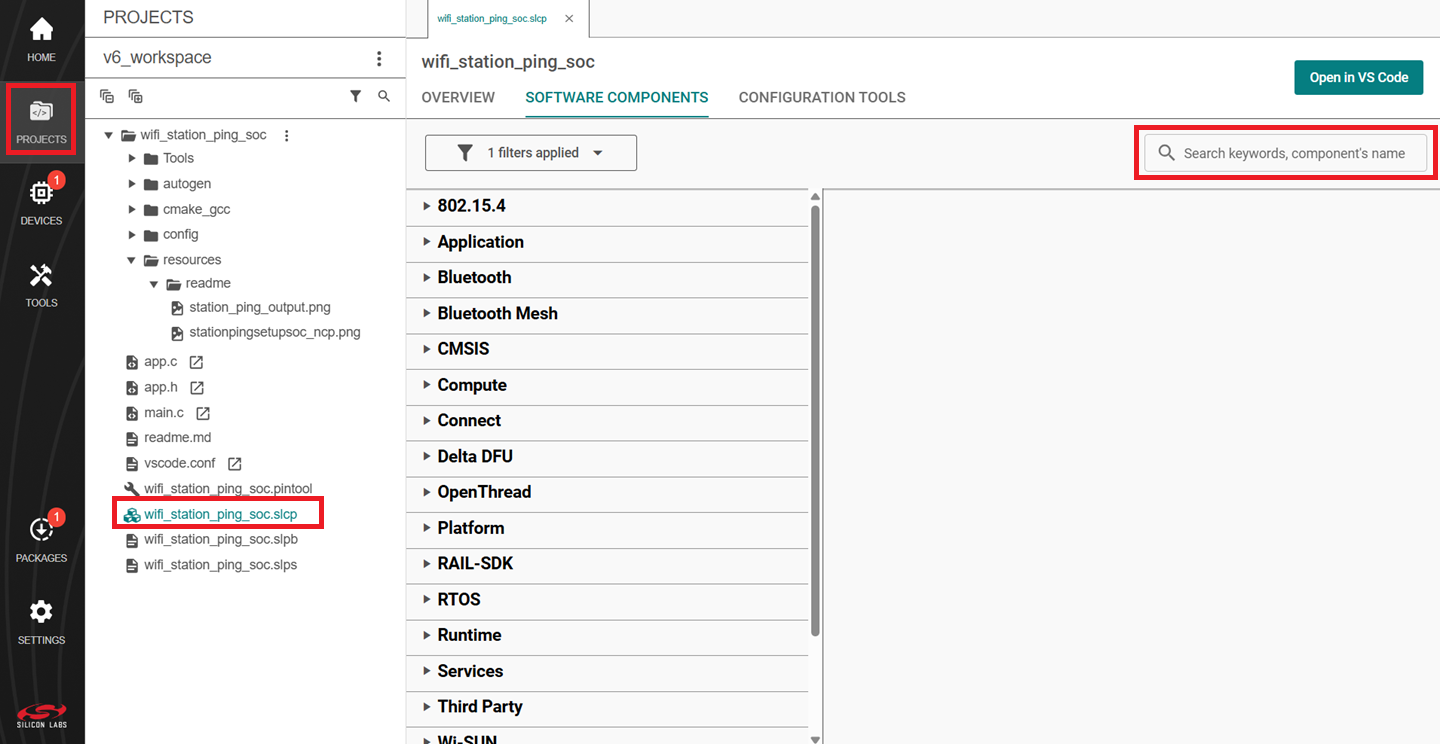
Select the SDK Extensions filter.
Browse or search for and select the component that you want to install.
Click Install.
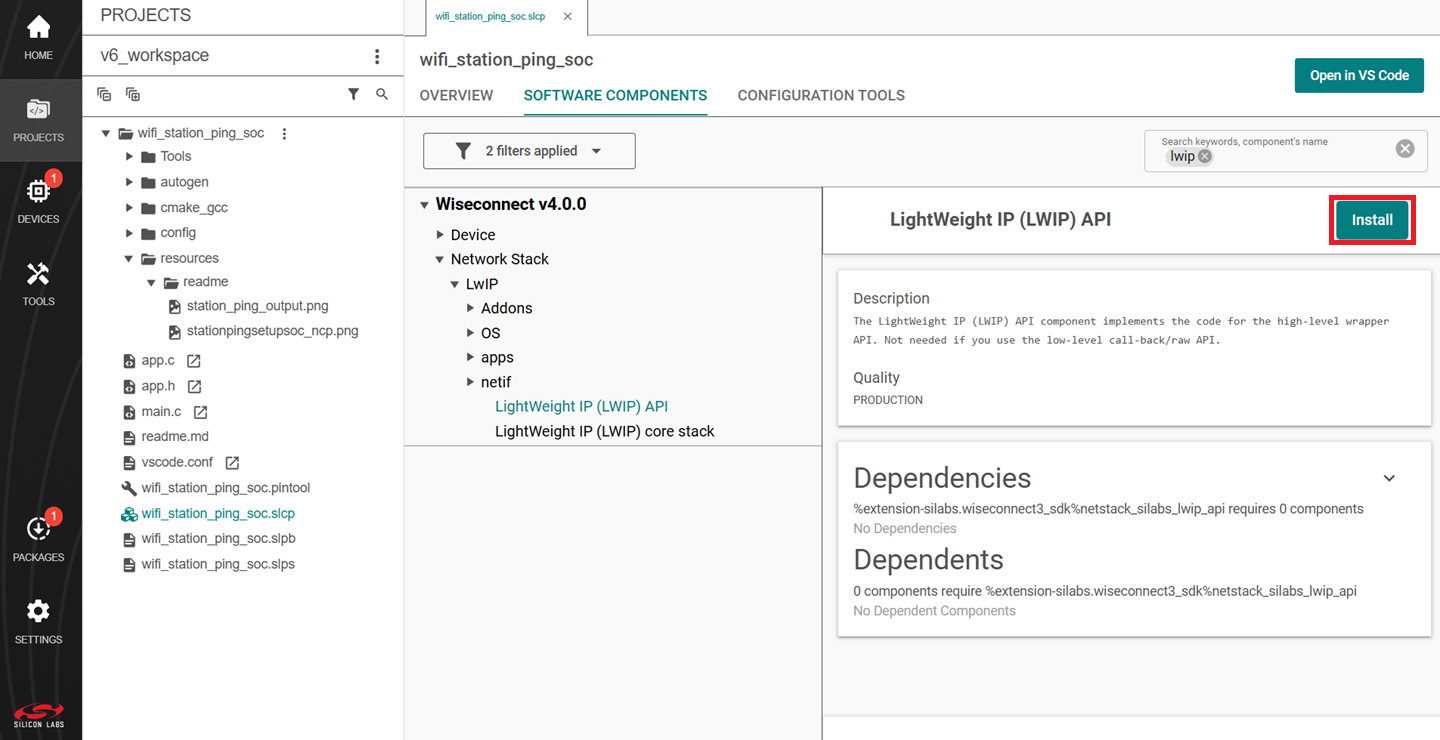
Note: The image is for illustration only. Component details shown may be outdated.
Studio adds the component and displays a success message.
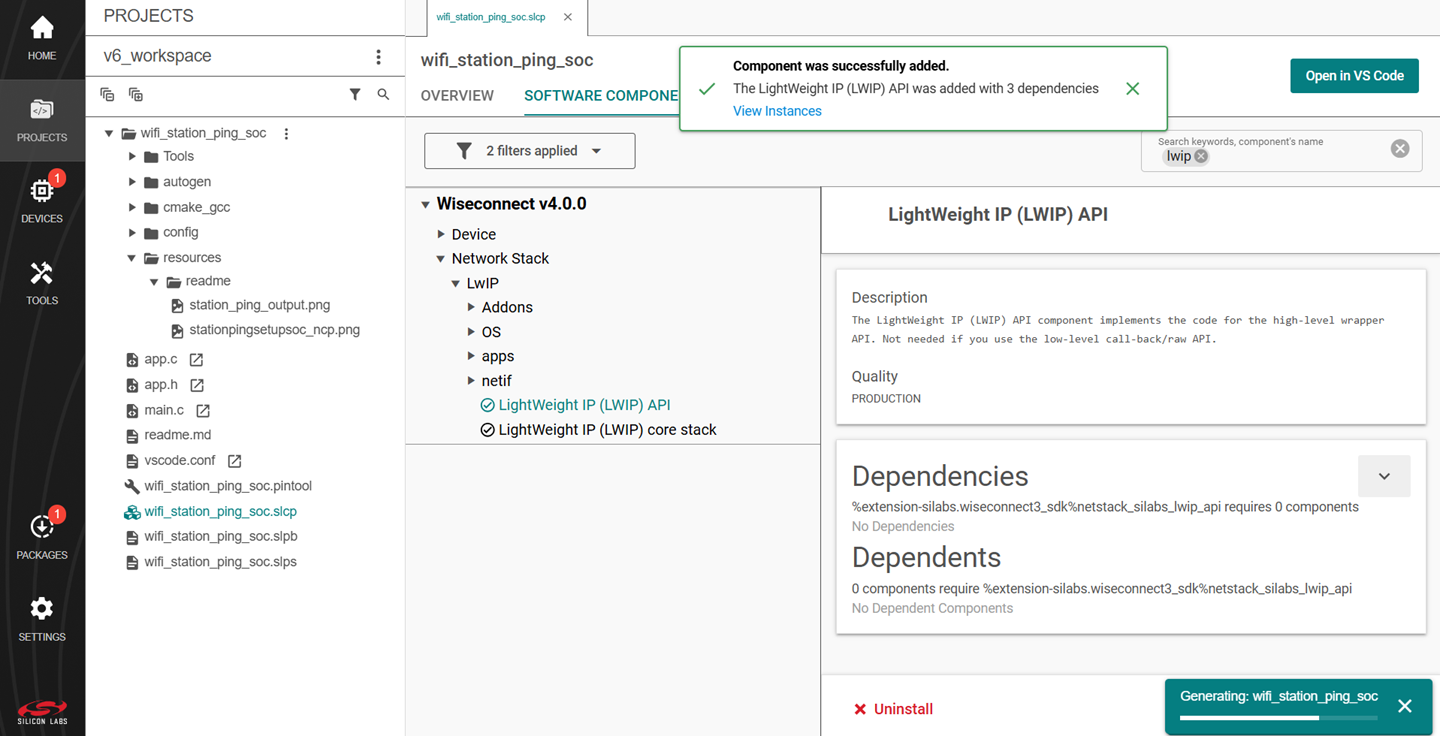
Note: The image is for illustration only. Component details shown may be outdated.
You may use the Component Editor to configure a component after adding it or to configure other components in your example.