


Set Up Your Development Environment#
Create a Support Account#
Before you install Simplicity Studio, you need to create an account on the support portal. Be sure to record your account username and password as you will use it to log in to Simplicity Studio.
Properties in your Salesforce account determine what update notifications you will receive. To review or change your subscriptions, log in to the portal, click HOME to go to the portal home page and then click the Manage Notifications tile. Make sure that Software/Security Advisory Notices & Product Change Notices (PCNs) is checked, and that you are subscribed at minimum for your platform and protocol. Click Save to save any changes.
Connect the Mainboard#
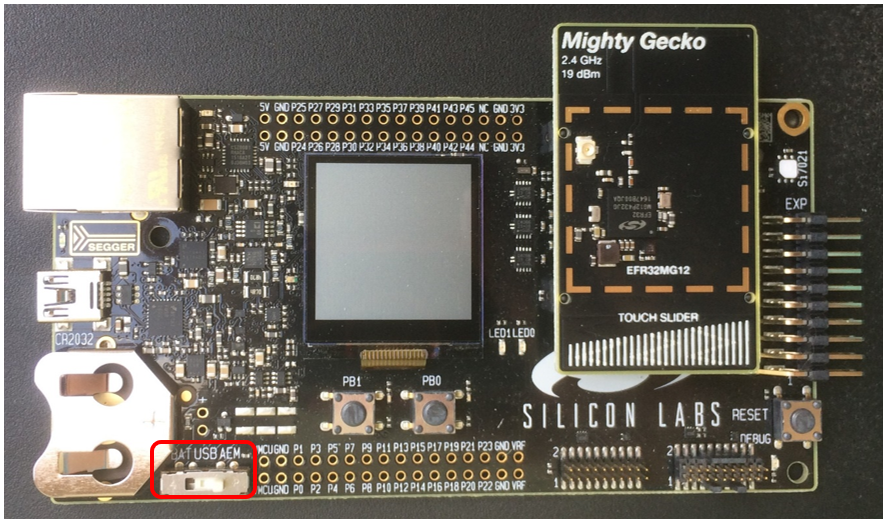
Connect your mainboard, with radio board mounted, to your PC using a USB cable.
Note: For best performance in Simplicity Studio, be sure that the power switch is in the Advanced Energy Monitoring or “AEM” position as shown in the following figure.
Install Simplicity Studio 5 (SSv5) and the Gecko SDK#
General information on using SSv5 and the Gecko SDK installation can be found in the online Simplicity Studio 5 User’s Guide.