


About Demos and Examples#
Because starting application development from scratch is difficult, the Zigbee EmberZNet SDK comes with a number of built-in demos and software examples covering the most frequent use cases.
Demos are pre-built application images that you can run immediately. Software examples can be modified before building the application image. The software examples with the same names as the demos provide the demo functionality.
Note: The demos and examples you see are determined by the part selected. If you are using a custom solution with more than one part, be sure to click on the part you are working with to see only those items applicable to that part.
Silicon Labs recommends that you start your own development with a use case-based example and modify it according to your needs. If none of the use case-based examples meet your needs, you can start with the Zigbee – Minimal example. The examples provide default configurations needed by the stack and a basic application structure that you can build upon.
Demos#
Demos are prebuilt application examples that can be directly downloaded to your device. These demos are compatible with selected devices, as noted in the demo description. You will not see the demos in Simplicity Studio unless you have one of these devices selected. If you have more than one device connected, make sure that one of these devices is selected in the Debug Adapters view. To download and run a demo on your device, select your device and click the Example Projects & Demos tab in the Launcher perspective. Turn off the Example Projects switch to see only demos, and then click RUN next to the demo to load. The solution examples switch is provided for future use.
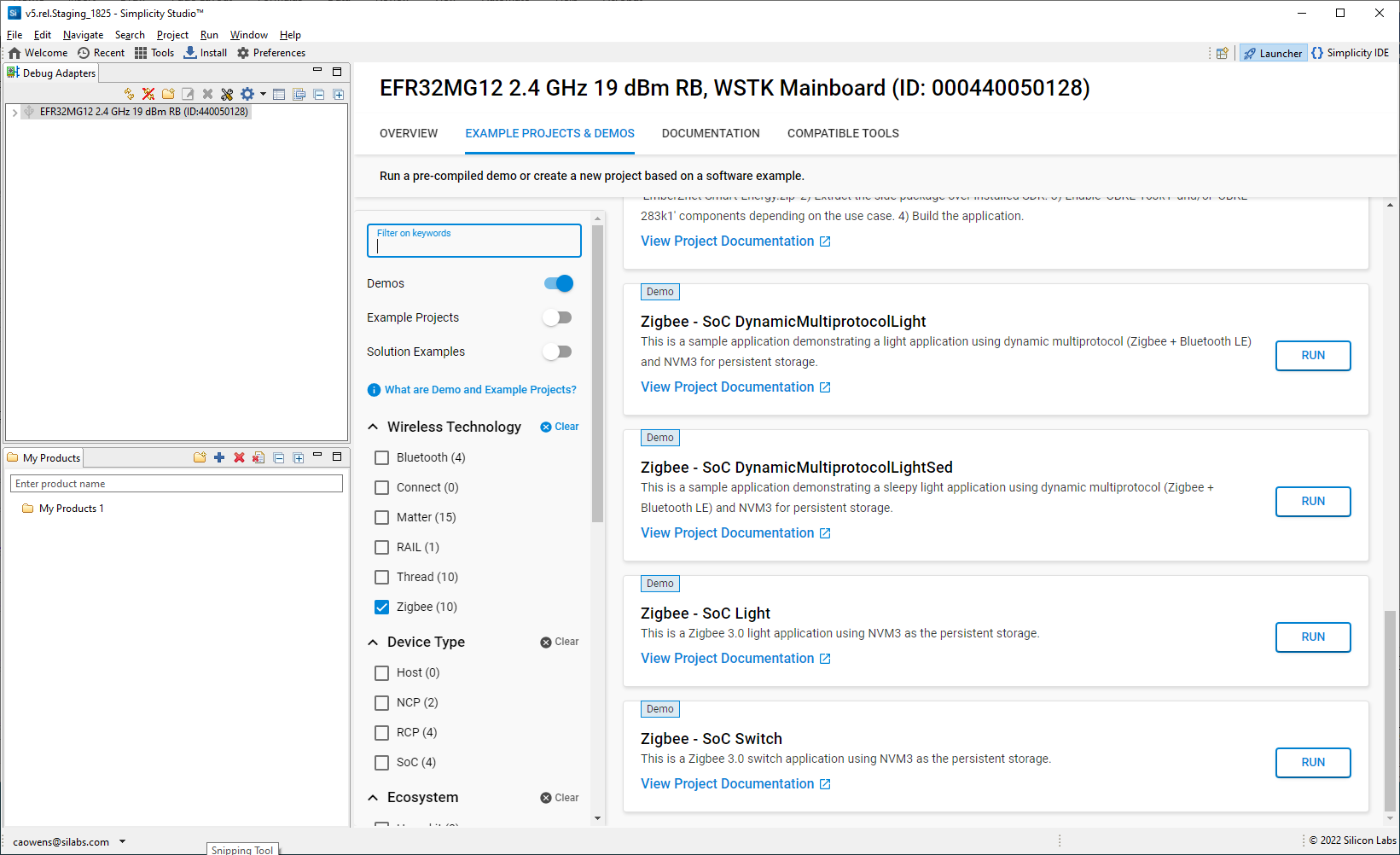
The Zigbee EmberZNet SDK demos are:
Simple Zigbee 3.0 Network
Zigbee - Z3Light: Zigbee 3.0 Light application.
Zigbee - Z3Switch: Zigbee 3.0 Switch application.
Compatible parts: brd4161a, brd4162a, brd4180a
For the Light and Switch demos, press Button0 on the Switch device to initiate the network. The light device should bind to the network automatically. Once the switch has finished finding and binding, you can use Button0 as an On/Off toggle.
This may not be successful, because some timeouts are included in the button functionality. If so, use the Command Line Interface to set up the demo network.
Once the Z3Light app starts running, it makes many attempts to join a network, at the end of which it sets up its own distributed network. Once the Info command indicates that it is in a network (that is, has a PAN ID and Node ID), use the CLI command:
plugin network-creator-security open-networkYou should get the response:
NWK Creator Security: Open network: 0x00
pJoin for 254 sec: 0x00
NWK Creator Security: Open network: 0x00Now the device is ready for joining. In the Z3Switch App, instead of using the button, first make sure it has not joined any networks by issuing:
network leaveThen you can enter the command:
plugin network-steering start 0This will kick off the joining process.
Dynamic Multiprotocol
Zigbee BLE - DynamicMultiprotocolLight and Zigbee BLE - DynamicMultiprotocolLightSed: Companion applications demonstrating Zigbee/Bluetooth LE dynamic multiprotocol functionality.
Compatible parts: brd4161a, brd4162a
Multiprotocol Radio Co-Processor
Multiprotocol (OpenThread+Zigbee) - RCP (SPI) and Multiprotocol (OpenThread+Zigbee) - RCP (UART): These applications support running OpenThread and Zigbee stacks simultaneously on a host processor. The host applications connect to the CPC daemon, which in turn connects to the EFR via a SPI or UART link, respectively.
Compatible parts: brd4151a, brd4161a, brd4166a, brd4168a, brd4180a, brd4304a
Multiprotocol (OpenThread+Zigbee+BLE) - RCP (SPI) and Multiprotocol (OpenThread+Zigbee+BLE) - RCP (UART): These applications support running OpenThread, Zigbee, and Bluetooth stacks simultaneously on a host processor. The host applications connect to the CPC daemon, which in turn connects to the EFR via a SPI or UART link, respectively.
Compatible parts: brd4161a, brd4166a, brd4168a, brd4180a, brd4304a
NCP Applications
Zigbee - NCP UartHw: Network coprocessor (NCP) application that supports communication with a host application over a UART interface with hardware flow control.
Compatible parts: brd4158a, brd4161a, brd4162a, brd4163a, brd4164a, brd4169b, brd4170a, brd4180a
Zigbee - NCP ncp-spi: Network coprocessor (NCP) application that supports communication with a host application over an SPI interface.
Compatible parts: brd4158a, brd4161a, brd4162a, brd4163a, brd4164a, brd4169b, brd4170a, brd4180a
Software Examples#
Note: Examples provided for the EFR32xG12 and newer parts include Silicon Labs Gecko Bootloader examples. Examples are provided for all compatible Simplicity Studio SDKs. When configuring security for a Gecko Bootloader example, you must use Simplicity Commander, not the Simplicity Studio IDE interface. For more information on using the Gecko Bootloader see UG489: Silicon Labs Gecko Bootloader User’s Guide for GSDK 4.0 and Higher.
Some Zigbee EmberZNet software examples are specifically for SoC applications. If you are not familiar with the differences between System-on-Chip (SoC) and Network Coprocessor (NCP)/Radio Coprocessor (RCP) application models, see UG103.03: Application Development Fundamentals: Design Choices. For more information on Green Power Devices see Using Silicon Labs Green Power with Zigbee EmberZNet.
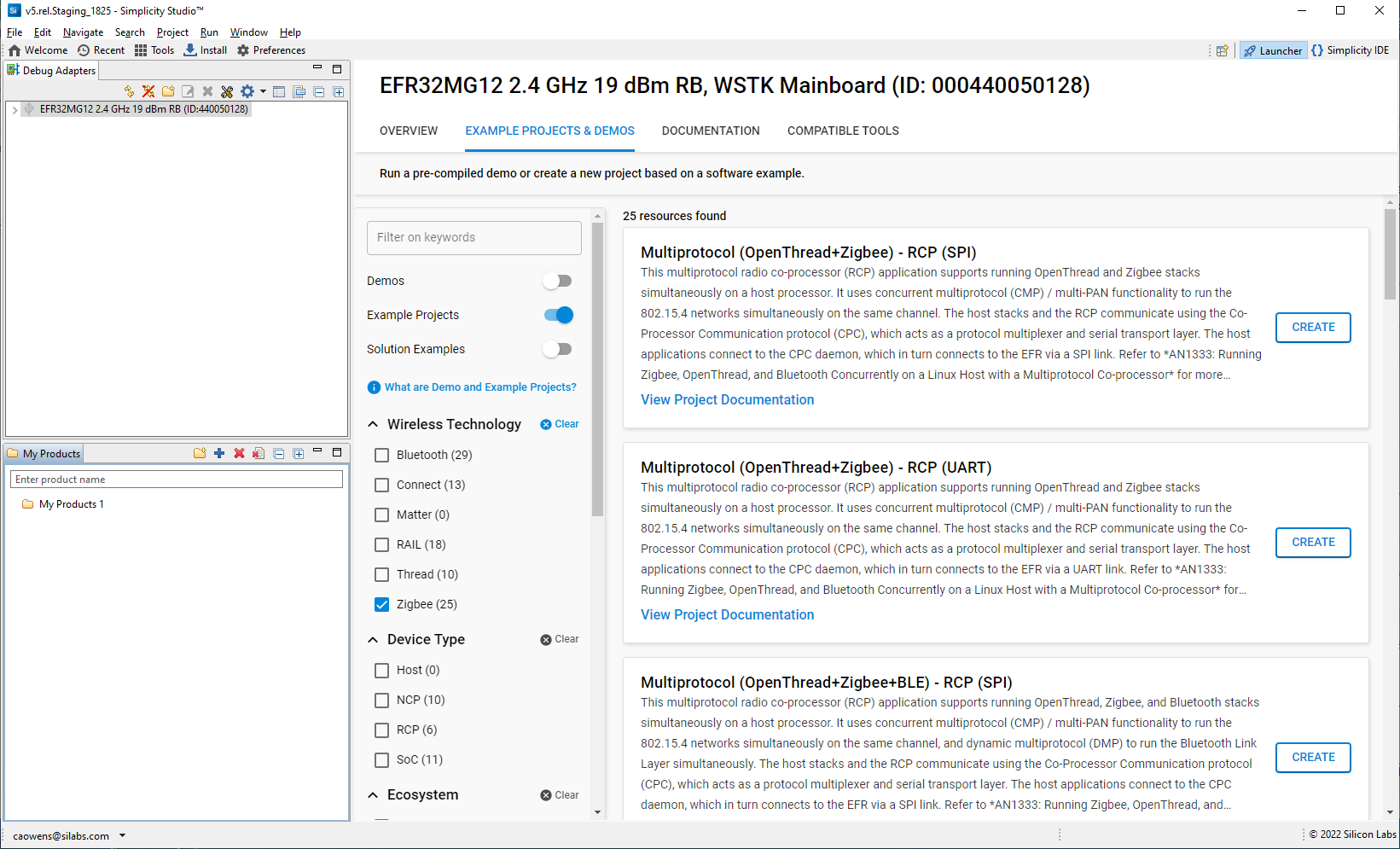
In the Debug Adapters view, select the device. The examples list is filtered by the selected device.
Click the EXAMPLE PROJECTS & DEMOS tab in the Launcher perspective. Under Technology Type, select Zigbee to see only Zigbee examples.
Zigbee 3.0 Network#
The Z3Light and Z3Switch applications were developed for specific development kit hardware. Use on other devices may require some GPIO remapping using the PIN tool. See the online Simplicity Studio v5 User’s Guide for more information about using the PIN tool.
Zigbee - Z3Light: Zigbee light application. Acting as a router it can form a distributed network. Acting as a touchlink target it can touchlink with the Zigbee - Z3Switch, which is acting as a touchlink initiator.
Zigbee - Z3Switch: Zigbee switch application, acting as an end device, can join the network.
Press Button0 on the Switch device to initiate the network. The light device should bind to the network automatically. Once the switch has finished finding and binding, you can use Button0 as an On/Off toggle.
This may not be successful, because some timeouts are included in the button functionality. If so, use the Command Line Interface to set up the demo network.
Once the zigbee_z3_light app starts running, it makes many attempts to join a network, at the end of which it sets up its own distributed network. Once the Info command indicates that it is in a network (that is, has a PAN ID and Node ID), use the CLI command:
plugin network-creator-security open-networkYou should get the response:
NWK Creator Security: Open network: 0x00
pJoin for 254 sec: 0x00
NWK Creator Security: Open network: 0x00Now the device is ready for joining. In the zigbee_z3_switch App, instead of using the button, first make sure it has not joined any networks by issuing:
network leaveThen you can enter the command:
plug network-steering start 0This will kick off the joining process.
Dynamic Multiprotocol#
Zigbee BLE - DynamicMultiprotocolLight and Zigbee BLE - DynamicMultiprotocolLightMinimal: Sample application with Zigbee 3.0 (Coordinator/Router) + Bluetooth LE. The Minimal application does not use buttons, LEDs, or the LCD.
Zigbee BLE - DynamicMultiprotocolLightSed and Zigbee BLE - DynamicMultiprotocolLightSedMinimal: Sample application with Zigbee 3.0 (Sleepy End Device) + Bluetooth LE. The Minimal application does not use buttons, LEDs, or the LCD.
See AN1322: Dynamic Multiprotocol Development with Bluetooth and Zigbee in SDK 7.0 and Higher for more information on using these examples.
Green Power#
Zigbee - GPD Sensor: Demonstrates a Green Power occupancy sensor device with attributes pre-configured in the component Green Power Device Application Support.
Zigbee - GPD Switch: Demonstrates a Green Power switch device with attributes pre-configured in the component Green Power Device Application Support.
Zigbee GP - Z3LightCombo: Z3 Light GP Combo application demonstrates functionality of a Green Power combo device with proxy and sink instances.
NCP#
Zigbee - NCP MpNcpSpi: The Multi-Pan NCP SPI application supports forming two personal area networks on same channel on single radio.
Zigbee - NCP MpNcpUartHw: The Multi-PAN NCP UART application supports forming two personal area networks on same channel on single radio.
Zigbee - NCP UartHw: Network coprocessor application that communicates with a host application over a UART interface with hardware flow control.
Zigbee - NCP ncp-spi: Network coprocessor application that communicates with a host application over a SPI interface.
Zigbee - NCP UartHwGpMultiRail: Network coprocessor application extends the ncp-uart-hw application with a multi-RAIL library, and a multi-RAIL demo component enabled.
Zigbee - NCP Xncp Led: Network processor application that communicates with a UNIX HOST using custom EZSP commands.
RCP#
For more information about these examples, see AN1333: Running Zigbee, OpenThread, and Bluetooth Concurrently on a Linux Host with a Multiprotocol Co-processor.
Multiprotocol (OpenThread+Zigbee) - RCP (SPI) and Multiprotocol (OpenThread+Zigbee) - RCP (UART): These applications support running OpenThread and Zigbee stacks simultaneously on a host processor. The host applications connect to the CPC daemon, which in turn connects to the EFR via a SPI or UART link, respectively.
Multiprotocol (OpenThread+Zigbee+BLE) - RCP (SPI) and Multiprotocol (OpenThread+Zigbee+BLE) - RCP (UART): These applications support running OpenThread, Zigbee, and Bluetooth stacks simultaneously on a host processor. The host applications connect to the CPC daemon, which in turn connects to the EFR via a SPI or UART link, respectively.
Zigbee - NCP + OpenThread - RCP zigbee_ncp-ot_rcp-spi and Zigbee – NCP + OpenThread – RCP zigbee_ncp-ot_rcp-uart: These concurrent multiprotocol (CMP) application run the Zigbee NCP simultaneously with the OpenThread RCP. The host applications connect to the CPC daemon, which in turn connects to the EFR via a SPI or UART link, respectively.
Minimal Configuration#
Zigbee - Minimal: This is a Zigbee minimal network-layer application suitable as a starting point for new application development.
Testing#
Zigbee - StandardizedRfTesting: This is a pre-standardization implementation of Zigbee's RF testing standard. It utilizes the TIS (Total Isotropic Sensitivity)/ TRP (Total Radiated Power) testing interfaces and is optional for Zigbee certifications.