


Feature Generators#
This guide describes how to add and configure feature generator components in a machine learning project. Feature generators convert raw sensor data into the input format which a model expects. This document covers the Audio Feature Generator (fe_audio) for microphone-based classification models.
1. Add the Audio Feature Generator Component#
For microphone-based classification models, add the Audio Feature Generator component ( fe_audio ) to convert audio into spectrogram features for inference. Image, IMU, and other non-audio models do not require this component.
Add one fe_audio component instance per audio model. Each instance name must match the corresponding ML Model ( ml_model ) instance name.
In Simplicity Studio#
Perform the following steps in Simplicity Studio.
Open the project
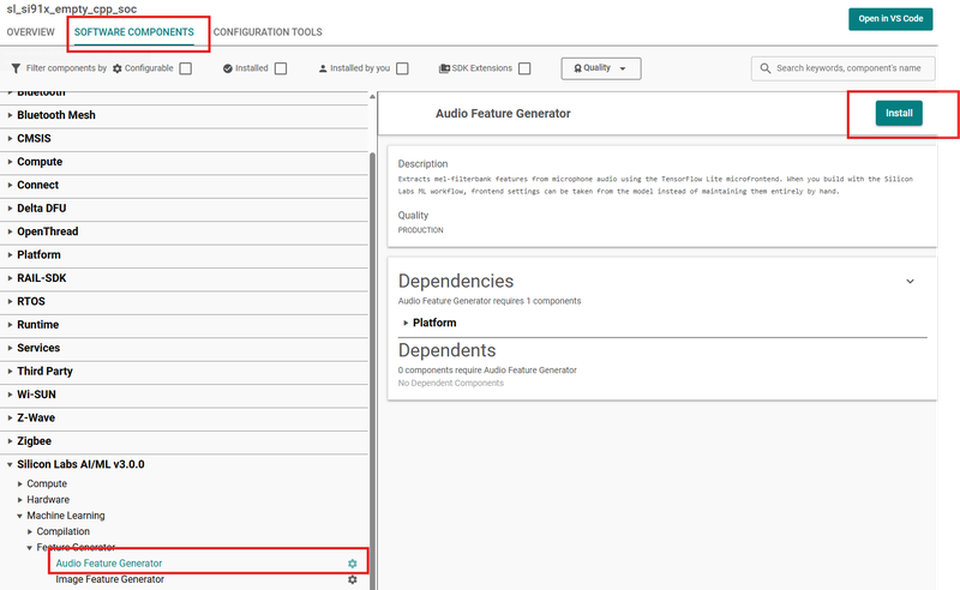
.slcpfile and select the SOFTWARE COMPONENTS tab.Navigate to Silicon Labs AI/ML → Machine Learning → Feature Generator, select Audio Feature Generator (
fe_audio), and then click Install.
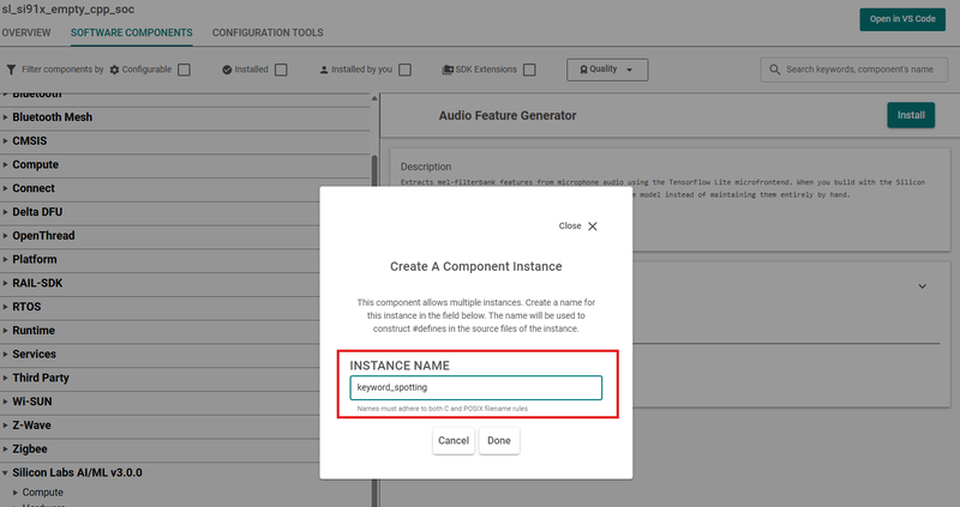
When prompted, enter an instance name that matches the corresponding
ml_modelinstance (for example,keyword_spotting).
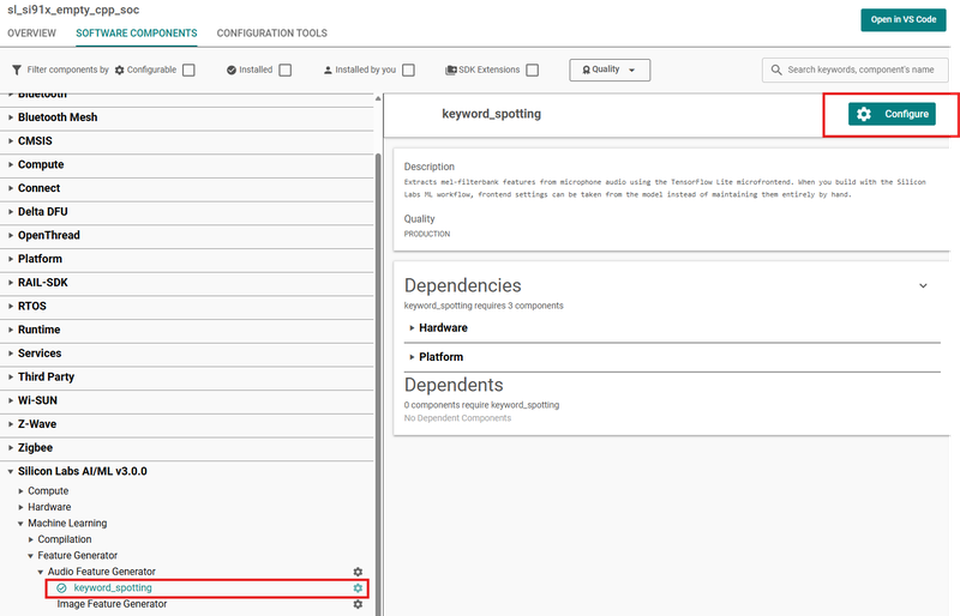
After installation, select the instance under Audio Feature Generator and click Configure to open its settings (see Section 2).
Repeat steps 2 to 4 for each audio model in the project.
When editing the .slcp file directly, the component entries look like this:
component:
- id: fe_audio
instance:
- keyword_spotting2. Configure Audio Frontend Parameters#
The audio frontend converts microphone samples into the int8 features required by the model. Configure these settings to match the settings used during model training.
In Simplicity Studio#
Perform the following steps in Simplicity Studio.
Open the Audio Feature Generator instance in Software Components to review frontend settings. The configuration UI has two groups, shown below for a
keyword_spottinginstance: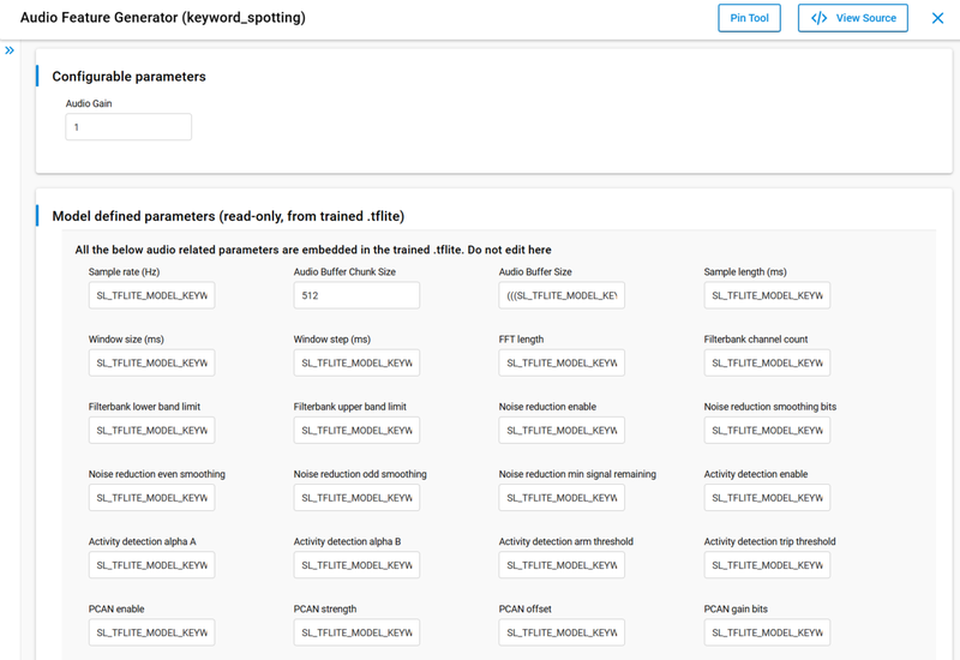
Configurable parameters: Instance options that you can change using the graphical user interface (GUI), such as Audio Gain. The values you set are written into the generated
sl_fe_audio_<instance>_config.hand used during the build process.Model defined parameters (read-only, from trained .tflite): Frontend settings from the matching audio model (sample rate, window timing, filterbank settings, and similar). When a value is not embedded in the model, the build uses built-in defaults. Keep the model-provided values unchanged so that inference remains aligned with trained values.
Enable parameter-header generation in the matching
ml_modelinstance's.mlconfso that the MVP Compiler exports frontend metadata from the.tflite:model: tflite/keyword_spotting.tflite codegen: model_parameters_header: enabled: trueThe
fe_audioinstance name must match theml_modelinstance name (for example, bothkeyword_spotting). After project generation, the audio frontend uses the model-specific values from<instance>_generated_parameters.h(for example,keyword_spotting_generated_parameters.h).
3. Audio Feature Generation API#
For initialization, feature updates, filling input tensors, and platform-specific behavior, see the ML Audio Feature Generation API reference.
4. Multiple Audio Configurations#
A project with more than one audio model needs a separate fe_audio instance (and matching ml_model instance) for each model.
Declare Instances in the Project#
Add one fe_audio instance per audio model in Simplicity Studio or .slcp (see Section 1). Simplicity Studio generates a matching sl_fe_audio_<instance>_cfg for each instance in autogen/sl_fe_audio_instances.h and autogen/sl_fe_audio_instances.c.
Switch Between Configurations at Runtime#
Only one audio frontend is active at a time. To move from one model's configuration to another:
Call
sl_ml_audio_feature_generation_deinit()to stop the current frontend.Call
sl_ml_audio_feature_generation_init(&sl_fe_audio_<instance>_cfg)with the next instance's config struct.
Example:
sl_ml_audio_feature_generation_init(&sl_fe_audio_first_model_cfg);
/* ... run inference with the first audio model ... */
sl_ml_audio_feature_generation_deinit();
sl_ml_audio_feature_generation_init(&sl_fe_audio_second_model_cfg);
/* ... run inference with the second audio model ... */See the ML Audio Feature Generation API reference for function details.
5. Example Applications#
Application | Boards | Models |
|---|---|---|
Voice control (keyword spotting) | Silicon Labs boards | One audio model |
See the AI/ML Sample Applications documentation for voice-control example projects you can create in Simplicity Studio.