


Build Procedure For Matter + AWS#
The following steps are common for all apps and should be modified using the Studio Project Configurator tool.
Adding the Matter + AWS Component#
To enable the component in Simplicity Studio, add the following components.
Go to Software components, search for
Matter_Wifi. Click the Settings symbol beside Matter Wi-fi component in the left panel or the Configure option and enable IPV4 configuration.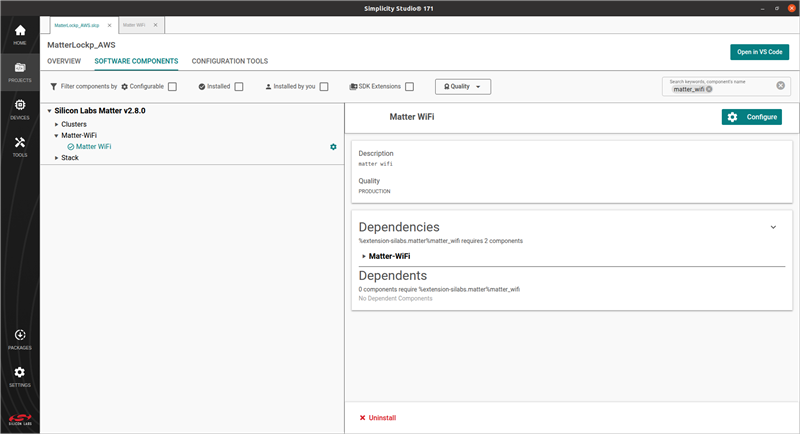
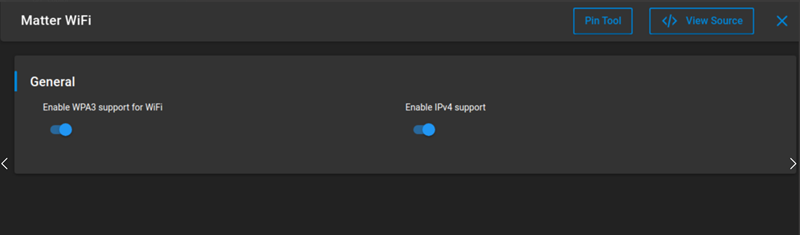
In Software Components, search for
awsand install the Matter AWS component.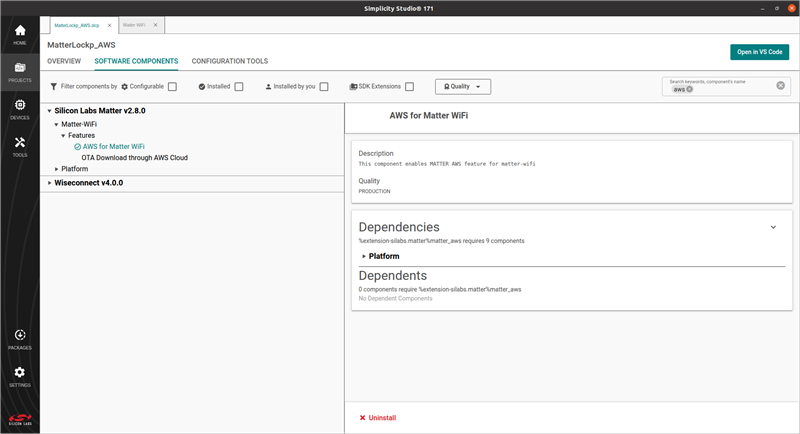
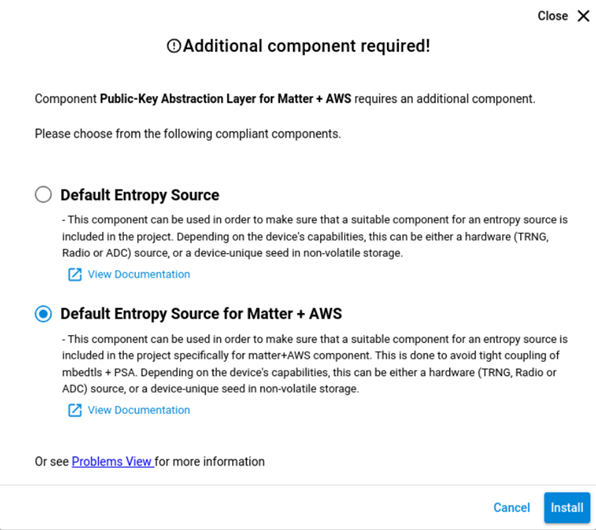
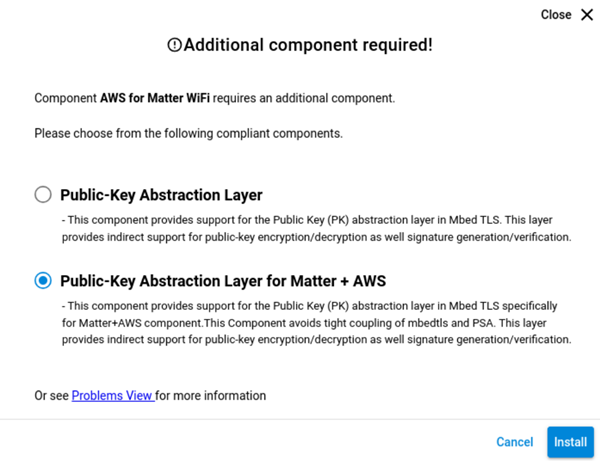
Next, select the dependencies for the Matter AWS component.
Note: The order can vary, but in every case select the option with "+ AWS".
Additional Step Needed Only For 917 NCP#
In Software Components, search for
TLS 1.2 PRFand install the TLS 1.2 PRF component.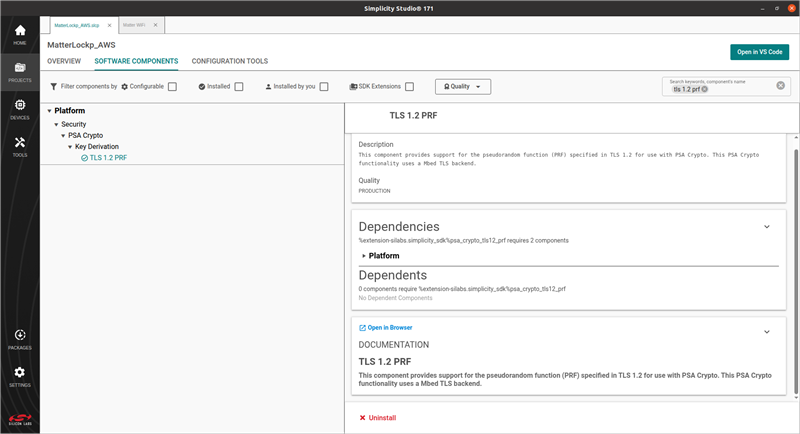
Adding the AWS Server, Client ID and Cluster Details#
Go to the
third_party/matter_sdk/examples/platform/silabs/matter_aws/matter_aws_interface/include/folder from Browse to Location option by right-clicking Silicon Labs Matter inSettings > SDKs.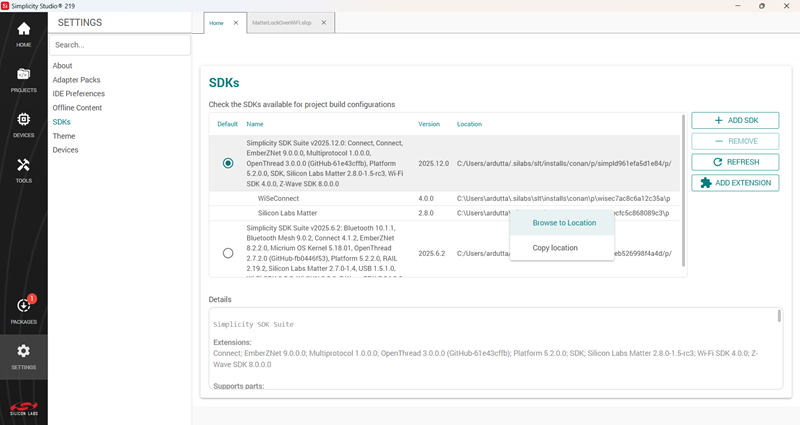
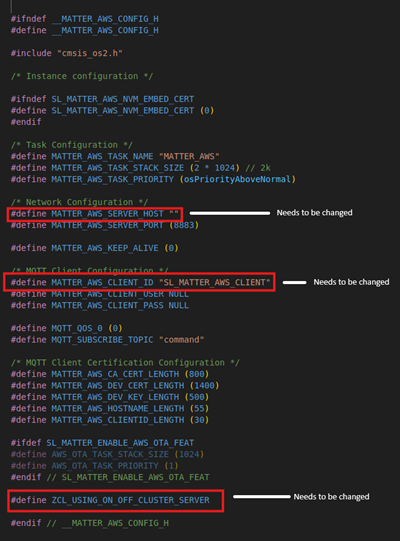
Update the definitions for the server ID, client ID and cluster in
MatterAwsConfig.h:Update the AWS server name at
#define MATTER_AWS_SERVER_HOST "".Update the client ID at
#define MATTER_AWS_CLIENT_ID "".Update the cluster server information from the below table, based on your app:
Application Type
Cluster Definition
Thermostat
#define ZCL_USING_THERMOSTAT_CLUSTER_SERVERLighting
#define ZCL_USING_ON_OFF_CLUSTER_SERVERLock
#define ZCL_USING_DOOR_LOCK_CLUSTER_SERVERWindow Covering
#define ZCL_USING_WINDOW_COVERING_CLUSTER_SERVERMatterAwsConfig.h File:
Building Matter + AWS Application#
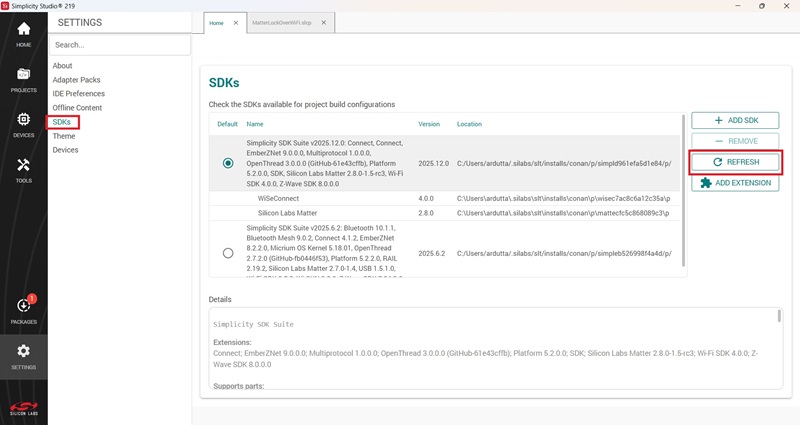
After adding the Matter + AWS component as described above, refresh the
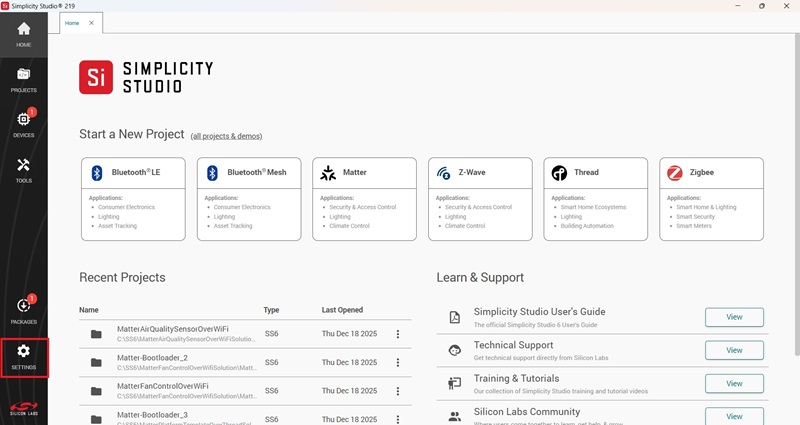
matter-extensionin Simplicity Studio.In the Home tab, from the left panel, select Settings.
Click on SDKs, ensure the correct version of the SDK is selected, and then click Refresh in the right side menu.
Build the Matter + AWS application using Simplicity Studio as described in Build SOC Application Using Studio.
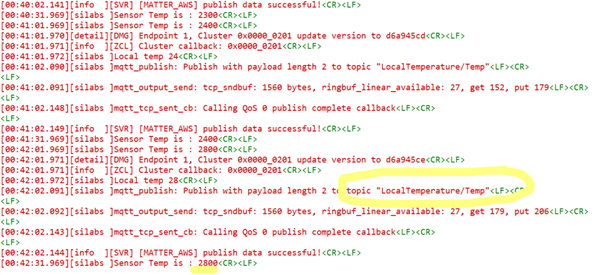
After building and flashing the app, you can see [MATTER_AWS] logs after device bootup.
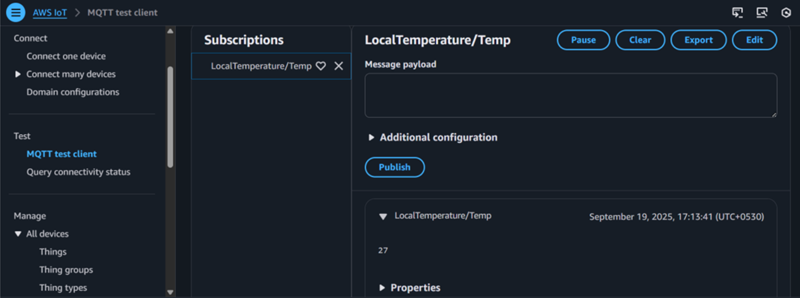
[00:00:23.400][info ][SVR] [MATTER_AWS] connection callback started [00:00:23.690][info ][SVR] [MATTER_AWS] MQTT connection status: 0 [00:00:23.995][info ][SVR] [MATTER_AWS] MQTT sub request callback: 0After subscribing to a topic in AWS IoT, you can see the publish logs.
You can see the same data in AWS IoT.
Note:
The supported certificate type to be used in this PoC is ECDSA.
AWS RootCA used in this PoC ishttps://www.amazontrust.com/repository/AmazonRootCA3.pem
Compile Using New/Different Certificates#
Two devices should not use the same client ID. Use a different client ID for your second connection. While using AWS, update the following information:
Add your AWS certificates in file
examples/platform/silabs/matter_aws/matter_aws_interface/include/MatterAwsNvmCert.cpp.Provide the AWS Root CA key (https://www.amazontrust.com/repository/AmazonRootCA3.pem).
Provide
device_certificateanddevice_keywith your device certificate and device key. For more details, refer to OpenSSL Device Certificate Creation.
Add your AWS server and client ID information to the
examples/platform/silabs/matter_aws/matter_aws_interface/include/MatterAwsConfig.hfile.Provide
MATTER_AWS_SERVER_HOSTwith your AWS Server name.Provide
MATTER_AWS_CLIENT_IDwith your device/thing ID.Update
ZCL_USING_ON_OFF_CLUSTER_SERVERwith the cluster server details based on your app.