


Install Simplicity AI SDK for Cursor on Windows#
Install and configure the Simplicity AI SDK for Cursor on Windows.
Prerequisites#
Before you begin, ensure that you have:
A supported version of Windows
Cursor with Agent mode enabled
Access to the Simplicity AI SDK release that you are installing, such as Beta 1.1
Download the Installer#
Download Simplicity Installer from the Simplicity Studio® website.
Run the Installer#
In File Explorer, open the downloaded archive, and then double-click SimplicityInstaller-Setup-<version>.exe.
Full Install#
Select Full Install.
Select Install.
Wait for the installation to finish. The time required depends on your network speed.
When the installation is complete, close the installer. You do not need to open Simplicity Studio.
Note: The installer downloads the Simplicity AI SDK tools and skills, copies the skills into the Cursor global skills location, automatically configures
mcp.jsonfor Cursor, and appends the newly downloaded tools.
Advanced Install#
Select Advanced Install.
Select Install.
Wait for the installation to finish. The time required depends on your network speed.
When installation is complete, close the installer. You do not need to open Simplicity Studio.
Note: The installer downloads the Simplicity AI SDK tools and skills, copies the skills into the Cursor global skills location, automatically configures
mcp.jsonfor Cursor, and appends the newly downloaded tools.
Verify the Simplicity AI SDK Installation in Cursor#
Open Cursor and switch to the IDE view.
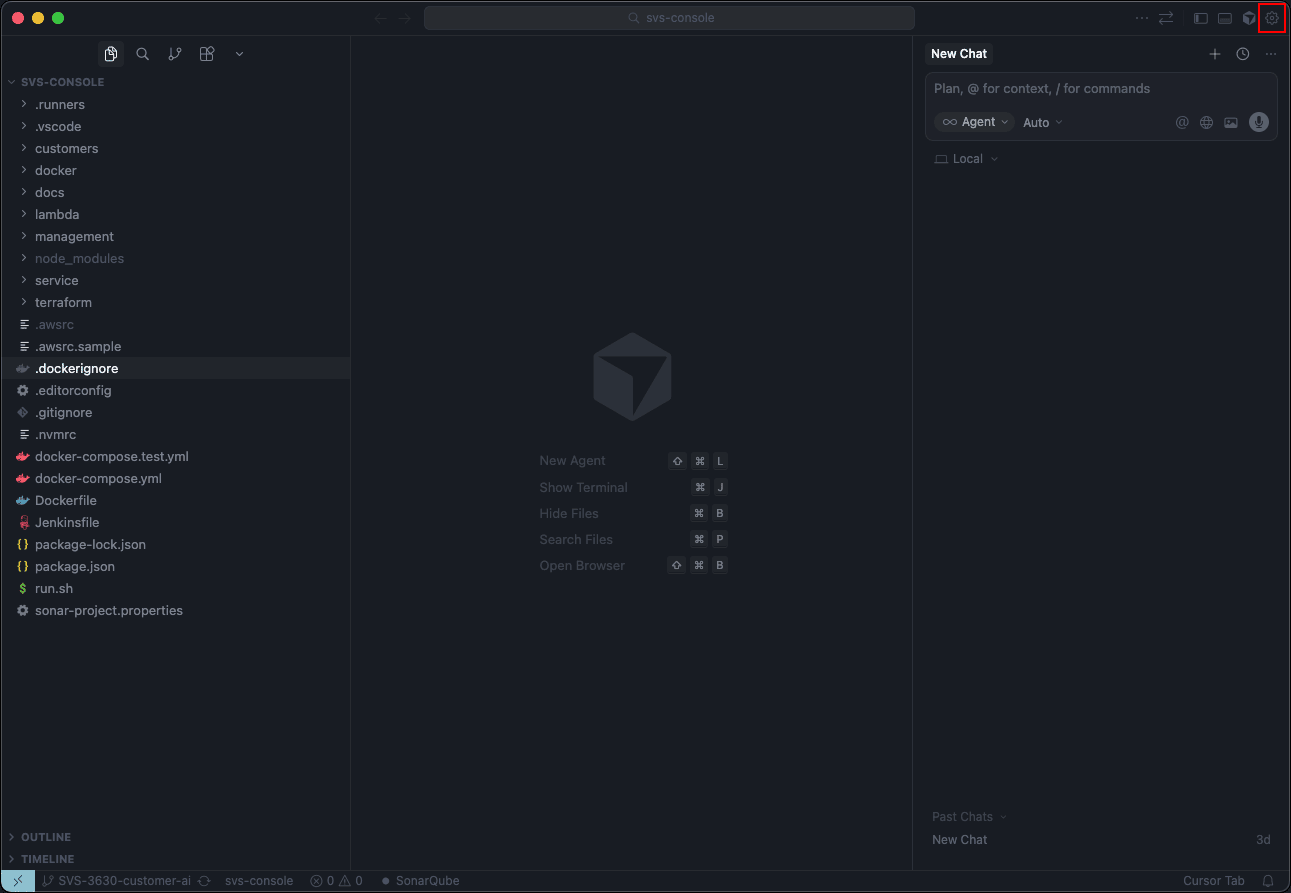
Open Cursor Settings.
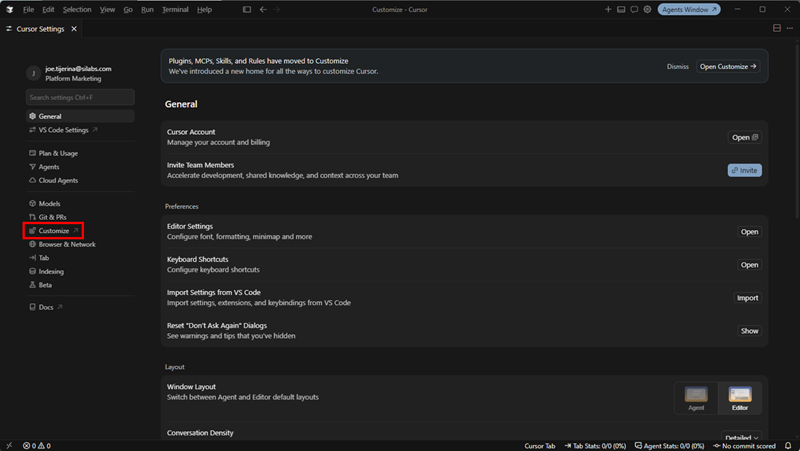
Select Customize.
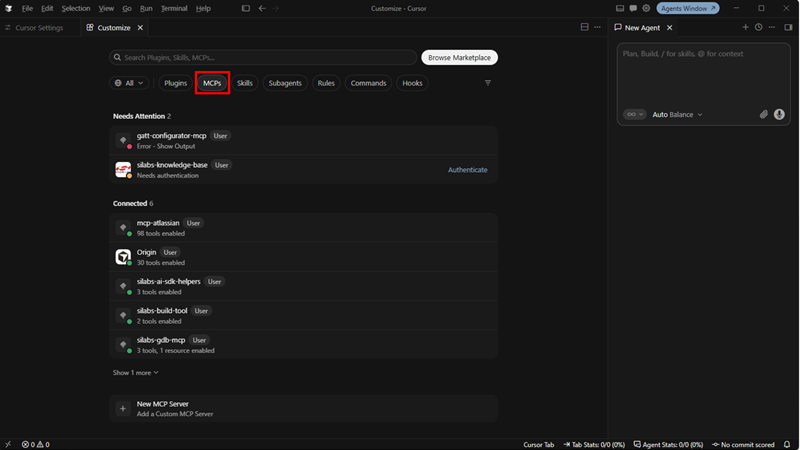
Select MCPs.
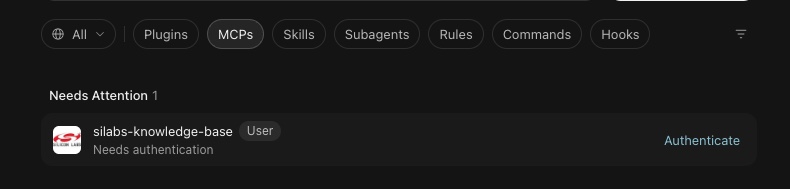
For each remote Model Context Protocol (MCP) server that displays an Authentication button, select Authentication, sign in through your browser, and then select Open Cursor to return to Cursor.
Open the Command Palette (Ctrl+Shift+P) and confirm that MCP commands are available.
Confirm that the following MCP servers appear and are enabled:
silabs-ai-sdk-helperssilabs-build-toolsilabs-gdb-mcpsilabs-knowledge-basesilabs-tool-locator
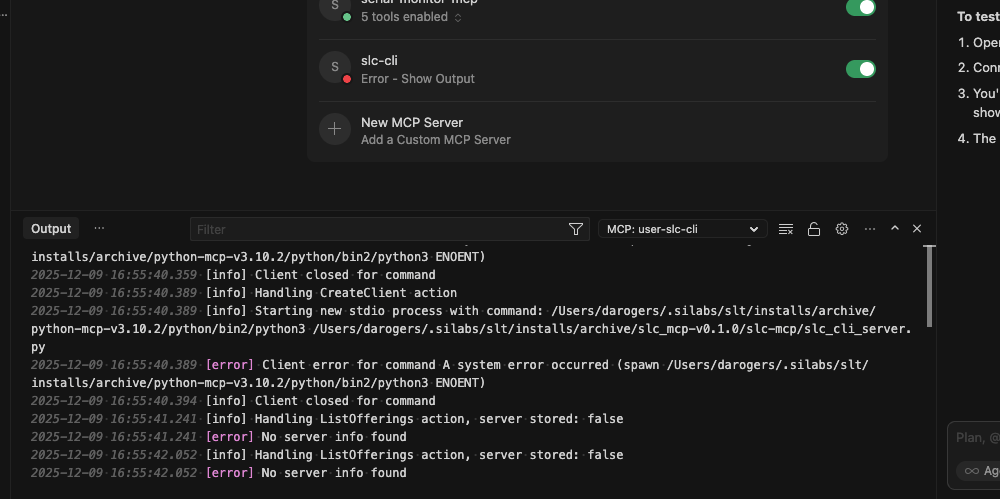
Check the status indicator for each server:
A green indicator means that the server is running.
A yellow indicator means that the server is initializing. Initialization might take several minutes.
A red indicator means that an error occurred. Select Error - Show Output to open the Output window and troubleshoot the failure.
Reference: Installer-Generated MCP Entries#
The installer writes the MCP entries to %USERPROFILE%\.cursor\mcp.json. Use the following sample to confirm your configuration or to restore an entry if auto-registration fails.
Replace <RootPath> with your user profile directory, such as C:\Users\<user>.
{
"mcpServers": {
"silabs-ai-sdk-helpers": {
"command": "<RootPath>\\.silabs\\slt\\installs\\archive\\python-v3.10.4\\python\\python.exe",
"args": [
"<RootPath>\\.silabs\\slt\\installs\\archive\\ai_sdk_local_helpers\\ai_sdk_local_helpers.py"
],
"cwd": "<RootPath>\\.silabs\\slt\\installs\\archive\\ai_sdk_local_helpers"
},
"silabs-build-tool": {
"command": "<RootPath>\\.silabs\\slt\\installs\\archive\\python-v3.10.4\\python\\python.exe",
"args": [
"<RootPath>\\.silabs\\slt\\installs\\archive\\build_tool_mcp\\build-tool-mcp\\build_tool_server.py"
],
"cwd": "<RootPath>\\.silabs\\slt\\installs\\archive\\build_tool_mcp\\build-tool-mcp"
},
"silabs-gdb-mcp": {
"command": "<RootPath>\\.silabs\\slt\\installs\\archive\\python-v3.10.4\\python\\python.exe",
"args": [
"<RootPath>\\.silabs\\slt\\installs\\archive\\gdb_mcp\\gdb-mcp\\mcu_debug_tool.py"
],
"cwd": "<RootPath>\\.silabs\\slt\\installs\\archive\\gdb_mcp\\gdb-mcp"
},
"silabs-knowledge-base": {
"url": "https://mcp.silabs.com/mcp",
"headers": {
"Authorization": "Bearer <token>"
},
"cwd": "<RootPath>\\.silabs"
},
"silabs-tool-locator": {
"command": "<RootPath>\\.silabs\\slt\\installs\\archive\\tool-locator-mcp\\tool-locator-mcp.exe",
"cwd": "<RootPath>\\.silabs\\slt\\installs\\archive\\tool-locator-mcp"
}
}
}Note: The bundled Python version can change between releases. In
<RootPath>\.silabs\slt\installs\archive, find the installedpython-v<version>folder and use its name in thecommandpaths.
Post-Installation Smoke Test#
Confirm that Simplicity SDK is installed and that the Cursor agent can detect it.
After all MCP servers are enabled, enter the following in agent chat:
What Simplicity SDK version do I have installed?Confirm that the response is similar to the following:
Simplicity SDK: version 2026.6.1
Select Your Language Model#
Select your preferred large language model (LLM) in the chat interface.
Note: Do not use automatic model selection. Manually selecting an LLM typically provides better performance and more consistent results. Choose a capable model with a sufficient context window for the task.
Troubleshooting#
Verify that Simplicity SDK 2026.6.1 is installed with Simplicity Installer.
If the chat session does not use an expected MCP tool, confirm that the tool is enabled and has no errors.
Open Settings > Tools & MCP and confirm that the status indicators show no errors.
Select Error - Show Output for any failing server.
If the chat session does not use MCP tools, confirm that it is in Agent mode, not Ask or Plan mode.
If you build and flash a project but it does not start on the device, verify that you are using the correct bootloader.
Confirm that workspace folder permissions allow you to create and modify files.
Confirm that the selected LLM has a sufficient context window for the task.
If automatic registration fails, add the missing entries from Reference: Installer-Generated MCP Entries to
%USERPROFILE%\.cursor\mcp.json.
For more information about authenticating remote MCP servers, see OAuth Authentication Process.