


Configuring Devices#
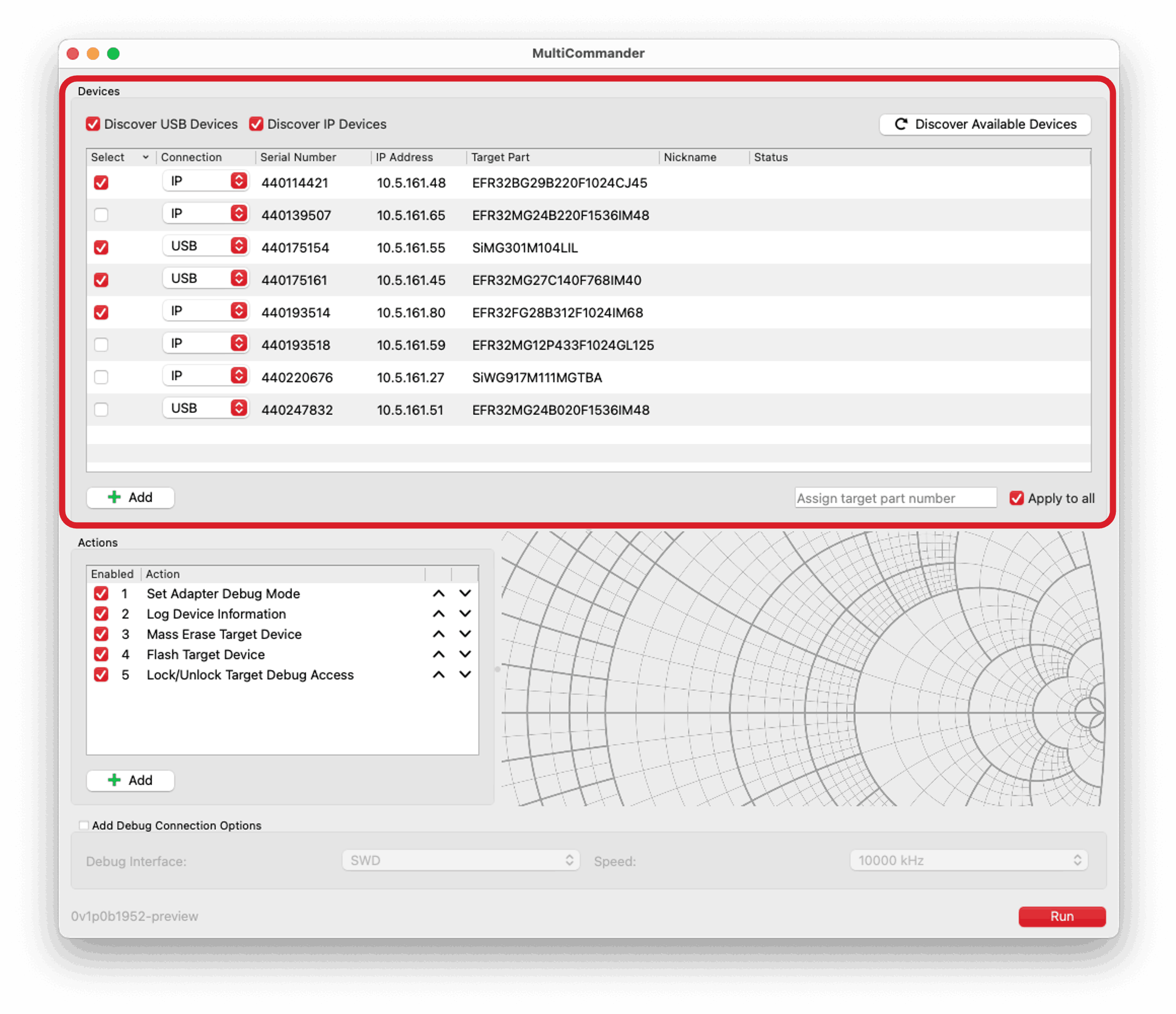
The upper portion of the MultiCommander user interface is used to discover, select, and manage the adapters you want to operate on. Each adapter appears in a list with several columns that display key information, including:
Selection state, which indicates whether the adapter is selected for operations
Connection type (USB or IP)
Adapter serial number
Adapter IP address
Target part number
Nickname
Status of the last operation performed on the adapter
You can edit the Serial Number, IP Address, and Target Part columns by double-clicking the corresponding cells.
The device list supports sorting by column. Click a column header to organize and locate adapters based on the displayed information.
Discovering Available Adapters#
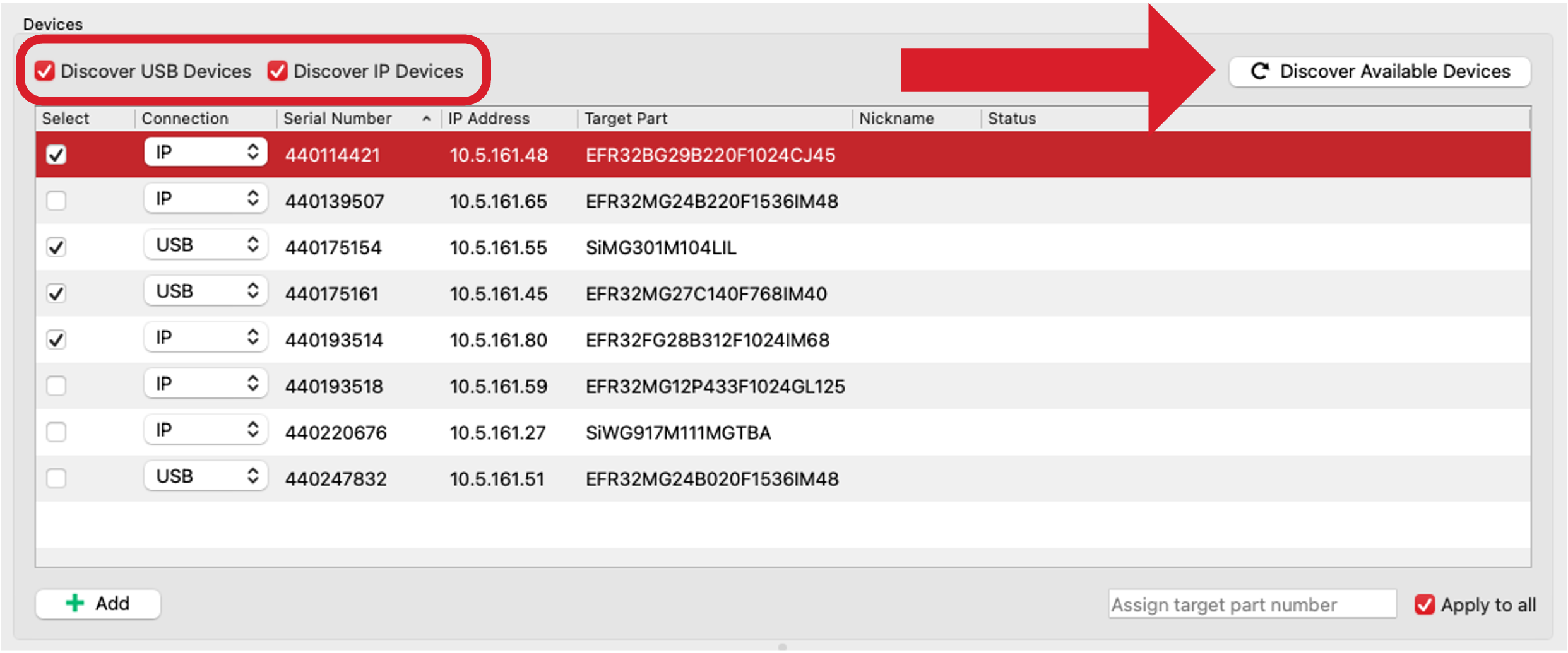
To discover available adapters, click the Discover Available Devices button located above the list of adapters. MultiCommander will scan for connected adapters and populate the list with any devices found. Please note that during the discovery process, any existing adapters in the list that are not selected will be removed.
By default, MultiCommander discovers devices connected over USB and devices accessible over the network, provided they are on the same subnet as your machine. To exclude devices with a specific connection method (such as USB or IP), clear the corresponding checkbox above the adapter list.
Adding Adapters Manually#
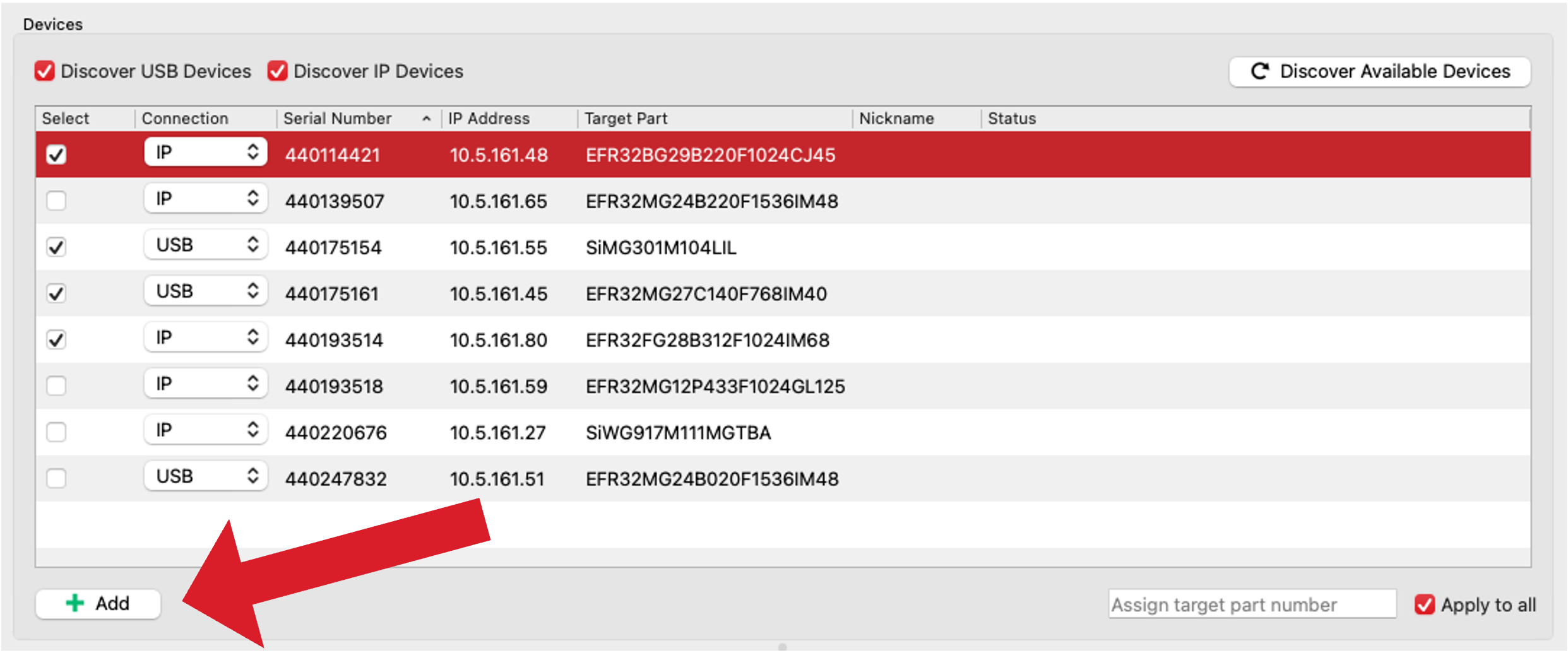
You can also add adapters manually by clicking Add below the device list. This adds an empty row to the list, where you can double-click individual columns to edit values. Manual entry is useful for IP-connected adapters that cannot be discovered automatically.
Removing Adapters#
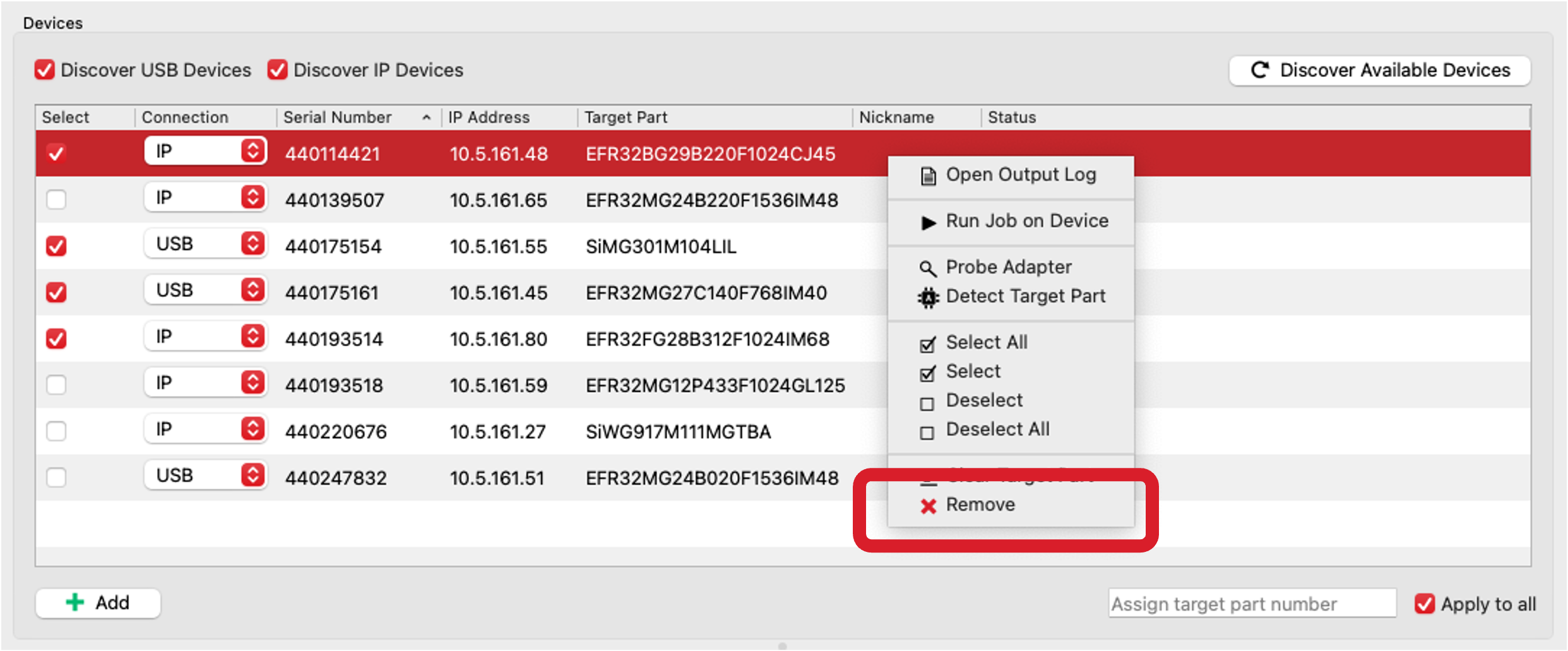
To remove adapters, right-click one or more highlighted adapters and select Remove from the context menu. To remove multiple adapters, select them by holding Ctrl (Windows/Linux), Cmd (macOS), or Shift, and then right-click to remove them.
Selecting Adapters for Operations#
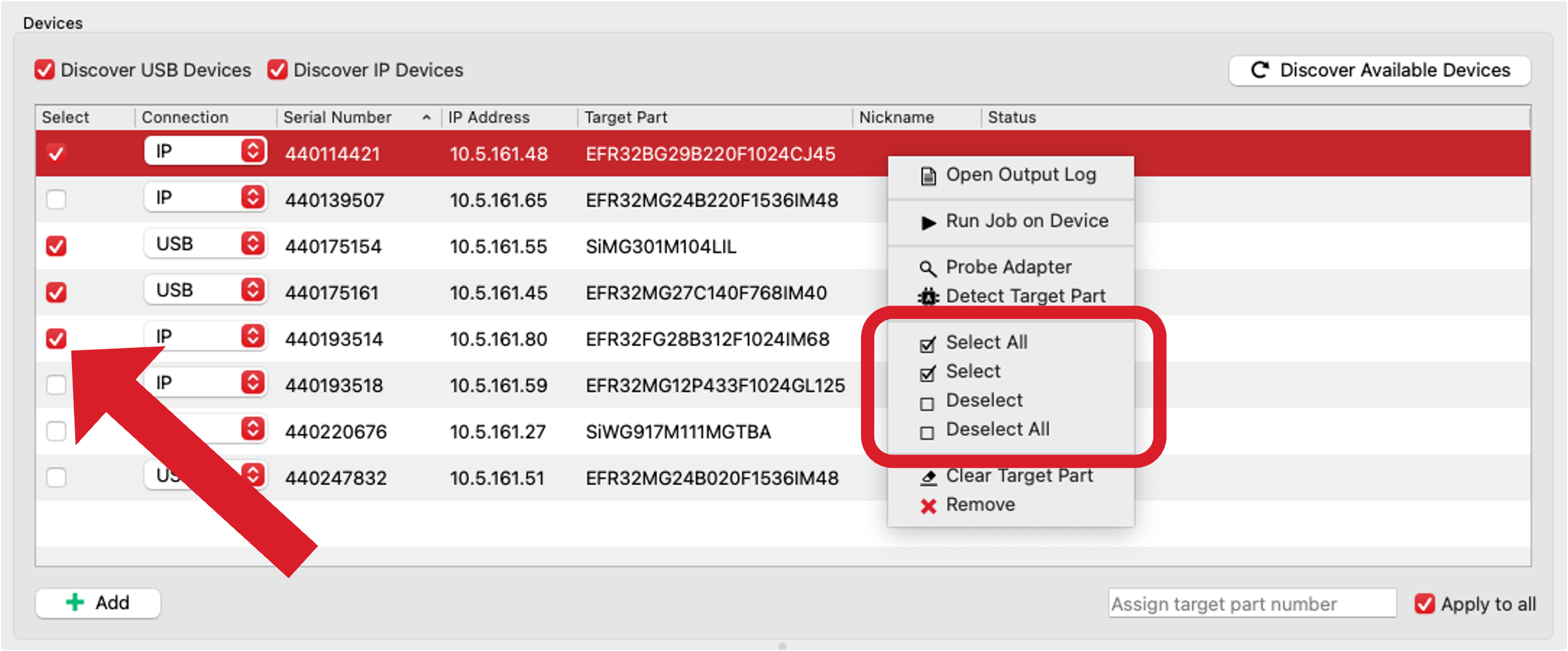
Each adapter includes a checkbox in the first column that controls whether it is selected for operations. You can change the selection state by clicking the checkbox or by right-clicking the adapter and selecting Select or Deselect from the context menu.
Only selected adapters are included when you execute batch operations.
Selecting Connection Type#
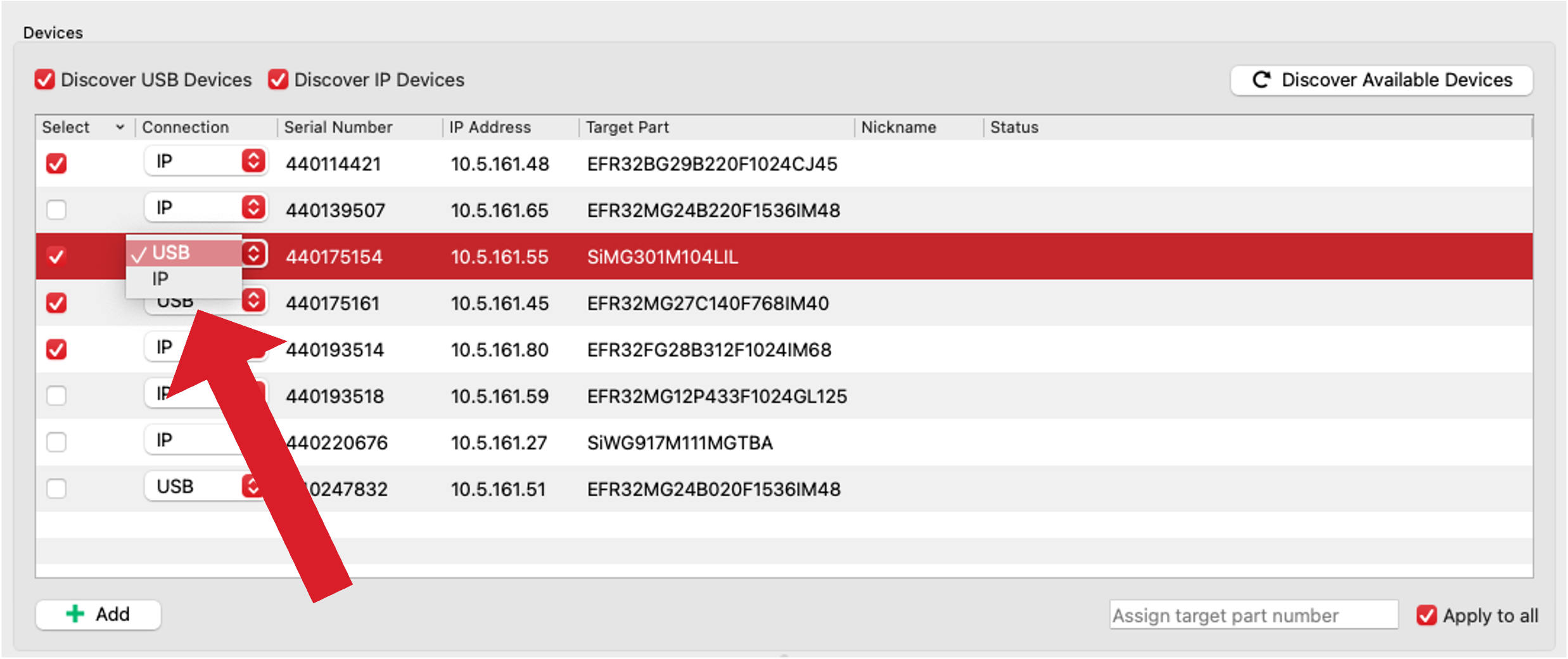
The Connection column indicates how MultiCommander connects to an adapter. If only a serial number is provided, the connection type is set to USB. If only an IP address is provided, the connection type is set to IP.
If both a serial number and an IP address are provided, you can select the desired connection type using the drop-down menu in the Connection column.
Probing Adapters#
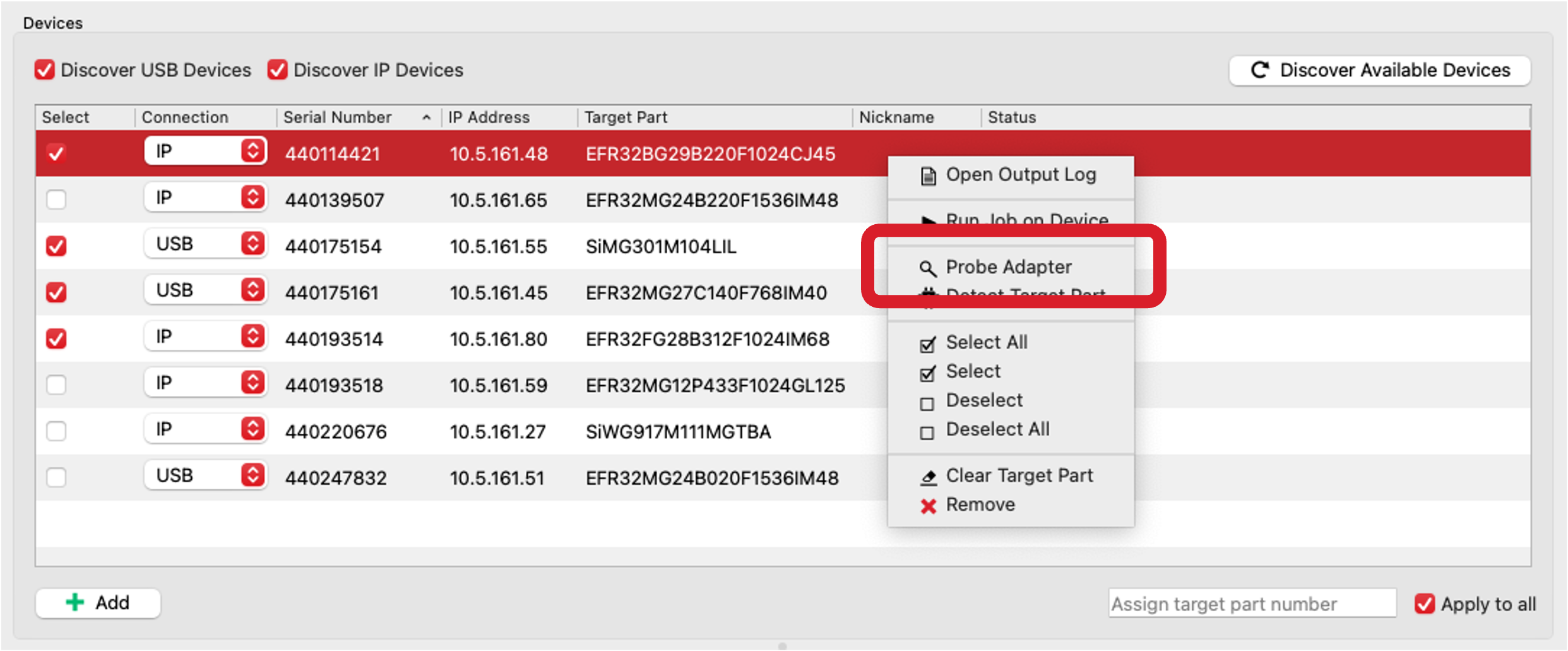
Right-clicking an adapter provides the Probe Adapter option. This option uses Simplicity Commander to connect to the adapter using the selected connection type and query its serial number, IP address, target part, and nickname. The adapter entry in the list is then updated with the retrieved information.
Probing is useful if you manually added an adapter with incomplete information or if you want to refresh the details for an existing adapter. If you are using custom hardware, the target part may not be identified correctly during probing.
Note: Probing adapters only works with Silicon Labs adapters.
Detecting Target Parts#
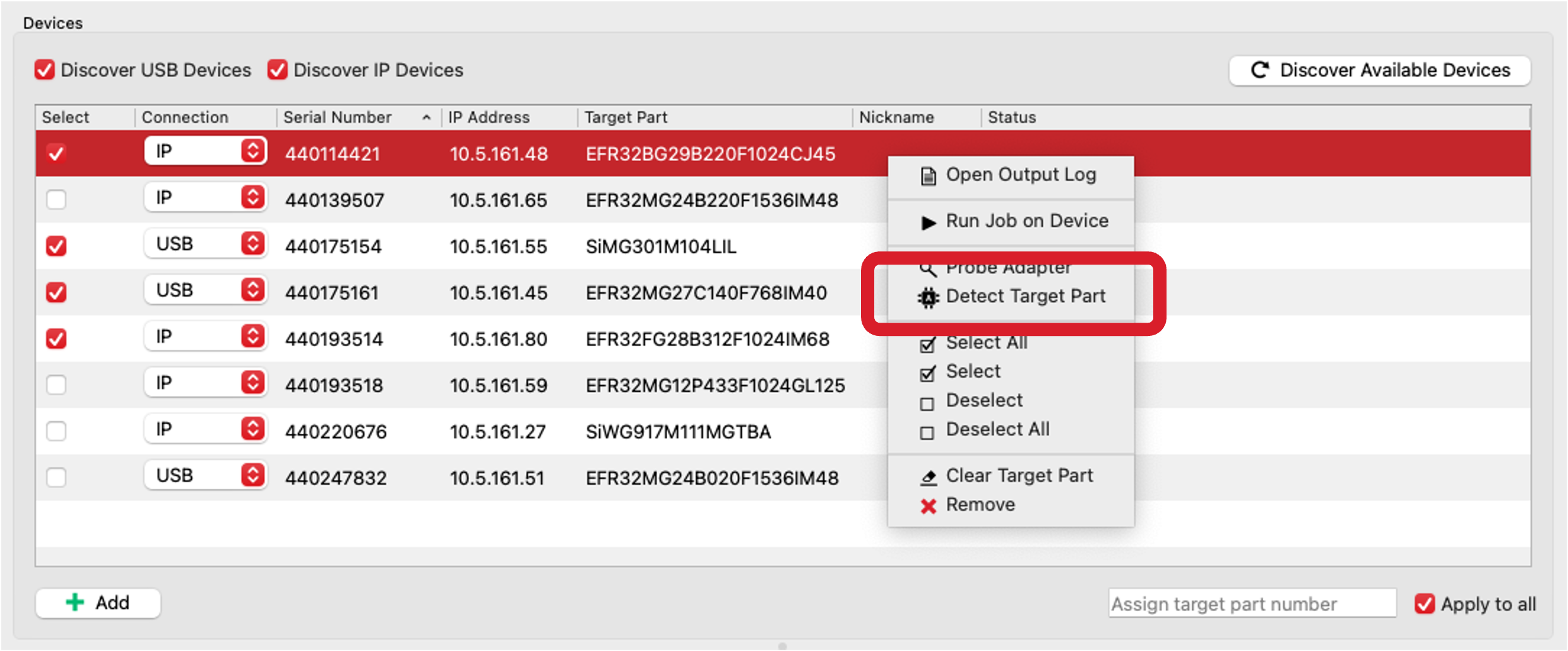
Right-clicking an adapter also provides the Detect Target Part option. This option uses Simplicity Commander to query the connected target device, rather than the adapter, for its part number and updates the Target Part column.
If you are using custom hardware, you can enter a partial or expected part number in the Target Part column before detection. Simplicity Commander uses this hint to help identify the correct part. For example, for an EFR32MG26B510F3200IM48 device, entering EFR32MG26 is sufficient.
Manually Assigning Target Parts#
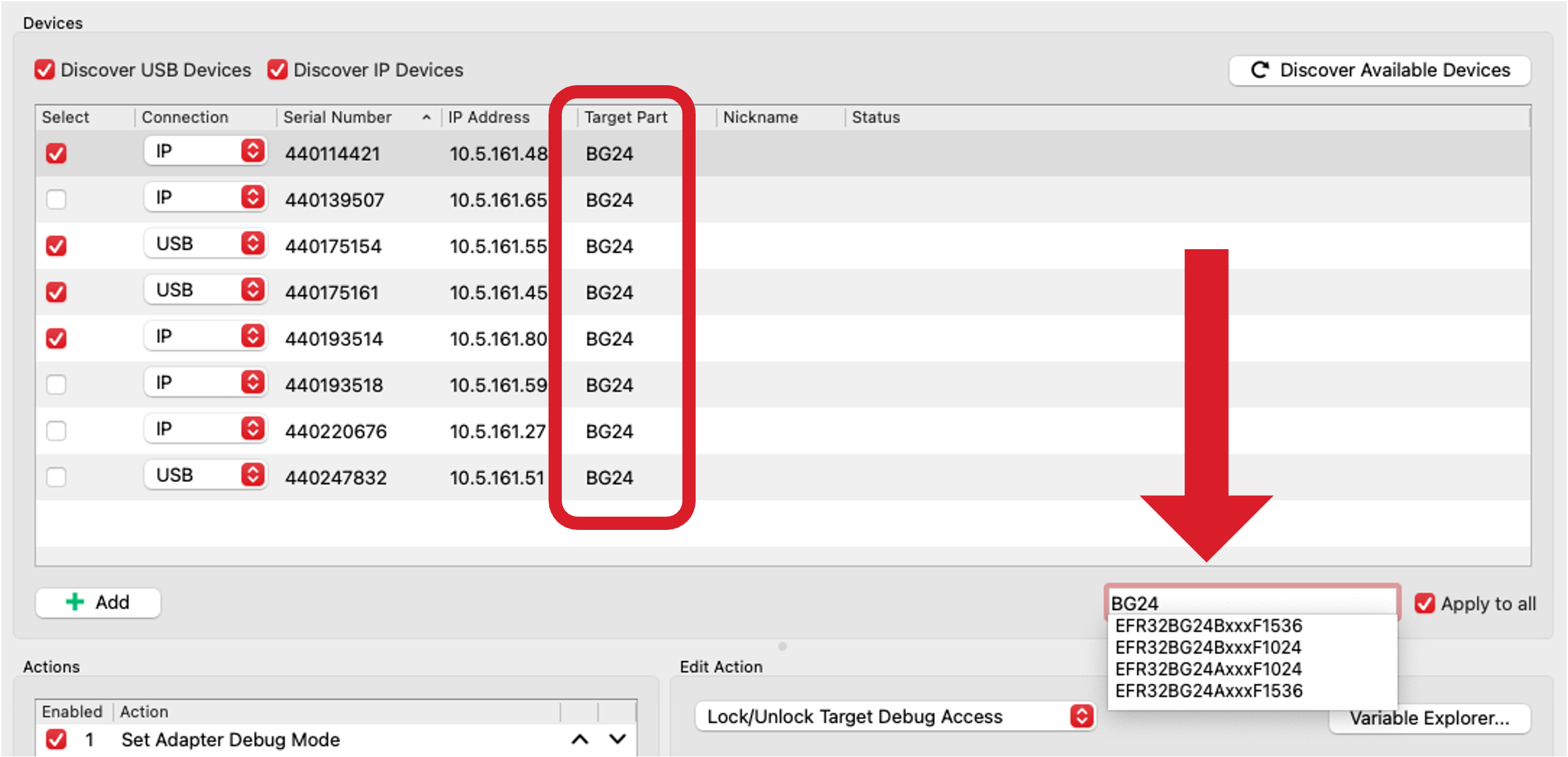
Below the adapter list is a text box labeled Assign target part number. Use this field to assign a target part number to multiple adapters at once.
If the Apply to all checkbox is selected, the specified part number is assigned to all adapters in the list. If the checkbox is not selected, the part number is assigned only to the currently highlighted adapters.
The text box supports auto-completion and suggests matching part numbers based on the part numbers known to Simplicity Commander.
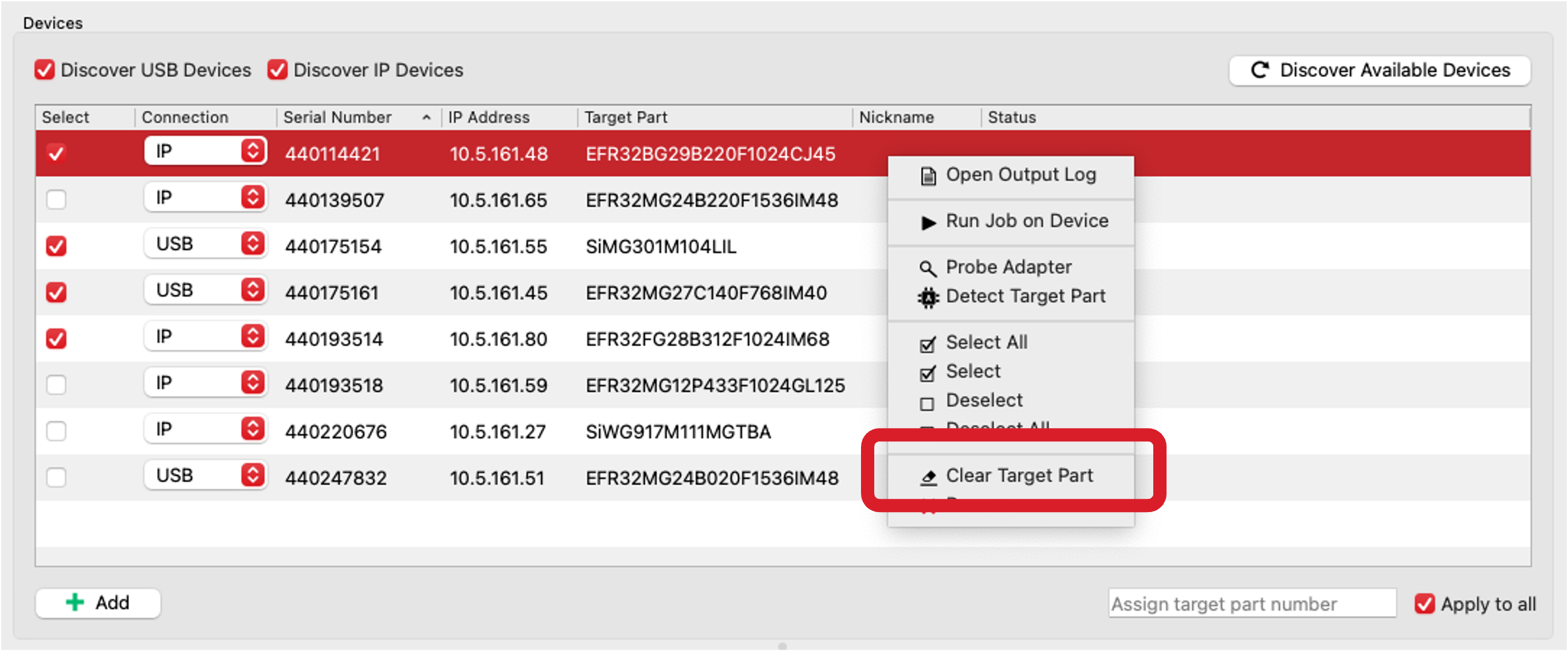
You can also right-click an adapter and select Clear Target Part to remove the assigned part number from that adapter.
Open Output Log#
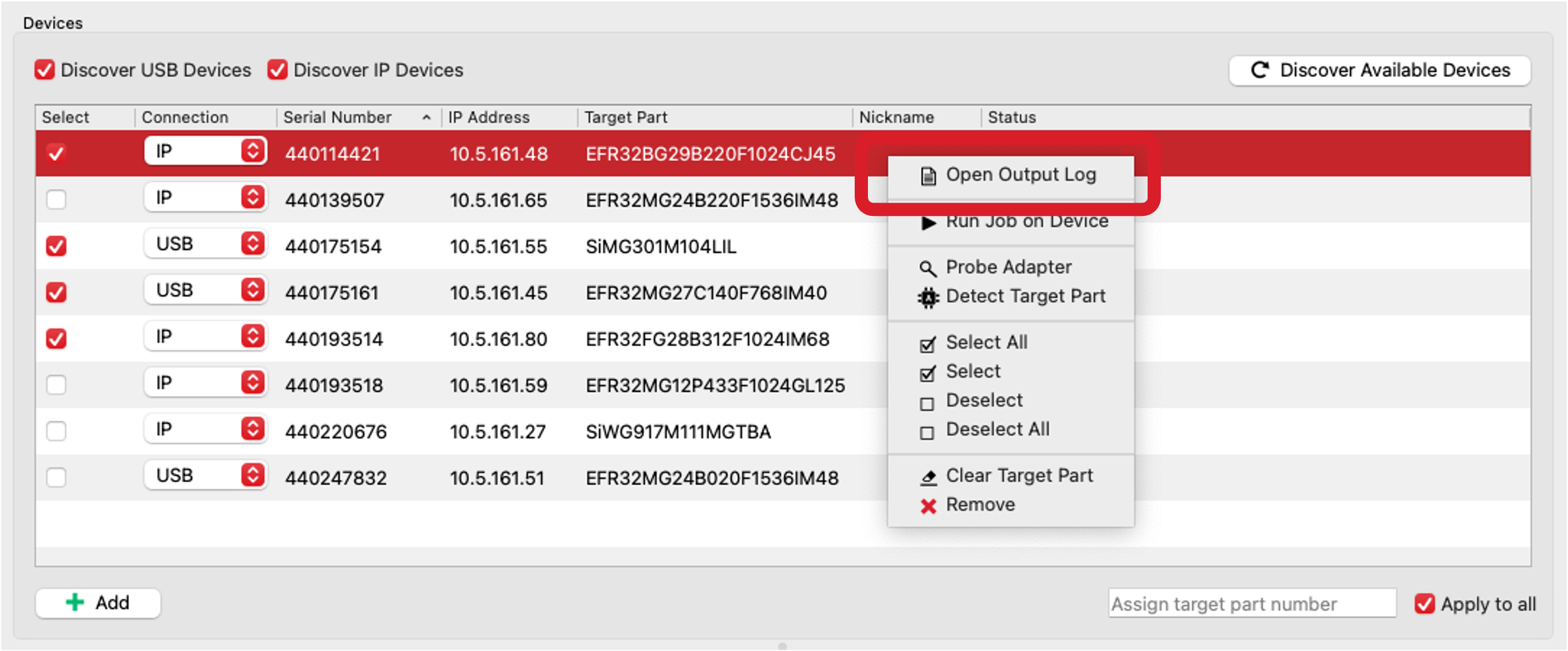
If logging is enabled in the MultiCommander settings and a log file exists, you can open the output log for a specific adapter by right-clicking the adapter and selecting Open Output Log. The log opens in your default text editor, allowing you to review the detailed output of the actions performed on that adapter.
Run Job on Singular Devices#
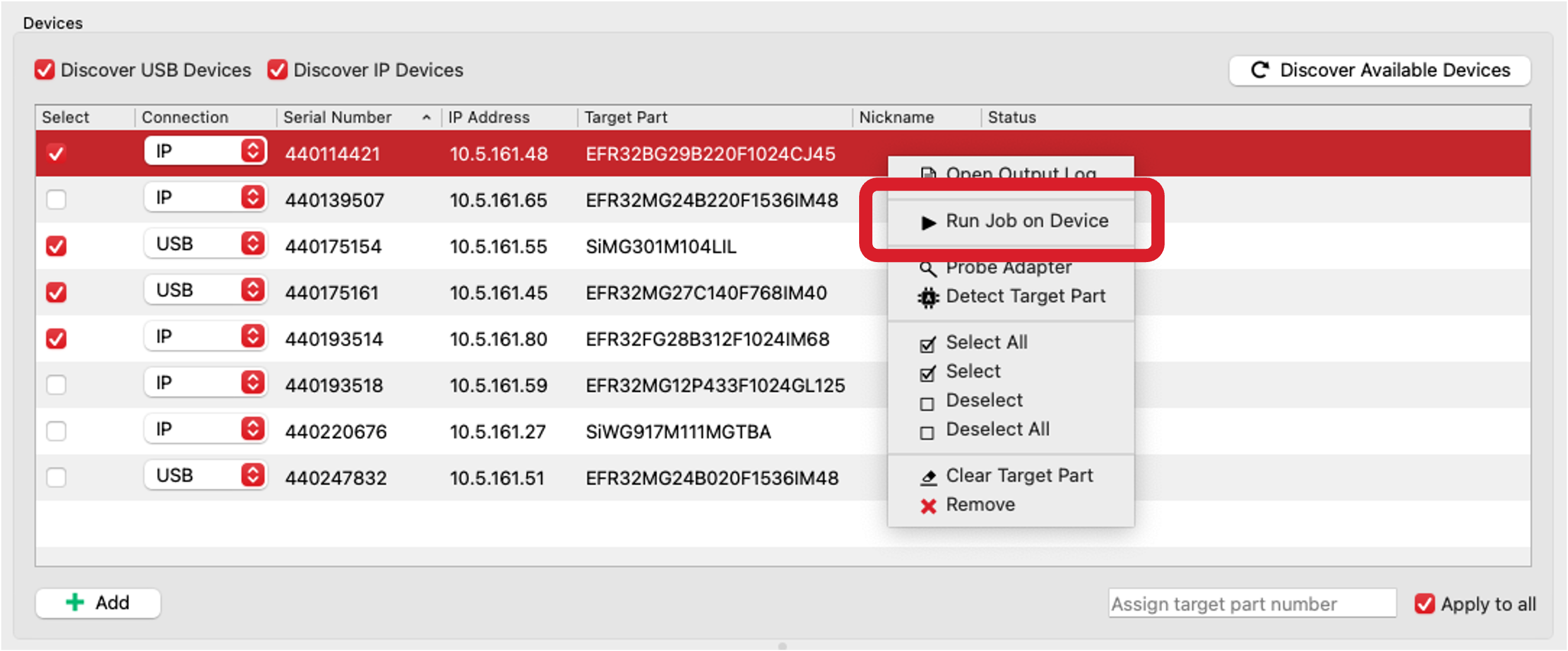
Right-clicking an adapter provides the Run Job on Device option. This option runs the currently defined batch job on that adapter only, regardless of its selection state.
To run the job on multiple adapters, select them by holding Ctrl (Windows/Linux), Cmd (macOS), or Shift, and then right-click to run the job on all selected devices.