


Executing a Batch Job#
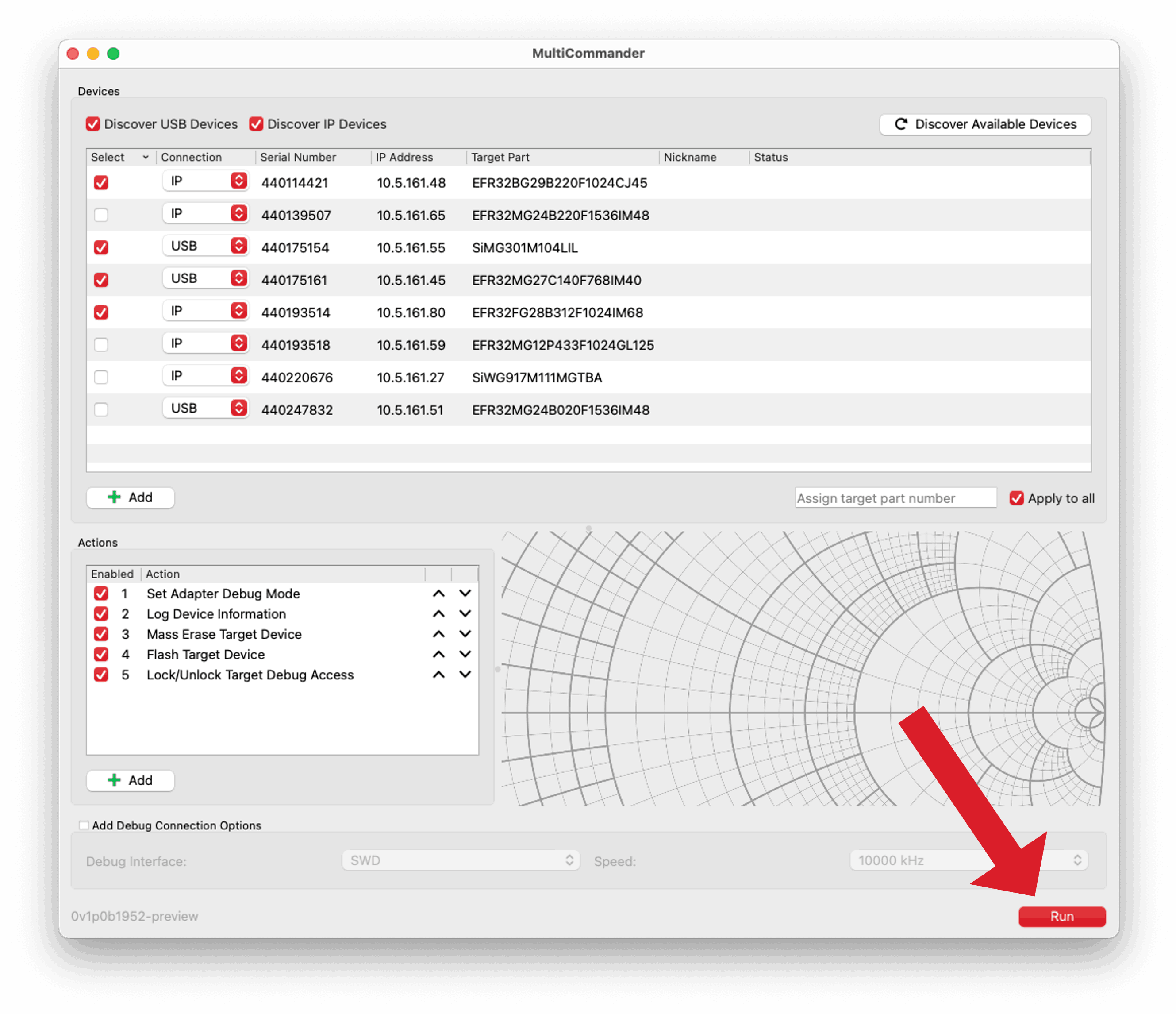
After you select the desired adapters and define the sequence of actions, you can execute the batch job by clicking Run in the lower-right corner of the MultiCommander user interface.
While the batch job is running, the status of each adapter is updated in real time to reflect the progress of the executing actions. Each adapter displays its current action as the job progresses, and a progress bar at the bottom of the interface shows the overall completion status across all selected adapters.
If logging is enabled in the MultiCommander settings, the output of each action for each adapter is written to a separate log file. After the batch job completes, you can review these logs by right-clicking an adapter in the list and selecting Open Output Log from the context menu.
Jobs that have not yet started can be aborted by clicking Abort, which replaces the Run button during execution. Aborting stops any further actions from running on adapters that have not started processing. Adapters that are already executing actions continue until completion or until an error occurs.
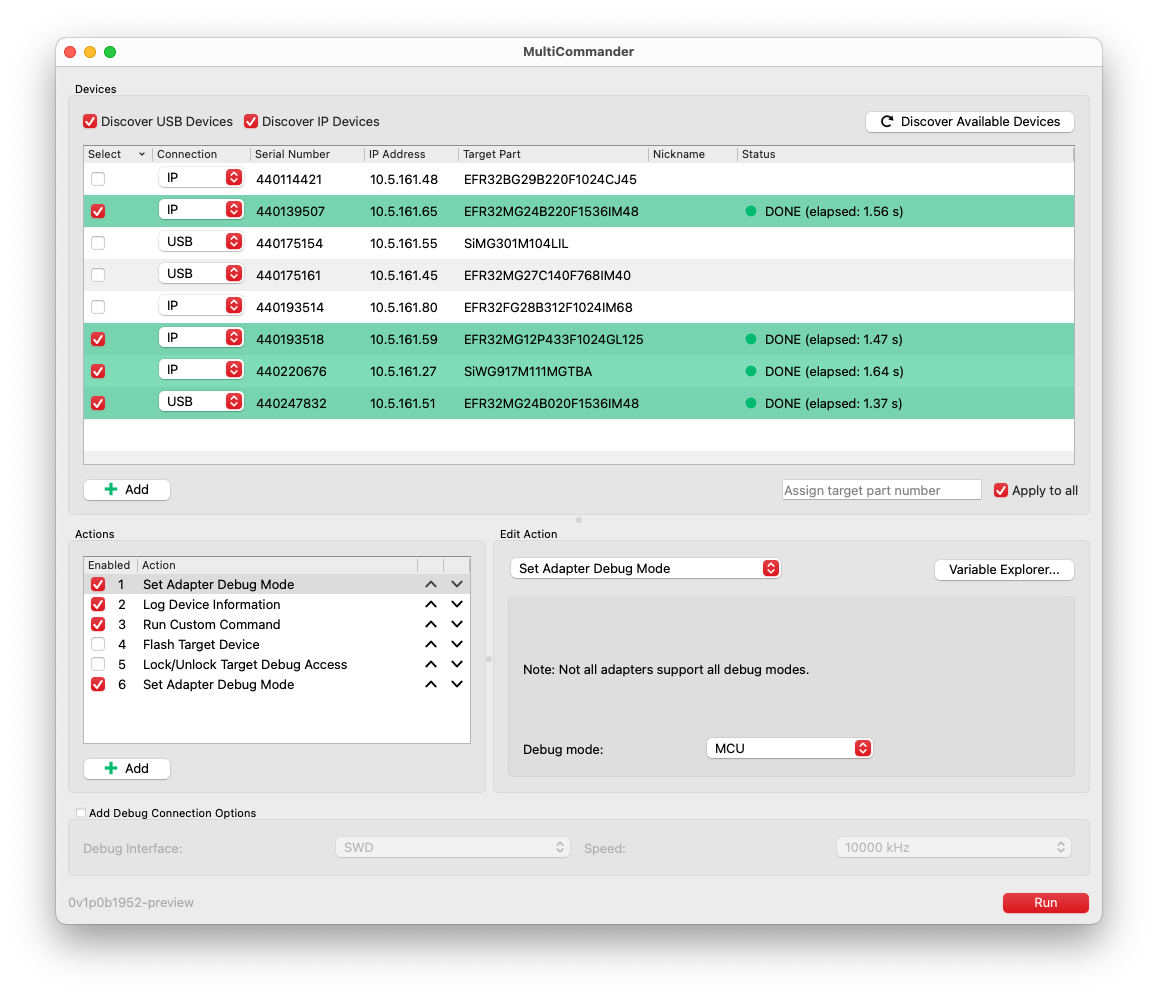
After the batch job finishes, the status of each adapter indicates whether the operations completed successfully or if an error occurred. The elapsed time for each adapter is also displayed in the status column.
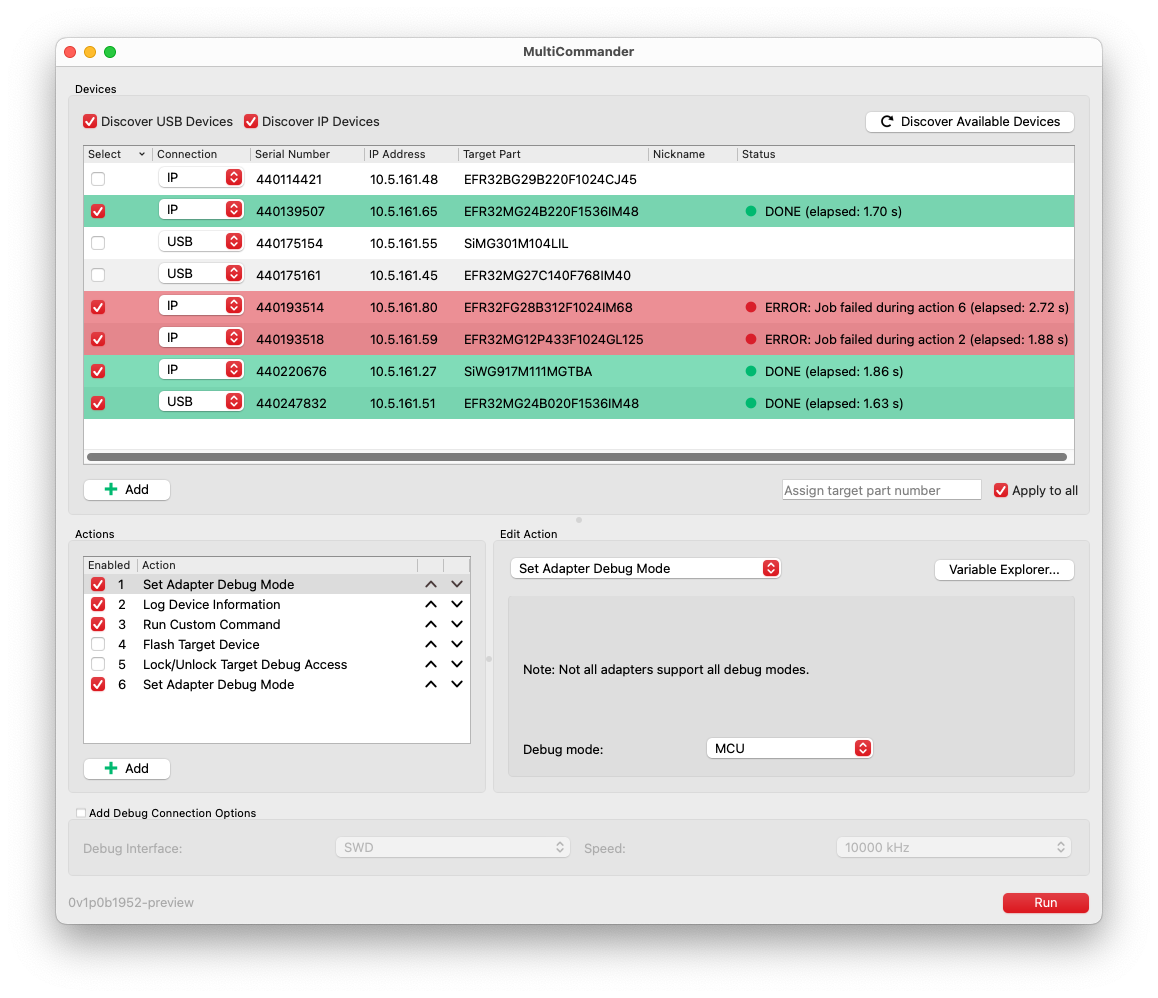
If an error occurs, the Status field identifies the action that failed. Hovering over the Status field displays a tooltip with additional error details. You can also open the output log for the adapter to review more detailed information about the failure.
Configuring Number of Concurrent Jobs#
You can configure the maximum number of concurrent jobs that MultiCommander will execute in the settings, under Settings > Set Max Concurrent Processes.... By default, this value is set to the total number of available CPU cores, including both physical and logical cores. You can adjust this value based on your system capabilities and performance requirements.
Configuring Process Timeouts#
You can configure the timeout for individual actions in the settings under Settings > Set Process Timeout.... By default, the timeout is set to 2 minutes and can be increased to a maximum of 60 minutes.
Configuring Logging#
Logging is enabled by default in MultiCommander. When logging is enabled, output from actions executed on each adapter is saved to a log file. You can disable logging by clearing the checkbox under Logging > Enable Logging.
From the Logging menu, you can also open the current log directory by selecting Logging > Open Log File Directory or change the directory by selecting Logging > Set Log File Directory....
Log files are named using the adapter serial number when available, or the IP address if no serial number is present. Logs include timestamps for the start and end of each job, as well as the full output from each executed action. Log files are appended, so repeated batch jobs on the same adapter are included in the same log file.