


Package Manager#
The Package Manager lets you view and modify your current installation by updating or uninstalling packages in Simplicity Studio.
Access Package Manager#
To access Package Manager:
In the navigation bar in Simplicity Studio, click the PACKAGES button. A message with a progress bar displays in the lower-right corner while Simplicity Installer checks for updates.

Simplicity Installer opens in a pop-up window.
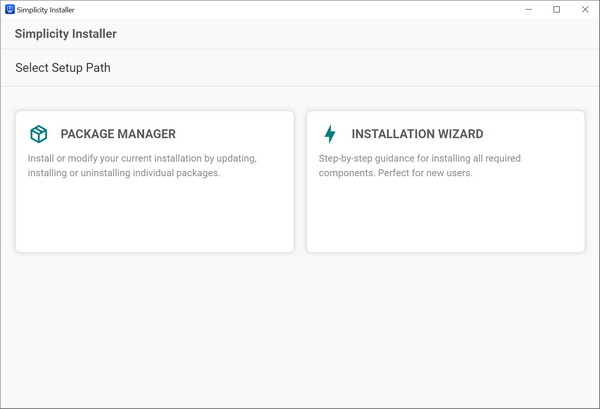
Click the Package Manager tile.
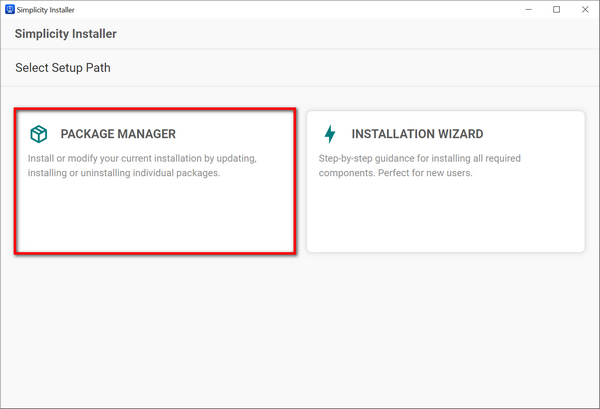
The Package Manager displays.

Package Manager Features#
The following sections describe the features of Package Manager. The numbers in the image correspond to the numbered items in the list below.
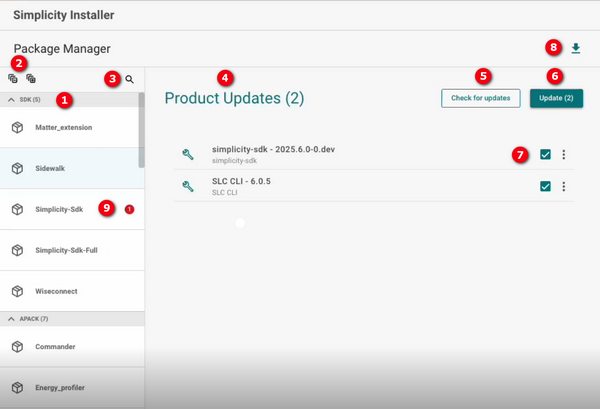
A list of the packages you have installed: Packages are organized by category, followed by the number of packages in parentheses. In the image above, the SDK, APACK, Software, Toolchain, and Tools categories are shown. To expand or collapse a category, click the arrow to the left of the category name.
List expansion icons: Click the Expand All (+) icon to expand all packages in the list. Click the Collapse All (-) icon to collapse all packages in the list.
Search icon: Click the Search icon to display a search field where you can enter a search term to find a package. Press Enter to display the search results. When a filter is active, a red icon appears next to the Search icon.

Product Updates list: The Product Updates section lists any packages with available updates. If no updates are available, the message All packages are updated! appears instead.
Check for updates button: Click Check for updates to search for available updates. Any available updates appear in the Product Updates list.
Update button: Click Update to install the selected updates. The button displays the number of selected updates in parentheses. To exclude a package, clear its check box before clicking Update. When you click Update, a license agreement appears in a pop-up window. You must accept the agreement before the updates can be installed.
Check boxes: These are located to the right of each package name with available updates. When you check for package updates, all check boxes are selected by default. Clear the check box for any package that you do not want to update.
Note: You can also update an individual package by clicking the vertical ellipsis (⋮) and selecting Update from the pop-up menu.
Installer Progress icon: Click this icon to view the history of package installations and updates. Uninstalled packages are also listed here.
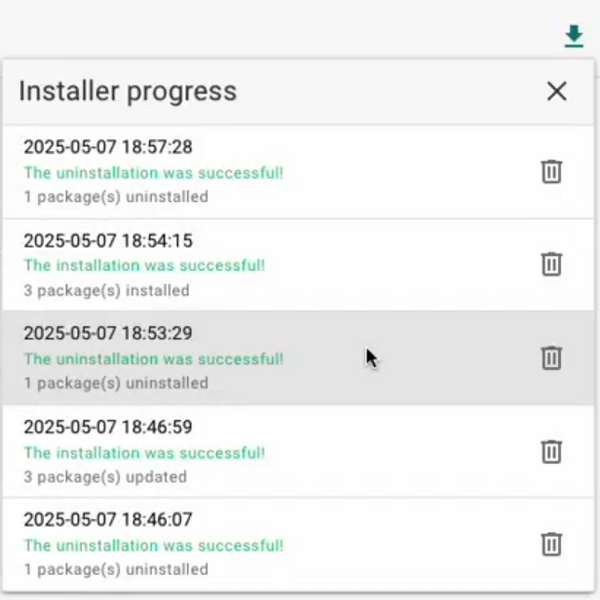
To view the status of a package, click the package name in the menu. The status appears in a pop-up window.
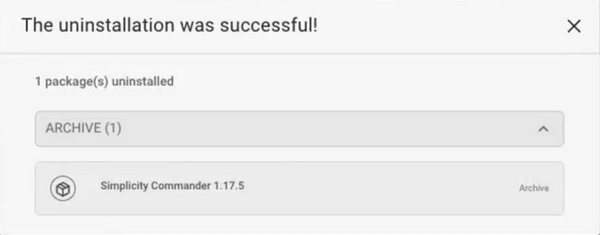
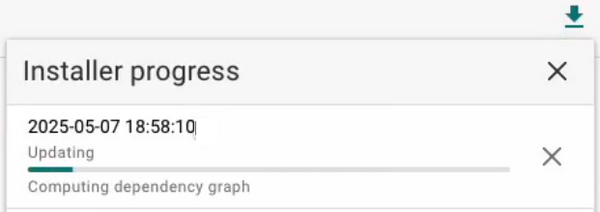
You can also monitor the progress of package installations, updates, and uninstallations in real time from this menu.
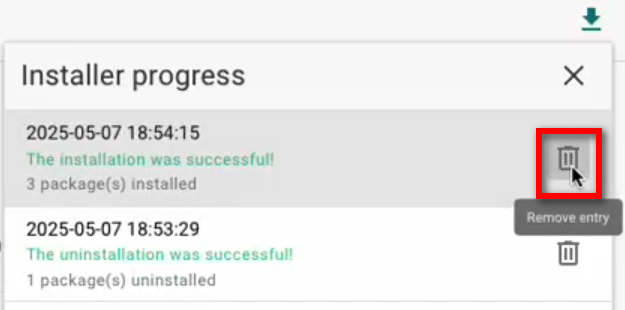
To remove an entry from the history, click the Delete icon to the right of the package name.
Export Logs: Click the Settings icon and select Export Logs to collect diagnostic information for troubleshooting installation, update, configuration, and development tool issues.
Package update alert: The number of available package updates appears next to the package category in the list on the left side of the Package Manager. In the following example, one package has an available update.
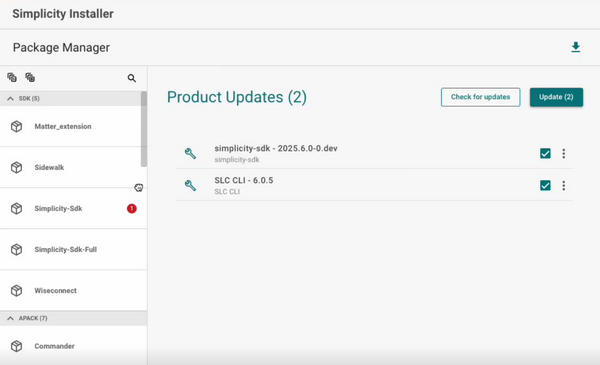
Click the package name to display its details on the right side of the page.
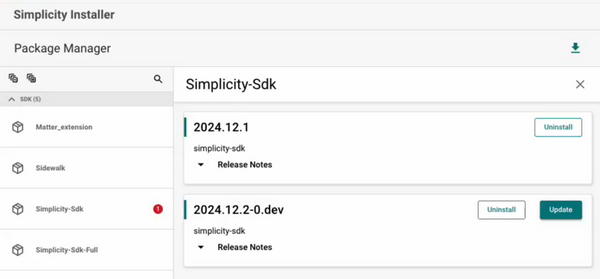
Click Update to install the update. To uninstall a package, click Uninstall.
Note: If you uninstall a package that is open, you will be prompted to stop the process before continuing.
Log In button: Select Log In to sign in to your Silicon Labs account.
Installing Restricted Access SDK Packages#
Sign in to your Silicon Labs account to view and install SDK packages available to your account, including SDK packages with restricted access.
If you are not signed in, SDK packages that require authentication display a Log In button.
To sign in, follow these steps:
Select Simplicity SDKs and then Add New SDK.
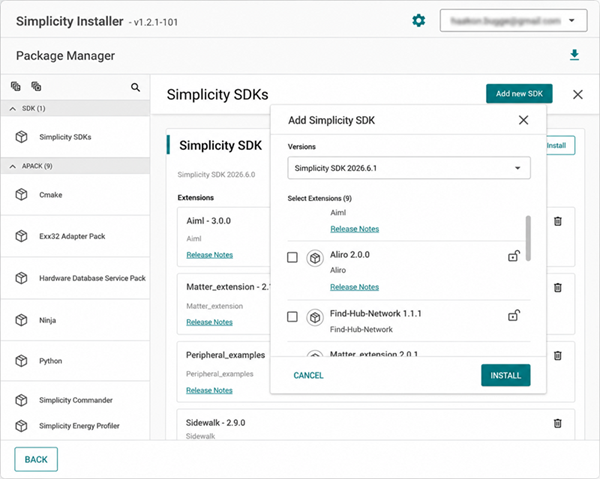
Select Log In, enter your device information, and click Connect.
Enter your Silicon Labs account email address and password, and then select Log In.
If prompted, complete any additional authentication steps.
When prompted, select Reload to refresh the package list.
After you sign in, SDK packages available to your account are displayed. Install these SDK packages the same way that you install any other SDK package.
If an SDK package displays a Contact Sales button, your account is not authorized to access that SDK package. Select Contact Sales to request access.