Find and Filter Devices#
To find a device, enter the product name in the Search field at the top of the Device & Products Catalog on the Home tab.
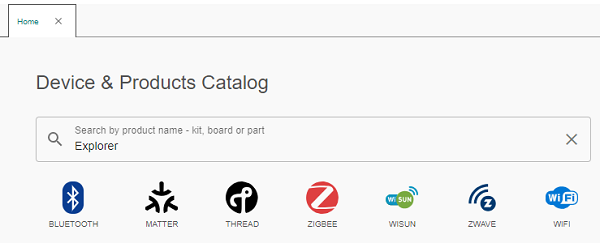
As you type, matching results appear below the Search field and filters. The total number of devices found appears in the lower-right corner of the catalog.
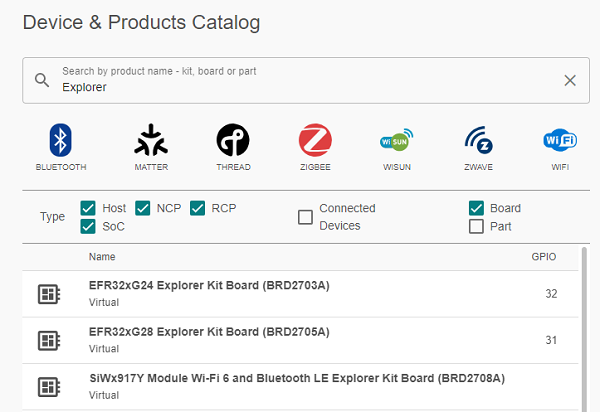
To clear your search, click the X to the right of the Search field, or delete the text you entered.
Sort the Product List or Search Results in the Catalog#
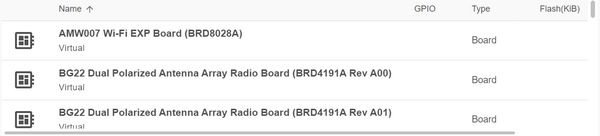
You can sort the full product list or your search results in the Device & Products Catalog by clicking any column name. Click the column heading once to sort the list in ascending alphabetical or numerical order, depending on the column contents. Click the heading again to sort in descending order.
In the following example, all products in the catalog are sorted in ascending order by product name.
Filter Devices#
You can filter devices by technology, device type, and connected devices. You can also filter boards and parts. Combine filters to narrow the results further.
Filter by Technology#
To filter by technology, click the technology name below the Search field in the Device & Products Catalog. A list of devices available for the selected technology appears below the filters, and the total number of available devices appears in the lower-right corner of the catalog. In the following example, ZWAVE is selected.
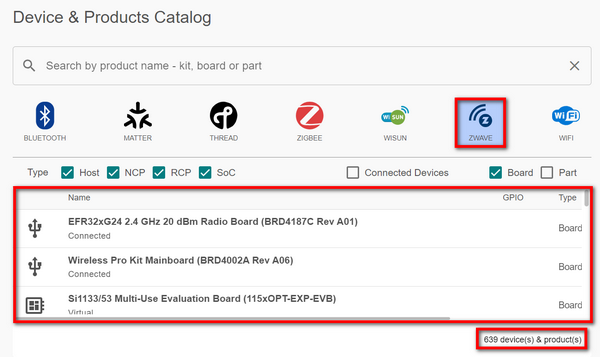
Note: You can filter by more than one technology by selecting additional technology names. To remove a filter, select the technology name again.
Filter by Device Type#
To filter by device type, select or clear the check boxes next to the device type names to the right of Type. Available device types include Host, NCP, RCP, and SoC.
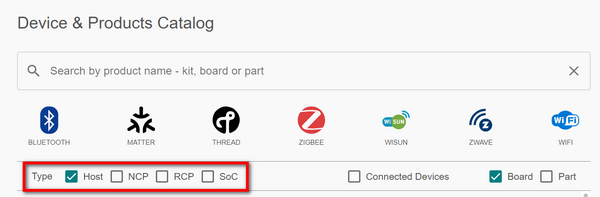
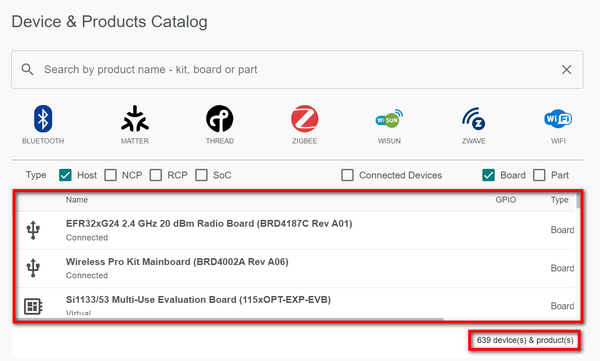
A list of devices available for the selected type appears below the filters, and the total number of devices available appears in the lower-right corner of the catalog. In the following example, Host is selected.
Filter by Device Board or Part#
Select or clear the Board or Part check boxes to filter by either or both categories.
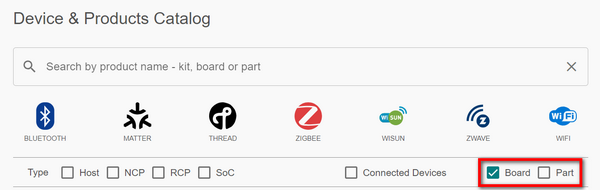
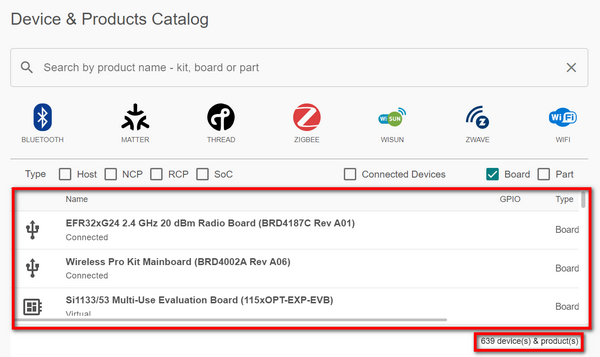
A list of boards, parts, or both (depending on the categories selected) appears below the filters, and the total number of items appears in the lower-right corner of the catalog. In the following example, Board is selected.
Filter by Connected Device#
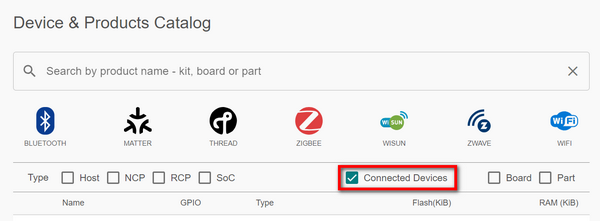
Select the check box next to Connected Devices to display only devices connected to Simplicity Studio.