Bluetooth GATT Configurator#
Use the Simplicity Studio® 6 Bluetooth® Generic Attribute Profile (GATT) Configurator to build a custom GATT database for a Bluetooth project. Open the configurator from the Advanced Configurators software component group on the Software Components tab of the Project Configurator. You can also open the config/btconf/gatt_configuration.btconf project file directly.
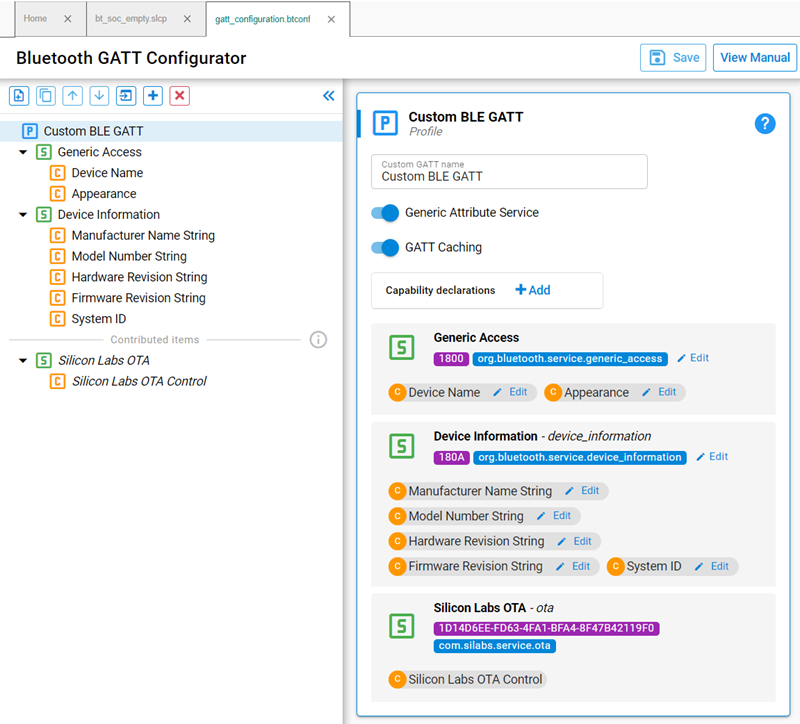
The Bluetooth GATT Configurator consists of the Custom GATT editor on the left and the Settings editor on the right. The Custom GATT editor lists the project's profiles, services, characteristics, and descriptors. The Bluetooth Special Interest Group (Bluetooth SIG) defines standard GATT elements. Use the SIG selector to add these elements to the profile. A toolbar appears at the top of the Custom GATT editor.
The Custom GATT editor remains visible while you work, and the Settings editor opens by default.
The numbered controls on the Custom GATT toolbar perform the following actions:
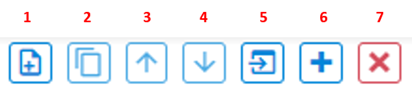
Add an item.
Duplicate the selected item.
Move the selected item up.
Move the selected item down.
Import a Bluetooth GATT database.
Add a predefined item by opening the SIG selector.
Delete the selected item.
SIG Selector#
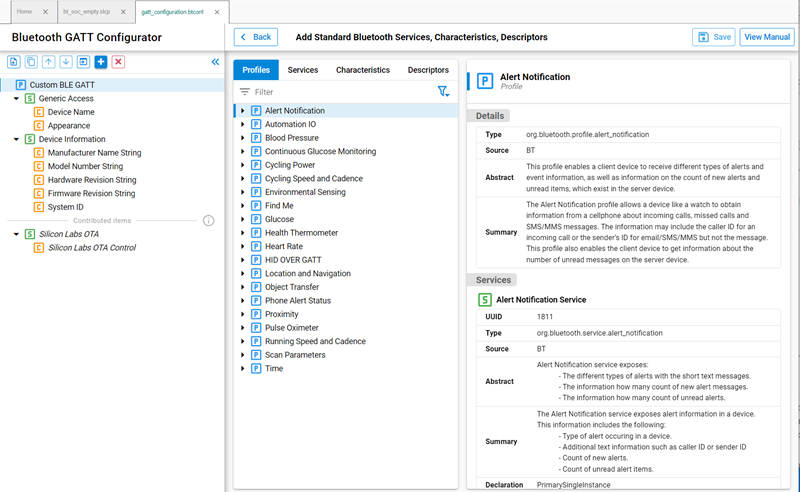
The SIG selector displays predefined profiles, services, characteristics, and descriptors. The pane on the right displays information about the selected item.
To add a predefined item:
Select Add Predefined (6) to open the SIG selector.
Use the filter pane to filter the available items, or use the tabs to switch between lists.
Select the profile, service, or characteristic under which you want to add the item.
Point to the item and select +. The SIG selector adds the item under the highlighted database element.
Select < BACK to return to the Settings editor and edit the item.
Select View Manual for more information about Bluetooth GATT database items.
Note: The GATT Configurator does not save changes automatically. An asterisk next to the configuration file name indicates unsaved changes.
When you save the configuration, the configurator generates the database and places the generated source files in the autogen directory:
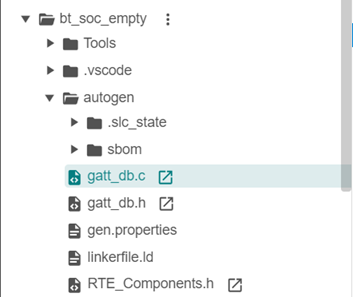
Custom GATT Editor#
The Custom GATT editor in the left pane displays the items in the current configuration file. Its hierarchical list includes a custom GATT profile, services, characteristics, and descriptors. The displayed order matches the item order in the GATT database. Select an item to view its properties and configuration in the Settings editor.
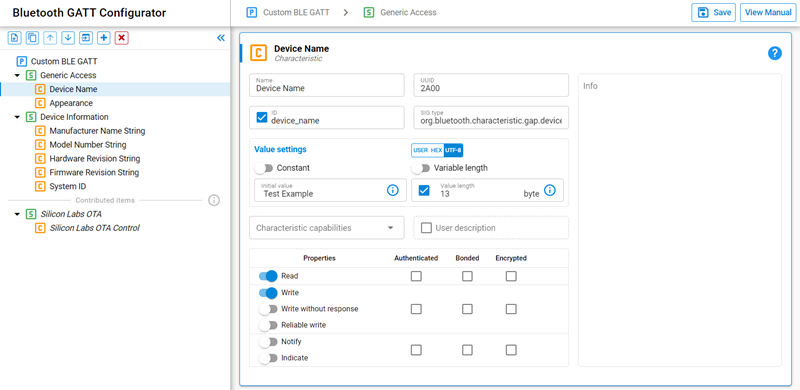
Note: The Generic Attribute Service does not appear in the Custom GATT database structure. The stack maintains this special service. To add it to the database, enable Generic Attribute Service in the settings for the Custom BLE GATT profile. The service remains hidden from the Custom GATT database structure. iOS devices also hide the service, but it might appear on Android devices.
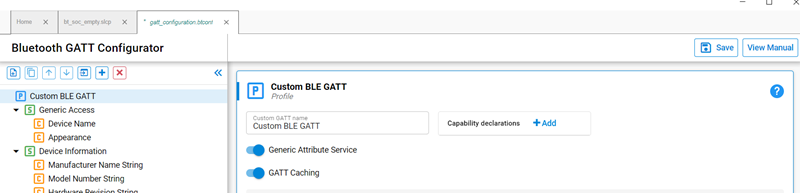
Some services appear in the configurator as contributed items. Other components define the contents of these services, so you cannot edit them in this view.
Settings Editor#
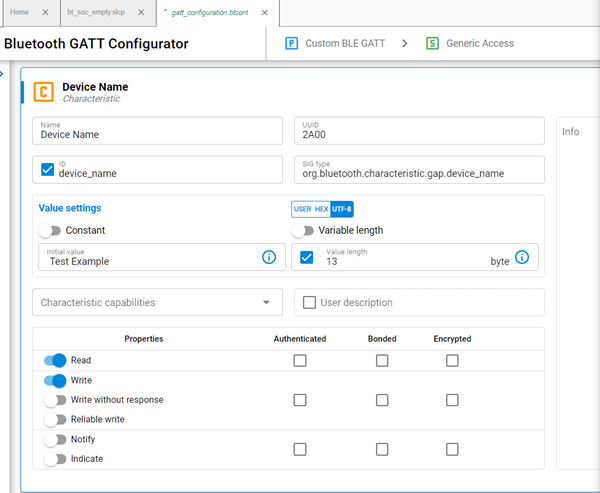
Use the Settings editor to configure profiles, services, characteristics, and descriptors from the Custom GATT editor. Selecting an item displays its configuration options, such as its name, identifier (ID), properties, and capabilities. Changes take effect immediately for the selected item. You can minimize the Custom GATT editor while working in the Settings editor. The same Settings editor pane contains all characteristics for a service.