


Use Cases#
This topic describes common tasks that you can perform with the Generic Attribute Profile (GATT) Configurator.
Drag and Drop GATT Items#
To include a predefined item in your application, drag it from the Source section to the Custom GATT section. When you drag a profile or service, the configurator automatically includes its characteristics and descriptors. In the GATT hierarchy, descriptors appear under characteristics, and characteristics appear under services.
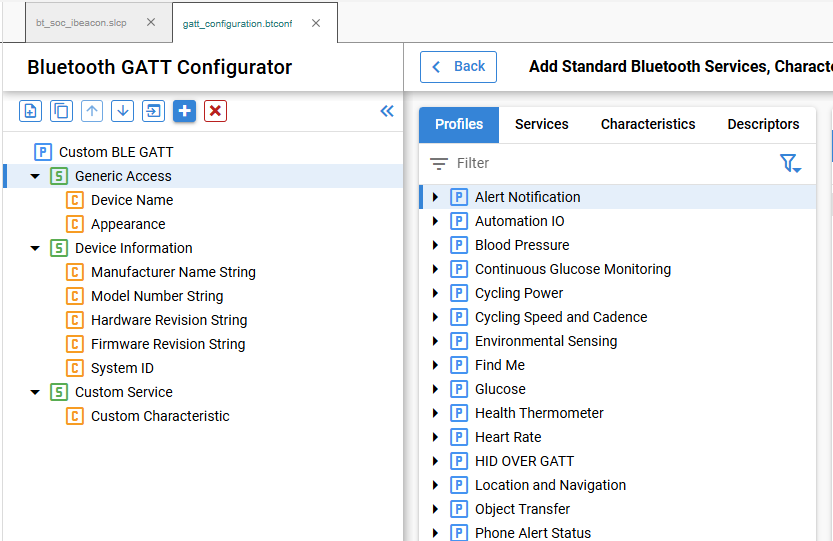
To reorder an item, drag it to another position in the Custom GATT section. You can also duplicate an item and move the duplicate within the section.
Create a New Item#
Use Add an item (1) to add an item to the Custom GATT editor. The type of item added depends on the current selection:
Select a profile to add a service.
Select a service to add a characteristic under that service.
Select a characteristic to add a descriptor under that characteristic.
When you select a new item, the Settings section displays its default properties. Configure the properties as needed.
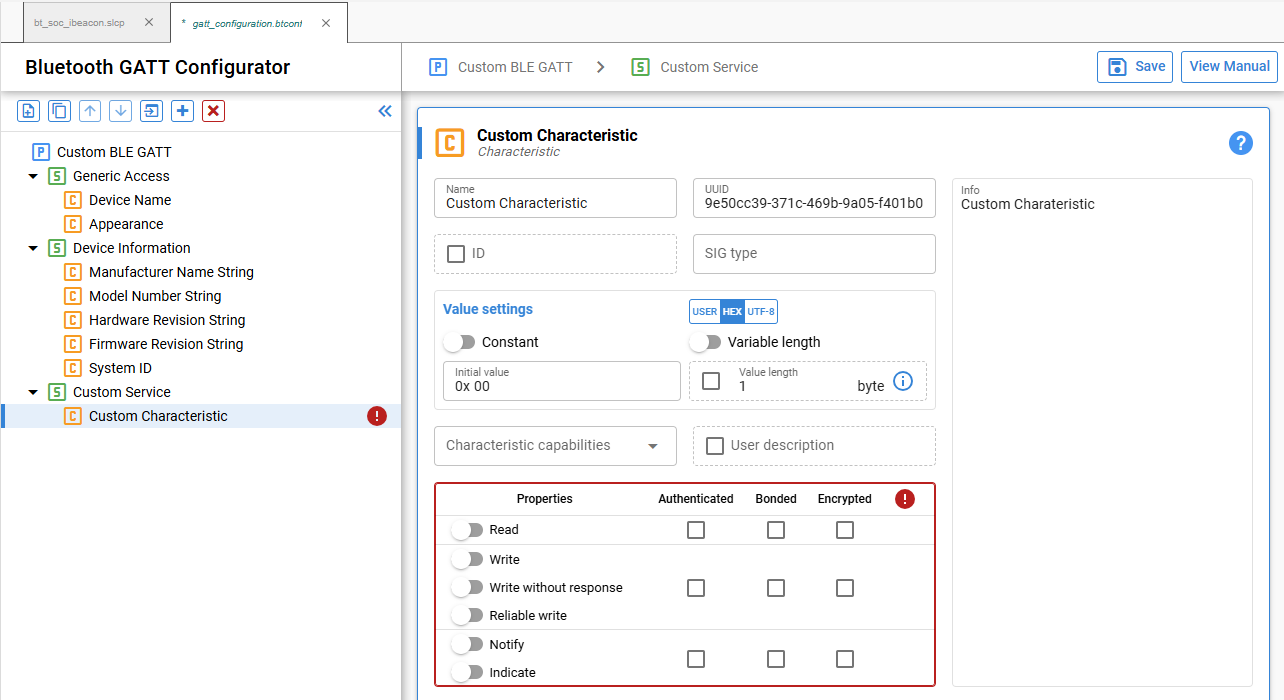
The application uses the characteristic ID to access the GATT database locally. To define an ID, select the ID checkbox and enter a unique value.
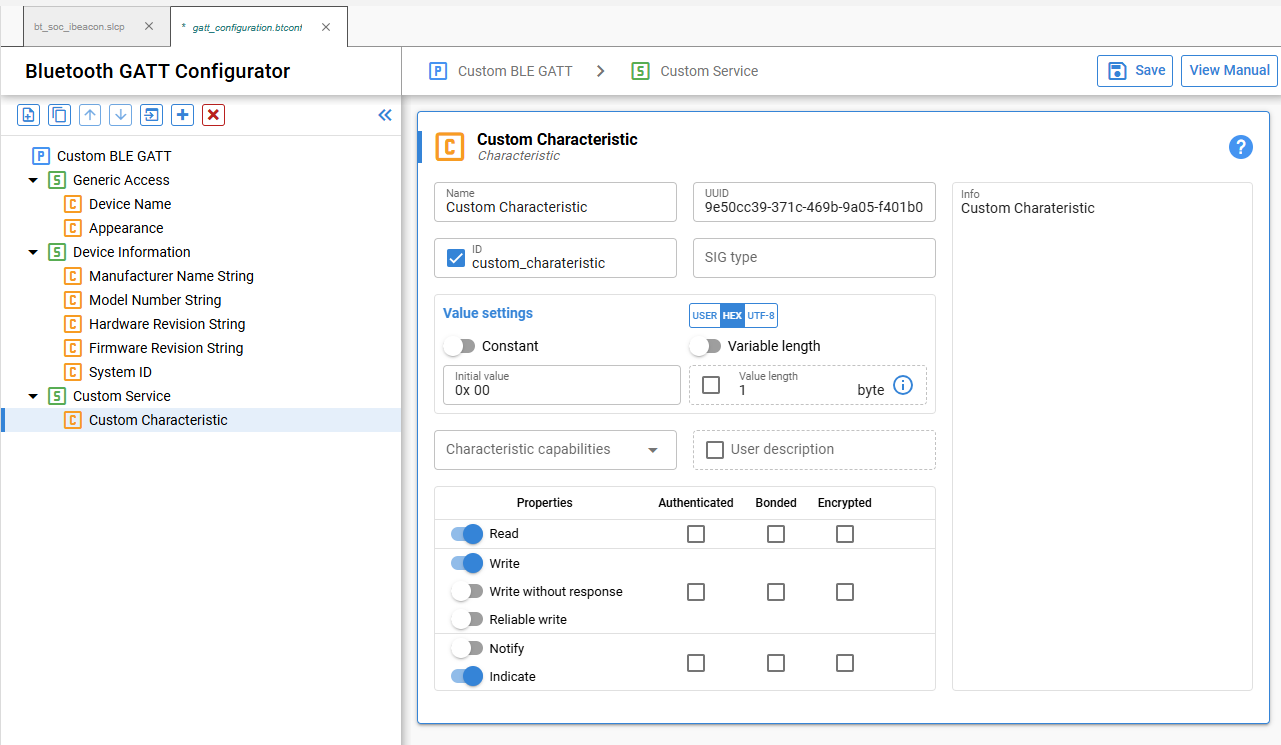
When the configurator generates the database, it creates a macro for the ID in gatt_db.h:
extern const struct bg_gattdb_def bg_gattdb_data;
#define gattdb_service_changed_char 3
#define gattdb_device_name 7
#define gattdb_ota_control 21
#define gattdb_custom_characteristic 24A universally unique identifier (UUID) identifies a service, characteristic, or descriptor. The GATT Configurator supports two UUID types:
16-bit UUID: The Bluetooth Special Interest Group (Bluetooth SIG) defines these UUIDs. Their shorter length makes them energy-efficient and memory-efficient. For example, the Blood Pressure Service has the UUID
0x1810, and the Battery Level Characteristic has the UUID0x2A19.128-bit UUID: This UUID type lets you define custom services and characteristics without relying on the limited set of 16-bit UUIDs. The GATT Configurator generates random version 4, variant 1 UUIDs. You can use any UUID for a custom service or characteristic if it does not overlap with the Bluetooth base UUID:
xxxxxxxx-0000-1000-8000-00805F9B34FB.
No central authority prevents other devices from using the same UUID. However, the probability of two devices using the same UUID is approximately 1 in 340 undecillion.
Add Permissions#
Permissions define the actions allowed for a characteristic or descriptor. For example, in the Blood Pressure Profile, the Blood Pressure Feature has a Mandatory Read property. For more information about access types and security requirements, see the properties section of the Bluetooth Profile Toolkit Developer's Guide.
First, use the sliders to enable the required access types. Then, use the checkboxes to select the security requirements.
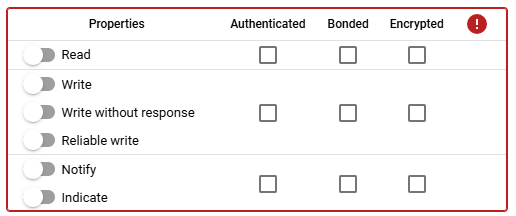
Note: The notify and indicate attributes are stored in the SIG-defined Client Characteristic Configuration Descriptor (CCCD). The configurator automatically generates this descriptor with UUID
0x2902when you enable notifications. If you manually add a CCCD to the characteristic, the descriptor's value overrides this setting. The UI displays a warning in this case.
Add Capabilities#
Bluetooth SDK 2.4 introduced Polymorphic GATT, which dynamically shows or hides GATT services and characteristics. The GATT Configurator implements this feature through GATT capabilities.
Each service or characteristic can declare multiple capabilities. A bitwise OR operation on the capability states determines the visibility of the service or characteristic. The item is visible when at least one of its capabilities is enabled and hidden when all its capabilities are disabled.
Start by declaring the GATT-level capabilities and defining their default values:
Select the Custom BLE GATT profile.
Select + in the Capability declarations table.
Set the capability name and default value.
The following example adds Appearance, Temperature_Measure, and Tx_power to the profile.
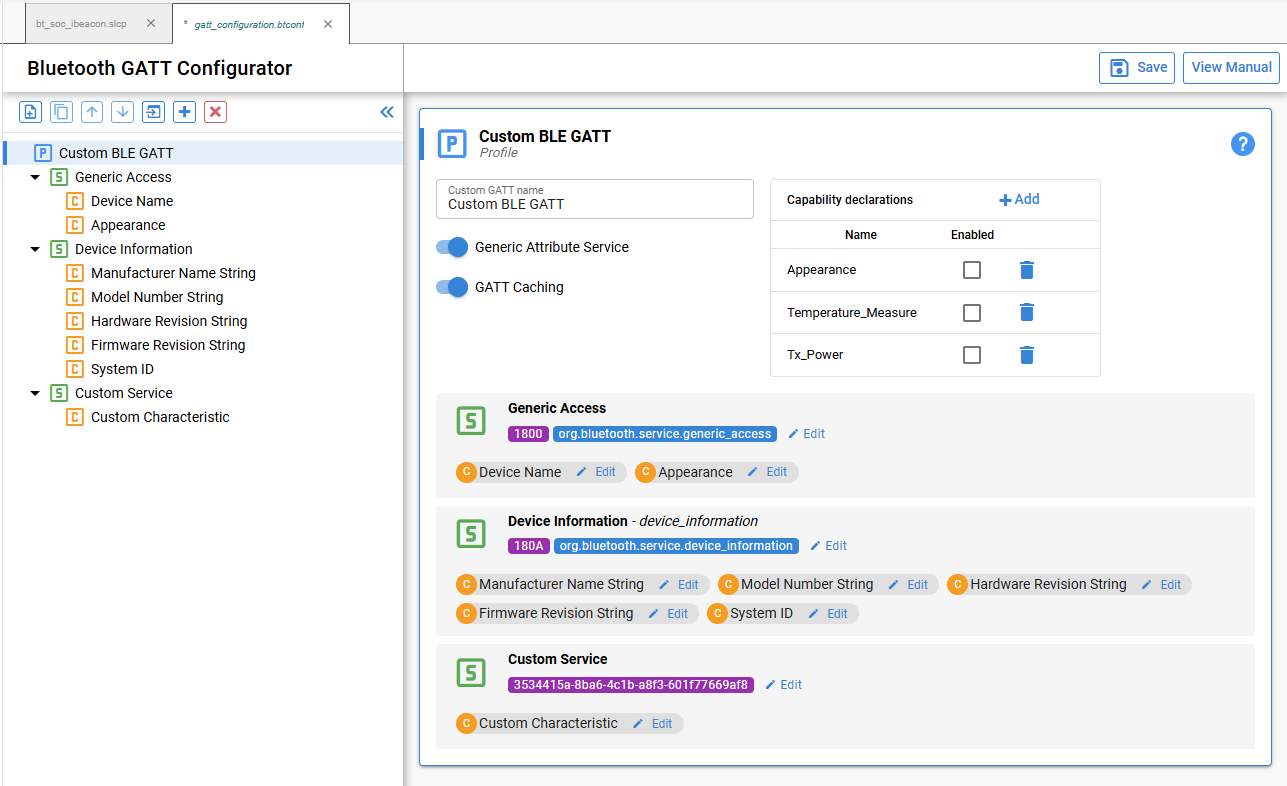
After you add the capabilities, they become available to each service and characteristic. Select capabilities from the list in the Characteristic capabilities section.
At the service and characteristic levels, declared capabilities are enabled. Capabilities that are not selected are disabled.
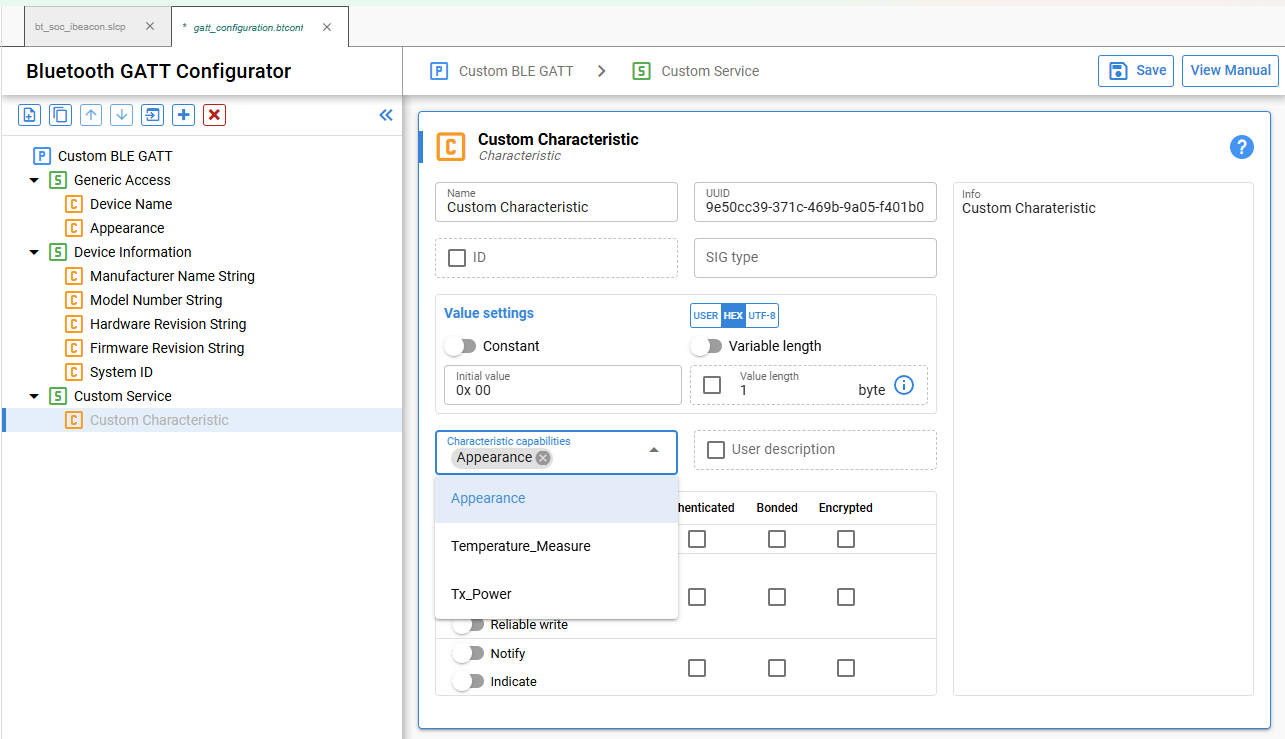
Note: Do not change capability states during a connection because doing so can cause unexpected behavior. Change capabilities only when no devices are connected.
Include Services#
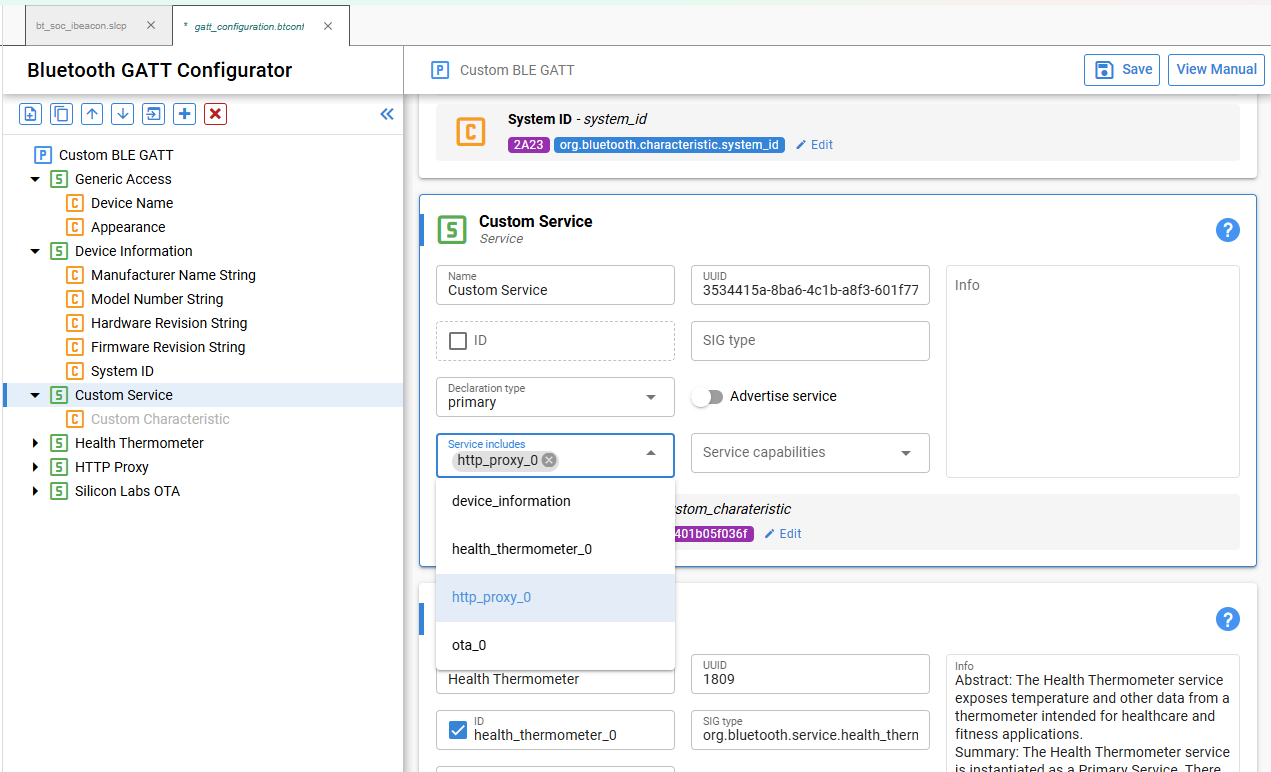
In a service definition, you can use Service includes to add one or more references to other services. An include definition consists of one attribute, called the include declaration, which contains the information a client needs to reference the included service.
Included services help avoid duplicate data in a GATT server. When other services reference a service, this mechanism can save memory and simplify the GATT server layout.
To include a service:
Select the ID checkbox for the service that you want to include.
Enter an identifier for the service. Services without an ID cannot be referenced.
Select the service to reference from the Service includes list.
Import and Export a GATT Database#
Import a GATT Database#
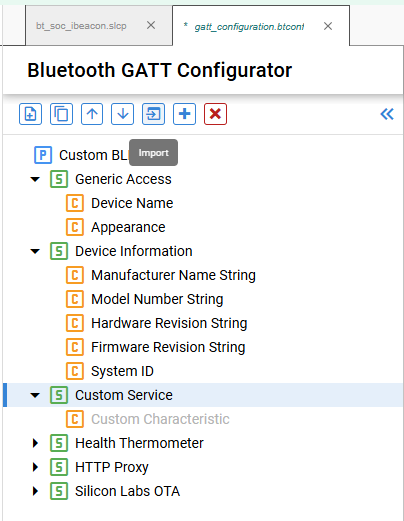
Use Import on the Custom GATT toolbar to import an existing GATT database from a .btconf file.
Note: Importing a GATT database overwrites the existing GATT data.
Export a GATT Database#
The configurator does not provide a separate export function. Another project can import this project's gatt_configuration.btconf file directly.