


Demos Overview#
Use the demos to test sample applications provided in Simplicity Studio. Each demo demonstrates specific capabilities of Silicon Labs development tools and hardware platforms. This section provides an overview of the available demos, followed by more detailed information about the Matter demo.
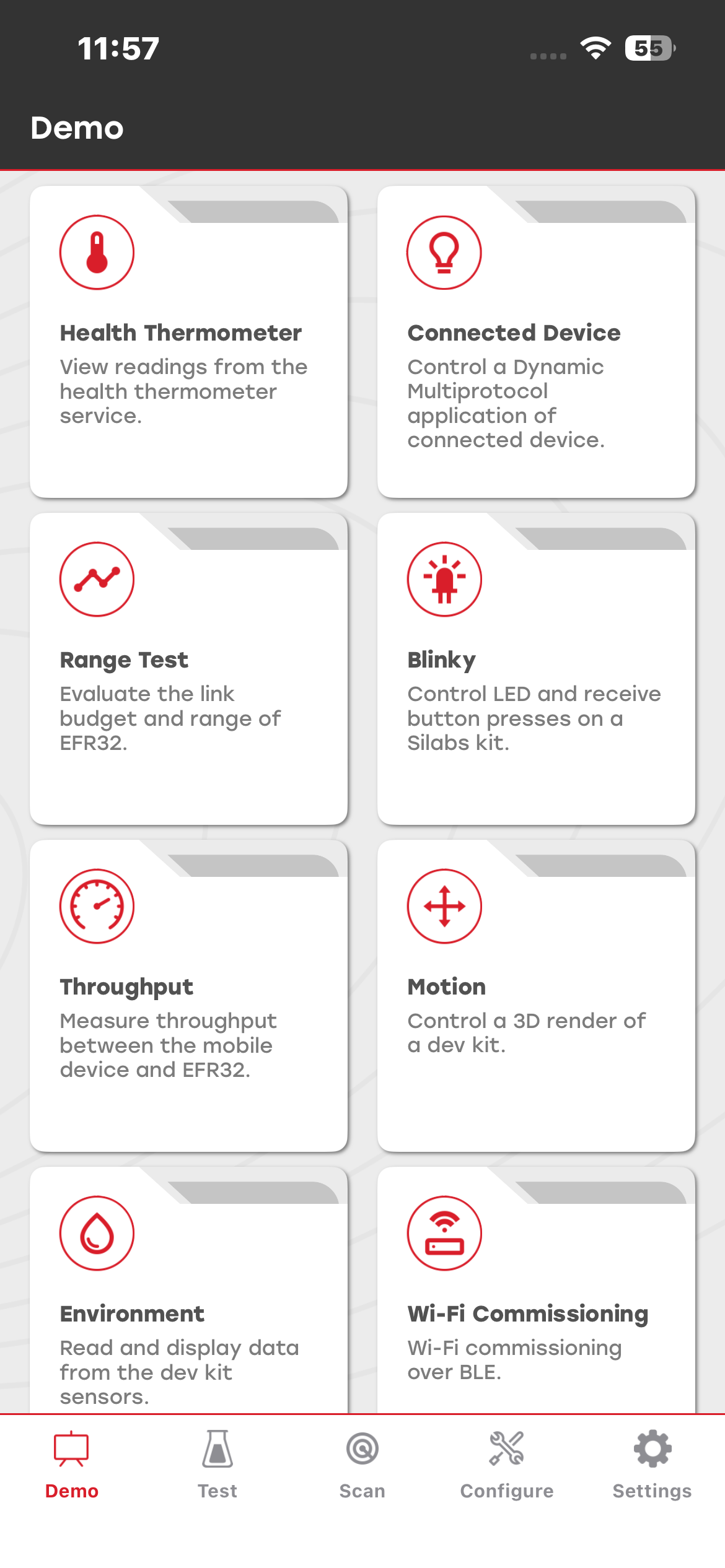
Health Thermometer#
The Health Thermometer demo scans for devices that advertise the Health Thermometer service (UUID 0x1809). After connecting to a device, the demo subscribes to indications from the Temperature Measurement characteristic (UUID 0x2A1C) and displays the temperature on the screen. You can switch between Celsius and Fahrenheit.
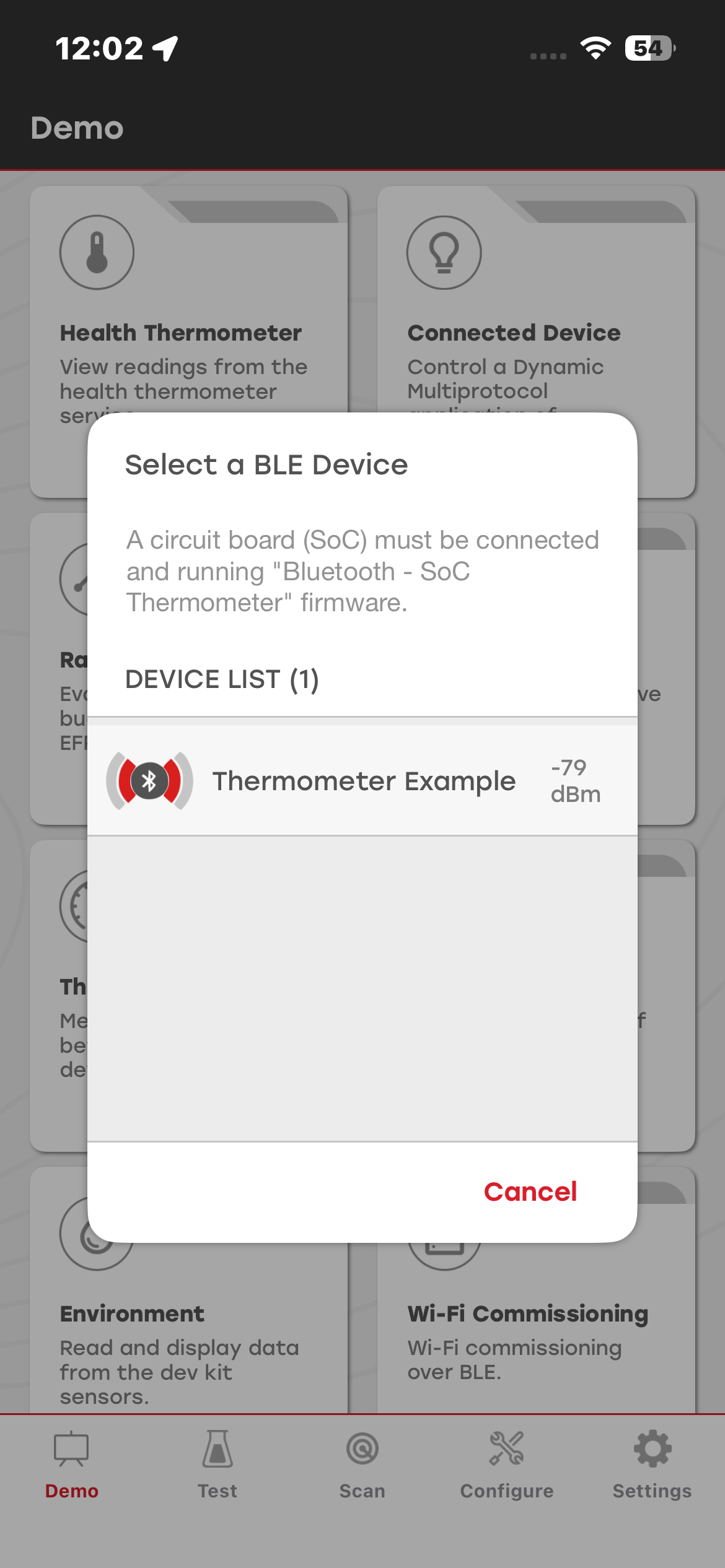
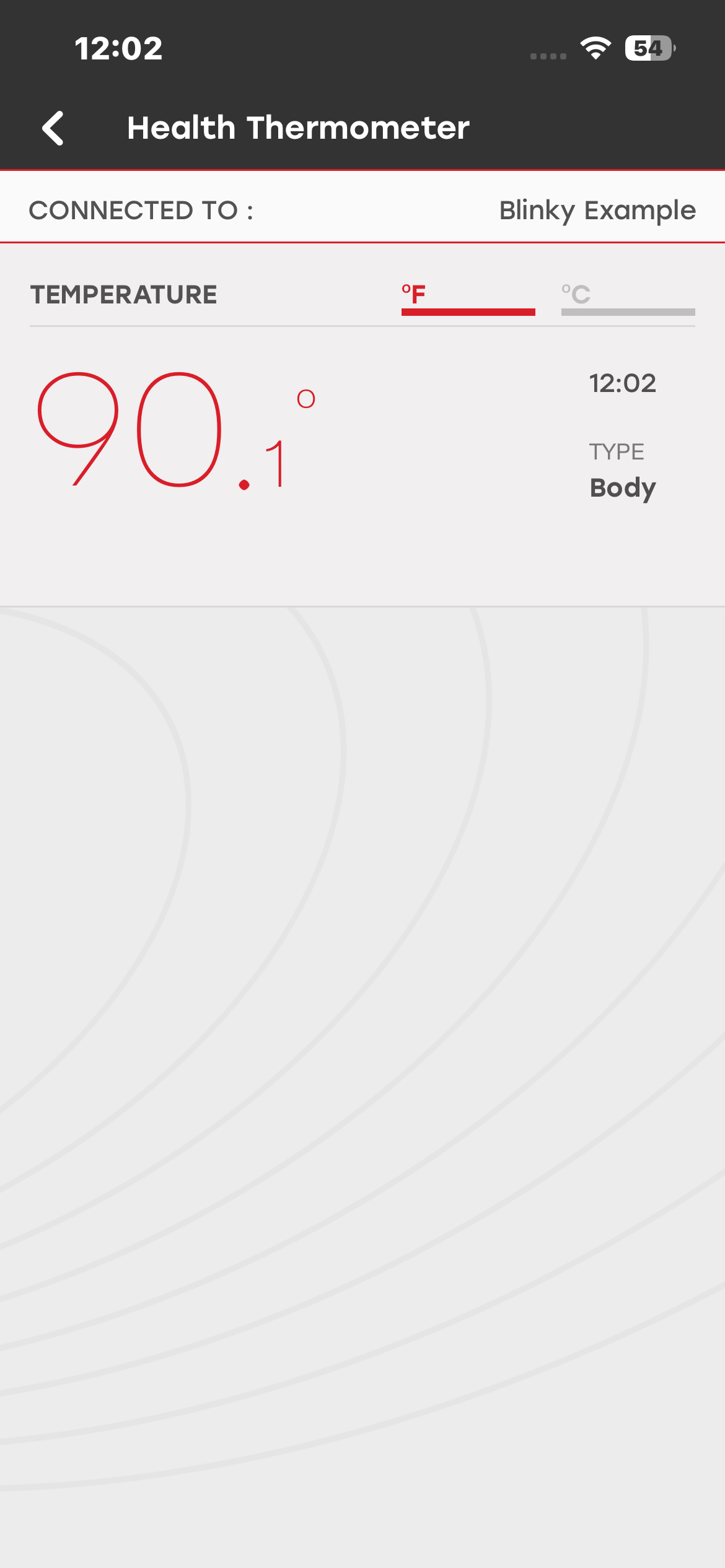
For more information, see the README for the Bluetooth - SoC Thermometer sample application in Simplicity Studio.
Connected Device#
The Connected Device demo demonstrates the Dynamic Multiprotocol (DMP) capabilities of Silicon Labs devices and software. You can control a DMP light node from a mobile device or a protocol-specific switch node, such as Zigbee or Proprietary, while keeping the light status synchronized across all devices.
The demo requires two kits running dedicated sample applications. For more information, see QSG155: Using the Silicon Labs Dynamic Multiprotocol Demonstration Applications in GSDK v2.x.
When launched, the demo scans for devices that advertise themselves as DMP nodes running Bluetooth Low Energy (BLE) and a second wireless protocol, such as Zigbee, Amazon Sidewalk, or Proprietary. After the mobile app connects to a DMP node, you can control the light on the DMP board by selecting the lightbulb icon.
If you change the light status by pressing the physical button on a kit, the app updates the light status accordingly. The demo also displays the source of the most recent event. For example, Bluetooth indicates that the event was triggered by the mobile app, while Proprietary indicates that the light was toggled by the button on the switch board.
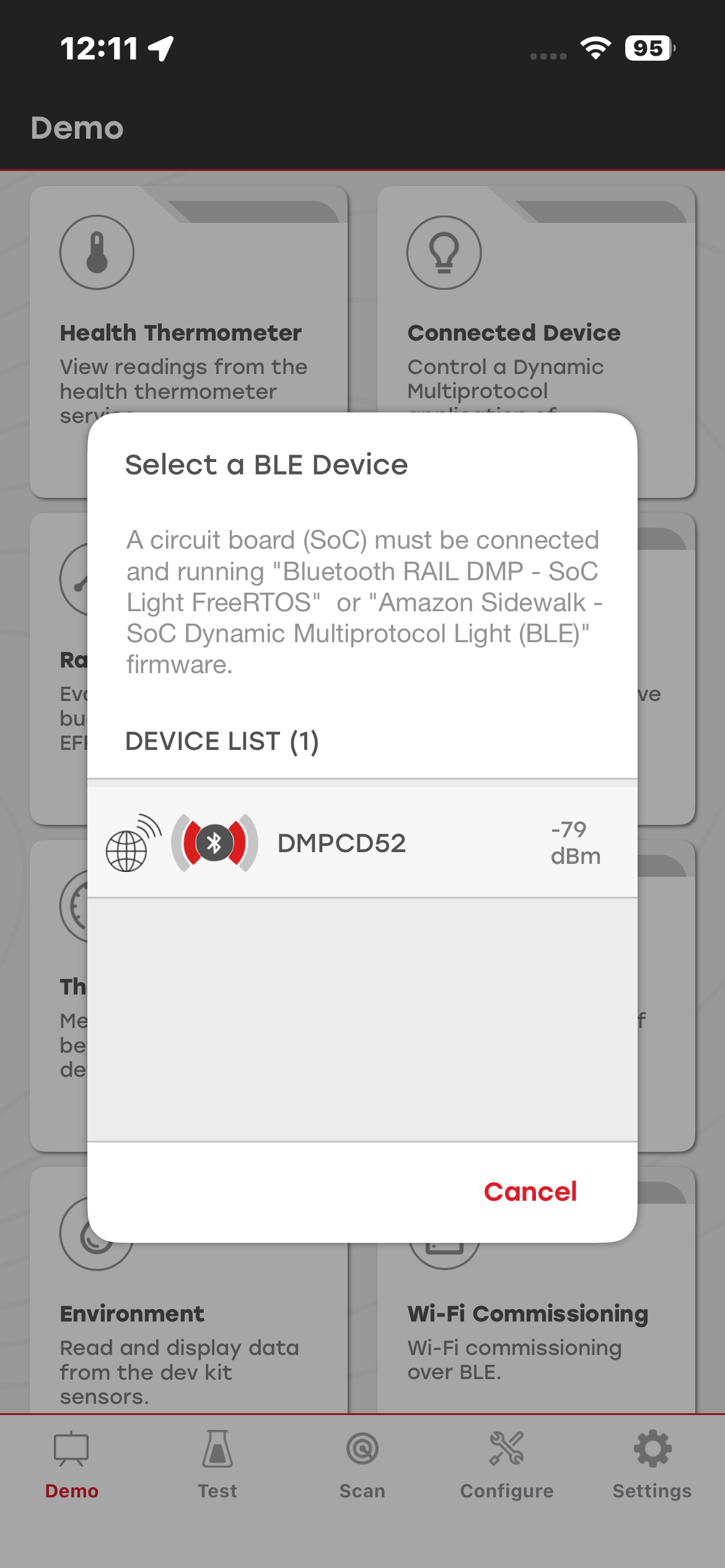
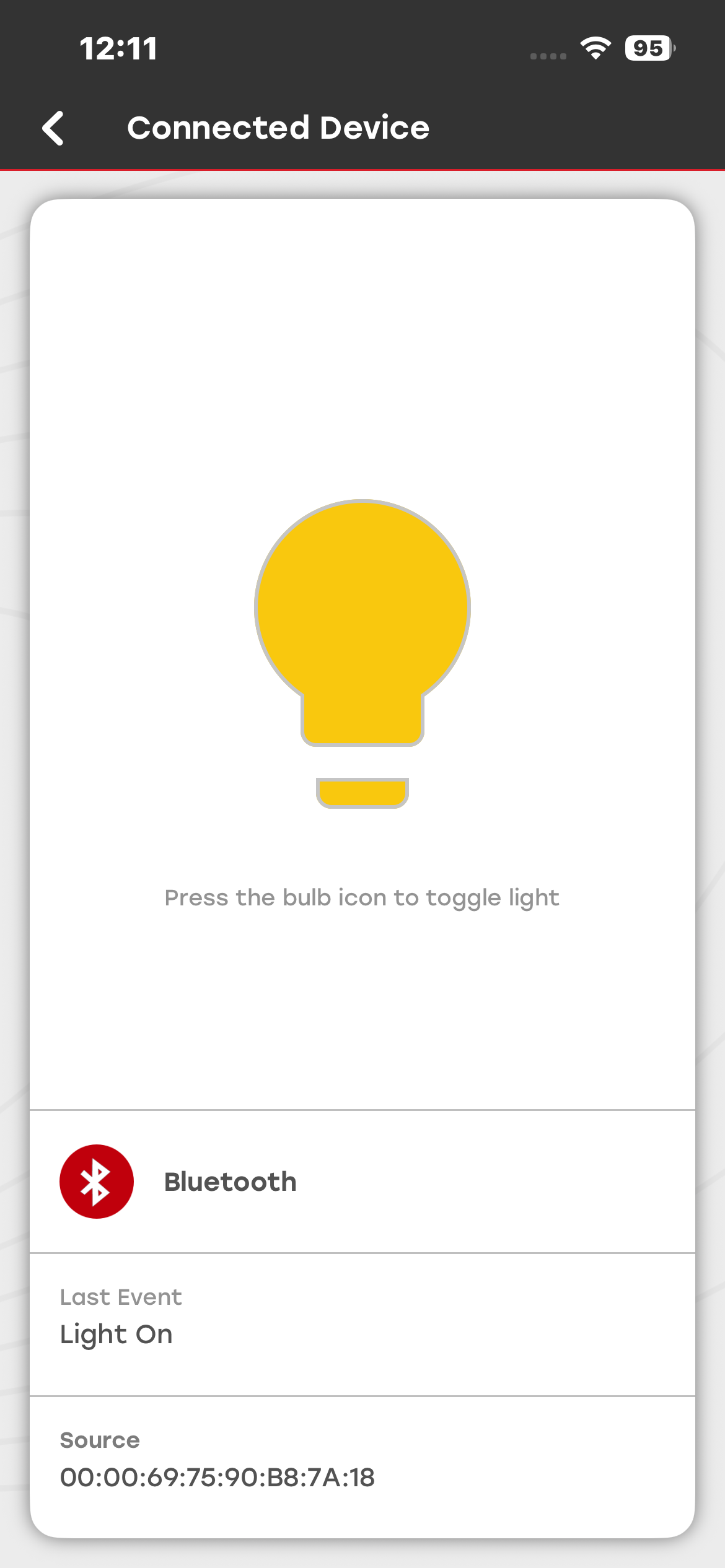
The Connected Device Demo, which demonstrates Dynamic Multiprotocol (DMP), now includes support for Wi-Fi as well.
AWS IoT DMP Setup#
Enable AWS IoT DMP functionality by flashing the iot-pa-coex-smart_lock application to the SiWx917 (BRD2605A) development kit.
Application Setup#
Select the Connected Device demo tile, and perform the following steps:
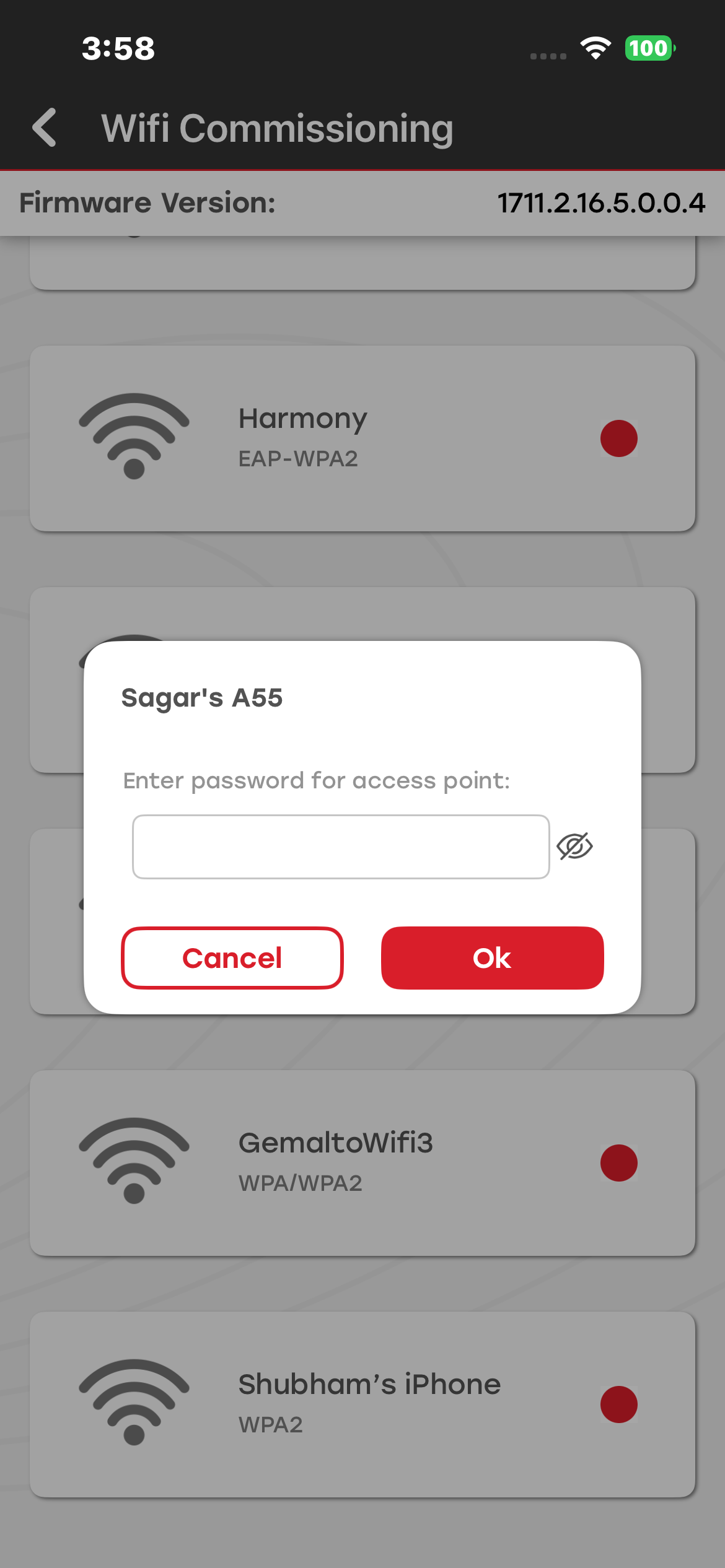
Connect your mobile device to an access point with internet connectivity.
Select a device from the popup menu.
Select an available access point with an active internet connection.
Enter the correct password to connect to the selected access point.
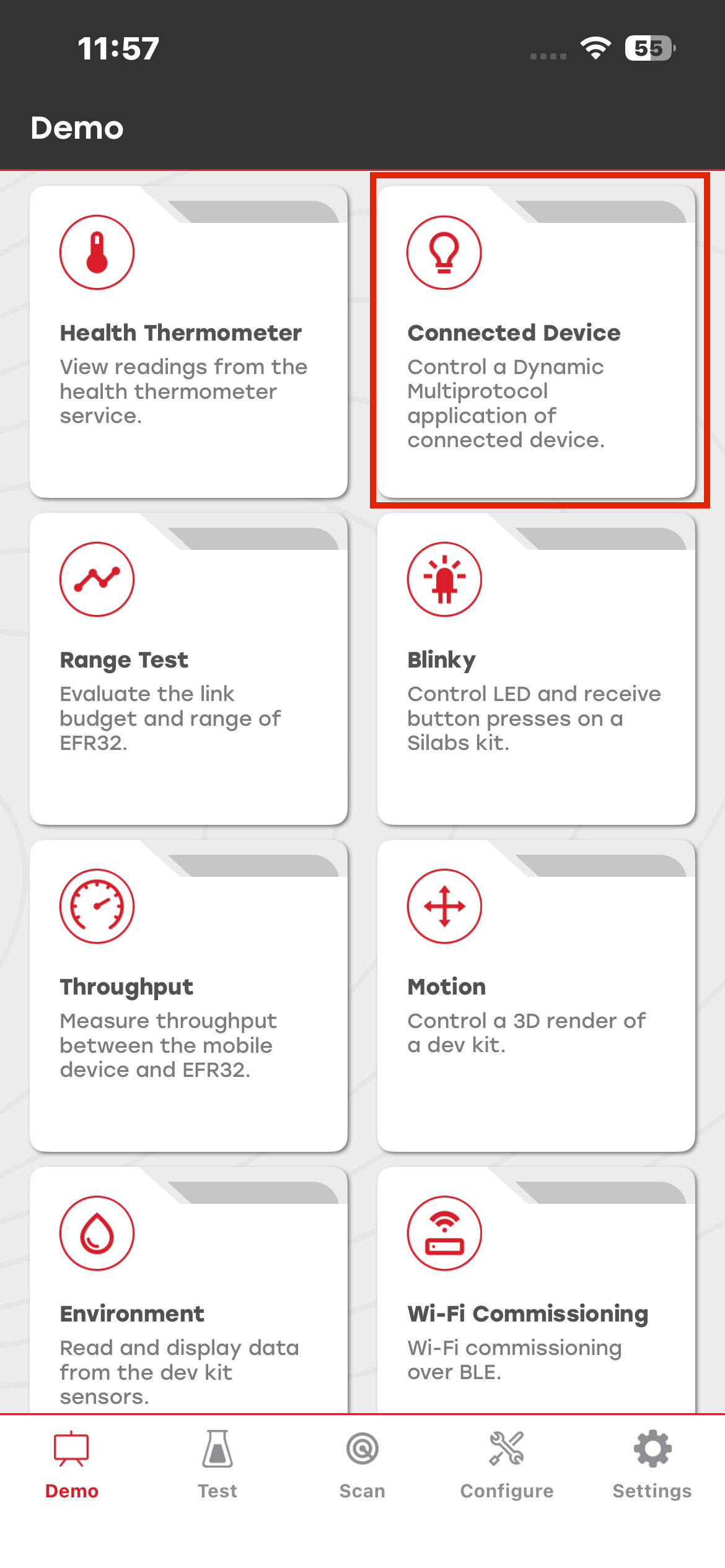
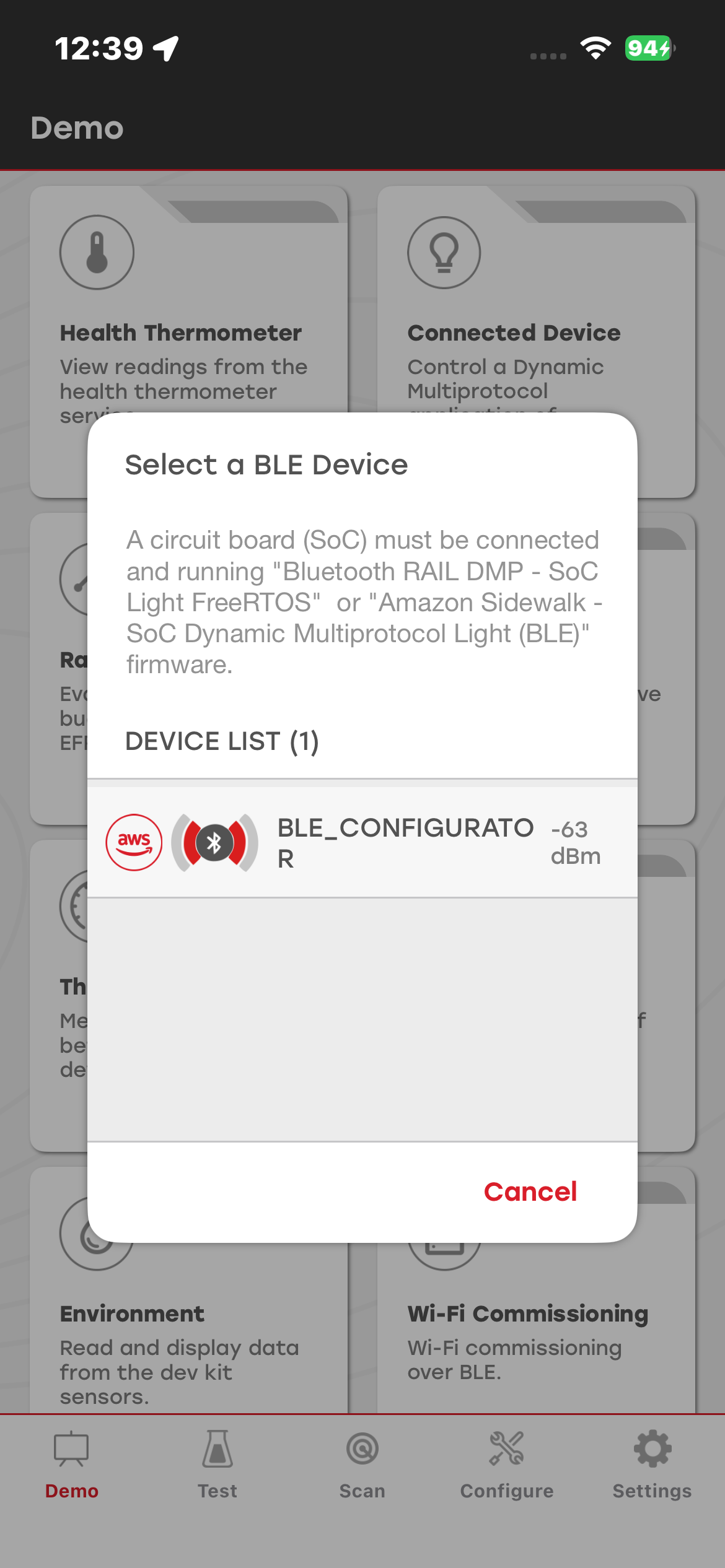
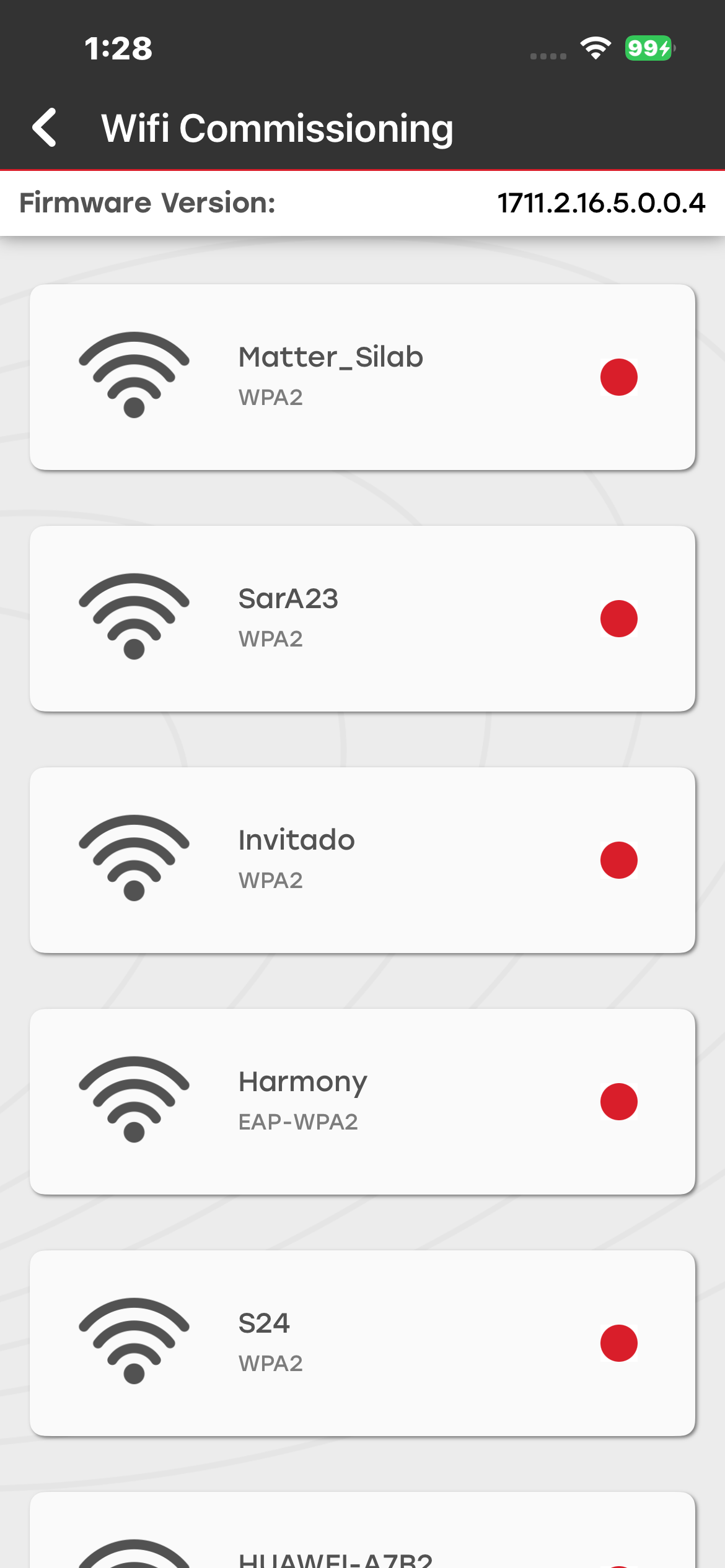
AWS IoT DMP Actions#
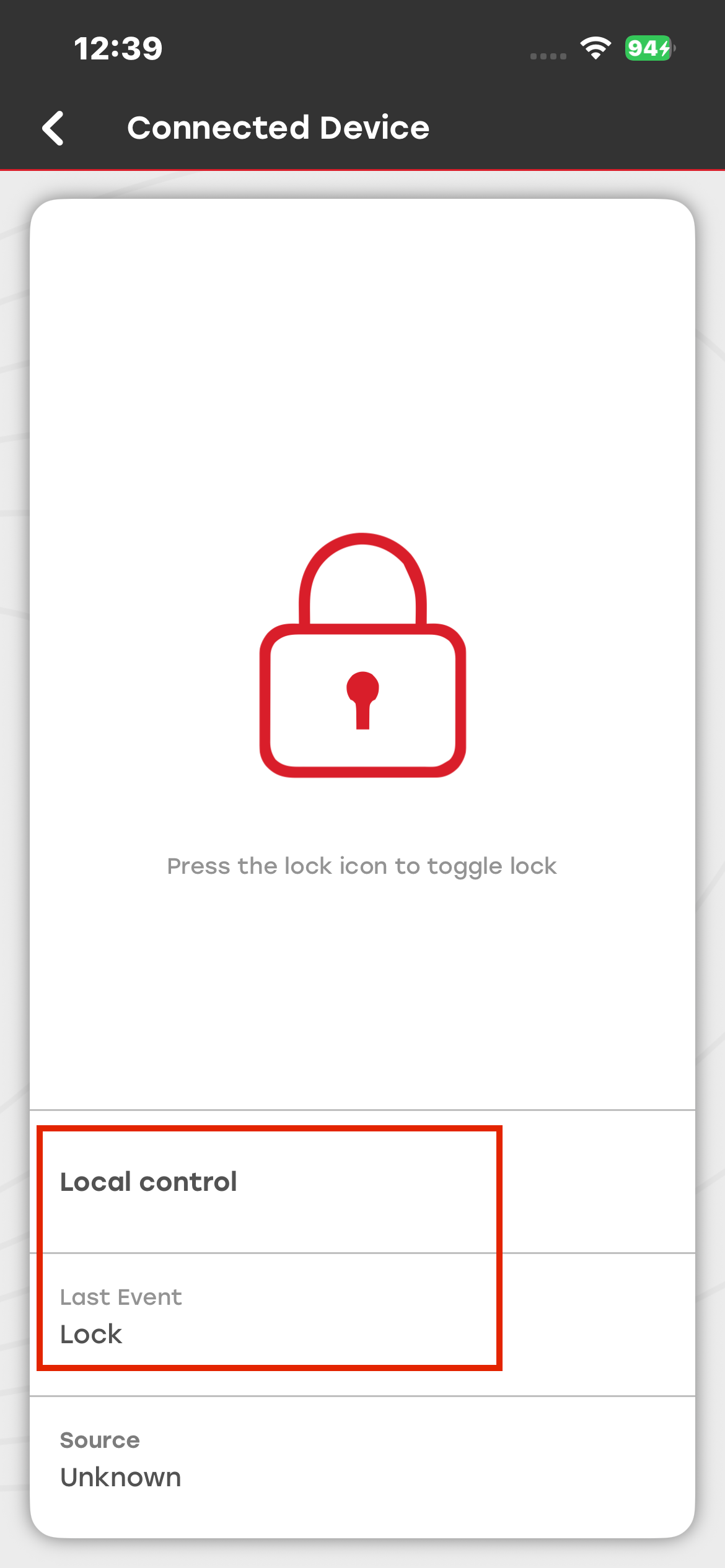
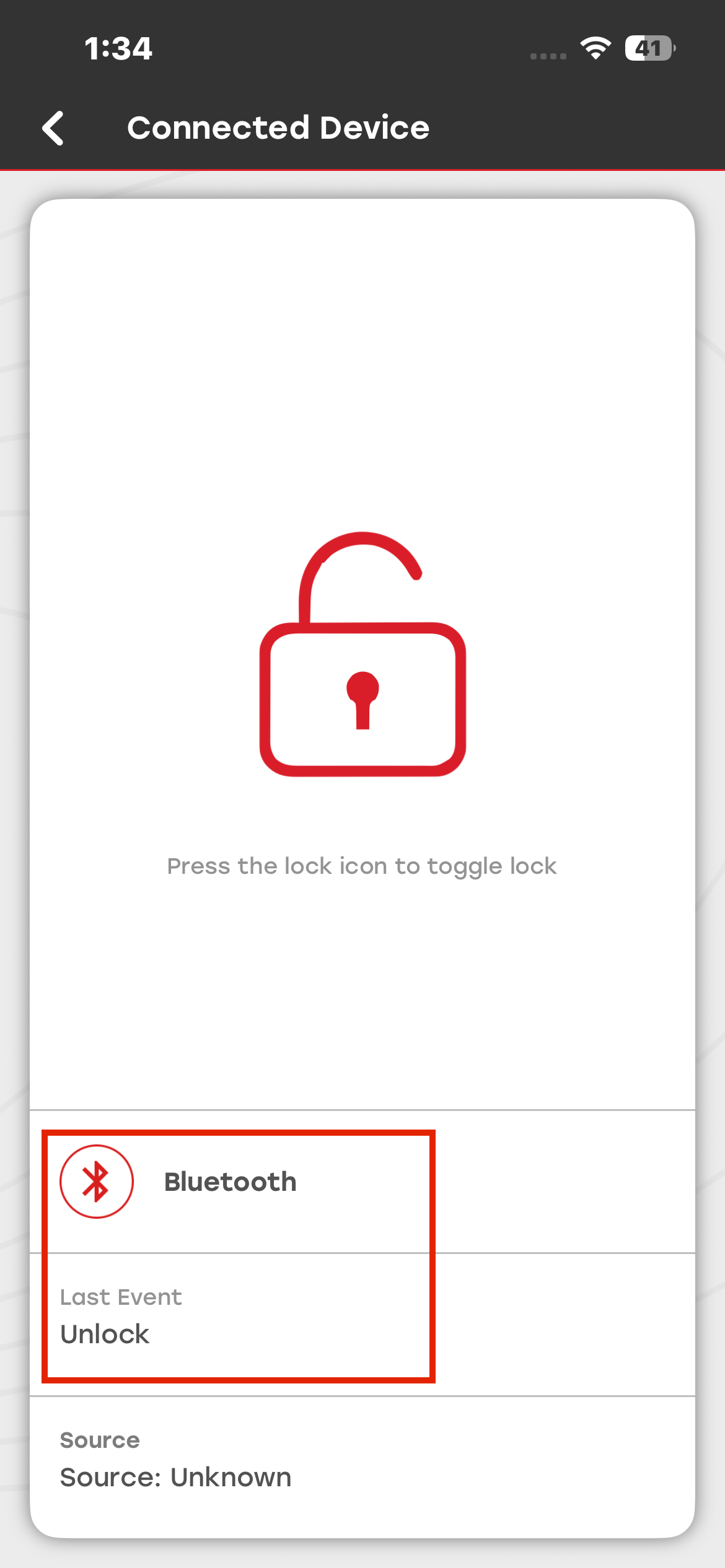
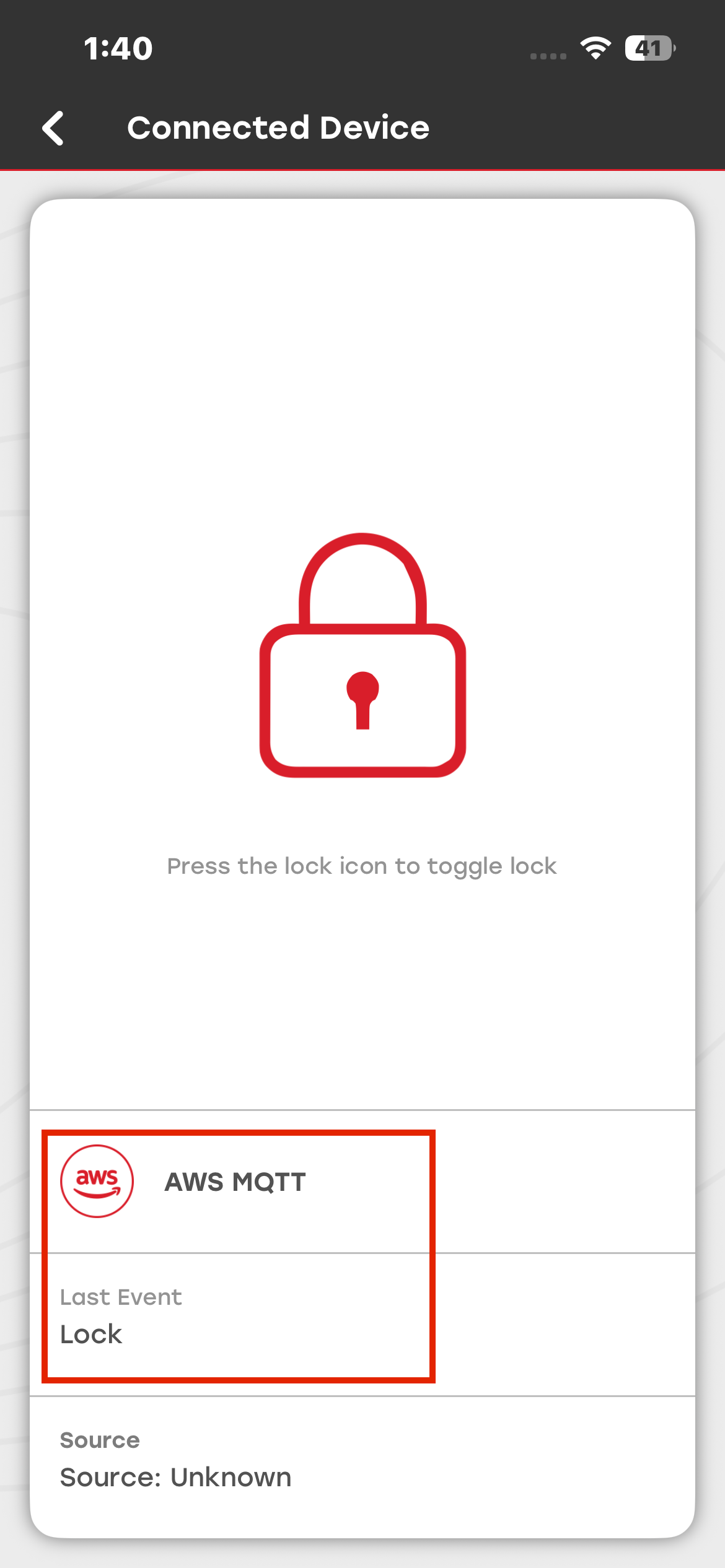
Tap Lock Image to update the current lock status and send the updated status to AWS IoT.
Press the BTN0 button on the development kit to update the Last Event, Protocol, and Image sections accordingly.
Range Test#
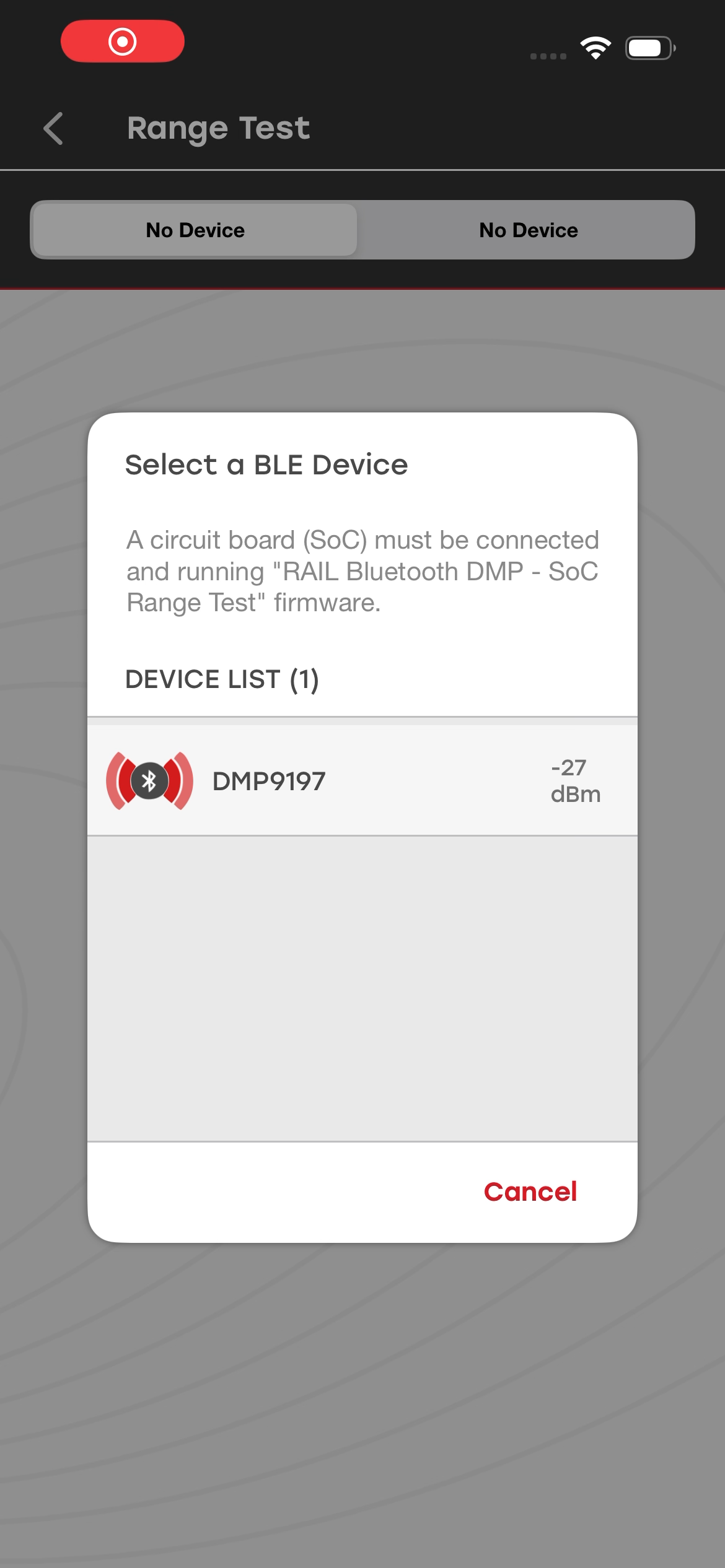
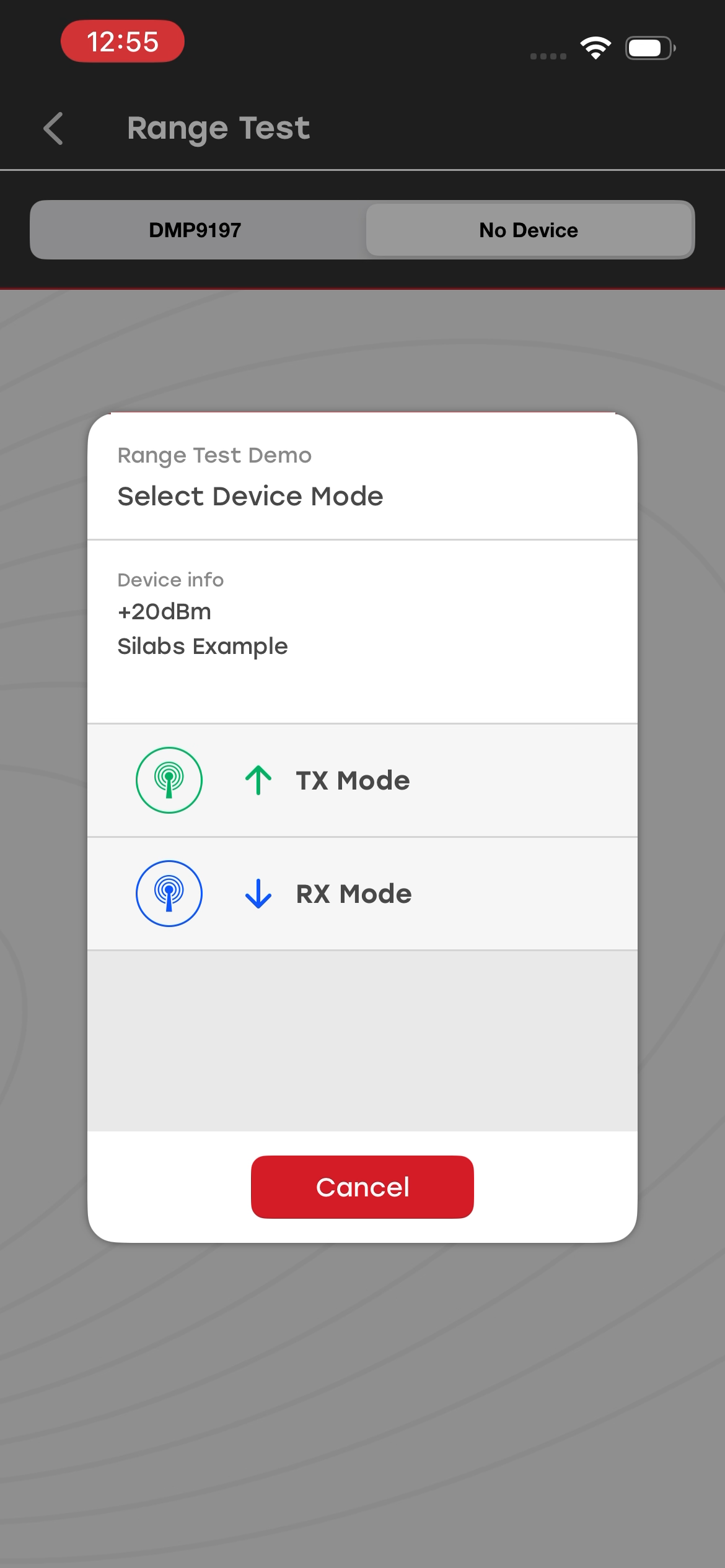
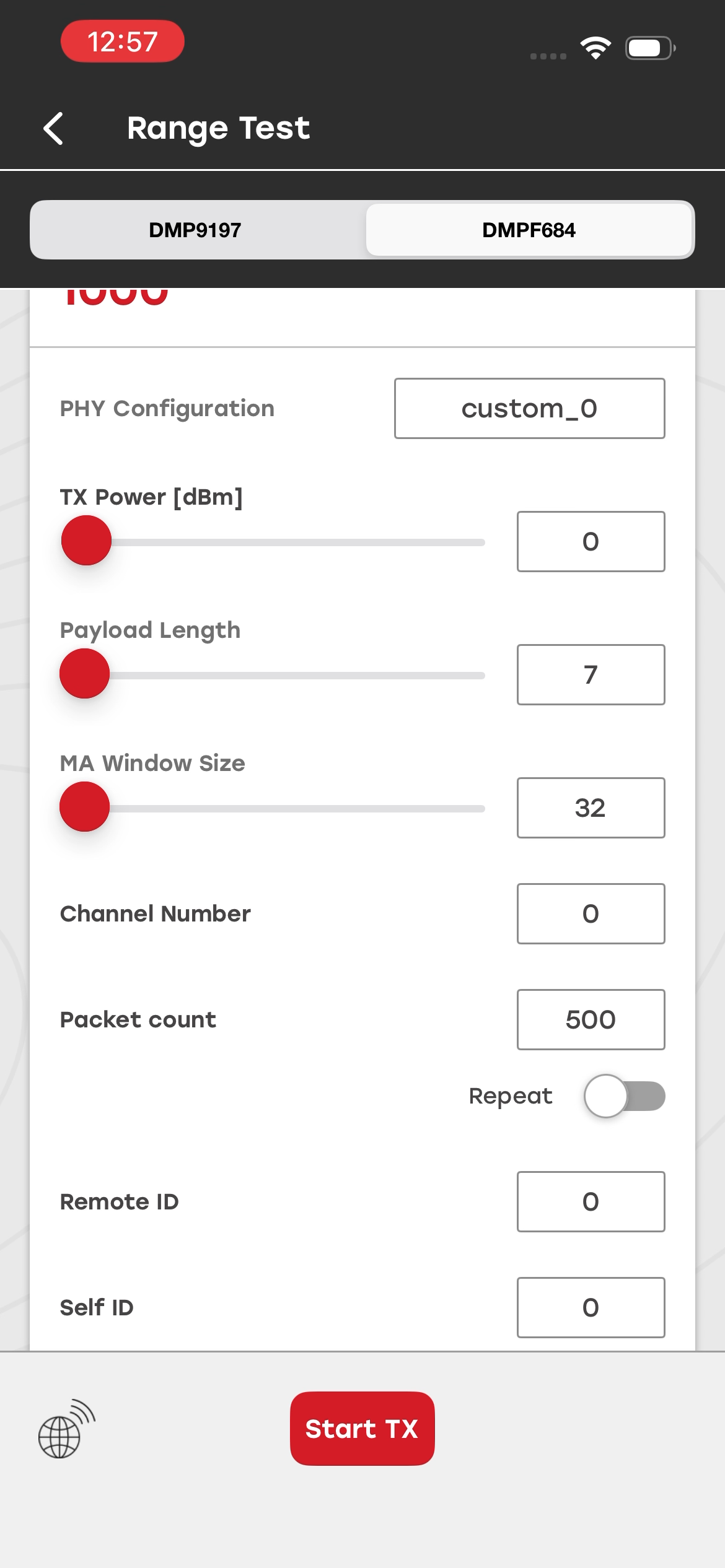
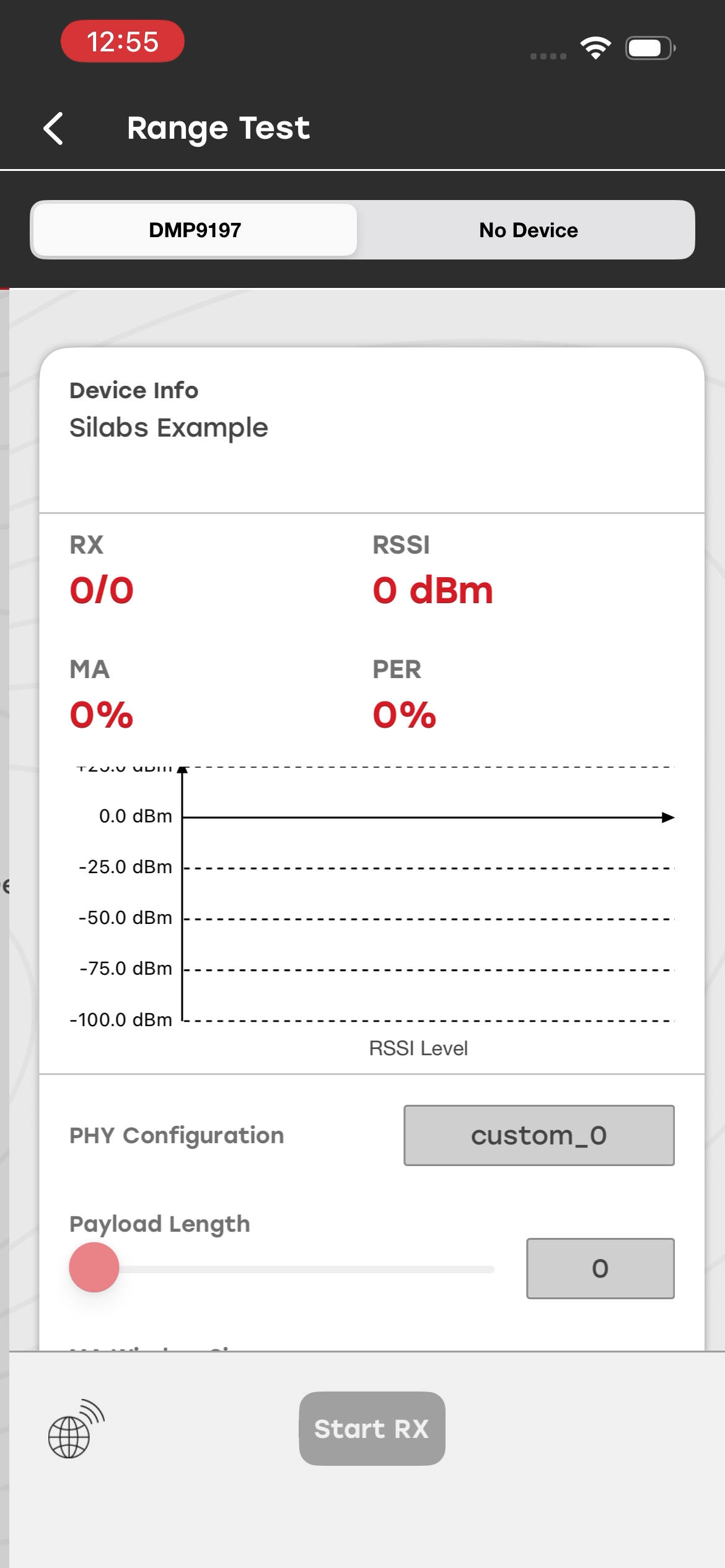
The Range Test demo displays RSSI and other RF performance data on the mobile device while the Range Test sample application runs on two Silicon Labs radio boards. Use the mobile app to configure the TX and RX node parameters and view RF performance data during the test.
When launched, the demo scans for devices that advertise themselves as Range Test nodes. After the nodes start the range test, the mobile app displays performance data from the RX node.
For more information, see the README of the RAIL - SoC Range Test sample application from Simplicity Studio. The Range Test Demo is also documented in Flex SDK v3.x Range Test Demo User's Guide.
Blinky#
The Blinky demo is the "Hello World" of BLE. When launched, the demo scans for devices that advertise themselves as a Blinky Example or Thunderboard device. After connecting to a compatible device, you can control the dedicated LED and view the current state of the button on the Silicon Labs development kit.
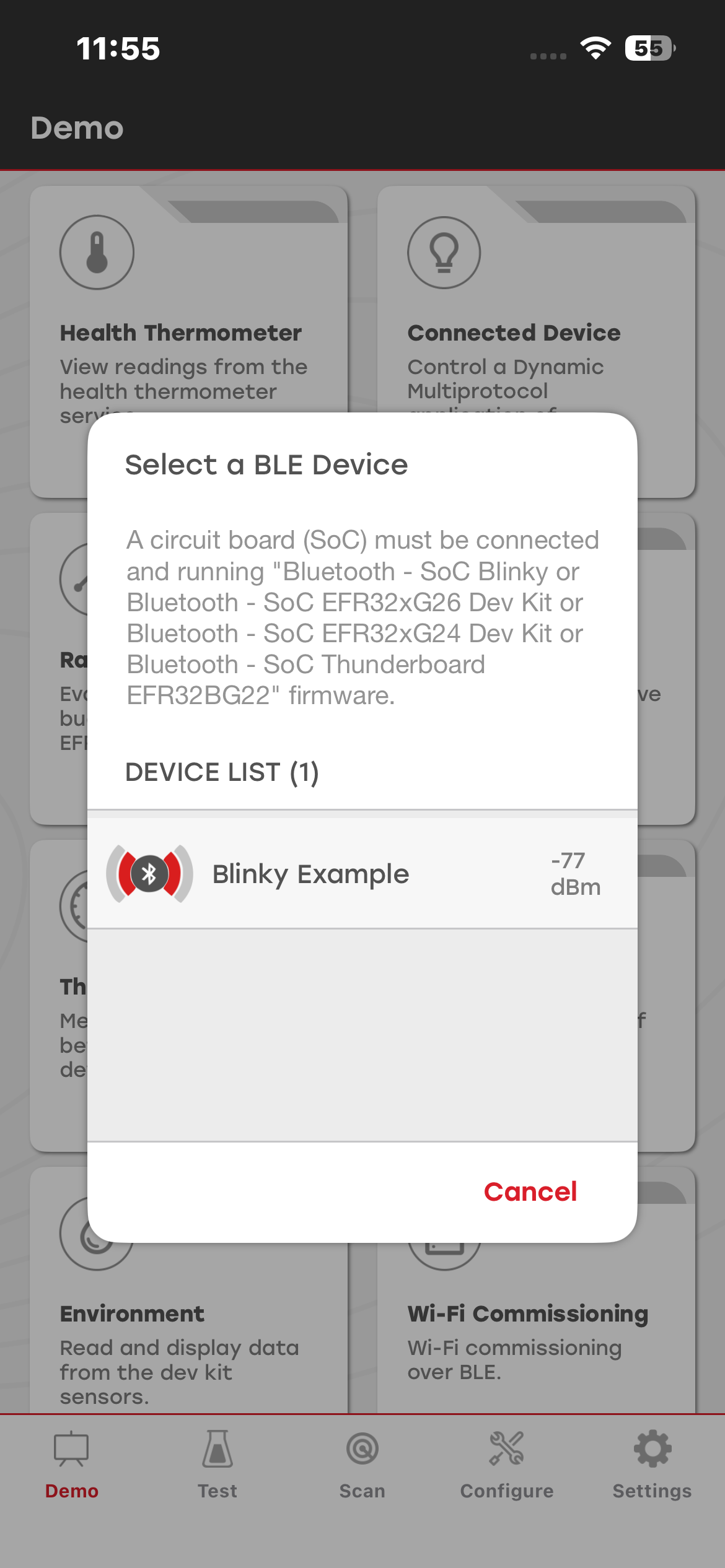
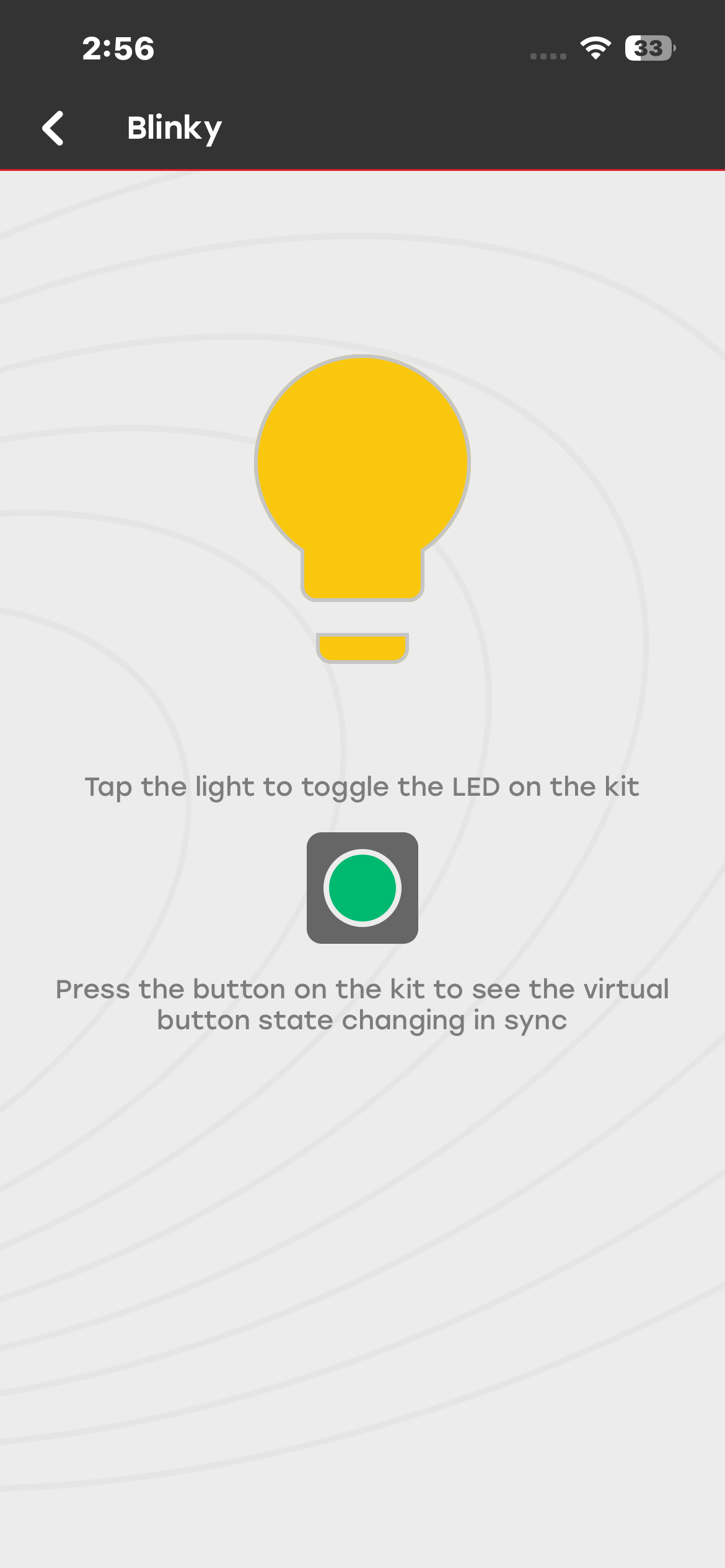
For more information, see the README file of the Bluetooth - SoC Blinky, Bluetooth - SoC EFR32xG24 Dev Kit, or Bluetooth - SoC EFR32xG26 Dev Kit sample application from Simplicity Studio.
Throughput#
The Throughput demo measures data throughput in both directions between a compatible Silicon Labs development board and a mobile device. When launched, the demo scans for devices that advertise themselves as a Throughput Example.
After connecting to a compatible device, you can view the data throughput between the devices. This includes receiving data from the EFR32, triggered by pressing a button on the kit, or sending data to the kit from the demo view.
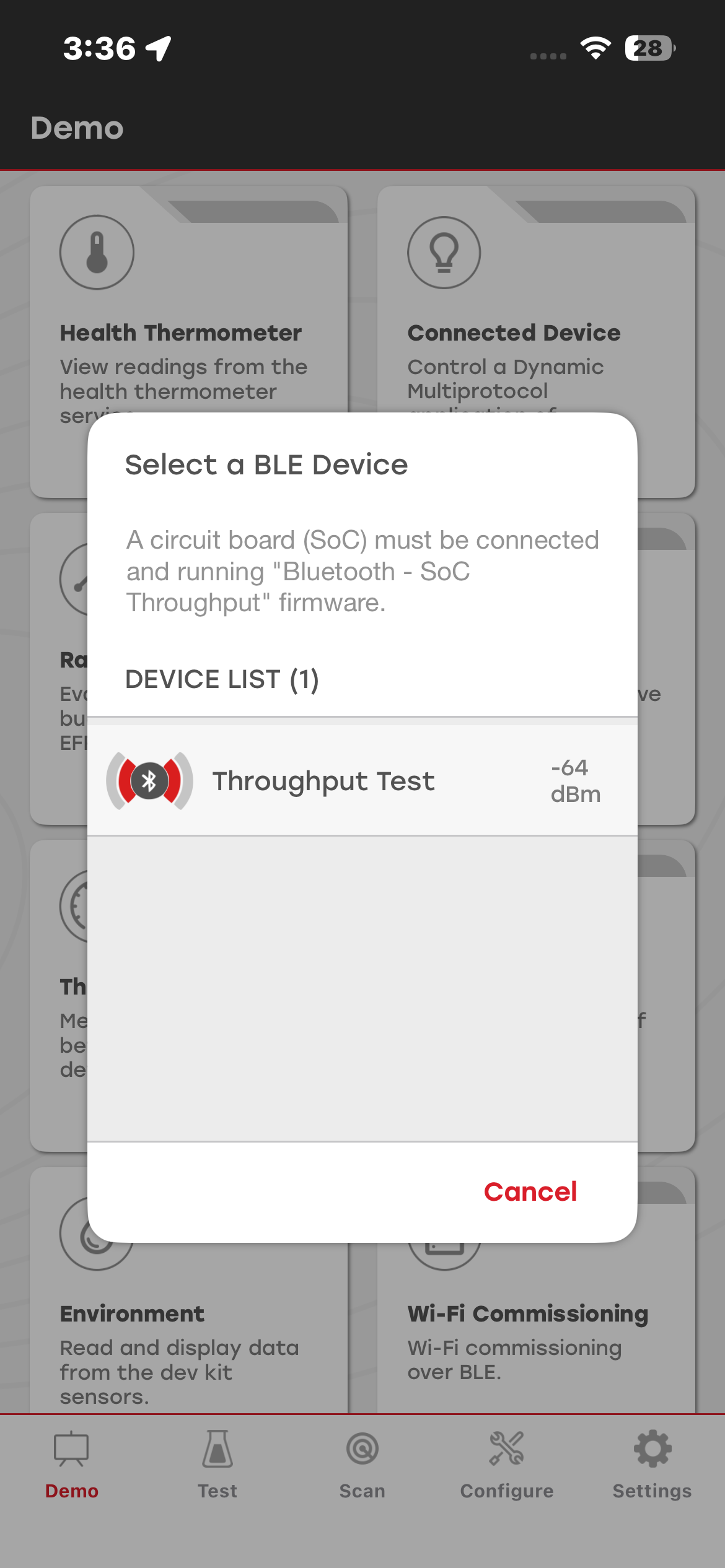
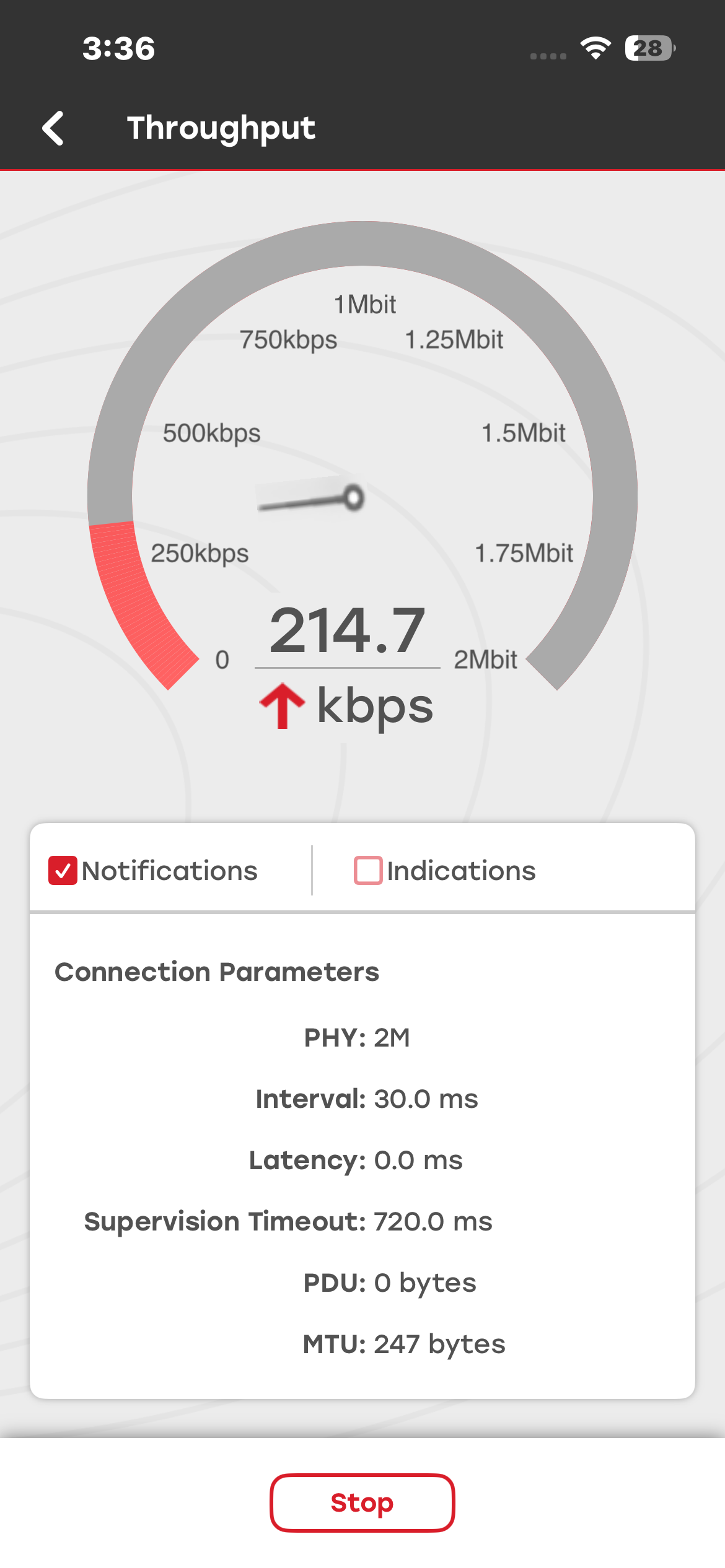
For more information, see the README of the Bluetooth - SoC Throughput sample application from Simplicity Studio.
Motion#
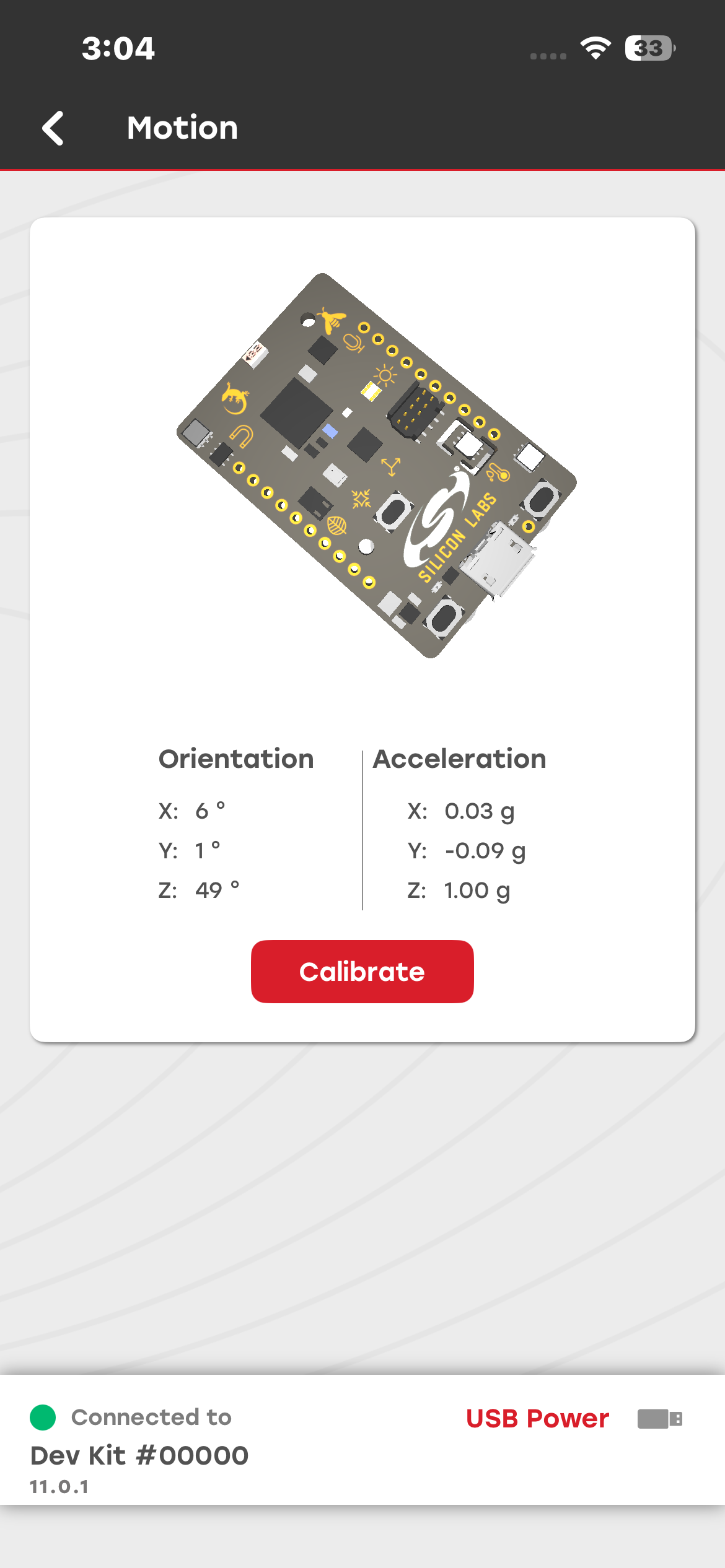
The Motion demo displays accelerometer data in a user-friendly format. It displays raw orientation and acceleration values together with an animation of the board orientation. When launched, the demo scans for Thunderboard devices.
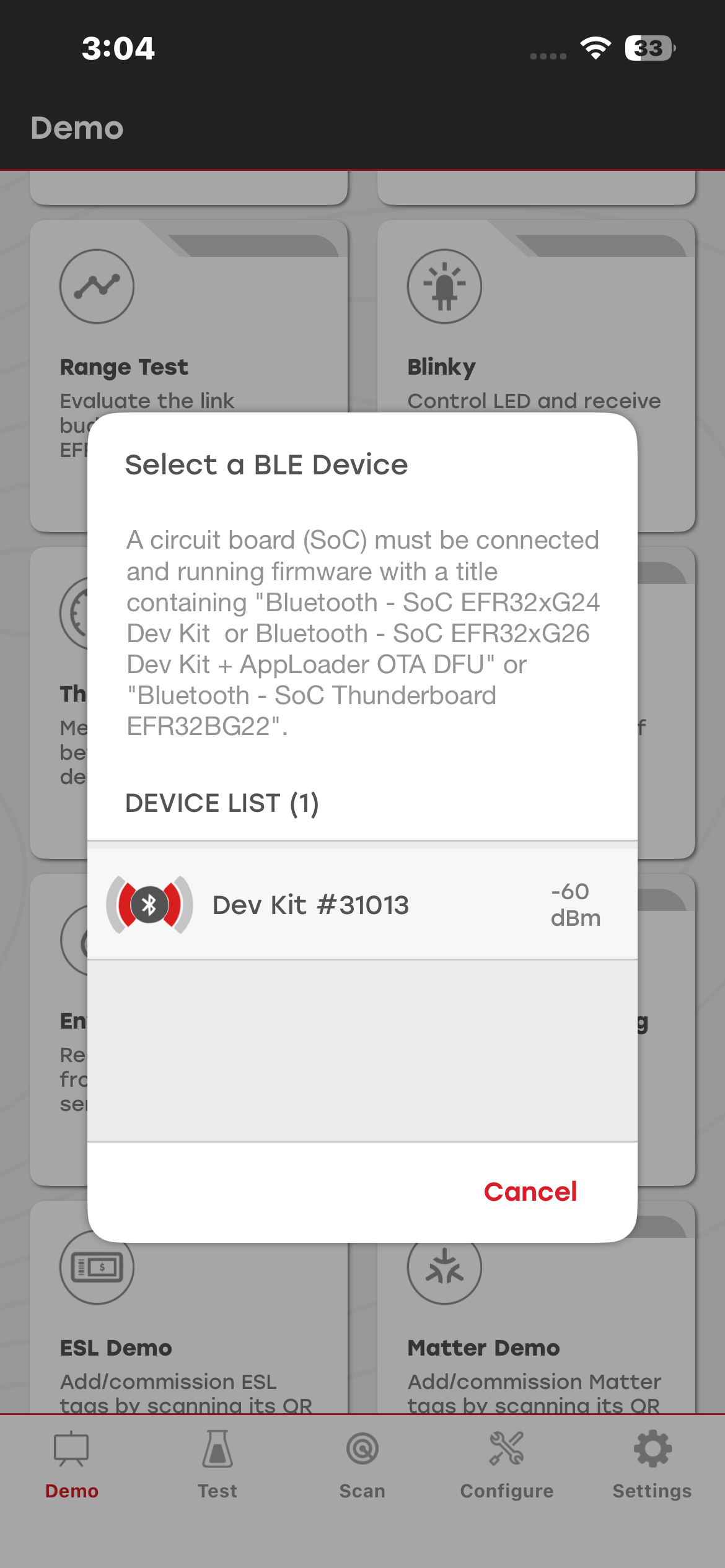
For more information, see the README of the Bluetooth - SoC Thunderboard, Bluetooth - SoC EFR32xG24 Dev Kit, or Bluetooth - SoC EFR32xG26 Dev Kit sample application from Simplicity Studio.
Environment#
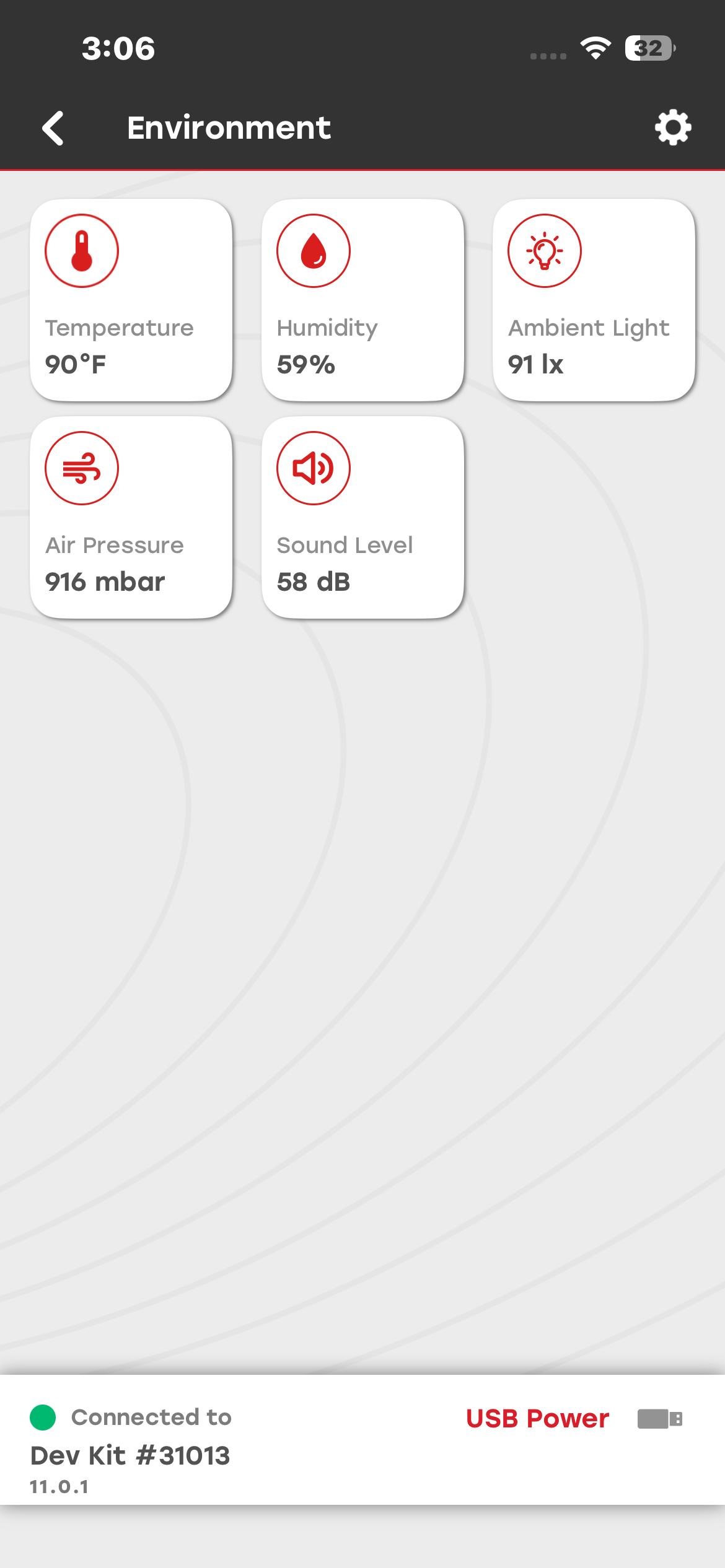
The Environment demo displays a collection of sensor data read from a compatible Silicon Labs development kit. When launched, the demo scans for Thunderboard devices. After connecting to a compatible device, the app displays readings from supported environmental sensors, such as:
Temperature
Humidity
Ambient light
UV index
Air pressure
Sound level
Carbon dioxide
VOCs
Magnetic field
Door state (hall sensor)
The tiles displayed in the Environment demo depend on the sensors supported by the connected kit.
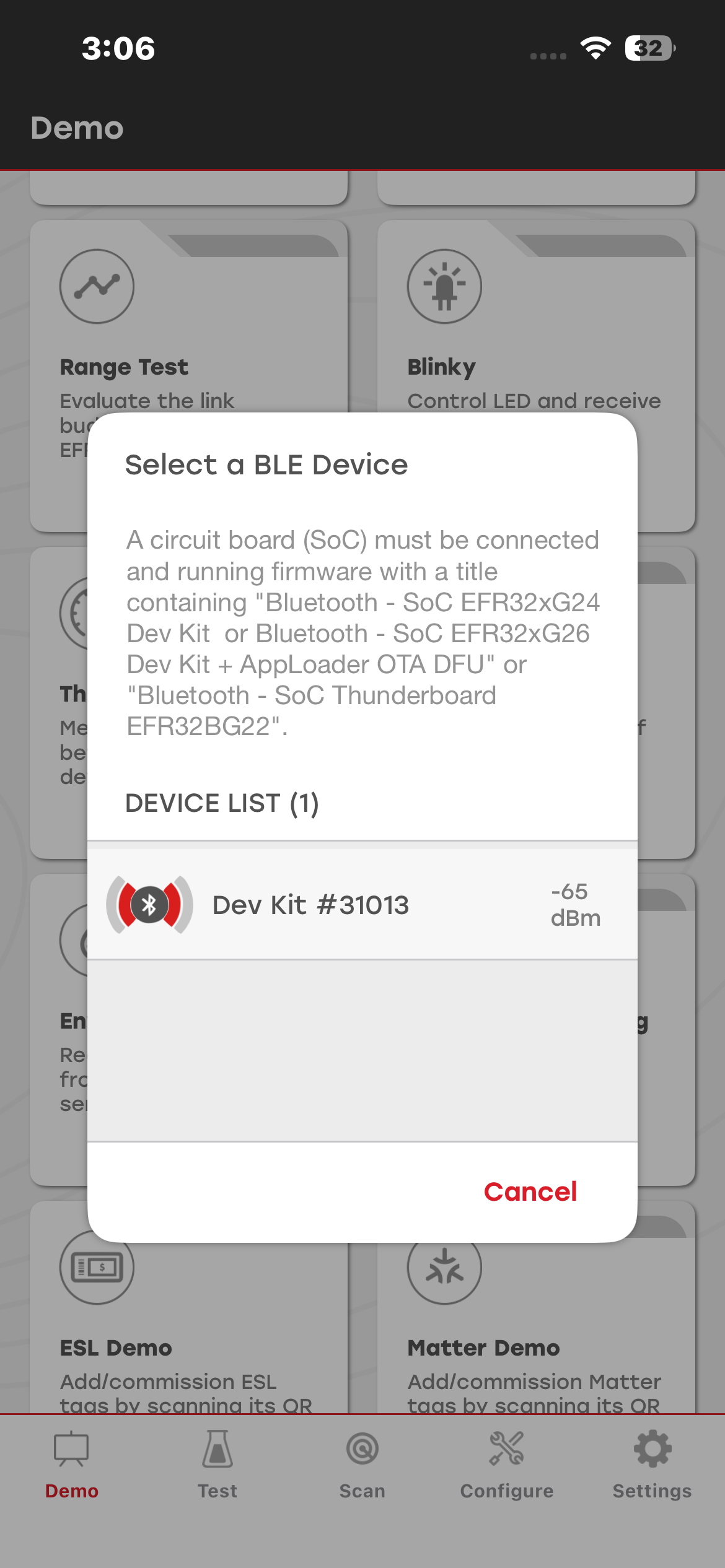
For more information, see the README of the Bluetooth - SoC Thunderboard, Bluetooth - SoC EFR32xG24 Dev Kit, or Bluetooth - SoC EFR32xG26 Dev Kit sample application from Simplicity Studio.
Electronic Shelf Label (ESL)#
The Electronic Shelf Label (ESL) demo demonstrates how a central access point (AP) communicates with one or more ESL devices.
The ESL profile specifies the following roles:
Electronic Shelf Label (ESL): A device that displays graphics for items offered for sale on a shelf and typically includes integrated sensors and light-emitting diodes (LEDs).
Access Point (AP): A central device that exchanges data with ESL devices by using Bluetooth wireless technology.
The ESL demo is part of the Simplicity Connect app and requires two kits. For more information, see Bluetooth LE Electronic Shelf Label.
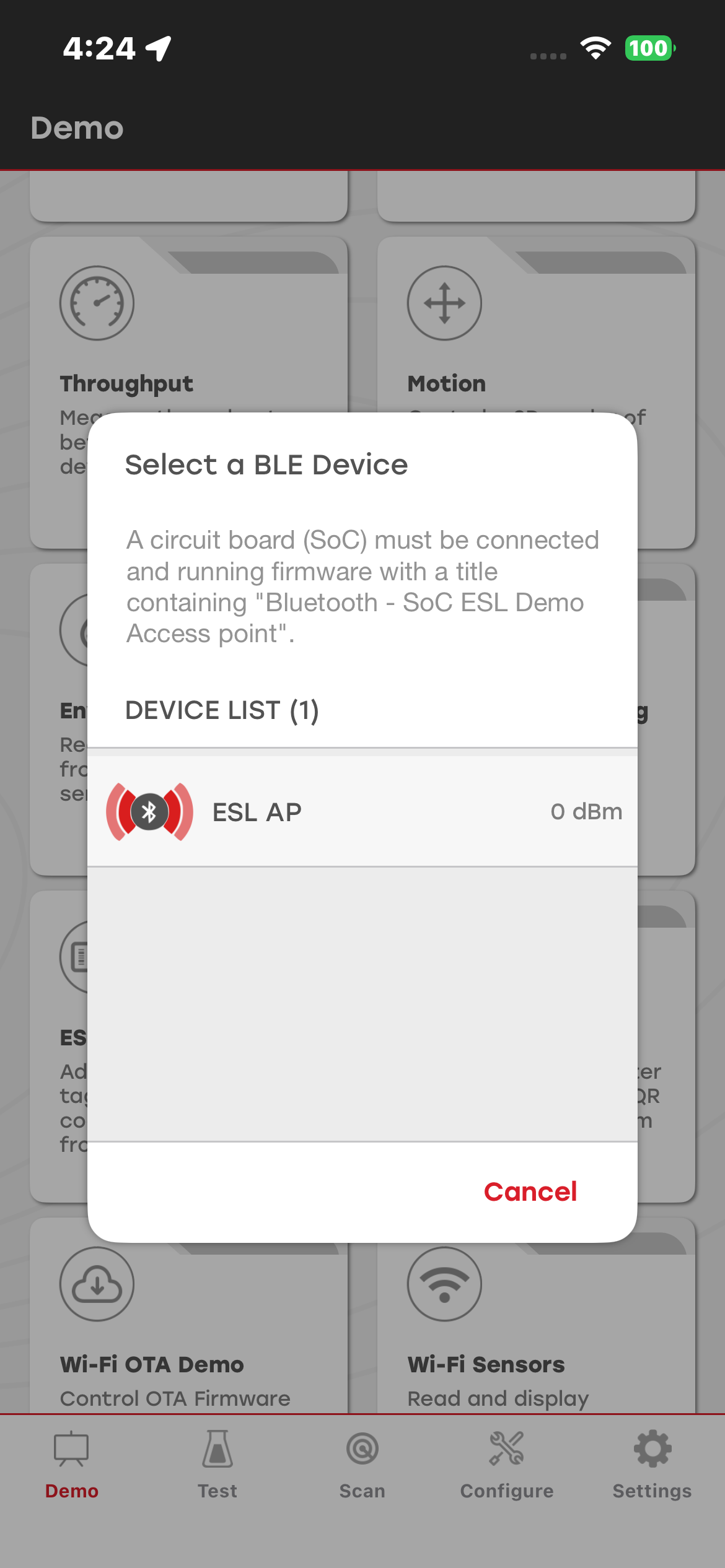
When the access point is used in demo mode, it advertises its existence. Select the ESL Demo application from the Demo tab to connect to the AP with the Simplicity Connect mobile app.
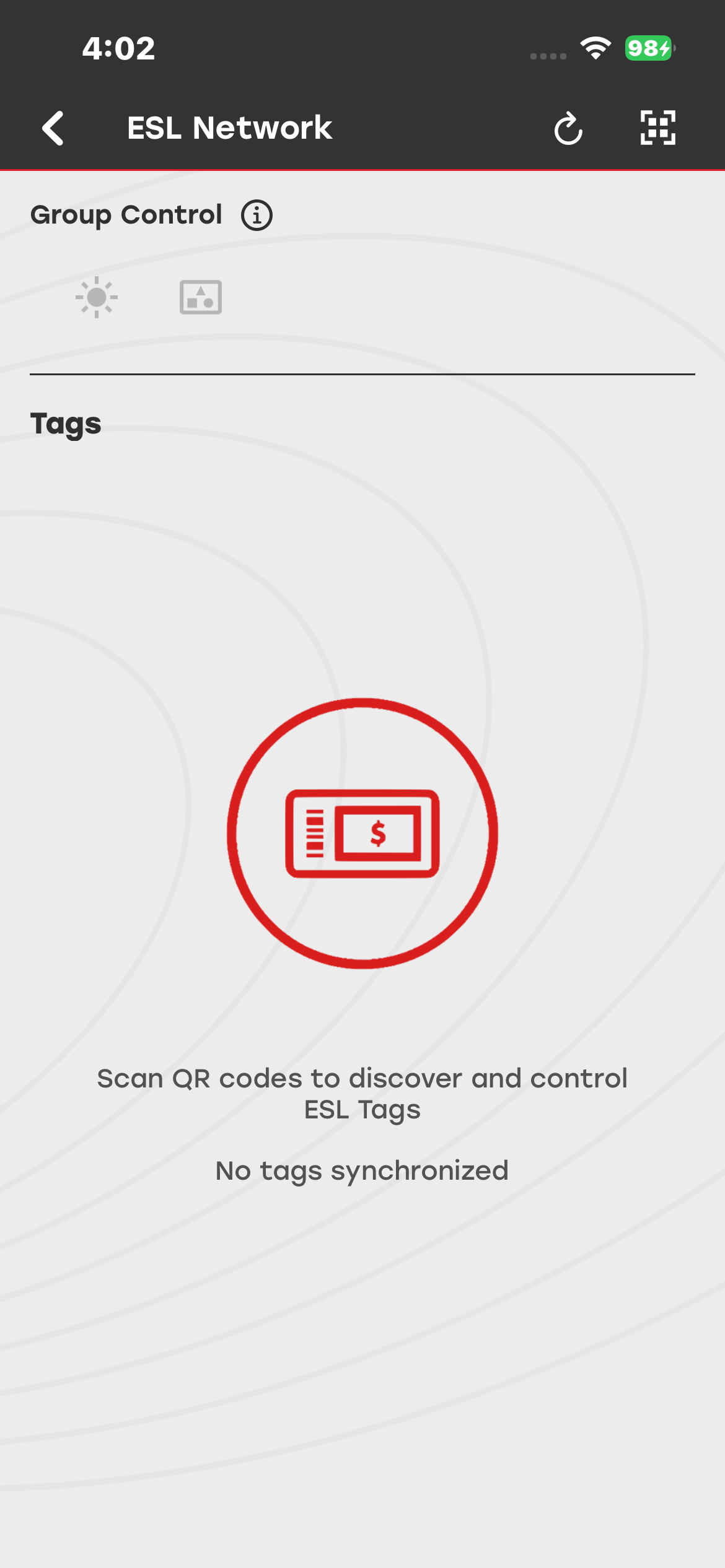
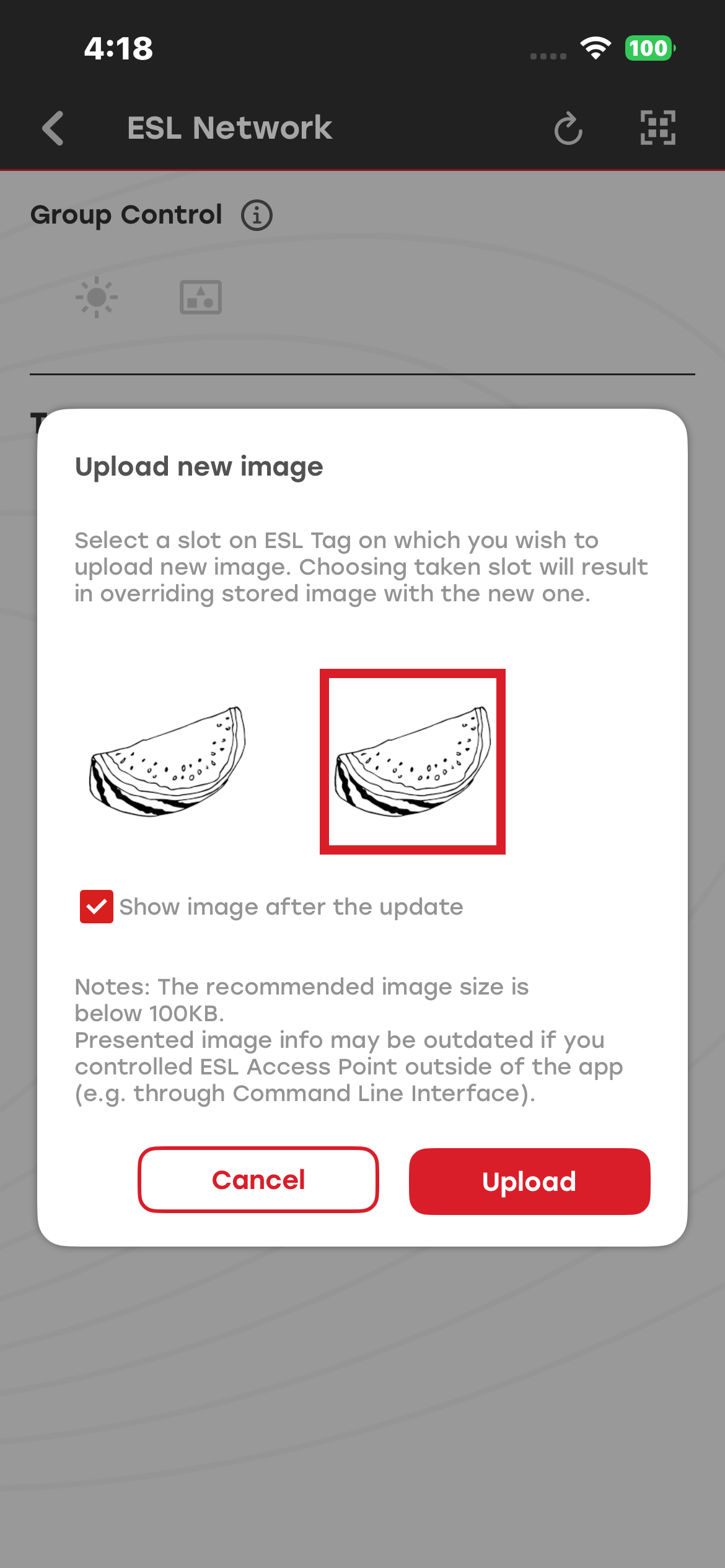
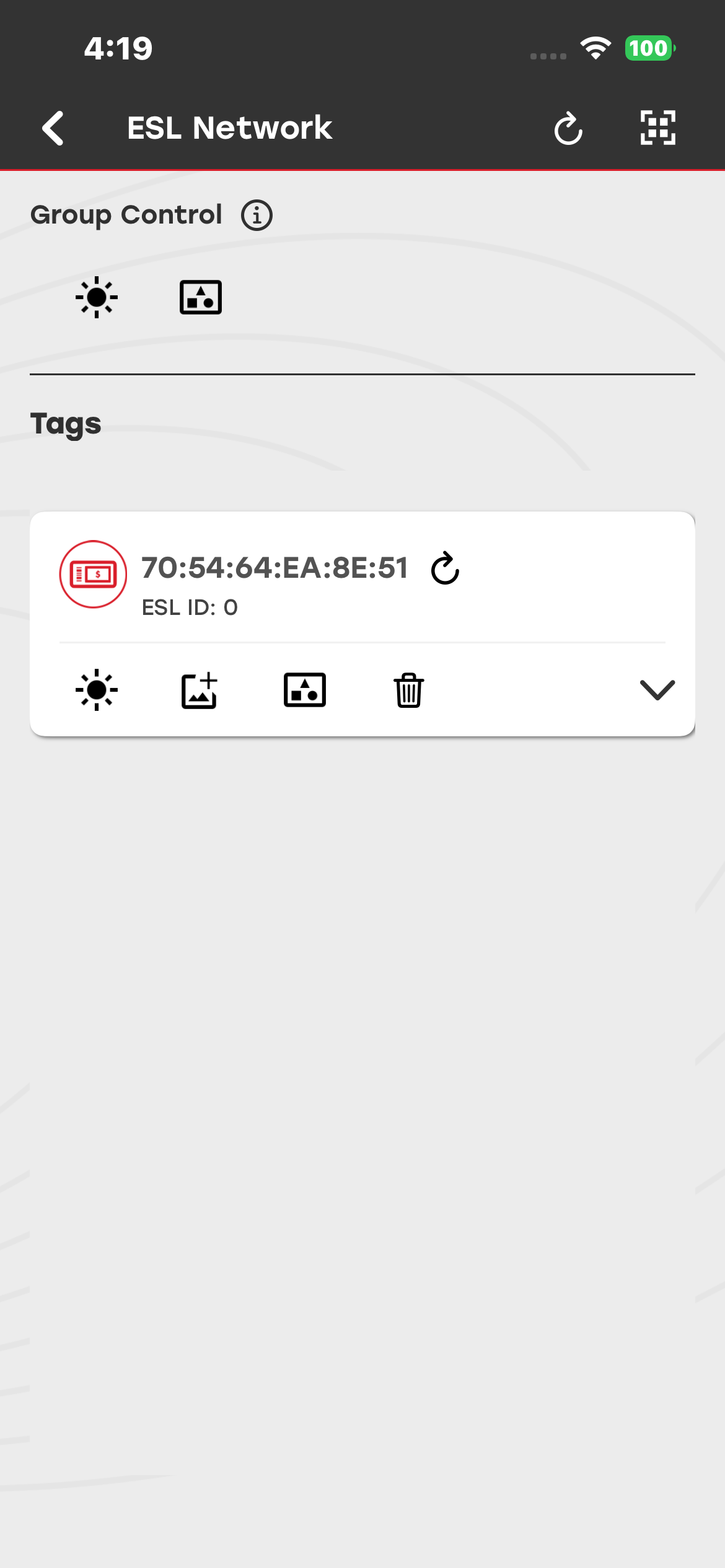
You can also use the Simplicity Connect mobile app to upload an image to the ESL tag.
Matter Demo#
The Matter demo enables you to add and commission Matter over Thread and Matter over Wi-Fi devices to a Matter network by scanning the QR code on the Matter device. After commissioning, you can control the Matter device over a Wi-Fi or Thread network.
The supported Matter device types are Light, Lock, On/Off Plug, Window Covering, Thermostat, Temperature Sensor, Contact Sensor, Occupancy Sensor, EVSE, Oven, and Range Hood.
Select the Matter demo from the Demo tab to open the Matter demo screens.
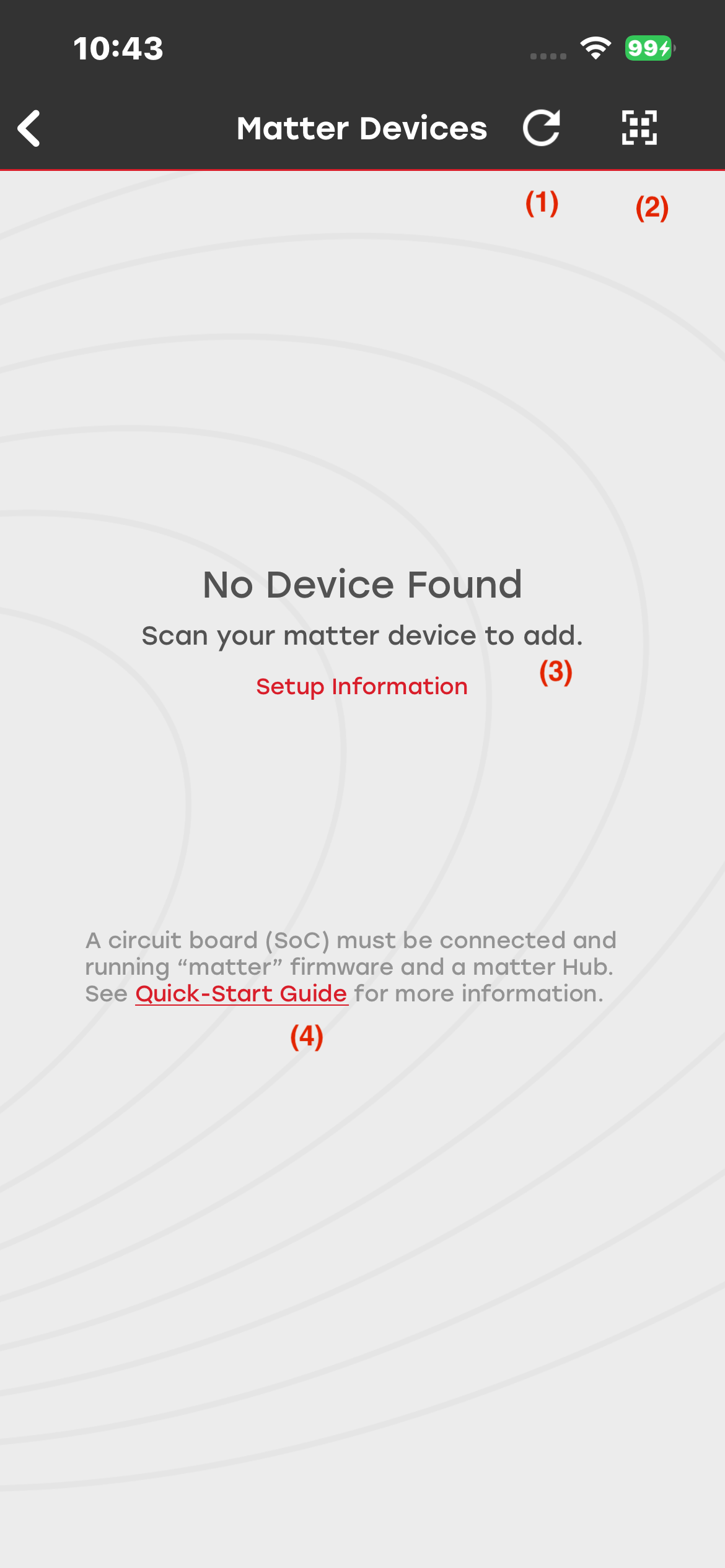
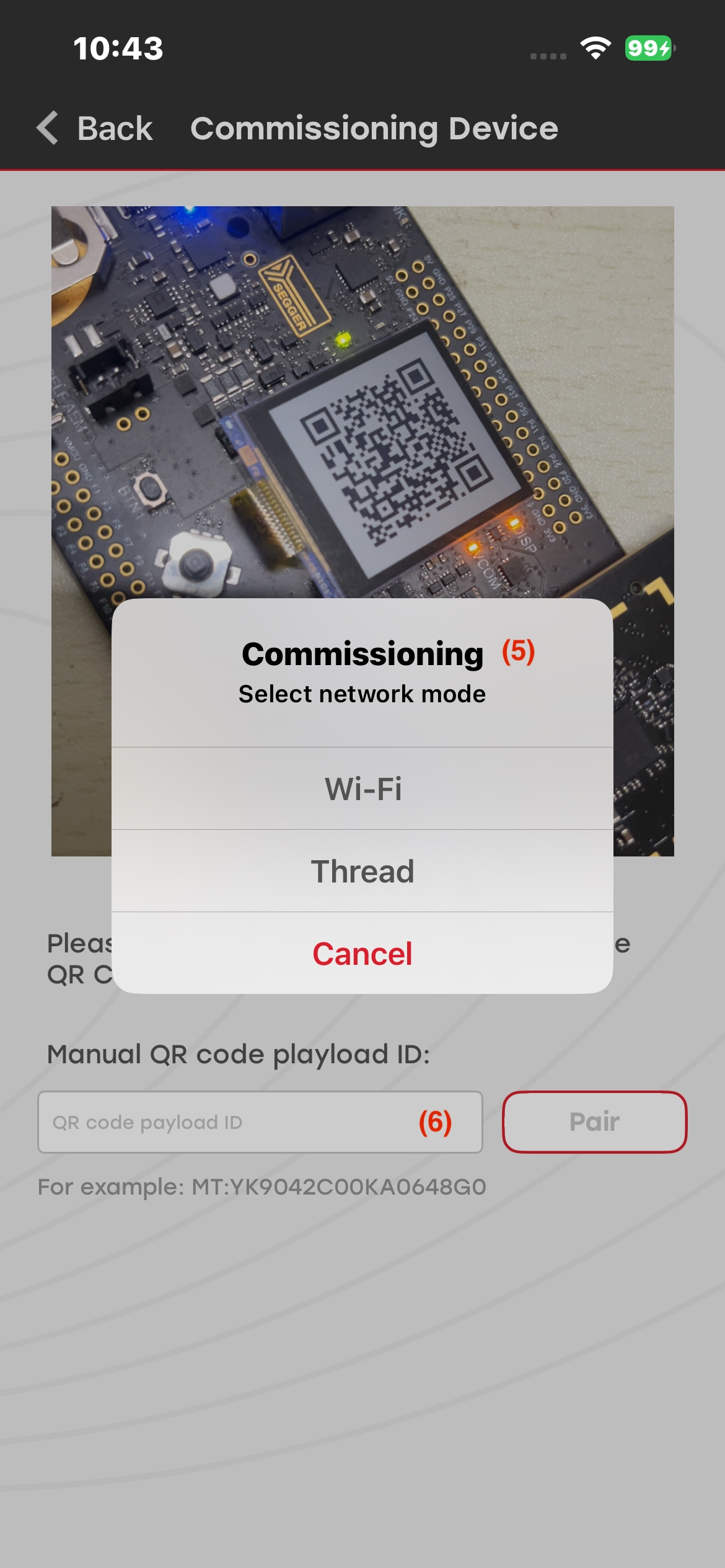
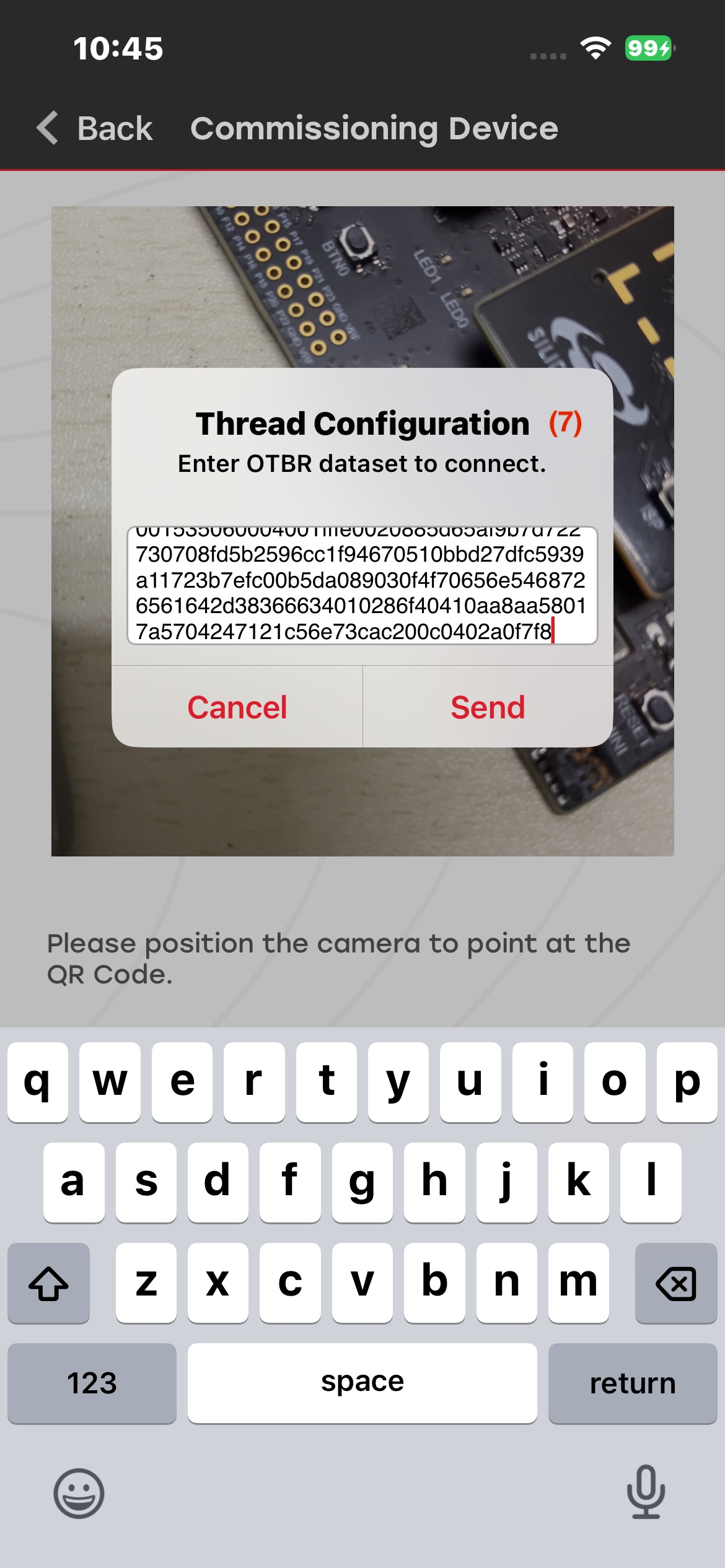
The Matter demo provides the following options and information:
Select the QR code scanner button to open the camera and scan the QR code on a Matter device.
Select the Reload icon to refresh the screen and view the status of commissioned devices.
No Device Found indicates that no Matter devices are currently available on the network.
Open the Quick Start Guide for information about the Matter demo and instructions for setting up the OpenThread Border Router (OTBR).
Select the network type: Wi-Fi or Thread.
Enter QR code information manually to commission a device.
Enter a dataset to commission a device.
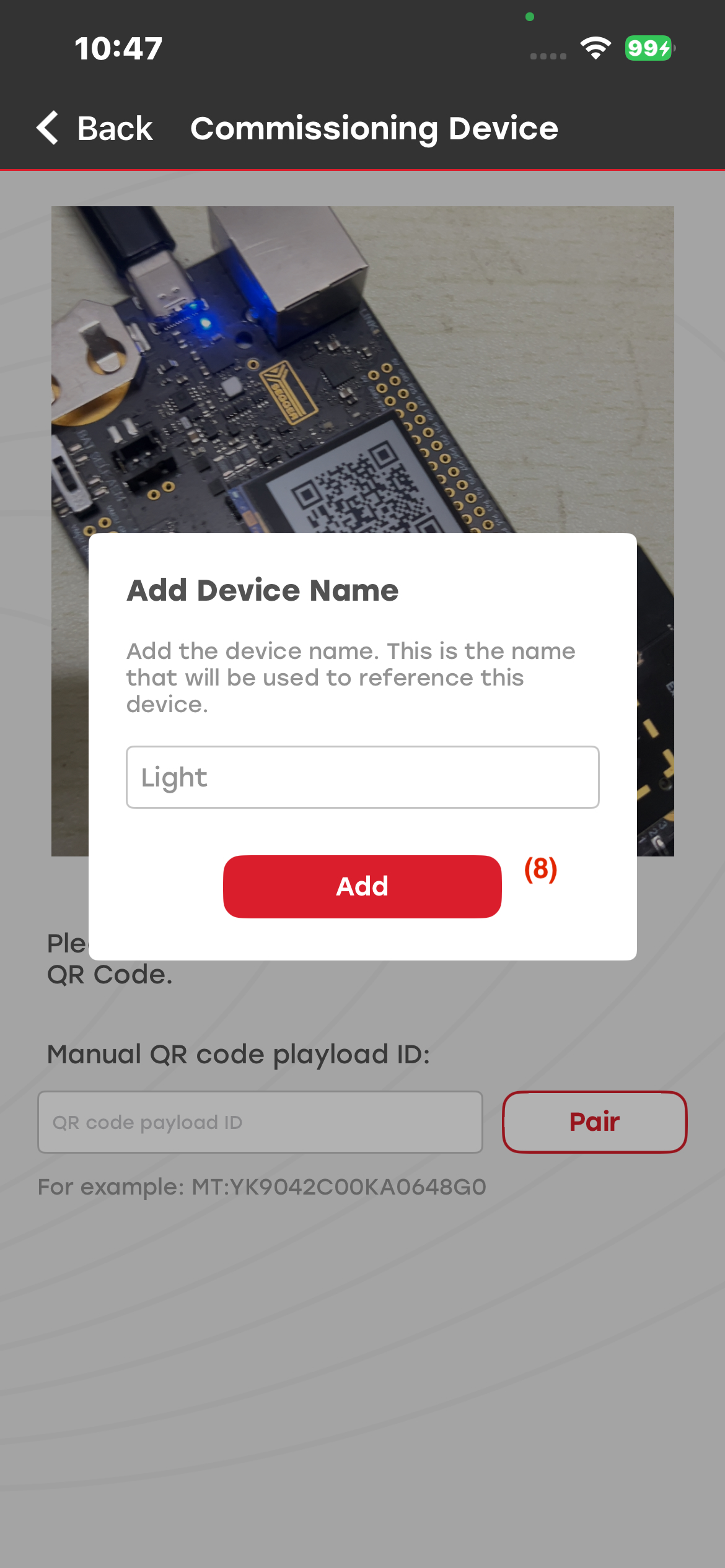
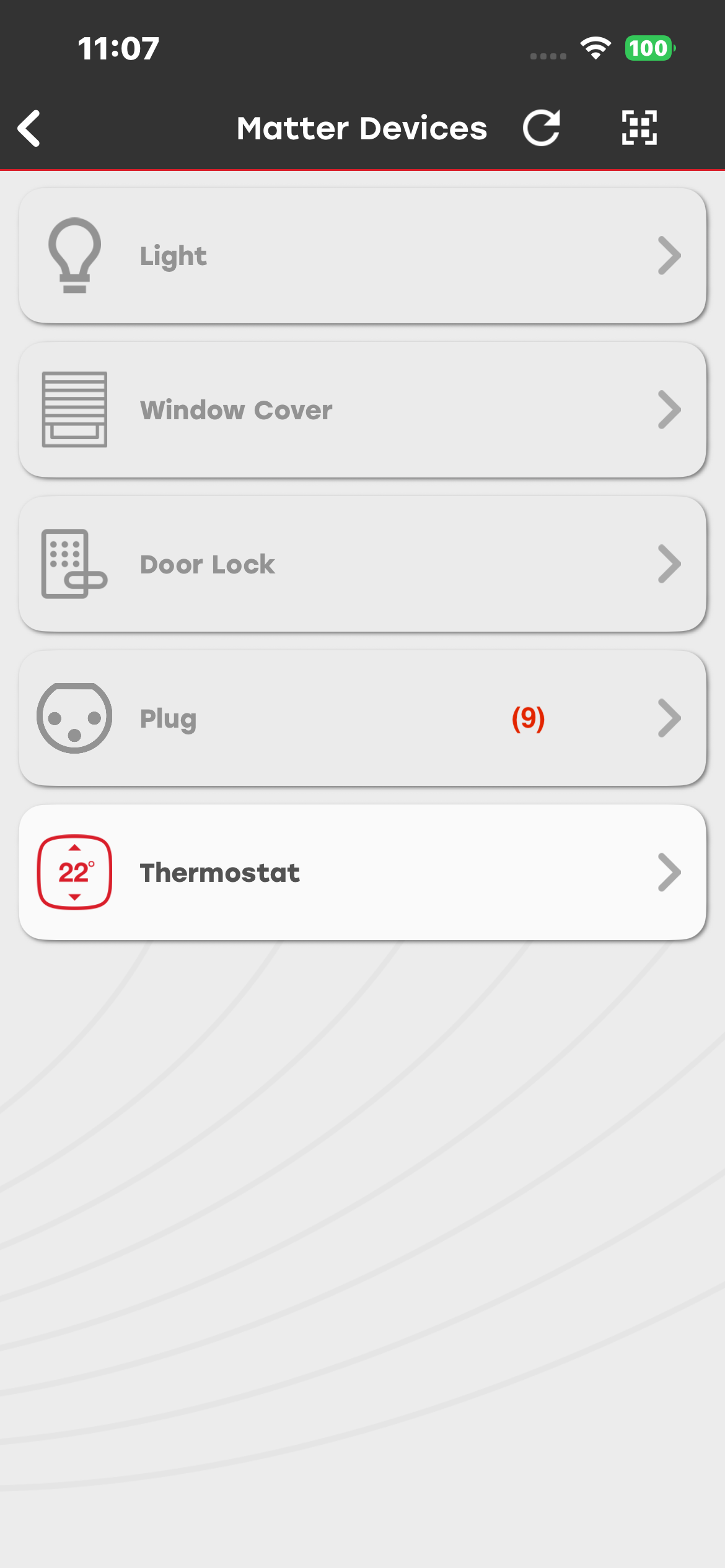
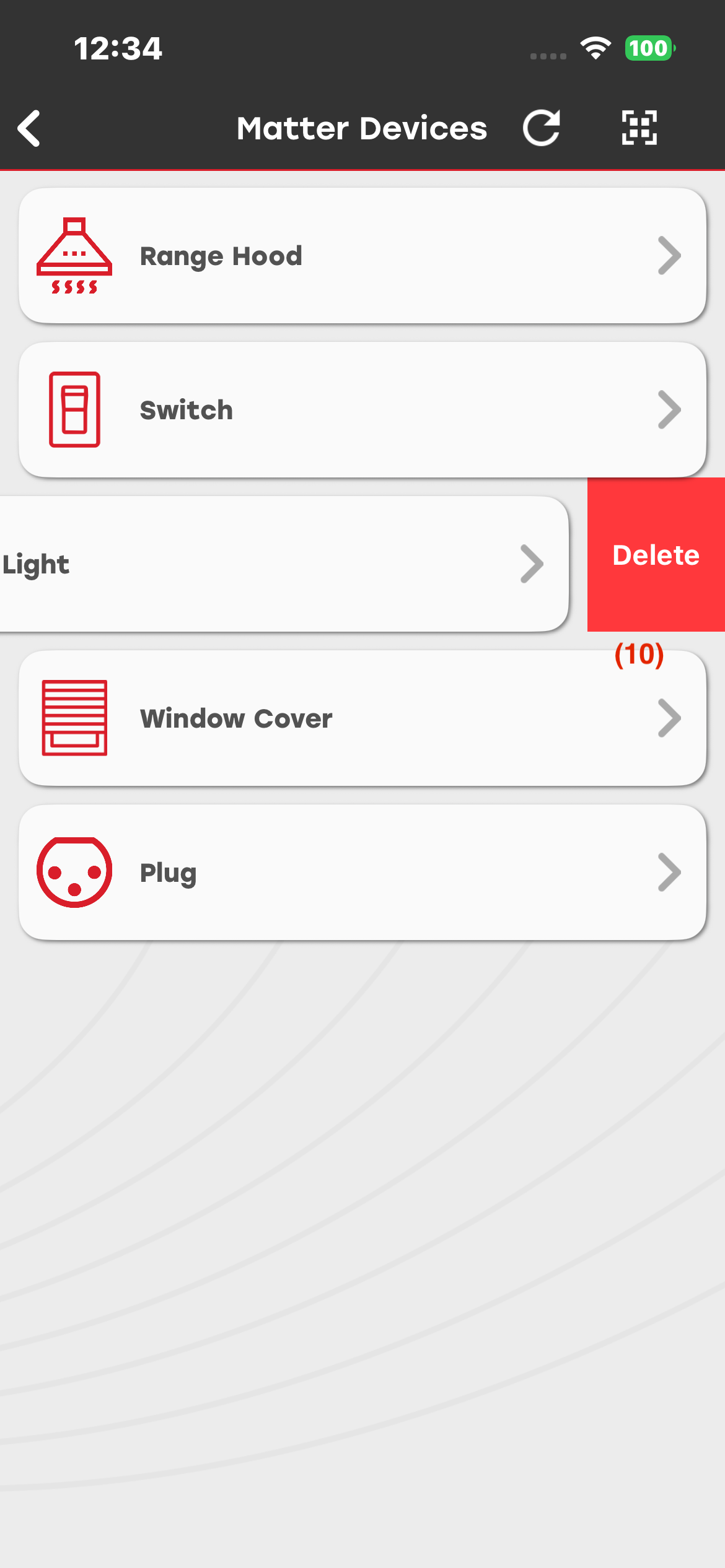
Modify the device name after commissioning.
View the status of commissioned devices in the device list. A grayed-out device indicates that it is offline, while a device displayed in white indicates that it is online.
Remove a Matter device.
Light Demo#
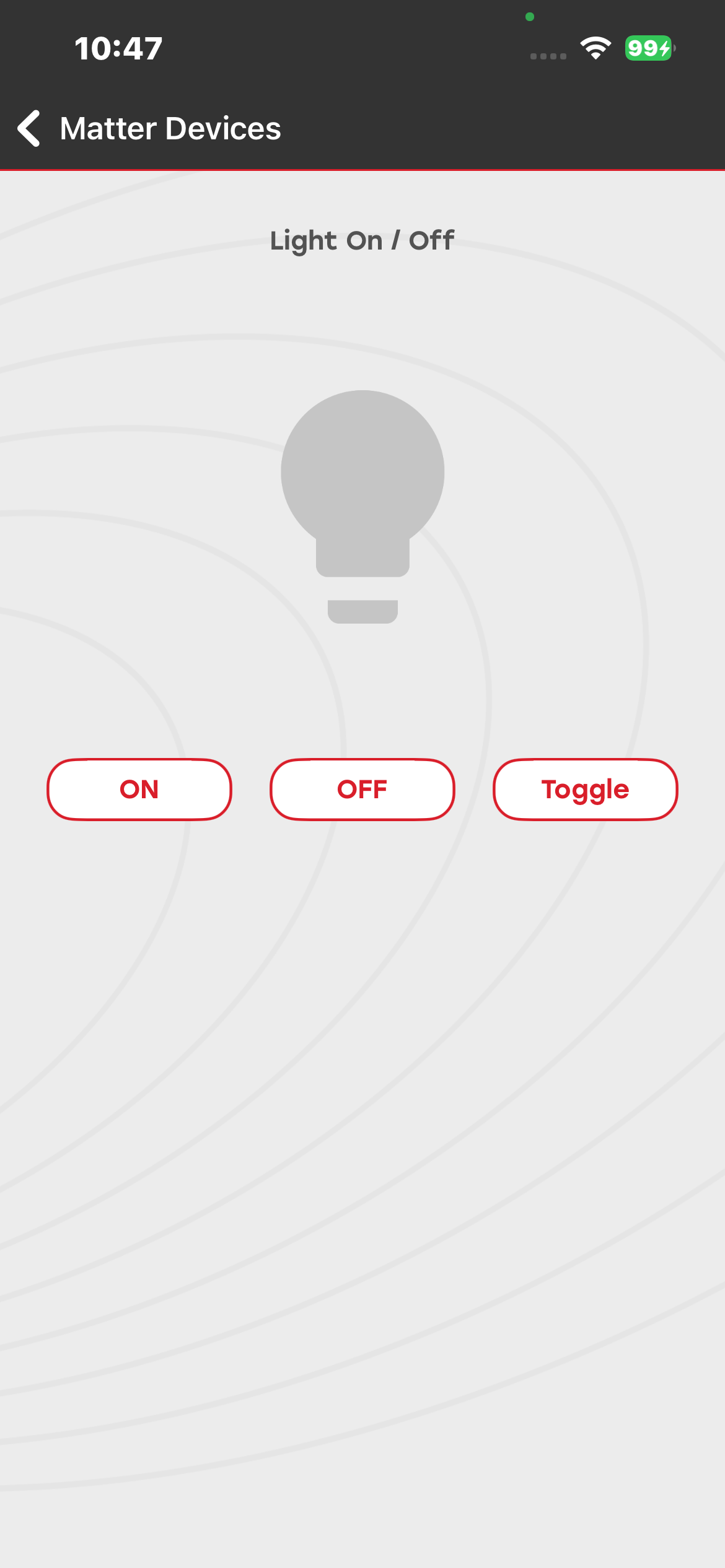
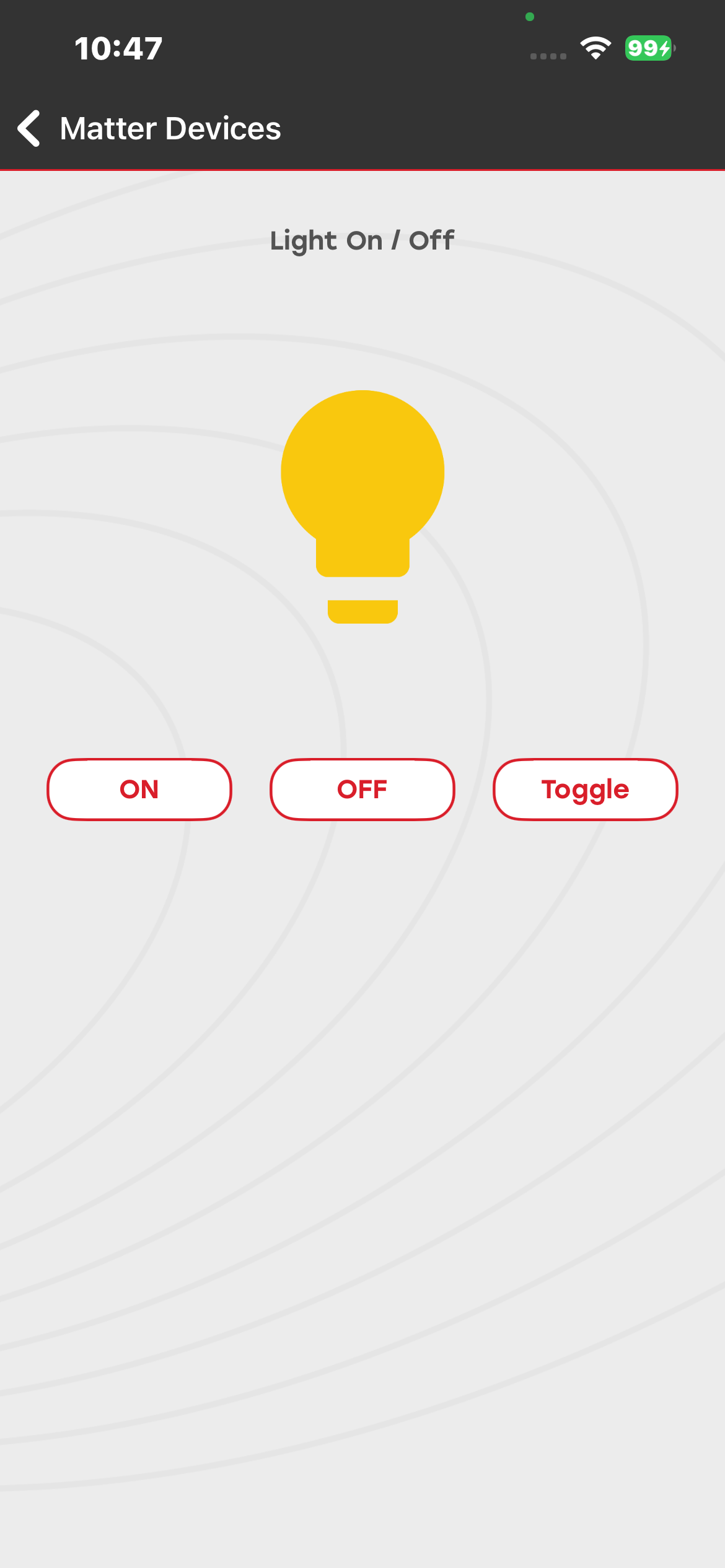
You can control the light and view its status on the Matter device (BRD) and in the mobile application.
Wi-Fi Commissioning#
The Wi-Fi Commissioning demo displays a list of Wi-Fi access points detected by the EVK board and allows you to connect to an access point after providing the correct credentials. A red or green indicator shows the connection status of the access point: red indicates that the access point is disconnected, and green indicates that it is connected.
For more information about the setup, see Updating RS9116W Firmware and Getting Started with an EFx32 Host.