


Initialize the Device#
Use this page to configure the device as either an Access Point (AP) or a Client.
The application uses different terminology for these two modes:
Activate configures the device as an Access Point.
Initialize configures the device as a Client.
When the device is activated as an Access Point, it creates and starts a wireless network. When the device is initialized as a Client, it does not automatically join a network. To connect to a network, complete the steps described in the Scan page.
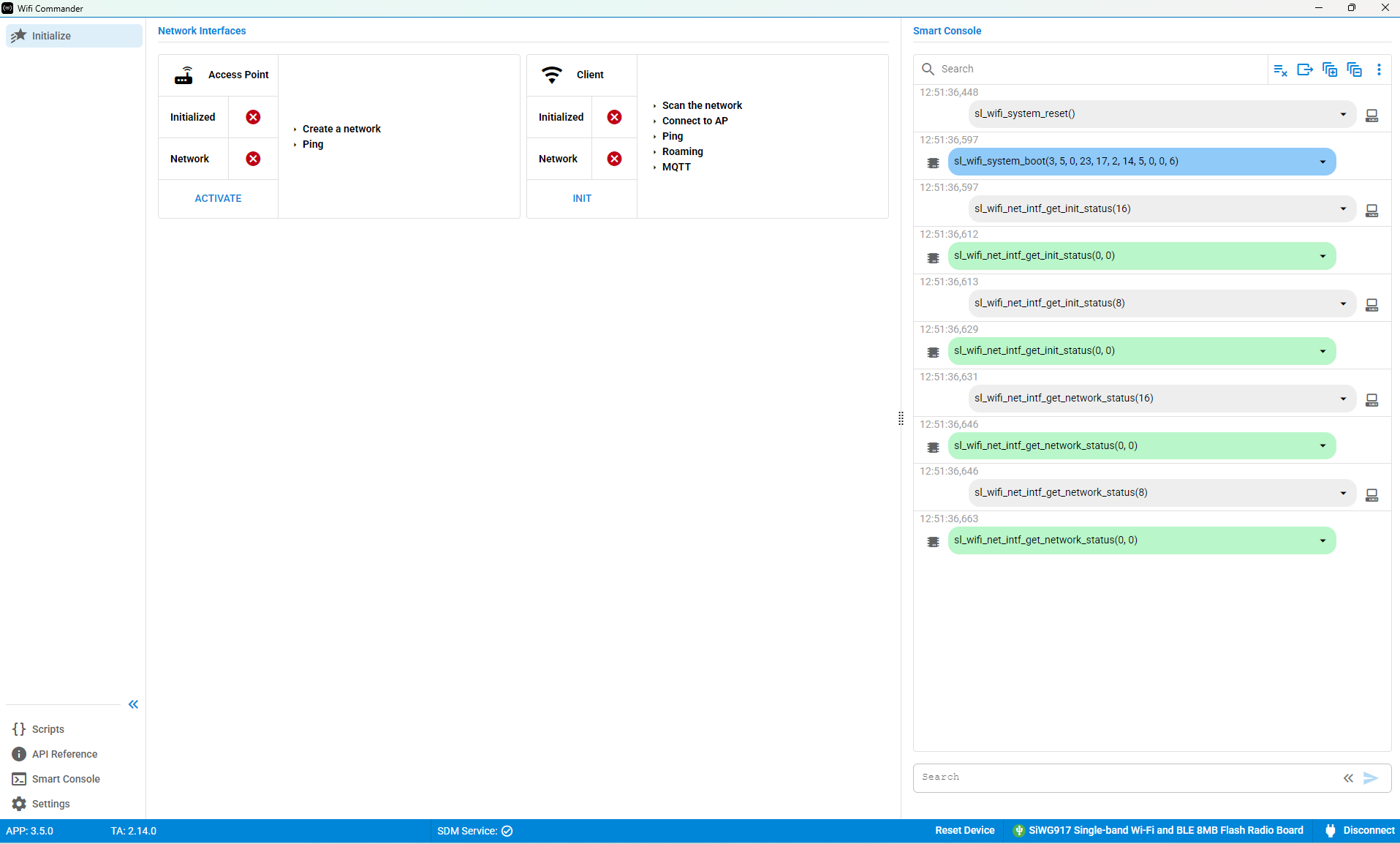
The following sections describe the expected behavior for each scenario.
Configure as an Access Point (AP)#
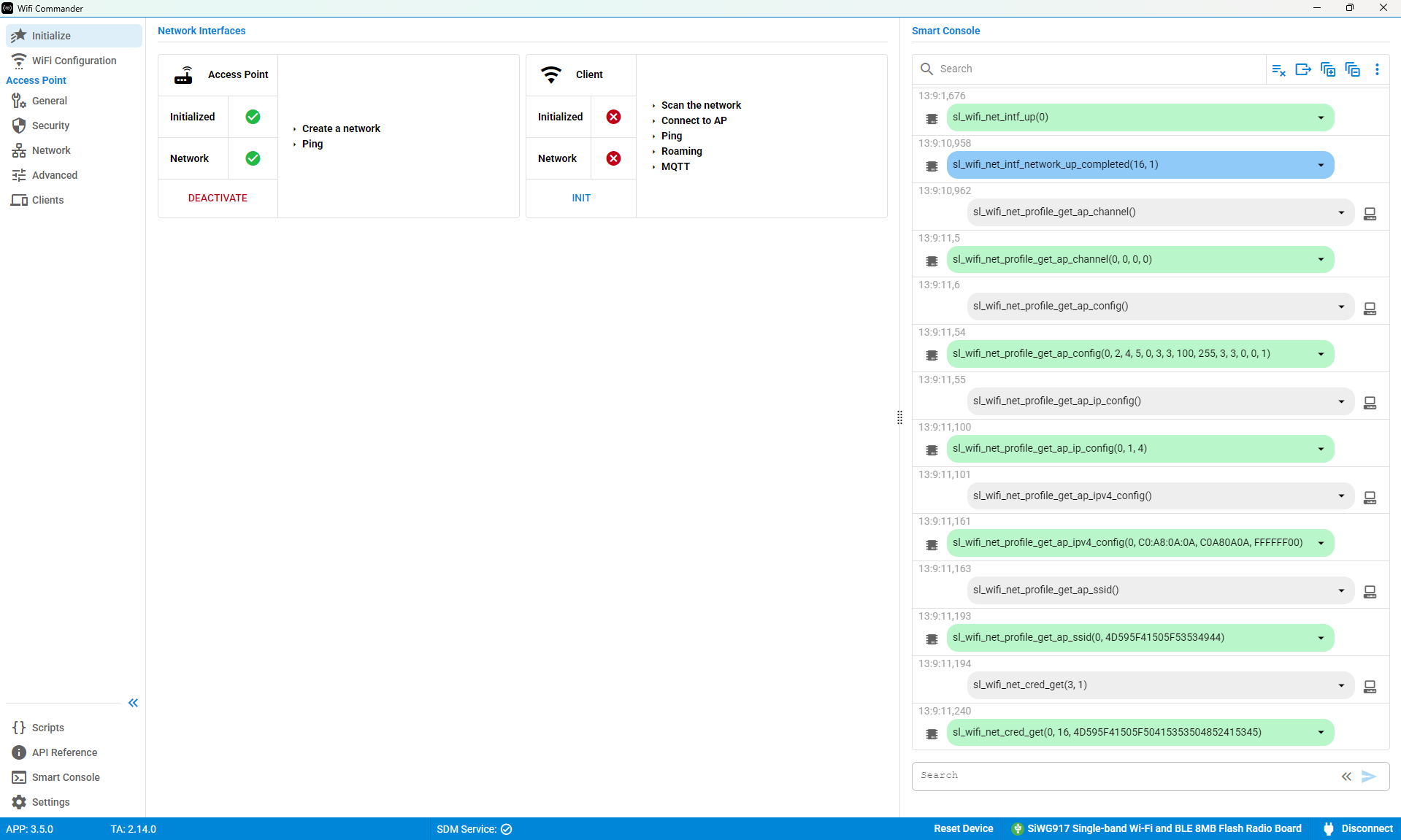
After activating the device as an AP, the following pages become available in the navigation pane:
General
Security
Network
Advanced
Clients
The Initialized and Network indicators display a green status after activation.
These pages are documented in the Access Point section of this guide.
To change the device configuration, select DEACTIVATE on the Initialize page.
Configure as a Client#
After initializing the device as a Client, the following page becomes available in the navigation pane:
Scan
The Initialized indicator displays a green status after initialization.
A SET button also appears next to the Network indicator. Select SET, or open the Scan page, to connect to a network.
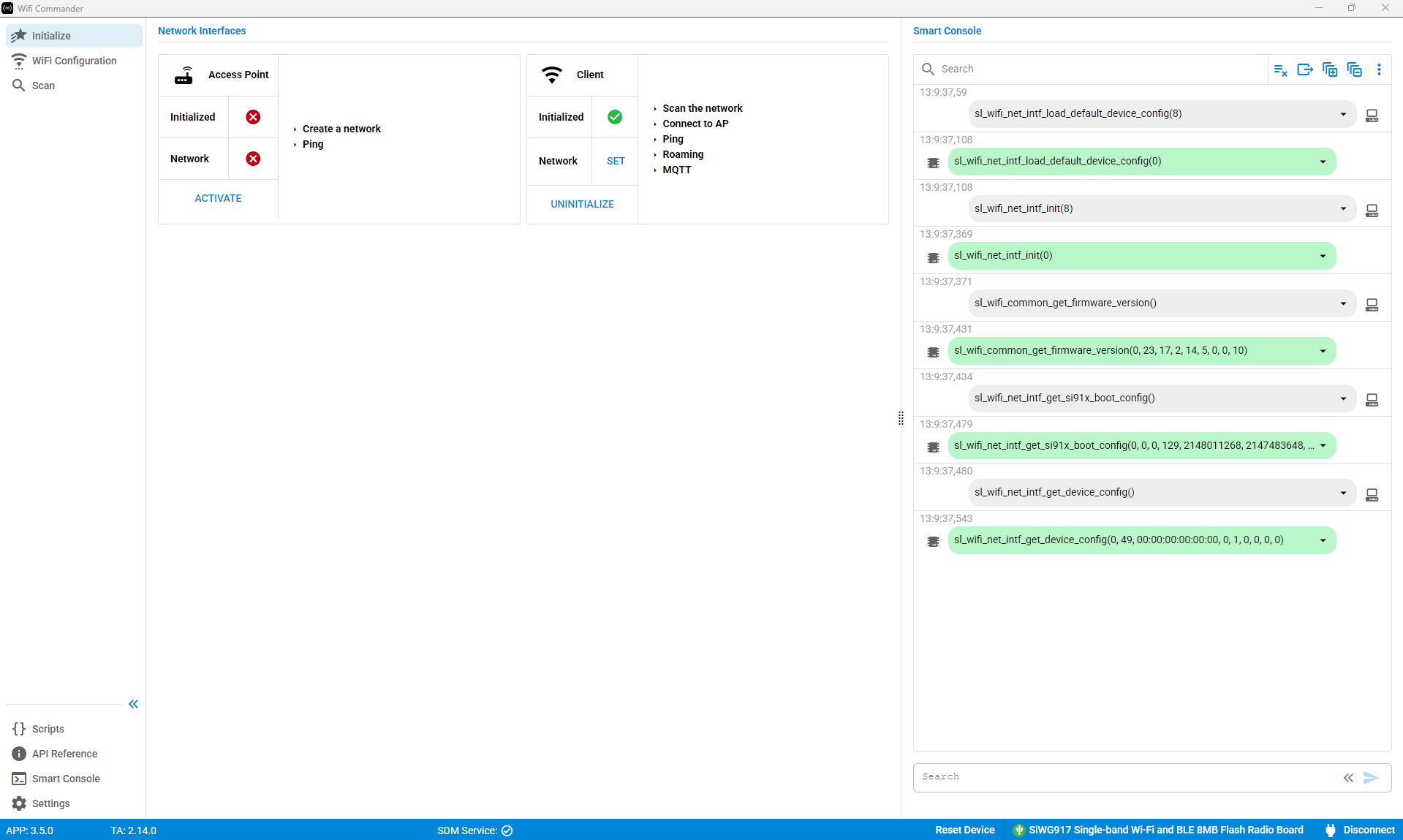
To change the device configuration, select UNINITIALIZE on the Initialize page.
For information about connecting to a network, see the Scan page.