


Installation and Setup#
Downloading Simplicity Commander#
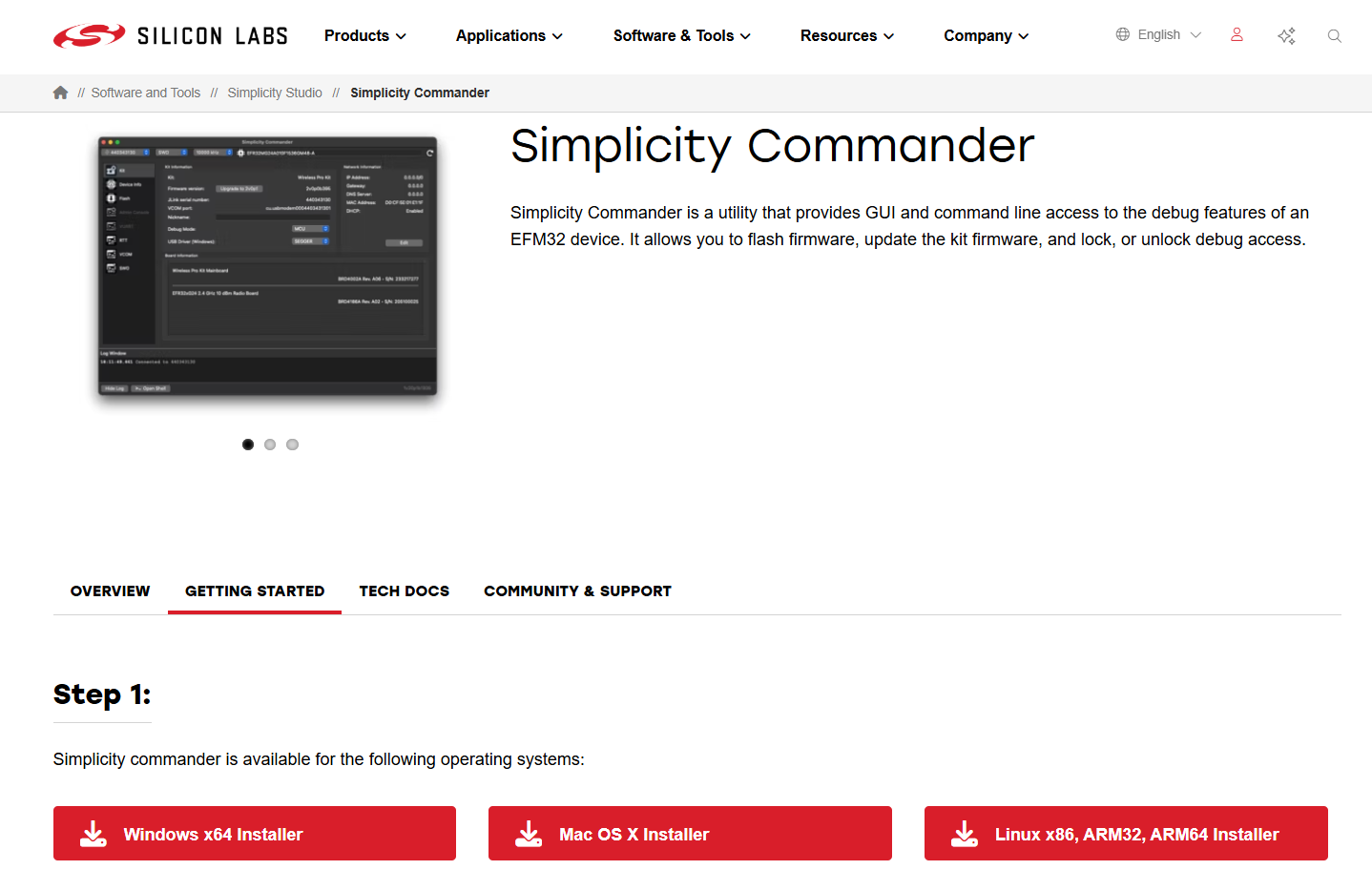
Download Simplicity Commander from the official Silicon Labs documentation portal:
https://docs.silabs.com/simplicity-commander/latest/simplicity-commander-start/
Choose the appropriate package for your operating system:
Windows:
.ziparchiveLinux:
.tar.gzarchivemacOS:
.dmgor.tar.gzarchive
Installing on Windows#
Extract the downloaded
.ziparchive.Run the installer or copy
commander.exeto a preferred directory.(Optional) Add the installation directory to your system
PATHenvironment variable.
Tip: Adding Commander to the
PATHallows you to run commands from any terminal window.
Installing on Linux#
Extract the downloaded archive:
tar -xvzf simplicity-commander-linux.tar.gz cd simplicity-commanderMake the Commander binary executable:
chmod +x commander(Optional) Add Commander to your PATH:
export PATH=$PATH:/path/to/simplicity-commanderInstall required dependencies:
sudo apt-get install libusb-1.0-0Install SEGGER J-Link drivers.
Note: You may need
sudoprivileges to install dependencies or run Simplicity Commander on some Linux systems.
Installing on macOS#
Open the downloaded
.dmgfile or extract the.tar.gzarchive.Drag the Commander application to the
/Applicationsfolder.Add Commander to your
PATH:export PATH=$PATH:/Applications/commanderApprove execution if prompted:
Go to System Preferences > Security & Privacy > General.
Click Allow Anyway to permit the app to run.
Note: macOS may block unsigned binaries. Approving execution ensures Commander runs correctly.
Verifying the Installation#
After installation, verify that Simplicity Commander is installed successfully.
Run the following command in your terminal or command prompt:
commander --version Expected Output:
Simplicity Commander vX.XX.X
Copyright 2016–2025 Silicon Laboratories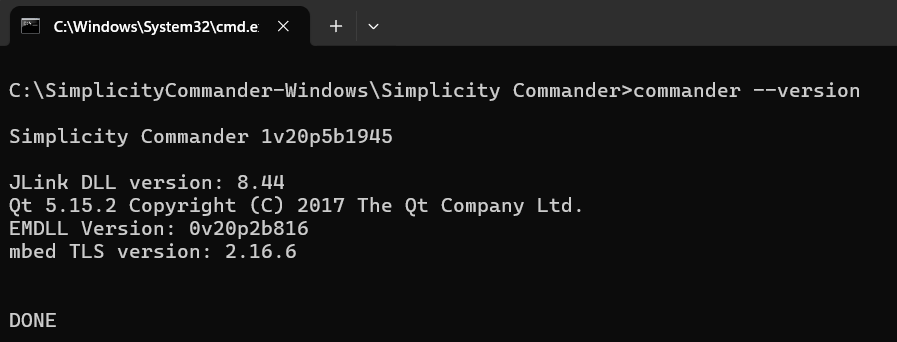
Figure: Simplicity Commander Version