Appendix A: Reading Out QR Code and DSK#
Z-Wave chips generate their own S2 Device Specific Key (DSK) when they have been programmed for the first time. S2 controllers require this DSK to be verified by the user, and in some cases the first part must even be typed in when the node is included. This section describes how to read out the DSK from the chip.
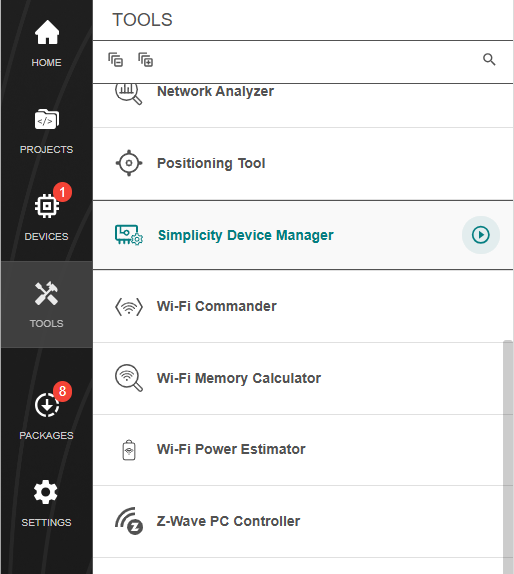
Using Simplicity Studio, navigate to the Tools menu and run the Simplicity Device Manager.
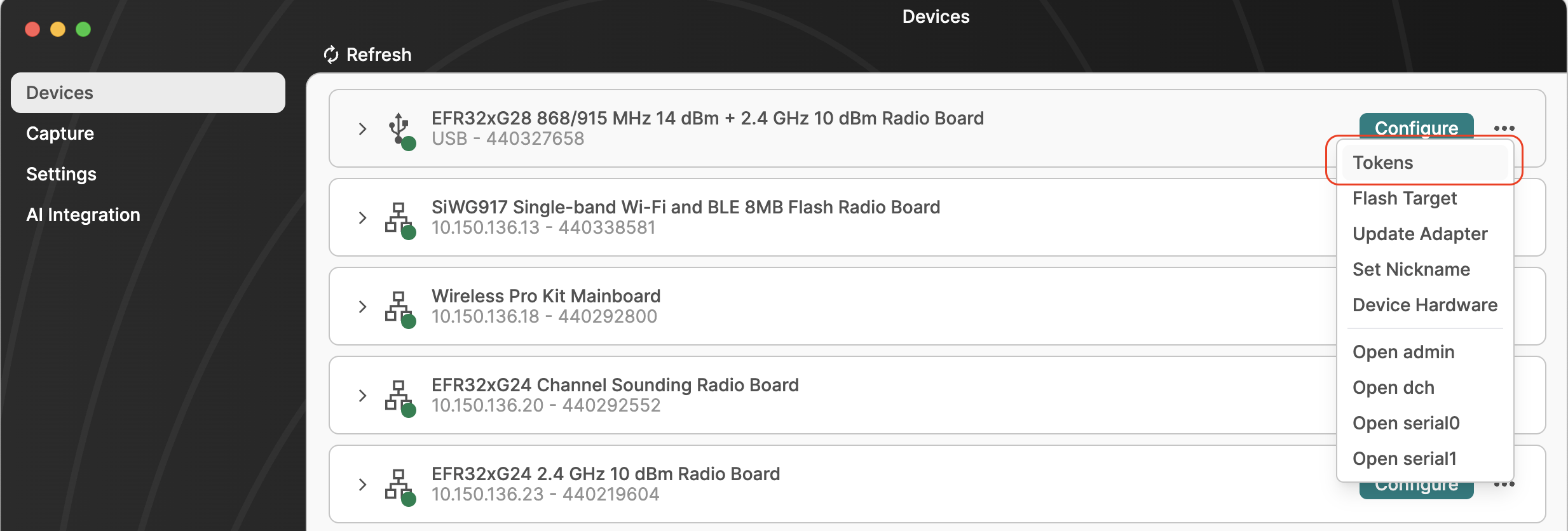
In Device Manager, select the Devices menu in the left panel. Click the three dots next to the device from which you would like to read out the DSK, and then select Tokens.
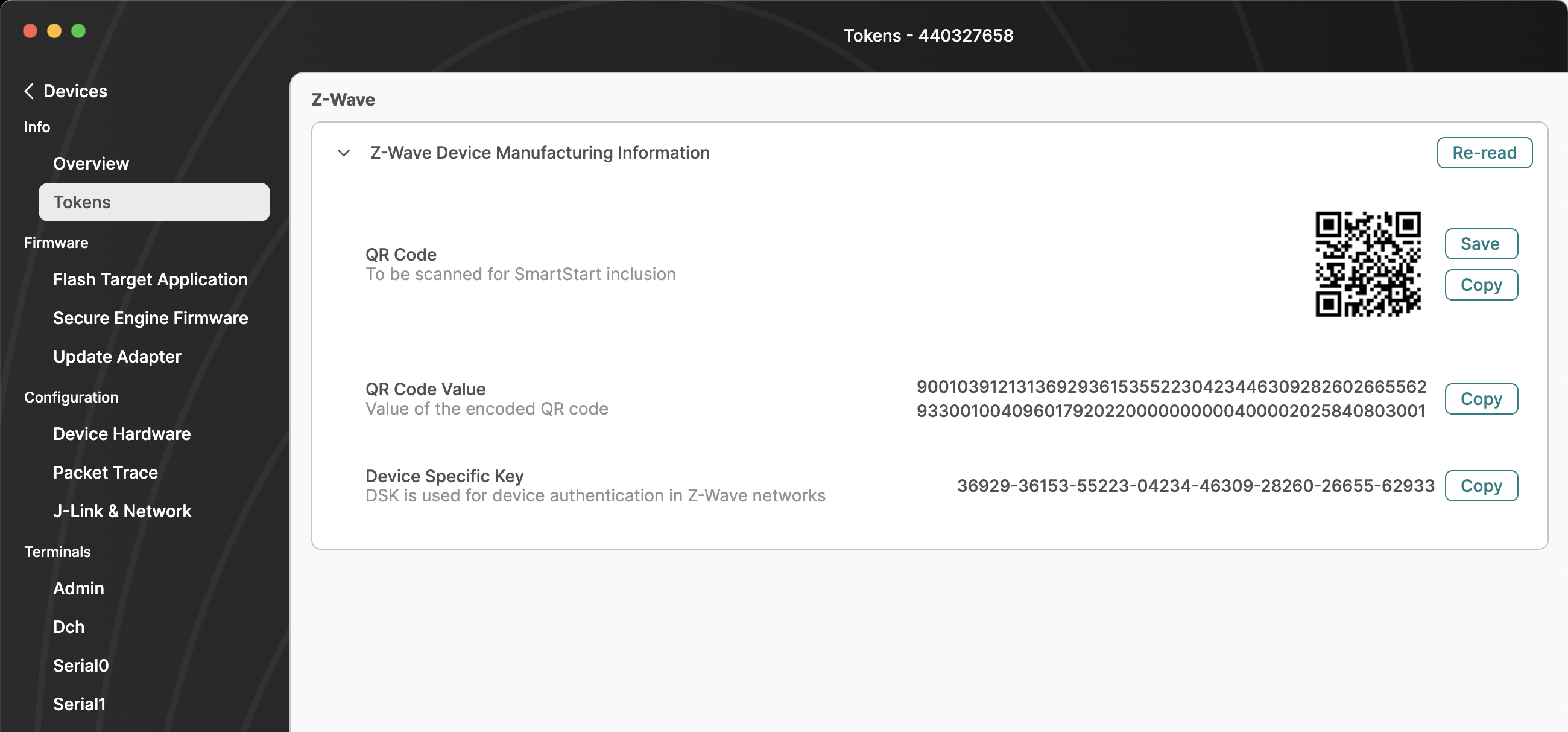
In this view, the entire QR Code Value, the corresponding QR Code Image, and the Device Specific Key (DSK) are shown.
This DSK can be compared against the Z-Ware UI, PC Controller dialog box, or other Controller UI. If needed, the first decimal group can be typed in for S2 secure inclusion.