


Interface Overview#
Each section of the Wi-Fi Commander user interface (UI) is described in detail later in this guide. This page provides an overview of the main UI areas and their purpose.
Main Layout#
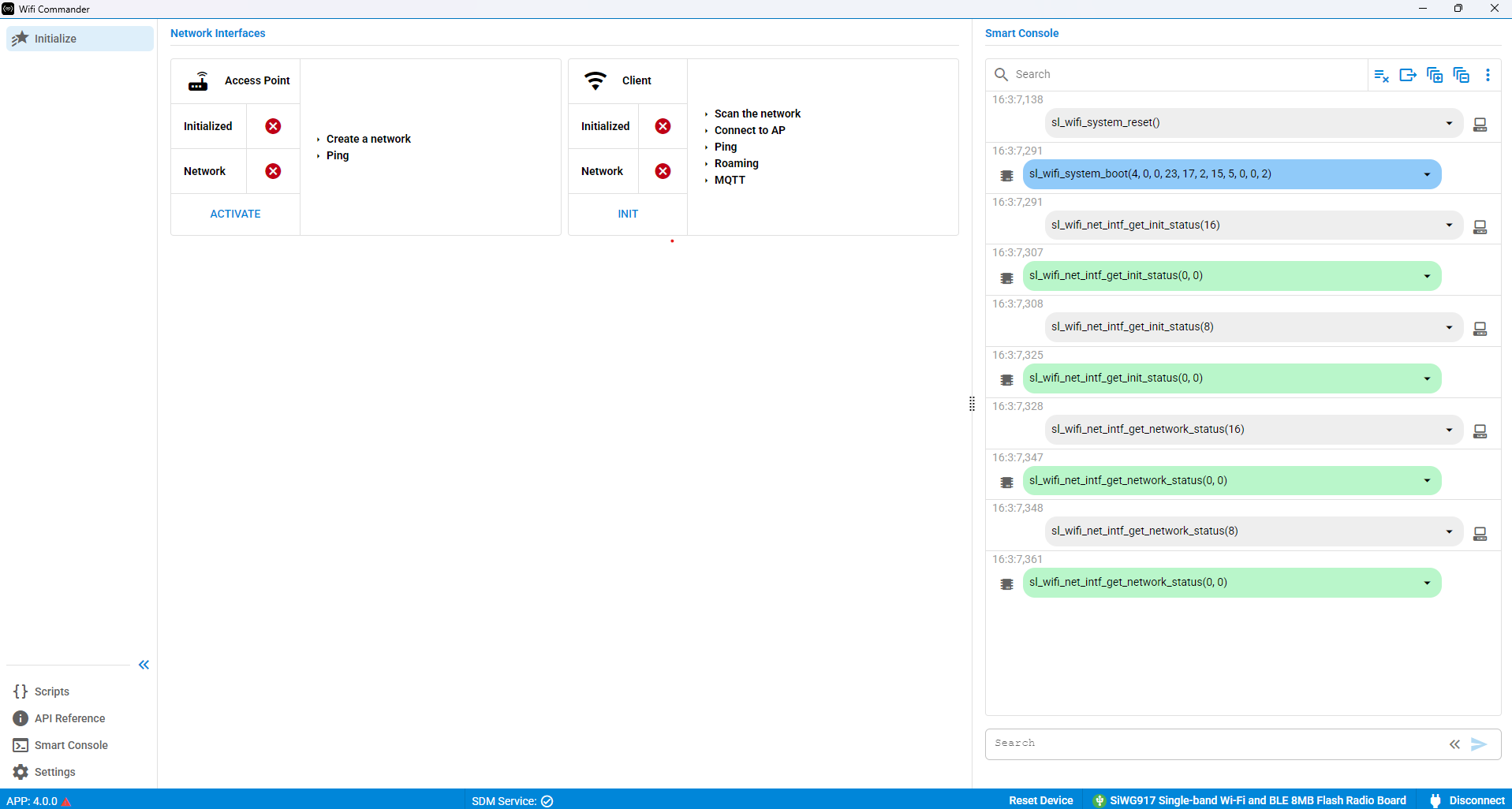
The main Wi-Fi Commander page is shown at the end of Connecting to the Device.
The UI consists of three vertical sections and one horizontal section.
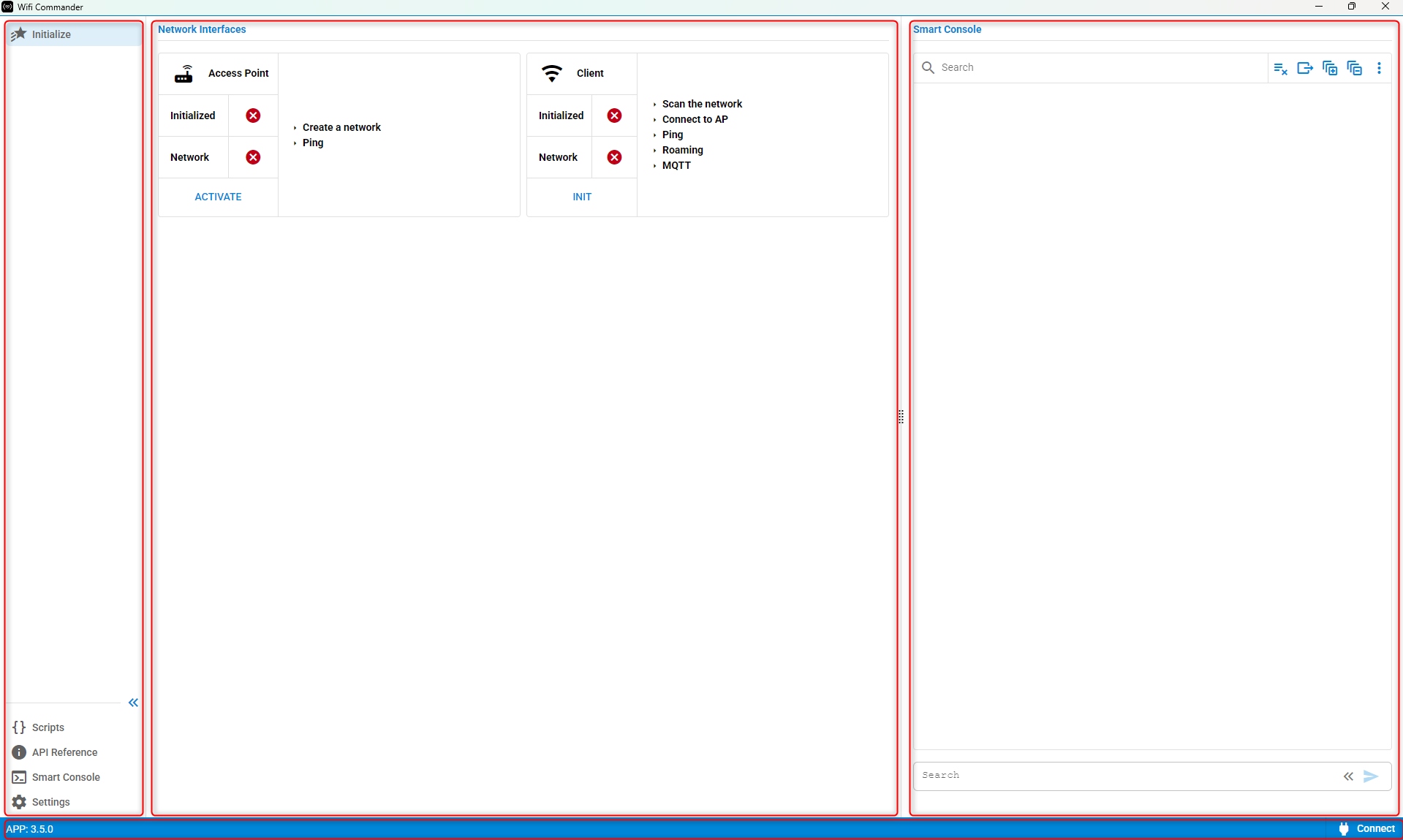
Left Navigation Pane
The left navigation pane is used to select the content displayed in the main workspace.
The available options depend on whether the device is configured as an Access Point (AP) or a Client.
The following options are always available at the bottom of the navigation pane:
Scripts
API References
Smart Console
Settings
Scripts#
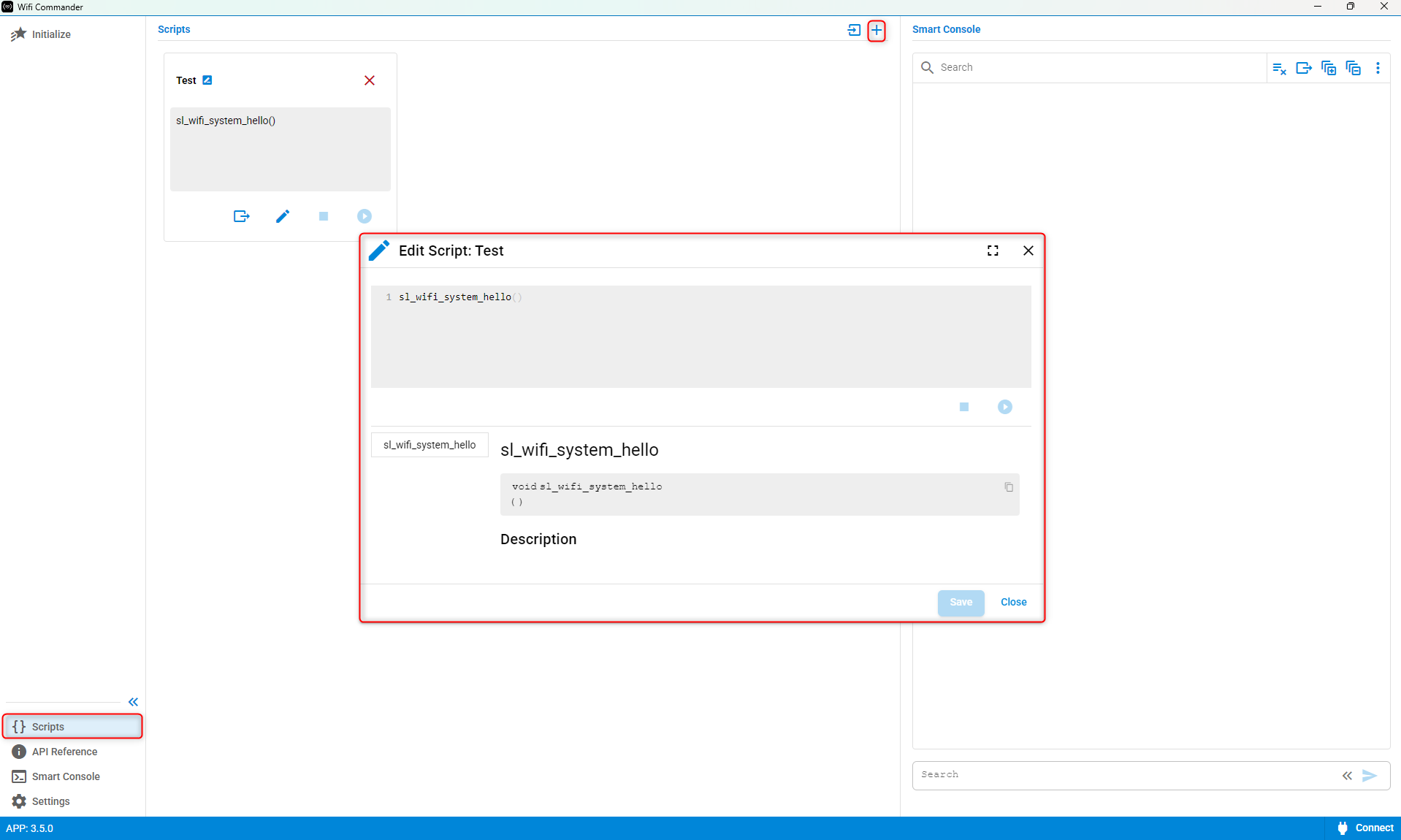
Use the Scripts page to create, edit, and export scripts that automate common workflows.
The page provides a text editor where you can enter API commands and create reusable scripts for testing, validation, and automation.
API References#
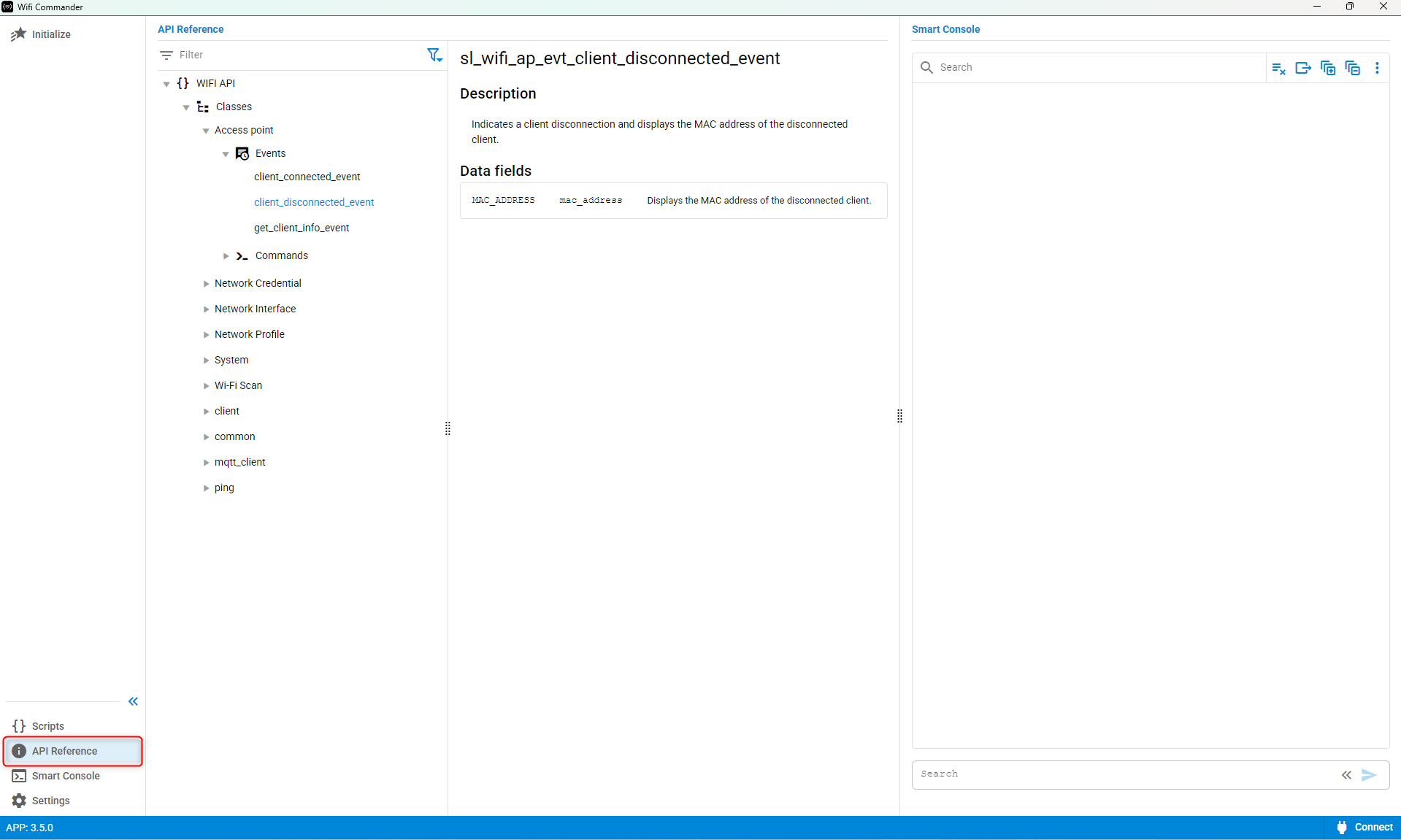
Use the API References page to browse the available APIs that can be used in scripts.
The API list contains expandable entries with brief descriptions and usage information.
Smart Console#
The Smart Console page provides a dedicated view of the console that is also displayed on the main page.
Use this page to monitor command execution and device responses.
Settings#
Use the Settings page to configure Wi-Fi Commander preferences, including:
Message Limit
Command History Length
Timeout
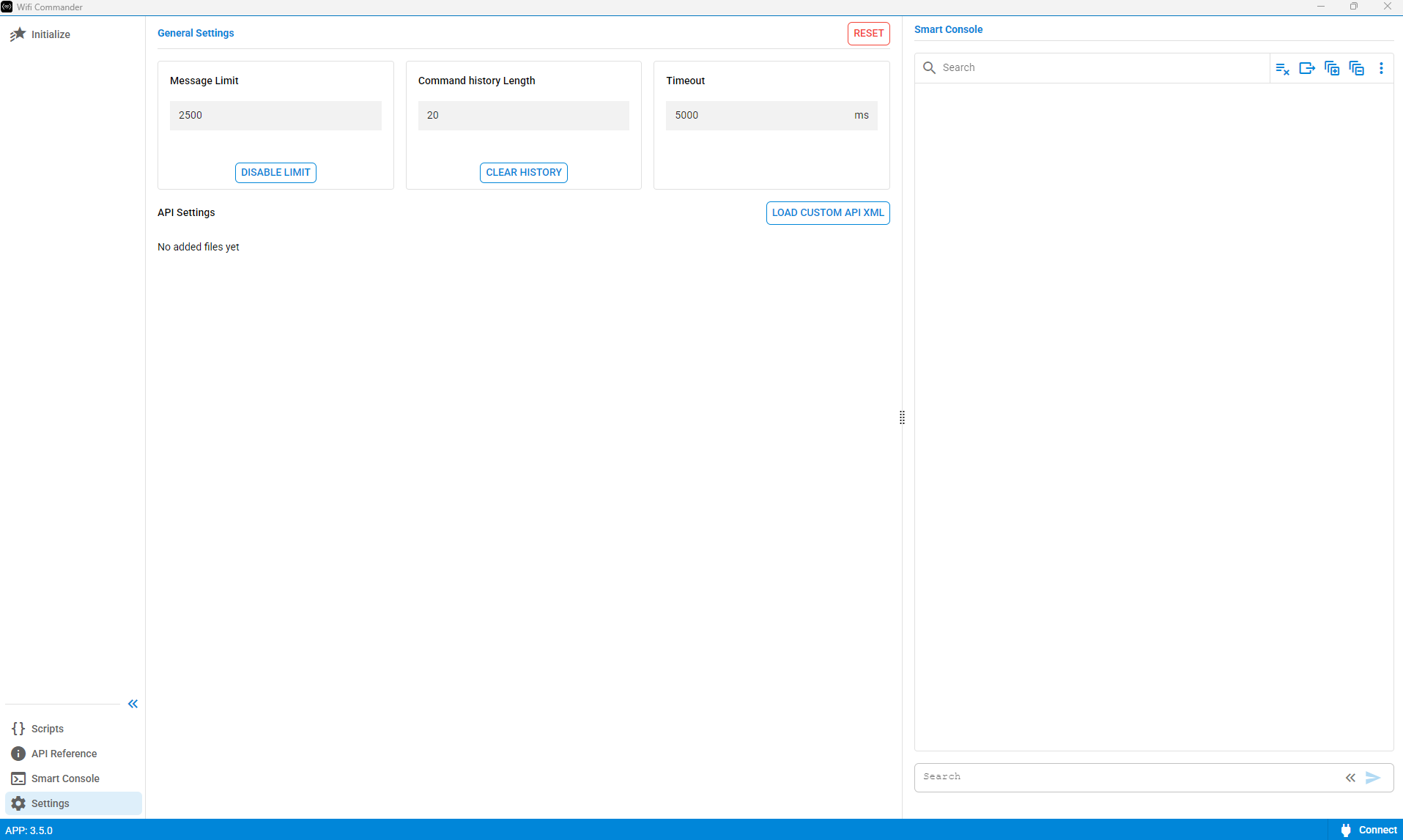
Main Workspace#
The center section displays the content associated with the selected navigation item.
The displayed content changes based on the page selected in the navigation pane.
Smart Console#
The right-side pane contains the Smart Console.
All executed API commands and device responses are displayed here, allowing you to monitor device activity and command status.
Status Bar#
The bottom horizontal section provides quick access to common device operations and status information.
Use this area to:
View device version information
Reset the device
Connect to a device
Disconnect from a device